
This is part of a series of articles about the basics of DuckDB. I’m really excited to dive into the different aspects of this transformational technology. Let’s get to it!
Note: This article assumes you know the basics of a terminal, curl commands and how databases work for the most part. But I do my best to bring you in if you don’t. If you aren’t familiar with DuckDB you should read my first article about using SQL in the DuckDB CLI tool.
If there’s one word I would use to describe DuckDB, it would be “elegance.” That’s because DuckDB doesn’t just choose elegant designs for its internals (see DuckLake’s inlining feature or DuckDB’s memory allocation model). It also reduces cognitive load for the user.
I don’t think there’s a better example of this elegance on display than how DuckDB reads and imports data. We will go through a number of ways you can read and import data, as well as the different file formats DuckDB can read, without adding unnecessary function calls or extra arguments.
It’s important to note that we will be working with DuckDB extensions in this article. Specifically, the “core” extensions that DuckDB offers. Extensions enhance DuckDB’s capabilities. The core extensions are maintained by DuckLabs, which also maintains DuckDB. There are also “community” extensions created and maintained by third parties. These have different levels of commitment from maintainers, so we will not use them in this article.
Short answer, A LOT OF THINGS. While I won’t go into every single one in this article, here’s the list from DuckDB’s official page.
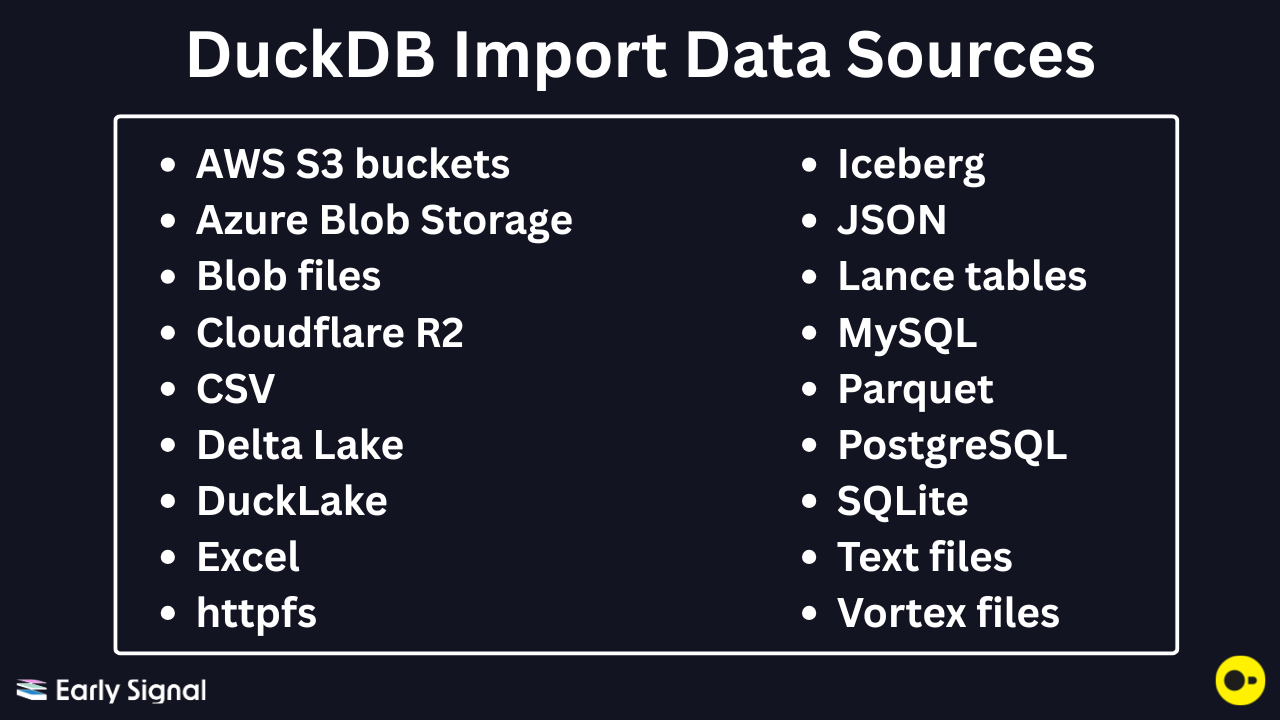
Some of these are file locations (S3, Azure, Cloudflare, httpfs) while others are databases (Postgres, MySQL, SQLite, DuckLake) or file formats. I will use these three high level buckets for our examples.
We will start by reading local files on your computer. You may have manually downloaded data from a tool or GitHub repo, or you may have been sent a dataset to work with. Either way, it is stored on your computer, and you can now use DuckDB to read it.
Note: DuckDB can read directly from multiple data sources and return results in the DuckDB session. This does not create a persistent table that you can use in the future. We use the CREATE command to create tables that can be referenced later instead of querying the data source. This helps us reduce potential costs associated with reading the data source, and it also improves read speed when querying a table in a DuckDB session versus a data source.
Parquet files are arguably the most efficient file format to query with DuckDB. When I’ve benchmarked reading a Parquet file against reading directly from a DuckDB table, results have been about the same. Incredibly impressive!
With that, you just pass the path to the Parquet file into a SELECT statement, and you’re good to go.
Note: Before running SQL commands always start a DuckDB session first by typing ‘duckdb’
It really is that easy, and it’s the first place to start to understand what DuckDB is all about. When you CREATE a DuckDB table from a local file, you can then query that table.
Note: With DuckDB, you don’t have to add the ‘SELECT’ command if the statement is a select-all statement. Simply type FROM and the table name. It saves you keystrokes!
Comma-separated value (CSV) files have some extra options when reading them that are worth going over. DuckDB offers a nice CSV file you can download here.
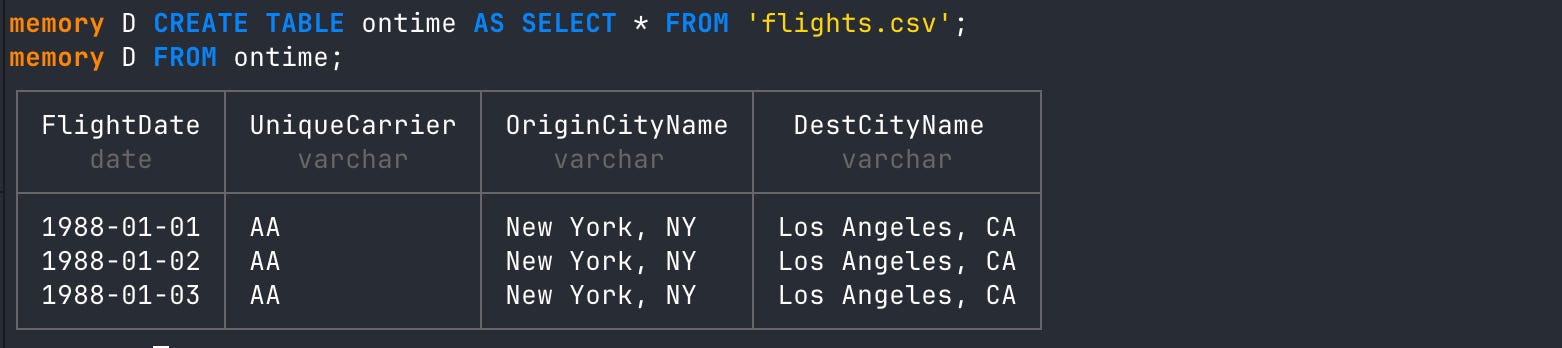
To start out, you can read from the CSV just like you did with the Parquet file and CREATE a table from it. If you work with CSV data a lot, then you realize that schemas can be weird. DuckDB will auto-infer the schema if you don’t add any additional parameters to the SELECT statement.
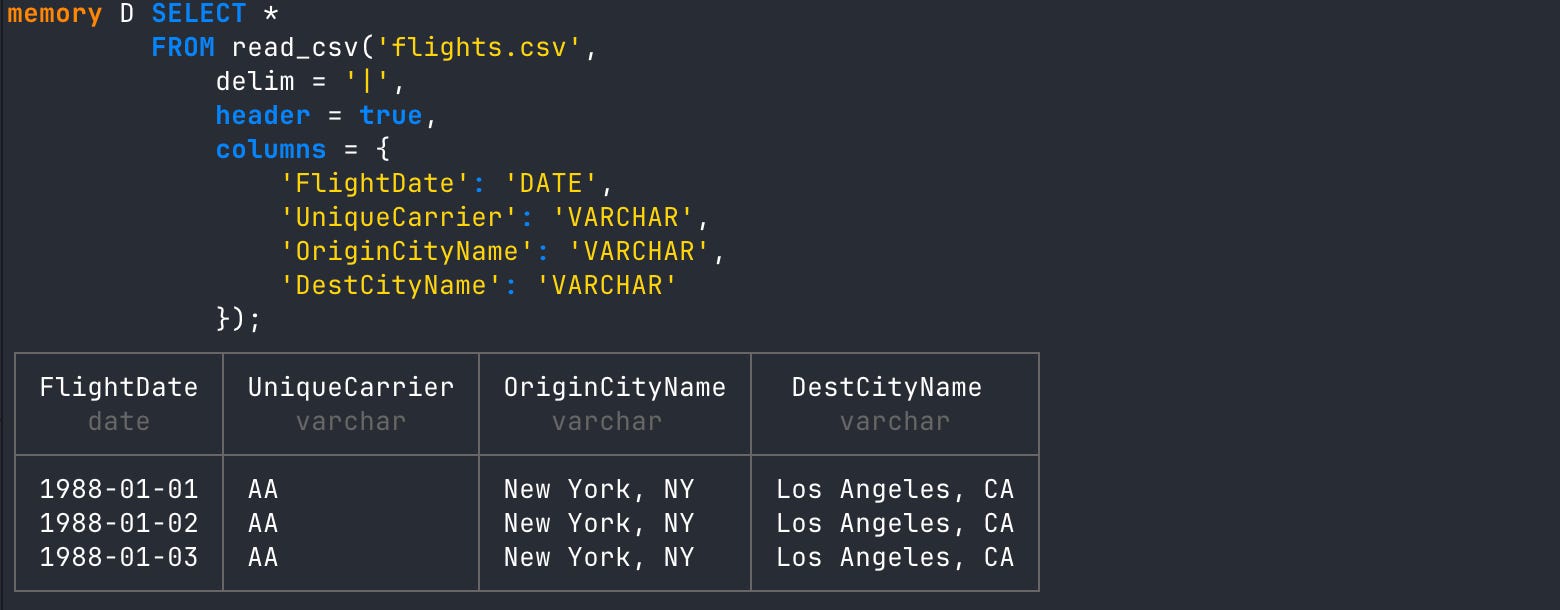
If your CSV schema is wacky (happens all the time), you can add the schema to the read statement by using the read_csv() function with the SELECT statement.
When you CREATE a DuckDB table from a CSV that needs the schema explicitly defined, first create the table, add the schema, then use DuckDB’s COPY command to load the data into the table.
If there’s even more wackiness going on with your CSV then DuckDB also has a nice tips page you can reference HERE.
JSON can have similar schema/shape issues that plague CSV files. Similarly, DuckDB offers auto-inference as well as options to explicitly define what the schema looks like. DuckDB also provides sample JSON you can download and save as a local file here.
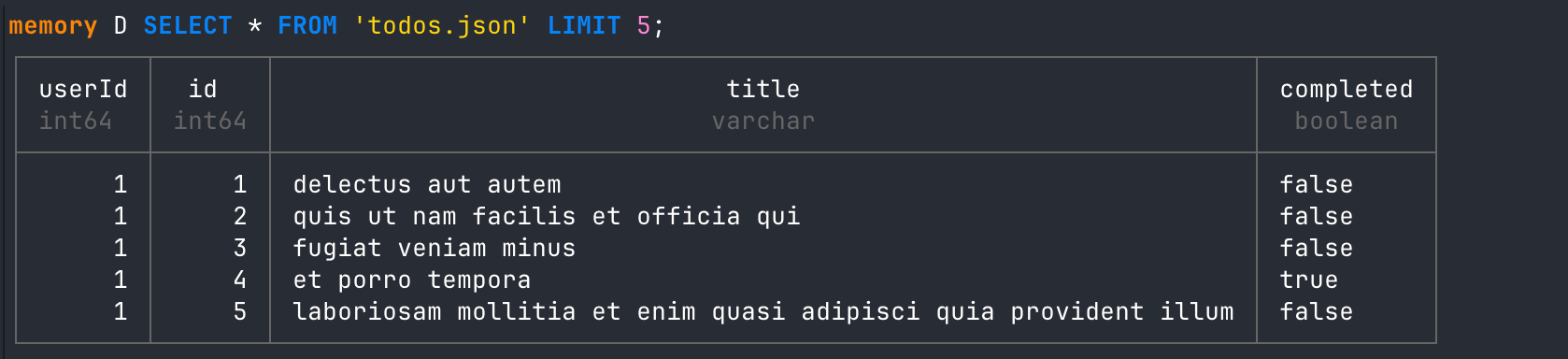
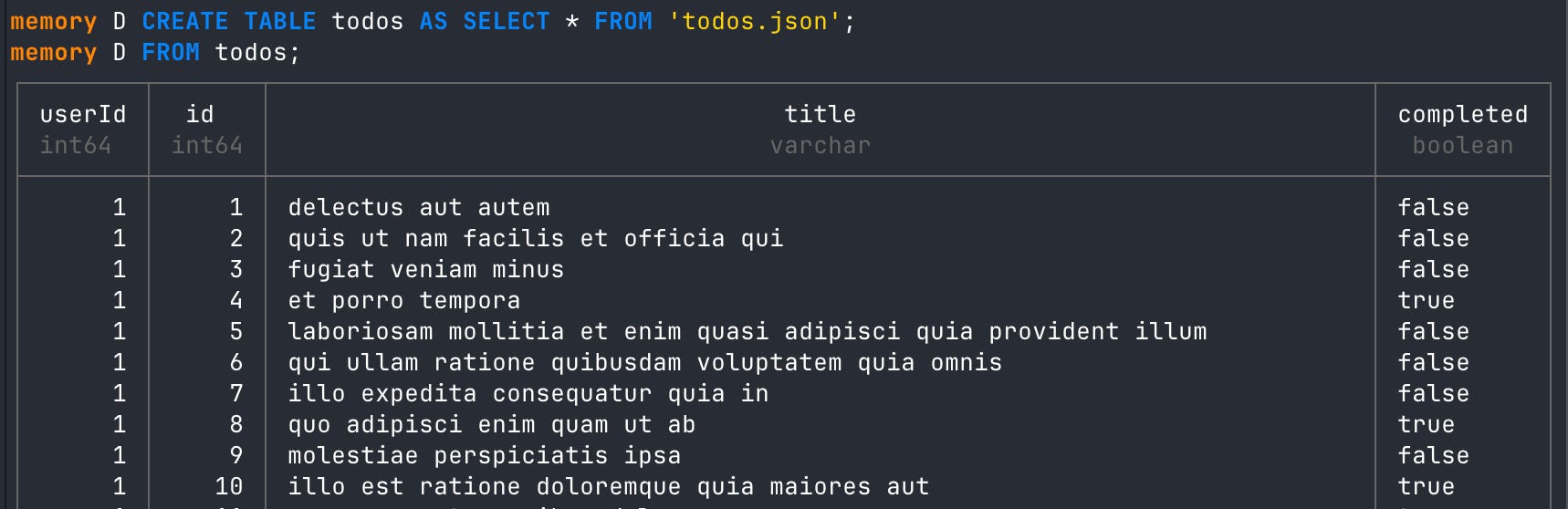
There are all kinds of extras about JSON at the DuckDB page here.
A really interesting feature DuckDB offers is the ability to read a .txt or a .md file. It’s also an example of where we leverage a DuckDB function instead of a core extension handling it behind the scenes.

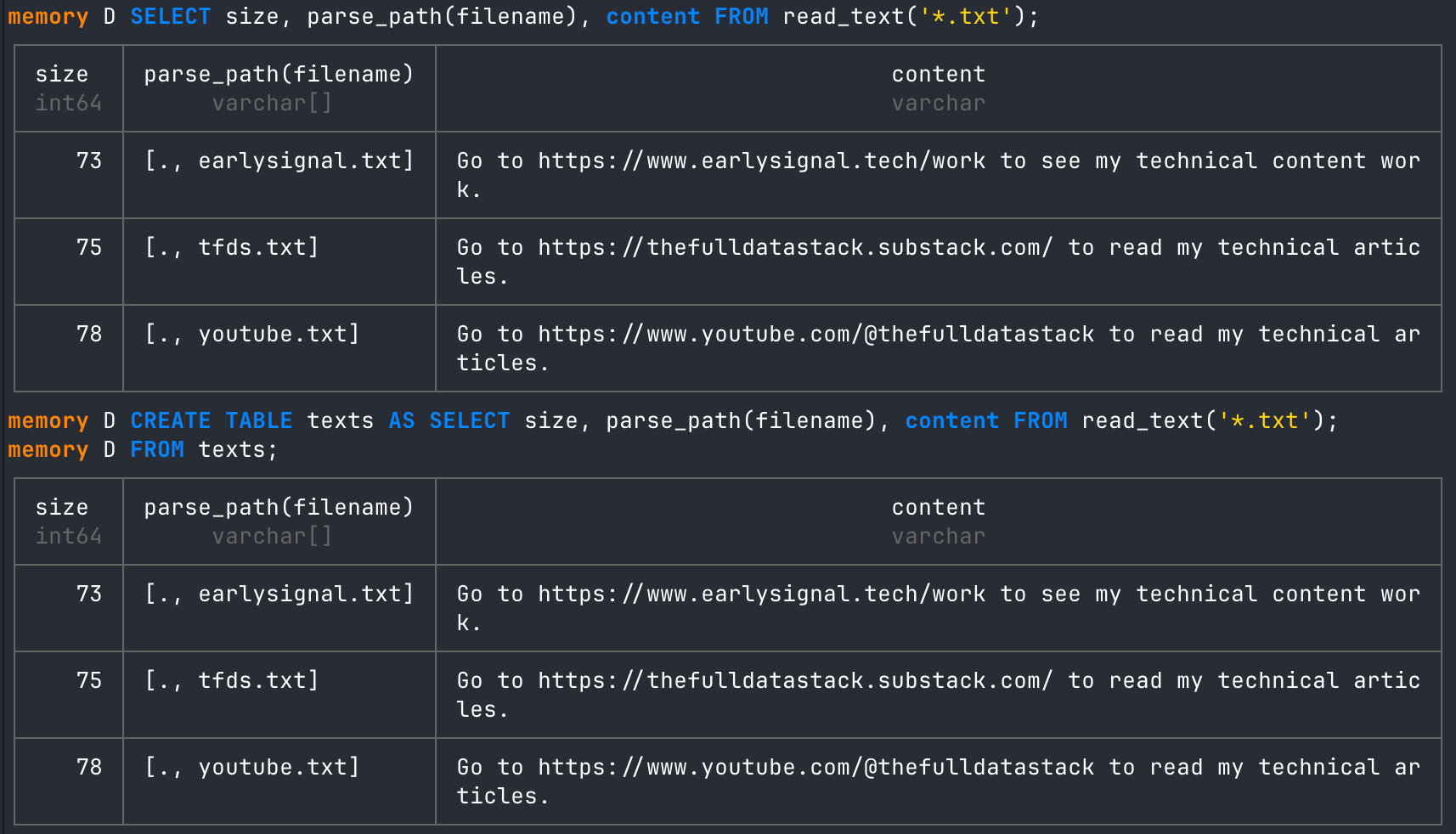
When reading files directly, you have different options for what you might want returned to you. For example, we can query the file size, parse the file path, and get the file contents.

We can also pass a wildcard to get that information for all txt files in a folder. We can then save that to a DuckDB table!
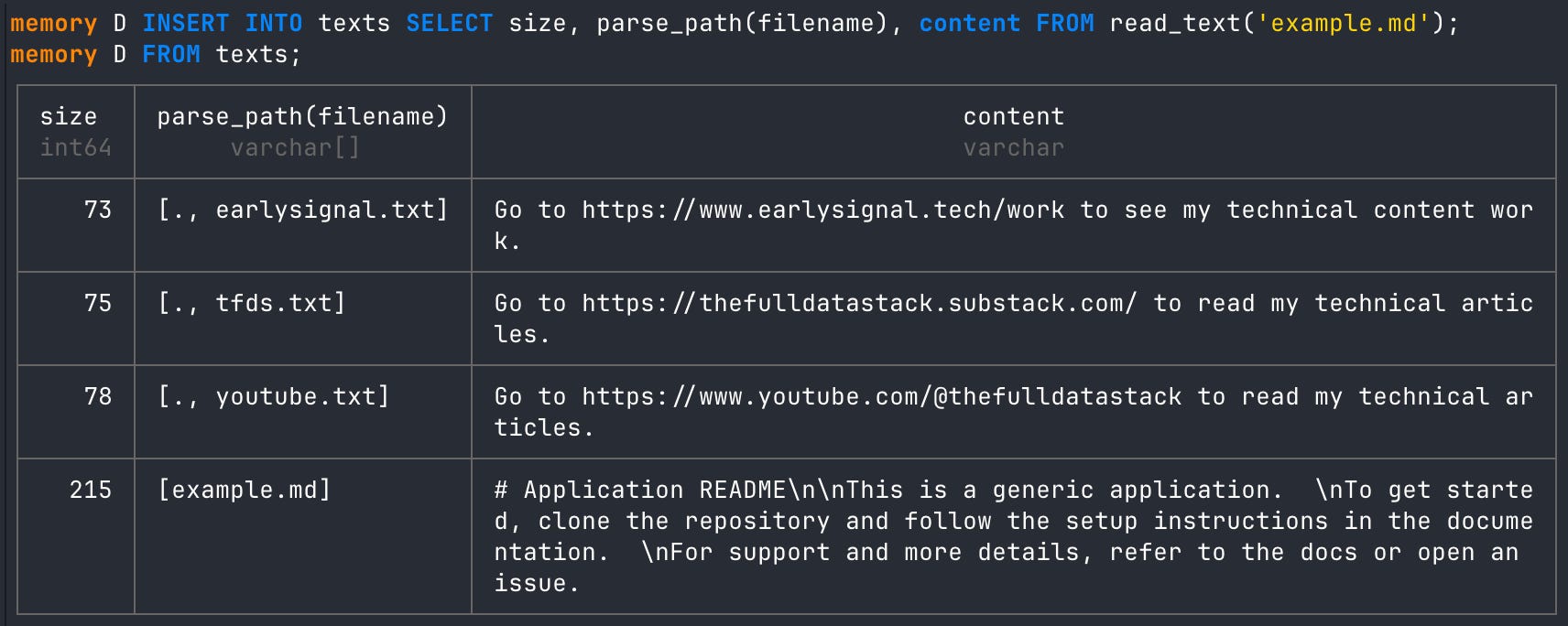
You can use the exact same patterns for a Markdown file as well. For example, if you have a README from GitHub and you’d like to add the same information to the table we made above, we can INSERT it into the table.
Reading from a file location is probably the most impressive way DuckDB allows you to import data. Specifically with S3, it’s genuinely shocking how easy it is to import data from a file in S3 storage to your local computer (or wherever else DuckDB is running).
I don’t use Azure or Cloudflare, but click on those links to get to the documentation. The S3 example should give you a good idea of what to expect.
If you’re going to read data from a storage bucket like S3, you’re going to need to provide credentials, unless the storage bucket is public. Normally, you do something like run “export=path-to-key” in your terminal or keep a ‘.env’ file in your local folder with your credentials in it. This is standard and works just fine, but DuckDB goes out of its way to try to make that a little easier. It offers a built-in secrets manager you can run right in its CLI.
The above command is going to create temporary credentials in the in-memory DuckDB instance we created. We can view the secrets using the duckdb_secrets() function and a FROM statement right in DuckDB.
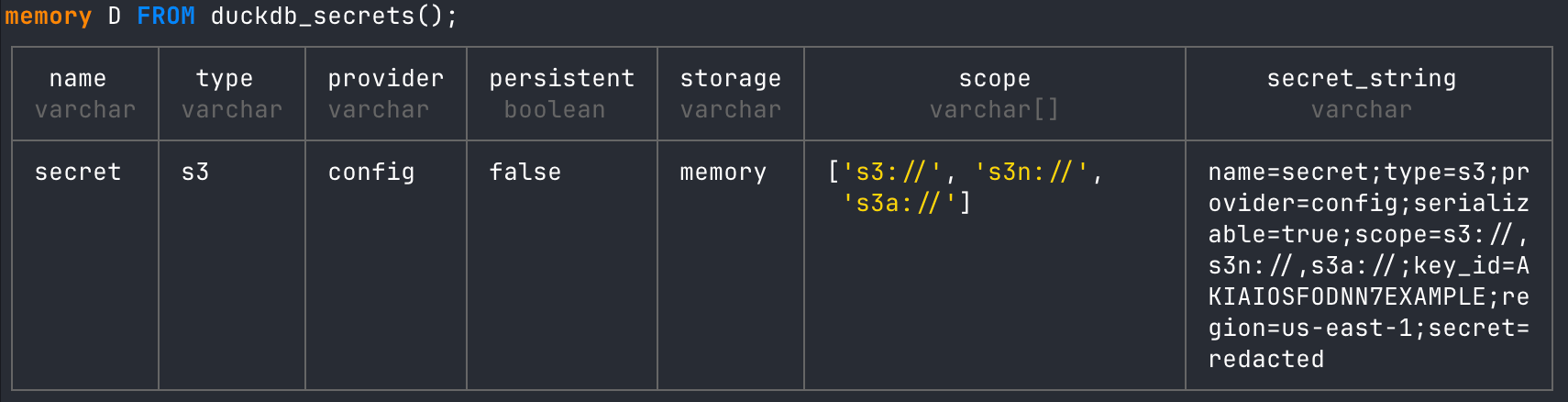
Creating credentials for S3 this way will be scoped only to the DuckDB instance in your terminal at the time. If you want credentials that are saved across DuckDB sessions, you can create a persistent secret.
You’ll then see secrets are being stored locally.

By default, this will write the secret (unencrypted) to the ~/.duckdb/stored_secrets directory. But you can also change this directory if you want to.
And you can delete persistent secrets whenever you need to.
Once you create secrets for your S3 bucket, you can pass the URI into a SELECT statement in the CLI. Remember, you can also pass a public file in S3. I’ll illustrate this using a public file URI from MotherDuck’s S3.
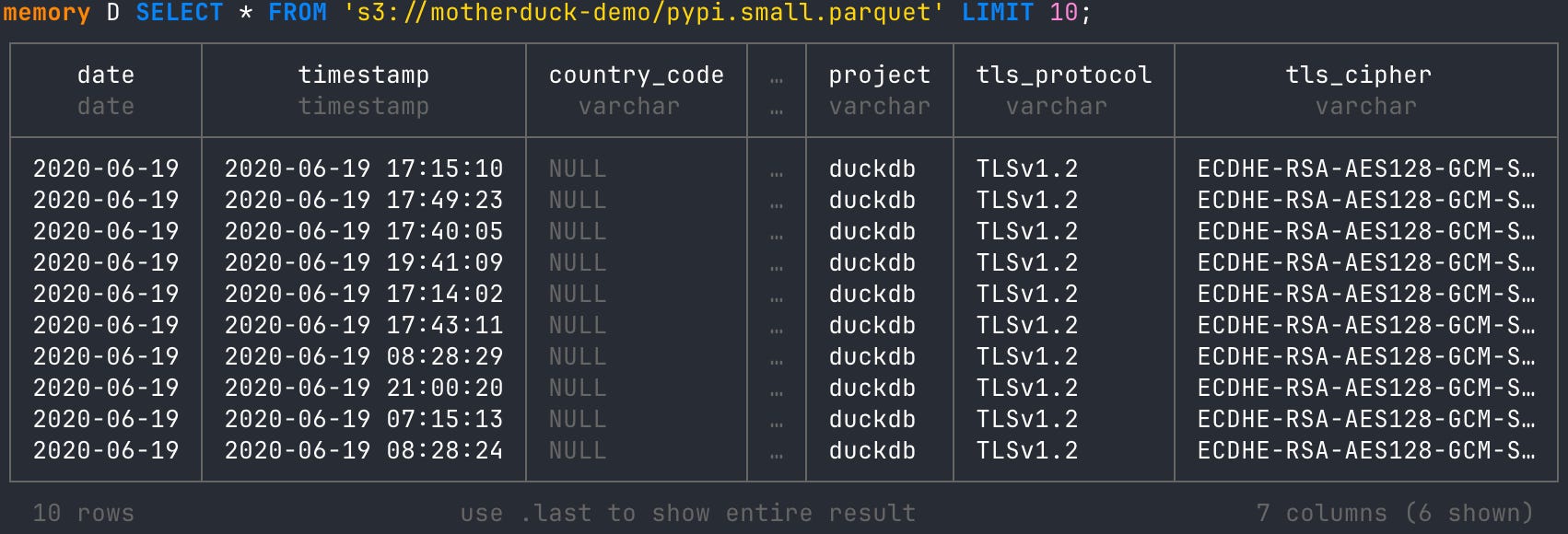
If you’re like me, then running the above code should make you giddy. You are simply passing an S3 URI into a SELECT statement within the DuckDB CLI. If you needed secrets, they were already set up locally, so you didn’t need to worry about creating an ‘.env’ file. On top of that, DuckDB is inferring the file format from the file name and putting the URI within the necessary function (read_csv, read_parquet) without you needing to do it explicitly in the statement.
That is the definition of elegance!
If you have multiple Parquet files in a bucket URI, you can pass a wildcard in place of the file name. This will read all the data together. So effortless.
Reading the data is nice, but saving it to a table locally reduces S3 reads as a bottleneck and gives us even more efficiency gains when querying. You can either CREATE a new table or INSERT into a table.
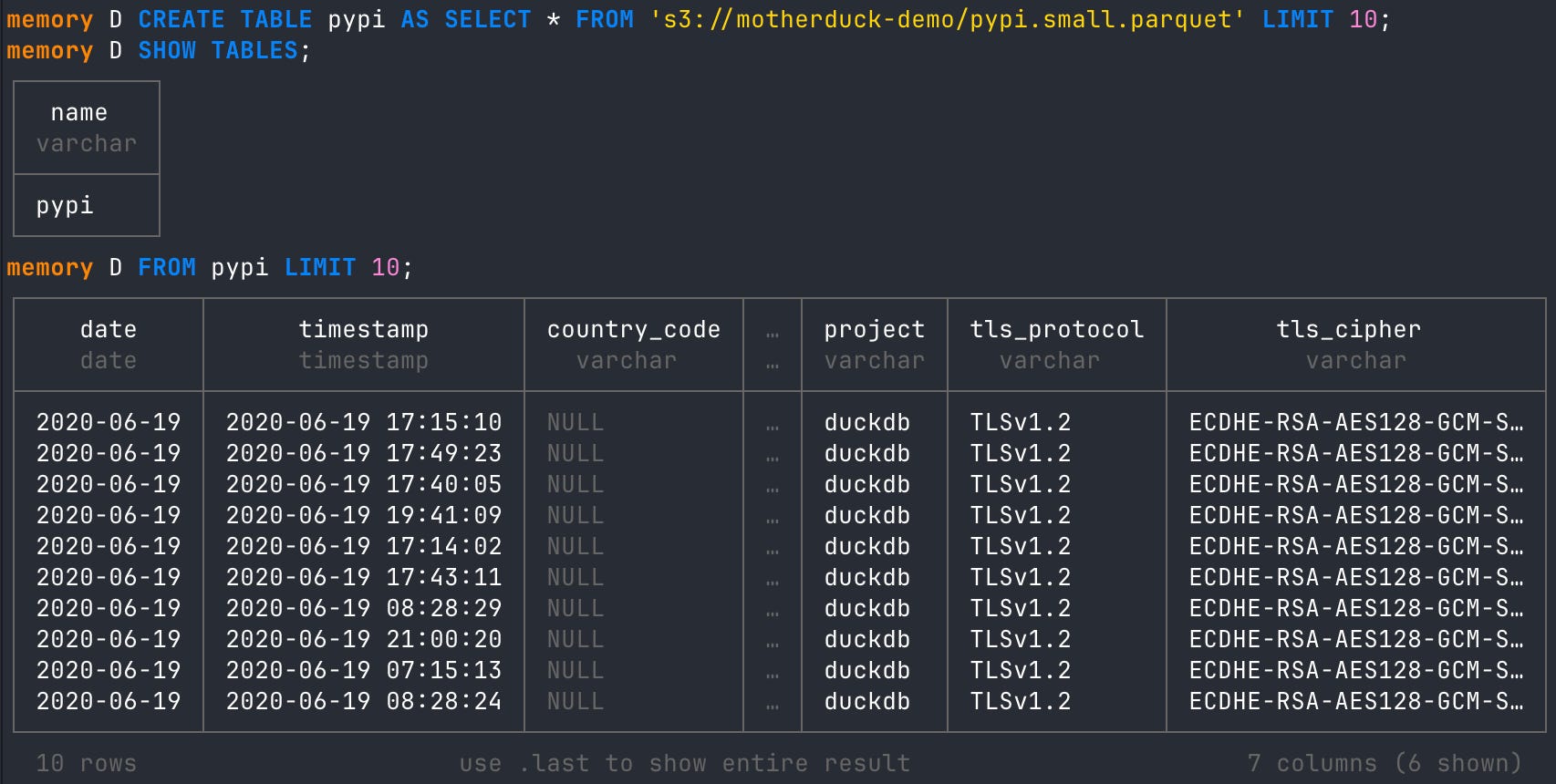
NOTE: The way we CREATE a new table or INSERT data is essentially the same for every data source use case.
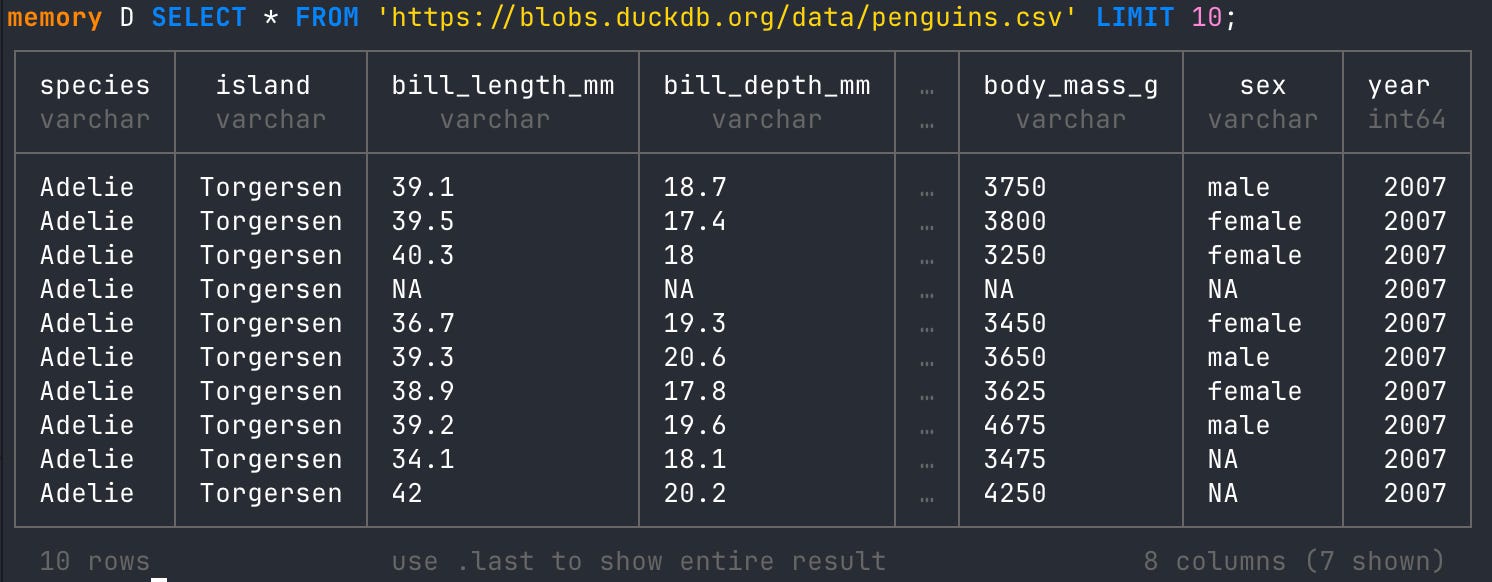
Reading from an S3 bucket is super cool, but it does require setting up some secrets if it’s not public. A file sitting on a domain, however, can be passed into the same SELECT statement. For example, the famous penguins dataset is just a CSV file hanging out at a DuckDB domain URL. You can pass that to DuckDB like it’s nothing.
If you have a JSON file in a public Github folder like I do you can read the raw file URL as well and query it as needed. The shocking thing is how fast DuckDB is at parsing JSON. Incredible!
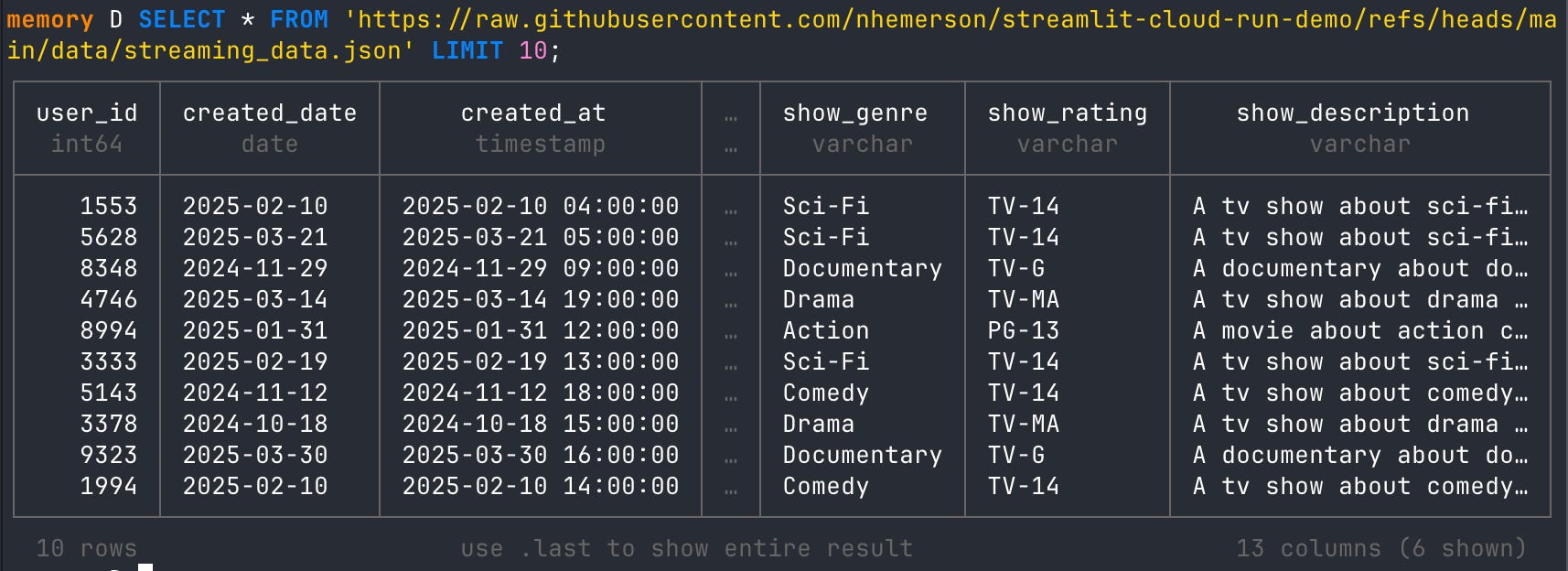
USE CASE: What DuckDB is offering here is a pretty incredible NoSQL option for data collection. It’s completely possible that you may have a system outputting and storing a JSON file somewhere you have access to, while another system is constantly storing data in S3. Both of those systems might be joinable, and you can call them both using DuckDB and store them locally for ad hoc work. Those tables you create can be easily pushed to a data warehouse to be stored later. DuckDB becomes the glue to all of that.
Reading from a storage bucket or a URL is pretty straightforward. You point to a destination and read the file at that path. Databases are a bit different because they have different designs and query languages. DuckDB gives you easy access to the most popular open-source databases out there (SQLite, MySQL, and Postgres). It also allows you to connect to lakehouses such as Iceberg, Delta Lake, and DuckLake. We will go over a few of the above-mentioned.
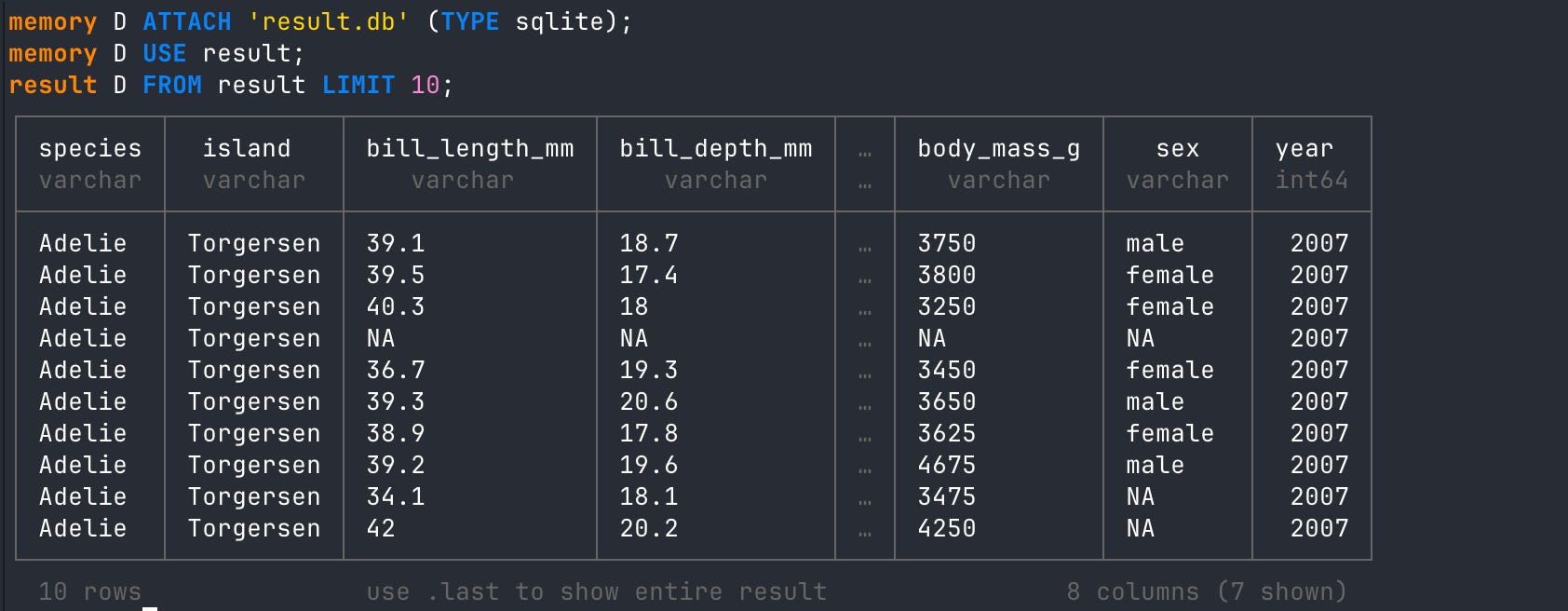
SQLite is used literally everywhere, and you just don’t know it. When you need a transactional database for local app development, it’s hard to beat. DuckDB can read from a SQLite database effortlessly.
For most databases that you read with DuckDB, you’ll have to “ATTACH” them to your DuckDB instance. SQLite is no different, and you’ll see it in the other examples.
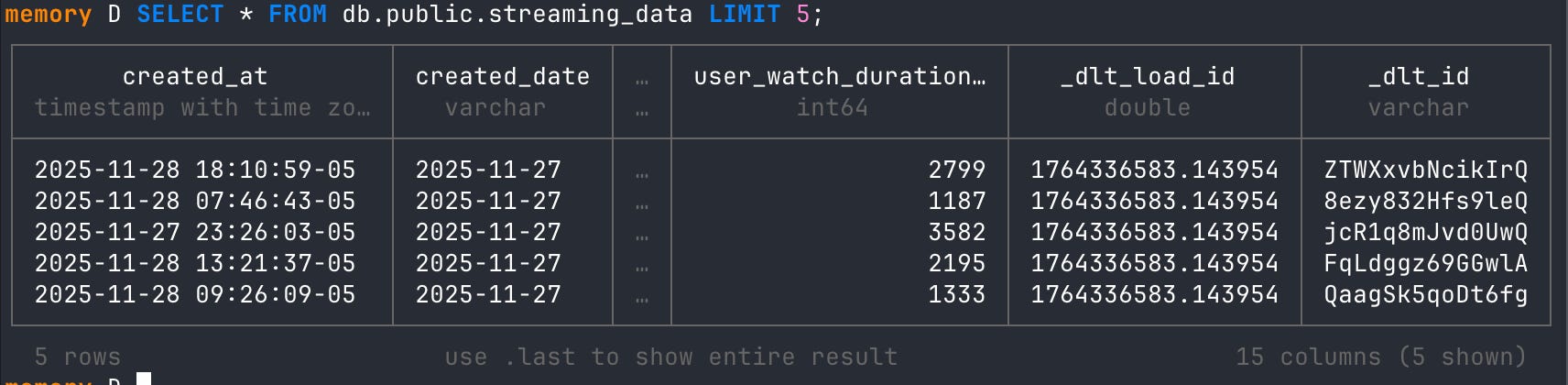
This is the GOAT workhorse database and is surprisingly versatile in analytics as well. I used to never work with transactional databases, but since getting more intimate with production-level DuckLake, I’ve grown to love Postgres.
Just like SQLite, you will ATTACH a Postgres instance. I have a Supabase db that I’ll connect here. I will also show you how you connect to a local host Postgres.
NOTE: ADBC is also very good at reading from Postgres tables and returning results to DuckDB.
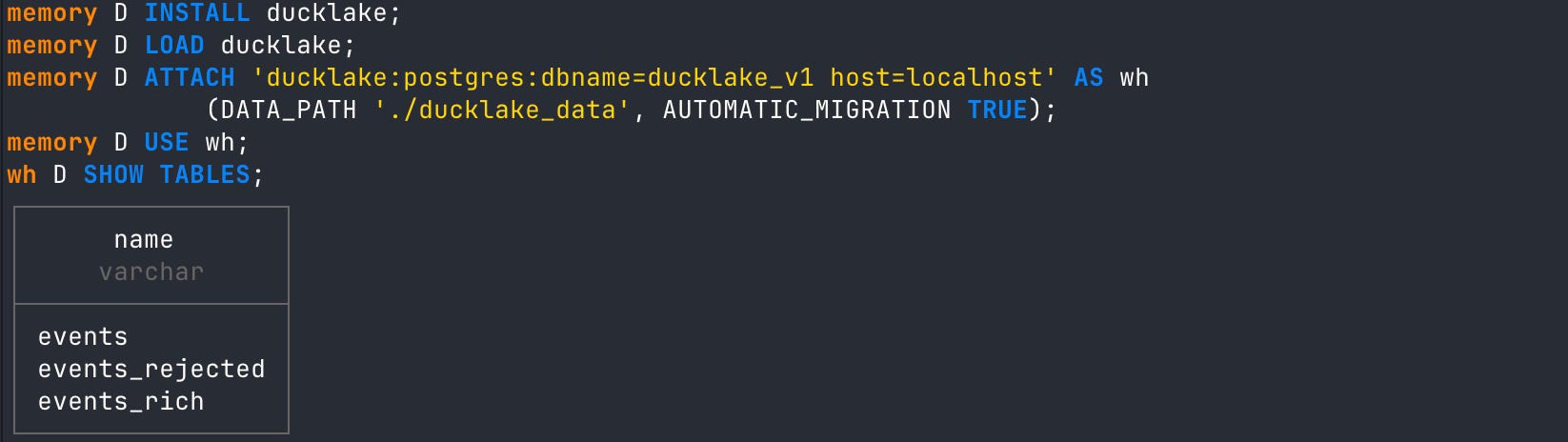
Maybe not surprisingly, DuckDB can connect to the three main lakehouse designs (Iceberg, Delta, DuckLake). DuckLake (built on top of DuckDB) is an easy choice for trying out this connection pattern. You attach a DuckLake catalog just like you do a database above, and you can now query Parquet files in a folder as if it were a database.
I’ve got a DuckLake catalog running on a local Postgres database that we can attach to and read from. If you want to dig deeper into how to use DuckLake, read my article on it.
Two newcomers to DuckDB’s core extensions are the Lance lakehouse and the Vortex file format. These offer next-gen query access and go beyond Parquet’s design, respectively.
This is an up-and-coming columnar file format that likes to make fun of Parquet, which is kinda funny to read. But it also markets itself as being able to accomplish much faster reads.
DuckDB has a core extension that allows you to write Vortex files and read from them. It’s as simple as that.
Creating a Vortex file normally involves their own CLI or Python but the DuckDB extension allows you to do this.
Then you can read from that vortex file without needing to turn it back into something else like a PyArrow table.
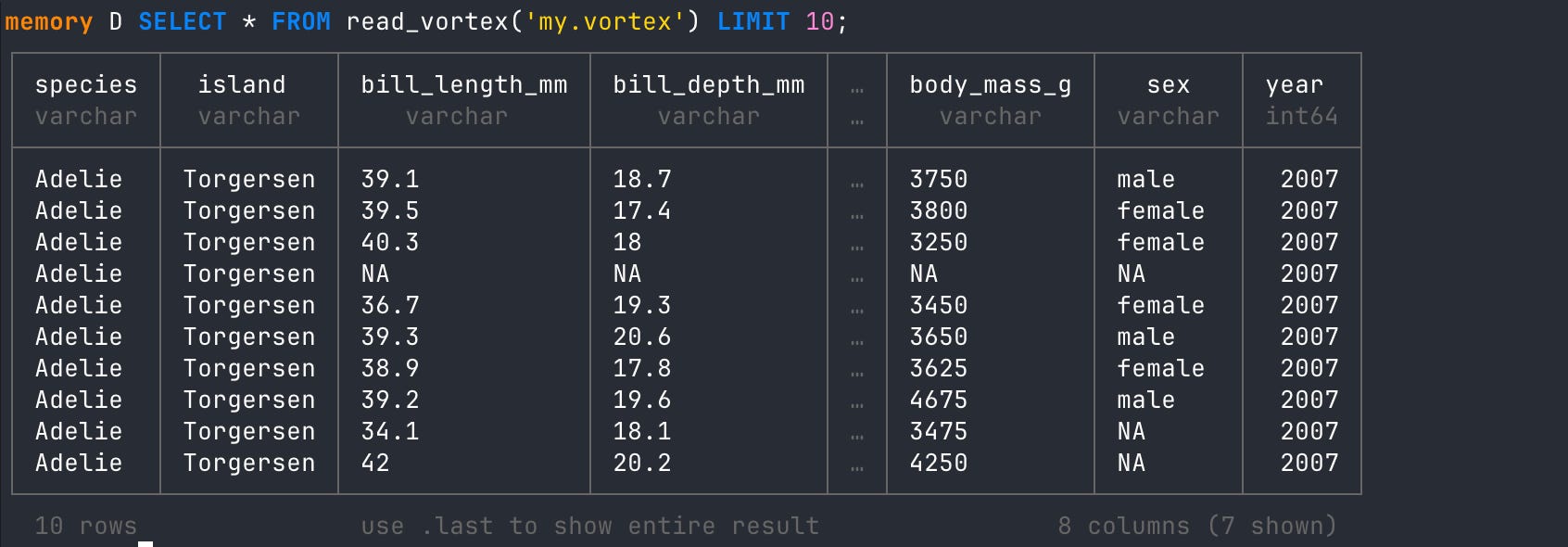
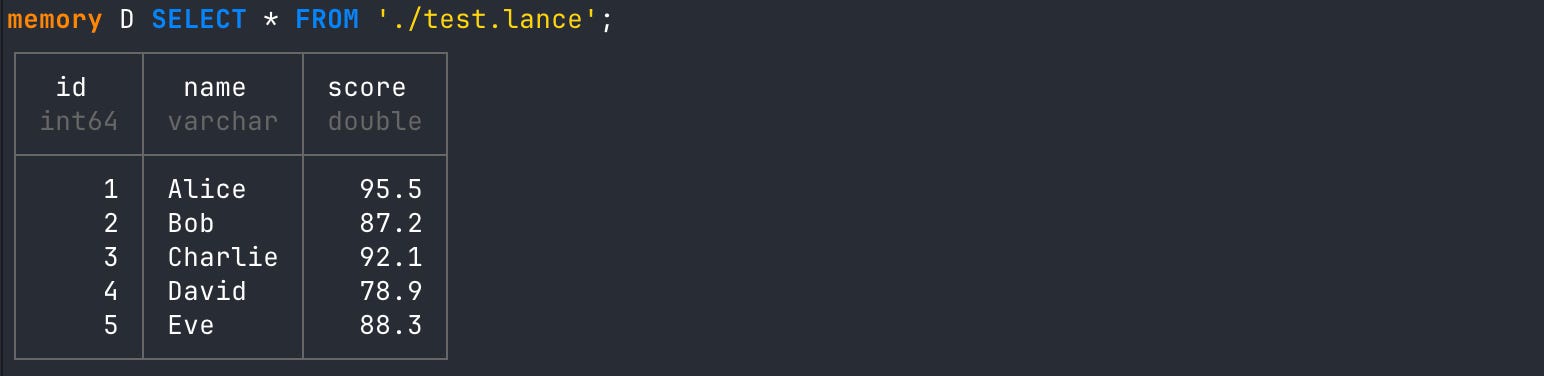
Lance is a modern lakehouse format optimized for ML/AI workloads, with native cloud storage support. I normally set up a Lance lakehouse using Python. If you’re interested in creating a simple one from a PyArrow table, here’s the code.
The above creates a folder structure similar to what you’d see for Iceberg or DuckLake. But you can also natively use DuckDB to create and query the LanceDB file without all the extra structure. Pretty mind-blowing.
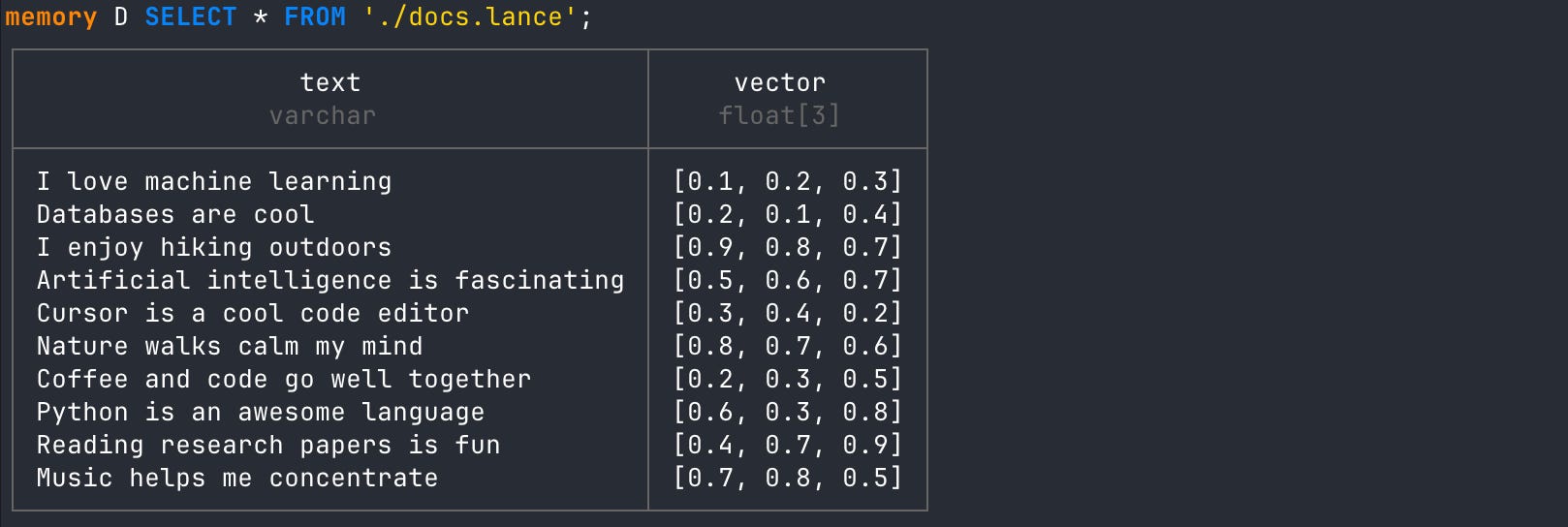
Lance is a multimodal lakehouse, which means you can save different types of data in it, like vector embeddings, so you can do text search. Below is Python code you can use to create database that stores sentences with embeddings.
We can also do this with DuckDB like so.
Reading this new Lance database shows us how our data is formatted.
We can then pass an array of vectors to DuckDB using the lance_vector_search() function, which will find the five nearest neighbors in the data. A literal vector search that happens right out of the box!
You can also use DuckDB for full-text search. It will return everything that contains that word. The lance_fts() function is case-sensitive, so you could lowercase the text column first if you wanted to.
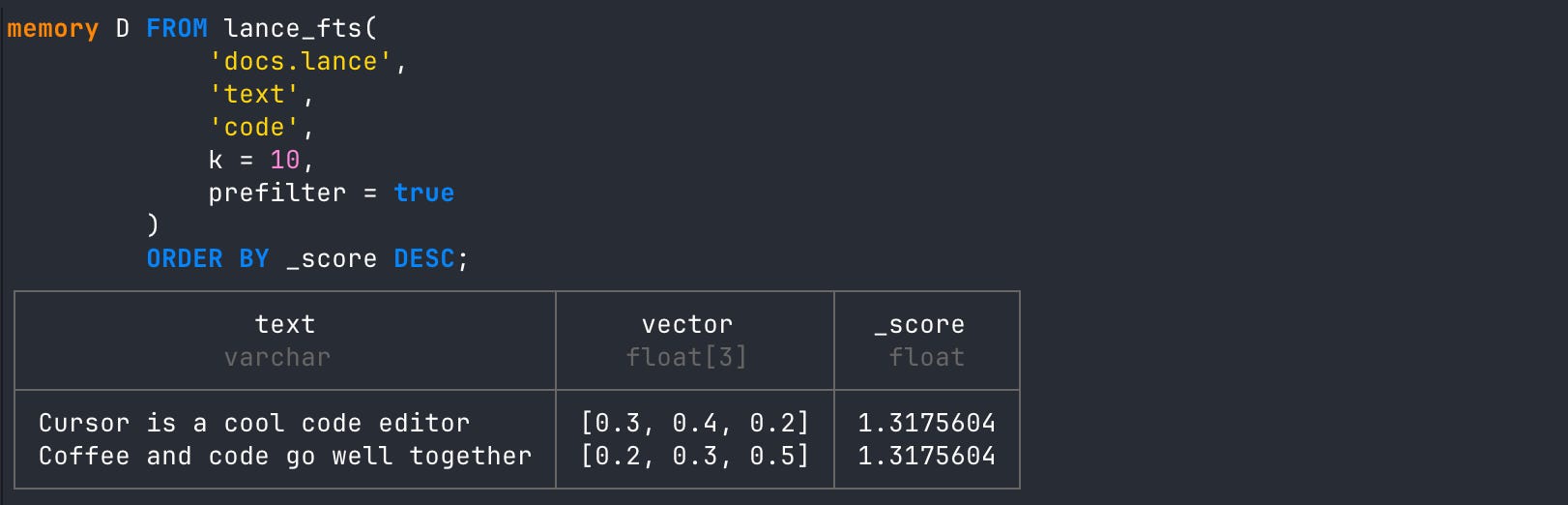
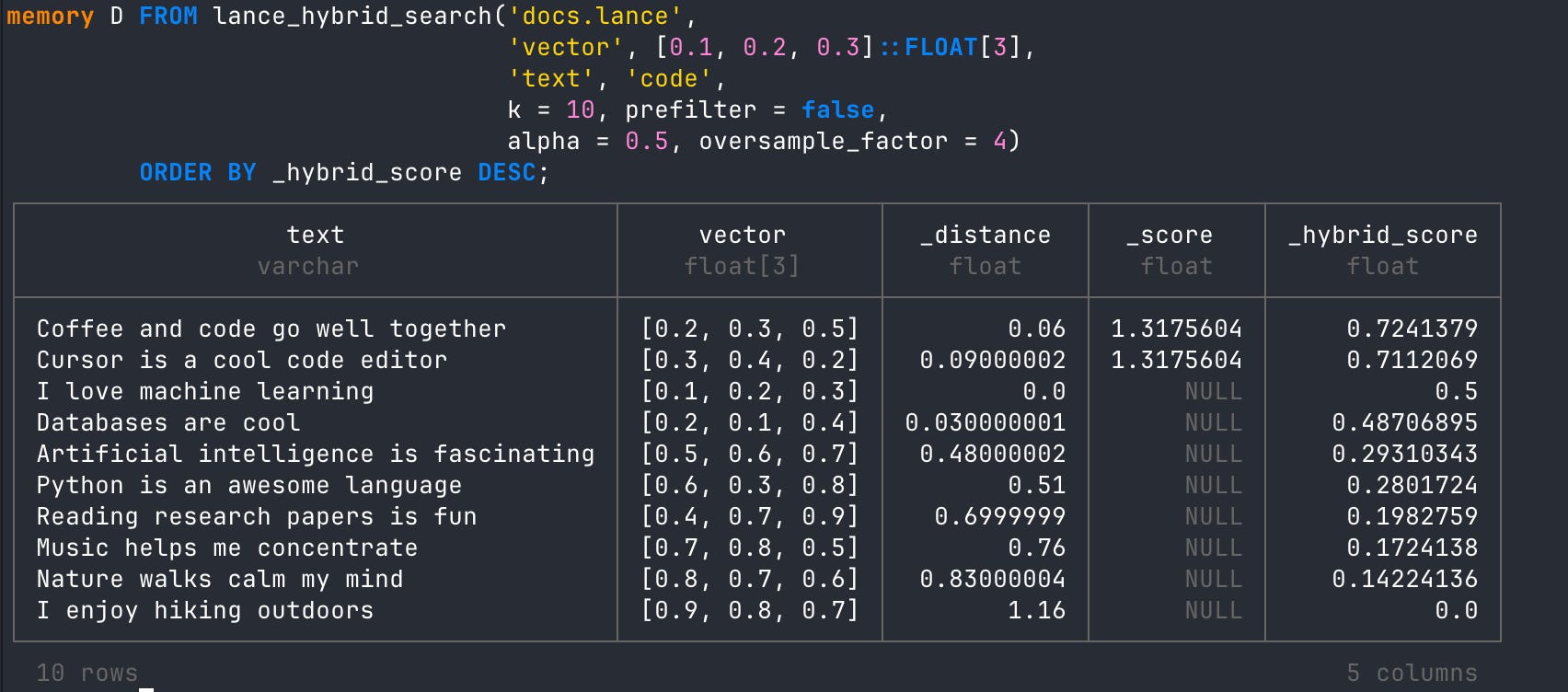
Or do a hybrid search using both vector and full text!
This is the second installment of my series on DuckDB basics and there’s only more to come! You’ll get a closer look into what DuckDB’s aggregation functions look like when doing real compute operations and we’ll start diving into the Python API for DuckDB. So some real world integrations will be coming soon!

Hi, my name is Hoyt. I’ve spent different lives in Marketing, Data Science and Data Product Management. Other than this Substack, I am the founder of Early Signal. I help data tech startups build authentic connections with technical audiences through bespoke technical content and intentional distribution. Are you an early stage start up or solopreneur wanting to get creative with your technical content and distribution strategy? Let’s talk!
No posts
Comments
Nothing yet. Say the first thing.
Sign in to join the conversation.