
This article originates with the need to remind myself how to stay organized at work and keep sane while juggling a variety of data points, projects, emails, people and overall information overload.
The tips are simple, may vary based on your IT equipment, but the overall message should hopefully apply regardless.
For context: I’m Edo, I work as a Technical Program Manager at MongoDB, and I often get asked how to improve one’s organization at work to ensure we can feel “on top of our stuff”, whatever it is you need to sit on.
Technical Program Manager is by the way a fancy term for someone that works in project management in a technical area (e.g. software engineering). I write about different shades of project management roles in another piece.

Source: How to group tabs in Chrome
Chrome tabs are a great way to group your browser windows to relate them to a common theme, project, or topic. They’re super simple to set up and a great way to keep you work window clean and relevant.
I do like to follow the current tab structure in my window:
1 single tab for my email application — ungrouped
1 single tab for my calendar application — ungrouped
1 single tab for my main file repository/folder (Google Drive in my case) — ungrouped
TAB GROUP NUMBER 1
TAB GROUP NUMBER 1
TAB GROUP NUMBER 3
and here I would usually have an open file I’m working with. After I’m done working on this file, I either close it or group it under any of the previous tabs
You can have as many tabs as you need, but usually I try to stay between 3 and 10. Beyond 10, I don’t find it useful to keep too many tabs, since the effort in organizing the tab groups will start to become closer to the effort in organizing single tabs, so not worth it.
Do also make sure to regularly clean and remove tab groups you don’t need anymore.

Photo by Brett Jordan on Unsplash
Managing your email well is crucial to avoid feeling overloaded especially when there’s a lot happening.
I’ll write an in-depth piece on email management 101, but here’s three simple rules to stick by for now:
Inbox Zero: stick to a zero-inbox email, every single day. You want to work out of a single queue, and handle whatever hits your inbox in two steps:
The rule: Read email: If important or you need to action anything, star it/mark it as “to do”, and don’t do anything at this stage. If not important, archive it immediately, cleaning your inbox
If you have a ton of emails to get to inbox zero, carve out time to take a full pass at the above. You can multi-select pages of your inbox for bulk-archiving. This will leave you with a clean inbox and a separate to-do-list of emails to work on.
Filters: These are rules you can set up to automatically prevent emails from hitting your inbox, similar to a spam filter. You can use these to save your eyes from additional email noise, especially if there are consistent senders or organizations that hit you up. Warning: make sure you’re not filtering out anything important. I tend to use filters only when I am certain the filter will apply to a specific sender or group of emails. To ensure this risk doesn’t happen, you can use labels.
Labels: these work like tags you can add to your inbox emails to automatically group them and organize them. Examples: emails from your boss, from a specific project or theme. Labels make email grouping easier, and kind of work like Chrome tabs.

Ideally, you only work out of one master to do list. This can live anywhere, as long as it’s one. For example, in my role I currently get tasks from multiple sources:
Emails
Slack messages
Zoom meeting notes
Other internal applications we use at work, such as Google Docs, JIRA,
I follow a three-step procedure to ensure I keep track of all of these and ensure I only refer to a single source of truth.
Whenever I get an email, or Slack message and I spot a task for myself, I immediately save it/mark it as a task
Move it to your master to-do list (whatever this is), with reference to your source email or message
Unmark the task from step 1’s application
This way I only keep track of to-dos in 1 place and I don’t lose reference of where they came from, as I can always go back to the data source If I need more details
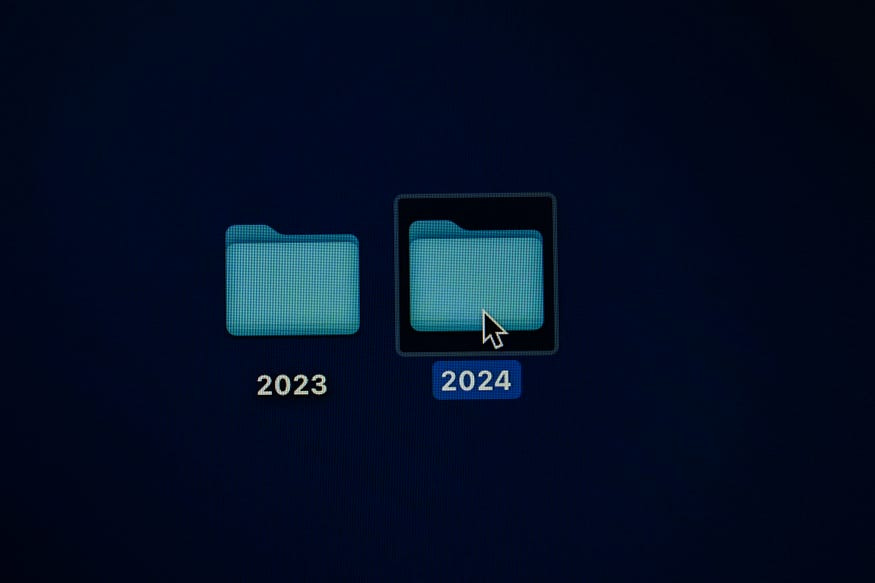
Photo by Kajetan Sumila on Unsplash
I don’t like to be overly organized here, as current software for file repositories such as Google Drive have very good search functionality (and recently, generative AI software tools like Glean have built entire products around optimizing what you search for rather than organizing your files upfront for later search).
Rather than spending lots of time organizing materials in neat and nested folder structures, I use a very general “Dump & search” strategy where all I care about is ensuring I save the document to my file repository system, where I can be sure I’ll search for it later.
If it’s a document I tend to refer to often, I’d also just move it into a Chrome tab (see step1) for easy reference.

Photo by Yogas Design on Unsplash
Extending the “emphasize the accuracy of search vs the accuracy of file organization” principle, ensure that what you leave behind (meeting follow ups, recordings, messages) lives in perpetuity so that you can always go back to it later.
Example: my company has a auto-delete policy of slack messages, so I know that after a certain time, I will lose key messages I may want to refer to in the future. So whenever I am in doubt, I try and send an email as I know that will live on
Always leave traces for your future-self to go back to.

Photo by Mark Valentine on Unsplash
File, you need to set aside time to become more efficient and discovery new ways of doing things, whether this means learning a new skills, picking up a new tip you’ve seen a smart colleague implement, leaning into AI and Automations of your workflows, and overall constantly challenging your status quo.
Hopefully, this gives you a sense of some areas you can tap into to become a more organized person at work.
Reach out if you have any questions, and thanks for reading!
Find me at @thedatanewsletter.io or on LinkedIn
Comments
Nothing yet. Say the first thing.
Sign in to join the conversation.