
👋 Get weekly insights, tools, and templates to help you build and scale design systems. More: Design Tokens Mastery Course / YouTube / My Linkedin
Most design system teams are drowning in manual work. Syncing tokens between Figma and code takes hours. Documentation is outdated. Tracking component adoption means digging through multiple dashboards. And every time someone asks, “What did we decide about X?” you’re scrolling through months of Slack messages.
I’ve tested maaaany of the AI tools this year. Most sit unused after the initial hype. But a handful have cut my repetitive work by 50-60% and become part of my daily workflow.
Here’s what I use every day, and it actually works.👇

Anthropic’s command-line AI assistant that works directly in your terminal and codebase. It reads your files, runs scripts, and executes multi-step workflows autonomously.
Why it’s useful:
Understands your entire codebase context, not just single files
Runs Python/JavaScript scripts for accurate calculations (no LLM guessing)
Claude Skills let you define patterns once and reuse them automatically
Handles multi-file changes like updating all components when tokens change
Works with MCP servers to connect Figma, GitHub, and other tools
Example: “Sync our design tokens from Figma variables to our JSON files and check for any mismatches.” Claude Code reads your token files, compares them against Figma (via MCP), and reports discrepancies. What used to take 30 minutes of manual spreadsheet comparison now happens in under 60 seconds.
Time saved: 2-3 hours per week on token management alone.

AI-powered code editor built on VS Code. It sees your entire codebase and suggests completions based on your existing patterns.
🔗 Cursor
Why it’s useful:
Autocomplete learns your component patterns and suggests matching code
Composer mode shows every file affected by a change before you make it
Supports multiple AI models (you can also connect your own)
MCP integrations connect directly to Figma, GitHub, and docs
Familiar VS Code interface means no learning curve
Example: When updating a component’s API, Cursor’s Composer mode shows every file that imports that component. You see the full impact of your change before you make it.

Voice-to-text that works anywhere on your Mac. Press a hotkey, speak, and text appears wherever your cursor is.
Why it’s useful:
Works in any app (Slack, Figma, VS Code, browser)
Fast transcription with high accuracy
No need to switch windows or break your flow
Great for first drafts when you think faster than you type
Useful during design reviews when your hands are busy
Example: Use it in any tools (just use the shortcut) and start speaking.
Time saved: Surprisingly A LOT. 😅

Official Figma integration that connects your designs to Claude and Cursor via Model Context Protocol. Your AI tools can read components, tokens, and specs directly from Figma.
Why it’s useful:
AI reads actual component specs, not your descriptions of them
Compares Figma variables with code tokens automatically
Generates specs without manual copy-paste
Works with both Claude Code and Cursor (and other AI tools)
Understands variants, spacing, and token references
Example: “Generate specs for the modal component in our Figma library.” The AI reads the actual component directly from Figma: variants, spacing values, token references, everything. OR you copy link to your design and instruct Cursor to build your components or screens.
Time saved: Spec documentation that used to take 20-30 minutes now takes 2 minutes.

GitHub integration for AI tools via Model Context Protocol. Search code, analyze PRs, and track adoption across repositories.
Why it’s useful:
Search across all repositories in seconds
Analyze imports to track component adoption
Review PRs and check for token usage
Generate changelogs from commit history
Find which teams haven’t updated to the latest versions
Example: “Which teams are still using our deprecated v1 button component?” Claude searches across all repositories, analyzes imports, and returns a list of file paths.

Analytics integration that brings usage data into your AI workflow. Query component metrics without digging through dashboards.
🔗 Posthog
Why it’s useful:
Get component adoption data through natural language queries
Compare usage between component versions
Identify which components need better documentation
Track design system health metrics over time
Make data-driven decisions about what to build next
Example: “Show me which components have the lowest adoption rates this quarter.” Instead of clicking through dashboards and building custom queries, you get a direct answer with the data. This changed how I prioritize roadmap decisions. Low adoption often means the component needs better docs or has usability issues.
Time saved: Analytics deep-dives that took an hour now take 5 minutes.

Google’s AI research assistant that turns your documents into interactive conversations and even generates podcast-style audio discussions.
Why it’s useful:
Upload multiple documents and ask questions across all of them
Generates podcast-style conversations about your content
Great for processing large documents passively (listen while commuting)
Finds connections between different documents
Free to use
Example: Add any video, get a transcription, and ask any question about the content. You can also create quizzes, mind maps, and audio summaries.

AI-powered development environment where you can build, iterate, and deploy apps publicly - all in your browser.
🔗 Replit
My “guilty pleasure” is iterating on my ideas on the go via Replit’s mobile app (way better than scrolling on social networks). 😅
Why it’s useful:
Replit’s Design Mode (it is fast)
Build and deploy in the same environment
Share live URLs instantly
AI assistant helps you code and debug
Great for quick tools and prototypes that need to be public
Others can fork and remix your work (public projects)
Mobile app where you can code on the go :)
Example: Build any tool you want. My design tokens name generator was built with Replit. Plus, I just published Token Health Checker.

Figma’s built-in AI for generating designs from text prompts. Creates layouts, components, and variations directly in your Figma file.
Why it’s useful:
Generates multiple layout variations quickly
Good for early exploration before committing to a pattern
Works directly in Figma (no export/import)
Helpful for prototyping new component ideas
Saves time on initial layout work
Example: “Create 3 variations of a pricing card layout.” I use this for rapid exploration when starting a new pattern. Generate 5 variations in 2 minutes, pick the best direction, then build properly with your tokens.

AI image generation known for high-quality, artistic outputs. Best for conceptual and brand-level visuals.
Why it’s useful:
Exceptional quality for mood boards and brand exploration
Great for marketing and promotional visuals
Helps explore visual directions before committing
Generates consistent styles with style references
Strong community with shared prompts and techniques
Example: Creating mood boards for new brand directions or marketing visuals. When you need to show stakeholders “this is the feeling we’re going for” before diving into component work. I use it at the start of major rebrand projects to align on visual direction. Generating 20 mood board images takes 10 minutes instead of hours searching stock sites.

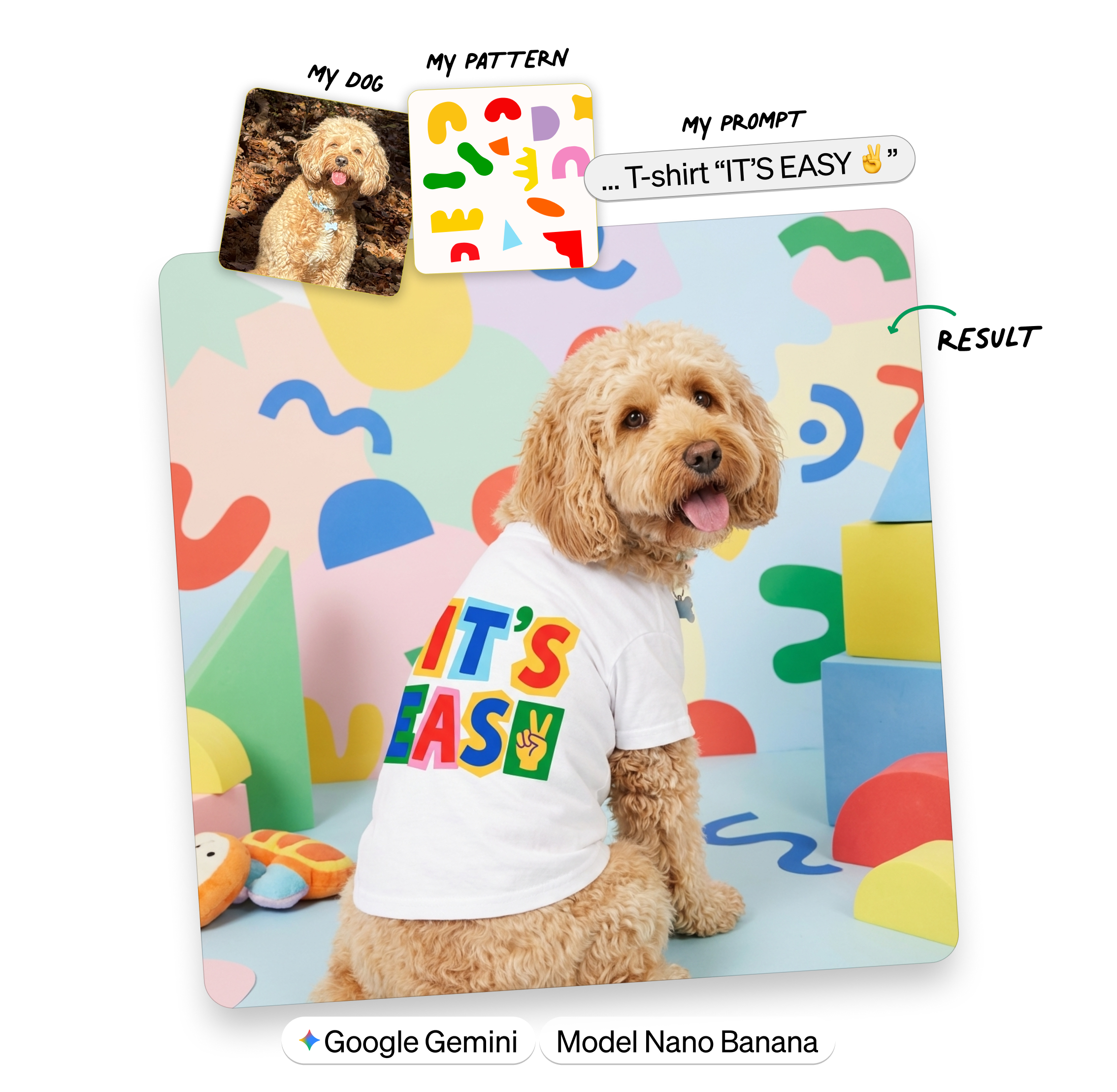
Google’s multimodal AI with powerful image generation and editing. The Nano Banana Pro model (built on Gemini 3 Pro) is particularly strong at understanding context and making precise edits to existing images.
🔗 Gemini
Why it’s useful:
Generate and edit images in the same interface
Edit specific parts of images with natural language (”change the button color to blue”)
Up to 2K resolution output
Strong at infographics, diagrams, and data visualization
Consistent character appearance across multiple images
Free tier available, Pro for advanced controls
Example: Quick image edits without opening Photoshop. “Remove the background from this icon” or “Update the screenshot to show the new header.” Or merging two photos.

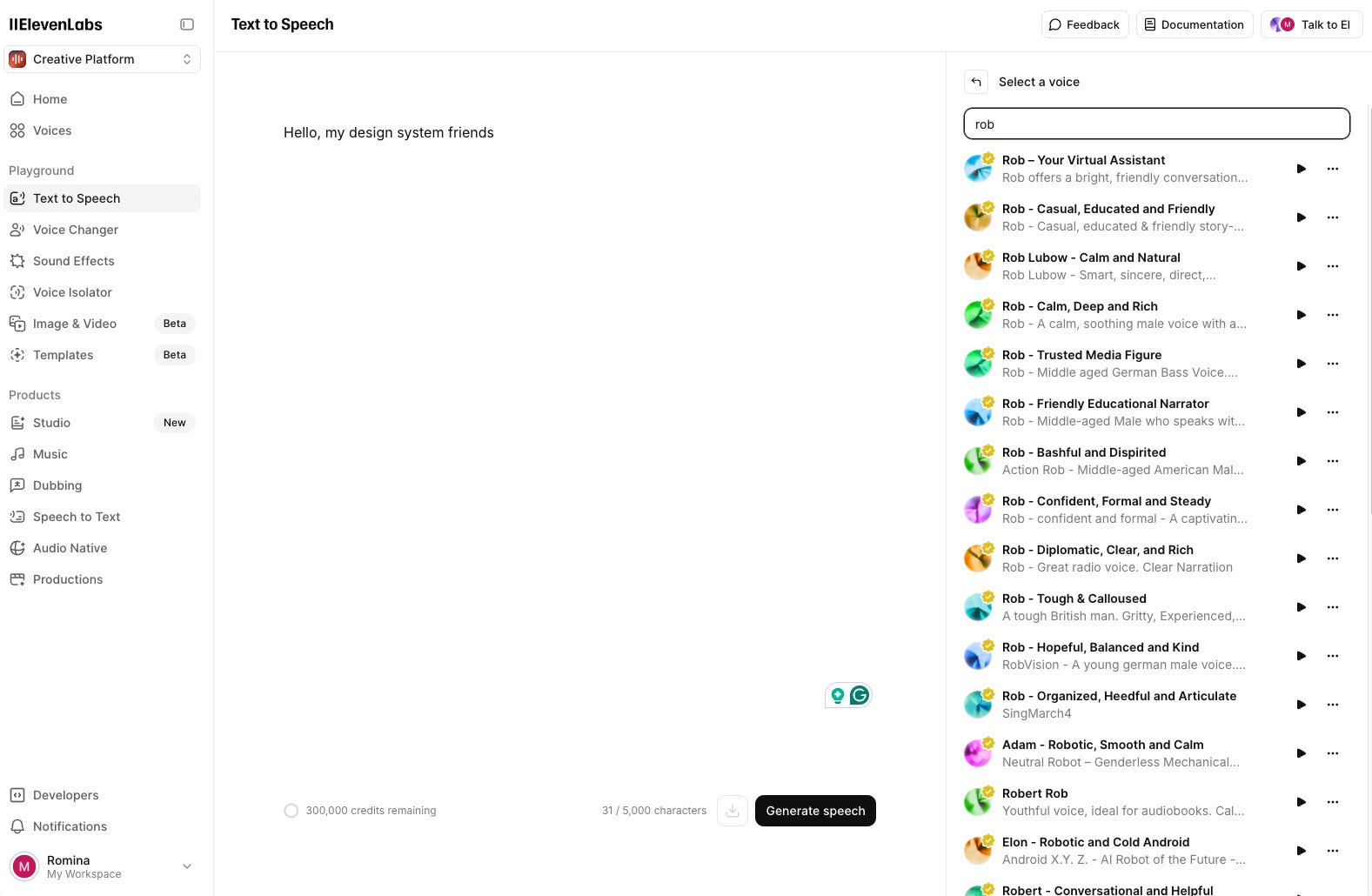
AI voice generation that creates natural-sounding voiceovers from text. Useful for video documentation and onboarding content.
Why it’s useful:
Natural-sounding voices in multiple languages
Fast turnaround for voiceover content
Consistent voice across all your documentation videos
No need to schedule recording sessions
Good enough quality for internal documentation
Example: Creating voiceovers for component demo videos or onboarding content. Record a script, generate the voiceover, and add it to your screen recording. What used to require scheduling time with a narrator now happens in 10 minutes.

Connects Slack history to your AI tools. Search conversations, find decisions, and track discussions without scrolling through months of messages.
Why it’s useful:
Search design decisions from past conversations
Find who approved what and when
Track component feedback across channels
No more “what did we decide about X?” confusion
Valuable for teams where decisions happen in Slack
Example: “What did we decide about the modal animation timing in last month’s design review?” Instead of scrolling through months of messages, you get the answer with context and links to the original conversation.

Documentation platform with built-in AI features. Write in markdown, deploy instantly, and get AI-powered search and suggestions out of the box.
Why it’s useful:
Deploy docs from markdown with zero config
AI-powered search understands natural language questions
Auto-generates API documentation from OpenAPI specs
Built-in analytics show which docs people actually read
Integrates with GitHub for automatic deployments on merge
Example: I use Mintlify for our design system documentation site. Claude Code generates the markdown, I push to GitHub, and the docs deploy automatically.
Time saved: Documentation that used to take a full day to publish now deploys in minutes. AI search reduced support questions by roughly 40%.

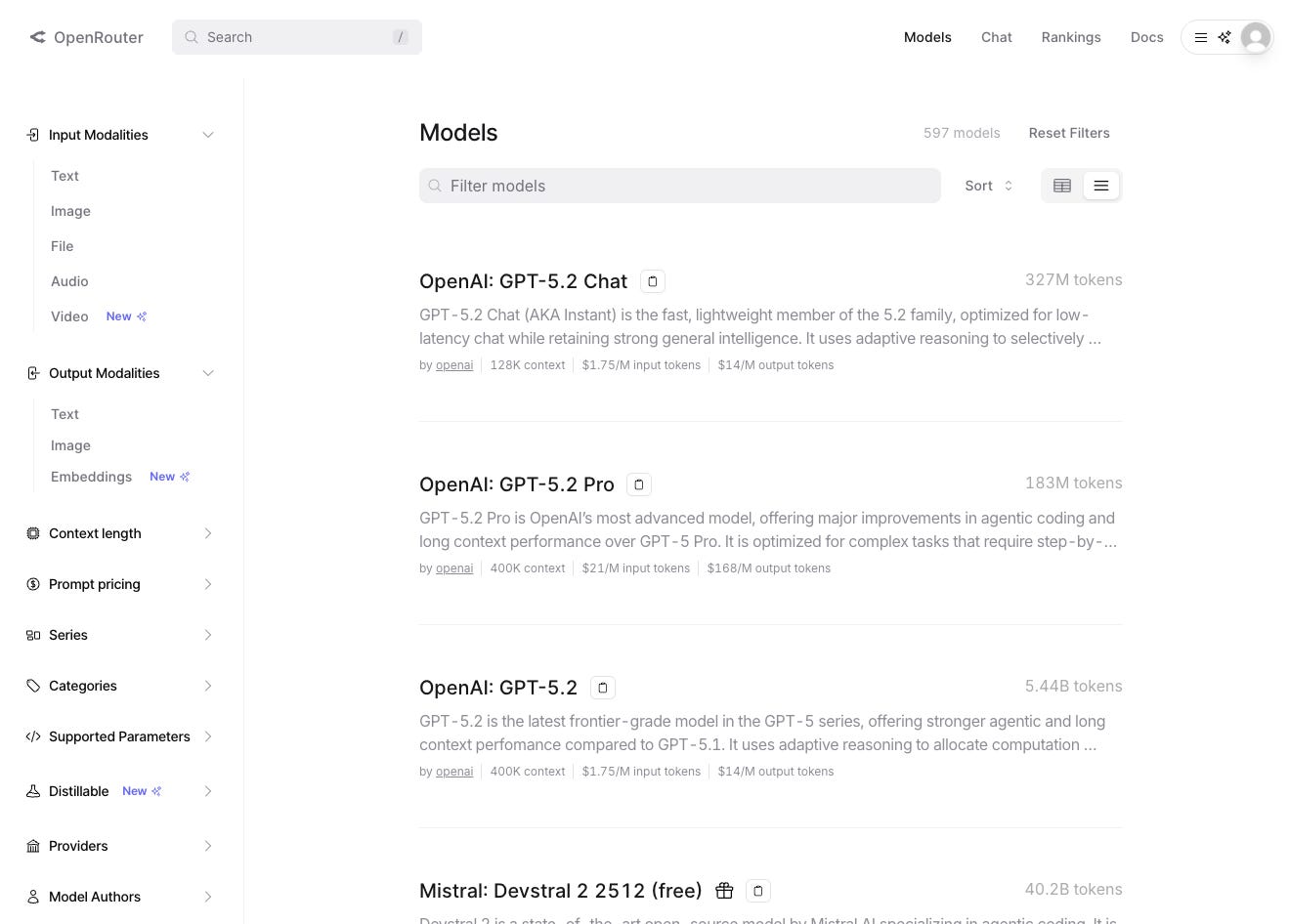
A unified API that gives you access to dozens of AI models through one interface.
Why it’s useful:
One API key 100+ other models
Compare outputs from different models on the same prompt
Fall back to alternative models when one is down or rate-limited
Often cheaper than going direct to each provider
Pay only for what you use, no monthly commitments per provider
Example: When building internal AI tools for your design system, OpenRouter lets you experiment with different models without having to rewrite integrations.

OpenAI’s conversational AI with web browsing, image generation (DALL-E), and Canvas for collaborative editing. The most versatile general-purpose AI assistant.
🔗 ChatGPT
Why it’s useful:
Web browsing for real-time research and fact-checking
Canvas mode for collaborative document and code editing
DALL-E integration for quick image generation
Voice mode for hands-free conversations
Memory feature remembers context across sessions
Strong at explaining complex concepts in simple terms
Example: Quick research, transforming file formats, explanations, practical “every-day” questions, training suggestions. So many examples 🙃
If you’re new to AI tools for design work:
Start with Cursor - It’s familiar (VS Code), and the autocomplete is immediately useful
Add Figma MCP when you’re comfortable
Try Claude Code for repetitive workflows
Add more MCPs
The landscape changes fast. What matters is finding tools that save more time than they cost to learn. Skip the hype tools until they prove themselves. Most AI plugins are still thin wrappers that don’t understand your context.
Enjoy exploring 🙌
Romina
— If you enjoyed this post, please tap the Like button below 💛 This helps me see what you want to read. Thank you.
Watch the Converge conference videos
The talks from Converge 2025 are now available to watch.
🔗 Link
Comments
Nothing yet. Say the first thing.
Sign in to join the conversation.