
I asked ChatGPT for feedback on my link-in-bio, and it basically said, “Yeah, we can work with this.”
Then ChatGPT Sites turned that conversation into an actual website. Codex handled the build behind the scenes. Now my link-in-bio site officially has responsibilities: It collects sign-ups, organizes download links, and keeps every subscriber in the same system automatically.
I opened my live link-in-bio site inside the ChatGPT desktop browser app so it could audit the current setup. Once it had an idea of what was in place and how it was organized, it came up with different design options for me to choose from.
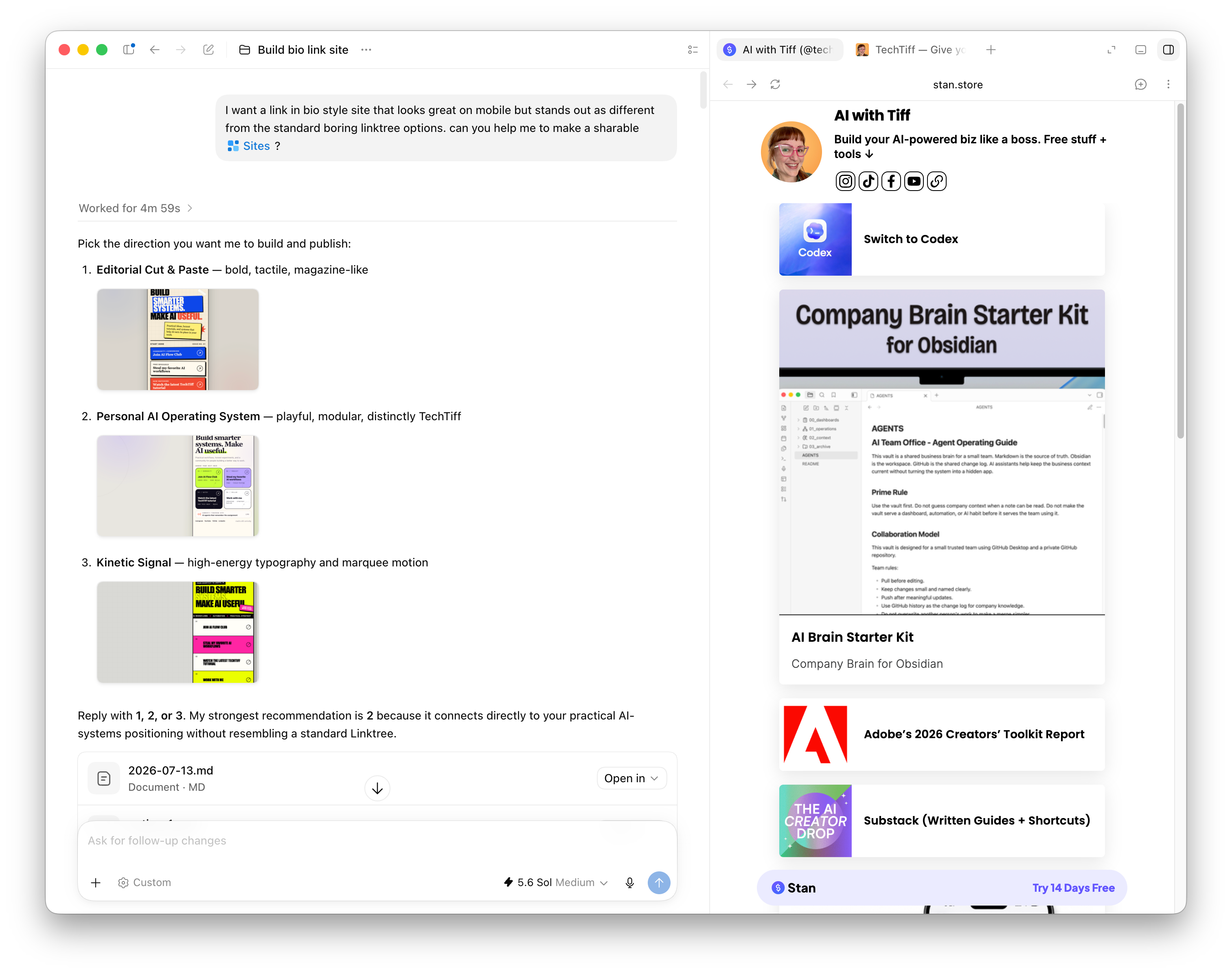
I picked the layout I liked, and Codex turned the approved plan I made with ChatGPT into a functioning website. It even tested the sign-up experience to make sure people get the download after they enter their email.
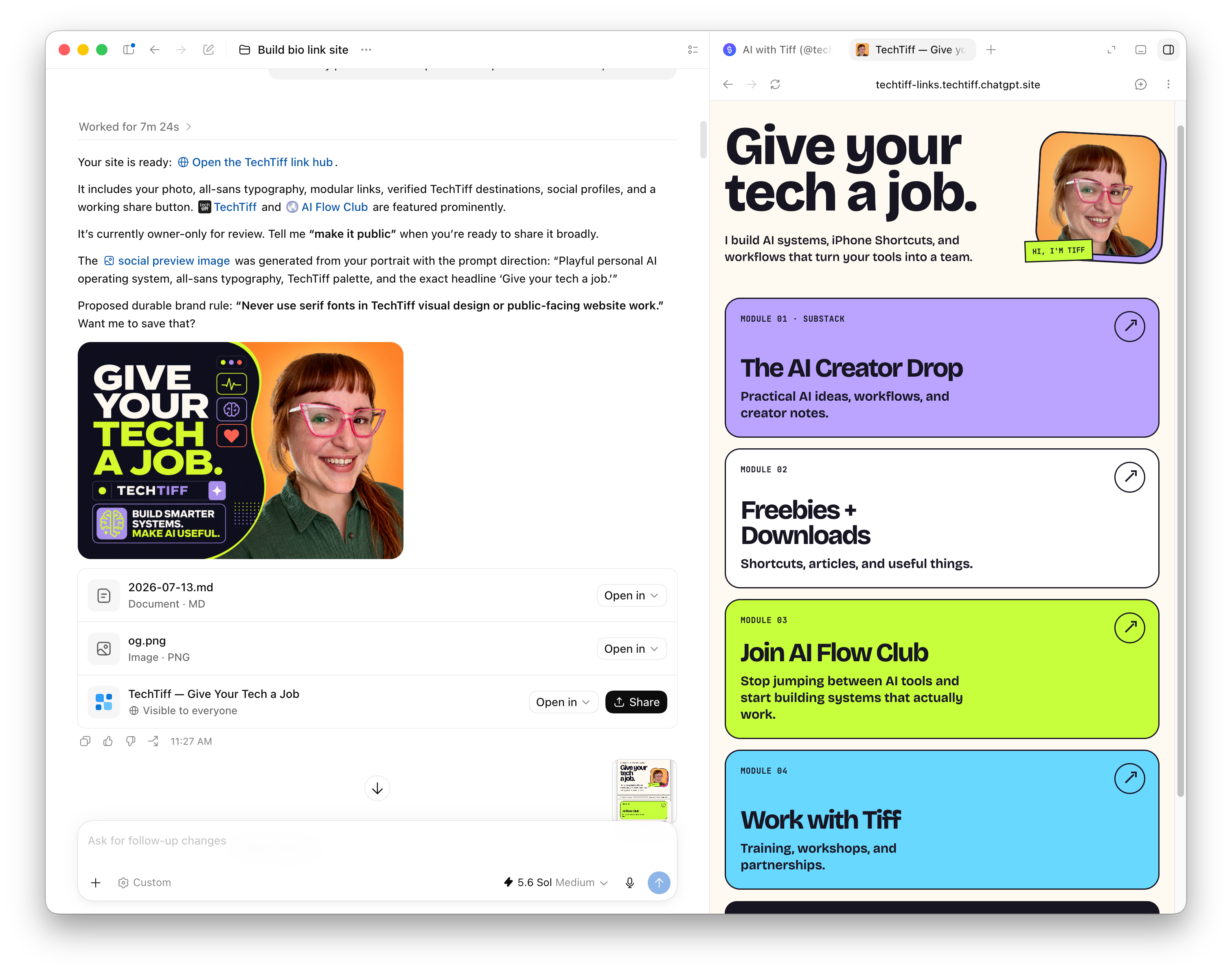
A site works best when you give it one clear job. My link-in-bio site had one job. It needed to collect someone’s email, deliver the resource they requested, and save that subscriber in the right system. That job determined what the site needed and what it didn’t.
If you keep coming back to the same questions, sending the same resources, or walking through the same process, that work has enough structure to become a site.
Start with something you keep explaining, sending, checking, or updating. Repeated work is a strong sign that the information needs one place where people find it and use it. Keep the first version focused on one person completing one job.
The Short Version
ChatGPT Sites turns material you already use into a website built around a clear job.
The ChatGPT desktop app puts a browser, your files, and multiple conversation threads into the same workspace, so it actually sees the work while you build.
Codex handles custom code, databases, forms, integrations, login requirements, and deeper automation when the site needs those features.
When you’re building a site, the ChatGPT desktop app side panel keeps the whole workflow in one place.
The built-in browser lets you open a site and point ChatGPT toward specific pages, resources, or examples, so it can actually see what you’re looking at.
Open a local file so the content and materials you’re building from stay connected to the work.
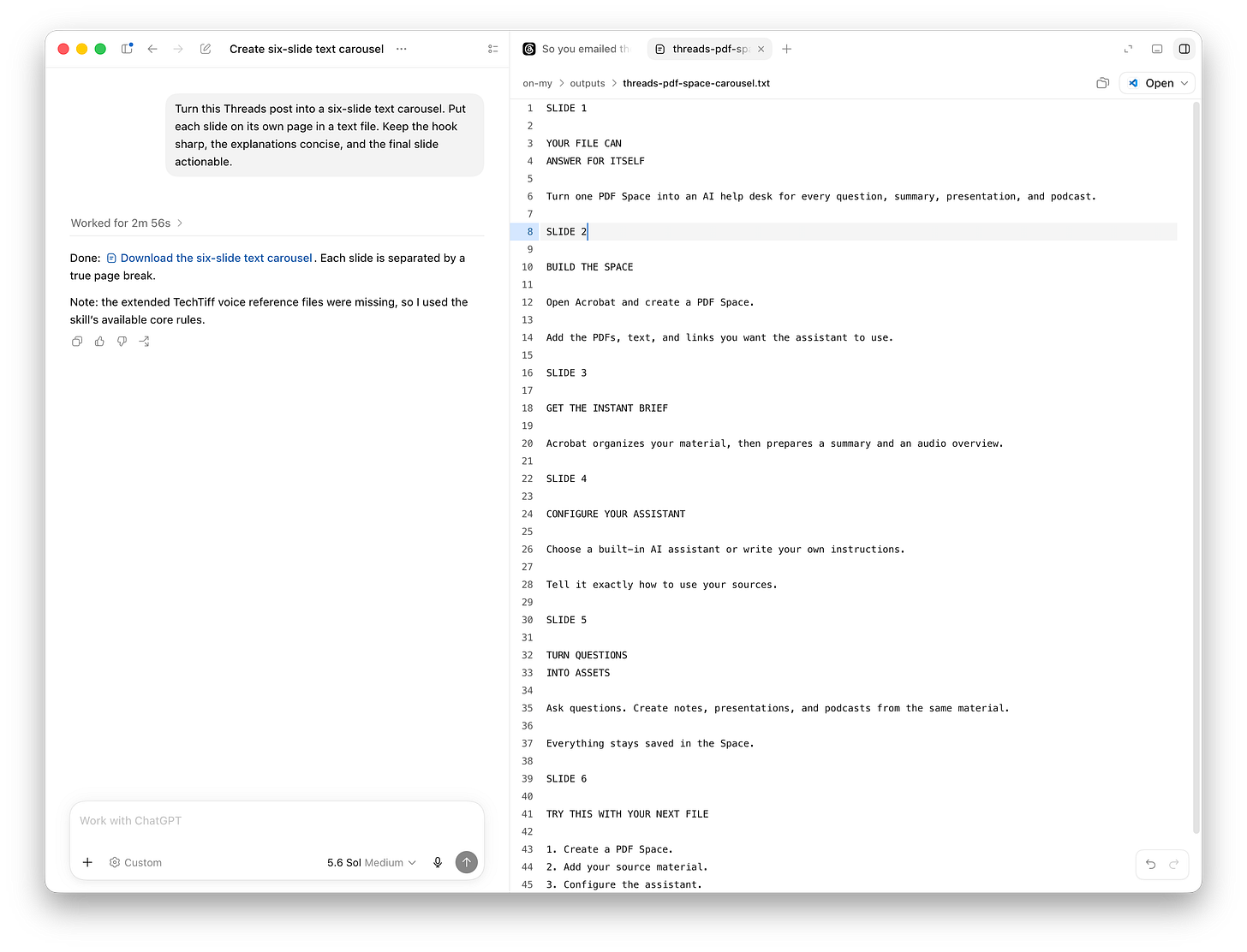
Open a file in the side panel and work directly in the app. ChatGPT edits the file alongside you, and every change saves automatically. Use side chats to split the work up, so you can have multiple conversations for one project without turning one thread into a giant mess.
Start with something you already spend time organizing, sharing, checking, or updating, then build the site around that work.
Here are a few ways to put one to work:
Turn scattered resources into one useful home: bring links, downloads, FAQs, forms, and contact information into one site built around the action you want people to take.
Build a client or customer portal: organize onboarding steps, documents, updates, resources, and next actions in one place people can return to.
Create a project command center: connect the files, notes, deadlines, decisions, and status updates for an active project so the current state is easy to see.
Create a resource hub for an event, course, or community: keep schedules, materials, links, updates, assignments, and downloads together instead of scattering them across messages and folders.
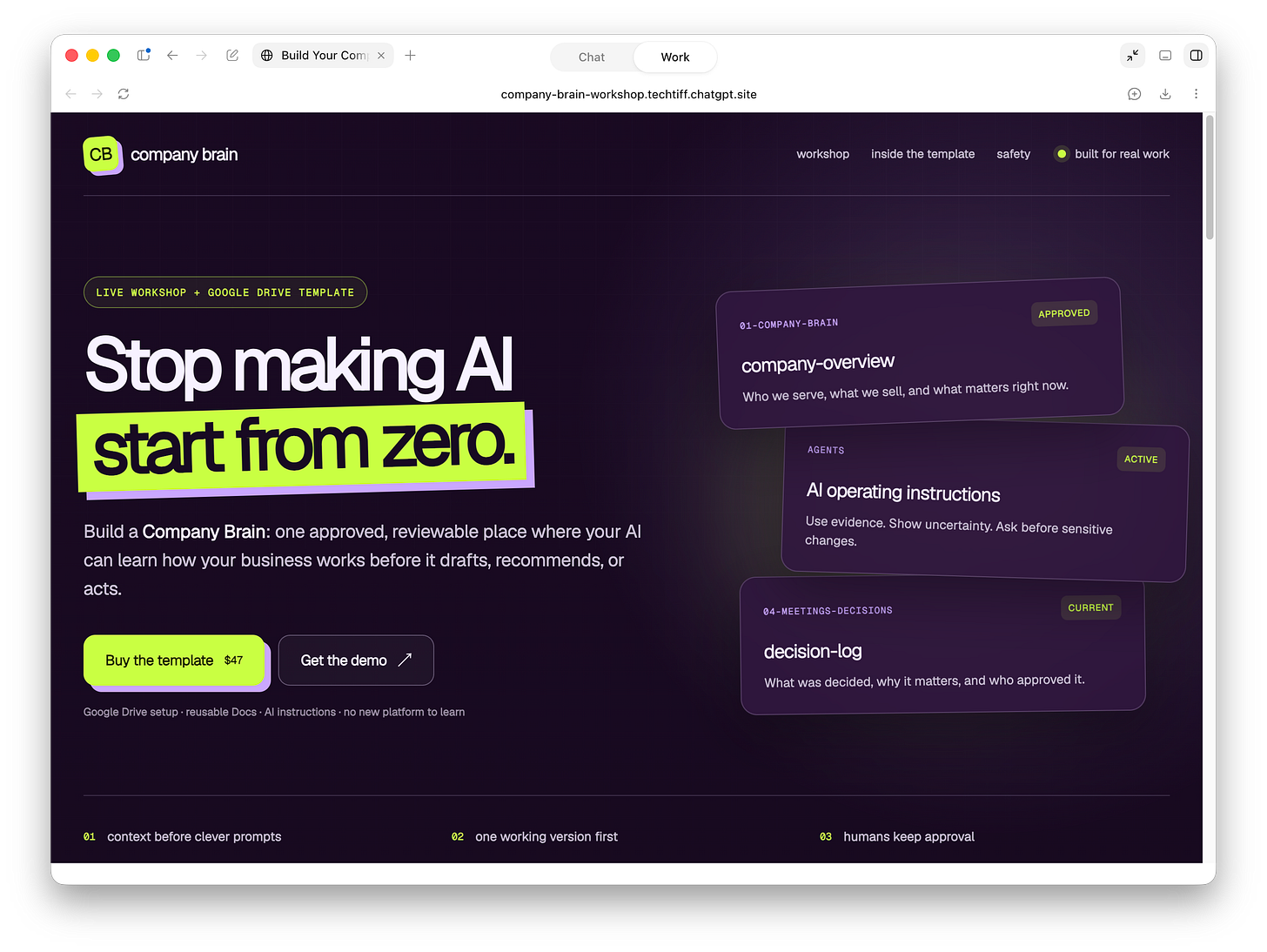
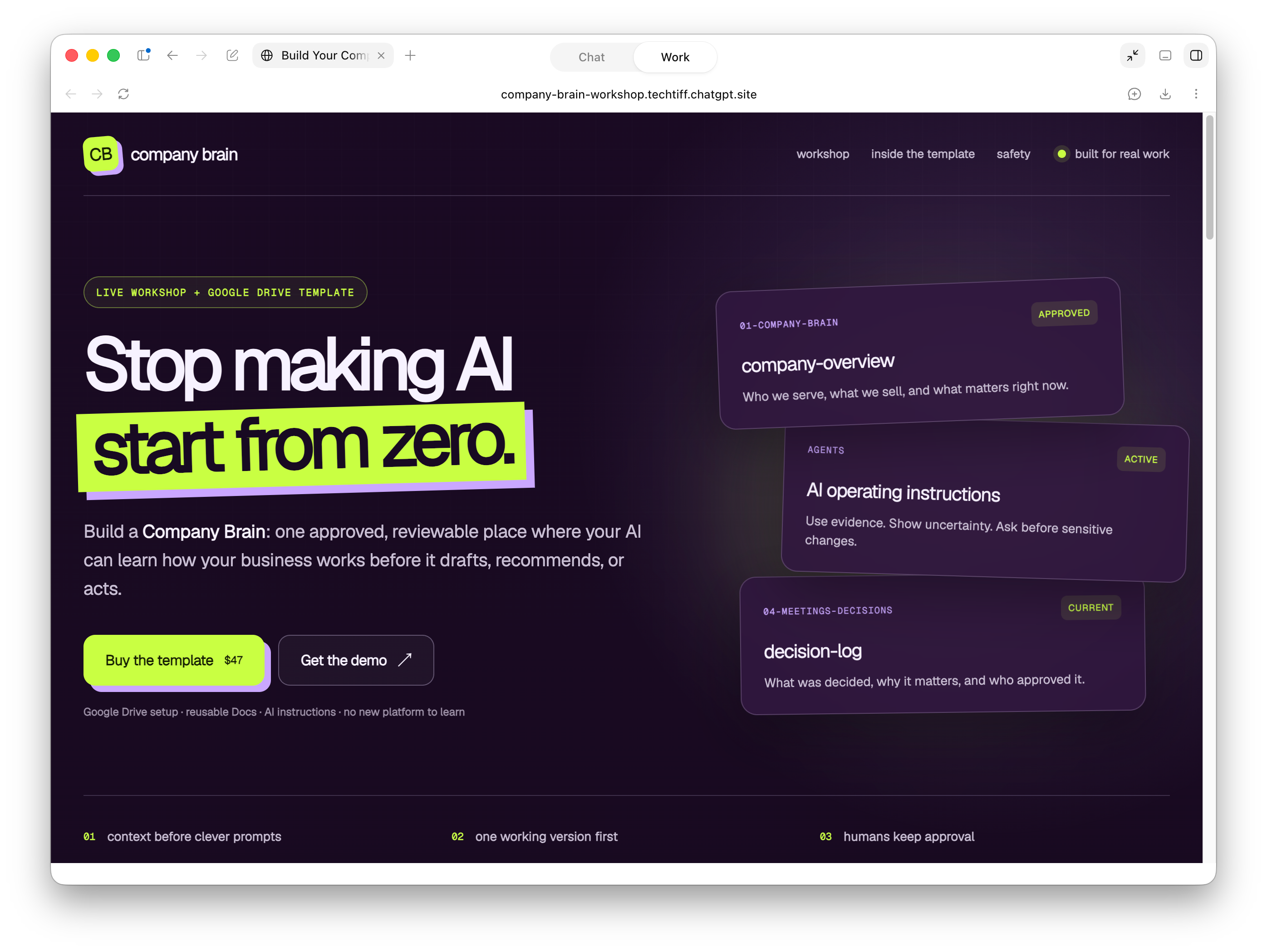
This Company Brain site keeps the workshop, template, safety guidance, and supporting resources together so people can find what they need without digging through emails or folders. Turn research into something people can navigate: organize findings by topic, connect related ideas, include sources, and give each subject a permanent place to grow.
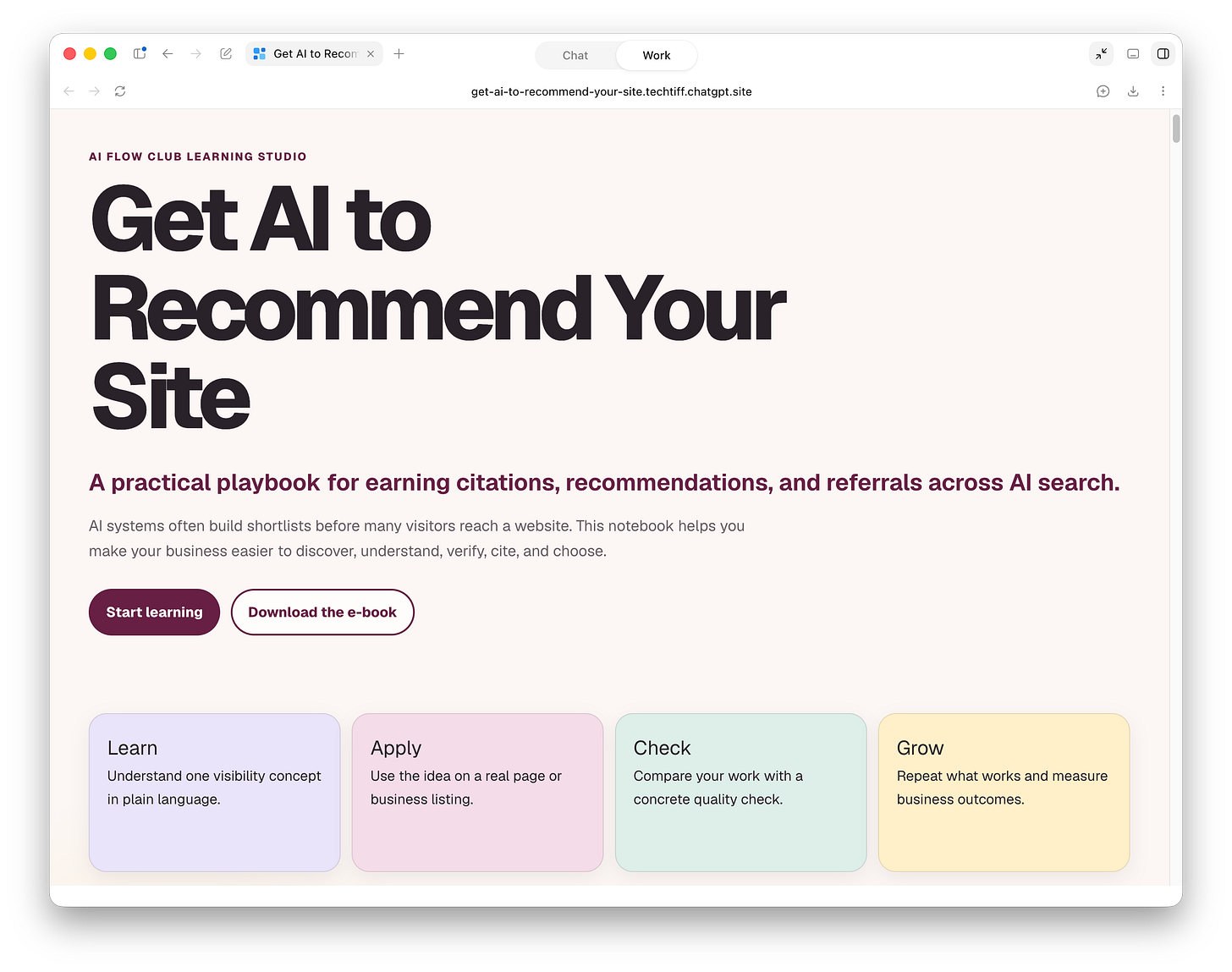
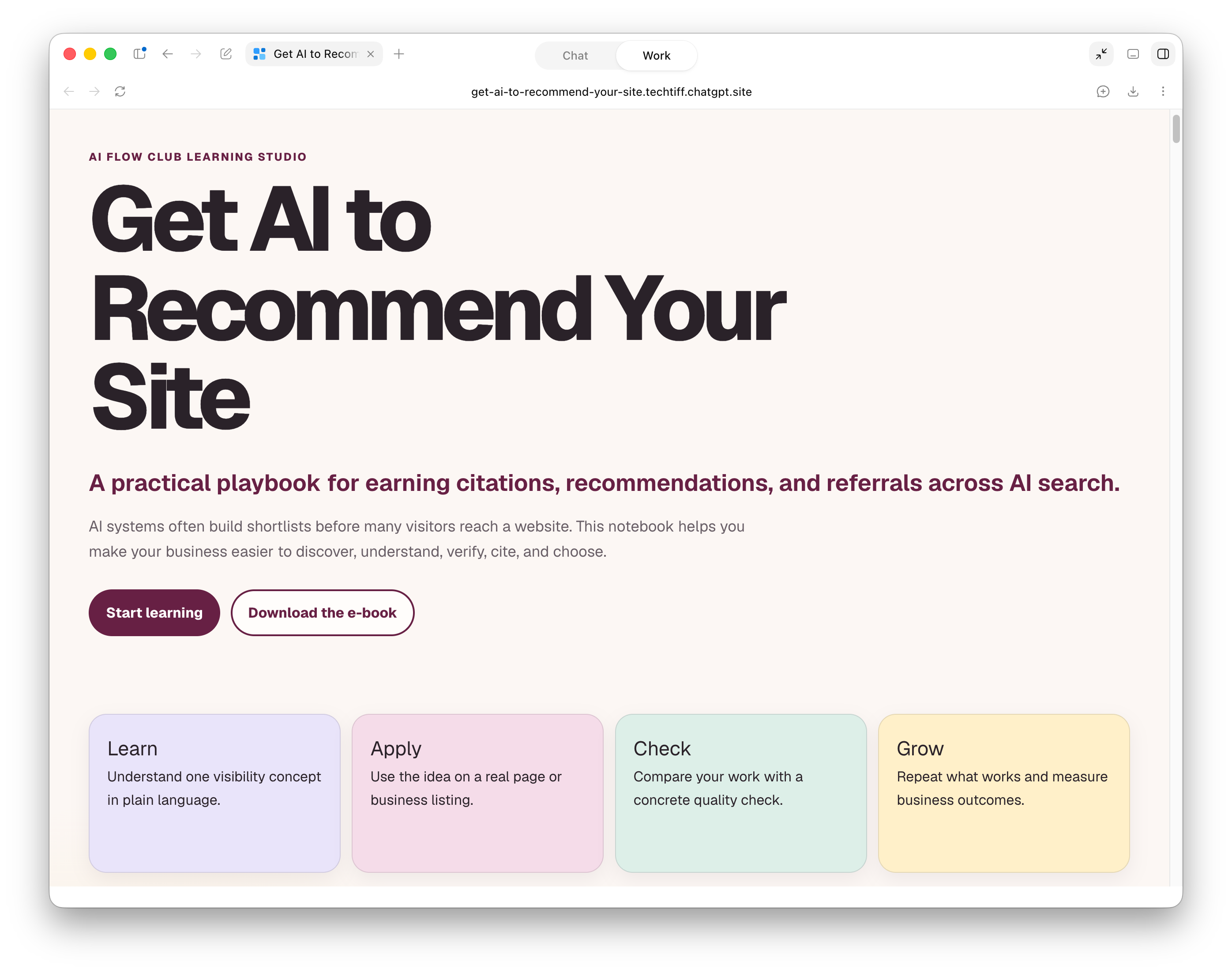
My GEO and AEO research lives on a site organized by topic. Each page brings the definitions, strategies, examples, and supporting research together. Build an intake and follow-up system: collect information through forms, send it to the right system, and give people a clear next step after they submit.
Give the site one clear job before asking ChatGPT to design the pages around it.
Describe who the site is for, what they should accomplish, and what should happen after they take action.
Start with this sentence:
This site helps [person] do [task] using [information or tools], then sends [result] to [destination].
That gives ChatGPT enough direction to plan the site around the work. Then add the information it needs to plan the structure, design, connections, and revision process.
Include what the person does, which information or tools support that action, and where the result goes when they finish.
List the pages, sections, features, and actions the site needs.
For my site, that meant a homepage that explained what I offer, clear links to my work, and a sign-up path that didn’t make people hunt for the download.
Include the required pages, what belongs on each one, and how people should move through the site.
Describe the order people should move through the site and the action they should complete on each page. You don’t need to plan every line of copy before building, but ChatGPT should understand the full path from the first screen to the completed action.
Tell ChatGPT:
Where the information lives
Which source is current
Where new information should go.
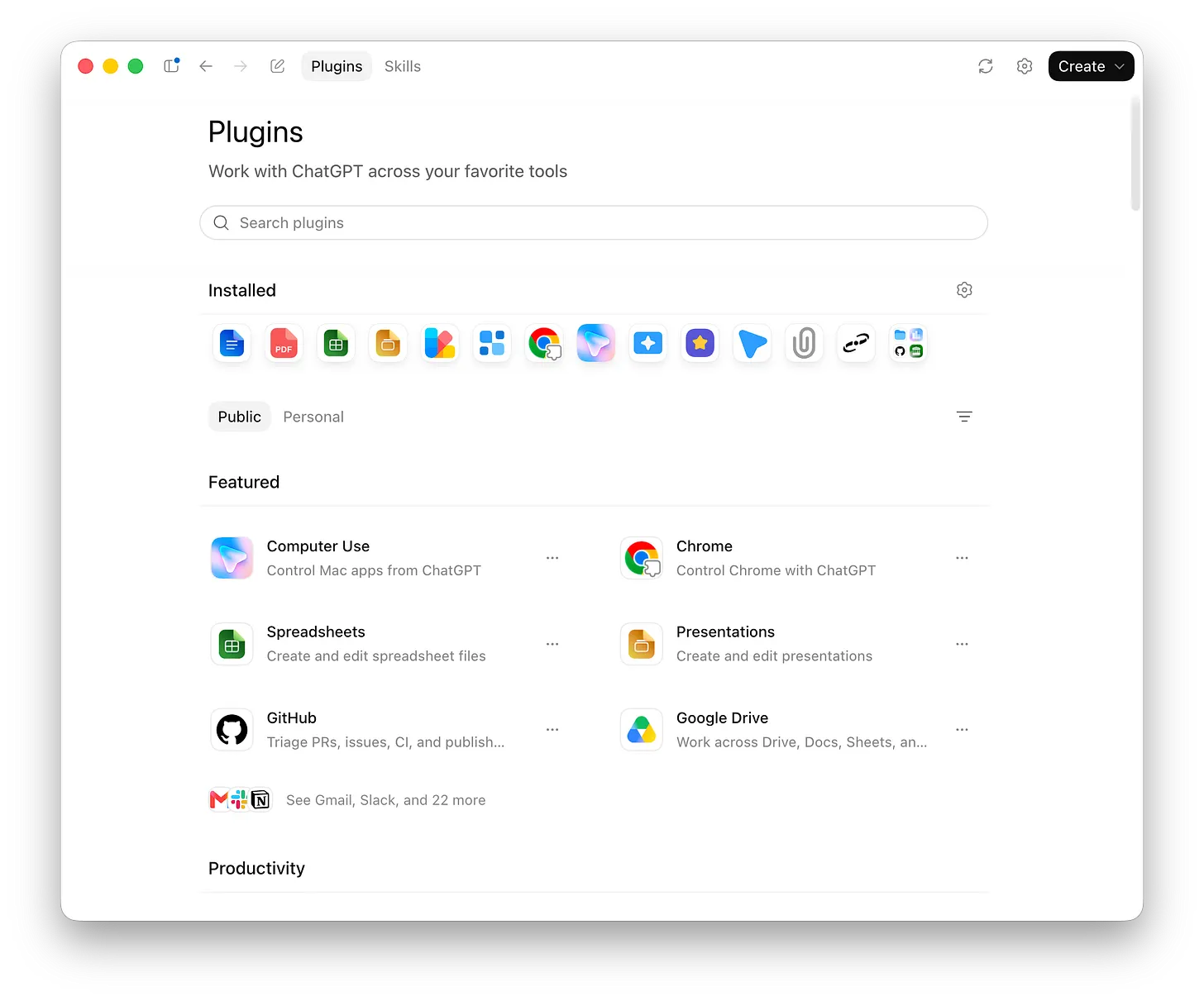
Identify the files, folders, websites, databases, forms, email tools, calendars, or connected apps involved in the project.
Tell ChatGPT how the site should look and feel.
Include your brand colors, typography, spacing, layout, image style, and overall aesthetic.
Share screenshots, websites, mood boards, or brand references that reflect the direction you want. Point out the exact elements you like, such as the type scale, page density, navigation style, use of imagery, or amount of whitespace.
When you aren’t sure what direction to choose, ask for several clearly different options before the build begins.
Open the working preview and use the site from beginning to end.
Click every link, open every page, submit the forms, and confirm where the information goes. Check that downloads arrive, records appear in the correct system, and confirmation messages make sense.
For my link-in-bio site, I entered an email, confirmed the subscriber reached the correct system, and opened the download exactly as a new visitor would.
Review the site on desktop and mobile. Check the navigation, buttons, forms, images, and spacing. If the site connects to other tools, test the connection with a real entry and verify the result.
Once your site is ready, open the settings to share the link with others and make it publicly visible, or keep it private.
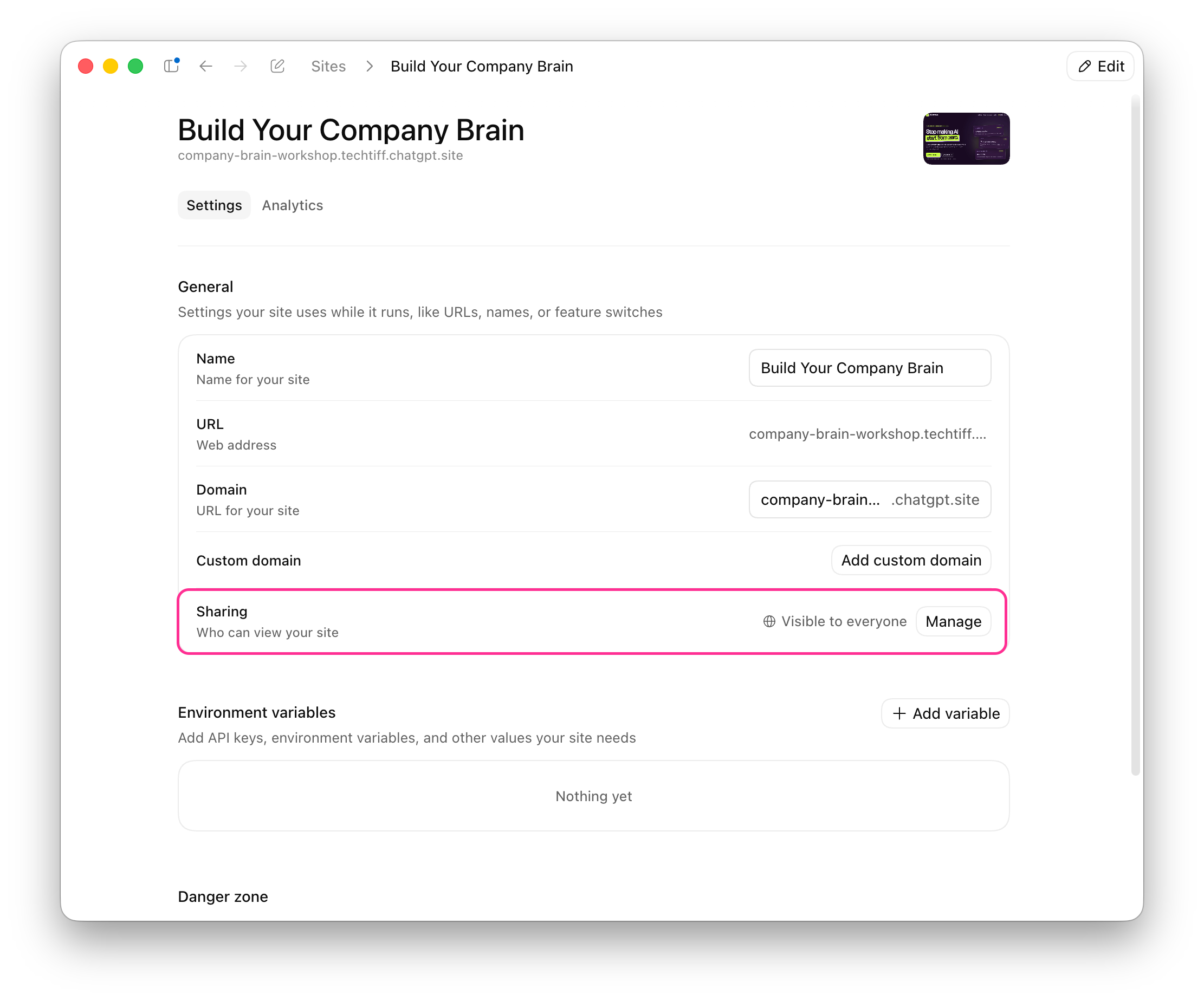
Start with the work you keep explaining, sending, checking, or updating. Give the site one clear job, connect it to the information that job requires, and test the entire experience before sharing it.
Tell ChatGPT what you’re working on and what the finished site needs to do. Let it review the actual material, organize the information, and build the experience around your project.
Bring in Codex when the project needs custom code, more advanced connections, or deeper automation.
Build the first version this week, test it the way a stranger would, and send the link out. Every question the site answers is one you stopped answering yourself.
Comments
Nothing yet. Say the first thing.
Sign in to join the conversation.