
Creating something with AI used to involve a lot of starting over.
You generated an image, downloaded it, re-uploaded assets, explained your project again, and rebuilt the same context every time you wanted to continue working.
The problem is, the project was a collection of exports, references, screenshots, notes, and assets scattered across different tools.
Now your creative context has a place to live, so the project stays intact instead of resetting every time you switch tools.
Instead of treating every image, video, design, and edit as a separate task, Adobe's creative agent manages the project across apps. The assistants handle the work, while Firefly keeps the project's assets, context, and history together.
Photoshop, Premiere, Illustrator, InDesign, and Frame.io now share one assistant instead of each having its own separate AI.
Adobe’s creative agent sits across your apps. It takes a goal you describe and works out the steps across whichever tools the job actually touches.
For years your software did exactly what you told it and nothing else. You gave it one instruction, it performed one action, and you moved to the next instruction yourself. The agent changes that relationship.
Features improve one app. An agent coordinates all of them. You give it a goal, and it coordinates the actions that used to require you to open four programs and move files between them by hand.
And Adobe is also bringing its creative tools into ChatGPT, Claude, Copilot, Gemini, and Slack so work can start wherever you already are.
Every creative project comes with a pile of tasks that produce nothing creative. Tasks like organizing assets so you can find them later, renaming and sorting files so the folder makes sense in two weeks, resizing the same design for five different placements, tracking feedback, and preparing the exports.
This is the layer Adobe is handing to the assistant. Configure it around how you operate, and it keeps the project in order while you stay focused on what you want to create.
I tried this by telling the Firefly assistant to create an influencer style video of me explaining the new AI Assistant.
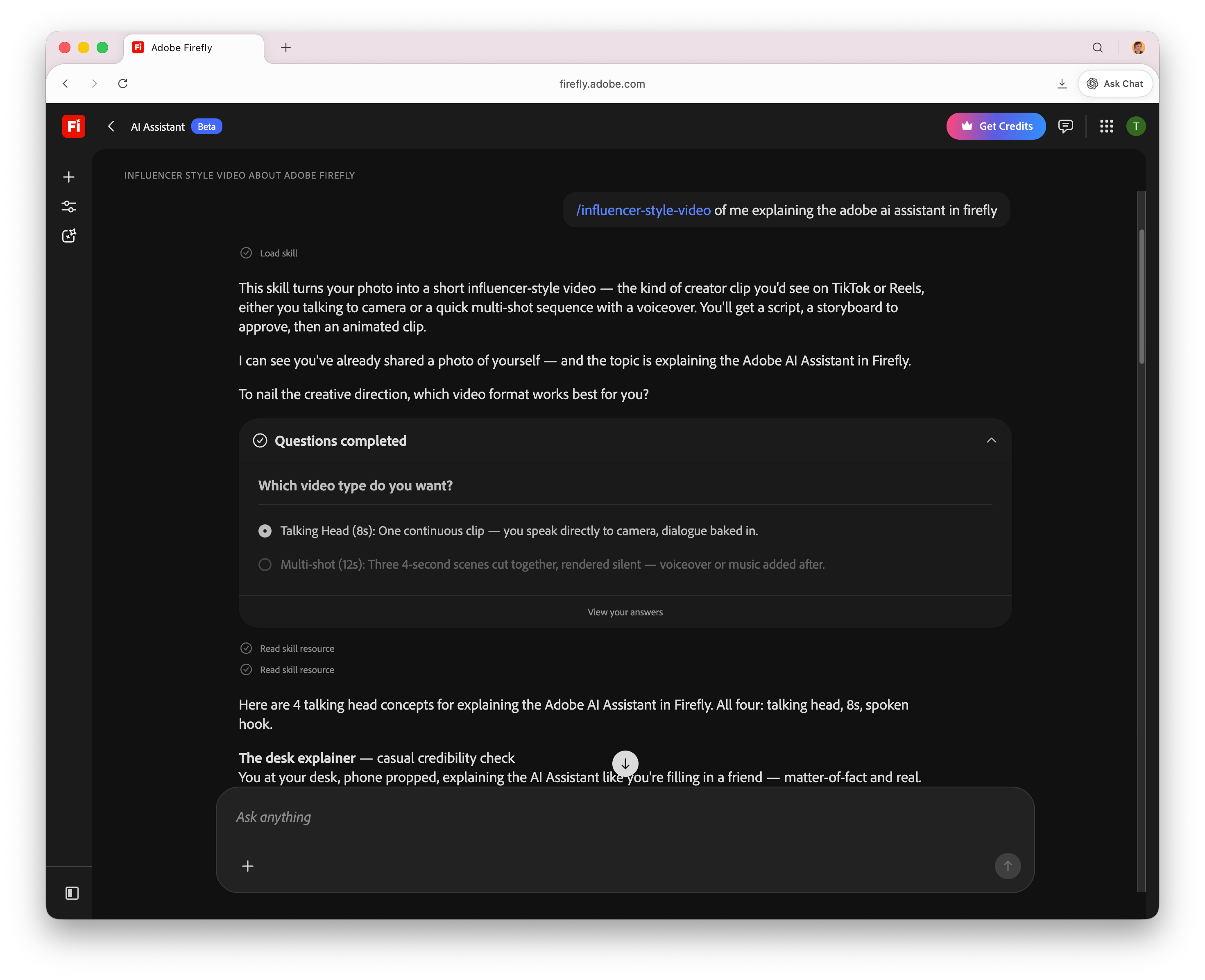
Less than a minute after I had the idea, I was watching the video it made.
So you’re not opening multiple tools and handling each repetitive step yourself, you’re just describing what you want and letting the assistant handle the setup. The footage gets organized for you, layouts get updated, and the exports get prepped for every platform the piece is headed to.
The clicks become the assistant’s job, and the decisions stay with you.
Premiere Pro → Assistant Editor
Organizes footage, prepares timelines, and assembles rough cuts before editing begins.Photoshop → Production Artist
Handles large editing tasks across multiple assets and applies updates across a project.Illustrator → Production Designer
Takes on repetitive graphic production work and automates asset updates.InDesign → Layout Specialist
Updates documents, applies branding changes, and keeps layouts consistent.Frame.io → Review Coordinator
Tracks feedback, manages approvals, and helps keep production moving.
The creative agent becomes the coordinator, the assistants become the specialists, and Firefly becomes the place where the project lives. Your software has stopped acting like five separate programs that happen to share a login, and started behaving like a group of specialists working on one thing together.
Firefly is where projects begin, build context, and move through production.
Projects keep your assets, generations, creative history, and context organized so you can pick up exactly where you left off instead of reassembling the state of your work every session.
Elements lets you save characters, locations, and objects, then reuse them across future generations.

The coordination that used to live in your head, or in a folder named “final_v7_REAL,” now has a home above your Creative Cloud apps.
The studio, with Projects and Elements, is in private beta through a waitlist at firefly.adobe.com/studio.
Adobe surveyed more than 16,000 creators globally for its 2026 Creators’ Toolkit Report, and two numbers anchor where this is heading:
93% of creators say creative AI helps them produce content faster.
85% say the final creative decision should always remain theirs.
Speed goes up, and the judgment stays human. The assistant moves faster through the production work, and you keep the say over what is good, what ships, and what gets thrown out.
You’re spending less of your day on execution, and more of it on the direction only you can give.
Continue the series:
Adobe’s AI Just Got Promoted: the Firefly assistant learns to run a project across your tools and reach into Claude.
Stop Letting AI Improvise: how Templates and Skills turn repeatable work into a reusable system.
Adobe Just Put a Coworker Inside Acrobat: documents answer questions, generate insights, and share context after you send them.
Firefly Runs the Whole Creative Process: one photo becomes a full product set in a single conversation.
Inside AI Flow Club, we build exactly this kind of system on purpose, the iPhone shortcuts, custom GPTs, and AI operating systems that run the production work so you stay on the decisions. Come build yours alongside people doing the same thing at flow-club.techtiff.ai
Comments
Nothing yet. Say the first thing.
Sign in to join the conversation.