
I’ve been a OneNote fan since the very beginning. In fact, before the beginning. In 2002 I was a Microsoft Outlook MVP and I was on their Redmond campus for our annual MVP Summit when one of the Microsoft employees I know approached me and said “Hey, you’re interested in note taking software aren’t you?”
I said “Yes!” and he said “Well, we’re building one. Want to know more?” I did. He introduced me to Chris Pratley and Owen Braun who were actively building the product that would become Microsoft OneNote. I was hooked and have used it heavily ever since.
Attorneys often ask me how they can use it in their practice and I’ll talk about notebooks, sections, ink, hyperlinks, images, the mobile app and more. But in this quick article I wanted to highlight three lesser-known features of OneNote that I use every day and you maybe should too.
One of the things that makes note taking software useful is having it available. What good is a place for notes if it’s never there when you need to take notes. OneNote excels at capturing unstructured data, those random bits of info - a phone number, a thought, a quote, an article you want to read later, or whatever - that come at you during the day. Today you might scribble that stuff on the back of a random envelope or a Post-It.
I use OneNote. My desktop computer has a pair of large monitors and I always have a OneNote window docked to the side of the left monitor. To do that I use Dock to Desktop in OneNote.
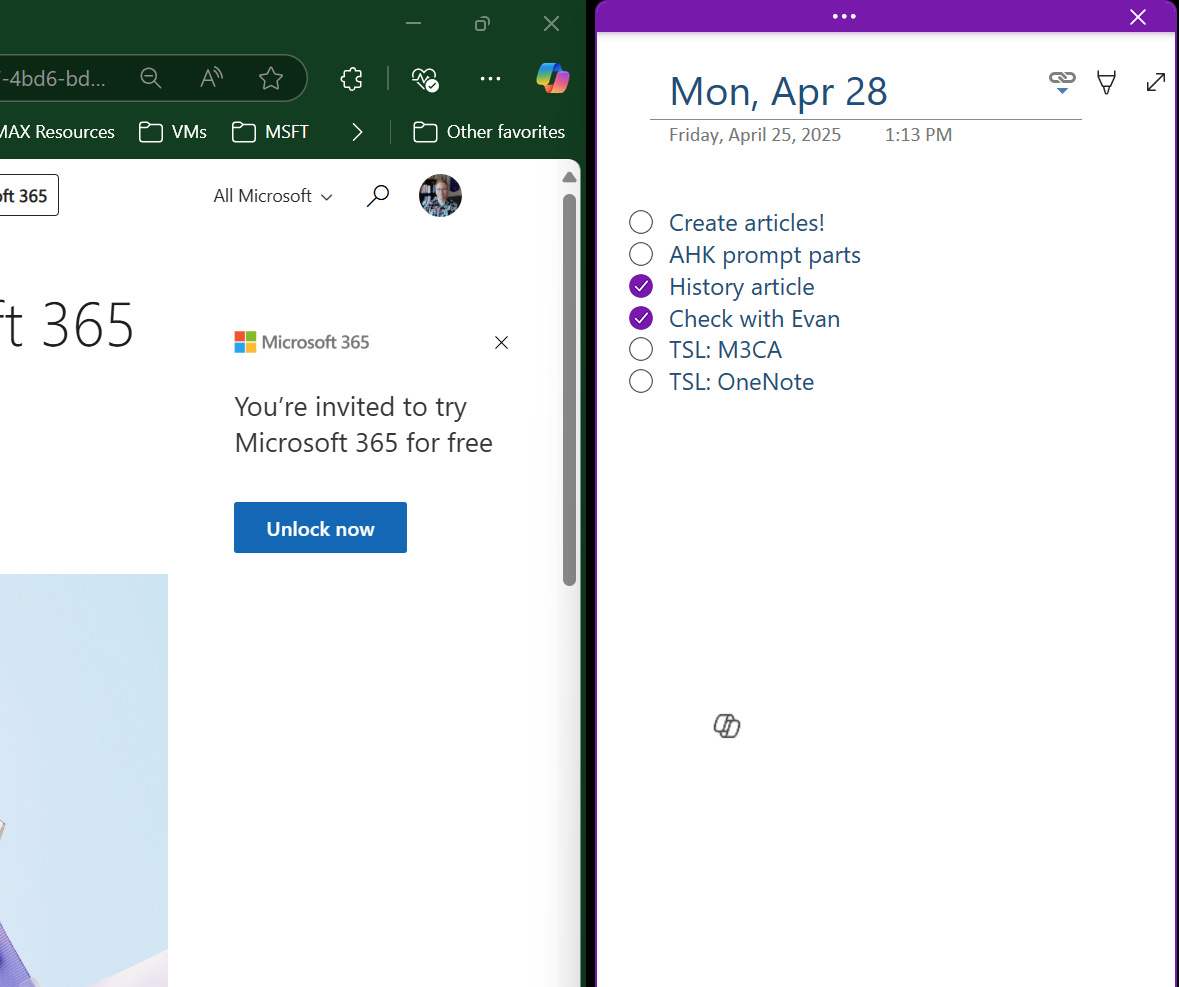
It’s always there if I need to jot down a note or idea. I can drag and drop content from the web, a document, or anywhere else. It’s ideal for capturing those random bits and making them searchable or sharable later.
To use it just go to the View tab in OneNote and select Dock to Desktop. It’ll create a new window docked to the desktop. You can dock it to the top, bottom, left, or right, just drag and drop it where you want it.
Tip: Select the page you want docked before you turn on Dock to Desktop. You can change pages in Docked mode, but it’s easier to do in Normal mode.
Some of the notes I take are actually action items or tasks I want to remember to do later. OneNote has a “To Do” flag, but I actually prefer to use a more powerful tool for this: Outlook Tasks.
All I have to do is click on the note that I want to add to my To Do list, select Outlook Tasks from the Home tab of the OneNote ribbon and I can select when I want to follow up on this.

OneNote adds a familiar-looking flag to the side of the item and the task goes on my Outlook/Planner tasks list!
When the task is done I simply click on the flag here, or in Outlook, or in Planner, and it gets marked as complete everywhere.
Tip: You can also use the keyboard to assign flags. CTRL+SHIFT+1 flags an item for follow-up today. CTRL+SHIFT+2 is tomorrow, CTRL+SHIFT+3 is this week, etc.
I take meeting notes in OneNote and those meetings are invariably on my Outlook calendar. When I go into a meeting I’ll create a new page in my OneNote notebook, then select Meeting Details from the Home tab of the ribbon. A pane opens on the right that shows my calendar for today from Outlook. I select the meeting and the page is populated with the meeting info and ready for my notes.
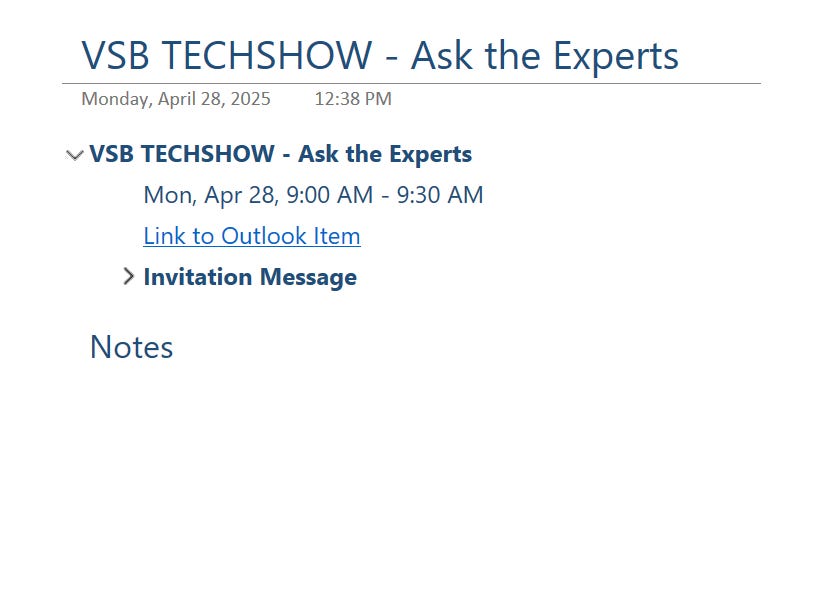
Here I can take my meeting notes (including using flagging action items with Outlook tasks) and even hyperlink to other relevant OneNote pages. I can later share those meeting notes with others, if I want to, and of course they’re fully searchable when I need to look back at them later.
Tip: If it’s a recurring meeting I’ll right-click the page for the previous page in the series and choose Copy link to page. Then I’'ll paste that at the top of today’s meeting. That way I have a quick link to my notes from the previous meeting if I need to refer back to them during today’s meeting.
What are your favorite OneNote tips?
No posts
Comments
Nothing yet. Say the first thing.
Sign in to join the conversation.