
Introduction
You don’t appreciate keyboard-driven workflows until you commit to them. You’ll find yourself mapping keybindings to every common task. Soon enough, though, you’ll notice a limitation: your most frequently used keys (the home row and adjacent keys) can only do so much. This is where layers come in.
Keyboard layers, often called modes, are like having multiple keyboards in one. You assign different functions to the same keys depending on which layer is active, so you can reach more commands without moving your hands.
What Are Keyboard Layers?
Consider a simple example we all know: press the key a on your keyboard, and it prints a. Now press Caps Lock and try pressing a again - it prints A. This is a fundamental layer switch you’ve likely used thousands of times without thinking about it.
Apply the same idea deliberately, and you can build entire control schemes without ever leaving the home row.
Layers in (Neo)vim: Modes
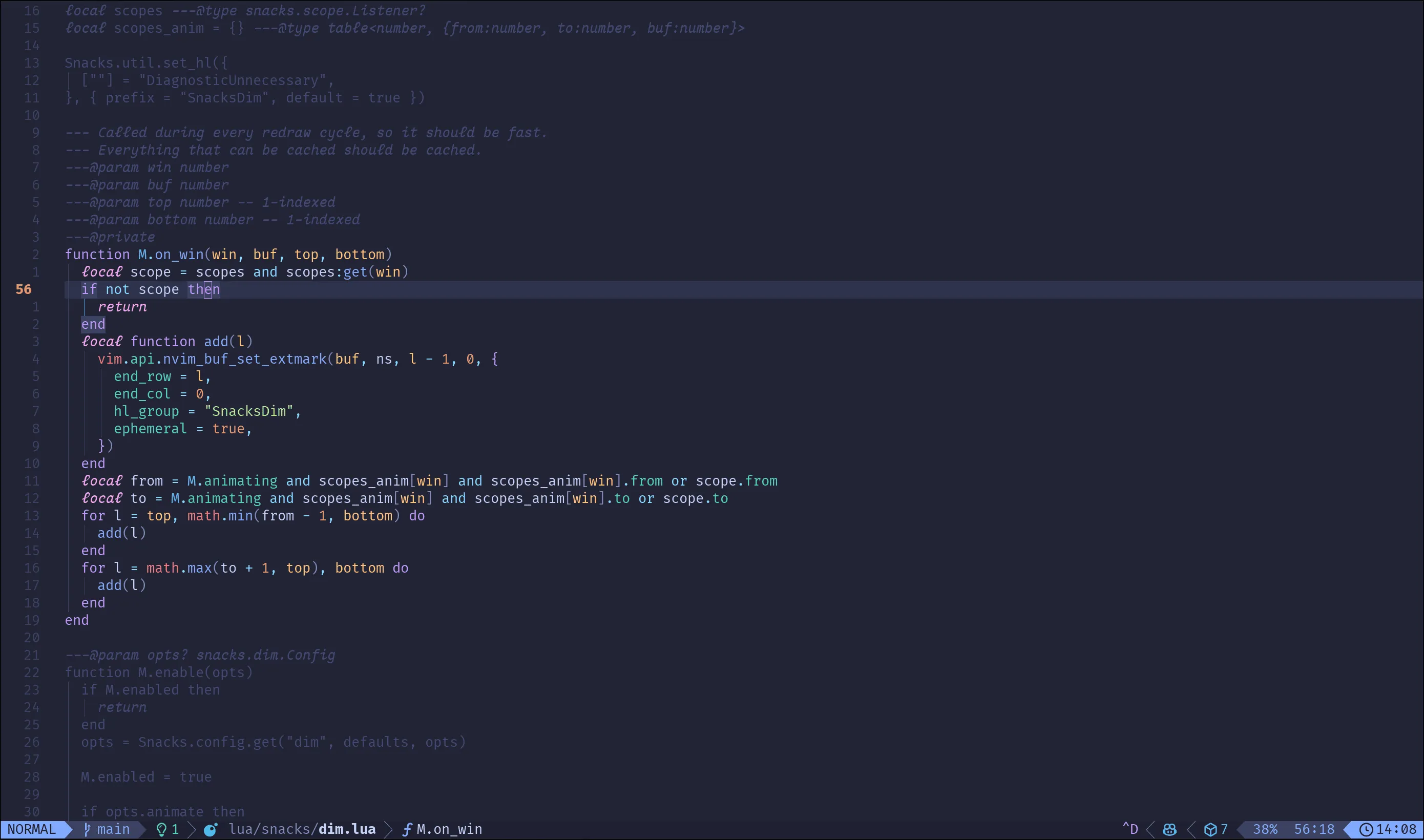
If you’ve used a vim-based text editor or vim emulation, you’re already familiar with layers in the form of “modes”. The standard vim experience includes at least three modes: normal, insert, and visual.
When you open vim, you start in normal mode. Here, pressing x deletes a character, and pressing p afterward pastes the deleted character at the cursor position — a replace operation. Press i to enter insert mode, and suddenly the same x and p keys simply type x and p into your document.
Toggling between modes with i and Esc changes the entire meaning of your physical keyboard.
Layers in Ghostty Terminal
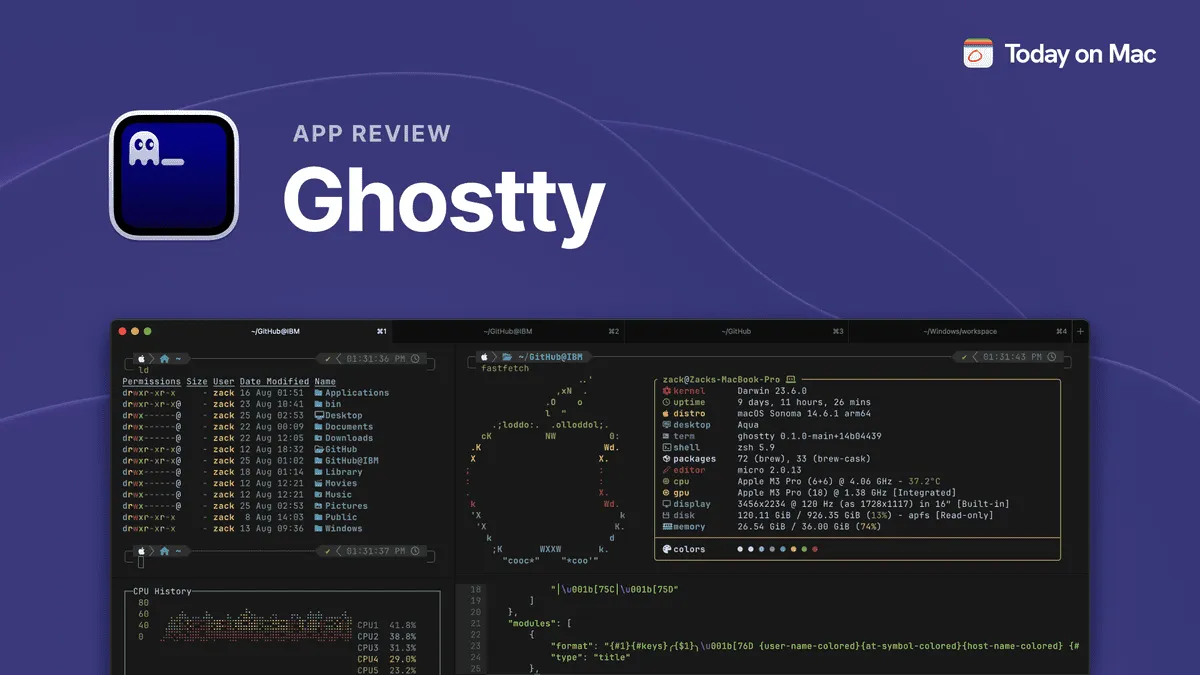
Ghostty, a cross-platform terminal emulator, takes a similar approach with its keybinding system. Here’s an example configuration:
keybind = alt+t=new_tab
keybind = alt+o=next_tab
keybind = alt+n=previous_tab
keybind = alt+c>n=move_tab:-1
keybind = alt+c>o=move_tab:1
Here, we use home row keys (in my case neio for Colemak keyboard layout) for tab navigation. By default, alt+o moves to the next tab. However, pressing alt+c first activates a different layer where n and o now move tabs between positions rather than navigating between them.
Layers in Hyprland
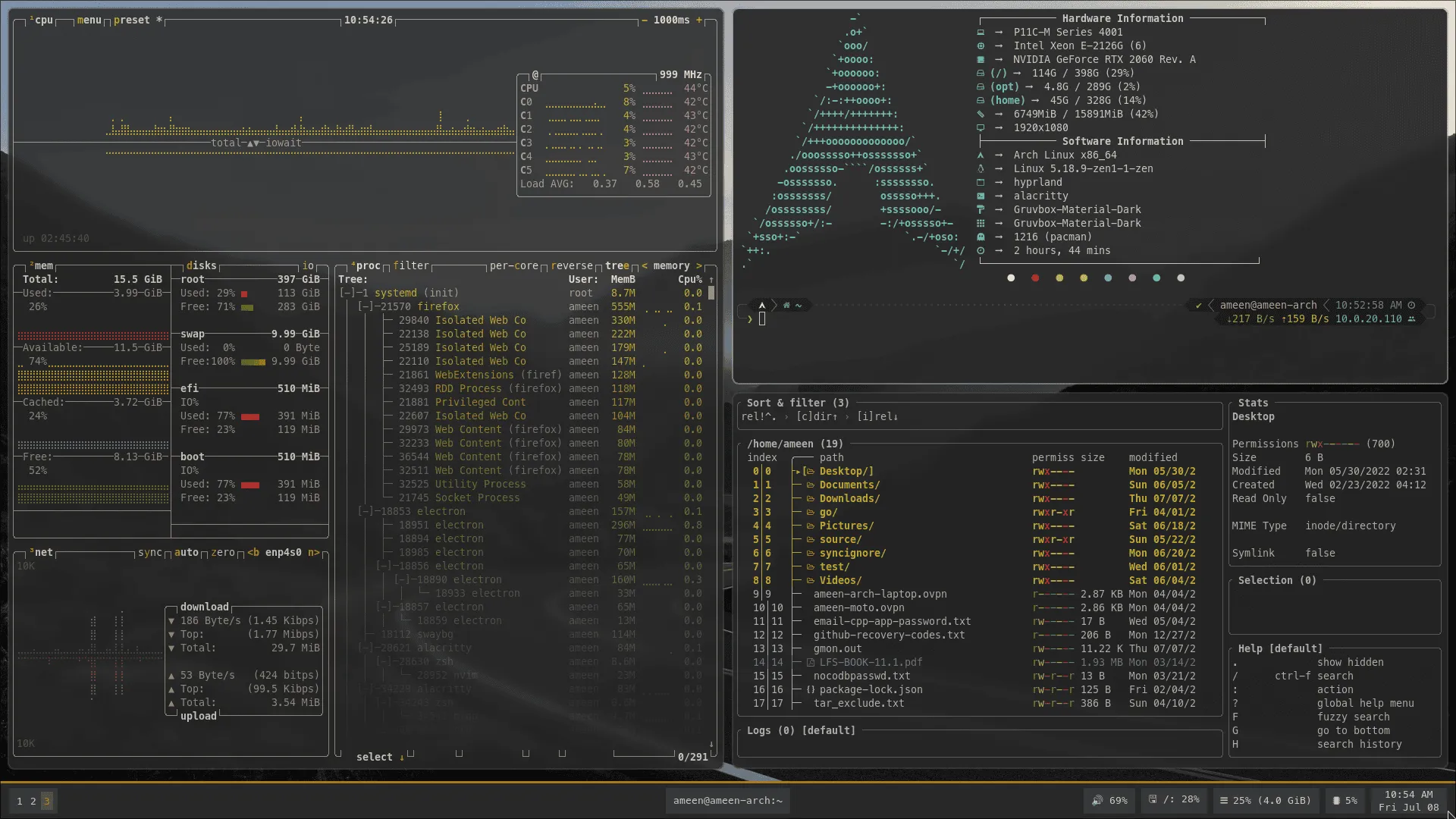
Hyprland, a Wayland compositor, has something similar called “submaps.”
For example, you might have Super+f bound to launch a file manager, but what if you want to open specific directories quickly? Submaps provide a solution:
bind = $mehMod, f, submap, filemanager
submap = filemanager
bind = , f, exec, hyprctl dispatch submap reset; $fileManager
bind = , d, exec, hyprctl dispatch submap reset; $fileManager ~/Downloads
bind = , s, exec, hyprctl dispatch submap reset; $fileManager ~/sync
bind = , h, exec, hyprctl dispatch submap reset; $fileManager ~
With this configuration, pressing Super+f activates the filemanager submap. While in this layer, pressing d opens your Downloads directory, s opens your sync directory, and so on. Each command automatically resets the submap after execution, returning you to the default layer.
Layers in Physical Keyboards
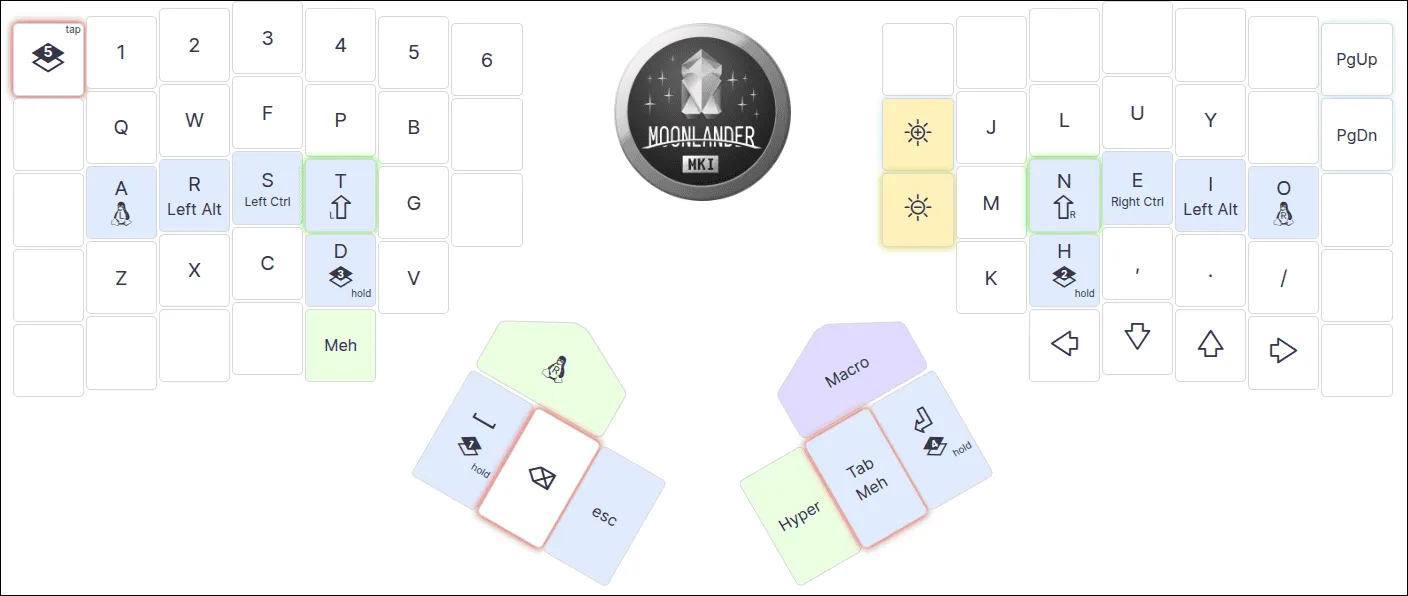
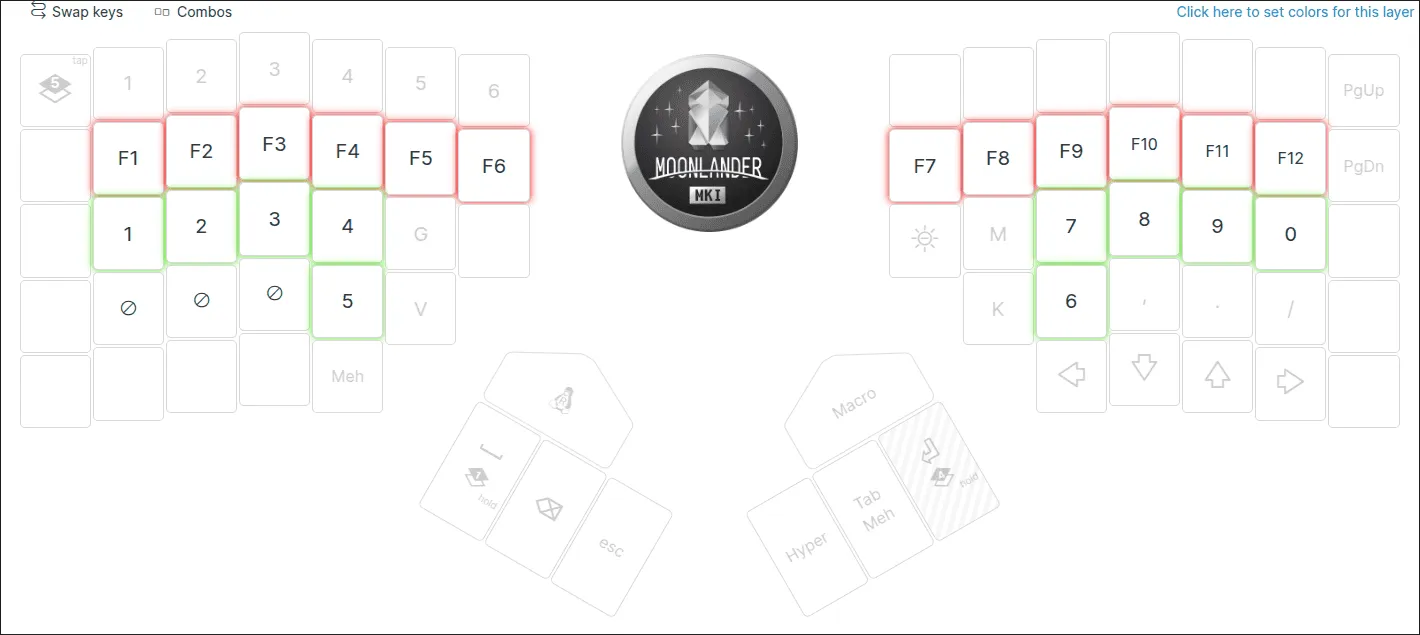
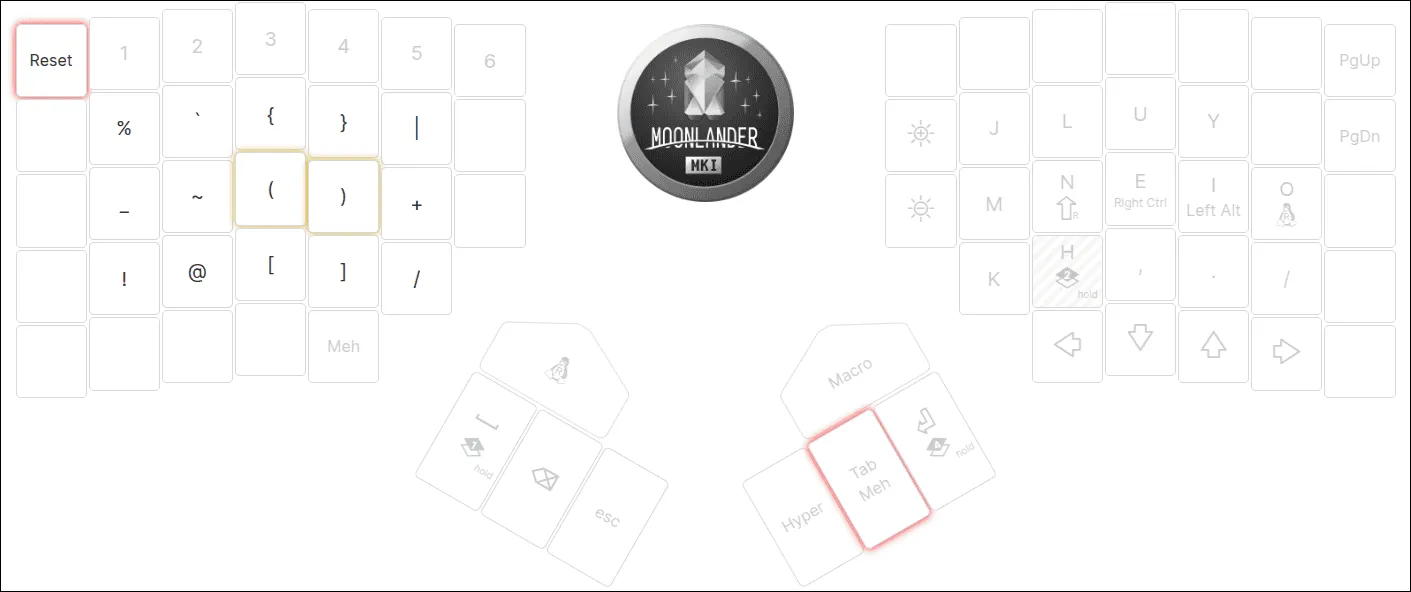
Layers show up in programmable keyboards too. I use a Moonlander keyboard, which lets me create custom layers mapped to my workflow.
My default layer uses the Colemak-DH layout, but by holding modifier keys, I can turn my home row into a number row or access symbols without moving my fingers from the home row.
Now what?
Layers take a few days to feel natural. Start with something small, like a numpad layer under a modifier, or a dedicated browser tab layer. Once the muscle memory settles in, you won’t want to go back.
Comments
Nothing yet. Say the first thing.
Sign in to join the conversation.