
I recently started playing around with the Google Cloud Platform. Since ASP.NET Core now runs on virtually any major OS, I wanted to give it a go with GCP’s Google Kubernetes Engine offering to see whether we can use it to host a .NET Core application.
So here are the steps we are going to follow:
- Create/Clone a sample ASP.NET Core app
- Build the docker image
- Push the containerized app to Google Container Registry (GCR)
- Deploy the app to Google Kubernetes Engine (GKE)
First things first, what are the prerequisites?
- VS Code or Visual Studio 2019
- .NET Core SDK v3.1+
- GCloud CLI Tools v274.0.0
- Docker and Kubectl
1. Create/Clone a sample ASP.NET Core app
You can grab the ASP.NET Sample app from my Github Repo:
This app has nothing to do with food though 😁 Let’s just say I was hungry when creating it.
You can clone the above repo into your local machine and navigate to the FoodApp folder and publish the app to app/ folder from a command line:
cd FoodAppCore/FoodApp
dotnet restore
dotnet publish -o app
2. Build the docker image
Don’t forget to replace
PROJ_IDwith your GCP project’s ID
Let’s build the docker image:
docker build -t gcr.io/PROJ_ID/food-app .If you want to test out your docker build locally, try it by doing so:
docker run --rm -p 8080:8080 gcr.io/PROJ_ID/food-app:latest3. Push the containerized app to Google Container Registry (GCR)
Let’s push our image to GCR:
docker push gcr.io/PROJ_ID/food-appIf you haven’t configured gcloud CLI to authenticate to GCR you need to run the following command (you need to this only once):
gcloud auth configure-docker4. Deploy the app to Google Kubernetes Engine (GKE)
Next, we need to create a cluster in GKE to deploy our app to:
gcloud container clusters create foodapp-cluster --num-nodes=3Finally, let’s deploy it to GKE:
kubectl create deployment food-app --image=gcr.io/PROJ_ID/food-app:latestIf the above command gives you an error, don’t forget to install kubectl for gcloud:
gcloud components install kubectlWait, now the app is deployed, how can our clients access it? This final command will expose our app through a load balancer binding port 8080 to 80
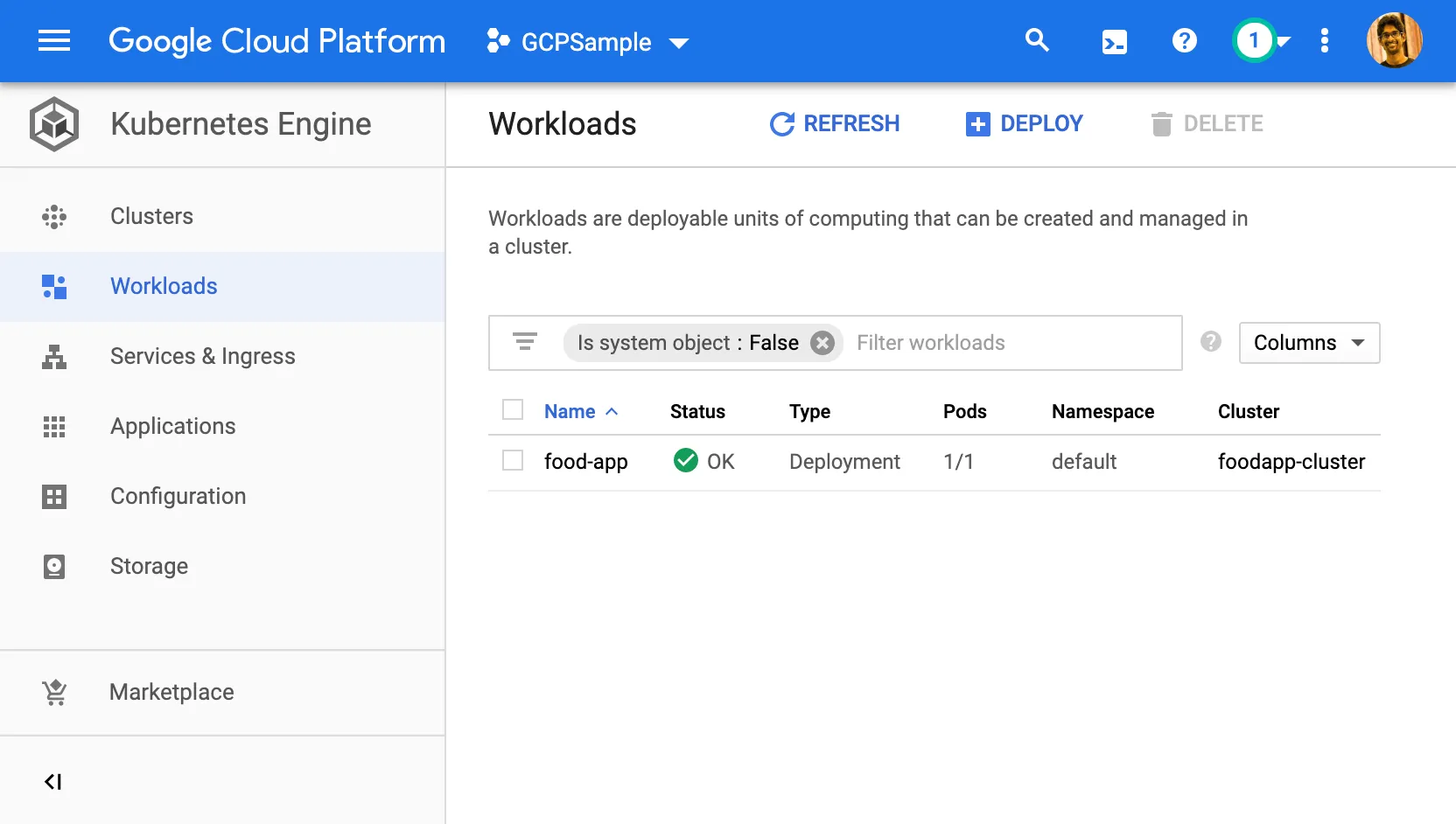
kubectl expose deployment food-app --type="LoadBalancer" --port=80 --target-port=8080Well, that’s it! you have your app running in GKE! If you are wondering how to access it, run a kubectl get service and grab its external IP and paste it in a browser.
Once it is running on Kubernetes, the cluster needs a way to tell whether your app is actually healthy rather than merely started. ASP.NET Core Health Checks covers the endpoint that readiness and liveness probes call, and which dependencies belong behind it.
Comments
Nothing yet. Say the first thing.
Sign in to join the conversation.