
Hi there, Karen here. Hope you’re well.
Congratulations to everyone who grabbed a paid subscription last week while the price was low. It will never be that low again.
Right now, paid subscribers get access to 🔸The Substack Starter Kit, 🔸my Canva templates pack for Substack, 🔸the Substack Idea Analyzer (Test Your Newsletter Concept in 3 Minutes) and 🔸100% off My No-Fluff Monetization Mini-course (usually $97), with 🔸more templates, guides and calculators dropping over the coming weeks.
Best of all, current subscribers keep the price they joined at, for as long as they stay, no matter how much more value I jam in.
Today I want to update you on three new features that have just been rolled out by Substack, tell you how to use them, and which ones you can safely ignore.
The three features are:
Perks
Audience-specific content settings
AI text scanner
Let’s dive in.
Perks is a new and genuinely useful feature for publications with paid benefits like digital products and downloadables.
Until the Perks feature was launched last month, publication owners had to showcase such benefits by building a special page. Like this one: For Paying Subscribers 🍒
Perks allow publication owners to
showcase benefits in a colourful grid format
offer one-time discount codes for digital products such as templates and courses
limit certain benefits to annual subscribers only (monthly subscribers cannot access) – not possible with traditional payments
limit certain benefits to new subscribers only
unlock a scheduled live video session for paying subscribers
In addition, Substack prevents people who have redeemed a perk from immediately cancelling their subscription to get a refund, protecting creators who offer digital products.
The perks page is automatically created when you make your first perk. It automatically appears in the navigation menu (tabs) of your publication’s website (but you can hide this if you wish).
Perks are useful if…
… your paid subscriber benefits are digital products (not just locked posts or paywalled parts of posts), or
you want to offer special things for annual subscribers that monthly subscribers cannot get, or
If you want to prevent people from downloading your paid content then immediately cancelling, or
If you have single-use discount codes or single-use access codes for digital products, or
If you want to unlock access to scheduled live videos for paid subscribers.
You don’t need perks if…
Your paywalled content is exclusively in the form of posts sent to paid subscribers or paywalled sections of posts.
You have already made a “for paying subscribers” page that does everything you want it to do.
To find out more, check out Substack’s official guidance on Perks
Another useful Substack feature that’s just been shipped is ‘Audience-specific content’.
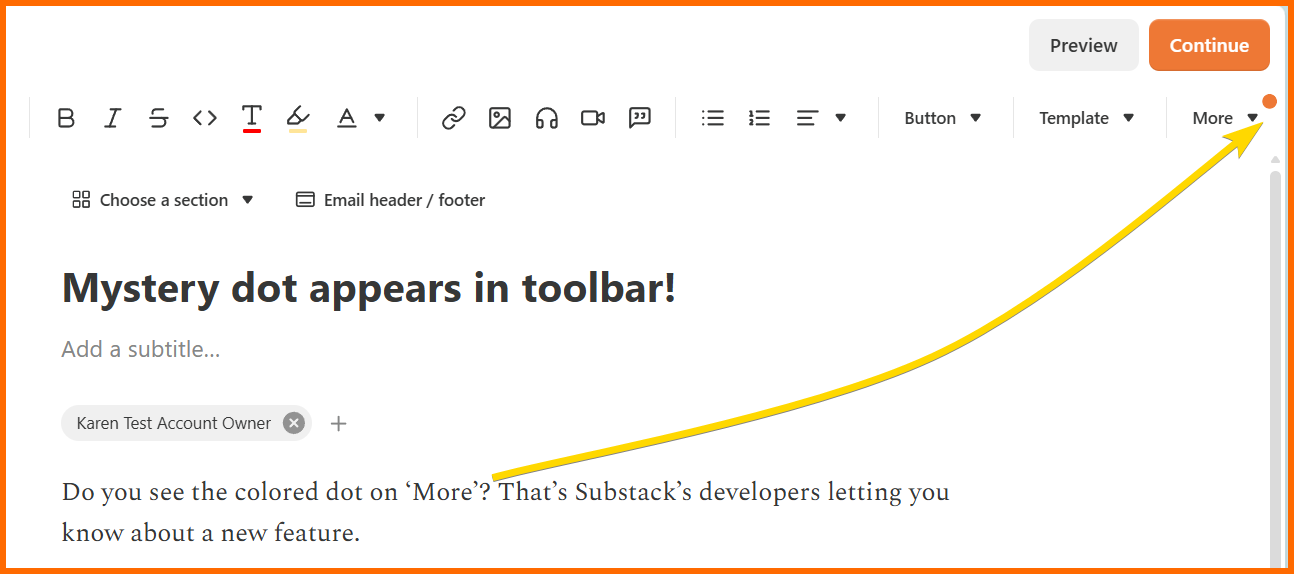
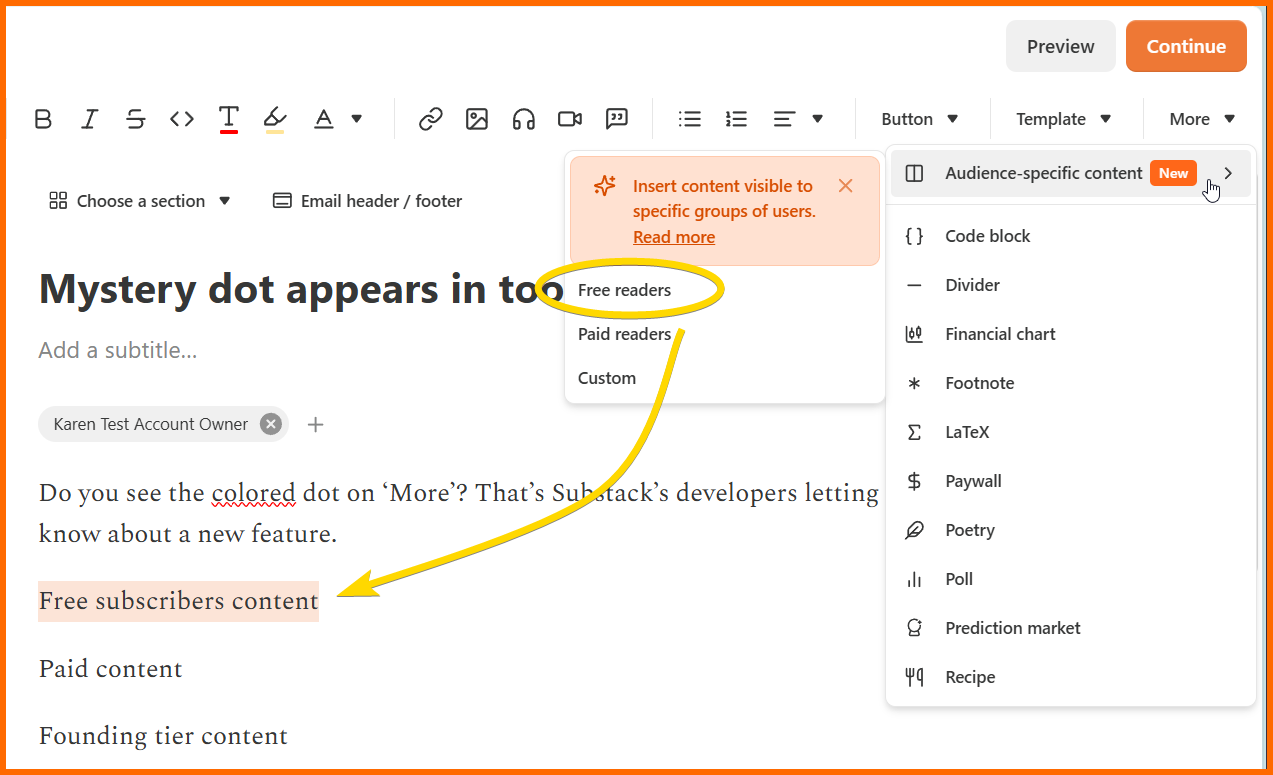
This feature allows you to add specific blocks of content to a post and limit who can see that block. You can use it for text, headings, images and even audio or video embeds.
For example, you can drop a piece of music into your post and set the audience so that only paying subscribers can listen.
The feature is intuitive to use, and it’s easy to check how your post will appear to different types of readers using the preview button before you publish.
Get full instructions from Substack’s official guidance on Audience Specific Content
Maybe….
I love this new feature, but I won’t be counselling my coaching clients to use it, except on a very limited basis.
Why? Because it’s both a brain drain and a time suck.
It’s super powerful - you could use it to create a beautifully optimised conversion machine in every single post, with 🔸custom calls to action for new and free readers, 🔸lead magnets for not-yet-subscribed people to encourage them to sign up, 🔸downloadables for paying subscribers but not free subscribers, 🔸testimonials for new visitors, 🔸upgrade pitches for free subscribers, 🔸thank you messages for paying subscribers, 🔸special tidbits for founding members, 🔸custom product offers for certain groups, 🔸video tutorials that can only be seen by….. You get the picture.
And all those options might feel really great, but I honestly don’t think they will radically move the needle for most Substack creators, especially those with fewer than 100 paying subscribers.
Why not? Because if you need to give visitors a pile of testimonials and a downloadable lead magnet just to get them to subscribe for free, you probably don’t have compelling enough content to begin with.
Or you’re using this feature for busy work and procrastination instead of actually writing!
And if you’re too worried about offending your readers to add an Upgrade button that everyone can see - even people who aren’t yet superfans - then your mindset might actually be the problem, not your readers’ (imagined) sensitivities.
And because when you hide something special like a voiceover or video so that only paying subscribers can see it, you limit its ability to attract new upgrades. (Of course you could also create a second block with a special call to action that only free subscribers would see, but suddenly you’ve made even more work for yourself and added layers of complexity to every post).
And, most importantly, because every minute that you spend fiddling with multiple variations and custom settings is a minute that you are not spending on writing high-quality work that your readers will love, share and pay for (and that’s the real magic).
It could be genuinely useful for…
… Adding voiceovers to posts sent to everyone but limiting listeners to paid subscribers only.
… Keeping sponsored content away from paid subscribers - free subscribers see ads, paid subscribers don’t.
… Allowing comments from everyone on posts with paywalled content - something that hasn’t been possible until now.
Substack has integrated an AI writing detector into its online and app environment. The AI detector is built by Pangram Labs. It’s designed to detect AI-generated text and AI-assisted writing and was developed for companies, educational institutions, academic research, and content moderation teams.
You can only use the AI scanner on Notes and articles you see in the app or in your Substack inbox on the web. You can’t access the scanner from the webpage version of a post, and you can’t use it on posts you’re reading in your email inbox. It only works for Notes and articles published after 21 July 2026.
To scan a post, first click the three-dot menu at the top or bottom of the post or note, then choose ‘Scan for AI text’ from the dropdown menu that appears. The scanner will tell you whether it thinks the post was written by AI, written with AI assistance or is ‘Fully human’.
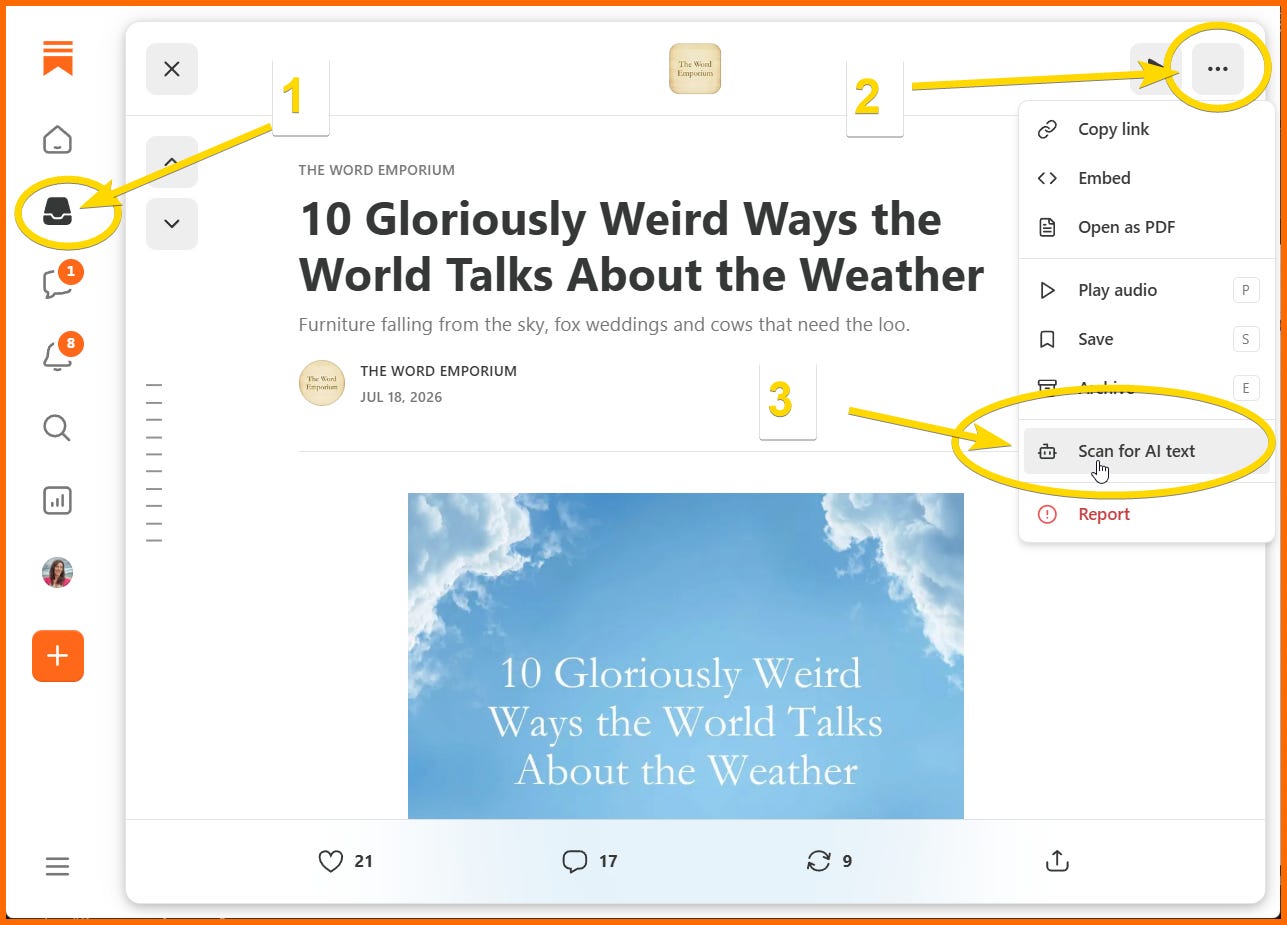
If you can’t see ‘Scan for AI text’ when you click the three dots on a post you are reading on the browser and not in your Substack inbox.
You can scan your own posts before publishing and disable scanning on your own posts on a post-by-post basis.
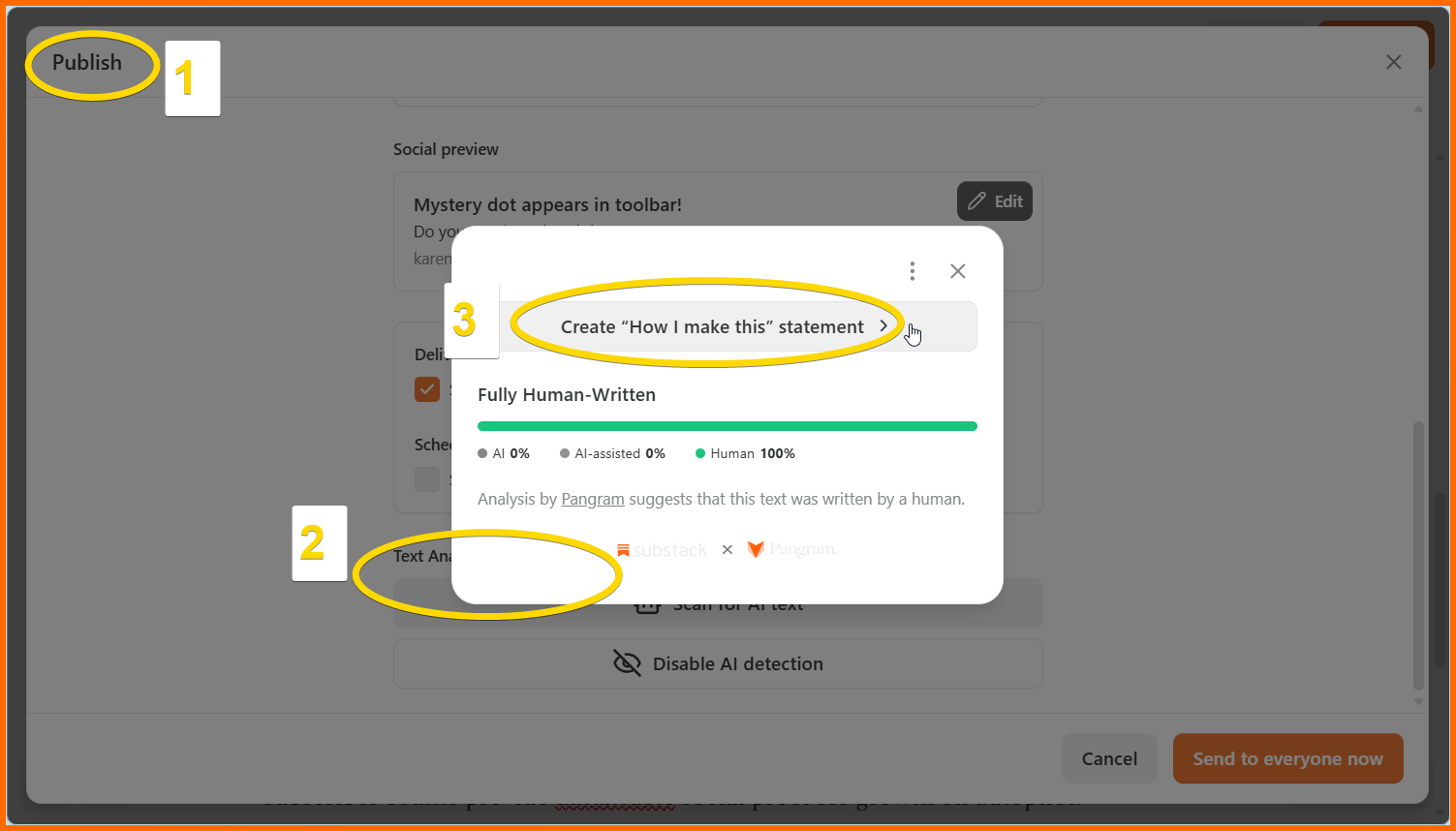
To scan your own draft post, first click ‘Continue’ to access the ‘Publish’ window, then scroll down to Text Analysis and click ‘Scan for AI text’.
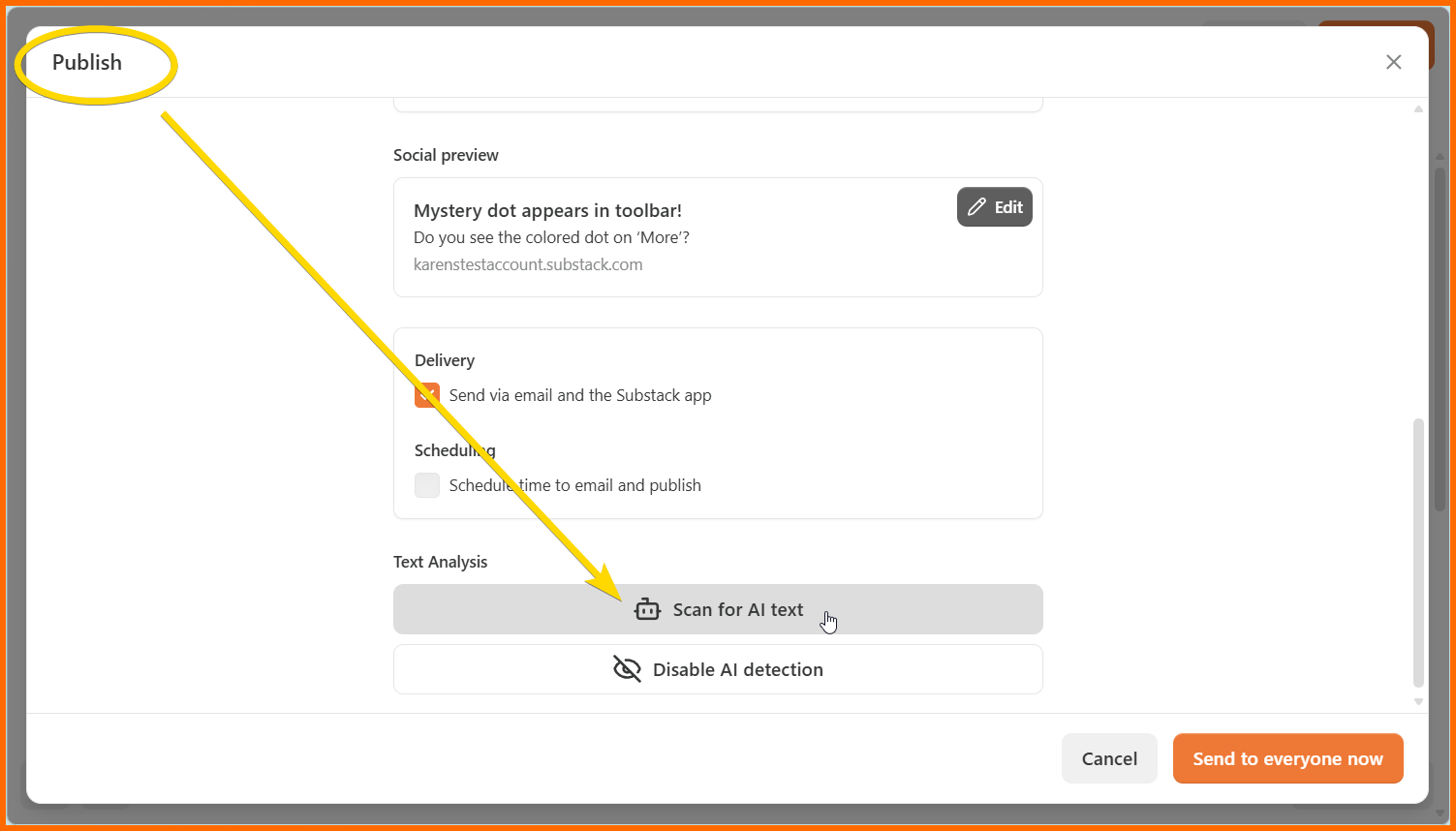
To disable AI detection on your own post, first click ‘Continue’ to access the ‘Publish’ window, then scroll down to Text Analysis and select ‘Disable AI detection’. You can only do this before the post is first published, and not in subsequent edits.
Your “How I make this” statement appears when people scan your posts for AI text.
To add a “How I make this” statement, first follow the instructions above to scan your draft post.
You’ll be prompted to create your statement after the scan has run.
Maybe not.
I haven’t played with the scanner myself, but I’ve heard from other creators that the tech is unreliable. One writer said the scanner failed to identify that a post she had written with AI, marking it ‘Fully Human’, while another changed a single sentence in a long post, thereby switching the result from ‘30% AI-assisted’ to ‘Fully Human’.
Take its estimations with a generous pinch of sceptical salt.
Nope. Don’t waste your time on this AI witch hunt.
I recommend spending 30 seconds to create a “How I make this statement” for your publication, then ignoring this feature forevermore.
If you hate AI-sounding stuff, then unsubscribe from publications that sound like AI. If you’re cool with it, then stay subscribed. This issue is not worth your energy.
If you’re worried that Pangram is scraping your text for training, don’t be. Substack says it is not (official statement here). Separately to the Pangram feature, it is also possible to activate a ‘Block AI training’ setting in your dashboard (here’s how)
So there you have it, 3 new features rolled out by Substack in the past two months.
It’s a lot to take on board.
My advice is to ignore them unless you’ve already found your groove on Substack, are publishing comfortably every week and have at least a few hundred subscribers. Until then your energy is best spent writing great posts, getting your work in front of new people and inviting them to join you.
Until next time,
Karen
Comments
Nothing yet. Say the first thing.
Sign in to join the conversation.