
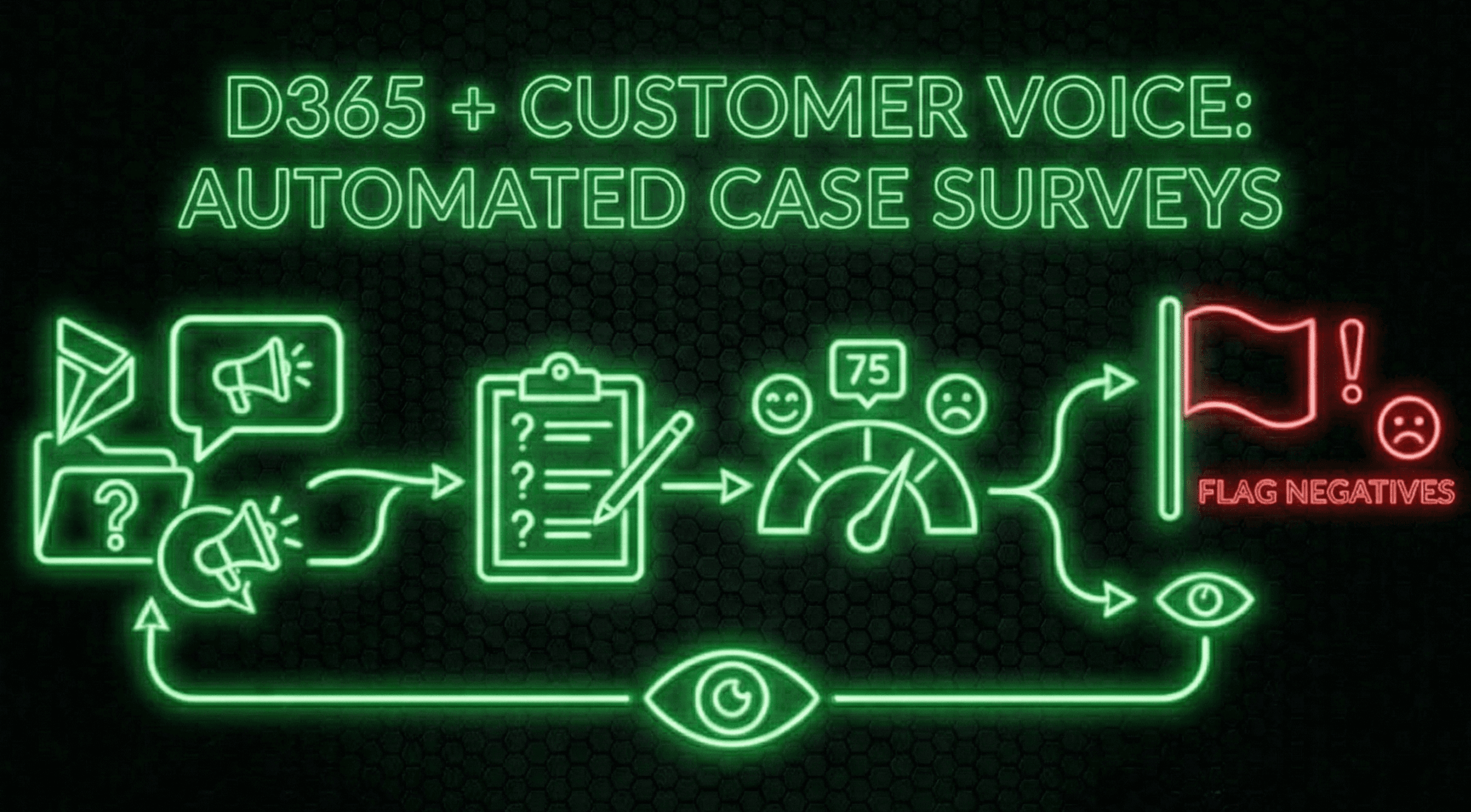
This is a reusable pattern for turning Customer Voice surveys into actionable Customer Service work. It automatically:
sends a survey when a Case is created
parses the survey response JSON
scores the results
writes a Positive/Negative outcome directly back onto the Case record
You want a consistent way to collect feedback without manual sending
Your support team needs results visible where they work (on the Case), not buried in a separate dashboard
You don’t have a reliable “survey should be sent now” moment
(example: Cases are created in bulk via system alerts)You need heavy conditional logic that changes constantly to determine who gets a survey
(that’s how flows turn into archaeology)
Before you build anything, confirm:
Customer Voice survey is created (questions finalized enough to test)
Customer Voice email template/invitation is ready to send
Your Case table in Dataverse has a custom field to store the outcome
(example: Survey Outcome = Positive/Negative)You know exactly which Case types should be excluded from receiving surveys
Build your survey and configure the email template
Test small first: send yourself one manual invitation to confirm:
delivery
branding
link functionality
Create a flow that triggers when a Dataverse Case row is added.
Consultant law #12: hardcoded GUIDs are just bugs waiting for a Friday afternoon.
Store excluded Case categories/types in a small config table
Look them up in the flow
If the Case is excluded → Terminate
Do not be a hero and build a 100-line filter condition in the trigger.
Use the Customer Voice action to send the invitation to the Case Contact
Use the Case ID in the Regarding field
Create a Case in a sandbox with a non-excluded category
Confirm:
the flow fires
the email looks right
the survey link works
This is where the heavy lifting happens. Customer Voice stores answers inside a JSON string, so we have to unpack them before we can score anything.
Create a flow that triggers when a Customer Voice survey response is:
Added or Modified
Add a Parse JSON action
Feed it the Context Data (or the survey response details field) from your trigger
Generate the schema:
run the flow once
copy the raw output of that field
click Generate from sample
This tells Power Automate to expect an array containing questionId and response pairs.
For each question you want to score, add a Filter array step (name them clearly, like Filter Array Q1, Filter Array Q2).
From: the Body output from Parse JSON
Condition:
questionIdequals the GUID for that question
Note: for clean ALM, consider using a Text Environment Variable for each question ID instead of hardcoding GUIDs.
A Filter array always returns a list, even if there’s only one result.
If you drop that list into a Condition, Power Automate will push you into an Apply to each loop.
To avoid that, use a Compose action that:
grabs the first match
handles blanks safely
converts the response to an integer
Create a Compose step with this expression:
@{int(coalesce(first(body('Filter_array_Q1'))?['response'], '999'))}
Why this works
first()pulls the single item from the filtered list?['response']grabs the answercoalesce(..., '999')prevents crashes on blank responsesint()converts the value so numeric comparisons work reliably
Repeat this Compose pattern for each scored question.
Add a Condition block with an OR rule and your thresholds.
Example:
If Q1 < 3 OR Q2 < 3 OR Q3 < 7 → Negative
Note: because blanks become 999, they will fail the “less than” checks safely and won’t create false negatives.
If Yes: Update the Case (or Ticket) row
use the Regarding value to identify the Case
set Survey Outcome = Negative
If No: Terminate
Submit one “good” survey and one “bad” survey
Confirm only the bad one hits the “If Yes” path and updates the Case outcome
Flow #2 doesn’t trigger at all
Customer Voice may create the response row first, then update it with a submit date later.
If your trigger is only “Added,” you might miss it. Use Added or Modified.Question IDs changed after deployment
If you copy/duplicate the survey into a new environment, thequestionIdGUIDs can change.
Your Filter arrays will silently return nothing. Always verify IDs after deployments.
Future You will thank you if you run these checks before handing this over:
Create a Case that should send a survey → verify the invite arrives
Create an excluded Case → verify the flow terminates early and sends nothing
Submit a low score → verify:
Parse JSON works
scoring Condition evaluates to True
Case outcome updates to Negative
Submit a high score → verify:
Condition evaluates to False
flow terminates peacefully
A tier-1 support team wants customer feedback, but they refuse to leave Dynamics to check Customer Voice dashboards.
By implementing these two flows, support leads can pin a view like:
“Cases with Negative Survey Outcome”
…to their main dashboard and follow up immediately, without chasing survey exports or forwarded email chains.
No posts
Comments
Nothing yet. Say the first thing.
Sign in to join the conversation.