
TL;DR: ChatGPT has dozens of underrated features that solve the small frustrations you run into every day. Members get the complete guide to 25 features I tested myself, with screenshots, exact steps, and copyable prompts. I’ll keep updating it as ChatGPT changes and I find more features worth using.
If you’ve been using ChatGPT for a while and have ever searched for ways to get better at it, you’ve probably seen the same advice again and again: write a better prompt.
That advice is useful. I’ve written plenty of it myself, and I still believe prompting is one of the most important things you can learn.
But it isn’t the whole story.
While working on this guide, I tested 25 features inside ChatGPT, and I kept finding things I wished someone had shown me earlier. Some solve small, everyday annoyances: finding an old answer, returning to an important conversation, or reusing a file you uploaded months ago.
You can write excellent prompts and still miss all of that, simply because you don’t know the feature exists or where to find it.
That’s why I made this guide. It’s one of the first living guides from Zero to AI, which simply means I’m not going to publish it once and walk away. This first version contains 25 features I tested myself. There’s much more to add, and I plan to update it as I go. All of these features below have been tested on the ChatGPT browser app.
I’m also working on similar guides for Claude and Gemini. The larger goal is to give you somewhere practical to return whenever you feel as though you’re using these tools every day but may still be missing something useful.
Here’s what’s inside:
Find work you know is in there somewhere. Search old conversations, jump to the exact passage you need, pin active chats, and branch a useful conversation before trying a different direction.
Reuse files and useful answers instead of starting again. Recover documents, images, pasted text, and saved passages from Library, then bring them into a fresh conversation without uploading everything again.
Understand what ChatGPT keeps—and take back some control. Review shared links, download your account data, stop ordinary chats from being used for model training, use Temporary Chat effectively, and inspect or correct Memory.
Give ongoing work a proper home. Use Project Instructions, choose the right kind of Project memory, save important responses as sources, and move earlier conversations into the Project where they belong.
Get more trustworthy research than a quick answer can provide. Start Deep Research, narrow it to sources you trust, investigate across your own documents, fix the proposed plan, and redirect the work if it begins drifting.
The longer you use ChatGPT, the more often the problem is not creating something new. It is finding something useful you already made. The answer exists somewhere. So does the file, image, decision, or version of the conversation you want to continue. Starting again is possible, but it wastes the background and corrections you already gave ChatGPT.
These controls are small. That is exactly why people miss them.
ChatGPT has an account-wide search, which is different from asking it a question in the prompt box. Click the magnifying glass in the left sidebar, or press Cmd+K on a Mac and Ctrl+K on Windows, and it searches material you have already created or stored inside ChatGPT. The results can be filtered to Chats, Images, Documents, and Projects. A Project is a named place that keeps related conversations, files, and instructions together; you don’t need to be using Projects for the other search filters to be useful.
That range was the first surprise in my testing. ChatGPT surfaced old .md documents from Library—its built-in file shelf—alongside chats and images, and it could search for text inside images it had generated. This makes search useful even when the automatically generated filename tells you nothing about what is actually in the image.
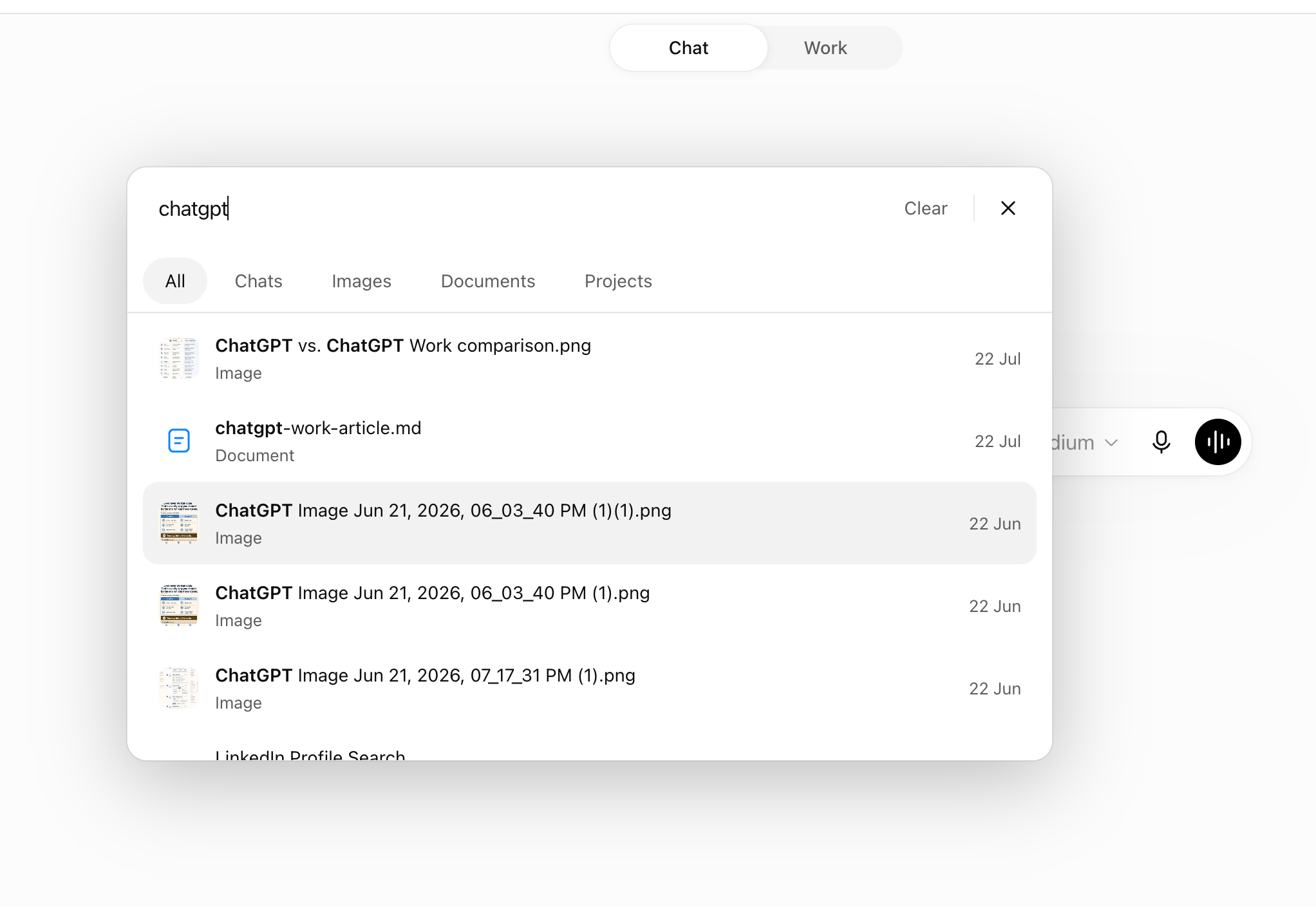
The All view mixes results from across ChatGPT; the tabs narrow the same search to a particular kind of material.
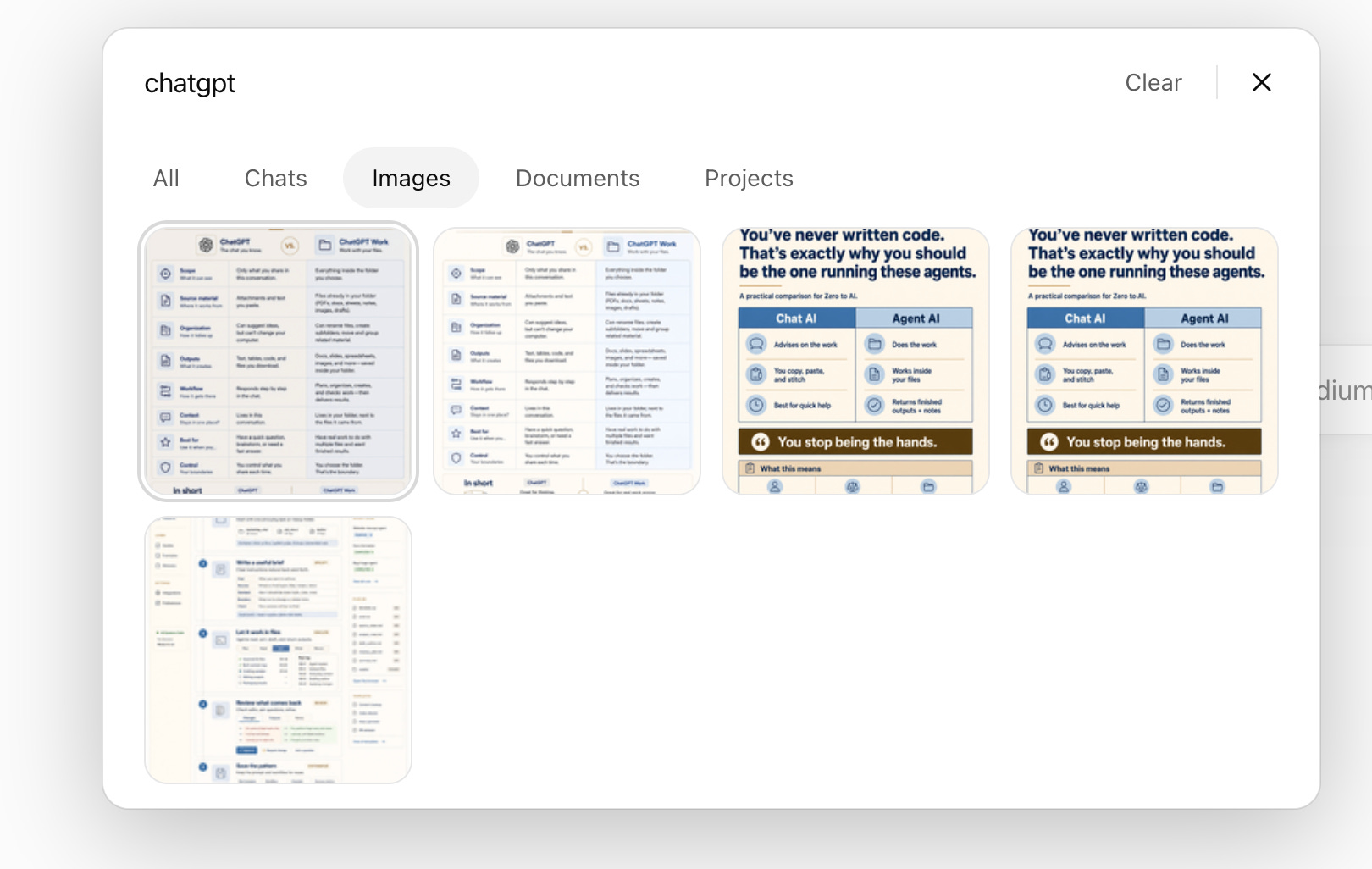
Search can surface generated images using the text inside them, rather than making you remember which conversation produced the image.
The most useful part, though, is what happens after you click a result. ChatGPT does not always drop you at the top of a long conversation and make you search again. It can open the relevant part of the conversation and highlight the matching words, which turns the feature from “find the old chat” into “return to the exact passage I need.”

The matching term is highlighted at the point where it appears in the conversation.
Hover over a conversation in the sidebar and click the pin icon that appears beside it. ChatGPT moves the conversation out of the general list and into a separate Pinned section, which makes this more useful than merely keeping a recent conversation somewhere near the top.

The pin icon appears beside the conversation in the sidebar.
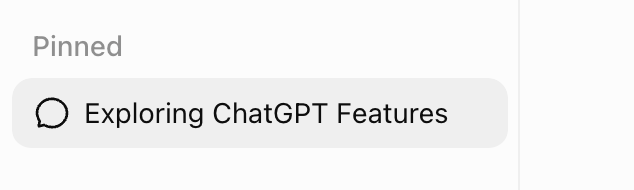
Once pinned, the conversation gets its own persistent place above the ordinary chat list.
I would use this for conversations that behave like active documents: the article I am drafting, the planning chat I reopen every morning, or the reference thread I need throughout the week. The restraint matters because pinning 30 conversations simply creates a second cluttered sidebar. A decent rule is to pin only work you expect to reopen this week, then unpin it when the work is finished.
Branching copies a conversation up to a response you choose and opens that history in a new chat. Everything before the branch point comes with you; anything you do next stays in the new branch, while the original conversation remains unchanged. That makes it possible to explore a different argument, plan, or draft without forcing two competing directions into one increasingly confused thread.
To create one, find the response where the new direction should begin, open the three-dot menu beneath it, and choose Branch in new chat.
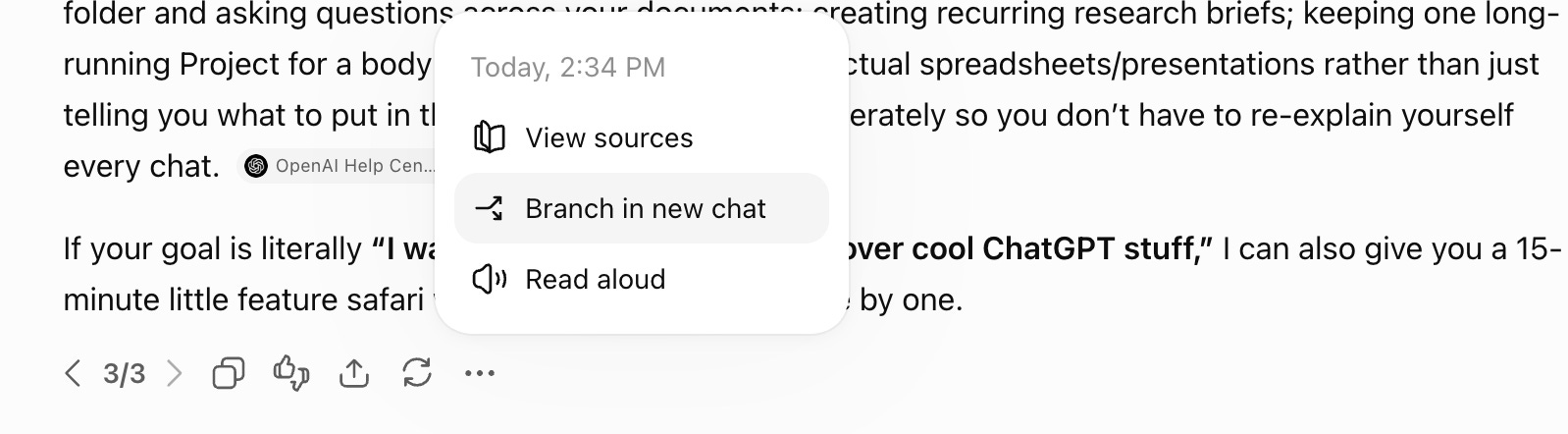
Open the menu beneath the response that should become the branch point.
This is especially useful for writing. If ChatGPT has helped you build a strong brief and outline, but you want to test two openings, branch at the approved outline and draft each opening separately. The two versions inherit the same decisions without contaminating each other, and you can return to the original thread if neither experiment works. The same move helps with competing research plans, negotiation strategies, campaign directions, or any conversation where “let’s try something completely different” should’nt erase the path that got you there.
I have already published a full guide to branching chats in ChatGPT and Claude, including the broader housekeeping system for keeping long AI conversations usable. Go there if you want the step-by-step method; for this guide, the essential move is simple: branch before a new direction makes the useful original harder to recover.
Library is the file shelf built into ChatGPT. Open it from the left sidebar and you will find material you previously uploaded or created inside ChatGPT: documents, spreadsheets, presentations, PDFs, generated images, and text files such as Markdown files ending in .md. Instead of remembering which conversation contained the attachment—or returning to your computer and uploading the same document again—you can retrieve the existing copy and start a new conversation from it.
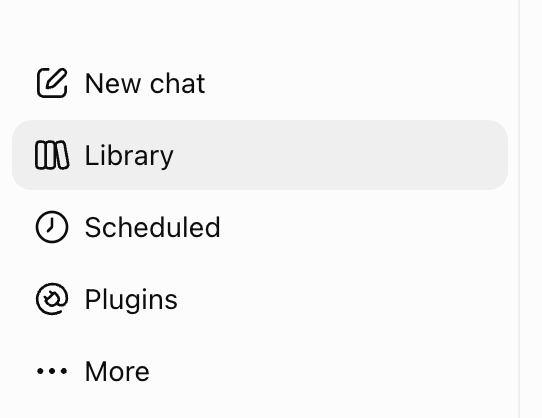
Library lives in the main sidebar alongside New chat and Scheduled.
The part I had not appreciated is that Library can also retain text pasted into ChatGPT. In my Library, those excerpts appeared as .txt files with names such as Pasted text (2)(1).txt, alongside more deliberate working files such as chatgpt-work-article.md. That makes Library useful for recovering source material you pasted into a conversation and then forgot about—not only formal documents you consciously uploaded.
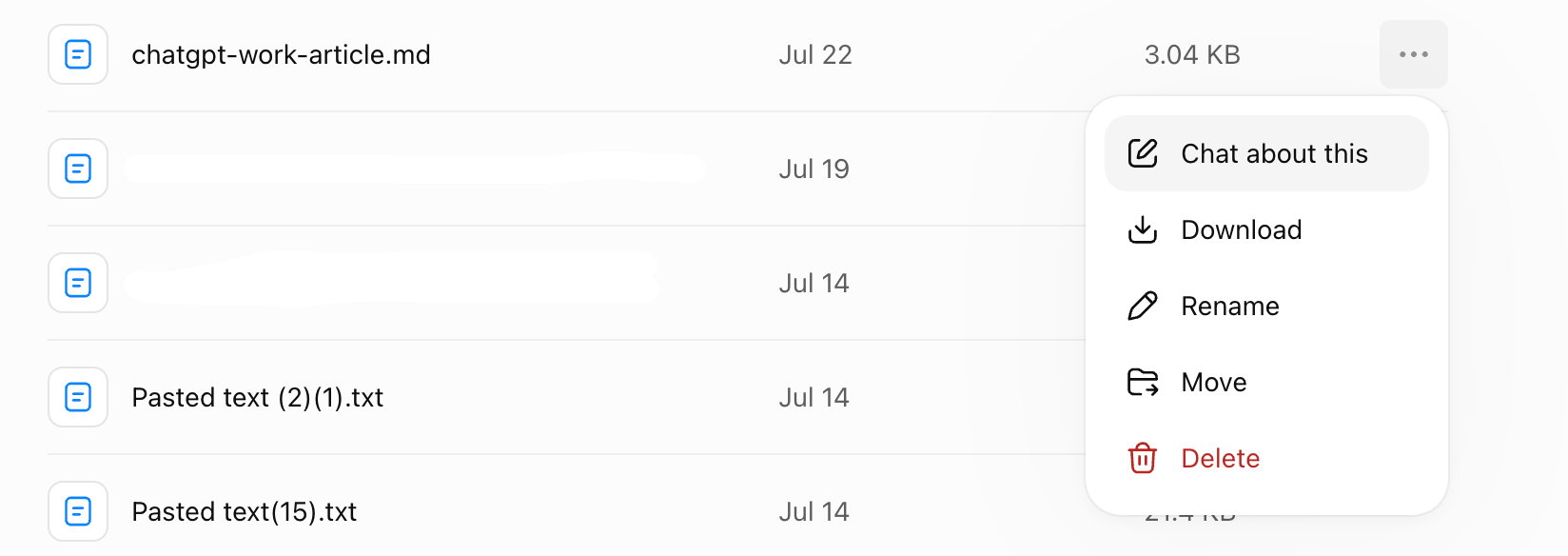
Library can hold Markdown and plain-text files, including text previously pasted into ChatGPT.
The generic Pasted text names become unhelpful quickly, so rename anything you expect to reuse. The same menu lets you download, move, or delete the item.
You can also click on Chat about this and ChatGPT opens a fresh conversation with that file already attached.
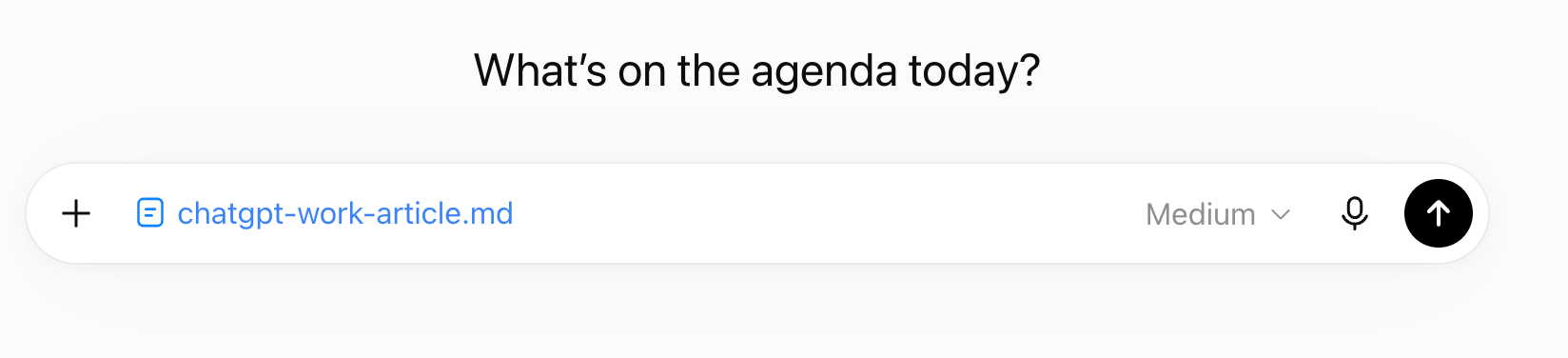
This changes the economics of using documents with ChatGPT. A résumé, brand guide, research paper, product catalogue, writing sample, or recurring spreadsheet no longer has to begin as a new upload every time. Find the existing file, choose Chat about this, and give the new conversation its assignment. Library does not mean every file automatically influences every conversation; it means the source is available when you want to bring it back into the work.
And Library is not only a passive archive of whatever ChatGPT happens to retain. You can deliberately upload useful material into Library, name it, place it in a folder, and build a collection you expect to return to.
Library becomes harder to use as it grows unless you group the files you want to revisit. Create a folder in Library, then use an item’s menu to move related files into it. This is especially useful for image work: keep the logo directions, thumbnail experiments, character references, or visual drafts together, then return later to inspect the set instead of hunting through the chats that created each image.
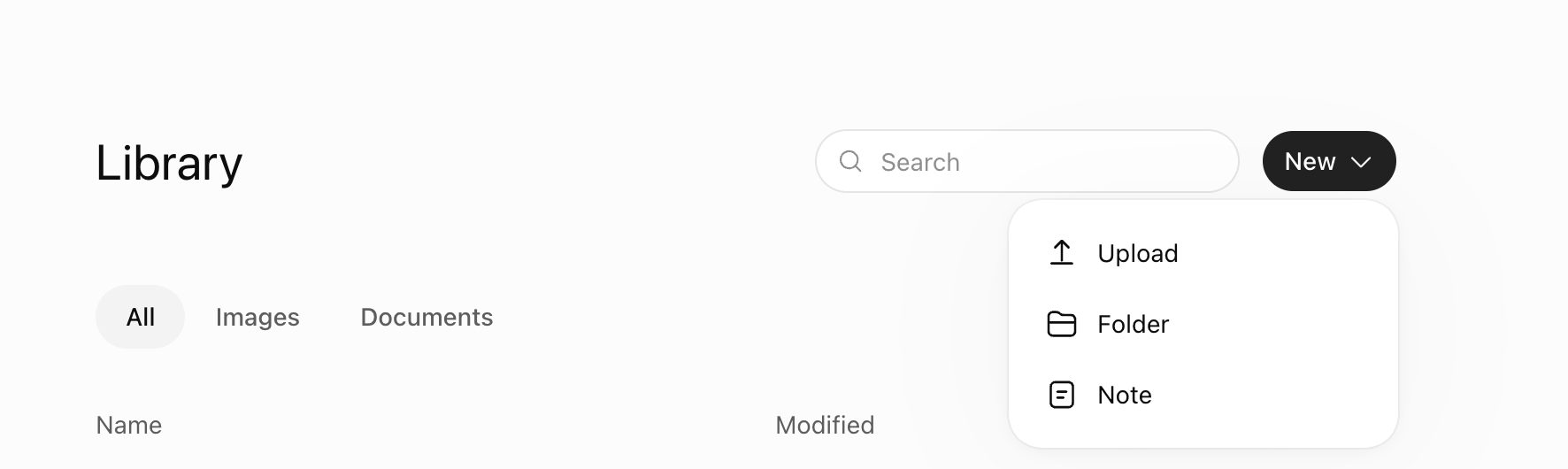
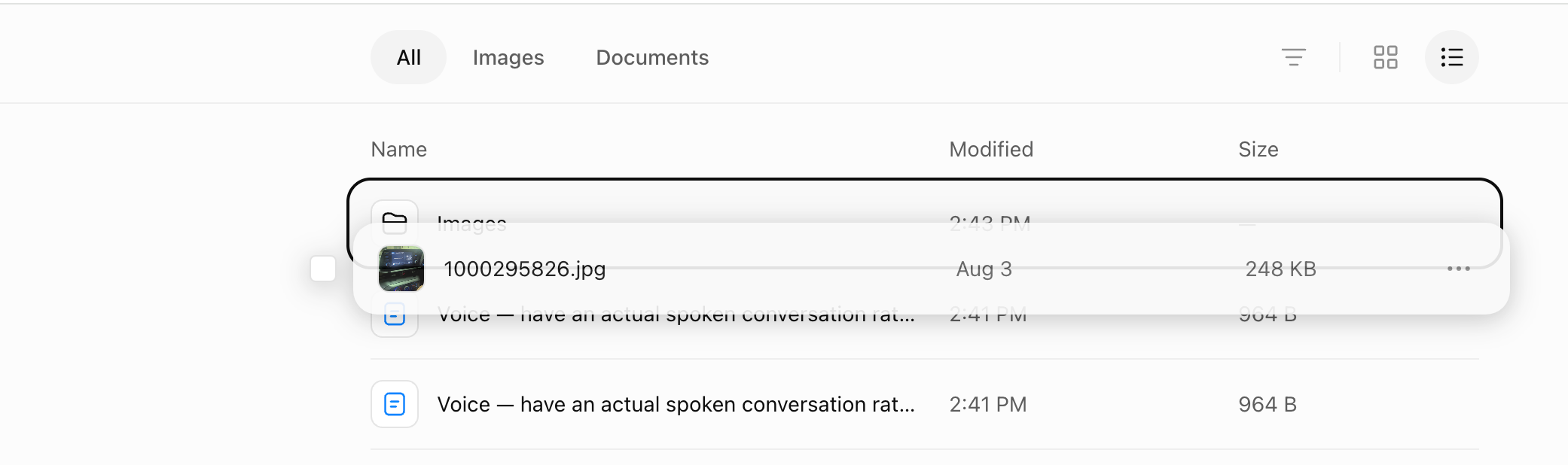
Files can be moved into folders, giving related images or documents a persistent home.
Sometimes the useful thing you want to keep is not a file you uploaded. It is one table, explanation, checklist, or block of text inside an answer. Select that part of the response and use the save-to-Library control that appears. ChatGPT turns the selection into its own document, separate from the original conversation, which you can reopen, rename, organize, or attach to a new chat later.
Click on New —> Note —> Paste whatever text you want to save in the Library
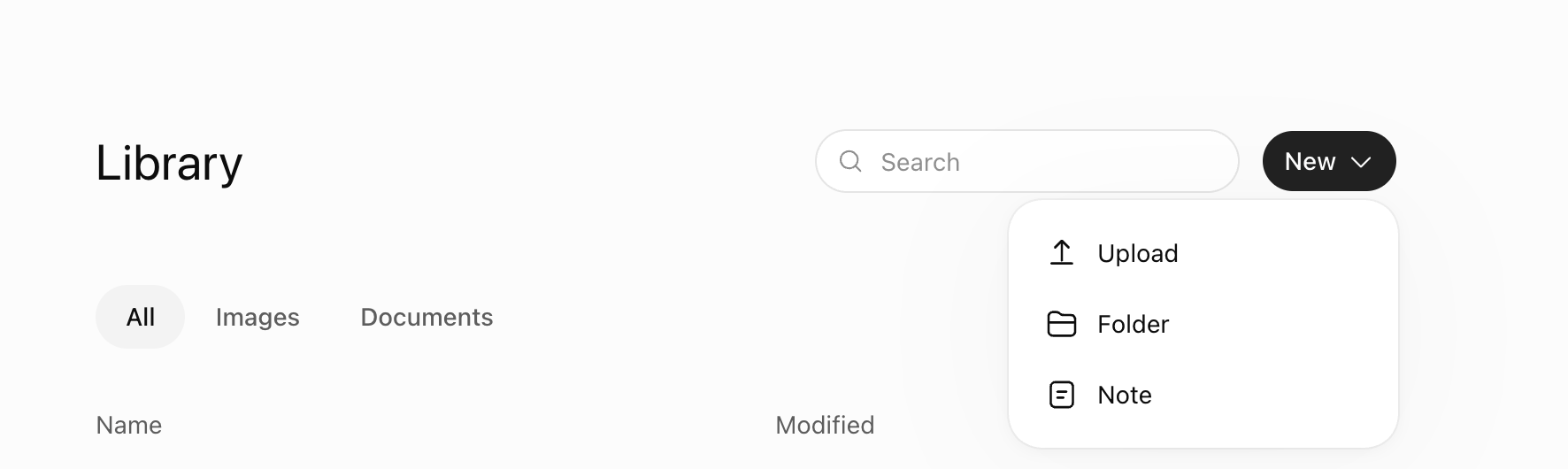
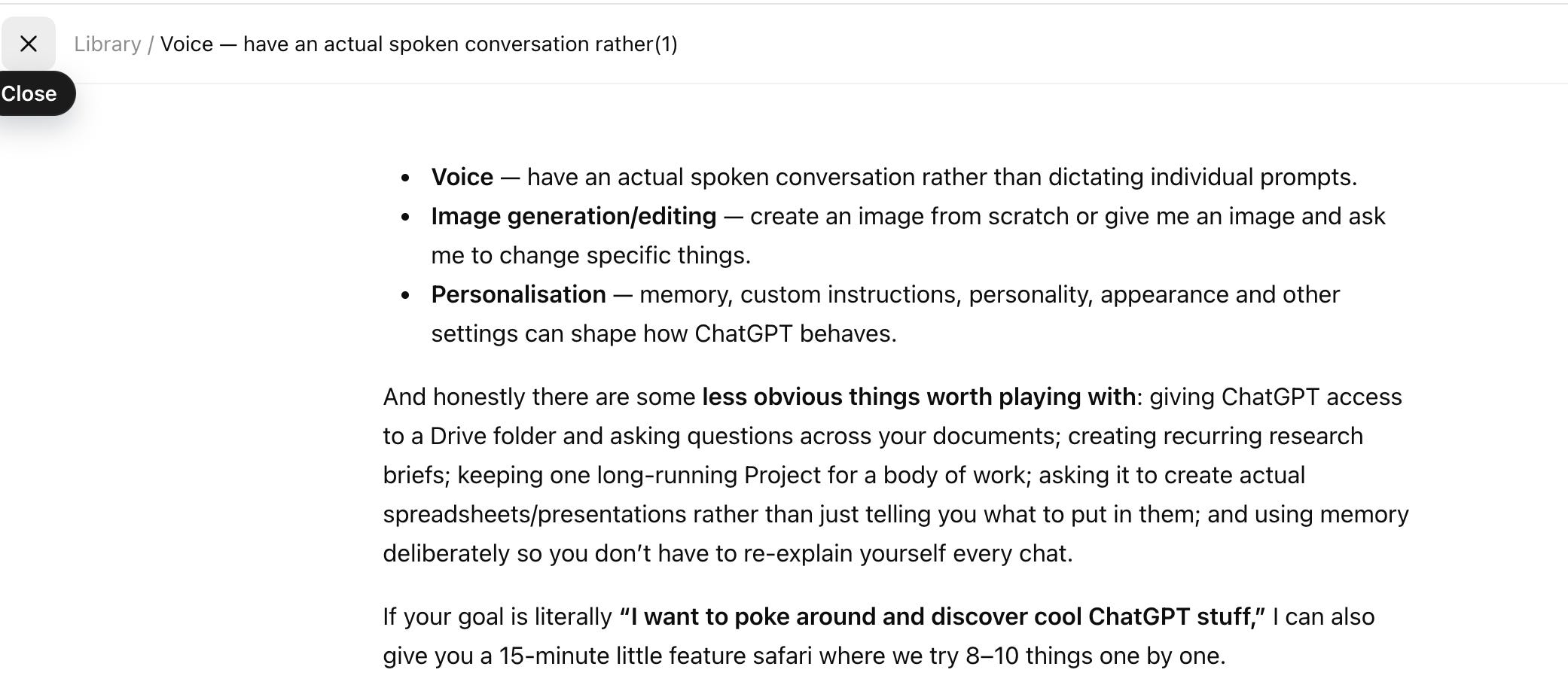
A selected part of a response saved as a standalone Library item.
This is a better use of Library than saving every answer “just in case.” Keep the parts you expect to reuse: the approved positioning statement, the explanation that finally made sense, the comparison table you want in a later brief, or the checklist future work should follow. You are turning a temporary answer into a named reference, without opening another document app and copying it there first.
You can use ChatGPT every day and still miss most of what it can do, because many of its most useful controls are tucked inside menus and settings you may never think to open.
The rest of this guide covers more features for protecting your chats, managing what ChatGPT remembers, keeping ongoing work organized, and getting answers you can trust—with screenshots and exact steps for each one.
Comments
Nothing yet. Say the first thing.
Sign in to join the conversation.