
In this post I want to share how I configure Visual Studio Code to support my note-taking and handling of task items within them.
Since quite some time I use Dendron to collect ideas, topics to remember and as a journal. Taking notes during the day while working, in meetings and during conversations with others plays an important role. More often than not this means I need to take note of tasks I need to process later in my Todotxt for task management.
Also I try to plan my week by defining what the three to four items are I want to achieve in a given week and then break this down into tasks per day.
Dendron provides Tasks management capabilities which I haven’t tried yet. Right now my needs are simpler so I use the mark-down checkboxes slightly extended.
- [ ] an open task
- [!] an important open task
- [X] a finished task
- [-] an obsolete task
I use the obsolete task notion for those topics I planned for a day or week but didn’t complete. I don’t forward them but merely copy them. I want to get an idea during my weekly review how good my planning has been.
To get an overview over all these task items scattered within my notes I use the Todo Tree extension with the following features:
- the Todo tree view in the sidebar which allows me to collect all open tasks I need to add to my todotxt file
- the extension provides a nifty way to colour the tasks within the files.
I configured the following settings for Todo-Tree:
 "todo-tree.general.statusBar": "tags",
  "todo-tree.general.tags": [
    "[ ]",
    "[X]",
    "[!]",
    "[-]"
  ],
  "todo-tree.highlights.defaultHighlight": {
    "type": "tag",
    "gutterIcon": true,
    "icon": "arrow-right"
  },
  "todo-tree.highlights.useColourScheme": true,
  "todo-tree.highlights.backgroundColourScheme": [
    "editor.background",
    "editor.background",
    "red",
    "gray"
  ],
  "todo-tree.highlights.foregroundColourScheme": [
    "red",
    "green",
    "white",
    "black"
  ],
  "todo-tree.highlights.customHighlight": {
    "[-]": {
      "type": "text"
    }
  }
The majority of these settings is self-explaining but it took me a while to understand and configure the highlighting:
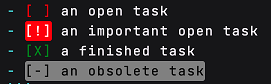
todo-tree.general.tagsincludes the tags I use and their sequence for colouring belowtodo-tree.highlights.defaultHighlighthighlights just the tag itself and shows an “arrow-right” icon in the gutter.todo-tree.highlights.useColourSchemelets me define a colour scheme for the different tagstodo-tree.highlights.backgroundColourSchemehas a list of background colors to use for the tag. Initially I used background colours for each task type but I felt like overkill for the “normal” open task. Now their background is just the background of the theme I happen to use.todo-tree.highlights.foregroundColourSchemehas the list of foreground colors to use. I played quite some time with it but like the current colors. Open task tags are a bit emphasized, important tasks even more so, closed ones show in green and the obsolete ones in gray.todo-tree.highlights.customHighlightchanges the colouring to the complete text so it stands out.
In total this gives this appearance in the editor which I quite like:
Besides Todo-Tree I use Markdown Checkbox related to markdown and tasks . The main use is that closing a task will strike it through and add the closing date to it. Not strictly needed but nice eye candy.
-
A done task[2022-11-08]
These are the non-default settings I use
  "markdown-checkbox.typeOfBulletPoint": "-",
  "markdown-checkbox.showStatusBarItem": false,
since I write bullet lists in this way and Todo-Tree already shows the number of checkboxes.
This leads to this display of done tasks:

Comments
Nothing yet. Say the first thing.
Sign in to join the conversation.