

We’re Church of Vim acolytes here on this blog. Yet the internet is just so annoyingly mouse-oriented.
So, to celebrate my return from an unplanned writing sabbatical, here are five things I do so my Chrome experience is smoother than a baboon’s buttcheek:
Sure, a bunch of sinners made the internet for mouses.
But our holy father foregiveth with Vimium.
The killer feature is f, which gives everything a little tag you can type to click:
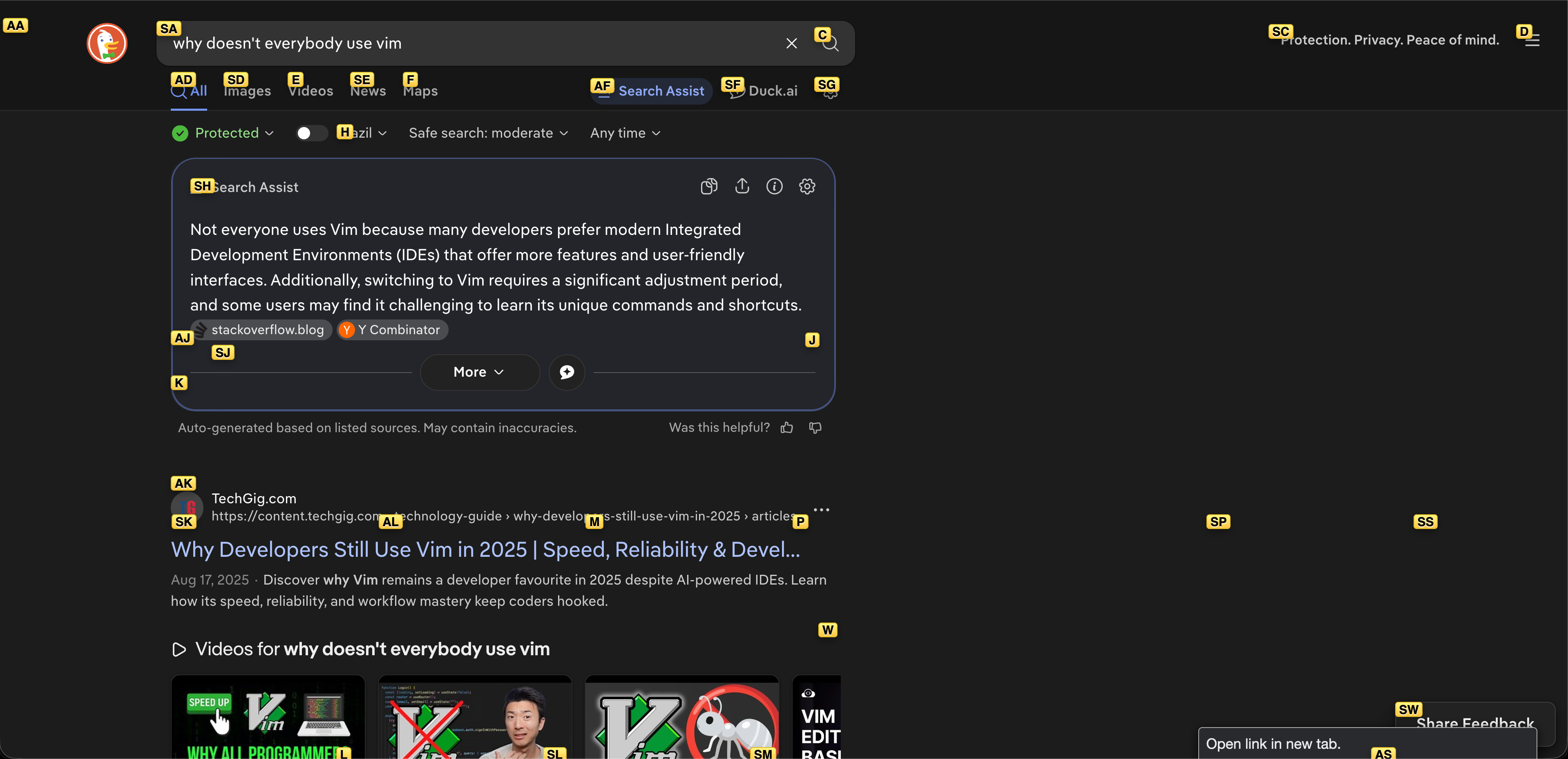
You can also bind keys to scroll the page (mine are j/k for down/up and shift-j/k for page down/up):
map J scrollPageDown
map K scrollPageUp
unmap r
unmap d
You can even, after searching for something using /, press v to go to Visual mode for copying to your clipboard. I use this rarely though.
You know how you’ll use some great webapp, but it’s entirely missing a desktop app?
Chrome’s got the answer.
Open a site, then open the ⋮ menu → Cast, Save, and Share → Install Page as App...
Now it behaves like any other app, complete with ⌘-tab switching.
Example: these three aren’t actually desktop apps:

The only minor limitation I’ve hit is Mac’s Downtime feature can’t “Always Allow” apps installed this way.
The modern site search experience: open a site, wait four seconds for its bloated-ass Javascript to finish loading, then finally go to the search bar to ask for what you want.
Now, skip slow sites with Site Search!
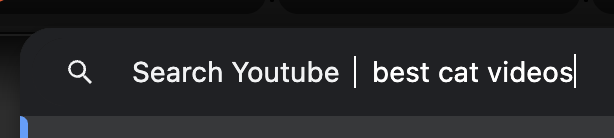
Example: I type yt<space> in my omnibar, type what I want, and land in the search results. No carcinogenic Youtube homepage required.
HOW TO:
Go to your favorite site
Search for “foo”
Copy the URL
Open
chrome://settings/searchEnginesand Add a new Site SearchPlug in the URL, replacing
foowith%sGive it a little keyword
Type that keyword into the omnibar, press space, and let ‘er rip
Here are some of my Site Searches:
ytfor Youtubeghfor searching all of Githubgdfor Google Drivemghfor just my repos on Githubpefor Google Translating whatever I put in omnibar from Portuguese → Englishepfor Google Translating whatever I put in omnibar from English → Portuguesempfor Google Mapslifor Linkedinwkfor Wikipedia
I like to keep my work & personal lives separate.
Chrome supports this as separate profiles, as long as you have different Google accounts for each.
You’ll get isolation for bookmarks, Google Drive, extensions, and more.
Then, to make switching between them easy, add the following shortcuts in your Mac’s Keybindings:
Profiles->PROFILENAME hotkey
For example, I’ve bound:
Profiles->Kevin (Work)            ctrl-shift-o
Profiles->Kevin (Personal)        ctrl-shift-p
You go to the omnibar hundreds of times per day. Mouse-clicking it is for peasants.
Throw these hotkeys in your Mac’s Keybindings...
Open Location...         ⌘-d
Bookmark This Tab...     ⌘-b
...and you can ⌘-d to jump to the omnibar. esc x 2 backs you out to use more sweet sweet Vimium.
⚠️ You need to rebind “Bookmark This Tab...” because ⌘-d is bookmarking by default.
And here are a bunch of other hotkeys I use, to drive mouseless Chrome:
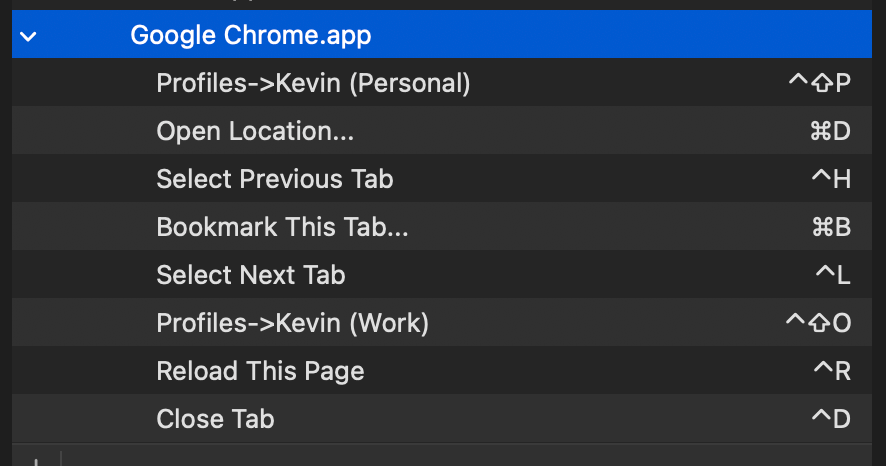
There you have it. Be bold and conquer, my fellow speed demons.
If you liked this post, take a gander at my other writing:
Comments
Nothing yet. Say the first thing.
Sign in to join the conversation.