
When you query a word or phrase, do you like to include that text in your comment to make it clear what you are referring to? This month’s macro saves you from having to add that text to the comment; it inserts the comment bubble already filled with the text. Also, if you’ve been wanting to learn how to edit with macros, there are only a few more days to register for the beginner two-day macro workshop through the Institute of Professional Editors.
When querying an author about a word choice or specific phrasing, manually typing or selecting, copying, and pasting these words into the comment box is time-consuming. CommentAdd streamlines this process by both creating the comment box and inserting the selected text into it, creating a clear connection between your comment and the exact text being discussed.
This macro is particularly useful when:
Querying terminology that might be unfamiliar to readers
Suggesting alternative wording for clarity or style
Flagging inconsistencies in usage throughout a document
Addressing confusing phrasing that might mislead readers
Pointing out ambiguous expressions that could be interpreted in multiple ways
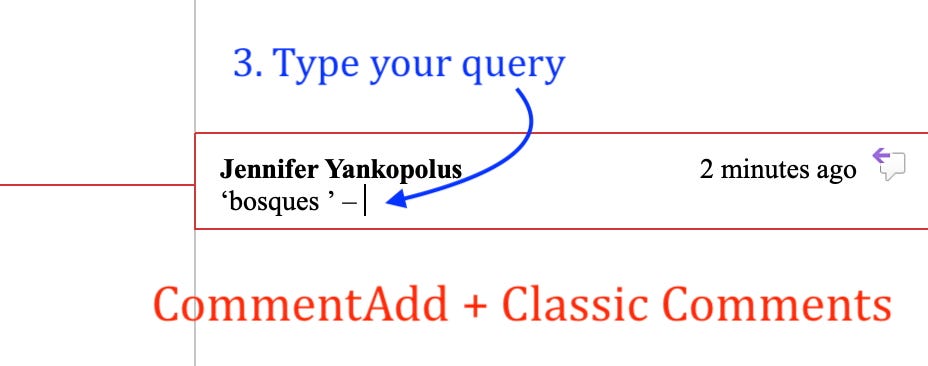
Why two versions? CommentAdd and CommentAddMC both insert your selected text into a comment, placing it inside quotation marks and adding an en dash, after which you can add your query to the author. The difference is what happens next:
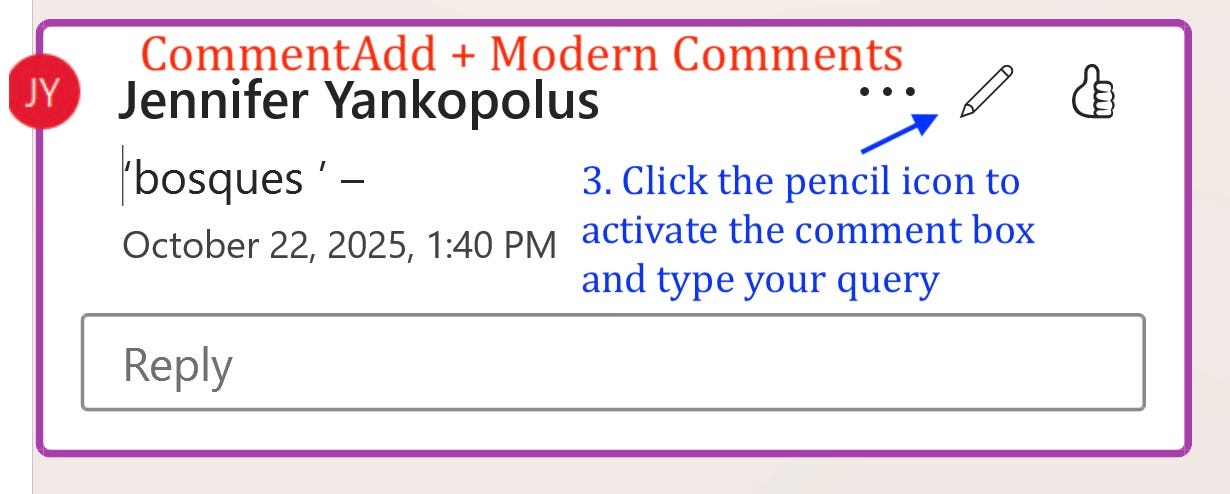
CommentAdd works with both Classic and Modern Comments. If you use Modern Comments, you’ll need to click the pencil icon to add more text.
CommentAddMC is designed specifically for users of Modern Comments. It opens the comment pane at the bottom of your screen, where you can immediately start typing, eliminating the need to click the pencil icon to insert your query.
Which comment type do you have? If you need to click a pencil icon to edit comments, you have Modern Comments; if you can click directly in the comment bubble, you have Classic Comments. Not sure which macro to use? Try both and see which you prefer.
Select your text:
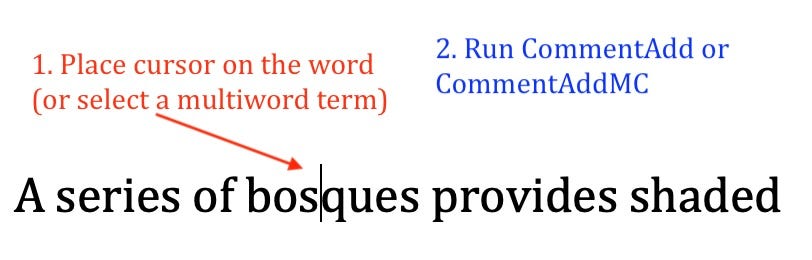
For a single word, place your cursor anywhere within the word
For multiple words, select the entire phrase you want to comment on
Run either CommentAdd or CommentAddMC
Insert your query to the author:
With CommentAdd: Click inside the comment box and start typing (Classic Comments) or click the pencil icon first (Modern Comments)
With CommentAddMC: The comment pane opens automatically at the bottom of your screen—just start typing
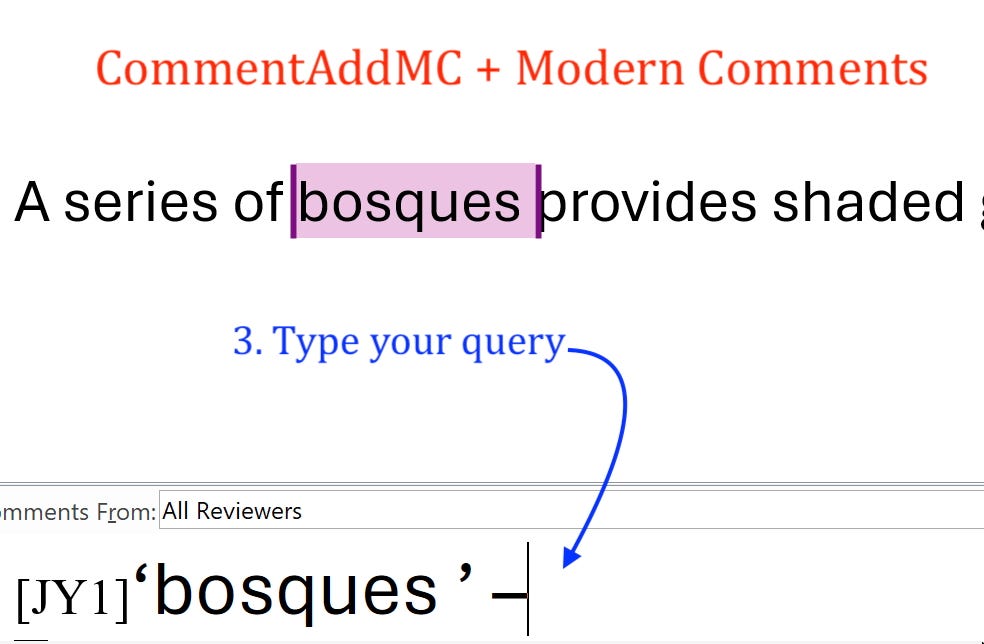
CommentAdd: www.wordmacrotools.com/macros/C/CommentAdd
CommentAddMC: www.wordmacrotools.com/macros/C/CommentAddMC
The macro code is easily adjusted for multiple features. The adjustable elements are located toward the beginning of the code.
These customizations are entirely optional. The macro works perfectly well with its default settings. However, if you follow a style that uses double quotes, you may want to adjust that line in the code since, by default, it inserts single quotes around the inserted text.
Change this line of code to “False”:
attachToWord = True
Change this line of code to “False”:
useSingleQuotes = True
preText = “”
postText = “”
For example, you could add a question mark at the end of the comment by modifying the
postTextline as:postText = “?”
Note that this text will be added to every comment created with this macro
Change these lines to “True”:
addPageNum1 = False
addLineNum1 = False
Change this line to “True”:
addHighlightToCommentText = FalseTo use a different color, find the color code from this list and replace “wdYellow” in this line:
textHighlightColour = wdYellow
Change this line to “True”:
addColouredFontToCommentText = FalseFor a different color, find the color code from this list and replace “wdColorBlue” in this line:
textColour = wdColorBlue
CommentCollector: Exports all comments to a table in a separate document, allowing authors to review and respond to them without the clutter of tracked changes
The most effective way to learn how to edit using macros is through hands-on training that gives you experience installing and working with them. Join Paul Beverley and me for a pair of two-hour online workshops for beginners through the Institute for Professional Editors in Australia: Beginner Macros: Speed Up Repetitive Editing Tasks. There are separate workshops for Mac and PC users:
PC: October 30 and November 6, 2025, 9:30 a.m. – 11:30 a.m. AEDT. Register here.
Mac: November 13 and 20, 2025, 9:30 a.m. – 11:30 a.m. AEDT. Register here.
Please note: The days and times listed are in Australian Eastern Daylight Time (AEDT). For those in the UK and US, they take place the day before: October 29 and November 5, 12, and 19. In the UK, the trainings begin at 10:30 p.m., and in the US, they start at 5:30 p.m. ET, except for October 29, which begins at 6:30 p.m. ET. Convert to your time zone here to check if the trainings work for your schedule. You must attend live—the sessions will not be recorded.
Have a question or want to suggest a macro for a future newsletter—or just want to say hi? Reply to this email.
Happy macroing,
Jennifer
ps: Have you backed up your macros and keyboard shortcuts recently?
Thanks for reading Macro of the Month! Subscribe for free to learn about one new macro each month.
Comments
Nothing yet. Say the first thing.
Sign in to join the conversation.