
It was back in 2023 when I first heard of Readwise (from a post on X).
At the time, I was reading almost all my books on Kindle rather than physical books, so the idea of having all my highlights in one place — where I could search, revisit, and rediscover them — was very appealing.
I ended up buying a subscription and connected it to my Kindle account. All my highlights were imported and neatly organized in the app, and any new highlights I make are automatically imported every day.
(Note: You can connect to many other sources: X bookmarks, Apple Books, PDF uploads…)
Three years later, I’m still subscribed to Readwise.
So yes… for me, the app is worth the time and money.
But here’s the important thing: I don’t think Readwise is worth it for everyone. It depends on your reading habits, personal goals, and even the tools you use.
By the end of this article, you’ll know whether Readwise is actually worth it for you — or whether you’re better off skipping it.

To make this review super clear and easy to follow, I’ve organized it into six parts:
Importing Your Highlights
What You Can Do With Readwise
Exporting Your Highlights
User Interface (Website and Mobile App)
Pricing
Alternative Apps
And at the end, I share my conclusion as to whether Readwise is truly worth your time and money.
To get value from Readwise, you first need to get your highlights into the app.
Readwise currently lets you connect 24 different sources…
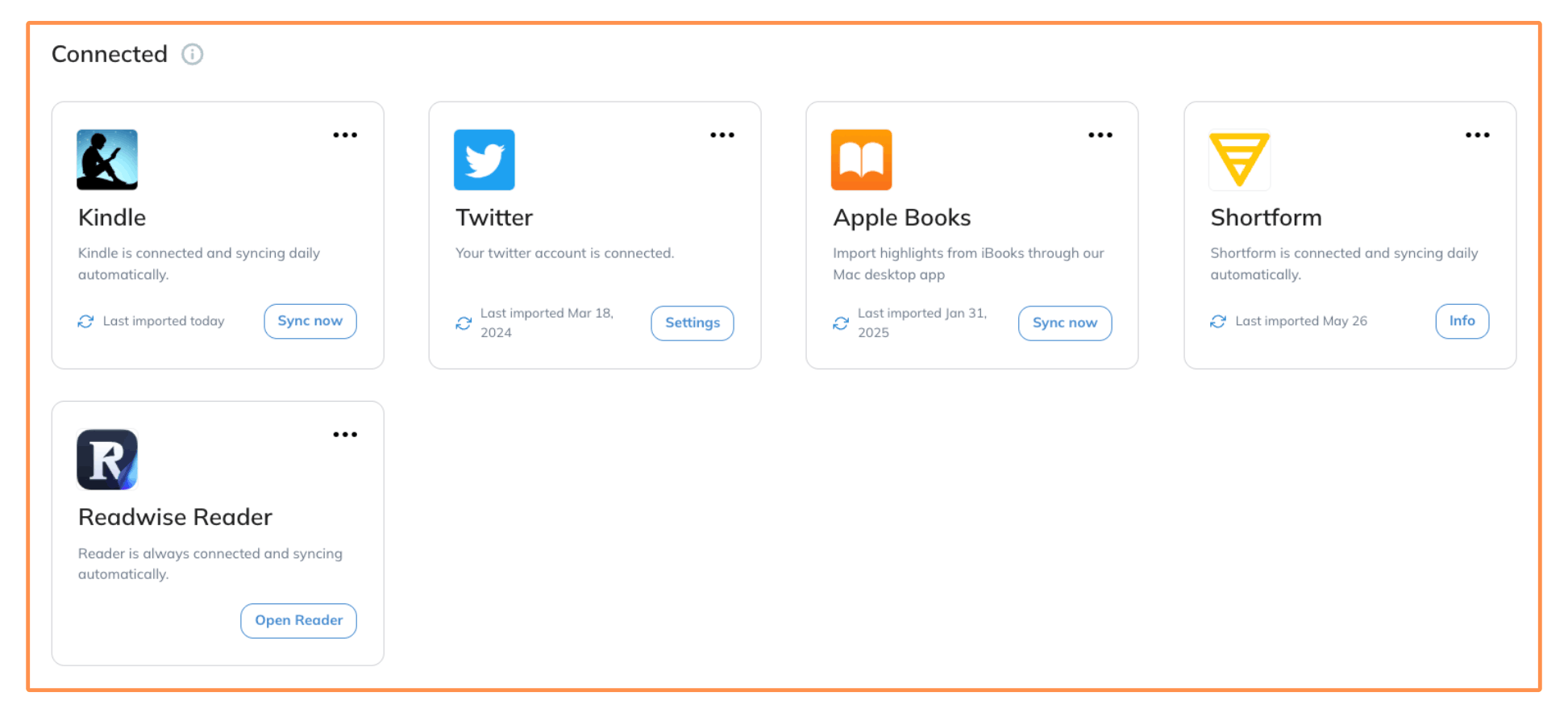
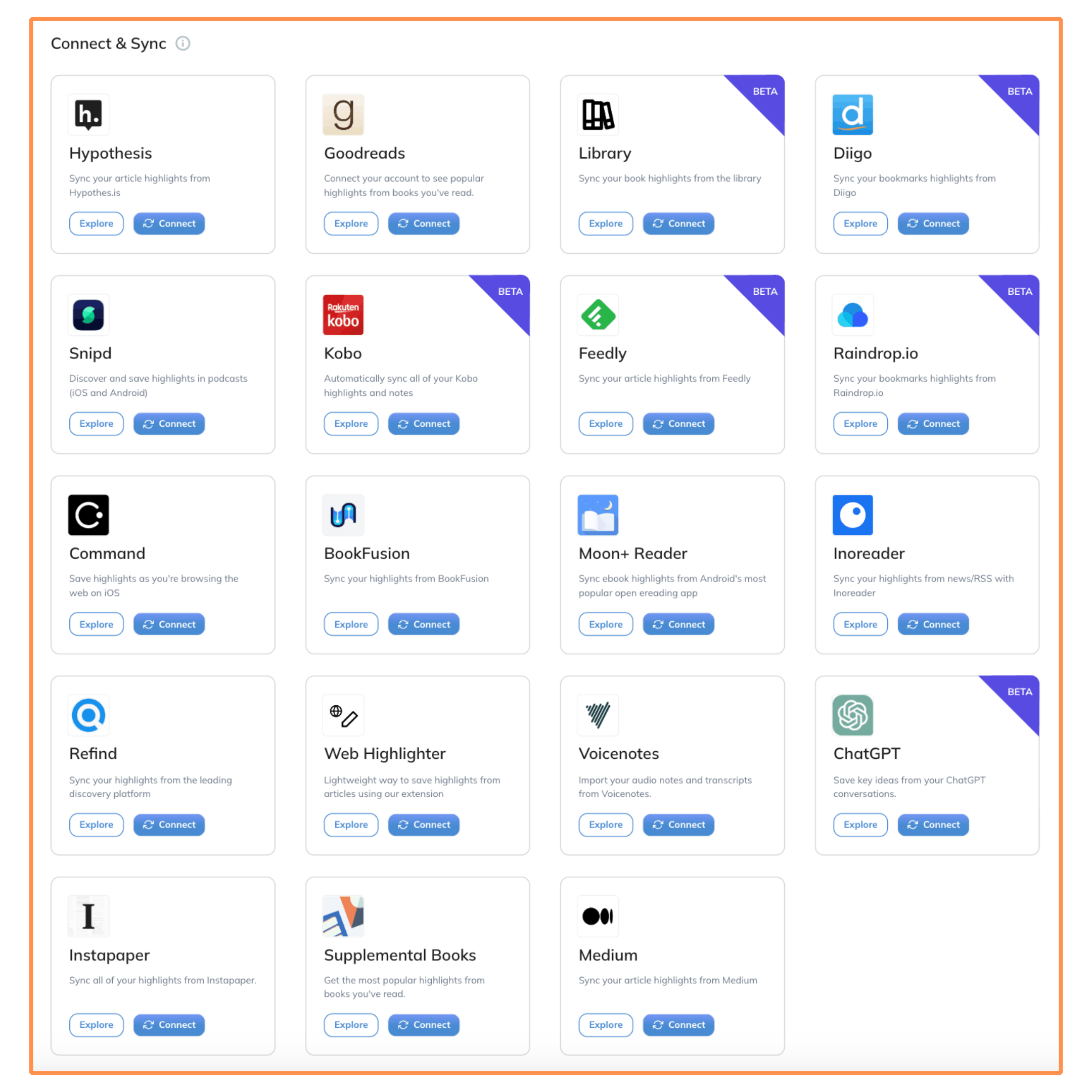
Once connected, these sources sync daily with Readwise, so any new highlights you make are automatically added to the app.
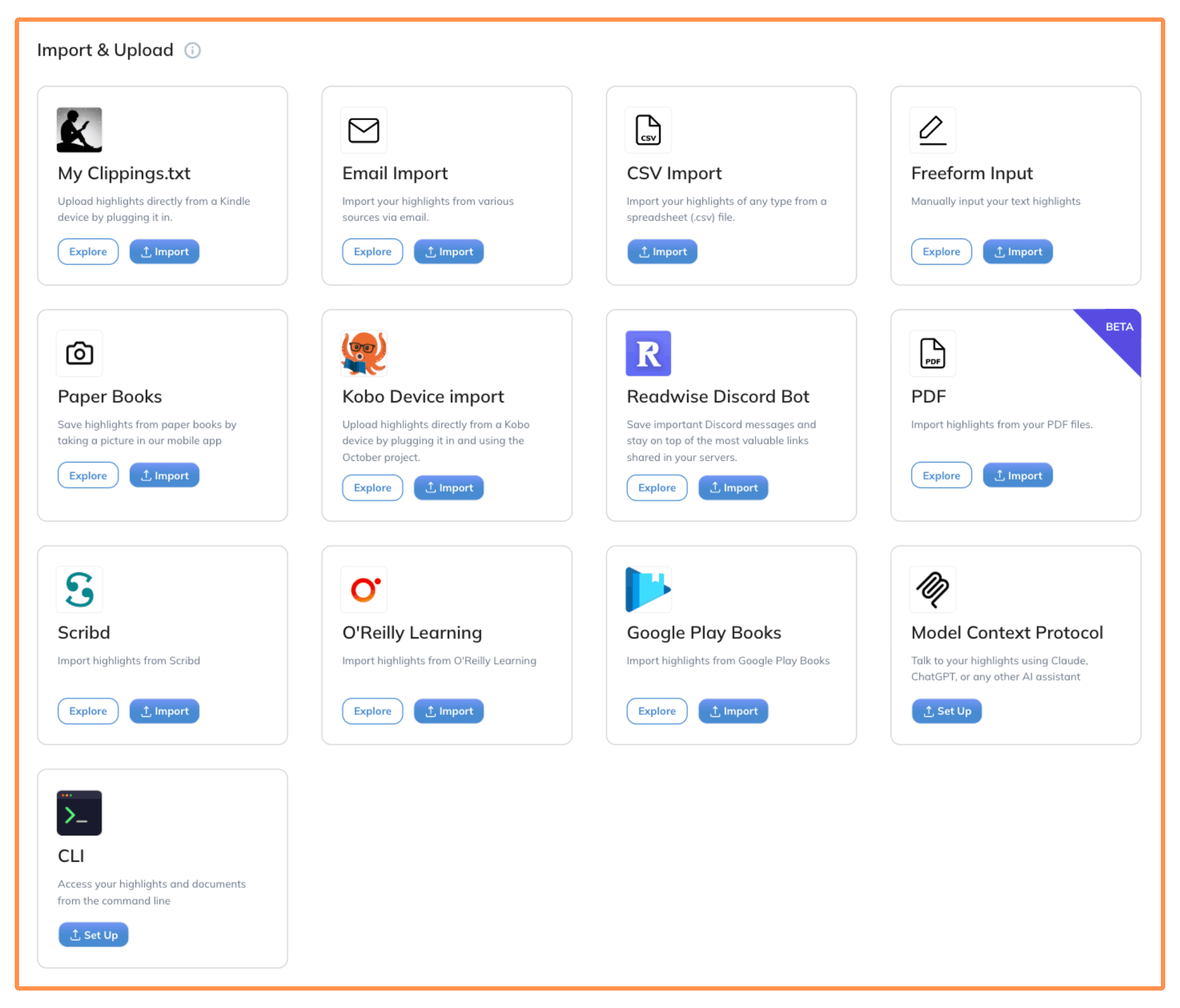
You can also import from 13 other sources, but these require manual uploading…
Most of my highlights come from two sources: Kindle and Readwise Reader.
Kindle doesn’t need any introduction, so I’ll talk a bit about Readwise Reader…
Readwise Reader is a separate app built by the same team. It lets you save and highlight things from the web — like articles, YouTube transcripts, and emails.
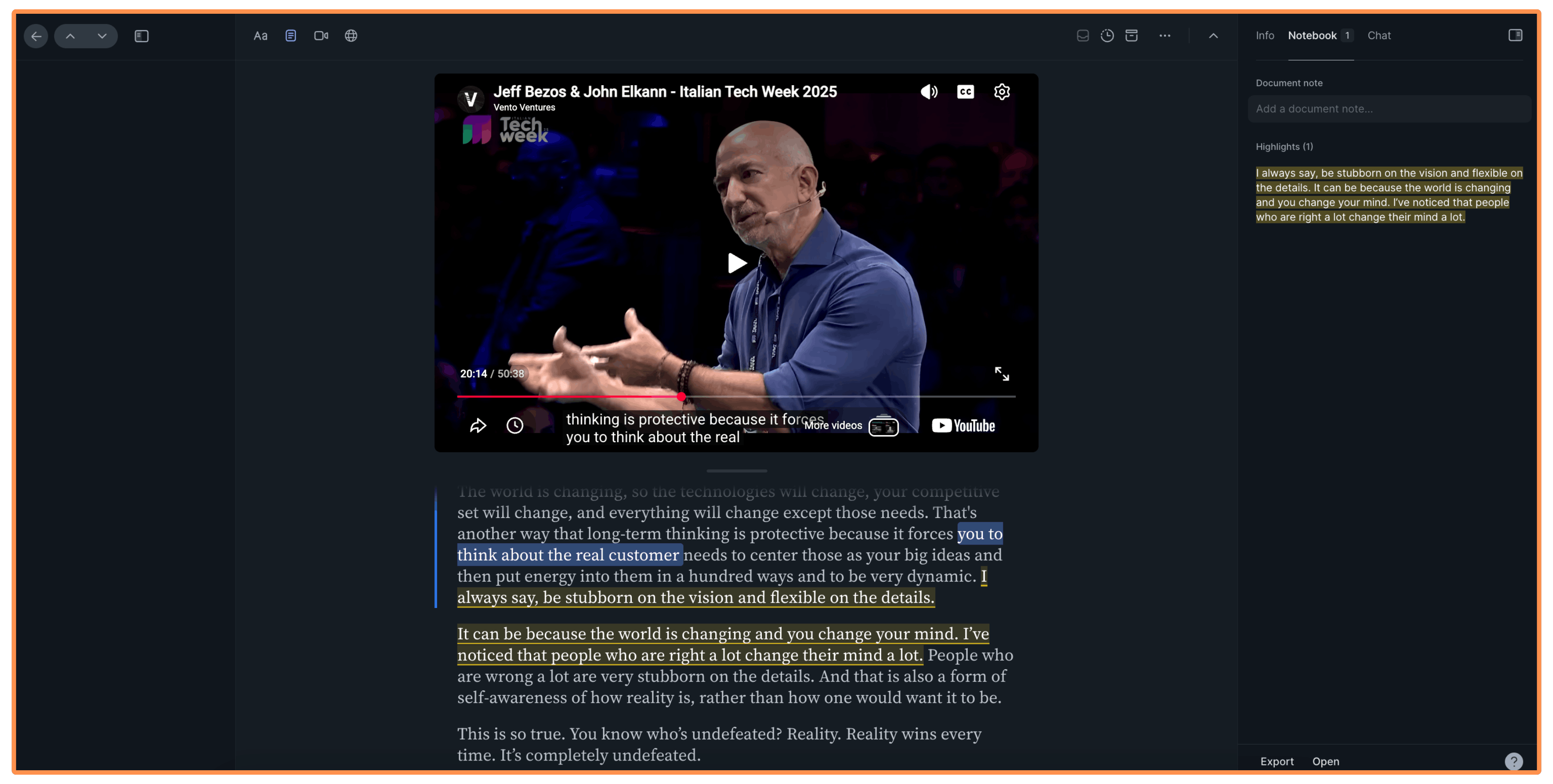
It also comes with a browser extension, so you can highlight directly on a webpage or save it to Readwise Reader, where you can read (or watch) and highlight it later.
(Note: To save articles or videos from your phone, just share them with the Readwise Reader mobile app — the same way you’d share something with a friend on WhatsApp.)
Readwise Reader is included in the Readwise subscription — more on that in the Pricing section.
I talked to the team at Readwise and they agreed to give us one extra month free by signing up using this link!
Okay, so Readwise brings all your highlights into one place.
But once they’re there, what can you actually do with them?
There are six core features that will help you get the most out of your highlights:
Daily Review
Highlights Feed
Chat With Your Highlights
Search
Similar Highlights
Favorites List
This is one of my favorite features on Readwise.
With Daily Review, you get a selection of highlights delivered to your email inbox every day — and you can choose how many you want to receive.
Personally, I get 8 highlights delivered every day (plus a book recommendation based on my highlights)…
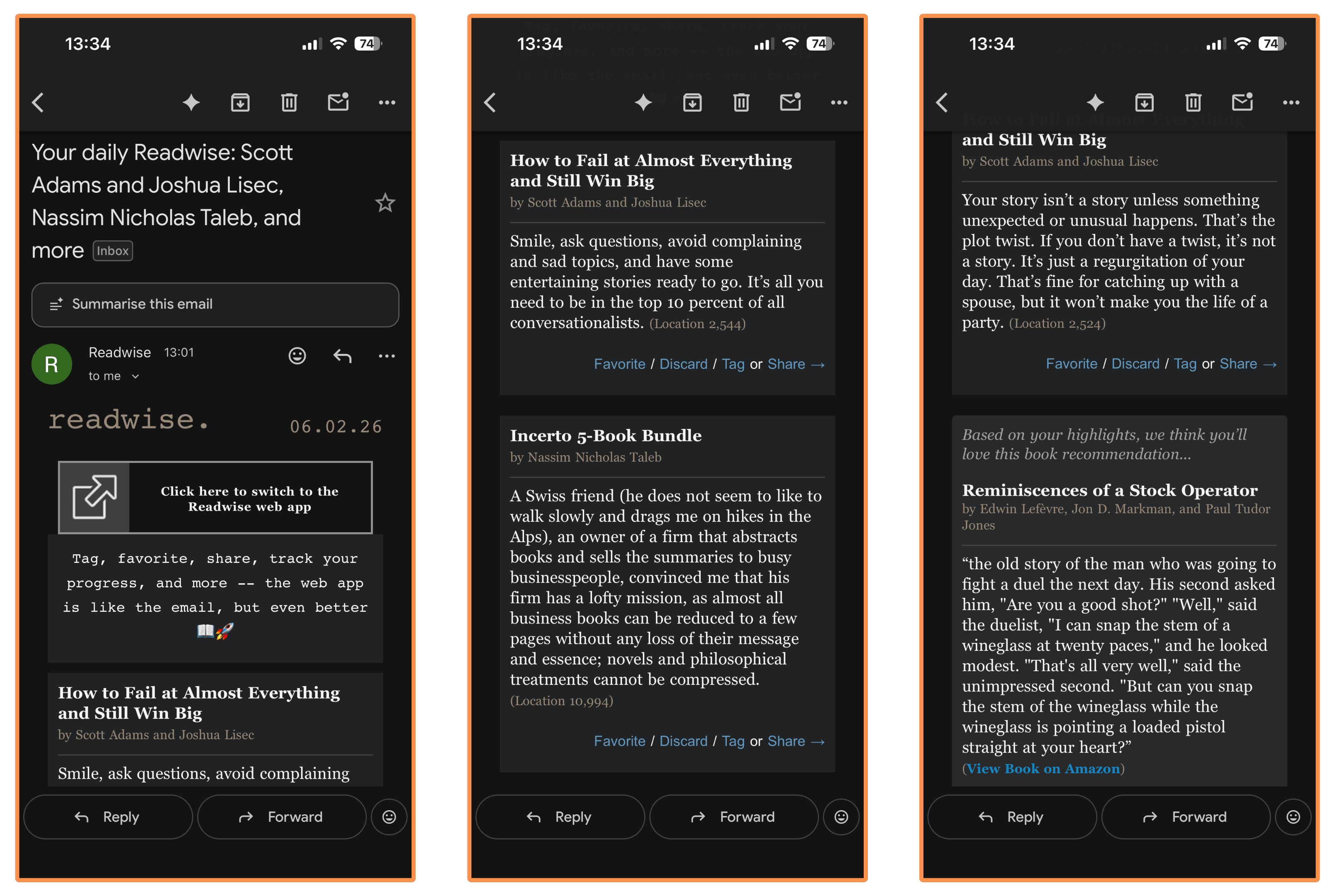
It’s a tiny habit — it takes me less than 5 minutes a day — but doing it consistently has made a huge difference in how much I remember from the books I read (and also articles and videos, thanks to Readwise Reader).
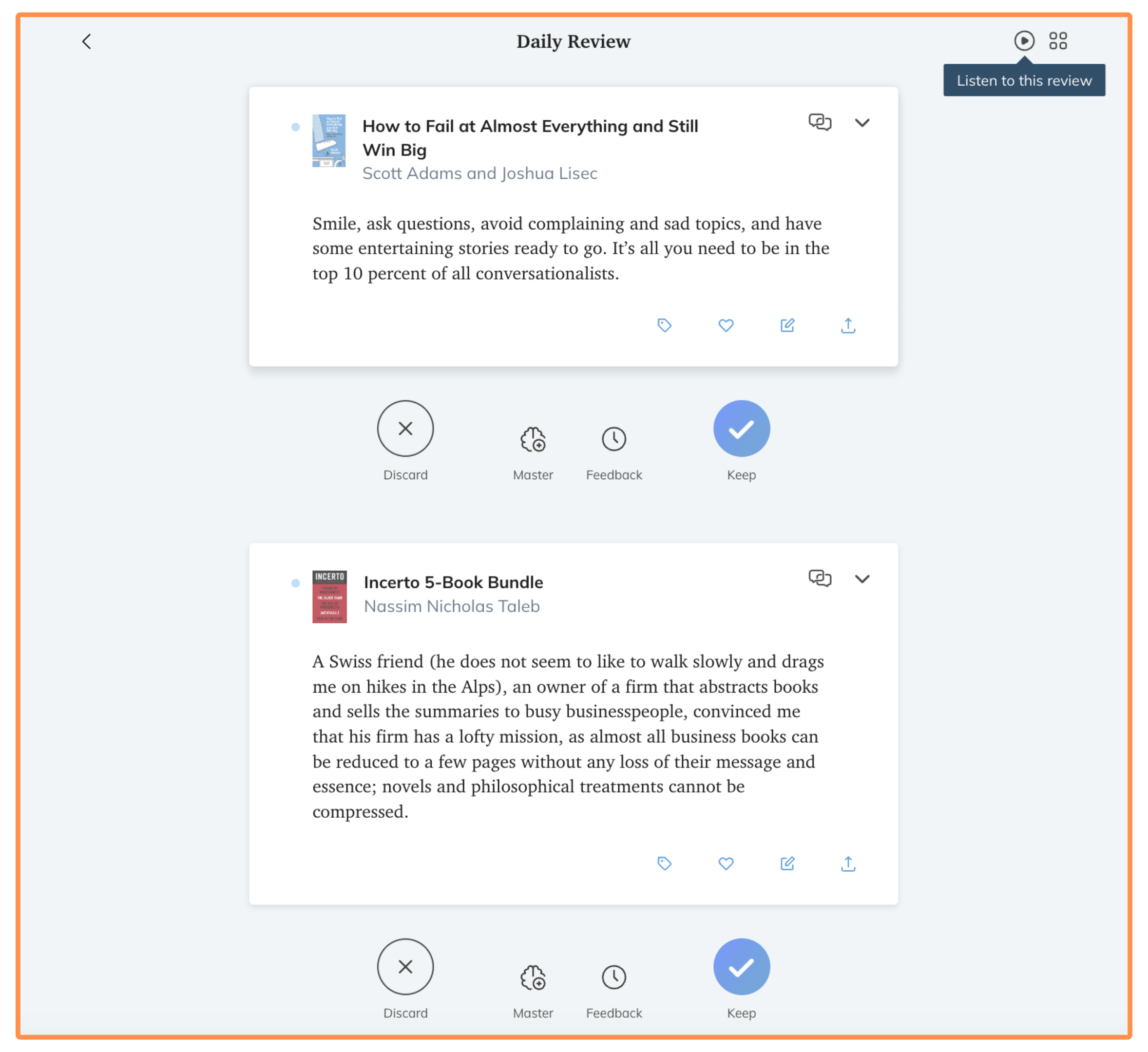
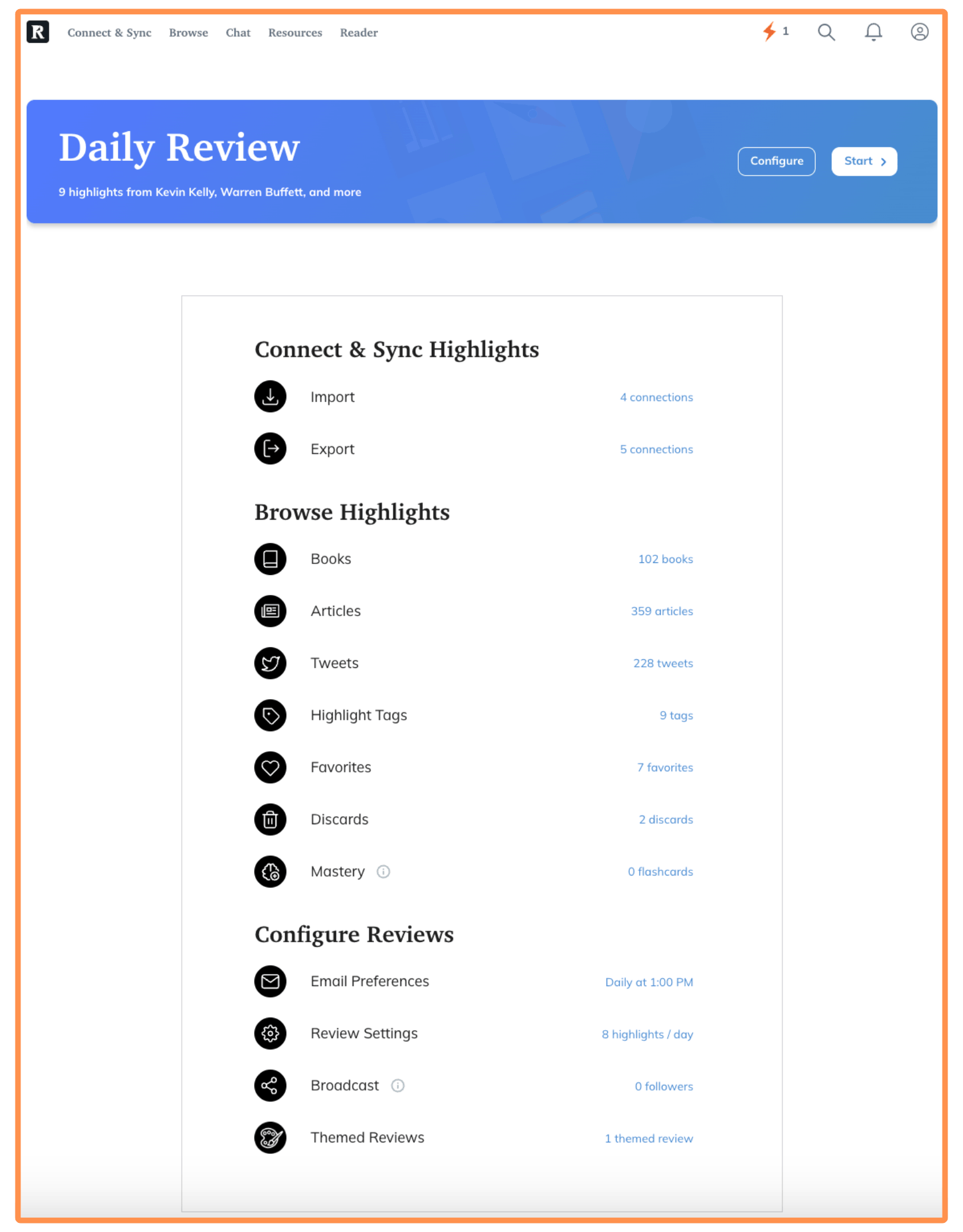
You can also do your Daily Review directly on the Readwise website…
Or in the mobile app…
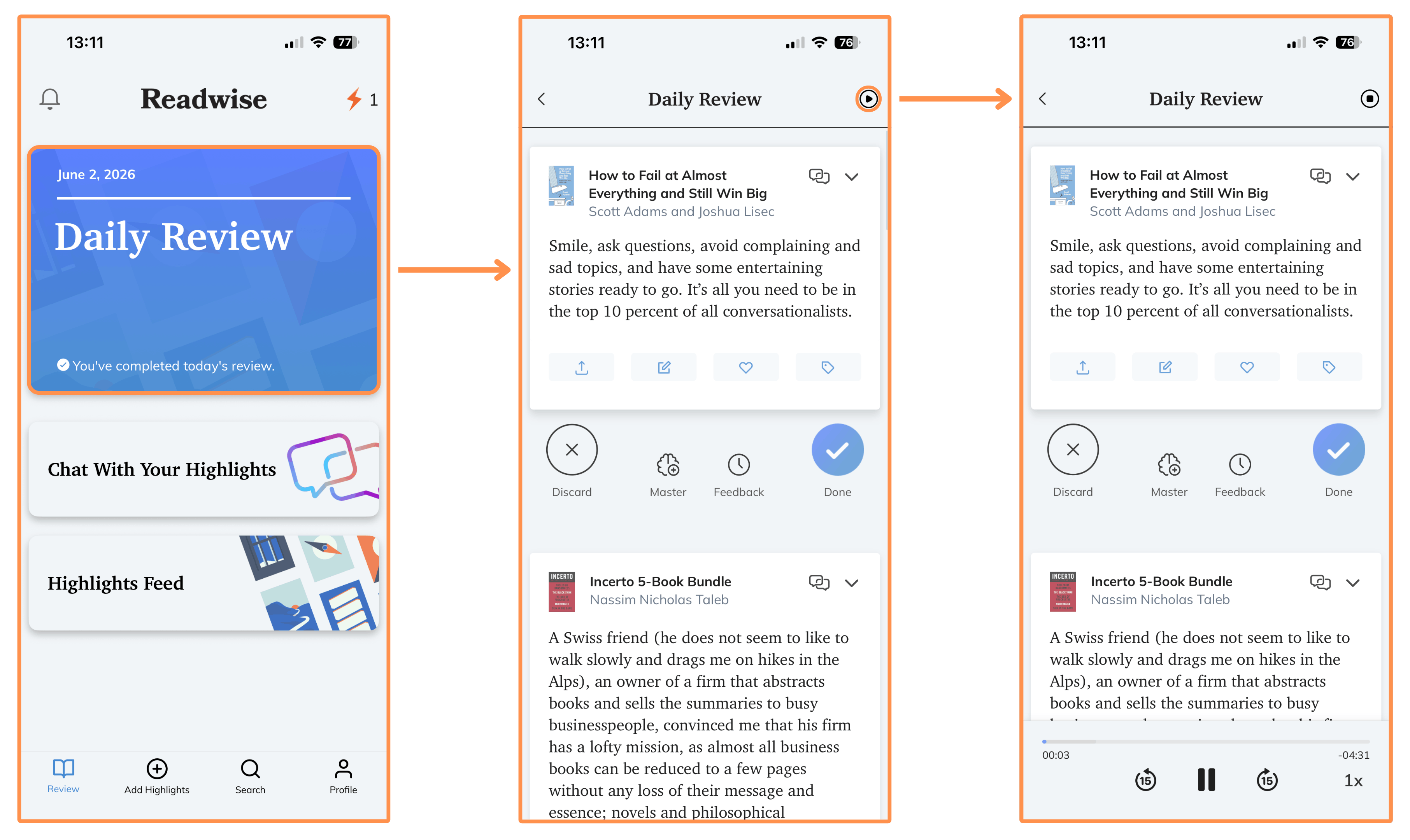
(Note: For each highlight, you can share it, edit it, leave a note, save it as a favorite — more on that later — or add tags to keep it organized. And if you don’t want a specific highlight to show up again, you can just hit “Discard.”)
You can also listen to your Daily Review — either on the website or in the mobile app. Here’s a sample of what it sounds like…
0:00
-1:06
Think of it like an X feed, but the tweets are actually your highlights!
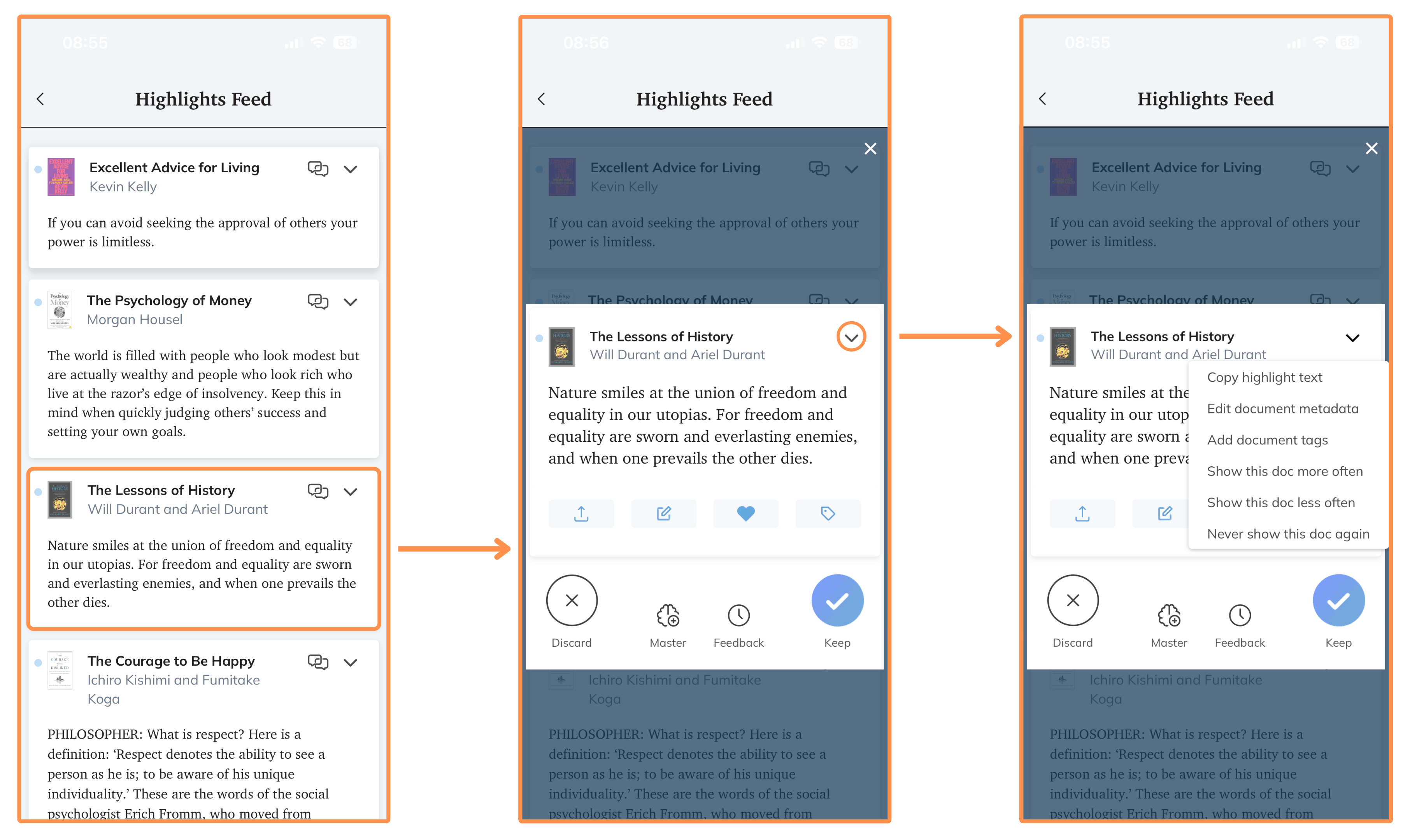
I think this feature is especially useful when you have a few minutes to kill. I often use it when I’m waiting for my food at a restaurant, or when I’m commuting by bus or train — the best way to get around Barcelona!
So instead of watching reels on Instagram or reading news on X, I can use that time to review a few highlights in the Readwise mobile app. And the cool thing is that small habit changes like this compound over time. After a year, it makes a big difference.
One thing I really like is that the feed feels surprisingly fresh. Every time I open it, I see different highlights, so it never gets boring or repetitive.
Imagine ChatGPT, but with the context of everything you’ve highlighted.
That’s exactly what this feature is.
Ask it anything — it answers from your highlights.
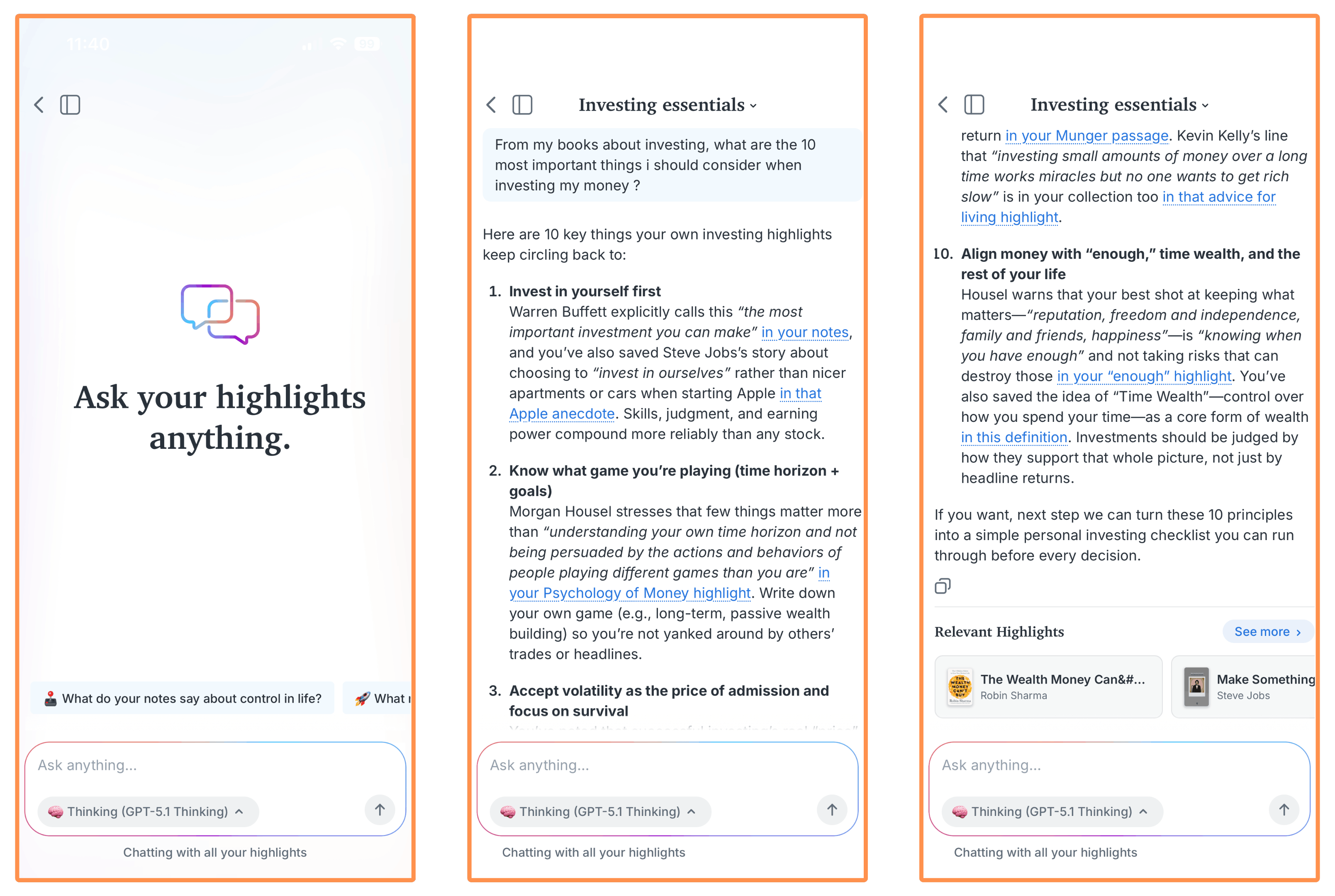
(Note: This feature is also available on the website version.)
You can search through all your highlights and notes on Readwise.
I use this feature quite often when I’m writing for my newsletter.
For example, when I was writing Living a Plotless Life, I searched for “planning” and found a passage from Stephen King’s On Writing that fit the piece perfectly…
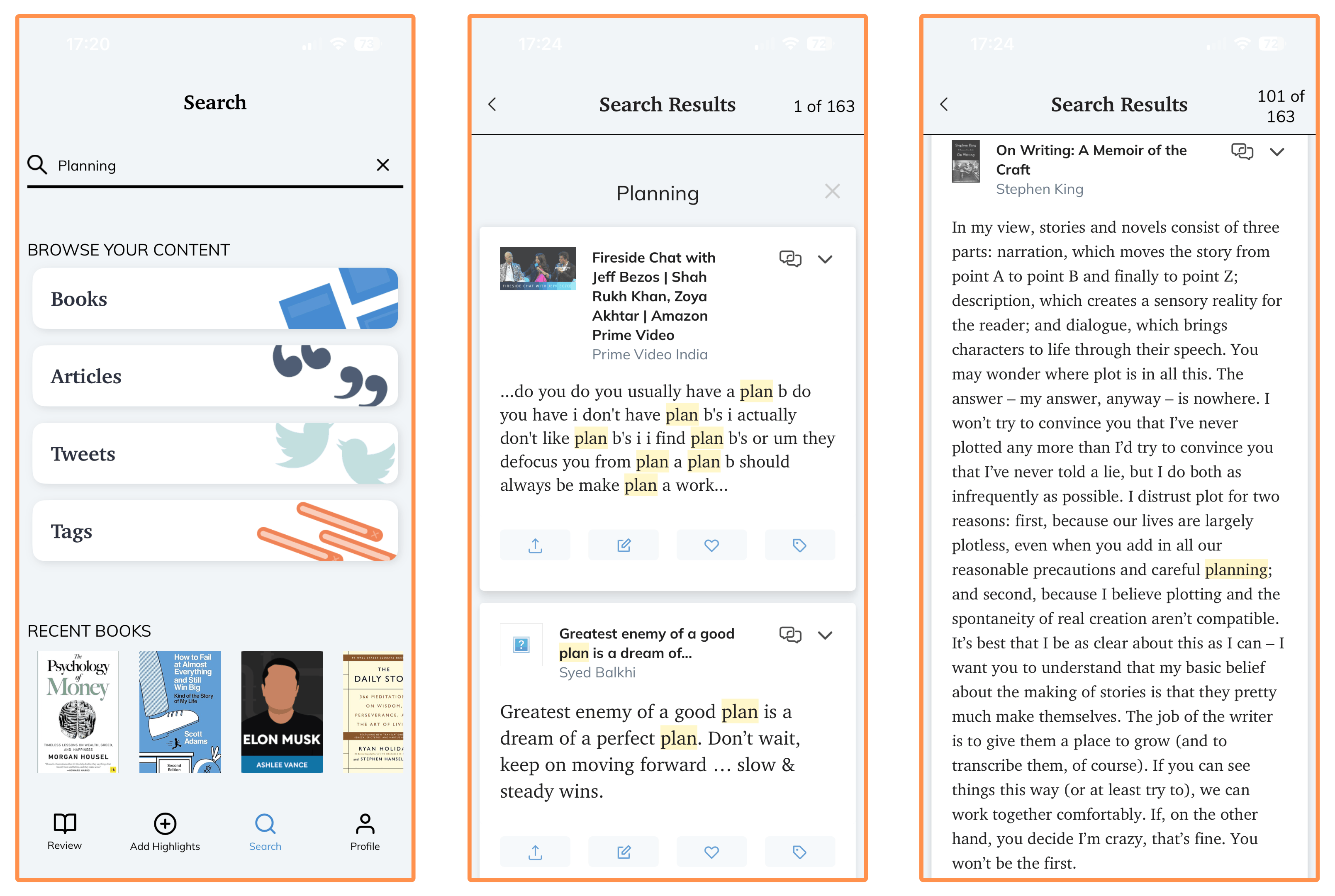
So if you’re a writer or content creator, this feature is a great research tool.
You can also browse your highlights by category: books, articles, tweets, and tags. I often go through my books and pick one I want to revisit.
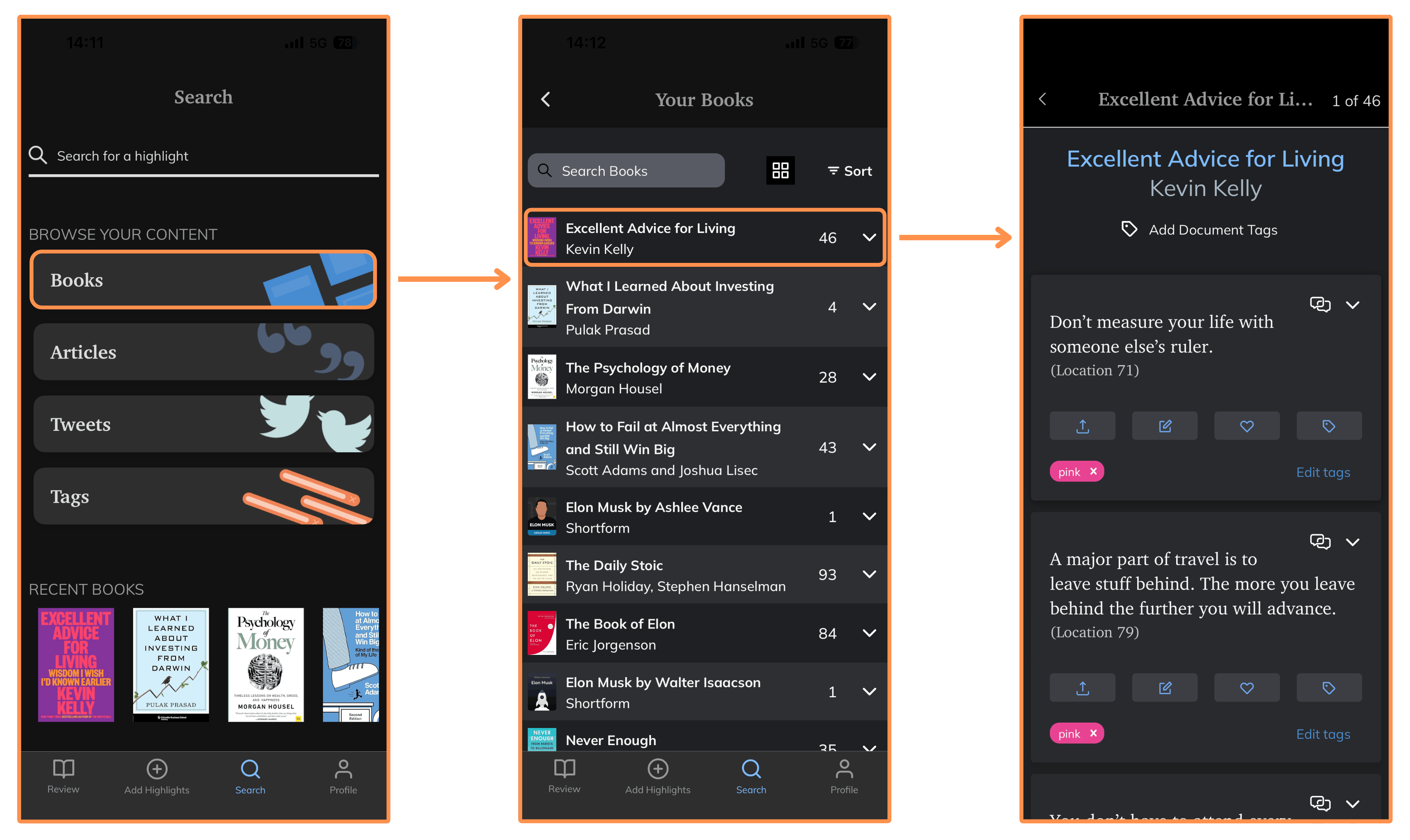
(Note: The Search feature is also available on the website version.)
This is a relatively new AI-powered feature.
For any highlight, it finds you other highlights that are conceptually similar — even if they use completely different words.
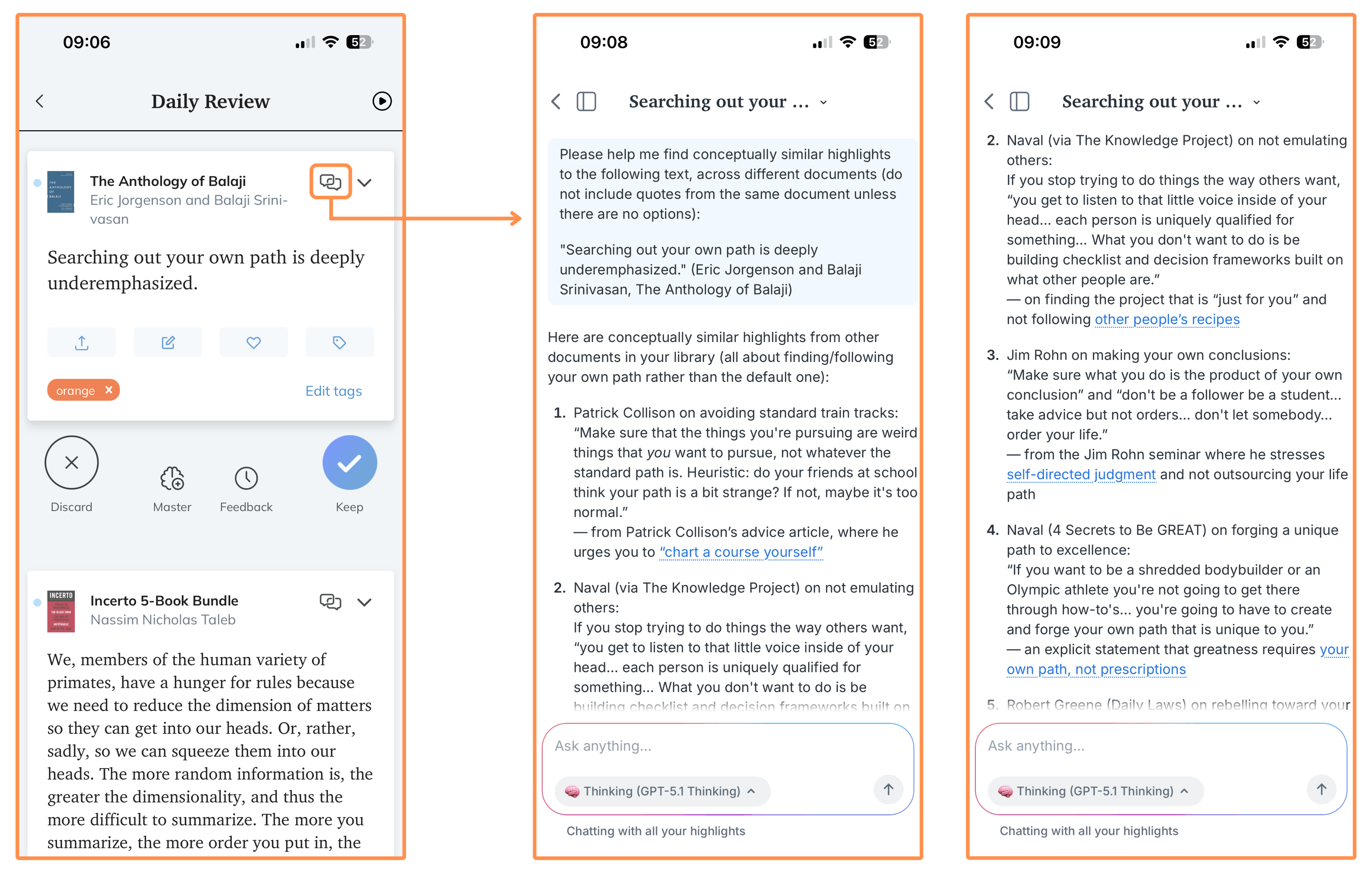
It helps me discover patterns and see how everything connects.
“Learn how to see. Realize that everything connects to everything else.”
— Leonardo da Vinci
(Note: This feature is also available on the website version.)
Not all highlights are created equal. So Readwise lets you save your best ones in a list called “Favorites.”
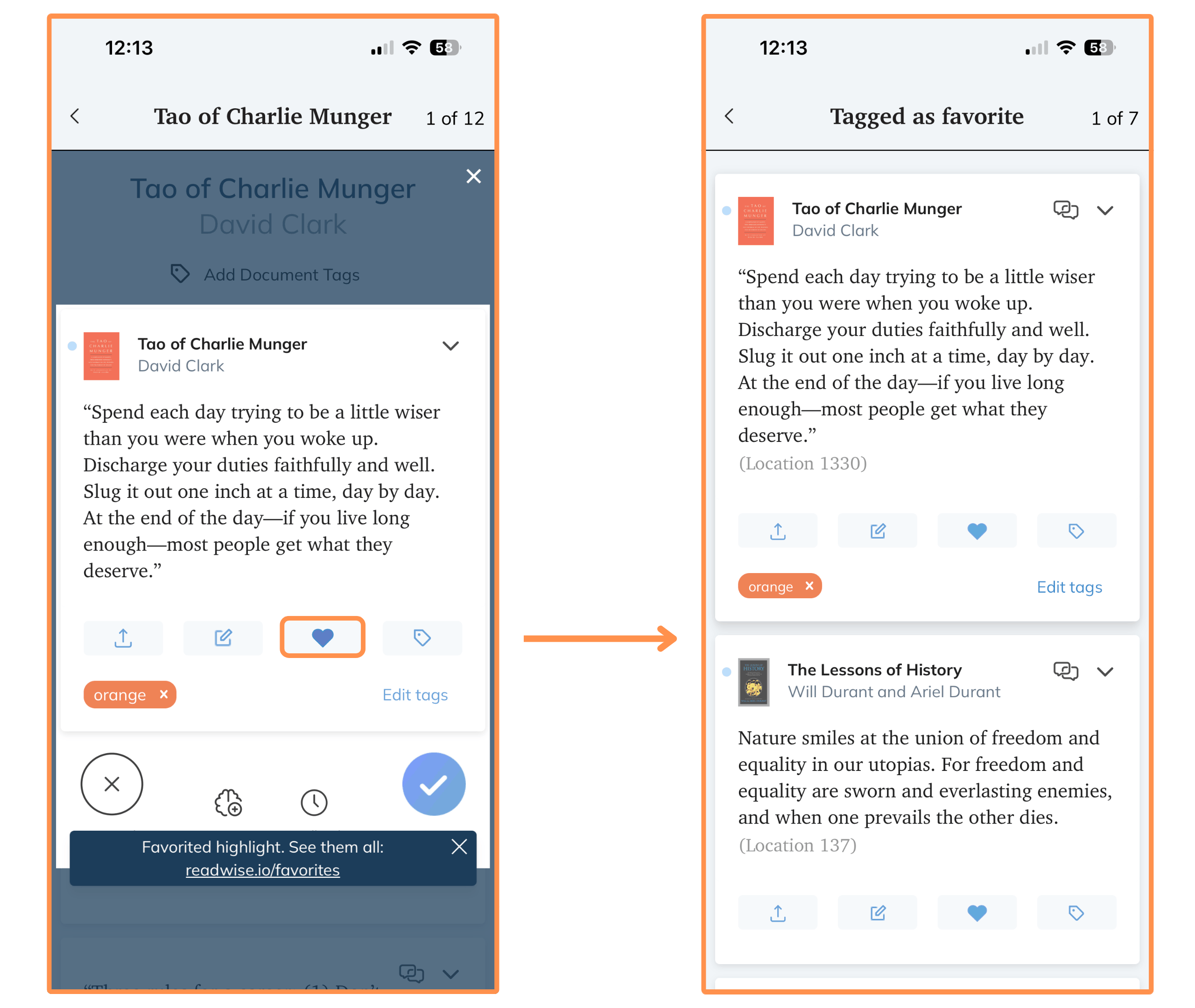
As you can see in the picture, I barely use this feature — I only have 7 highlights saved in my Favorites list (I suspect a few by mistake 😂 ).
(Note: This feature is also available on the website version.)
I talked to the team at Readwise and they agreed to give us one extra month free by signing up using this link!
This is entirely optional, but you can export all your highlights out of Readwise.
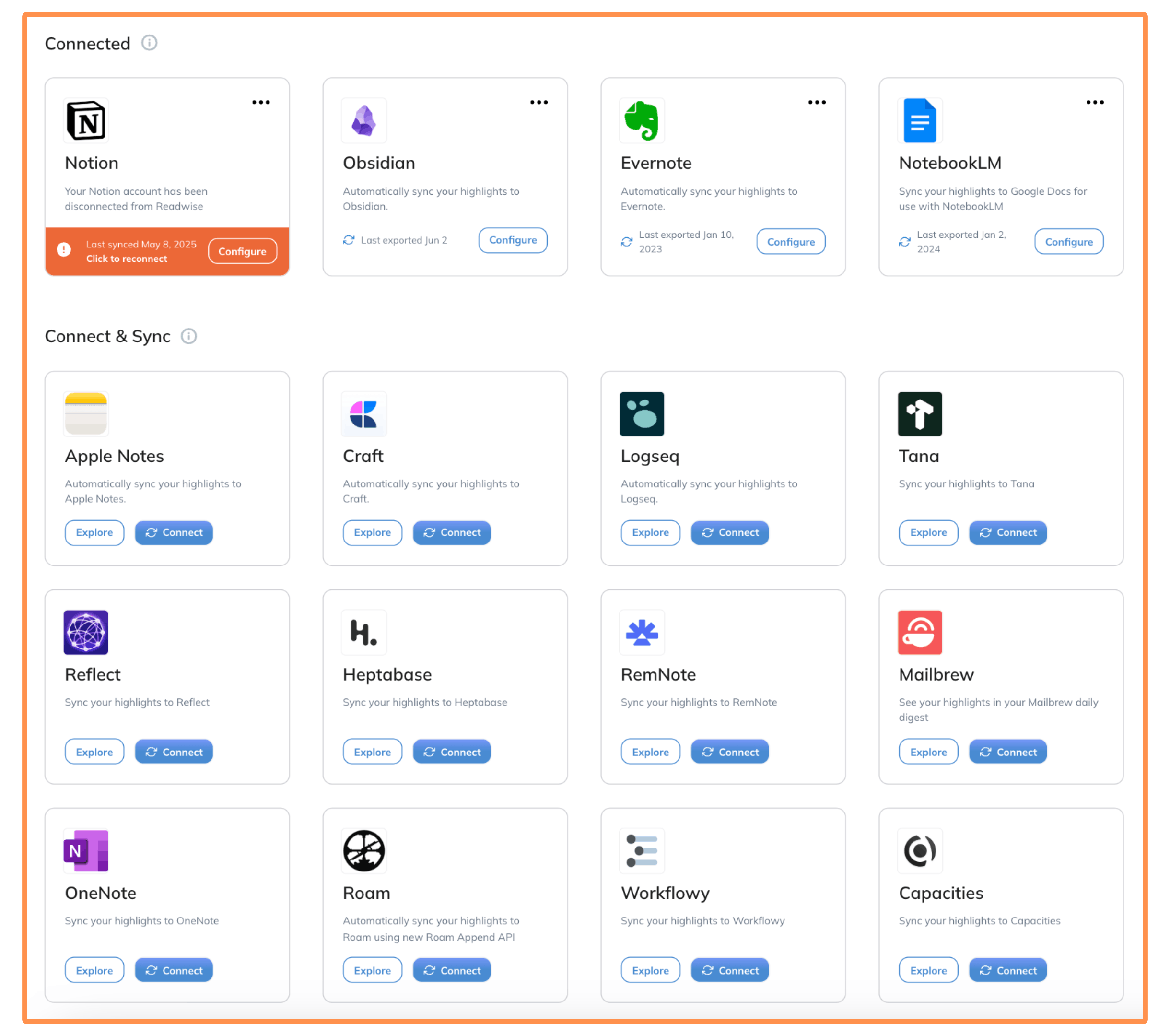
There are 16 apps that you can connect (and sync automatically) to export your highlights…
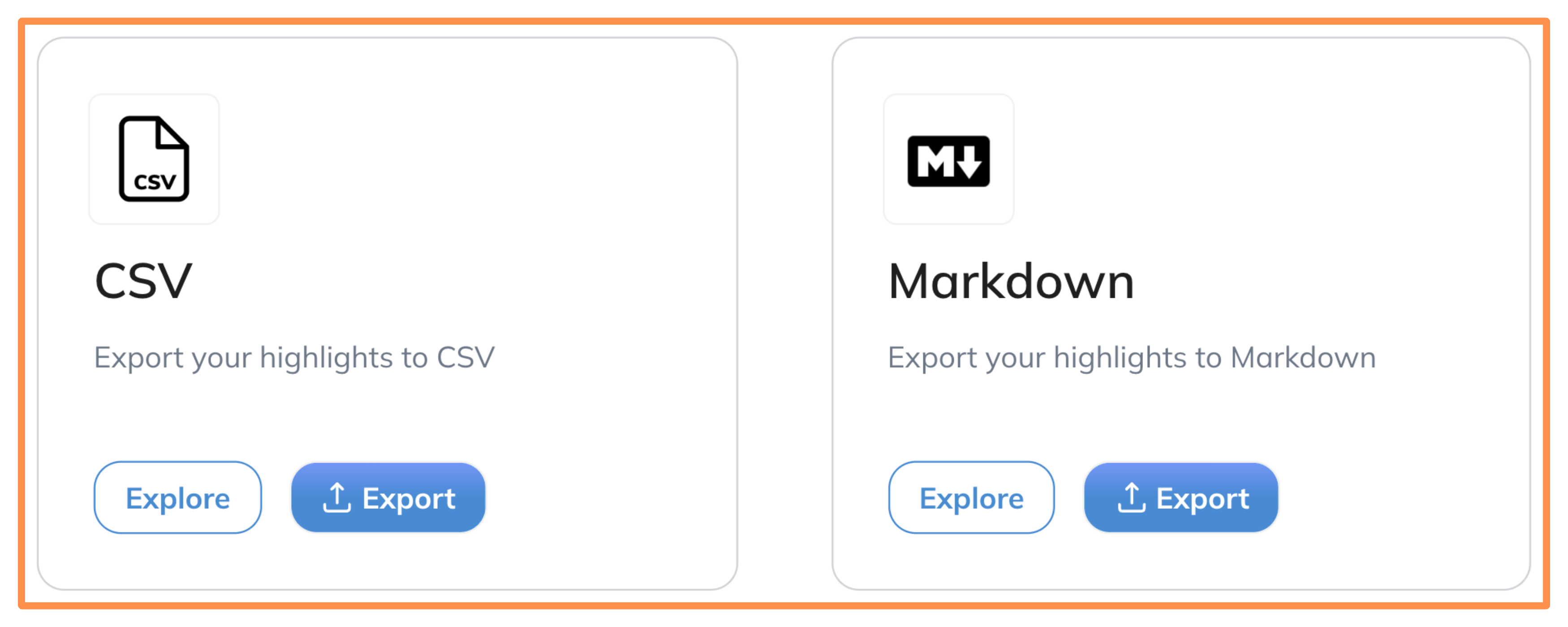
You can also manually export your highlights to CSV or Markdown…
I’ve tried exporting to a few apps, but the only one I found useful is Obsidian.
Next, I talk a bit about the Readwise - Obsidian integration, but feel free to skip this section if you’re not interested :)
Obsidian is a popular note-taking app. It’s ideal for offline use, searching your notes quickly, and keeping everything organized.
So I thought Obsidian would be the perfect place to keep my highlights available offline, search through them easily, and keep everything organized. And it’s free!
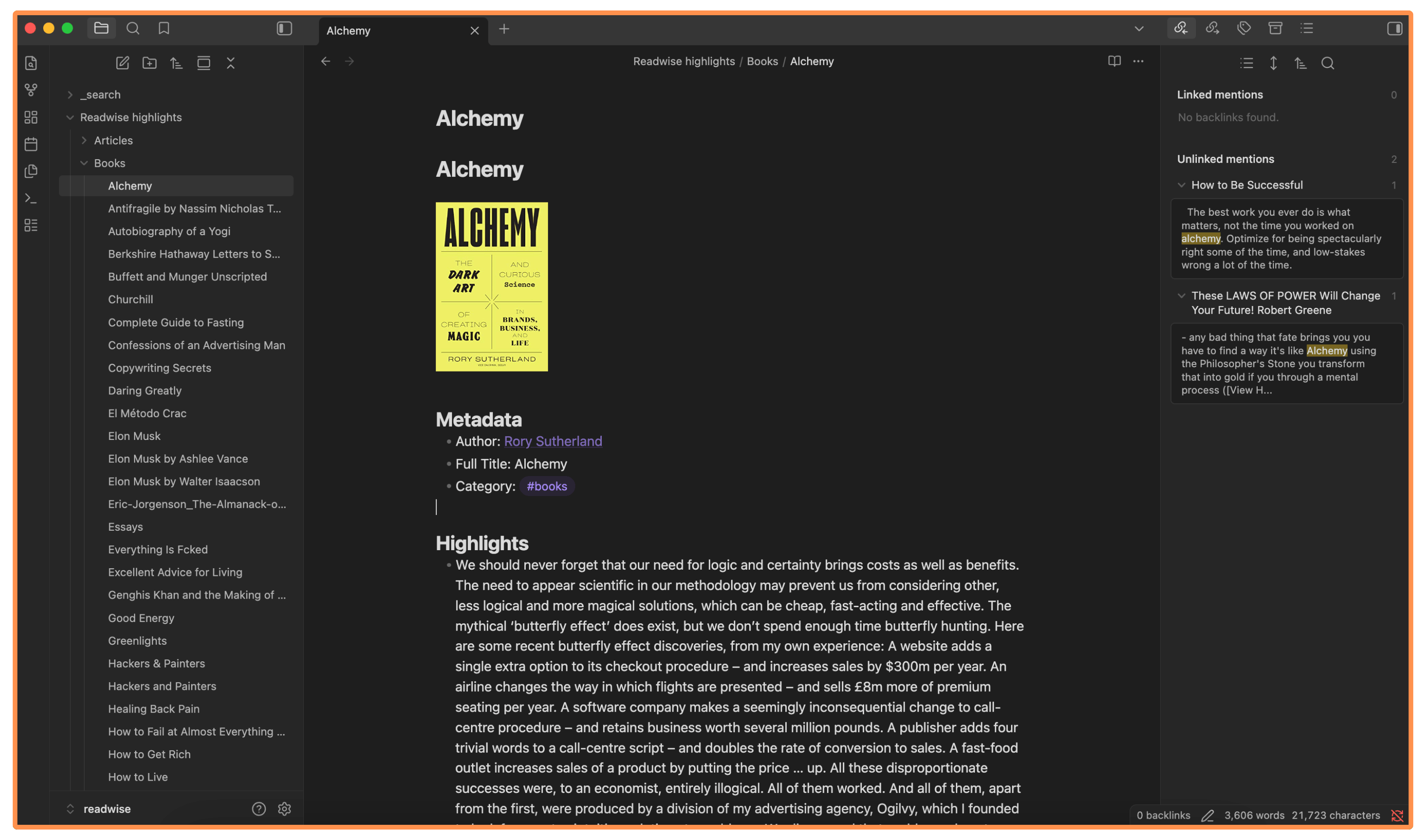
Readwise and Obsidian sync automatically, and you can choose the frequency. In my case, I have it set to once a week (I don’t need it faster than that).
If you are interested in setting up this integration, this is the official tutorial I followed — it’s from 2021, but I tested it in 2026 and it still works!
Readwise has a simple and intuitive website…
The mobile app is also great. I use it more often than the website — especially for the Daily Review and Highlights Feed.
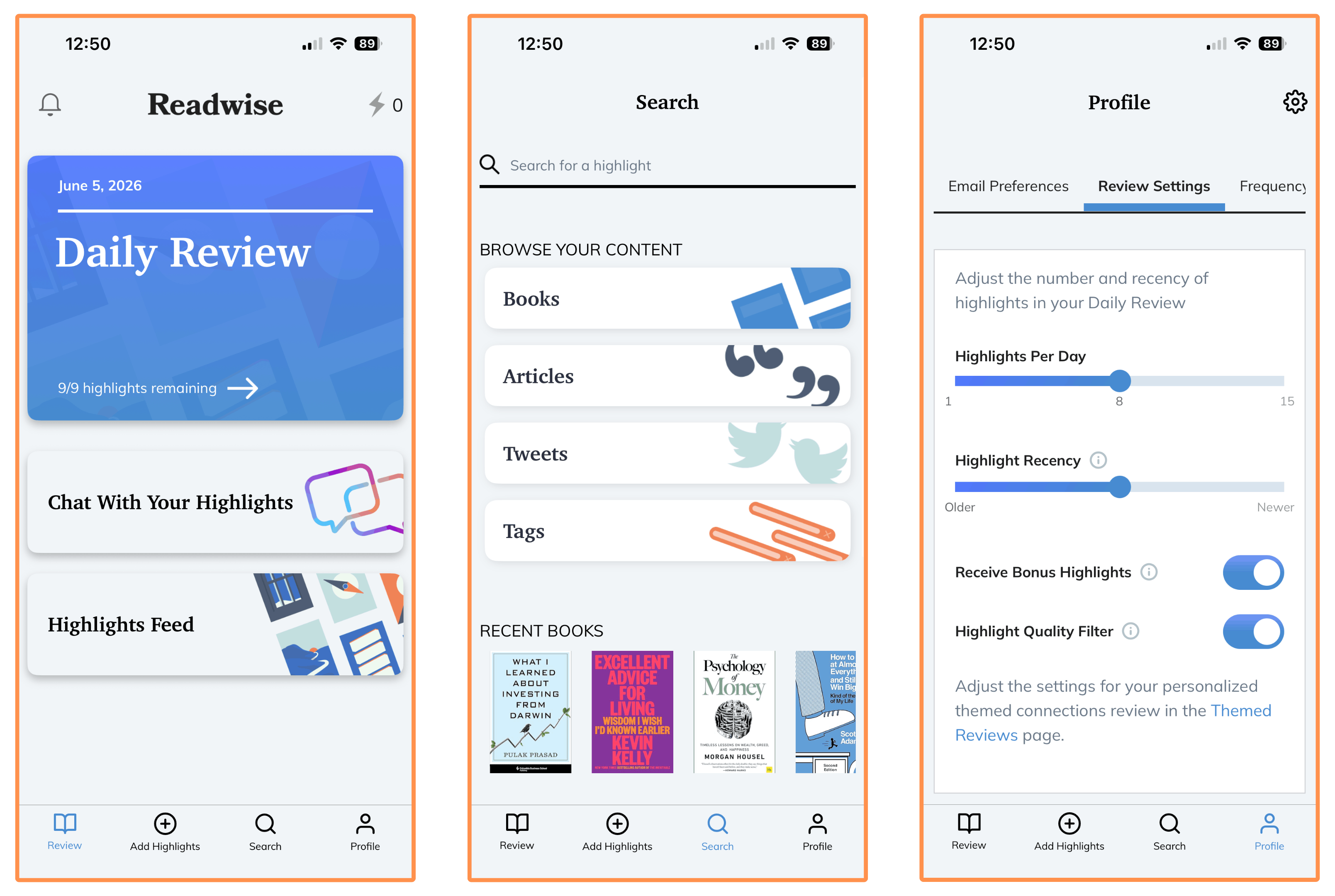
(Note: You can also switch to dark mode on the website and mobile app)
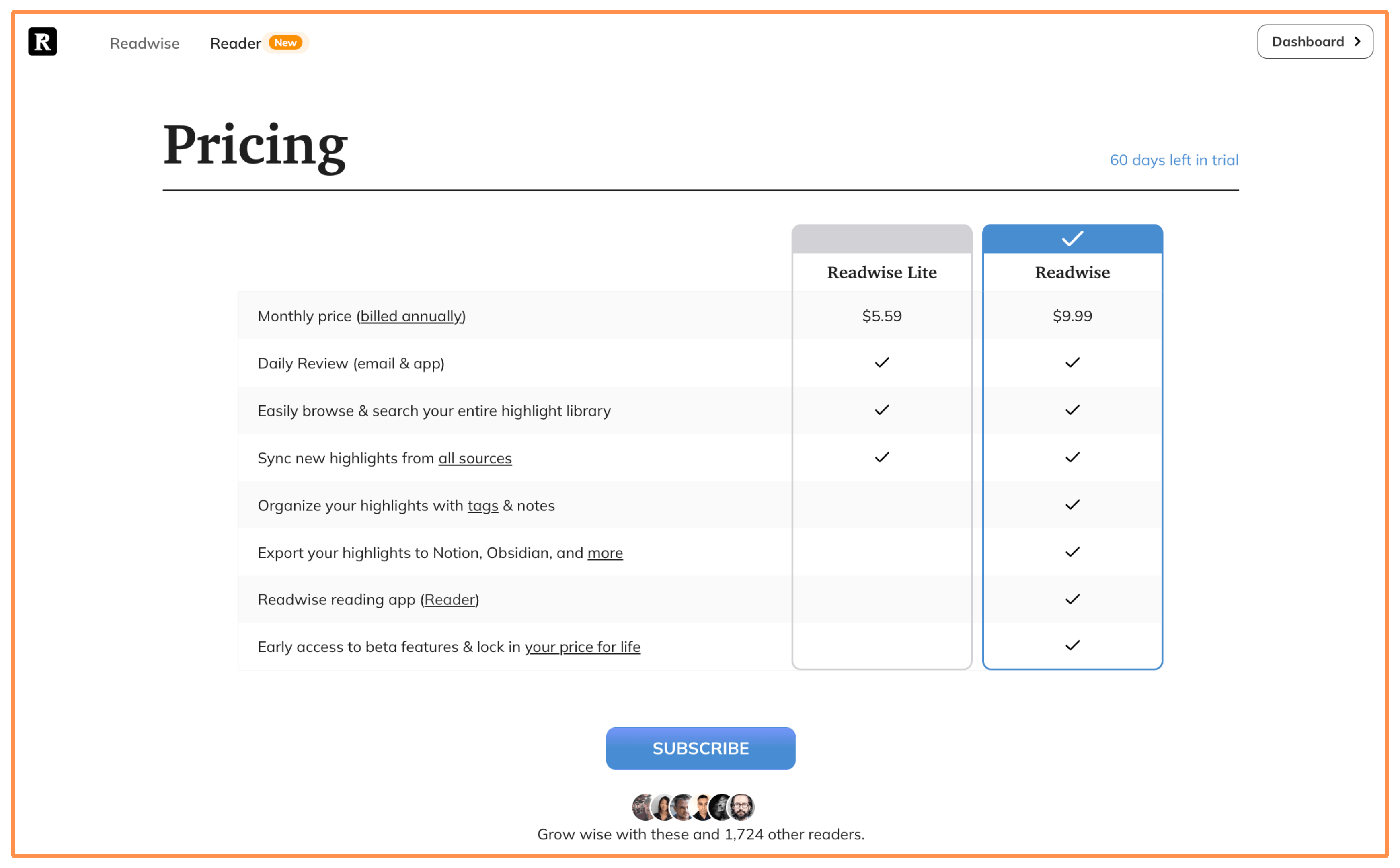
Readwise offers two subscription plans:
Readwise Plan → It offers the full Readwise experience, without any limitations. It also includes their brother app Readwise Reader — to help you save and highlight things from the web.
If you choose the yearly billing, it goes for $119.88 (equivalent to $9.99 per month).
If you pick the monthly billing, it costs $12.99 per month.
Readwise Lite Plan → It’s cheaper, but it comes with a few limitations: You can’t create tags and write notes on your highlights, you can’t export your highlights (unless you’re exporting to CSV or Markdown), and it doesn’t include Readwise Reader.
The yearly billing goes for $67.08 (equivalent to $5.59 per month).
The monthly billing costs $6.99 per month.
Readwise has a 30-day free trial. But I talked to them and they agreed to extend it to 60 days for readers of my blog! Just sign up with this link.
There are two main Readwise alternatives: Screvi and Glasp. Although these aren’t as consolidated as Readwise.
Here’s a quick comparison of their ratings on the App Store (in the US), as of July 1st 2026:
I haven’t tried Screvi or Glasp. They look like new entrants in the market, so I prefer to keep using Readwise since it has been around for longer and it has better reviews (and many more ratings).
There are two main competitors to Readwise Reader: Instapaper and Matter.
They both do pretty much the same job: save and highlight things from the web. They are also called “read it later” apps, because many people use them to save articles to read later (or save videos to watch later).
I haven’t tried Instapaper or Matter, because I’m a Readwise subscriber and the Readwise Reader app comes for free (and syncs perfectly with the Readwise app).
But here’s a quick comparison of their ratings on the App Store (in the US), as of July 1st 2026:
As I mentioned at the beginning of this review, Readwise is worth it for me for two main reasons: (1) I use Kindle frequently and I like to highlight articles and videos (with Readwise Reader), and (2) I get value from most of Readwise’s core features.
Overall, Readwise has helped me remember much more of what I read. And it’s nice to have a library of all the things you find interesting.
Buuut... Is Readwise worth it for you?
Here are two questions to help you decide:
Do you use (or plan to use) at least one app that connects to Readwise? If it’s only one, you’ll want to be a frequent user of that app — otherwise there may not be enough highlights to make Readwise worthwhile.
Of the six core Readwise features we covered, is there at least one you think you’ll use consistently?
If you answered Yes to both questions, there’s a good chance Readwise will be worth your time and money.
But you don’t have to commit immediately. I talked to the team at Readwise and they agreed to give readers of my blog a 60-day free trial by signing up with this link. The usual trial is 30 days, so this gives you extra time to try the app risk-free and see whether it works for you.
And thank you for reading my blog post :)
Comments
Nothing yet. Say the first thing.
Sign in to join the conversation.