
I'll never forget how I got my start in SEO.
A founder floated me the idea of being a “Head of On-Page Optimization" at an agency. It was such a core part of their offering that they considered hiring an entire person to oversee it.
At the time, I thought it sounded special—important. Now that I’ve been in SEO a while, I know it was just the grunt-workiest of grunt-work jobs.
No SEO I know likes doing on-page work—especially not the basic “Update a title tag, meta description, and H1” that so many of us spent so much time on years ago
At one point in that early part of my career, I was spending 30 hours of my week doing OPO for clients.
Every day (for different sites), I would:
Pull a top pages report from Ahrefs
Filter out the homepage, about page, etc.
Run those pages through Screaming Frog to get the title tag, H1, and meta description
Put that all back into a sheet with the existing metadata and a new column for each piece to rewrite it
Go BACK to Ahrefs and GSC to find the best keywords to include in the title and H1
Rewrite each of those pages' metadata manually
Go back into the CMS and edit/replace all that.
😴😴😴😴😴
Now, to be fair, it worked back then.
Things like exact-matching your title to the target keyword was essential to ranking, at the time. (These days, you're lucky if Google even cares what you write for a title).
At this point, this and so many other tasks can be automated with AI. Not entirely in all cases, but heavily assisted.
Yes—of course they do. I’m not advocating for you to setup a script to write hundreds of pages worth of AI content and throw it up on a website with no editing—of course that’s a terrible idea.
What I am advocating for is the following:
Google doesn’t care that much about metadata
Short blurbs of content on your site (think product descriptions) can be done better with AI than with low-cost content resources
The time you save to invest in creating actual good content is what matters. It’s worth much more than the slight bump in performance you might get from doing these things by hand.
I’d encourage you to do your own testing and experimentation with this and find out if it works for you. Either way, I hope you’ll find value here.
I have a few specific use cases written out in the code you’ll see today, but I hope to inspire you to write your own scripts and use them for your own specific needs.
With OpenAI and a little Python, you can automate most manual tasks and save yourself a LOT of time along the way.
Most AI models you'll be using for this cannot parse any of the content on a webpage. There are GPT plugins that solve for that, but that removes your ability to do this at scale.
Yes, you can use Langchain and other things to account for this, but that’s much more complex and for a different day.
AI doesn't understand what your page is about—especially if there's not a lot of content (think product pages in eCommerce). The tool will be as smart as the information you give it.
Very often, what it outputs will not be amazing writing. You have to accept this and be okay with it if you're going to leverage it for this use case.
The bar shouldn’t be “Is this better than my in-house copywriter?” but instead, “Is this better than that guy I hired on Fiverr?” That’s what we’re trying to replace—large amounts of simple, manual work that no one likes to do anyways.
If you are doing this for a client—you need to be transparent with them about it from the jump. I'm a HUGE believer in using AI for SEO, but it should be done to free up your time to focus on other impactful things–not as a way to save time/money.
I recommend always running a small test batch a few times through, tweaking your system and input prompts, before running a large batch of pages. It just helps a lot.
Here I present you two paths—one is simple to start, but not as easily scalable.
The other is more complex to setup, but will help you learn and prepare you for much more complex projects in the future.
Either way, towards the end of the post, I'll give some more general tips around prompting and how to get the best outputs for different use cases.
So no matter your comfort level with writing Python or using tools like GitHub and VSCode, there should be value here for you.
To do any of this, you'll need a few things:
An OpenAI API key (or an alternative)
The Python SDK for OpenAI is so simple that I've stuck with GPT as my preferred model. I'm sure you can use Claude, LLaMa, or any other model, but we'll stick with OpenAI.
A code editor/IDE. I use VSCode, but you can use whichever you’re most comfortable with.
If you’ve never done this before—I’d suggest starting with VSCode.
A GitHub account to access the code I've written
You can either fork the repo (if you're comfortable with that) or you can just download the code as a .zip file and begin working with it on your own.
If you aren't comfortable dealing with Python, the terminal, or any of your own code right now, I want to give you a much simpler option to use. It won't be as powerful (you'll run into some timeout limits, it won't be as fast, etc.) but it will get you started.
Make a copy of this Sheets template, and you will be able to just call the "GPT" function anywhere you want, directly in Sheets.
You can also add custom cell or custom text as your input prompt.
If you’d prefer to do this on your own, here’s an example of the code I used that you can copy into your own sheet to adapt and edit as-needed. I kept this as basic as possible, so there’s lots of ways to improve this:
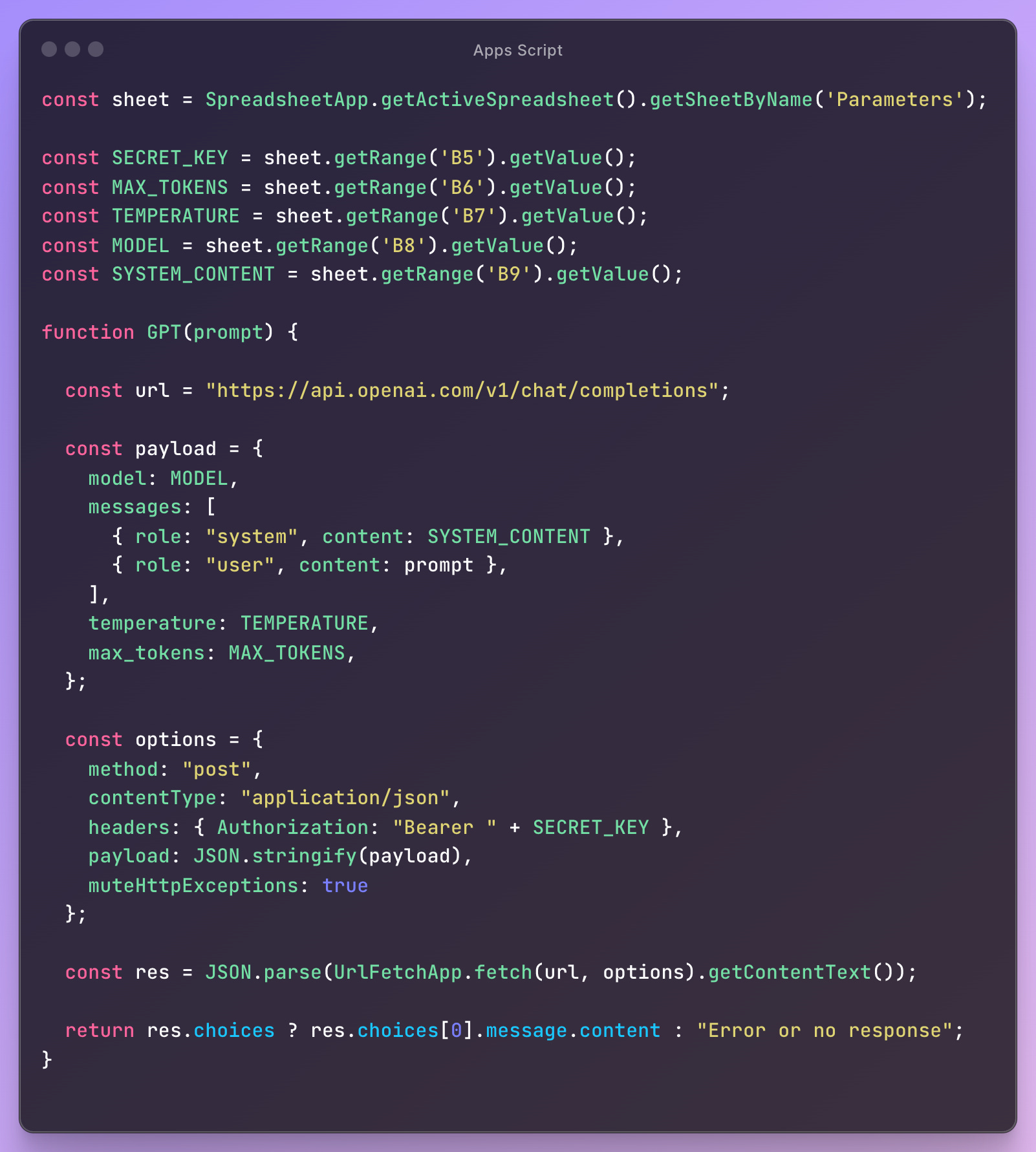
This method will run into some sheets limits if you try to do too many at a time, but for some basic OPO page-by-page, it'll work just fine.
This video walks through how the sheet works in more detail, but it’s simple.
There’s a basic Apps Script "GPT" function with parameters you can edit directly in the sheet
You can edit temperature, tokens, system prompts, and what model you’re using
To call it, just type
=GPT(“Your_prompt_here”)into a cellThe real power of this comes from being able to dynamically update your prompts with data from the cells in your sheet.
This worked for me for a while, but eventually I started doing tasks that were far too complex for this to be useful.
At that point, I decided to start learning Python.
Before we get into the useful stuff, there are a couple basic setup items to go through.
Fork the repo to get access to the code I've written
Keep in mind—I'd love to see you write your own. It's always easier to solve problems if you actually understand the code you're working with, so feel free to ignore what I've written and take your own path once you understand the concepts
Setup a Google Cloud service account
Again—there are other options for this too, but I've found by far the simplest and most reliable way to do this.
Install all your requirements for the project.
I do this using venv, but that’s not strictly necessary.
If you haven’t done any projects like this before, you’ll also need to setup your dev environment. I’d start here with this guide from VSCode if you still need to do that.
First things first—lets get you some code you can use. I use the gspread Python module to manage all of my sheets workflows. It's super easy to use, as these things go, and there are lots of different ways you can approach it.
I prefer to read my sheet in as a Pandas dataframe and then manipulate it as-needed in my code from there.
You could adapt this code to directly edit the sheet, if you prefer. It was easier for me to work with Pandas than try to keep track of row/column numbers.
Some people will think I’m insane for that, but maybe it’s easier for you, too.
Here is the repo. If you're comfortable with GitHub, you can just Fork this repository and begin work from there. Or, if you keep all your code local, you can also just download a .zip of all the files directly.
This may feel like a pain, but I promise it's worth the headache to not have to keep downloading things as a CSV every time you want to run a script.
This is a bit convoluted if you've never done anything like this before, but I've found it an essential step to managing things in Google Sheets/Docs. (Docs are much more useful if you ever want to test more long-form content creation).
Here are the basic steps. If you run into any headaches, just keep digging around. I promise it’s worth it.
Go to Google Cloud and setup your account
Go to "APIs and Services" and enable the following APIs:
Google Drive
Google Sheets
Google Docs
Go under "credentials" and create a "service account"
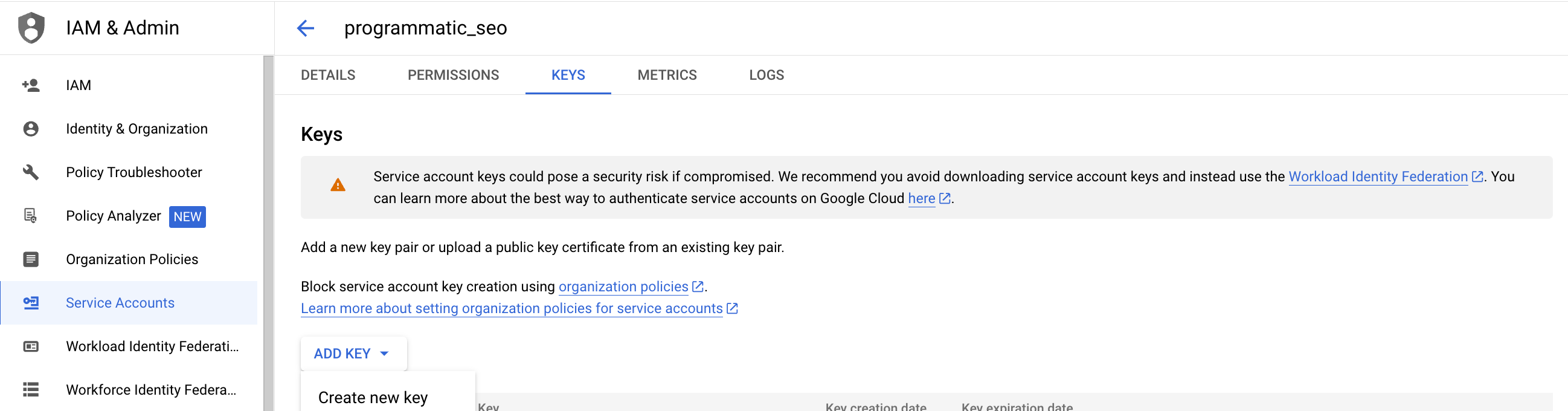
Once created, go to create a new key. This will give you a JSON file you can download. That file will hold all the credentials that you need to be able to run this code and talk directly to Google Sheets.
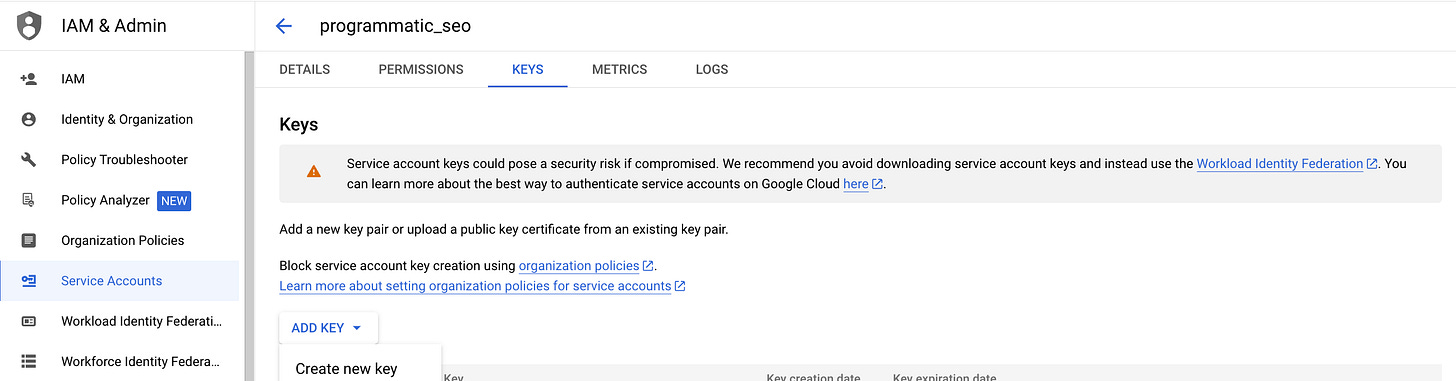
Download that JSON file and store it in the credentials folder of your repo, titled "credentials.json"
You could technically call it whatever you want, but that's what I called it in my code.
And you’re done! You should now be able to use that json file as credentials anytime you want to connect to any Google API.
For today, we’re going to walk through 3 very real use cases for AI in Sheets that have saved me hours of time. The first one, just in the last few weeks, saved me hours of time sorting through a large dataset for a project.
The idea here is not just that you would copy these use cases, but that, in addition, you would be inspired to start your own projects.
The code is not that different from project to project when you’re using AI. The biggest factors you’ll change will be:
Input/system prompts
How much data you’re pulling into those prompts from another source
How many times you prompt the AI for each task
For more complex projects, you may use a multi-step prompt workflow to improve your outputs.
If you can wrap your head around these ideas, there’s no end to the projects you could create on your own.
A very common task you'll need to do, especially when working with large sites, is label or categorize large amounts of data.
For example, you may have a list of products in an eCommerce store that you need to label as "Men's", "Women's", "Jackets", "T-Shirts," etc., you get the idea.
Thankfully, AI is great at this if you just give it the right context and some examples. And you don't need to train a model—you can just give it some solid instructions in a system prompt.
Here's an example of what I mean. Let's pretend we work at Nike, for the moment:
You are an employee at Nike helping to categorize different kinds of shoes based on their name and a brief description.
The categories you can choose from are:
- Running shoes
- Hiking shoes
- Climbing shoes
- Skate shoes
- Trainers
- Dress shoes
- Sandals
- Boots
- Basketball shoes
Given a name and brief description, you will place the shoe into the correct category based on what is most relevant to that shoe.
Example inputs/outputs:
Input: Jordan 1 Mid: Inspired by the original AJ1, this mid-top edition maintains the iconic look you love while choice colors and crisp leather give it a distinct identity.
Output: Basketball shoes
Input: Air Max 90: Nothing as fly, nothing as comfortable, nothing as proven. The Nike Air Max 90 stays true to its OG running roots with the iconic Waffle sole, stitched overlays and classic TPU details. Classic colors celebrate your fresh look while Max Air cushioning adds comfort to the journey.
Output: Running shoes
Input: Nike Dunk Low: Created for the hardwood but taken to the streets, the Nike Dunk Low Retro returns with crisp overlays and original team colors. This basketball icon channels '80s vibes with premium leather in the upper that looks good and breaks in even better. Modern footwear technology helps bring the comfort into the 21st century.
Output: Basketball shoes
Given a structure like this, you could pull the name and product description from your store database, put that in a sheet, and run this operation. Alternatively, if you are a 3rd-party and only have the URLs, you could pull that information using something like BeautifulSoup.
You can use this system prompt in this template, but you'll run into rate limiting issues if you try to do too many too quickly. Just the other week, I had to categorize 1,200 URLs into one of 31 categories, so I had to do this work in Python.
Thankfully, that's not very difficult at all. You can use the categorize_sheets.py file in this repo to do just that!
Here's a basic overview of how the script works:
The code should be pretty straightforward, along with the video above, so I won't spend too much time explaining it here.
This is a script where you're going to need to edit the code to make any changes, but that just makes it more flexible for your specific use case.
For use case two, I want to show how with some very slight changes, we can use almost the exact same code to accomplish a drastically different task.
The only two things we’re changing here are the system instructions/examples and the data we’re giving to the LLM.
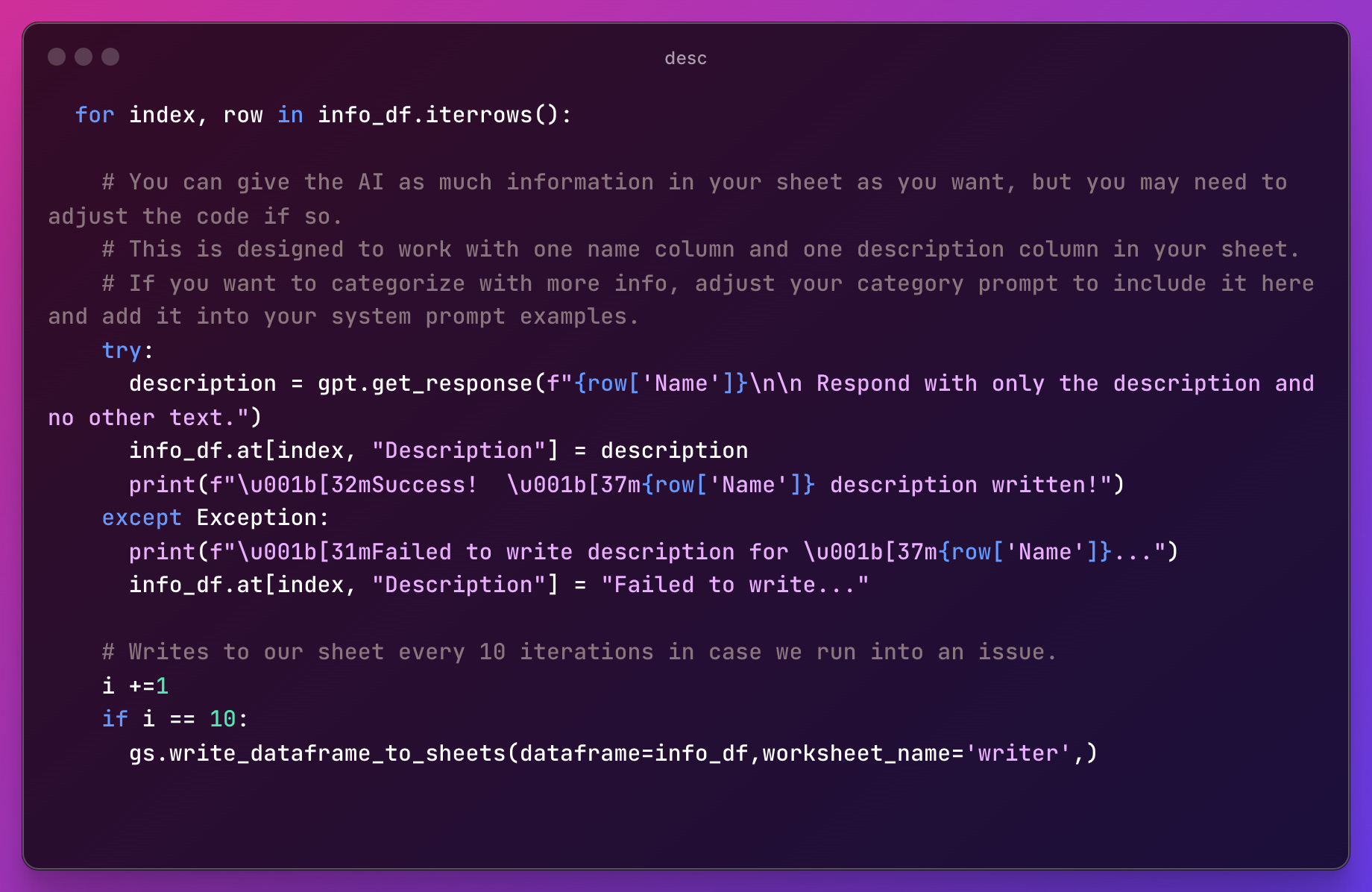
This is the main chunk of code that’s slightly different. Instead of passing a name and description and asking for a category, we’re instead giving it just a name and asking the AI to write the description for us based on our new system prompt.
You are an employee at Nike helping to write product descriptions for various shoes on offer.
Given a name and a few other pieces of info about the product, you will write a 1-2 sentence description describing the product.
Please follow the following brand guidelines:
- Nike tone of voice: bold, ambitious, aspirational_
- We believe if you have a body, you are an athlete
- We dare to design the future of sport
Example inputs/outputs:
Input: Jordan 1 Mid, Leather, synthetic leather and textile upper for a supportive feel. Foam midsole and Nike Air cushioning provide lightweight comfort. Rubber outsole with pivot circle gives you durable traction. Shown: White/Black/Green Glow Style: DQ8426-103
Output: Inspired by the original AJ1, this mid-top edition maintains the iconic look you love while choice colors and crisp leather give it a distinct identity.
Input: Air Max 90:Originally designed for performance running, the Max Air unit in the heel adds unbelievable cushioning. Padded, low-top collar looks sleek and feels great Rubber Waffle outsole adds a heritage look, traction and durability. Stitched overlays and TPU accents on the heel and eyestays add durability, comfort and the iconic '90s look you love. Shown: White/White/White Style: DH8010-100
Output: Nothing as fly, nothing as comfortable, nothing as proven. The Nike Air Max 90 stays true to its OG running roots with the iconic Waffle sole, stitched overlays and classic TPU details. Classic colors celebrate your fresh look while Max Air cushioning adds comfort to the journey.
Input: Nike Dunk Low: Premium leather in the upper has the perfect sheen and breaks in beautifully. The modern foam midsole offers lightweight, responsive cushioning. A padded, low-cut collar adds a sleek look that feels comfortable. Bold color blocking throws it back to the original colorway inspiration: school team colors. The rubber outsole with classic hoops pivot circle adds durability, traction and heritage style.
Output: Created for the hardwood but taken to the streets, the Nike Dunk Low Retro returns with crisp overlays and original team colors. This basketball icon channels '80s vibes with premium leather in the upper that looks good and breaks in even better. Modern footwear technology helps bring the comfort into the 21st century.
This, in practice, works exactly the same as the categorizer script, but with different inputs and prompts, we can have the AI perform a very different task.
You could, in theory, pass any amount of data you want to the AI by just modifying your prompts to include additional variables from your data.
In this code, as you iterate through your dataframe, you could do this by adding {row[“column_name”]} anywhere in your prompt.
For this last use case, I'm not going to give you any additional code, but instead I want to give you some ideas to go work out on your own. I plan to do another dedicated post on what goes into programmatic and how you can improve that kind of workflow, but here are some basic ideas to get you started.
In case you aren't familiar, there are a few kinds of programmatic SEO, but it all basically splits into two camps:
UGC/database-driven
AI-assisted
Let's talk about these separately because they're so different.
The first is what you see from a company like Zillow:
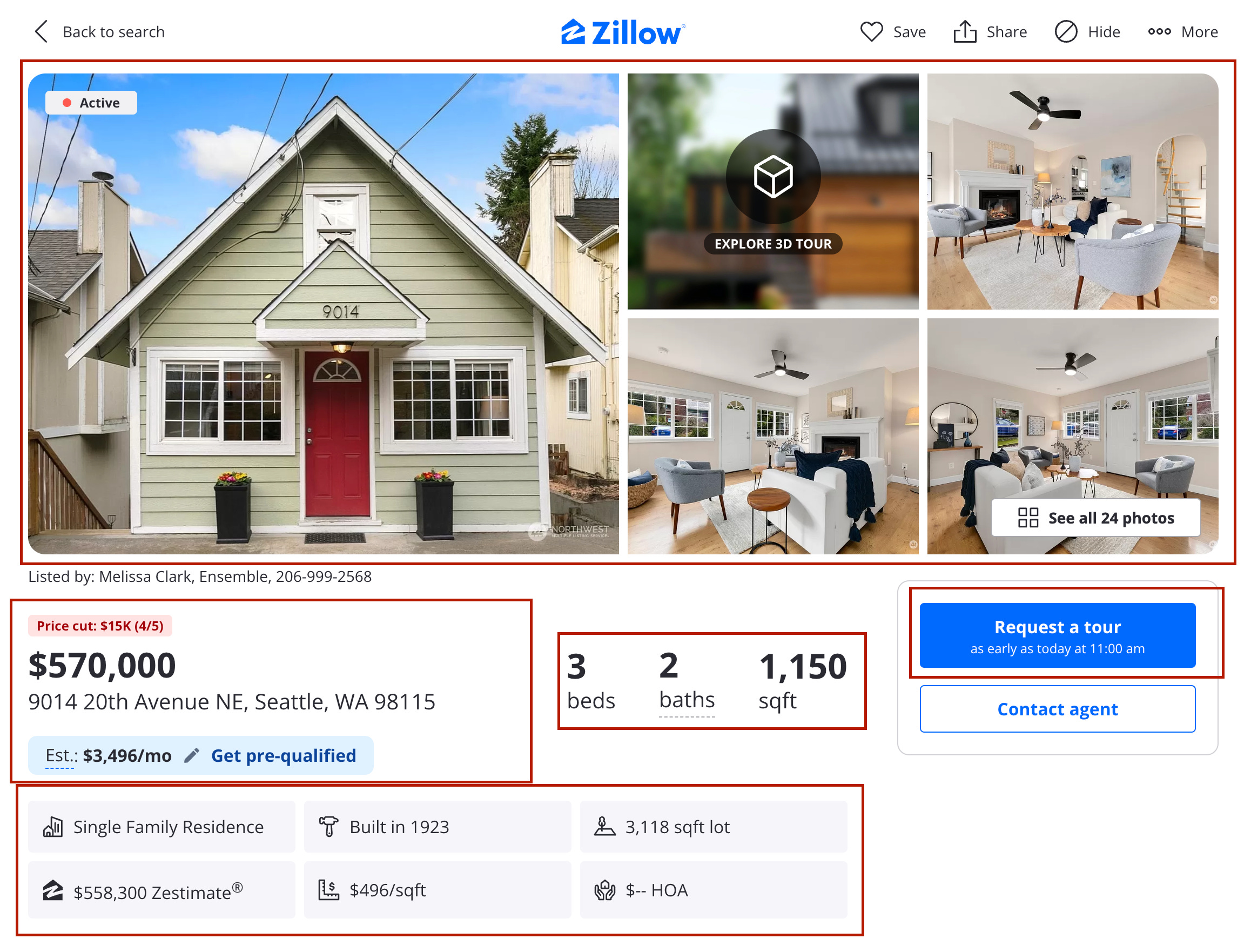
Everything in a red box is not hard-coded into a page, but is instead programmatically generated through data elsewhere—almost entirely by data provided by users.
All the "Zillow-likes" do this, and so do companies like Zapier and G2.
They store X number of datapoints on all these different software tools and then mix and match that data to create unlimited comparisons between different tools. This helps them rank for things like "ClickUp vs. Monday.com".
This strategy only works if you're a specific type of business. Most SEOs can never realistically see success a strategy like this. You won’t have enough data to make it useful.
Instead, what most people are thinking about when they say "programmatic SEO" is the other version.
Instead of relying on UGC or a database of information, we can generate all of our content with AI, while still following a templated format.
In truth, this is no different than our basic product description use case, but with different input data.
An early example of this I tried is over on Perfect Extraction (a coffee blog I run along with a friend of mine for some fun SEO experimentation).
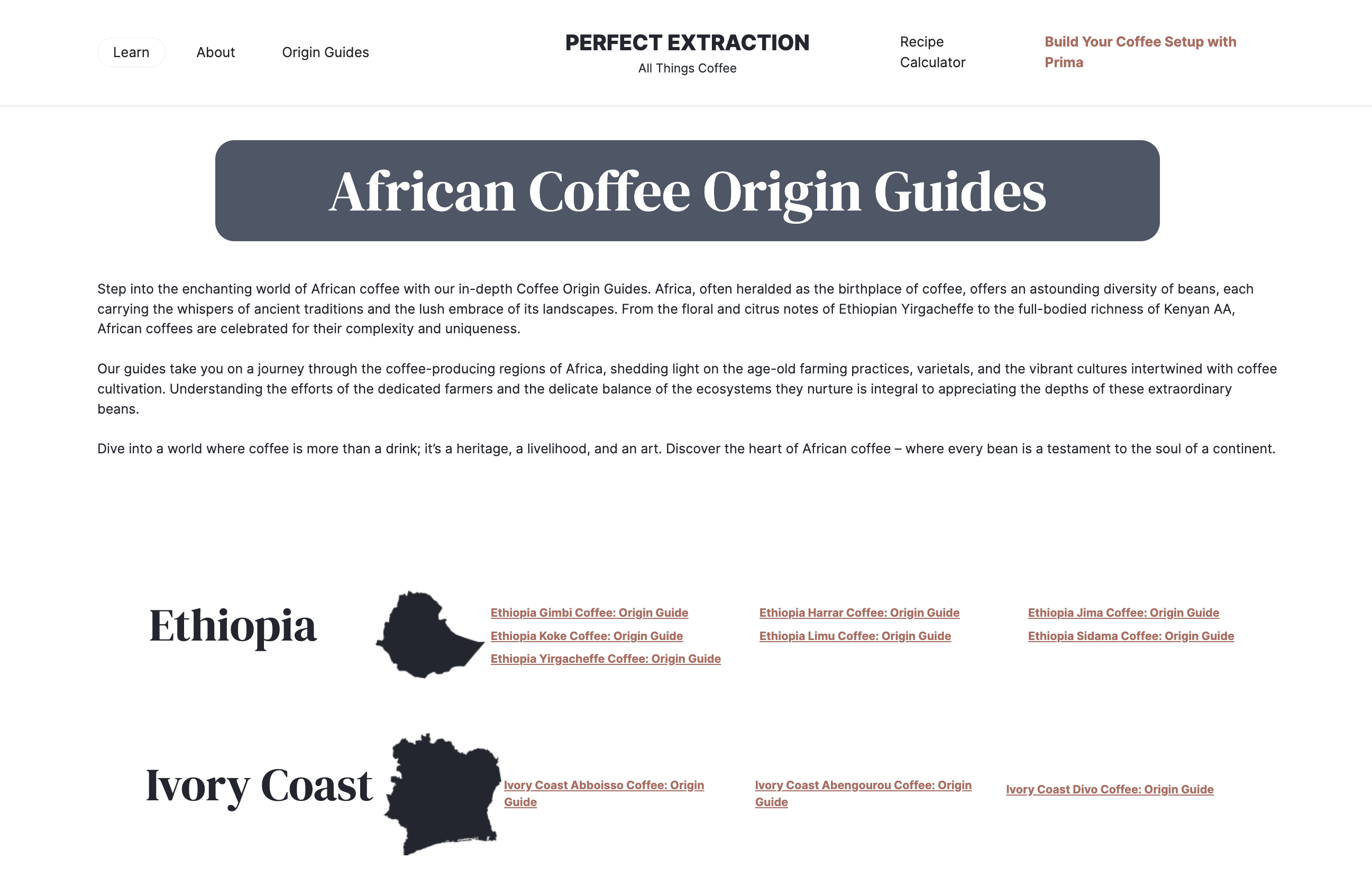
What I did is create a list of about 150 different keywords related to specific coffee-growing regions all over the world.
Then, I made a very basic system prompt (with no additional info) and had GPT-4 write content related to each of those following a very specific format.
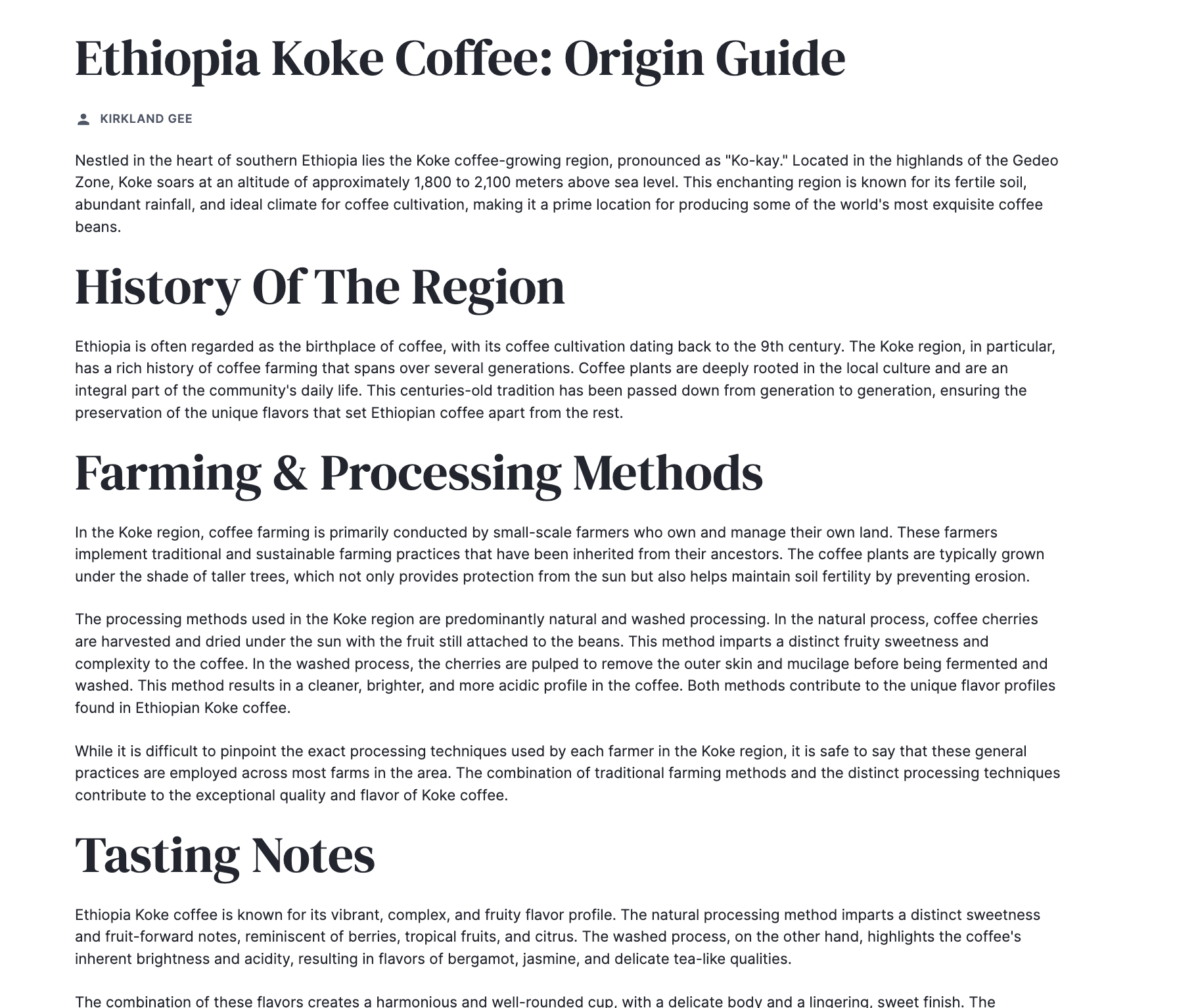
I also generated some templated header images that all look exactly the same with different text in them:

I launched these last July, coming up on a year ago now, and it was a fun experiment. I learned a lot about how to code, how to work with OpenAI's API, and how to get content uploaded en-masse to a Webflow site.
Truth is—it didn’t perform as well as I would have liked, but it was a good experience nonetheless.
If I were to do it again, the main things I would spend time on are:
Giving the AI much better input data. Just relying on the LLM to generate all the region information led to some weird hallucinations
Chunking the content creation. Instead of one-shot prompts, following a specific outline and having an AI write one section at a time DRASTICALLY improves the outputs.
Finding better, unique images. It’s hard to do, and even harder to quantify the impact, but I think, with templated content like this, having distinct, quality images would have made a difference.
I plan on writing in more detail about programmatic SEO pretty soon, but for now, I hope you’ll start to explore it on your own. You have the setup and tools to start writing your own workflows, joining responses together, and exploring this on your own—so do it!
To wrap this up, I want to just share some quick tips you can use to improve your prompts (and ultimately, improve your outputs).
This is not an exhaustive list, but if you follow these, you’ll see some improvements pretty quick
Stop relying on
“You’re an expert {fill in the blank}. Do this thing”.Sometimes, that might work, but it’s not consistent.Data. Data. Data. The more information and data you can give the AI, the better your response will be. Full stop.
Use input/output examples. Show the AI, “for this input, here’s what I would expect as a response.”
If you are too specific with this, it can color the outputs of inputs more than you expected, so pay attention to how it’s affecting your outputs.
Provide voice/tone guidelines in your system prompt. Be detailed. Say more than “use a casual tone.”
Provide formatting guidelines. AI can output in markdown, JSON, plain text, HTML, or a host of other formats. Use this to your advantage in your application.
Split prompts where possible. If you’re expecting more than ~250 words in your response, consider if you could break that into two calls and two responses, joining them in your code afterwards.
If you stuck with me this long—thank you. I know this was a long post, so I appreciate your time and attention reading this. If somehow you made it this far and still aren’t subscribed, you can do that by clicking the button below.
No posts
Comments
Nothing yet. Say the first thing.
Sign in to join the conversation.