
Well, today has been fun. There was a huge Cloudflare outage that took out almost everything. And now, there is a GitHub outage so I literally can’t do my job.
So now I get to tell you about yet another DNS setup that I have had deployed in my homelab for over a month now. Spoiler: it’s the fastest and most reliable I’ve had in a while.
A little backstory.
I am obsessed with achieving the lowest latency possible on my home network. I have Starlink, which has been amazing. Recently the Starlink team provided an update on their network.
Claude summarized:
Starlink recently announced some impressive network improvements, achieving a median peak-hour latency of just 25.7 milliseconds across US customers as of June 2025.
~ https://starlink.com/updates/network-update
Impressive. My Starlink app says the latency is around 21ms on average. I asked myself, how can I keep that number as low as possible, block ads, and return local DNS records?
I tried:
NextDNS - not bad, but it sits at 26ms average with spikes to 60ms and seems to limit download speeds to 150mbps?!
Pi-hole - bad
AdGuard Home - not bad, but sits at 30ms average with spikes to 60ms
Enter Blocky!
I’m running Blocky in Docker on a server in my rack (ok its a dell optiplex), and my configuration is straightforward. Here’s what makes it work so well:
Here is a “sanitized” version of my config file:
bootstrapDns:
  - tcp+udp:1.1.1.1
  - tcp+udp:1.0.0.1
upstreams:
  groups:
    default:
      - 172.64.**.*
      - 172.64.**.*
  strategy: parallel_best
  timeout: 1s
ports:
  dns: 53
  http: 4000
caching:
  minTime: 30m
  maxTime: 24h
  maxItemsCount: 10000
  prefetching: true
  prefetchExpires: 12h
  prefetchThreshold: 10
  prefetchMaxItemsCount: 1000
customDNS:
  mapping:
    service1.homelab.local: 10.0.0.250
blocking:
  denylists:
    ads:
      - https://big.oisd.nl/domainswild
      - https://raw.githubusercontent.com/hagezi/dns-blocklists/main/wildcard/ultimate.txt
    peacock-ads:
      - |
        mt.ssai.peacocktv.com
        video-ads-module.ad-tech.nbcuni.com
        xtv.clients.peacocktv.com
      - |
        nbcstreaming.hb.omtrdc.net
        cybertron.id.a.peacocktv.com
        ingest.webcol.sdp.peacocktv.com
        throttled.ovp.peacocktv.com
      - |
        imasdk.googleapis.com
        enduser.adsrvr.org
      - |
        /.*\.mediatailor\..*\.amazonaws\.com$/
      - |
        /^g\d{3}-vod-us-cmaf-prd-(?!mc)[a-z]{2}.*\.cdn\.peacocktv\.com$/
      - |
        /^g[0-9]+-[a-z0-9]+-us-cmaf-prd-[a-z0-9-]+\.prd\.pck\.netskrt\.net$/
  allowlists:
    ads:
      - https://raw.githubusercontent.com/jmcglock/nextdns/refs/heads/main/dns-allowlist.txt
      - |
        espn.com
        *.espn.com
        *.go.com
    peacock-functional:
      - |
        cdn.cookielaw.org
      - |
        mytv.clients.peacocktv.com
        bff-ext.clients.peacocktv.com
      - |
        play.ovp.peacocktv.com
        imageservice.disco.peacocktv.com
        atom.peacocktv.com
        meg.disco.peacocktv.com
        ovp.peacocktv.com
        pconfig-prd.cdn.peacocktv.com
        bookmarks.clients.peacocktv.com
      - |
        /^g\d{3}-vod-us-cmaf-prd-mc\.cdn\.peacocktv\.com$/
  clientGroupsBlock:
    default:
      - ads
      - peacock-ads
  loading:
    refreshPeriod: 12h
    downloads:
      timeout: 30s
      attempts: 2
      cooldown: 3s
    concurrency: 16
    strategy: failOnError
    maxErrorsPerSource: 5
  blockType: zeroIp
  blockTTL: 1h
ede:
  enable: false
prometheus:
  enable: true
queryLog:
  type: console
  logRetentionDays: 7
I’m using Cloudflare Gateway’s dedicated DNS resolver IPs (they change the product names in Zero Trust all the time) as my upstream resolvers with a parallel_best strategy. This means Blocky queries both servers simultaneously and uses whichever responds fastest. With a 1-second timeout, it’s aggressive about maintaining low latency. For bootstrap DNS (used during startup), I fall back to Cloudflare’s public IPs (1.1.1.1 and 1.0.0.1) over both TCP and UDP.
The caching configuration is where things get interesting. I cache DNS responses for a minimum of 30 minutes and up to 24 hours, with room for 10,000 cached items. But the real performance boost comes from prefetching: Blocky proactively refreshes frequently-accessed records 12 hours before they expire, keeping the cache warm and eliminating lookup delays for common queries. With a prefetch threshold of 10 requests, any domain I visit regularly stays cached and fast.
I maintain custom DNS mappings for my homelab services (Teslamate, Grafana, ArgoCD, Harvester, Rancher, etc.) to local IPs on my network. No external DNS lookups, no /etc/hosts hacks.
For blocking, I’m using two comprehensive denylists: OISD’s big list and Hagezi’s ultimate blocklist, which cover most ads and trackers. I also have custom rules specifically for Peacock ads because streaming service ads are particularly annoying. To prevent false positives, I maintain allowlists for ESPN and functional Peacock endpoints that need to work for streaming to function properly.
The blocklists refresh every 12 hours with a solid download strategy: 2 attempts per source, 30-second timeouts, and 16 concurrent downloads. This keeps my block lists current without hammering the sources.
With Prometheus metrics enabled, I can track performance in real-time and verify that I’m actually achieving those sub-25ms latencies I’m after.
The result? Average 21ms latency. Cloudflare Gateway’s dedicated IPs plus aggressive caching equals low latency.

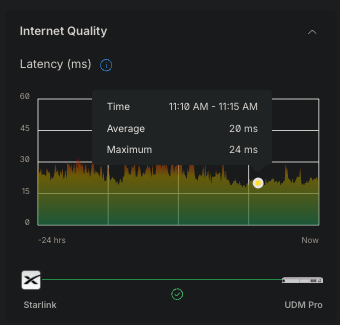
I actually had some high latency readings (nothing above 30ms) over the last 24 hours though because its super cloud and rainy. You can only lower latency so much before nature gets in the way lol, especially with a Starlink.
There is one HUGE issue when using Starlink: your public IP changes all the time. Therefore, you’re going to have a hard time automating the Gateway allowable IP in Cloudflare. I made a Kubernetes CronJob to solve this.
The job runs every hour and does three simple things:
Fetches my current public IP from ifconfig.me
Validates it’s a proper IPv4 address
Updates my Cloudflare Gateway DNS location via the Cloudflare API with the new IP
If you are interested in that:
apiVersion: batch/v1
kind: CronJob
metadata:
  name: cloudflare-ip-updater
  namespace: default
  labels:
    app: cloudflare-ip-updater
spec:
  schedule: “0 * * * *”  # Every hour
  timeZone: “America/New_York”
  successfulJobsHistoryLimit: 3
  failedJobsHistoryLimit: 1
  concurrencyPolicy: Forbid
  jobTemplate:
    spec:
      backoffLimit: 2
      activeDeadlineSeconds: 180
      template:
        metadata:
          labels:
            app: cloudflare-ip-updater
        spec:
          restartPolicy: Never
          containers:
          - name: ip-updater
            image: curlimages/curl:8.6.0
            imagePullPolicy: IfNotPresent
            command:
            - /bin/sh
            - -c
            - |
              # Configuration
              CF_ACCOUNT_ID=”${CF_ACCOUNT_ID}”
              CF_LOCATION_ID=”${CF_LOCATION_ID}”
              CF_API_TOKEN=”${CF_API_TOKEN}”
              # Log function
              log() {
                echo “{\”timestamp\”:\”$(date -u +%Y-%m-%dT%H:%M:%SZ)\”,\”action\”:\”$1\”}”
              }
              # Fetch current public IP
              log “fetching_ip”
              CURRENT_IP=$(curl -s https://ifconfig.me)
              if ! echo “$CURRENT_IP” | grep -E ‘^[0-9]{1,3}\.[0-9]{1,3}\.[0-9]{1,3}\.[0-9]{1,3}$’ > /dev/null; then
                log “invalid_ip ip=$CURRENT_IP”
                exit 1
              fi
              # Update Cloudflare Gateway DNS location
              log “updating_cloudflare_gateway ip=$CURRENT_IP”
              RESPONSE=$(curl -s -w “\n%{http_code}” -X PUT “https://api.cloudflare.com/client/v4/accounts/$CF_ACCOUNT_ID/gateway/locations/$CF_LOCATION_ID” \
                -H “Authorization: Bearer $CF_API_TOKEN” \
                -H “Content-Type: application/json” \
                --data “{\”name\”:\”Home Location\”,\”client_default\”:true,\”networks\”:[{\”network\”:\”$CURRENT_IP/32\”}]}”)
              HTTP_CODE=$(echo “$RESPONSE” | tail -n 1)
              RESPONSE_BODY=$(echo “$RESPONSE” | sed ‘$d’)
              if [ “$HTTP_CODE” -ne 200 ]; then
                log “update_failed http_code=$HTTP_CODE response=$RESPONSE_BODY”
                exit 1
              fi
              log “update_completed http_code=$HTTP_CODE”
              exit 0
            env:
            - name: CF_ACCOUNT_ID
              valueFrom:
                secretKeyRef:
                  name: cloudflare-credentials
                  key: CF_ACCOUNT_ID
            - name: CF_LOCATION_ID
              valueFrom:
                secretKeyRef:
                  name: cloudflare-credentials
                  key: CF_LOCATION_ID
            - name: CF_API_TOKEN
              valueFrom:
                secretKeyRef:
                  name: cloudflare-credentials
                  key: CF_API_TOKEN
            resources:
              requests:
                memory: “8Mi”
                cpu: “5m”
              limits:
                memory: “16Mi”
                cpu: “25m”
            securityContext:
              allowPrivilegeEscalation: false
              runAsNonRoot: true
              runAsUser: 65534
              readOnlyRootFilesystem: true
              capabilities:
                drop:
                - ALL
It’s not elegant, but it works. My Gateway location stays updated automatically, and I don’t have to think about Starlink’s IP changes anymore. I do something similar for NextDNS (in case I have to switch back in the future.
Cheers,
Joe
Comments
Nothing yet. Say the first thing.
Sign in to join the conversation.