
“Animation is about creating the illusion of life.” — Chuck Jones
Animation is magic. At least that’s what I thought it was when I was a kid.
I’ve always been fascinated with bringing illustrations to life through animation. Although not formally trained in animation, nor art for that matter (psst, I’m self taught); admittedly, I do enjoy dabbling in animation from time to time and thought this would be a good opportunity to share a few tips with my trusty readers.
Even if you never care to learn how to animate, this post will give you a sneak peek behind the scenes.
Let’s just skip the pencil and go straight to drawing with crayons!
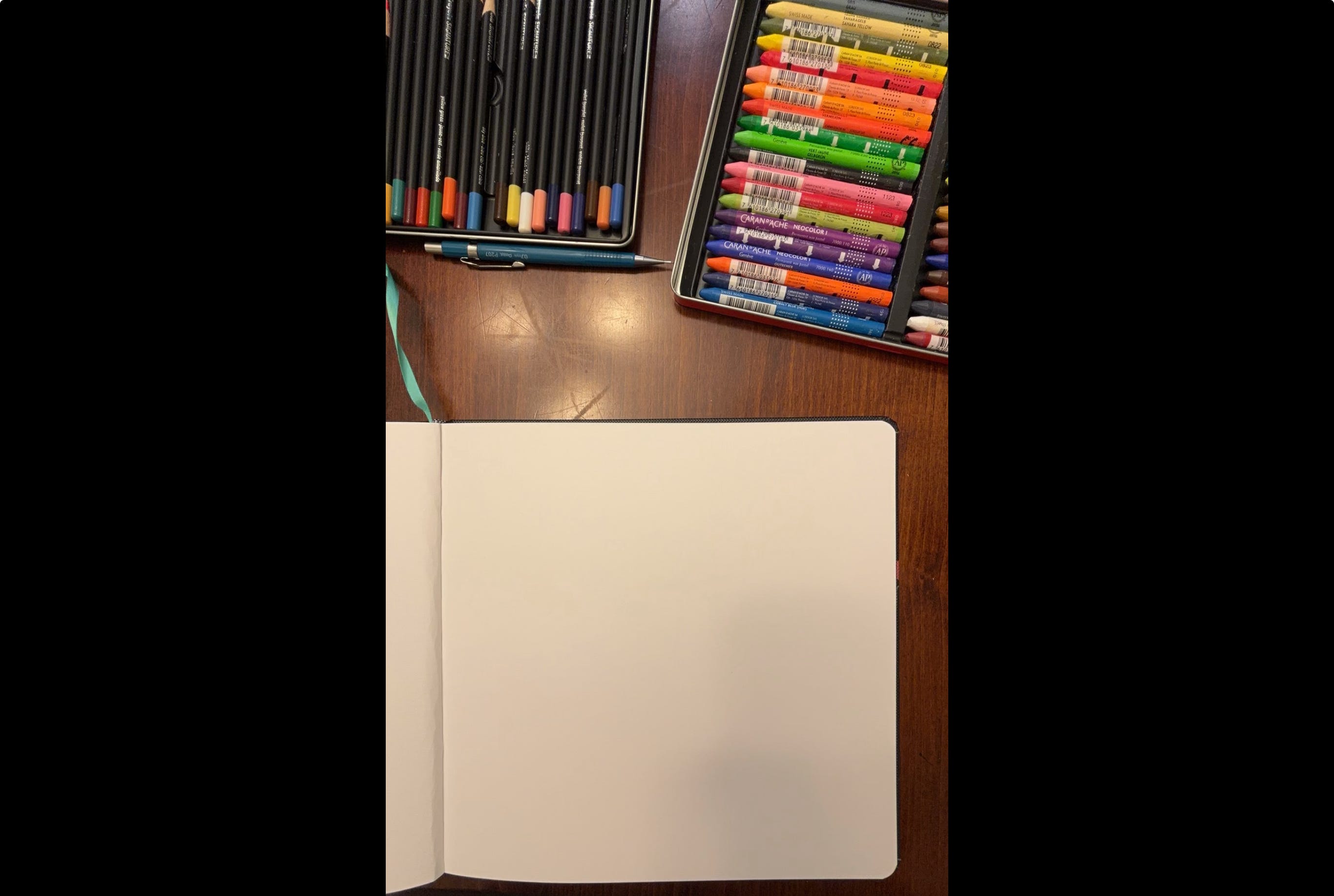
Setup your Camera and Record a Timelapse of Artwork.
Don’t worry about messing up. Just draw!
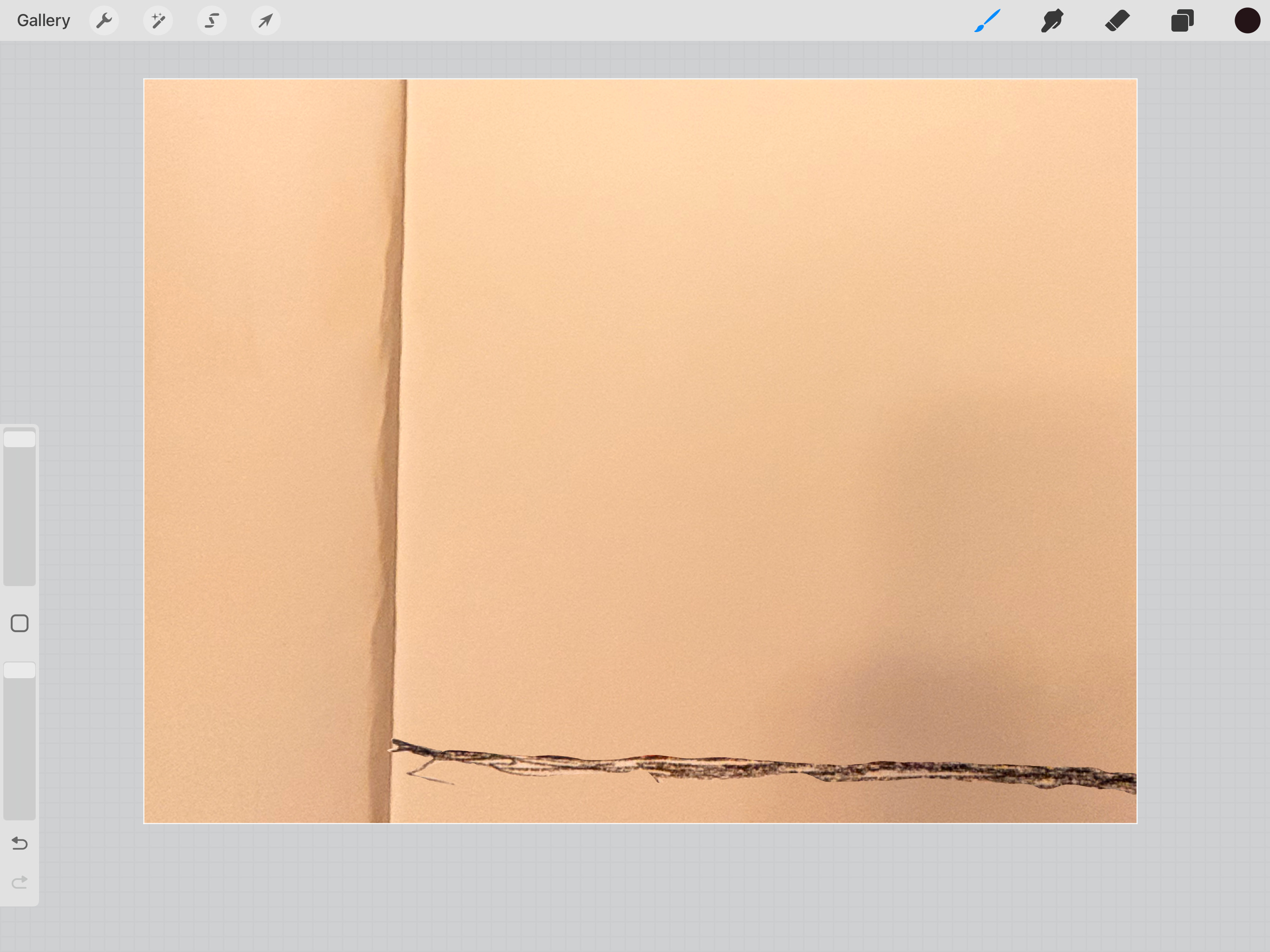
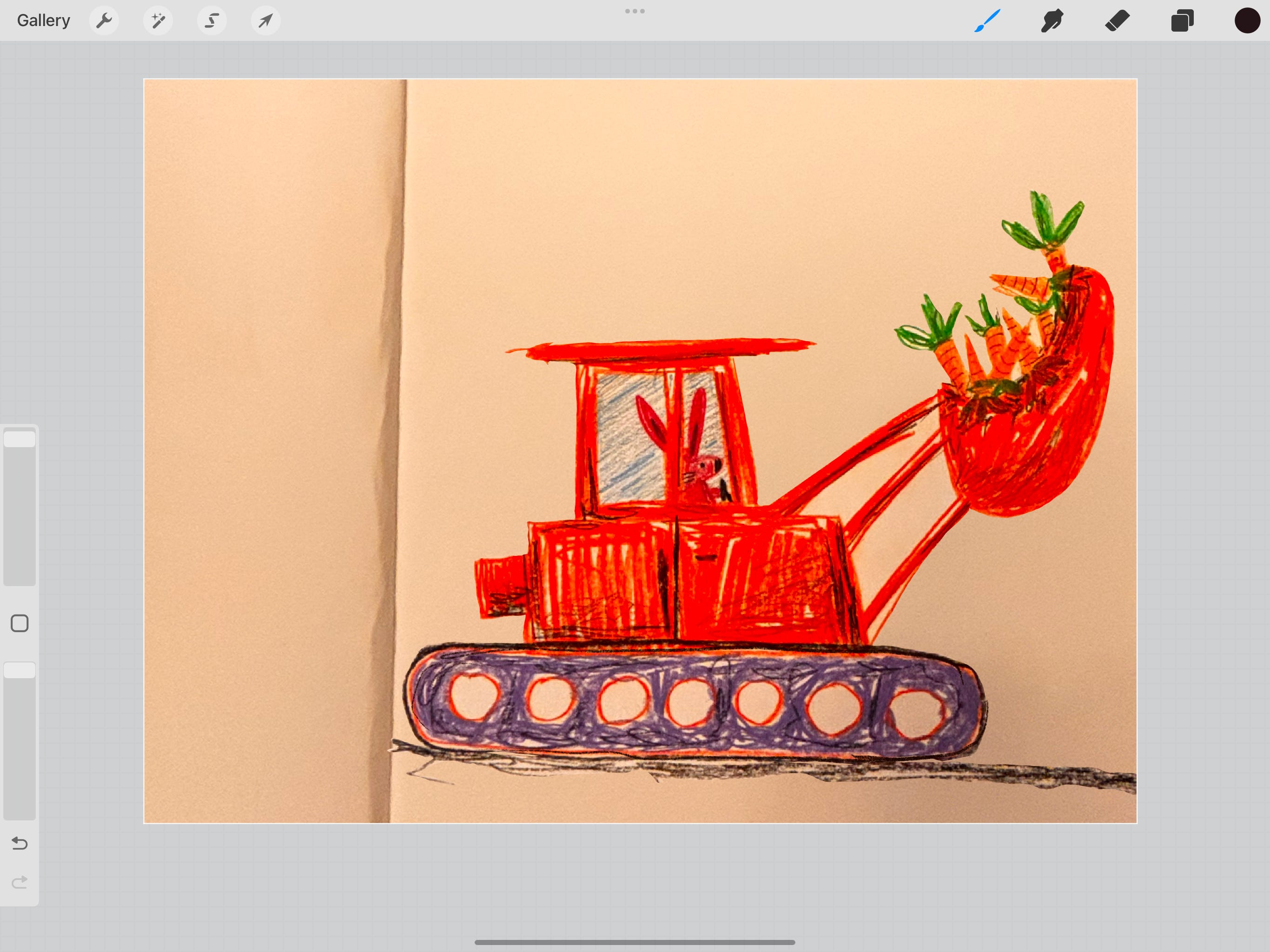
Pro Tips:
Alternate: If you have an iPhone, you can quick press the photo and apple will allow you to select the artwork and copy as a sticker. Then you’re able copy the sticker into Procreate and save a bunch of time from erasing the background.
Alternate: You can also use the lasso tool in Procreate and trace your artwork and quick delete everything except your selection.
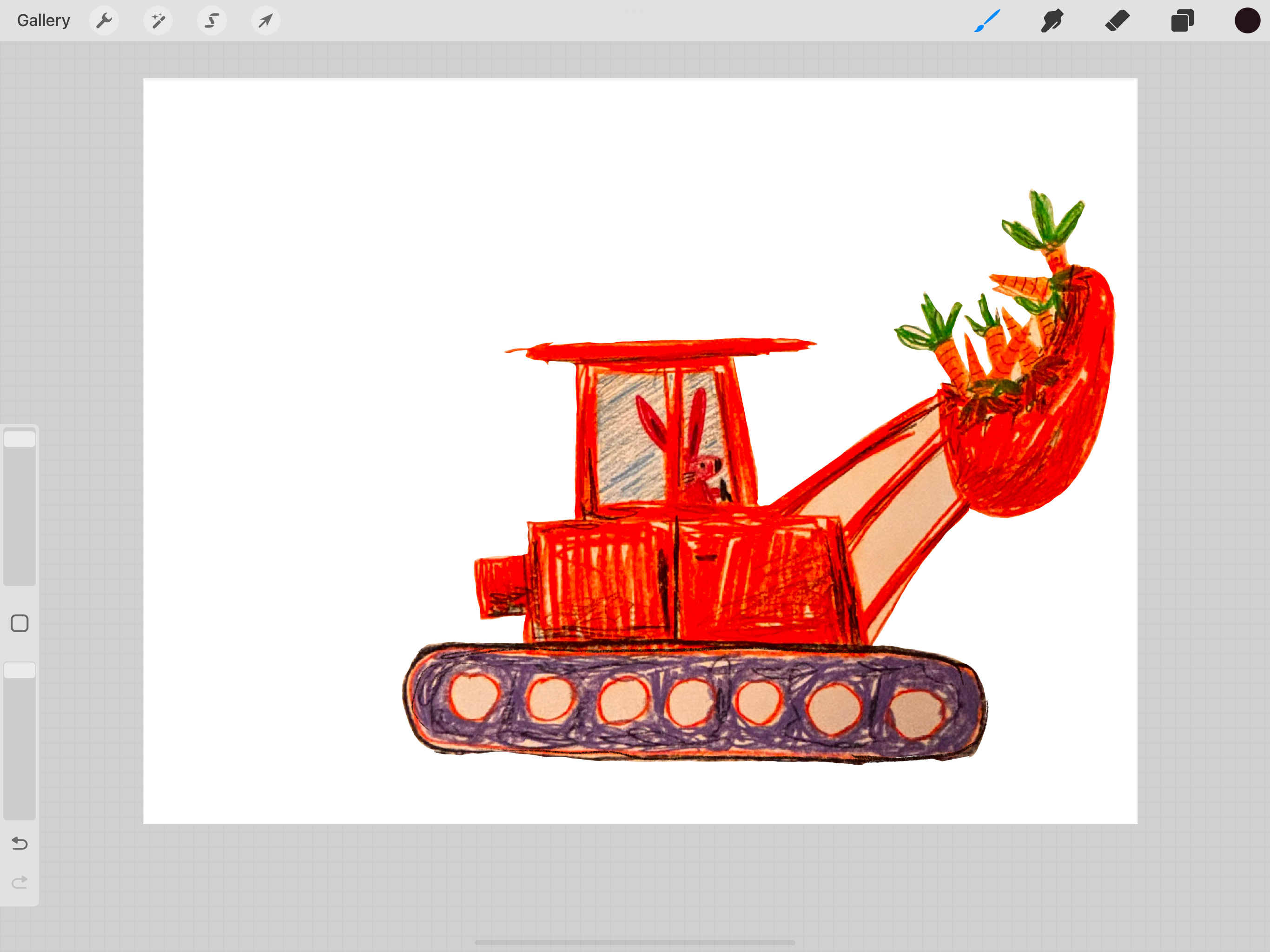
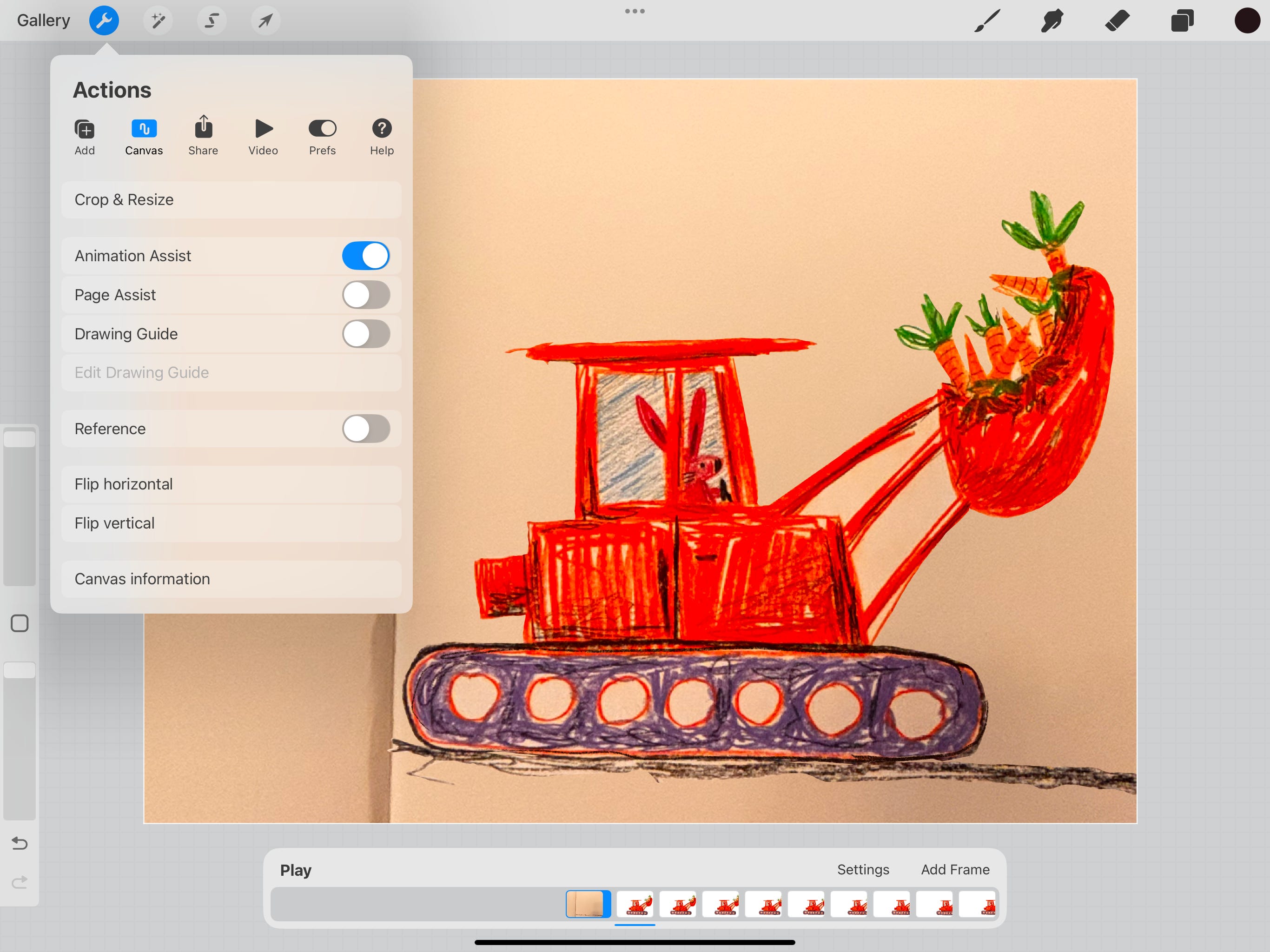
Set the blank page layer to background. This will be a static layer so you don’t have to worry about this during animation.
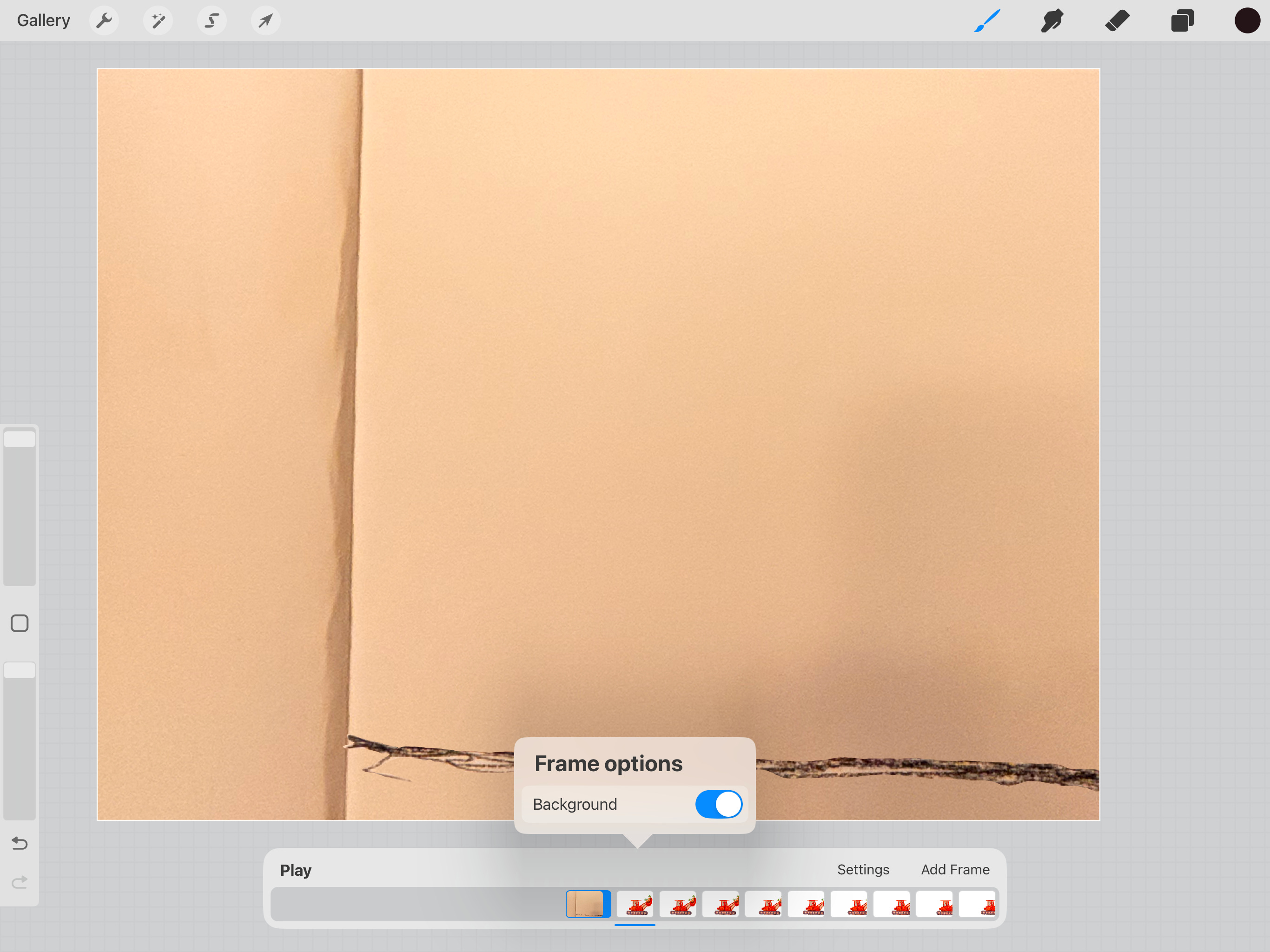
Here’s my favorite part! It’s so much FUN! Can you tell I like animating?
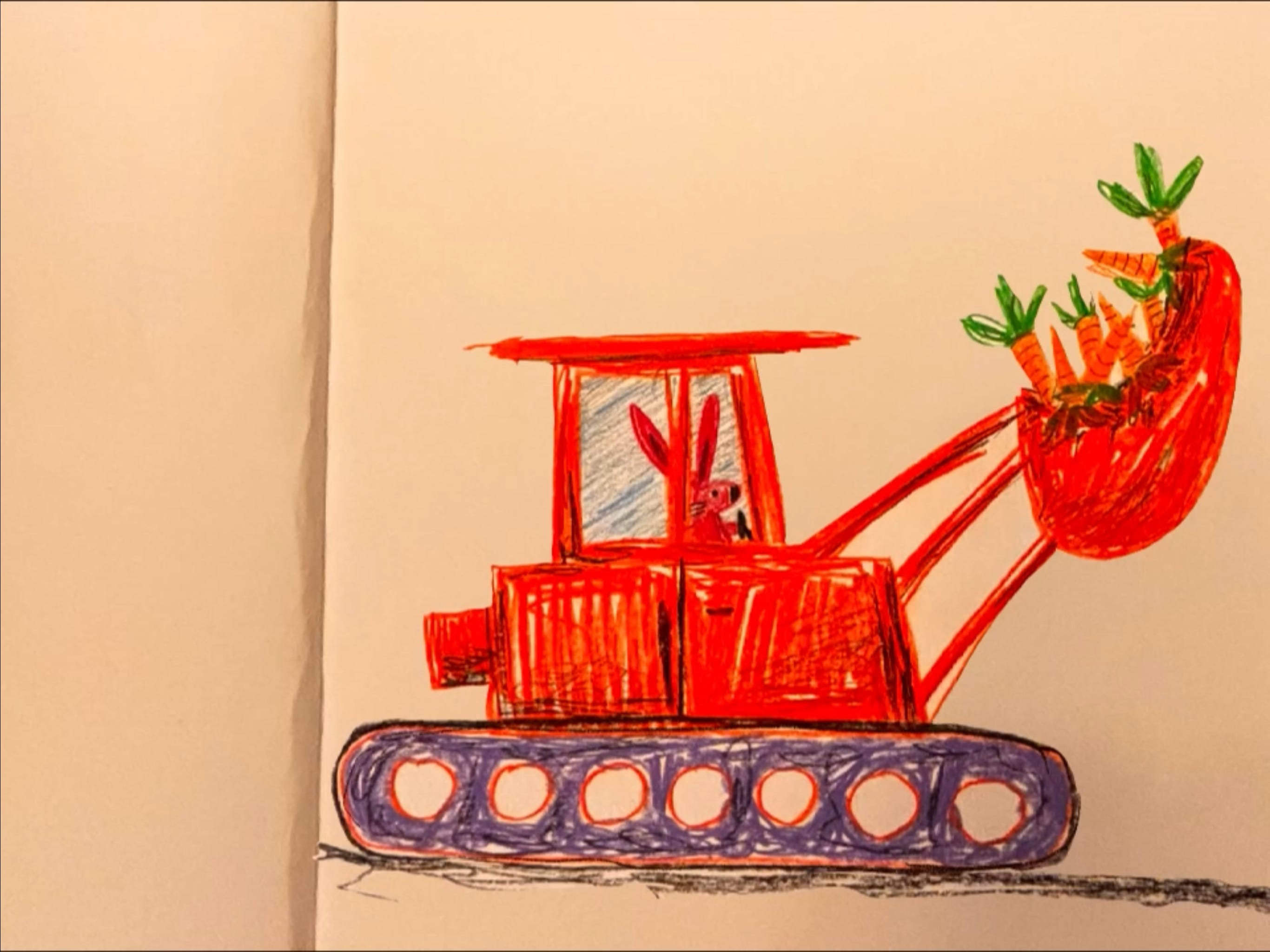
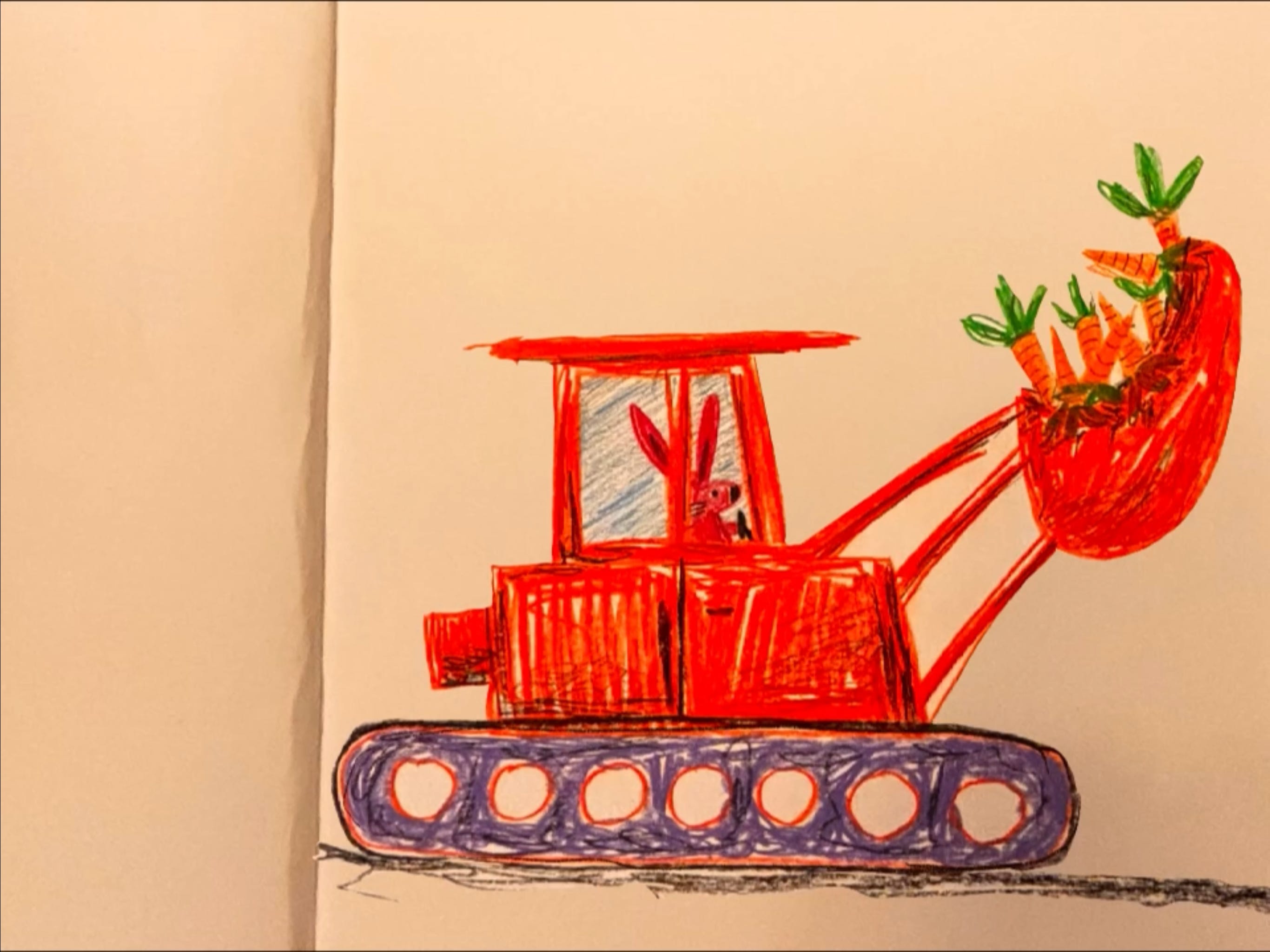
Duplicate the artwork in a new layer (the front end loader (dozer) in my example).
For each layer, move the dozer a little bit to the right.
Repeat until you have enough layers to bring the animation to life. (I used 17 layers).
It’s so enjoyable watching the loop. Take a sip of coffee and revel in your new-found animation skills.
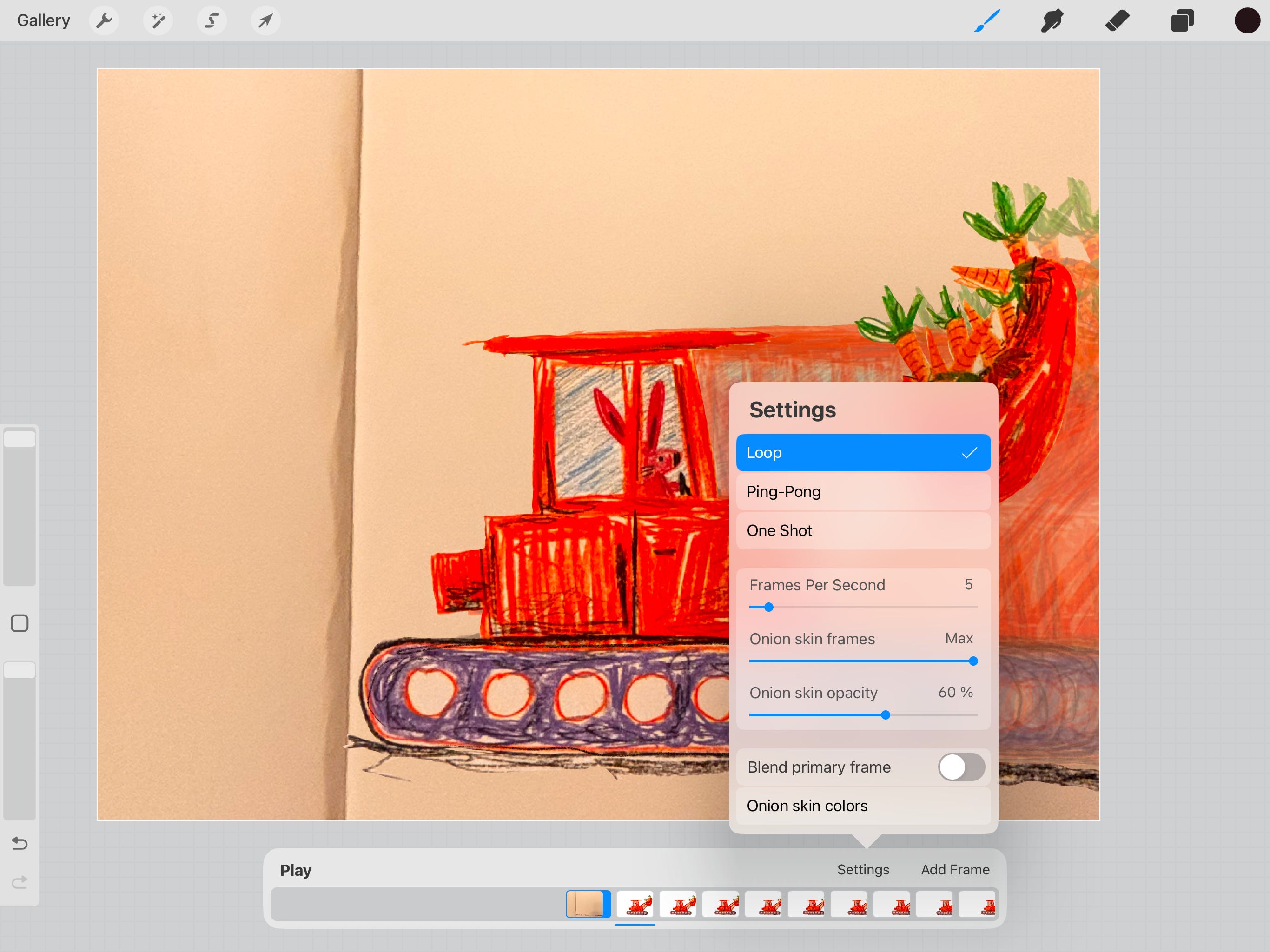
If your animation is moving at supersonic speeds as if fueled by an aeroderivative gas turbine engine, it’s time to slow it down by adjusting key frames. I decided to go with 5 frames per second, which looks to be the right speed for a big orange dozer being driven by a hungry rabbit. Those are a lot of carrots, right?
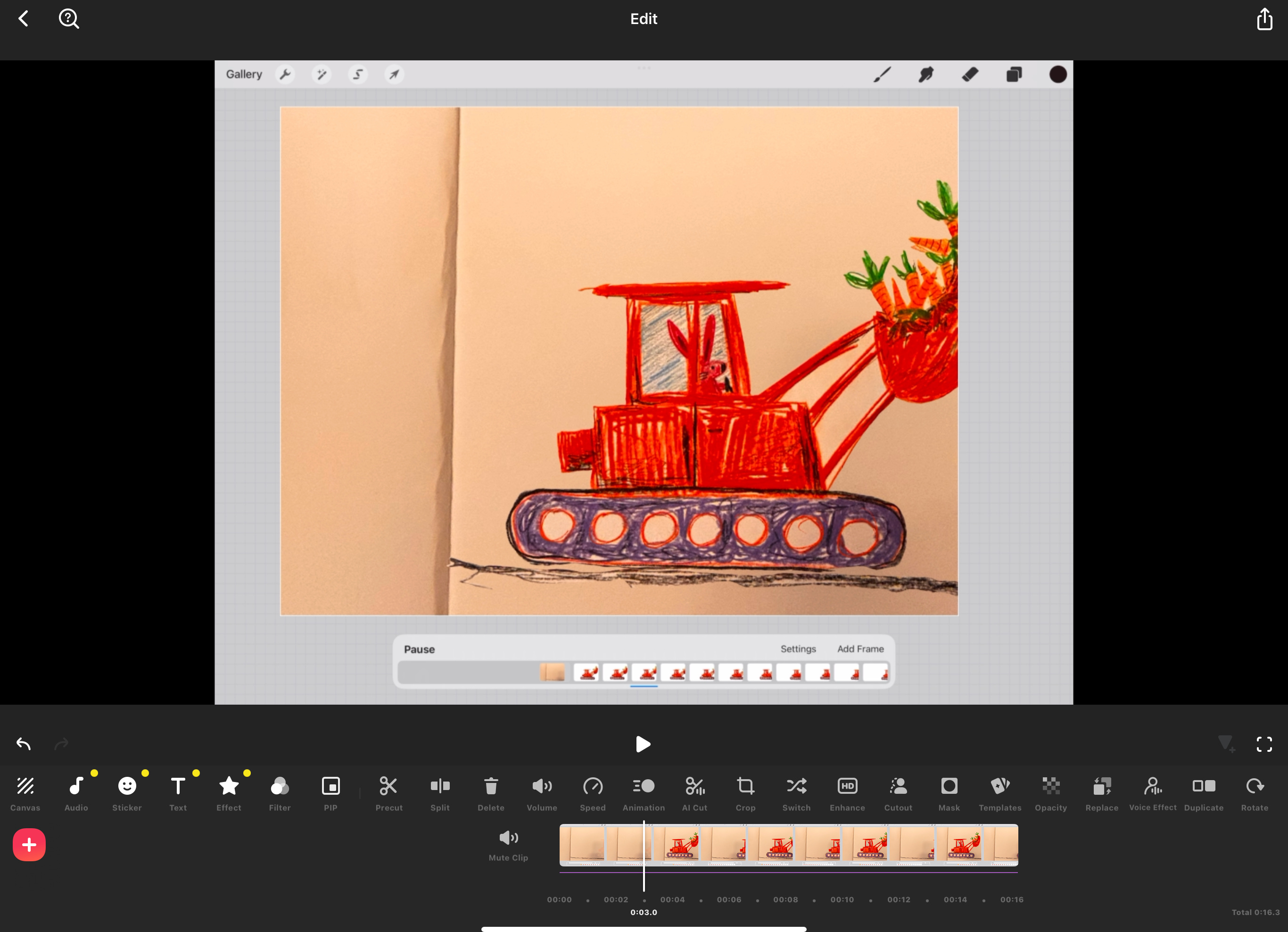
Okay, we’re almost done! Save your movie and now let’s start with the editing process.
Personally, I like the program InShot. It allows you to edit the clip, add music, add sound effects, as well as a host of other cool features.
Insert Your Timelapse Recording
Insert Your Procreate Animation
Add Music and Sound Effects
Export Finished Movie
Share Your Animation with the World!
Phew! That was longer than I expected; however, I hope you enjoyed this post and found it useful. Please feel free to share this post with anyone you think who might find it helpful.
Thanks for reading Just One Thing!! This post is public so feel free to share it.
Have you ever tried to animate? I would love to hear your thoughts in the comments below.
Comments
Nothing yet. Say the first thing.
Sign in to join the conversation.