
Your email and calendar are the richest record of your work week, and usually the most locked down. In the overview of my Obsidian and Claude setup I mentioned getting both into a local inbox with no API access at all. This is how, in enough detail to copy.
The obvious routes are closed
The clean way to read a corporate mailbox from a script is an API: Microsoft Graph, or plain old IMAP. In a lot of workplaces neither is realistic for a personal project. Graph needs an app registration, and corporate tenants often require admin consent for mailbox permissions. IMAP is often switched off. The front door is locked, and it's locked for good reasons.
Power Automate gives me another route. My company already provides it, and its approved connectors can read the mailbox and calendar and write files to OneDrive. OneDrive syncs those files to my laptop. From there, a small scheduled task drops them into the vault.
The shape of it
The whole path runs one direction, mailbox to local folder:
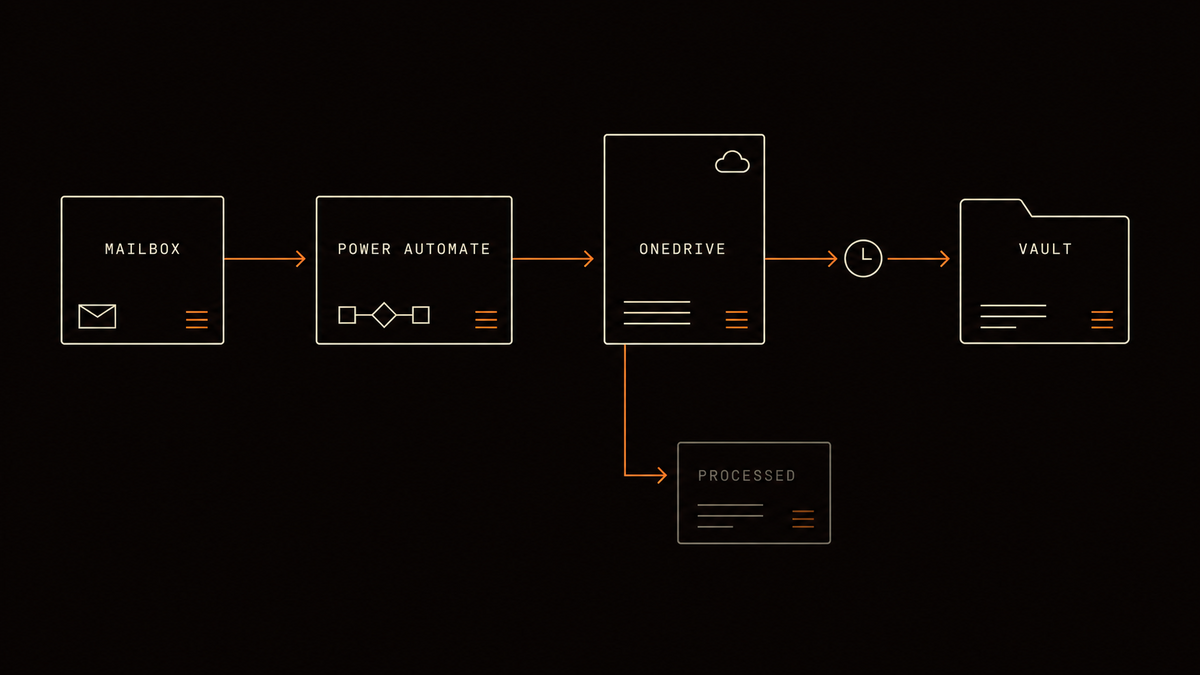
Every hop is dumb and independent. If OneDrive is slow, the flow still runs. If the laptop is off, the files wait in the cloud. Nothing holds a connection open, so nothing has a connection to lose. I prefer this to a proper integration because each step can fail without stopping the others.
Flow 1: capture the mail you care about
Received mail is captured by flag, not by firehose. I don't want every email in the vault, I want the ones that matter, so the flow triggers on When an email is flagged (V3) in the Inbox. I flag a message in Outlook, the flow fires, fetches the email, converts the HTML body to plain text, and writes a .txt into EmailCapture/Vault. Then it unflags the message to reduce repeat runs. That is not a guarantee: Microsoft says a flagged-email trigger can fire again when an already flagged message changes, so the filenames still need collision handling. Any attachments go alongside it in EmailCapture/Vault/Attachments, numbered so two files called report.pdf can't collide. If I tag the email with an Outlook category first (VIP, Follow Up, Waiting), the flow captures that too, and falls back to Uncategorized when I haven't.
The file the Compose step assembles comes out like this:
Type Category: VIP
Type From:  sender@example.com
Type To:  you@example.com
Type CC:
Type Subject:  RE: Q2 Budget Review
Type Date:  2026-03-06T14:30:00Z
Type ConversationId:  AAQkAGI2...
Could you review the attached budget before Thursday...
That ConversationId is Outlook's thread identifier, captured so the vault can group a reply chain with certainty instead of guessing from the subject line. The Type prefix on every header is a Power Automate quirk, and I'll come back to it.
Flow 2: capture everything you send
Sent mail is the opposite. I want all of it with no effort, so that flow triggers automatically on every new item in Sent Items. A condition filters out the automatic meeting accept and decline replies so they don't become noise, then it converts the body to text and writes a .txt into EmailCapture/Sent. No flag, no thought.
That condition matches on the subject prefix, so it needs every language your calendar replies arrive in. Mine checks eleven prefixes across English, German, and Croatian, because a Declined: filter does nothing about an Abgelehnt: or an Odbijeno:. If your work spans more than a couple of countries, that list only grows, and every language you miss is a category of noise you'll be deleting by hand later. Check your own sent folder before you assume one covers it.
The sent file uses plain headers, and the From field comes out empty:
From:
To: colleague@example.com
CC:
Subject: RE: Some Subject Here
Date: 2026-03-06T14:30:00Z
ConversationId: AAQkAGI2...
Email body in plain text...
The two-formats gotcha
Look at the two examples. Received mail prefixes every header with Type, sent mail doesn't, and sent mail has an empty From. That isn't a choice, it's how the two triggers serialize their data. Instead of fighting Power Automate into agreement, I let the parser downstream read both shapes. The capture layer has exactly one job: get each file into the right folder. That empty From on sent mail is the reason the bridge script matters later.
Flow 3: the senders you can't afford to miss
Flagging works on the days I'm reading my inbox. It fails on the days I'm not, and those are exactly the days something from the wrong person sits unread until Thursday. So the third flow watches people instead of messages.
The tagging half isn't Power Automate at all. An ordinary Outlook rule puts a VIP category on anything from the senders I list, the moment it arrives. Then the flow wakes up every 15 minutes and asks the mailbox for category:VIP NOT category:VIP-Captured, takes up to ten at a time, writes each one out the way Flow 1 does, and stamps the message with a second category, VIP-Captured.
That second category is the trick. Flow 1 can unflag a message to stop it firing twice, but this one can't clear the VIP tag, because I still want it there when I go looking. So it adds a marker instead, and the search query filters on it. There's no list of processed IDs anywhere, and if I ever want a message recaptured I delete one category by hand.
One difference from Flow 1 that matters downstream: VIP mail lands in its own EmailCapture/VIP/Vault folder, so the bridge script treats it as a separate source. Otherwise it behaves the same, attachments included.
And the calendar
The calendar is one more flow, scheduled to run every 30 minutes through the workday. It uses Get calendar view of events (V3) for today's range and a Select to keep the fields I care about (subject, start, end, organizer, attendees, online meeting link). The target is yyyy-MM-dd-calendar.json in EmailCapture/Calendar.
Do not rely on Create file to replace that file. Microsoft's OneDrive for Business reference does not document an overwrite option for that action. Make the replacement explicit: list the files in EmailCapture/Calendar, match the exact daily filename, and use Update file with its ID when it exists. Use Create file only when there is no match. Test the second run. The result should be one fresh snapshot, not a failed flow or a pile of duplicates.
The bridge: one scheduled task
The files are now in OneDrive, which syncs to the laptop. The last hop is a small PowerShell script on a 15-minute timer. It walks each capture folder in turn: received mail into the inbox as-is, VIP mail the same way from its own folder, sent mail with a SENT- prefix, and the calendar snapshot refreshed. The core of it, trimmed to three of the four:
$ErrorActionPreference = "Stop"
$Sent     = "$env:USERPROFILE\OneDrive\EmailCapture\Sent"
$Received = "$env:USERPROFILE\OneDrive\EmailCapture\Vault"
$Calendar = "$env:USERPROFILE\OneDrive\EmailCapture\Calendar"
$Inbox    = "$env:USERPROFILE\Obsidian\WorkVault\00-Inbox"
$SentProcessed = Join-Path $Sent "Processed"
$ReceivedProcessed = Join-Path $Received "Processed"
New-Item -ItemType Directory -Path $SentProcessed -Force | Out-Null
New-Item -ItemType Directory -Path $ReceivedProcessed -Force | Out-Null
# Sent mail -> inbox, tagged so the direction survives
Get-ChildItem -LiteralPath $Sent -Filter *.txt | ForEach-Object {
    Copy-Item -LiteralPath $_.FullName -Destination (Join-Path $Inbox "SENT-$($_.Name)")
    Move-Item -LiteralPath $_.FullName -Destination (Join-Path $SentProcessed $_.Name)
}
# Received mail -> inbox as-is
Get-ChildItem -LiteralPath $Received -Filter *.txt | ForEach-Object {
    Copy-Item -LiteralPath $_.FullName -Destination (Join-Path $Inbox $_.Name)
    Move-Item -LiteralPath $_.FullName -Destination (Join-Path $ReceivedProcessed $_.Name)
}
# Calendar -> overwrite today's snapshot
Get-ChildItem -LiteralPath $Calendar -Filter *-calendar.json | ForEach-Object {
    Copy-Item -LiteralPath $_.FullName -Destination (Join-Path $Inbox $_.Name) -Force
}
The full version adds a -2 suffix when a filename already exists and rotates its own log. The important line in the trimmed version is $ErrorActionPreference = "Stop". PowerShell's default for non-terminating errors is to report the error and continue. Without that stop, a failed copy can still reach Move-Item, which marks a file as processed before it reaches the inbox. The safe order is copy, stop on failure, then move.
The Move-Item into Processed is doing more work than it looks like. After a successful copy and move, the next run has nothing to reconsider and the capture folder does not grow forever. Copy and move are separate steps, though: if the copy succeeds and the move fails, the next run can create a suffixed duplicate. The original remains in Processed after a successful move.
That SENT- prefix is the dumbest and most useful line in the file. Power Automate hands me sent mail with an empty From, so the content alone can't tell me which way a message went. Four characters added at copy time settle it for good, and every step downstream just reads the filename.
Put it on a timer
Register the script as a scheduled task that fires every 15 minutes while you're logged in:
$Action  = New-ScheduledTaskAction -Execute "powershell.exe" `
    -Argument '-NoProfile -WindowStyle Hidden -File "C:\path\to\Pull-Emails.ps1"'
$Trigger = New-ScheduledTaskTrigger -Once -At (Get-Date).AddMinutes(1) `
    -RepetitionInterval (New-TimeSpan -Minutes 15)
Register-ScheduledTask -TaskName "PullEmails" -Action $Action -Trigger $Trigger `
    -Description "Copies captured mail and calendar into the vault inbox"
Do not override the machine's execution policy here. If a managed laptop blocks the script, that is a policy decision to resolve with IT, not a switch to bypass in the task definition.
If the console window flashing every fifteen minutes bothers you, and it will, wrap the call in a one-line .vbs launched with wscript.exe so it runs fully hidden. Tiny thing, real quality-of-life gain.
If your vault already lives in OneDrive
Then you can skip most of this. Point the Power Automate Create file step straight at the vault's inbox folder and the files arrive on their own, no scheduled task anywhere.
I kept the task, and the reason is the three small things it does on the way past: the SENT- prefix, the Processed move, and the duplicate-name suffix. Write directly into the inbox and you lose all three, which means sent and received mail become indistinguishable and nothing ever gets swept out of the capture folder. If you don't need that distinction, take the shorter path. I did need it, so I pay one scheduled task for it.
What the AI actually sees
Worth being exact here, because "my work email goes into a folder an AI reads" deserves a straight answer.
Everything described so far moves your real mail. The file that lands in your inbox has real names and real addresses in it, and nothing is masked on this leg. Before the model step, the route is mailbox to corporate OneDrive to your laptop. It does not send mail to a model yet, but it does create new copies. Those copies can change who can access the data, how long it is kept, and which backups contain it. That needs the same policy check as the flow itself.
The masking happens one step later, before anything reaches a model. A script swaps addresses, phone numbers, and the other patterns that scan as private for tokens, and keeps the real values in a local map the model never gets handed. I went through that in the overview of the setup. It lowers what gets sent rather than pretending to eliminate it, and it's honest about the gap: subject lines and meeting titles still go out roughly as written.
So the capture layer is not the privacy layer, and this post only covers the first one.
Why text files instead of a real integration
This looks primitive next to a proper API client, and that is the point. A token-based integration is a thing that breaks. Tokens expire, scopes change, rate limits bite, a refresh quietly fails overnight and the sync is down until you happen to notice. A folder of text files avoids those token and API failure modes. Each email is one file, so failures are visible and retriable. The bridge still needs its log because a copy can succeed before the move fails. Keeping the transport alive is OneDrive's job, and OneDrive is very good at its job.
What this won't do
A few honest limits:
- It needs Power Automate access, and the license assigned to your account sets request limits.
- It isn't real-time. The VIP route can wait almost 15 minutes for the mailbox flow and another 15 for the local task, plus OneDrive sync. Flagged and sent mail can also wait on the connector, and Microsoft says rare trigger delays can reach one hour. Fine for a once-a-day review, not fine for a live assistant.
- The When a new email arrives (V3) trigger used for sent mail can skip messages above the tenant limit or 50 MB, whichever is lower. Microsoft also says it may skip protected mail or messages with invalid bodies or attachments. This is useful capture, not a complete archive.
- The scheduled task is Windows. The same pattern runs on a Mac or Linux box with
cronand a OneDrive-compatible sync client; the script is just shell instead of PowerShell. - Check your own policy. Exporting mail to files, even your own mail, may or may not be allowed where you work. This is a know-the-rules situation, not an ask-forgiveness one.
The boring part is the important part
None of this is clever. It is a flow, a sync folder, a timer, and a four-character prefix. But the rest of the pipeline only works when the data arrives. Make the capture reliable first. The interesting parts depend on it.
I don't think this is the permanent shape of it. My guess is that within a few years the assistant just has a sanctioned connector to your mailbox, IT is comfortable switching it on, and none of this plumbing is anyone's problem. That's a prediction, not a roadmap, and I've been wrong about timelines before. What I am confident about is the current gap. These tools could do much more with work context than most IT departments allow them to access. A flow and a sync folder is what half-automation looks like while you wait. I'd rather run the boring version today than wait for the clean one to get approved.
Next: what happens to all of this once it lands, and why most of that pipeline isn't AI at all.
Comments
Nothing yet. Say the first thing.
Sign in to join the conversation.