
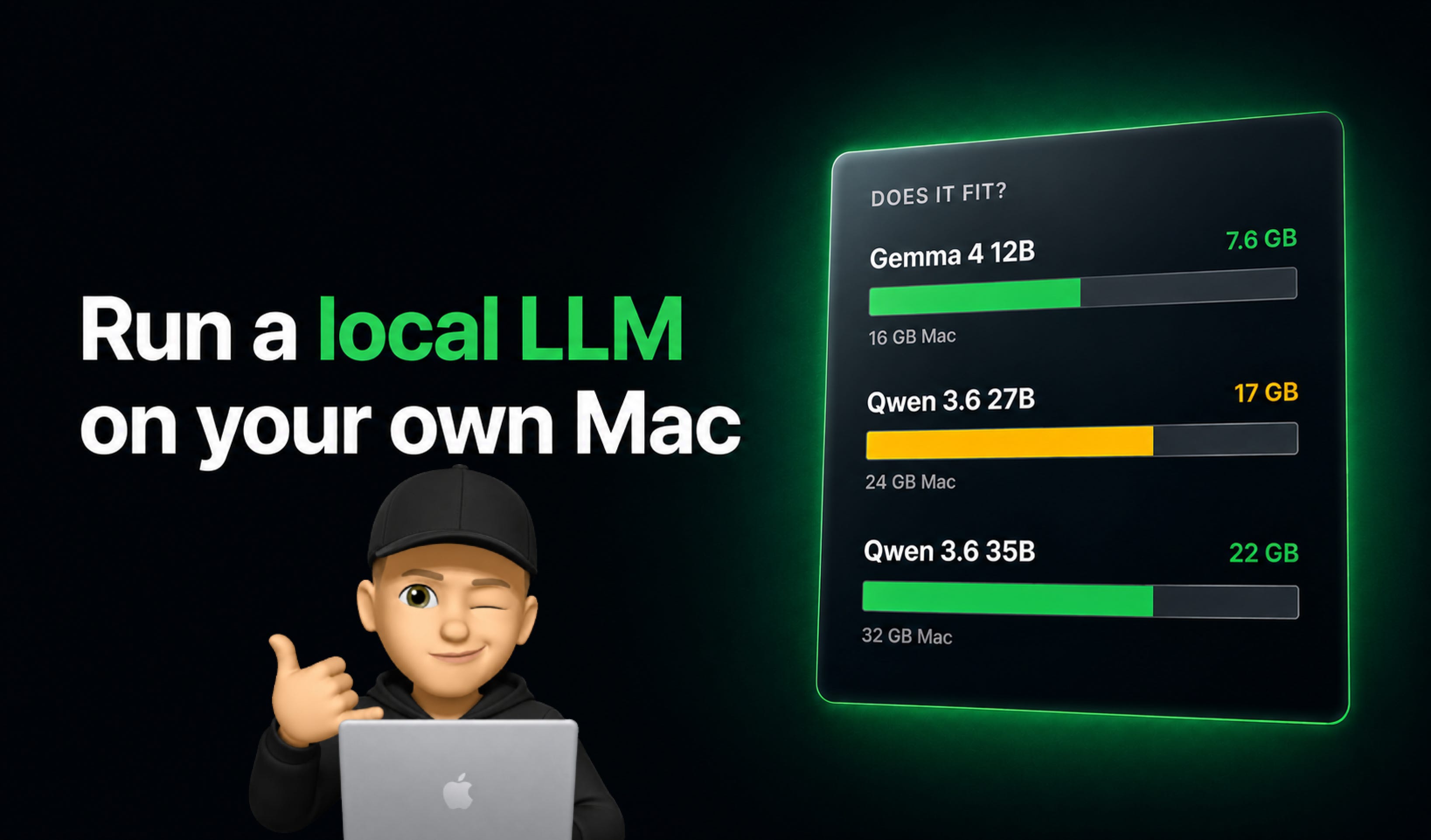
A local model runs on your own computer. You download a file once and from then on the intelligence sits on your own machine the way Figma or Photoshop does. No account, no internet, no per-token bill, nobody able to switch it off or quietly swap it for a worse version.
This guide takes you from nothing to a working model you actually use. No terminal until the last section. That part is optional.
Good to know: The results are okay, but don’t expect anything groundbreaking. Cloud models are still clearly much better at the moment.
Building in Figma with nothing in the cloud:
figma-cli drives Figma Desktop from your machine, and it runs against a local model. You type “add my brand colours as variables” or “create 3 button components” and it appears on the canvas. On my setup an action takes three to eight seconds plus the time Figma needs to draw it. Your design system, your file and the model all stay on the laptop, which is the difference between using AI on a client project and not being allowed to.
Simple websites and prototypes:
A landing page, a one page portfolio, a quick thing. The model writes the HTML and CSS, you open the file in a browser and look at it.
Copywriting in your own voice:
This is the one that pays for itself. The system prompt is a field in the right hand panel: a standing instruction the model reads before every single message, invisible in the chat itself. Paste ten of your own past posts in there with the instruction “write like this”. Every draft from then on starts in your voice instead of generic AI voice. Mine has explicit rules in it: no em dashes, no “leverage”, no “delve”. A local model will follow those rules.
Translation:
Interface strings, an email to a client in another language, subtitles. Fast, free and repeatable, so you can run a hundred of them.
Transcript to draft:
Record a call or a talk, feed the transcript in, get a structured draft back. This is a huge time saver in my week.
Boring text surgery:
Rename 200 layers to a consistent scheme, clean up a CSV, rewrite alt text for a folder of images, turn messy notes into a table.
Anything you would not paste into a cloud tool:
A contract, a salary conversation, an NDA’d brief, a medical letter. Whole industries cannot legally send data to a third party API. This is the only way they get to use AI at all.
Working offline:
Flights, trains, bad wifi.
And what it is bad at:
Current events. A model is trained at a point in time and has no internet of its own, so it knows nothing that happened after that day. Exact maths is the second one. And very long documents, which is a memory limit rather than a lack of intelligence.
What you get
Privacy: Nothing leaves your machine. Client contracts, salary discussions, an NDA’d brief, medical or legal documents: all fine, because there is no server involved.
No bill per use: After the download every question is free. Run it all day and the cost is electricity.
It works offline: On a plane, on a train, in a conference basement with bad wifi.
Nobody can change it under you: No deprecation email, no new version that suddenly writes differently, no rate limit at the worst moment.
You can point it at your own stuff: Attach a document and ask questions about it, entirely offline.
What you give up
A notch of quality: The best cloud models are still smarter. For most everyday work you will not notice, on hard reasoning you will.
Your fans: A big model working hard heats your laptop and drains the battery.
Disk space: Expect 8 to 24 GB per model.
Memory pressure: The model sits in RAM the whole time it is loaded. Long documents cost extra memory on top.
No web access by default: It knows nothing about today unless you give it tools.
Nothing here is an either-or. Keep your cloud model subscription and let the local model take some of your routine work.
This is the manual route, and it is worth doing once so you understand what is on your machine.
If you would rather skip it, there is a prompt at the bottom of this post that hands the whole job to Claude.
This is the only technical decision in the whole guide. It comes down to memory.
You need an Apple Silicon Mac (M1 or newer) on macOS 14 or later. Intel Macs are not supported. On Windows you need 16 GB RAM and a GPU with at least 4 GB VRAM (system requirements).
First, what the B means. Gemma 4 12B is twelve billion parameters. Parameters are the internal dials the model was trained with. They are the only spec number these things really have. More dials means a better model, a bigger file and more memory. That is the whole trade you are making.
The rule: the model file has to fit in your RAM with room left over for macOS and whatever else you have open. Leave roughly a third of your memory free and you will be fine.
8 GB: Gemma 3 4B, 3.3 GB download. Basic, but it runs
16 GB: Gemma 4 12B, 7.6 GB. The sweet spot for most people
24 GB: Qwen 3.6 27B, 17 GB. Close Figma while it works
32 GB: Qwen 3.6 35B, 22 GB. Best all-round, what I use
48 GB and up: the same Qwen 3.6 35B, but with the context window opened right up and a second small model loaded next to it. More memory buys you room to work, not a smarter model
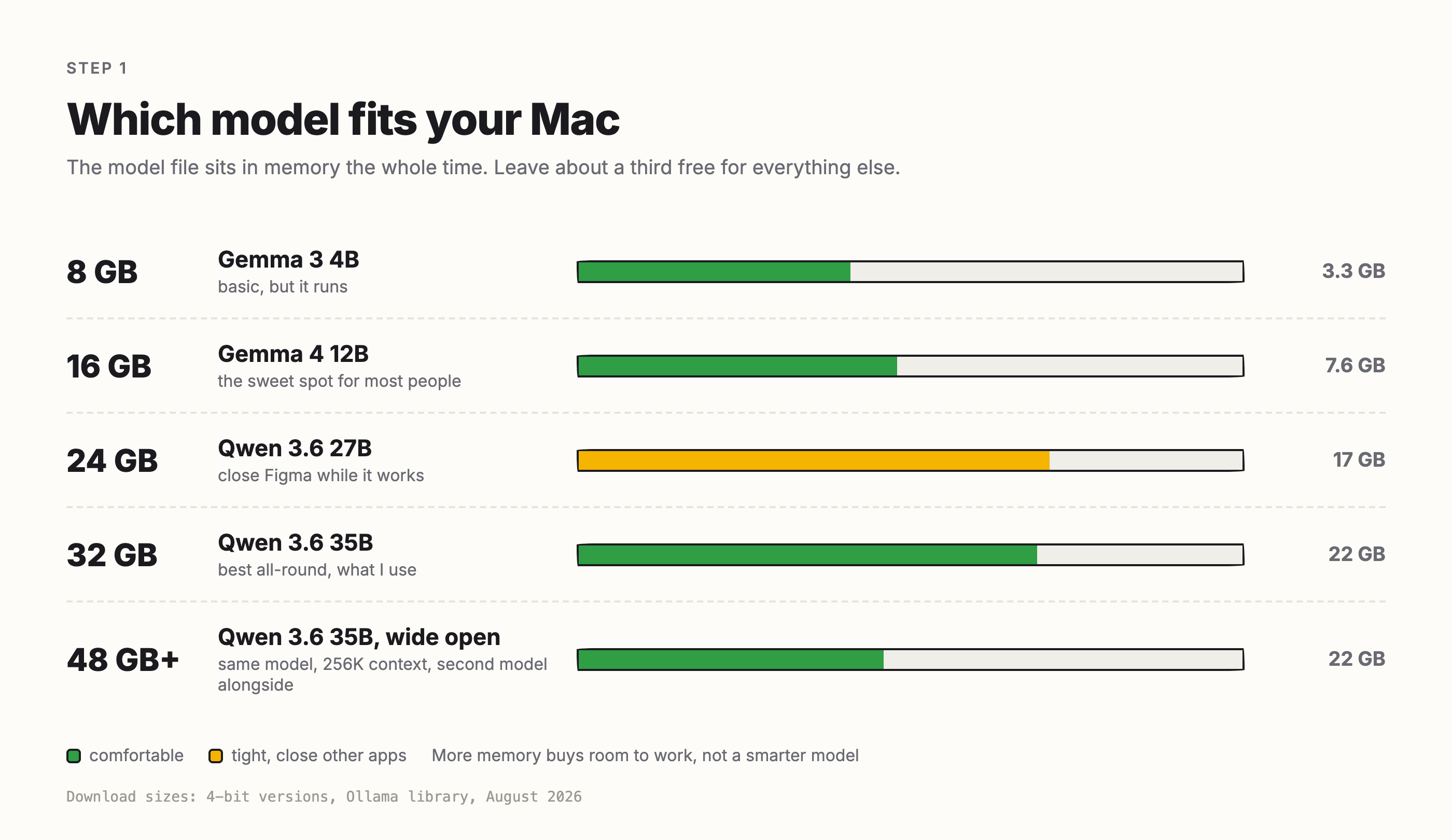
If you are on 16 GB, Gemma 4 12B is the one to get. It is small, writes clean prose and handles a 256K context window. If you are on 32 GB or more, Qwen 3.6 35B is the best all-round model most people can run. It is what I use every day.
These are examples, not the only choice. New open models land every month. Gemma and Qwen carry this guide because they are the two families that currently sit in the size a Mac can actually run, and because I have used both. DeepSeek, Llama and plenty of others live in the same library. The names in this guide will move on. The memory maths will not, so learn that part and swap the names for whatever is current when you read it.
LM Studio is a normal Mac app. It has a model browser, a chat window and a settings panel. It hides the machinery underneath.
Download it, drag it to Applications, open it. That is the whole install.
On Apple Silicon it runs models through Apple’s MLX, which is Apple’s own framework for running this kind of thing on the graphics chip. You do not have to do anything for that, it just means models run noticeably faster on a Mac than the numbers you see quoted for PCs.
Click the Model Search icon, the magnifying glass over a little robot, last of the four icons in the narrow strip down the left edge. A search panel opens with a field at the top and a list of staff picks below it. Type the model name in.
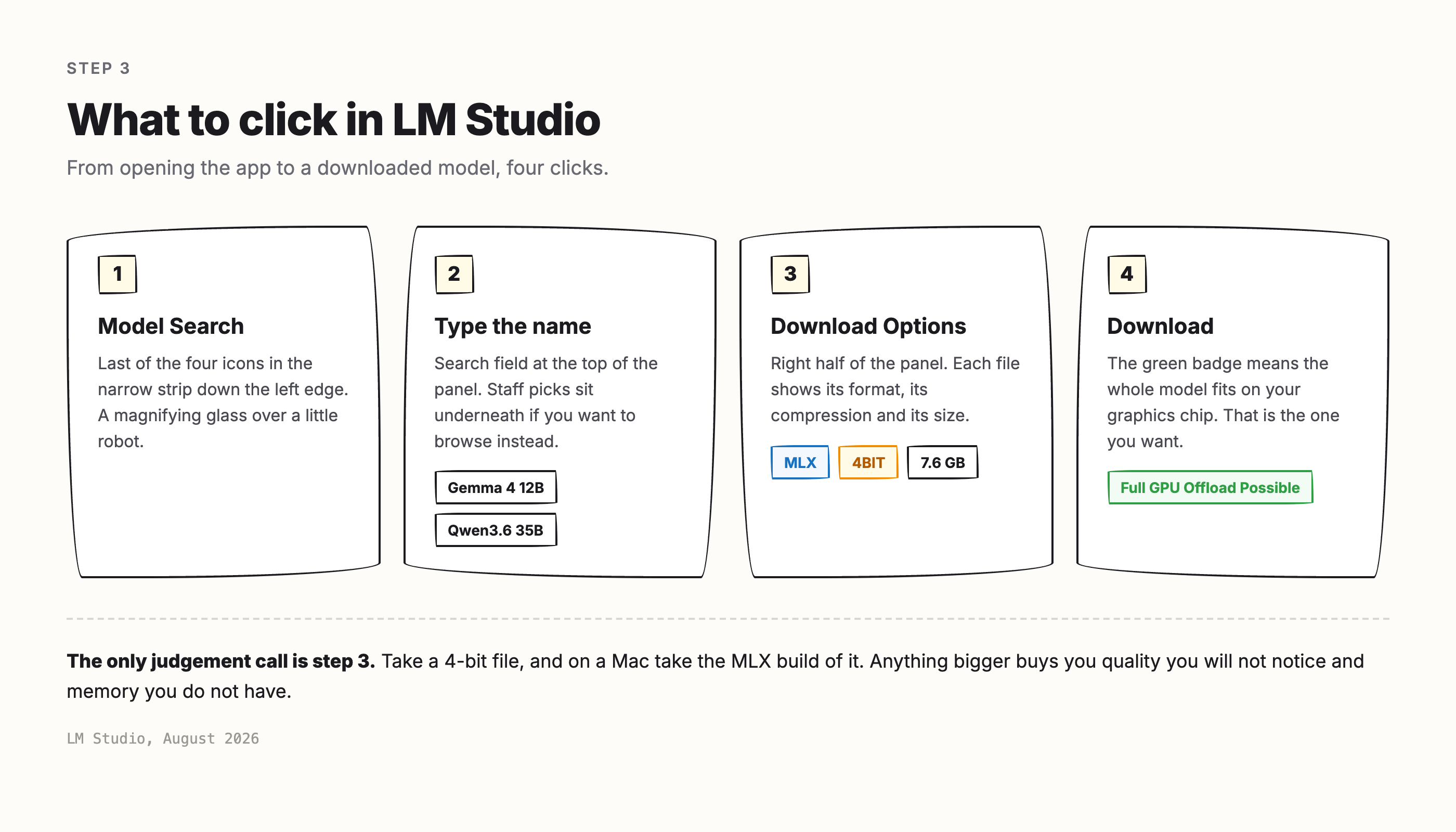
Pick a model and the right half of the panel fills with its details. Under Download Options the same model shows up several times over in different file sizes, with names like Q4, Q4_K_M, Q8 and sometimes MLX.
That is compression. It is the one piece of jargon worth learning.
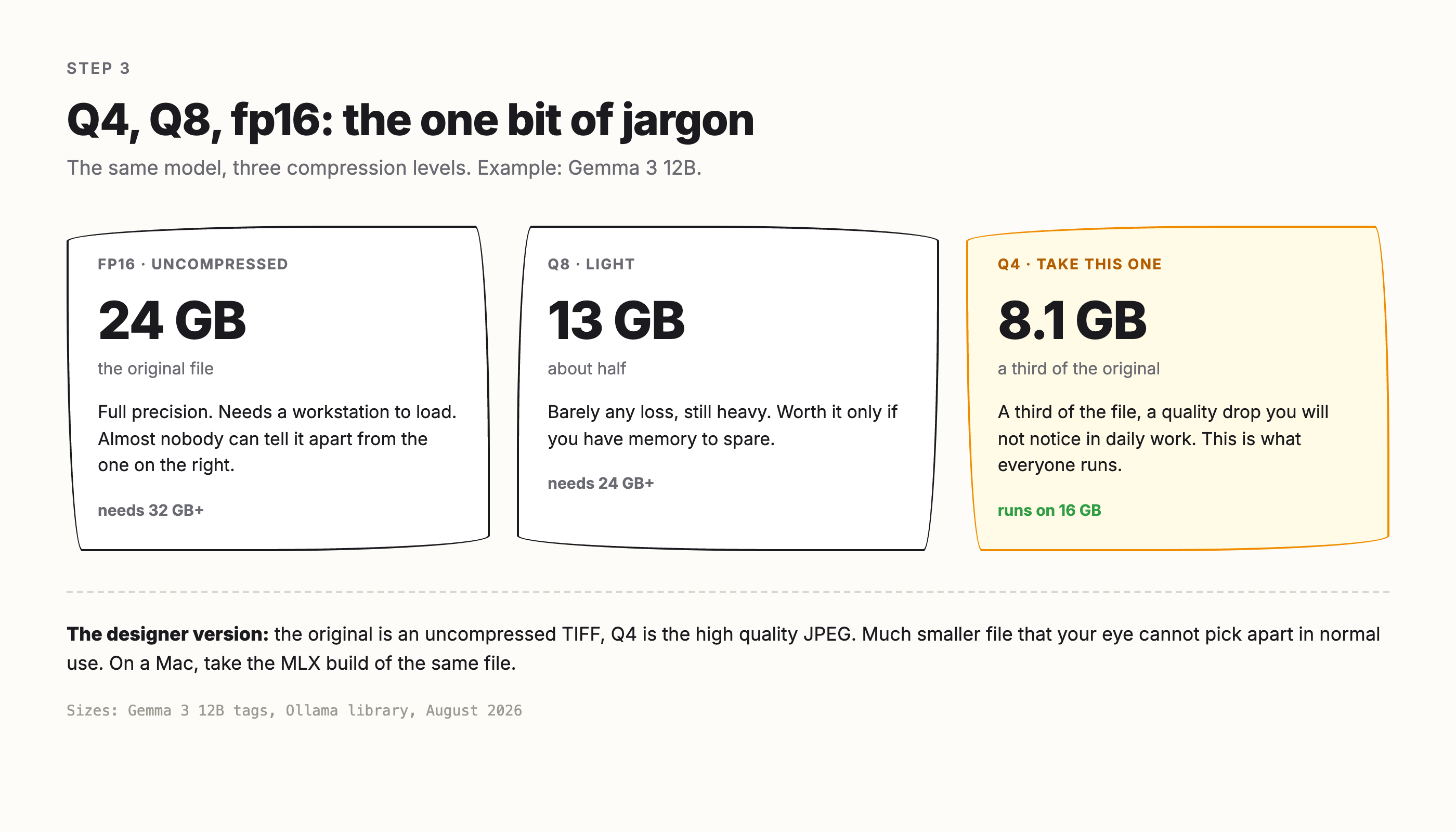
Think of an export dialog. The same picture leaves Figma as a 24 MB PNG or as a 2 MB JPEG at 80 percent and nobody in the review notices the difference. Model files work the same way. For Gemma 3 12B: the uncompressed file is 24 GB, Q8 is 13 GB, Q4 is 8.1 GB. Same model, three file sizes. The quality gap between them is far smaller than the size gap.
Gemma 3 12B is just the example here. Every model on the shelf ships in the same set of sizes, so the same choice comes back every time you download one.
Why 4-bit is what everyone takes: What you are short of is memory, not quality. Every gigabyte you spend on a less compressed file is a gigabyte you cannot spend on a better model. Gemma 3 12B at Q8 costs you 13 GB. For four gigabytes more you can run Qwen 3.6 27B at 4-bit instead, which is more than twice the model. That trade is why 4-bit ships as the default and why LM Studio tells you to take 4-bit or higher.
MLX is not a compression level, it is Apple’s own format. Same model, built to run on the graphics chip of an Apple Silicon Mac. On a Mac, take it.
Take the 4-bit version. If you see an MLX build of it, take that one.
What if you have more memory than you need? On a 48 or 64 GB Mac the answer is still not a bigger file of the same model. Spend the extra memory on the three things that actually help:
A longer context window. This is what runs out in real work: a sixty page PDF, a full call transcript, a long chat. Going from 32K to 256K costs memory and nothing else.
A bigger model, if one exists. Today the useful local range tops out around 35B. That will change.
Two models loaded at once. A small fast one for quick rewrites, a big one for the work that matters, no waiting for a swap.
On 64 GB you can run the largest model in this guide at its full 256K context and still have Figma open.
Download sizes are for the 4-bit versions, so a 16 GB Mac downloading Gemma 4 12B is pulling 7.6 GB. Grab a coffee.
One badge worth knowing. If LM Studio shows a green Full GPU Offload Possible next to the download, the whole model fits in the memory your graphics chip can reach, which is where the speed comes from. Without that badge it still runs, just slower.
Go back to the chat tab, click Select a model to load at the top of the window (or press ⌘L), pick what you downloaded and type something. The first message takes a few seconds longer because the model is being loaded into memory.
Two settings worth touching, both in the model panel on the right:
Context length. Everything the model can see at once: your standing instructions, the conversation so far and any document you dropped in. It is measured in tokens. 32K is roughly 24,000 words, call it a fifty page document. When it fills up the oldest part drops out of view, which is exactly why a model starts forgetting the beginning of a long chat. It eats RAM, so it usually defaults low. I run mine at 32K. If your Mac slows to a crawl, this is the first number to bring back down.
Reasoning. Some models pause to think for 10 to 30 seconds before answering. That is normal, not a hang. If you find it annoying for everyday writing, switch reasoning off in the same panel.
You can also drag a document into the chat and ask questions about it. That happens locally too, nothing gets uploaded.
And what a token is, since the number is about to show up. Models read and write in tokens rather than words. A token is roughly three quarters of a word in English, so “design system” is two of them and something like “internationalisation” is four or five. Speed is counted in tokens per second. At 26 per second the text appears slightly faster than you can read it.
Speed, from my own machine (M4 Max, Qwen 3.6 35B, 4-bit MLX, about 26 tokens per second):
Short chat answer: 2 to 4 seconds
A LinkedIn post: 4 to 8 seconds
A newsletter with subject and body: 8 to 15 seconds
A blog draft from a one hour call transcript: 60 to 120 seconds
If you are comfortable in a terminal, Ollama does the same job with one command per model and no window to keep open. ollama run gemma4:12b downloads and starts it. Same models, less clicking.
This is also where it stops being a chat window and starts being a tool. My own setup runs LM Studio as a local server. Small scripts point at it: one writes LinkedIn posts, one writes newsletters, one turns a transcript into a blog draft. Each is a text file with a system prompt in it. No subscription, no browser tab.
Everything above, done for you. This needs Claude Code, the version of Claude that can use your terminal, rather than the chat window. Paste this in and let it work:
Set up a local LLM on this Mac for me. I am a designer, so explain what you are doing in plain language and do not ask me to run commands myself.
Step 1: Check the machine first. How much memory it has, which chip, which macOS version. Tell me what you found.
Step 2: Pick the model that fits. 8 GB: Gemma 3 4B. 16 GB: Gemma 4 12B. 24 GB: Qwen 3.6 27B. 32 GB and up: Qwen 3.6 35B. Always the 4-bit build, and the MLX build if there is one. Leave about a third of my memory free.
Step 3: Install LM Studio if it is not there yet, plus its command line tool.
Step 4: Download the model you picked. Tell me how big the download is before you start it.
Step 5: Load it with a 32K context window and start the local server.
Step 6: Prove it works. Ask it one question, show me the answer and the speed in tokens per second.
Step 7: Finish with three lines. Which model I now have, how to start it again after a reboot, how to stop it when the fans get loud.
If something fails, tell me what failed and what you would try next. Do not retry silently.
The order matters. It checks the machine before it picks anything, so it cannot download a model that does not fit. Everything it installs is the same as above: LM Studio, one model file, nothing hidden.
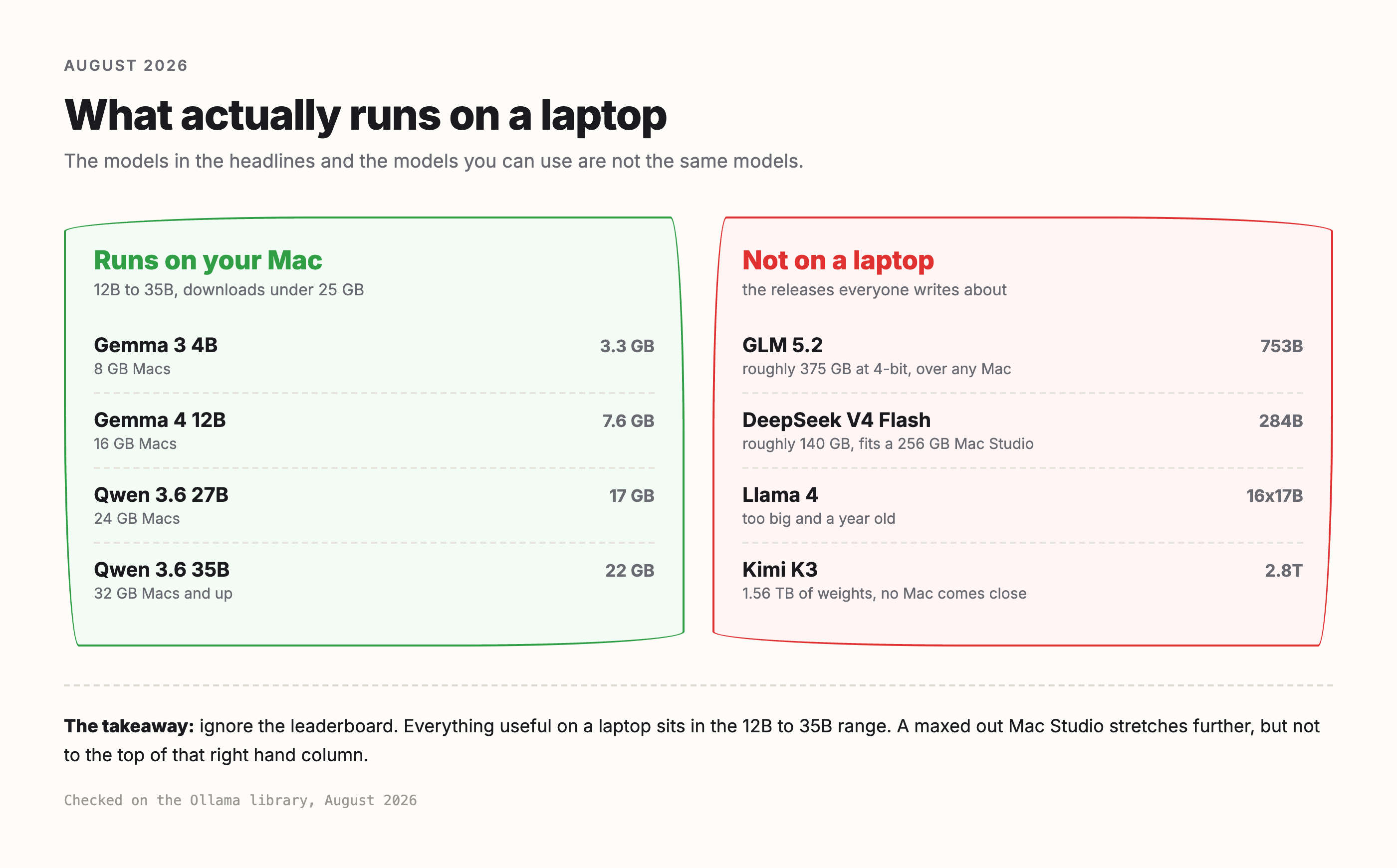
Model names move fast and most of what you read is out of date. Two things stay true.
Check the date on any list you read, including this one. Every model above was checked on Ollama in August 2026.
And ignore the headline releases. The models everyone writes about this summer are 300 billion parameters and up. They do not run on a laptop and they are not for you. The interesting work for local use is happening in the 12B to 35B range. Llama, the name most people still reach for, has not shipped anything that size in a year.
Download LM Studio
Model Search, look for Gemma 4 12B if you have 16 GB, Qwen 3.6 35B if you have 32 GB or more
Take the 4-bit MLX version
Set context length to 32K
Paste ten of your own posts into the system prompt and ask it for a draft
If you get stuck on any of the five, the Into Design Systems Slack is the fastest place to ask.
Happy agentic coding!
Sil Bormüller
Comments
Nothing yet. Say the first thing.
Sign in to join the conversation.