
Most people think of privacy in terms of what they choose to share, but a large portion of their digital footprint is created quietly in the background. Devices, apps, and online services constantly generate records about behavior, locations, searches, and interactions, often without any clear prompt or visible log. These hidden records, often referred to as shadow logs, can build a detailed picture over time, even when someone believes they are limiting what they share. Understanding how these systems work is the first step toward taking back control of personal data and reducing the amount of information collected without direct awareness.
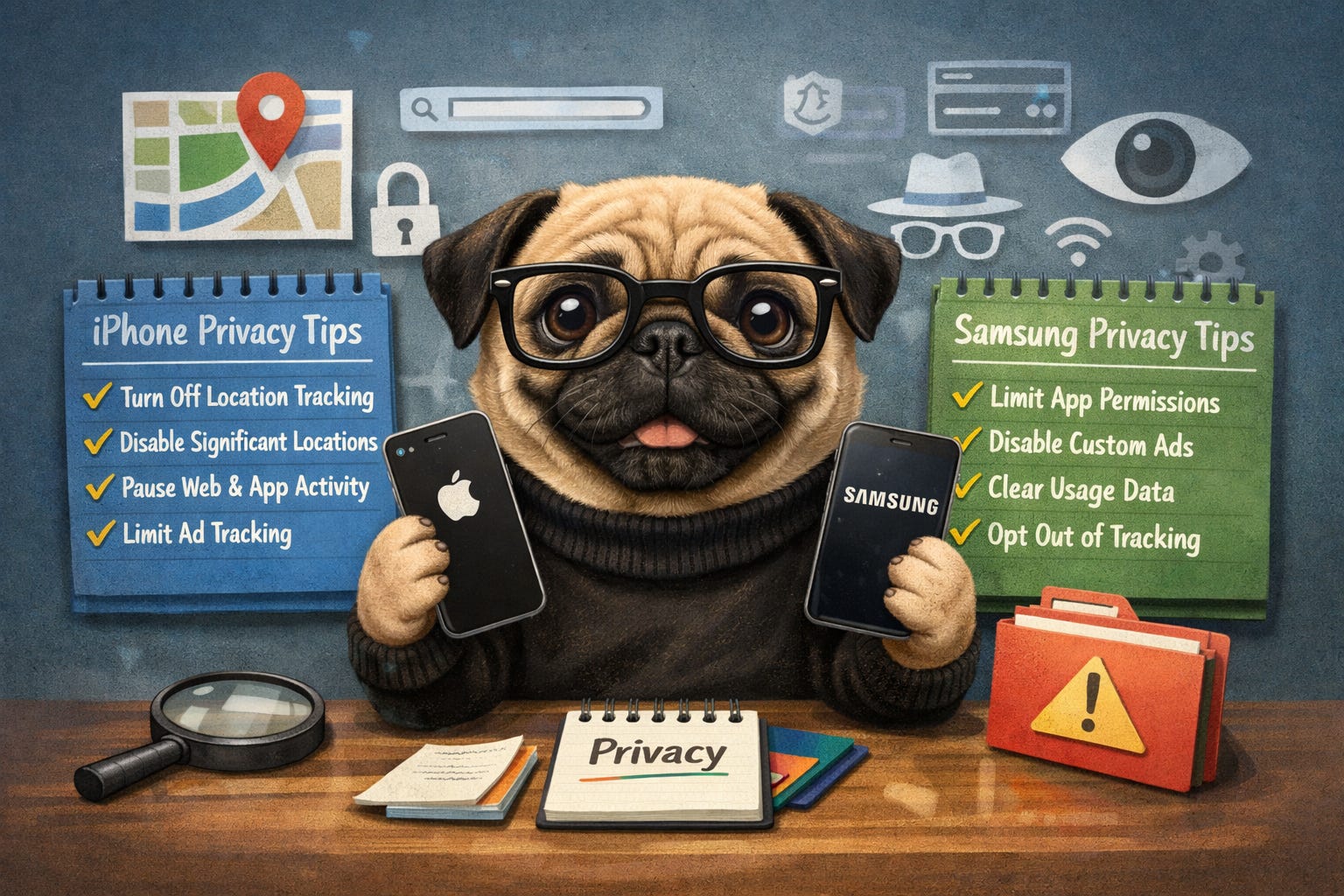
I Spent 10 Minutes Updating My Phone for Privacy. Here’s What I Did
Significant Locations
If you want your iPhone to know less about where you go most often, turning off Significant Locations is one of the easiest privacy settings to change.
Cross App Tracking
Turning off Cross-App Tracking stops apps from following your activity across other apps and websites for advertising and data collection.
Share iPhone Analytics
Turning off iPhone Analytics stops your device from sharing usage and diagnostic data with Apple and app developers.
Web & App Activity
Turning off Web & App Activity stops Google from saving your searches, browsing activity, and app usage tied to your account.
Delete Advertising ID
Disabling your Advertising ID settings reduces how much advertisers can track and target you across apps and services.
Turn Off Bluetooth & Revoke Bluetooth Permissions from Apps
Limit App Access to Camera & Microphone
Avoid Third Party Keyboards
Avoid Safari / Chrome Browsers
Use Private Browsers
- Brave
- DuckDuckGo
Apple
Open Settings
Tap Privacy & Security
Tap Location Services
Scroll down and select System Services
Tap Significant Locations
Unlock with Face ID, Touch ID, or your passcode
Toggle Significant Locations to Off
Optional cleanup:
Tap Clear History to remove saved location data
What this does:
Stops your iPhone from tracking and storing places you frequently visit
Removes existing location history from your device and linked account
Open the Settings app.
Tap Privacy & Security.
Tap Tracking.
Toggle Allow Apps to Request to Track to Off.
Optional cleanup step:
Review the list of apps below.
Toggle off tracking for any apps that still have permission.
What this does:
Prevents apps from asking permission to track your activity across other apps and websites.
Limits access to your device’s advertising identifier.
Open the Settings app.
Tap Privacy & Security.
Scroll down and tap Analytics & Improvements.
Toggle Share iPhone Analytics to Off.
Optional additional settings:
Turn off Share iCloud Analytics.
Turn off Improve Siri & Dictation.
Turn off Share With App Developers.
What this does:
Stops your device from sending diagnostic and usage data to Apple.
Limits how your data is shared with developers and used for improving services.
Google account
Go to your Google Account page
Click Data & Privacy in the left menu.
Scroll to History Settings.
Click Web & App Activity.
Toggle Web & App Activity to Off.
When prompted, click Pause to confirm.
Optional cleanup step:
Click Manage Activity.
Click Delete.
Choose Delete all time to remove stored activity.
Optional deeper privacy:
Turn off Include Chrome history and activity from sites, apps, and devices that use Google services.
Turn off Include voice and audio activity
No posts
Comments
Nothing yet. Say the first thing.
Sign in to join the conversation.