
Abstract Tomatoes rating: 🪨 0% (Concrete)
I’m talking about real pixels in real interfaces here.
Red Tomatoes rating: 🌿 18% (Green)
There’s not much you can do with this information, besides appreciate it.
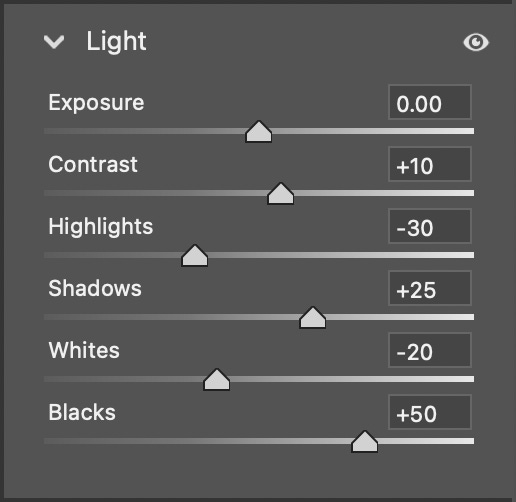
One small thing in life I really appreciate, every time I cozy up for some photo editing, is the experience of adjusting a value (e.g. Exposure, Highlights, Shadows, etc.) in Photoshop Raw (though it is the same experience in Adobe Lightroom and even many design tools, like Figma).
What’s so beautiful to me about this old-school interface is that it affords four primary ways to adjust value at varying levels of granularity, and I can intuitively employ and quickly switch between each of these ways depending on my goals:
Drag the slider: You can use the simply designed slider scale to adjust the value of interest. I like to do this when I want to whip the value around wildly, usually to test extremes and decide which direction I want to move in (e.g. I’ll bring Blues up to +100 saturation and then scale it down to -100, all with the swipe of my finger).
Use up-down arrows: Focusing on the value box and using your up-down arrows allows you to increment the value by +/- 1 unit. Very useful for nudging values around subtly.
Use Shift + up-down arrows: Holding Shift down while using your up-down arrows multiples the increment by 10, so instead of +/- 1 unit, you’d go +/- 10. This is helpful when you have to be a bit more heavy-handed with your adjustments.
Enter a value: You can also type or copy-paste values directly into the box. I usually use this when copying over settings from a similar photo, or the few times I have a magic number in my head and want to jump directly there.
What I like is that these four easy strategies for manipulating values cover enough bases on the spectrum of control that I never really find myself in a situation where I’m functionally blocked from selecting the right value. If I know I want +75, I can trust my fingers to take me there—the muscle memory for these moves builds up almost immediately. With my functions empowered, the task of selecting a value becomes more mental, and I can focus on letting my creative eye observe how my photo morphs as I set different values.
A tiny but delightful interface that unlocks a lot of creative power for me!
P.S. Shout out to design tools like Figma and Sketch for introducing a new method of value changing: math! I love how I can type 1328/2 or 460-215 or some other calculation like that, and the resulting value will fill in for me… genius!
Comments
Nothing yet. Say the first thing.
Sign in to join the conversation.