
This morning, I opened LinkedIn and was grateful to see Marianna’s post.
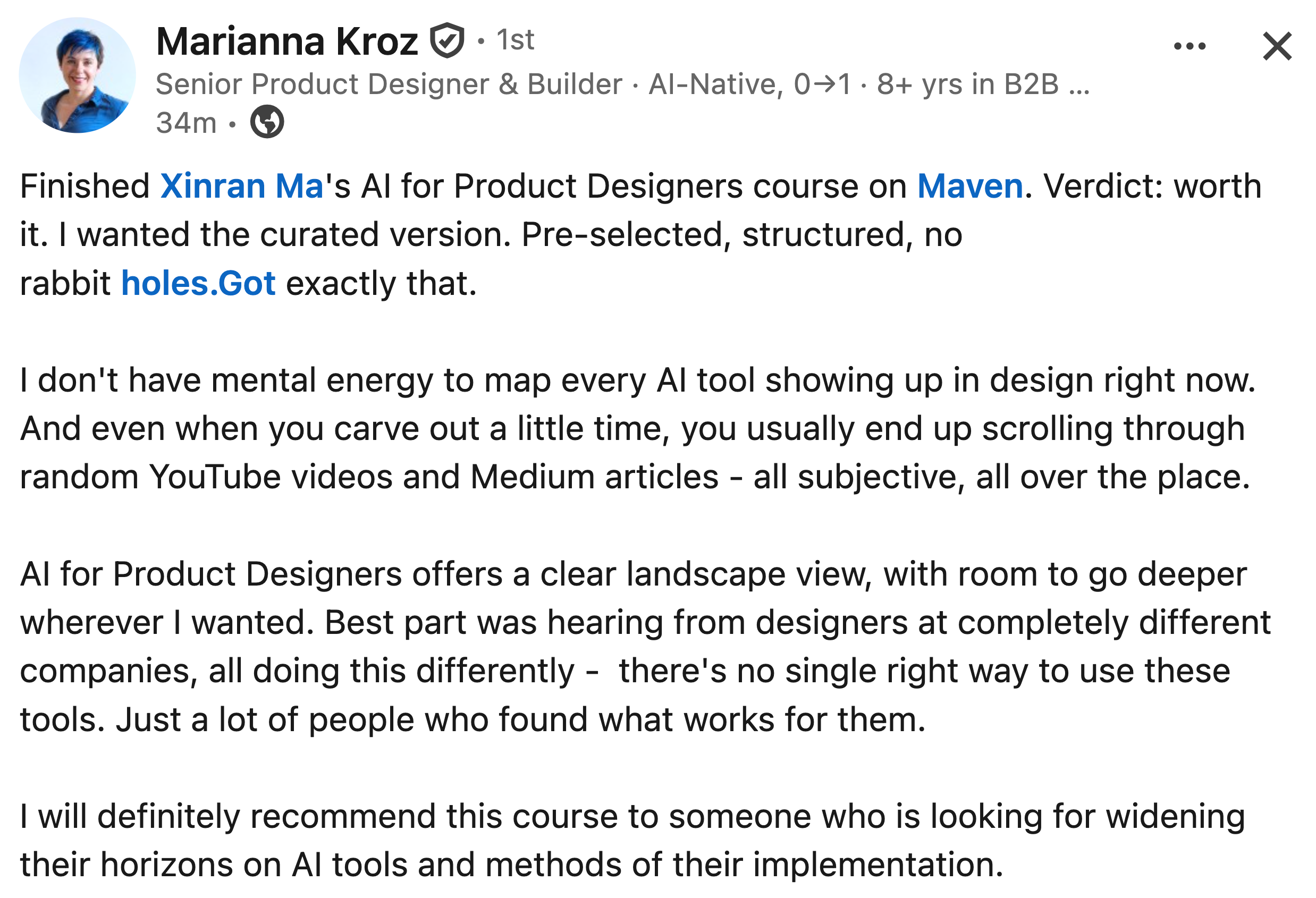
She also generously put together a great resource for all the course alumni. I’ll share it in this month’s alumni digest email soon.
On that note, the next cohort of AI for Product Designers starts on Aug 25.
On another note, Krystian and I launched a new workshop: Build Interactive, Branching Prototypes in Cursor with AI on Aug 19. You’ll learn how to prototype dynamic product flows that respond to user input, logic, and data. Early Bird Promo ends Friday, end of day.
Let’s talk about Skills today.
There’s already a lot of content online about Skills and the many Skills people have built.
But it can also be a lot of noise.
Whether I was chatting with other people or teaching the course, I realized there is still a lot of ambiguity about what Skills are, when to use them, why to use them, and the common pitfalls.
So I hope to use this article to explain these things in plain language that’s easy to digest, and at the end, share the Skills I’ve personally built and used myself.
Let’s get started.
Skills are specific instructions that tell an AI what to do.
I often call them Claude Skills, to be more specific.
Claude Skills work within Anthropic’s Claude ecosystem, whether you’re using Claude Chat (the web app, which doesn’t have access to your computer’s files), Claude Code, or Claude Cowork (used mainly in Claude’s desktop app).
The naming can get a little confusing, since Google also introduced Gemini Skills in 2026. But because Anthropic launched Claude Skills earlier, around October 2025, and the term has been widely adopted since then, “skills” primarily refers to “Claude Skills.”
In many ways, a Skill is just like a little “agent” or a “bot”. Speaking of “agent”, “bot”, it’s interesting to see how different terms in AI have driven waves of buzz at different moments, even though they have a lot in common.
If you remember the launch of the GPT Store, there was a similar buzz around it: people could publish the custom GPTs they’d built, and anyone else could use them too. If you still remember the GPT I built, I also created a skill about it too.
In very simple terms, Skills is similar to a GPT.
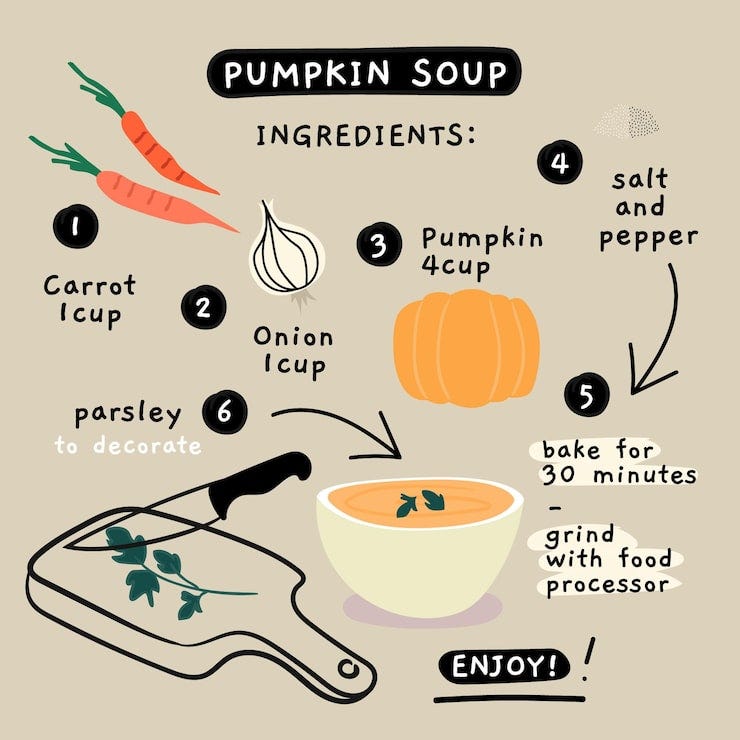
It’s like a receipt, you just follow it, and it can give you a specific result.
That said, Skills are more powerful than a custom GPT.
A custom GPT has more limitations. It lives in the cloud, so it can’t read your computer’s files. That makes it very easy for anyone to use, but the convenience comes at the cost of capability.
Claude Skills are more powerful because they have the potential to do more, such as automating tasks, running scripts, and so on. And when you use them in Claude Code or Cowork, they can access your computer’s files, which lets you carry out far more complex tasks.
Once a Skill is created and loaded, it triggers automatically whenever one of your prompts matches its description. (I’ll mention “manually” shortly.)
Take the example below: the prompt “I want to create a skill” triggers a skill called “Create Skills,” because “create a skill” matches its description as a trigger event. Claude then loads the skill automatically and reads through the “recipe” for how to carry out the task.
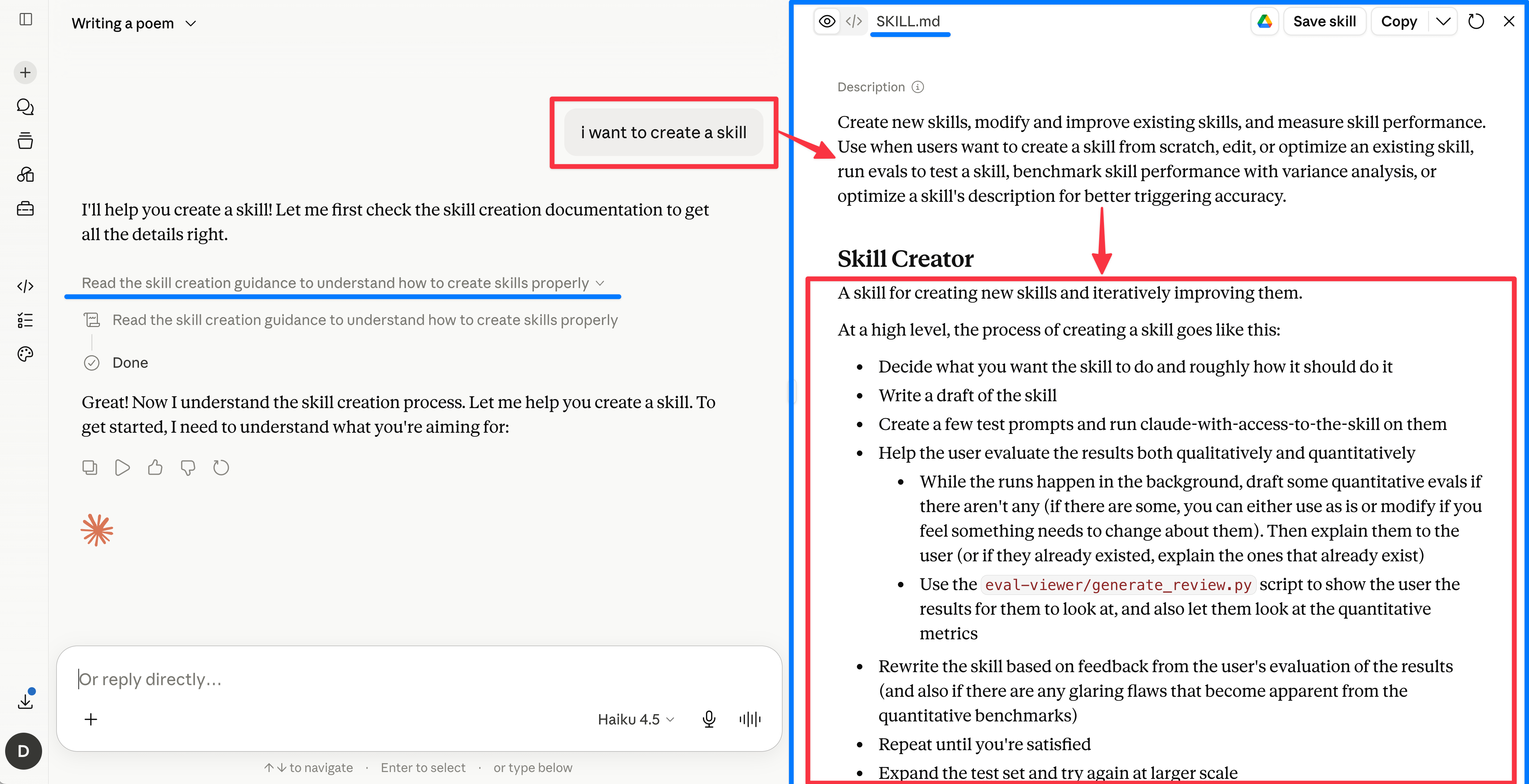
The auto-triggering behavior is worth noticing because it’s a form of progressive disclosure. Unlike CLAUDE.md, the AI doesn’t have to read through the instructions every time it starts a session, it only loads them when they’re needed. This makes it far more token-efficient.
On a side note, auto-triggering doesn’t always work smoothly. Often it’s because the trigger description isn’t written well enough, so you often need to explicitly say “use the xxx skill.”
I also like to create slash commands for the skills I use often, so I can just hit “/” to find and use the one I want.
If you find yourself repeating the same instructions over and over, it’s a good time to consider building a Skill.
Skills are easy to update as you go, so they improve over time. This is something I do constantly: after I’ve reworked a workflow and I’m happy with the outcome, I’ll update the skill to match, so Claude does a better job the next time around.
Update the skill xxx accordingly.
Another helpful use case is when you want your teammates to achieve something you’ve already figured out how to do.
The simplest analogy is a recipe. If I write down the recipe for how I make something, let say dumplings, then even though it’s a complex task, others can reach a similar result without having to worry too much about the nuances.
(Well, homemade dumplings, something I miss the most, are impossible to achieve through a recipe alone. Not even close. But that’s a different story.)
While you usually don’t need to remember this, it’s worth peeling back the curtain a little.
A skill is essentially a markdown file (SKILL.md), or, depending on how complex the skill is, a bunch of markdown files.
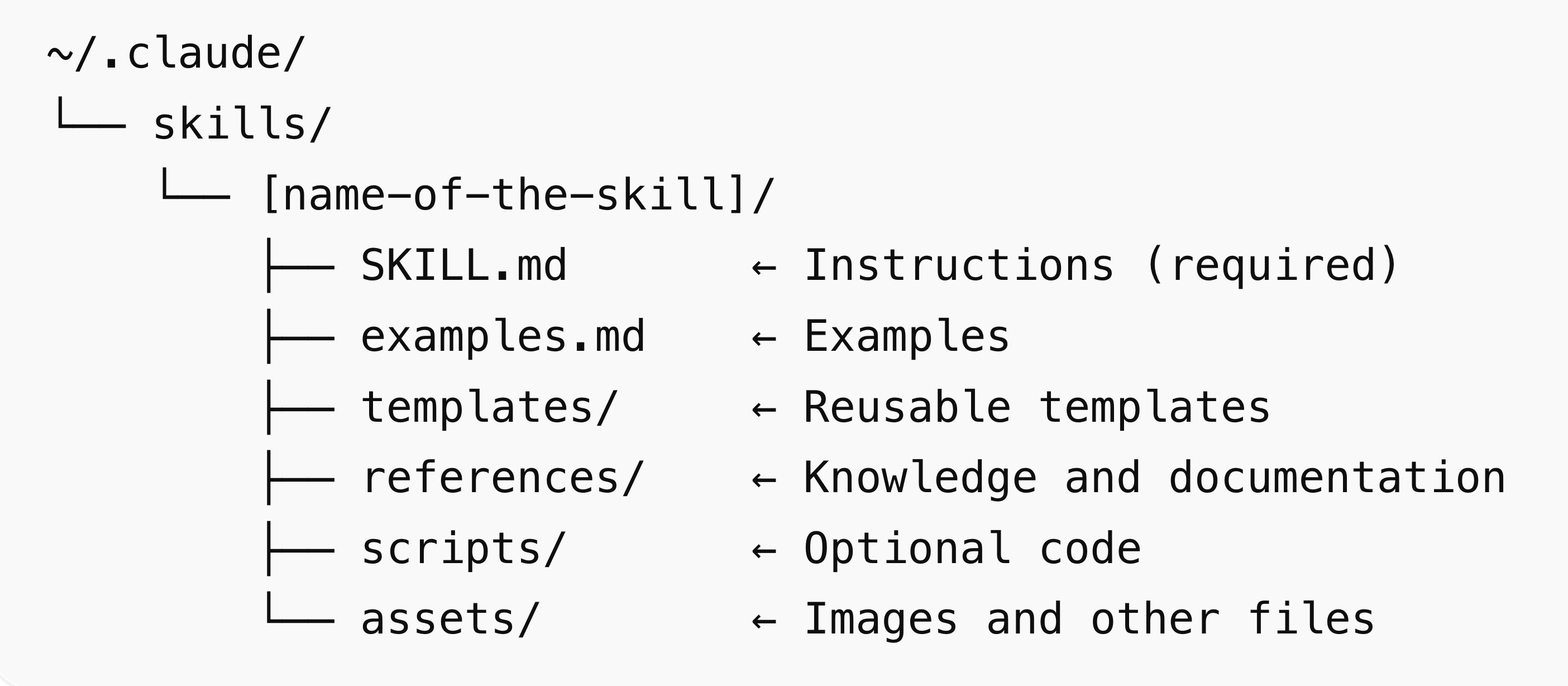
Depending on where it’s saved, a skill can live in one of two places: the global level or the project level.
Here’s what the global level looks like. The skill is saved in the root folder of Claude in your computer. A skill stored here can be triggered in any project you work on. This is usually where I keep my skills, since I want to be able to use them across every project.
Global-level Skills is also referred to as user-level Skills.
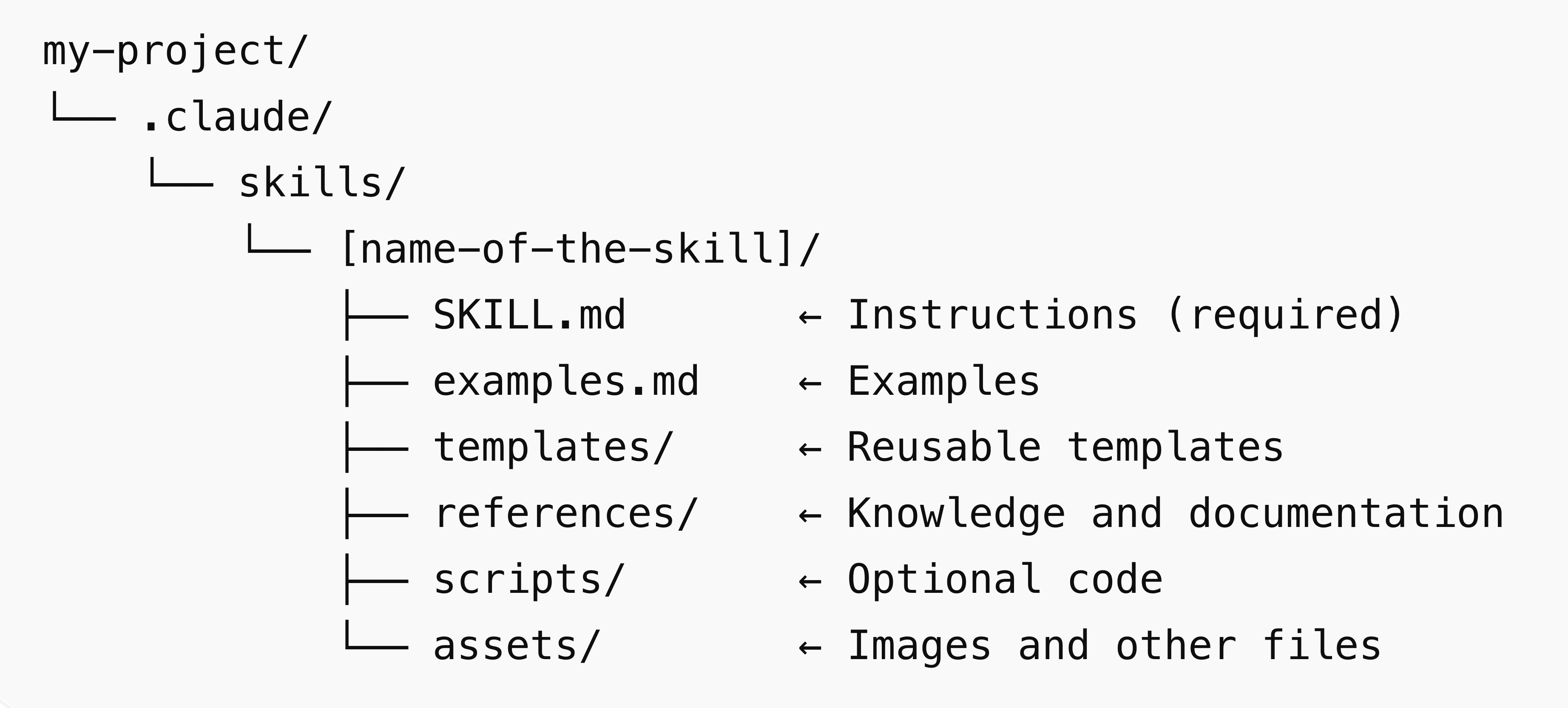
Skills can also live at the project level, saved inside a project folder.
In this case, the skill only triggers while you’re working within that project. It is more restrictive than global-level skills because of that. But this scoping makes a lot of sense for team collaboration. For example, if you and your teammates work off a shared GitHub repo, saving a skill at the project level makes it accessible to everyone on the team.
SKILL.md is the core of a skill. It is the one file that every skill needs.
I know the folder anatomy I showed above seems complex, but the heart of any skill is just SKILL.md.
For many of the skills you’ll use, you won’t even see the additional files like scripts, templates, assets, or examples.
A SKILL.md file has two parts:
YAML frontmatter (between
---markers) that tells Claude what the skill does and when to use itMarkdown content with the instructions Claude follows when the skill runs
Here’s an example:
---
name: my-skill
description: What this skill does and when to use it. Be specific about trigger phrases and contexts so Claude knows when to consult it.
---
# My Skill Name
## Steps
1. What to do first.
2. What to do next.
3. How to finish.
### Output
Describe what the final output should look like.
Skill.md is not code files, is just a long text of description written in plain english.
You can simply ask Claude to create one for you.
Generate a claude skill for me based on my needs: [type you specific needs for a task]
There are already some official skills built by Anthropic.
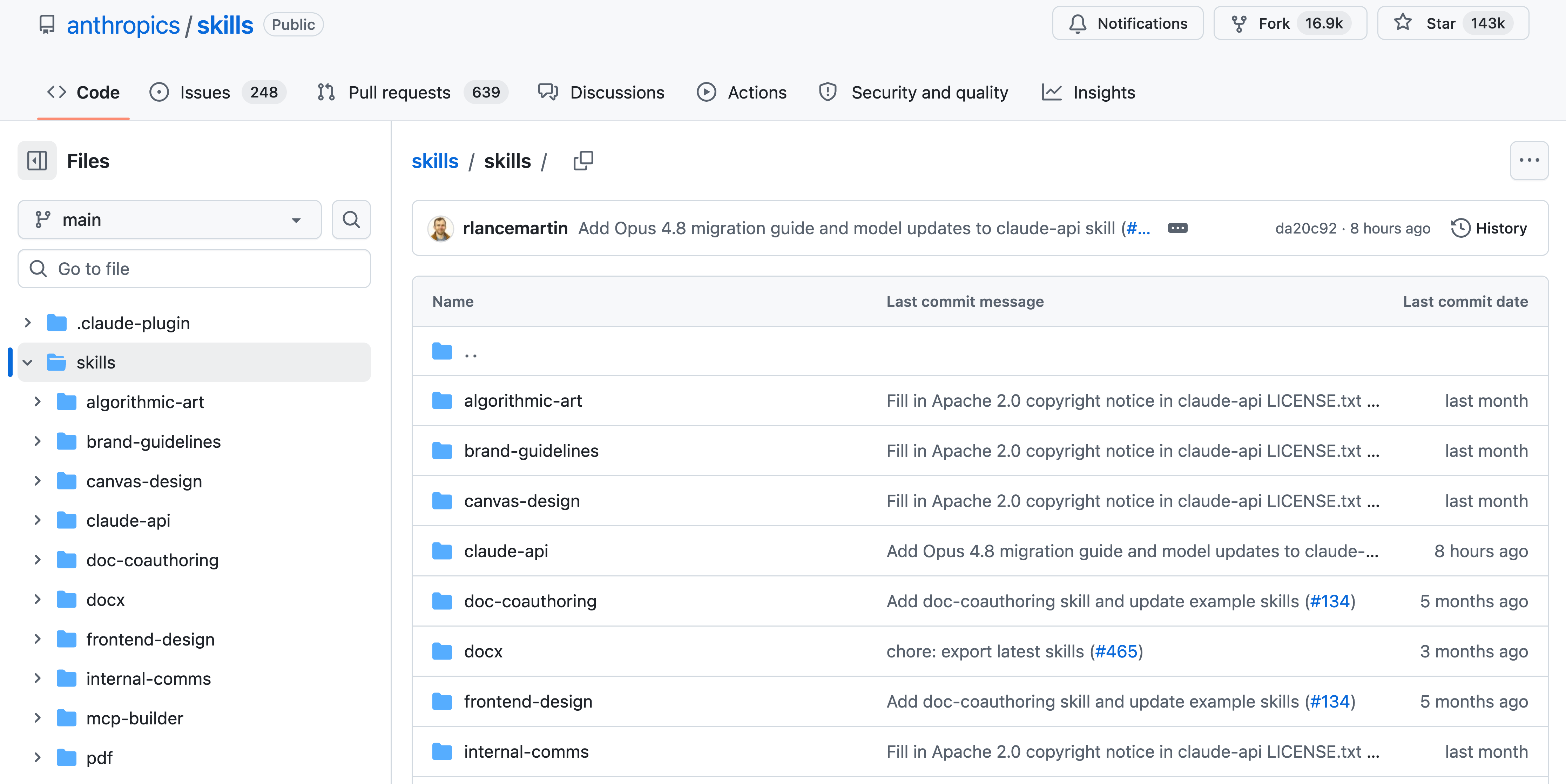
Be mindful of those so-called “official skills”. Built by Anthropic doesn’t mean that those skills are the best for your needs.
They are broad and kind of generic in my opinion, but you can still take a look at them and study what they include, then revise based on your needs.
For example, Front-end design is the most popular one out of those “official skills”. I know many people directly use it as it is, but I always recommend people to take a look at the description. So let’s take a quick look at it together.
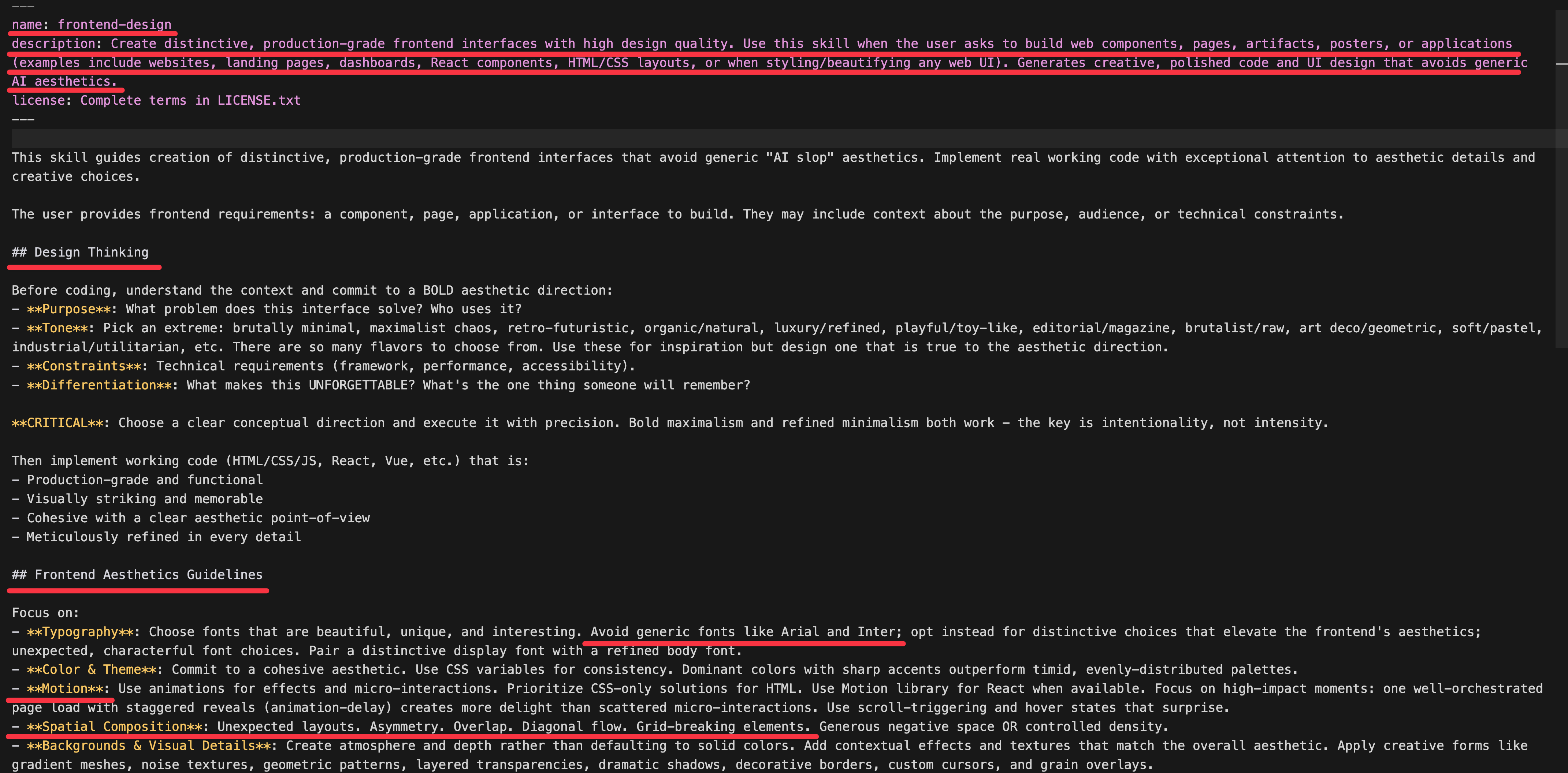
It includes instructions like “avoid generic fonts Arial and Inter”, “expected layouts”, grid-breaking elements”, and some motion instructions.
I’m not saying these aren’t great. It’s just worth checking what a Skill is actually doing, and whether that’s what you want, before using it unconsciously.
This level of understanding of how AI behaves is often what makes the difference.
If you know what you want to achieve, you can ask Claude whether other people have built similar skills, or just search for them online.
There’s even a skill called “find-skill”, made by the Vercel team, that does the searching for you. It essentially browses an online marketplace to find a skill matching what you’re looking for.
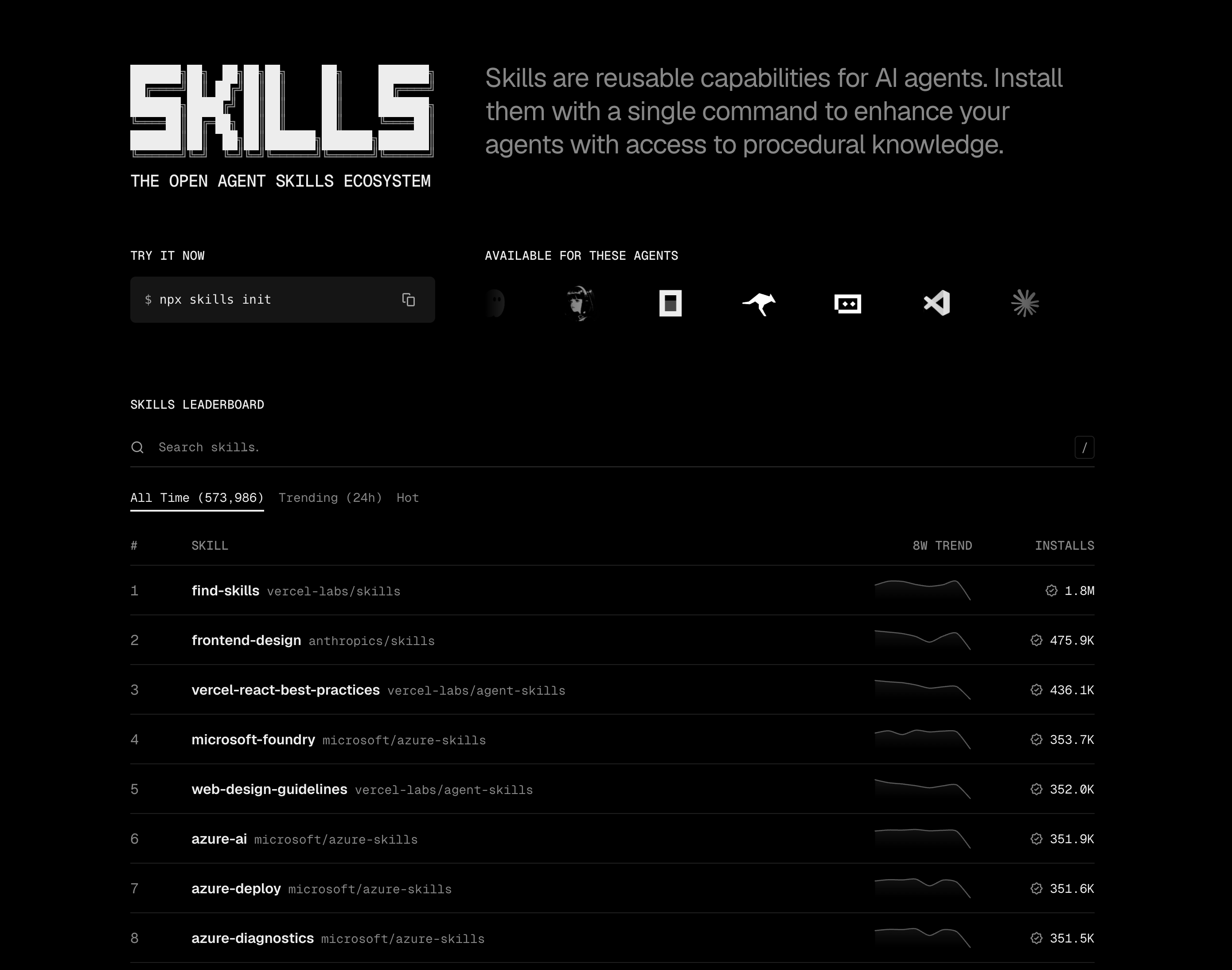
And once you find it, you can load it via either Claude.ai or Claude Code, depending on your needs.
Take Claude.ai, for example. If you go to claude.ai/customize/skills, you can create a skill by uploading one from your computer.
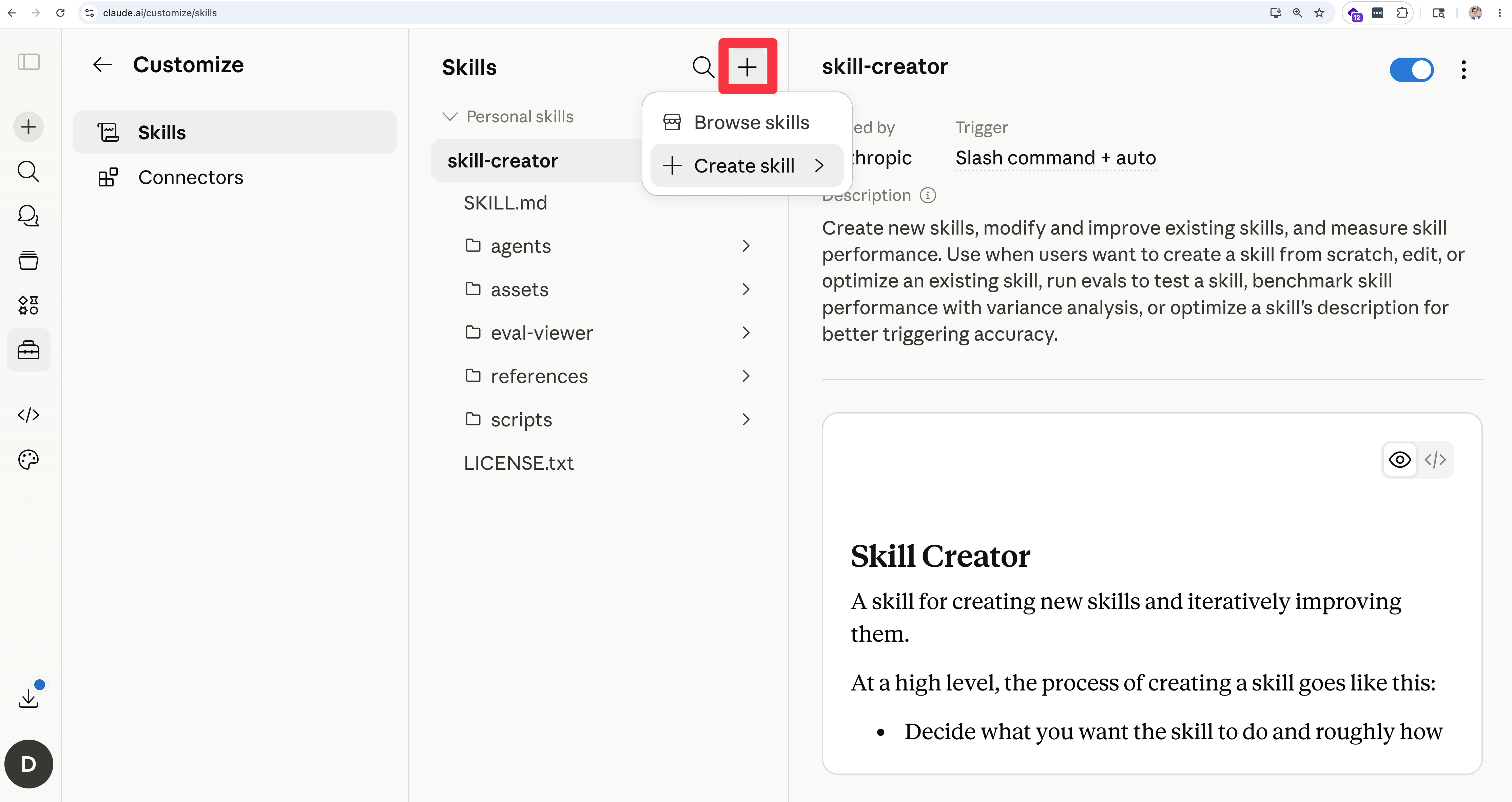
As I mentioned earlier, for these kinds of skills from third-party marketplaces, it’s even better practice to read the description to see how they work.
Chances are, they include a lot of things that are simply overkill for you, consuming a lot of tokens unnecessarily. Or, worse, a skill may carry risks you’ll want to be aware of, such as scripts that take actions unsafe for you.
So it’s always good to take some basic precautions, rather than blindly finding skills online and using them, which I’ve seen happen often.
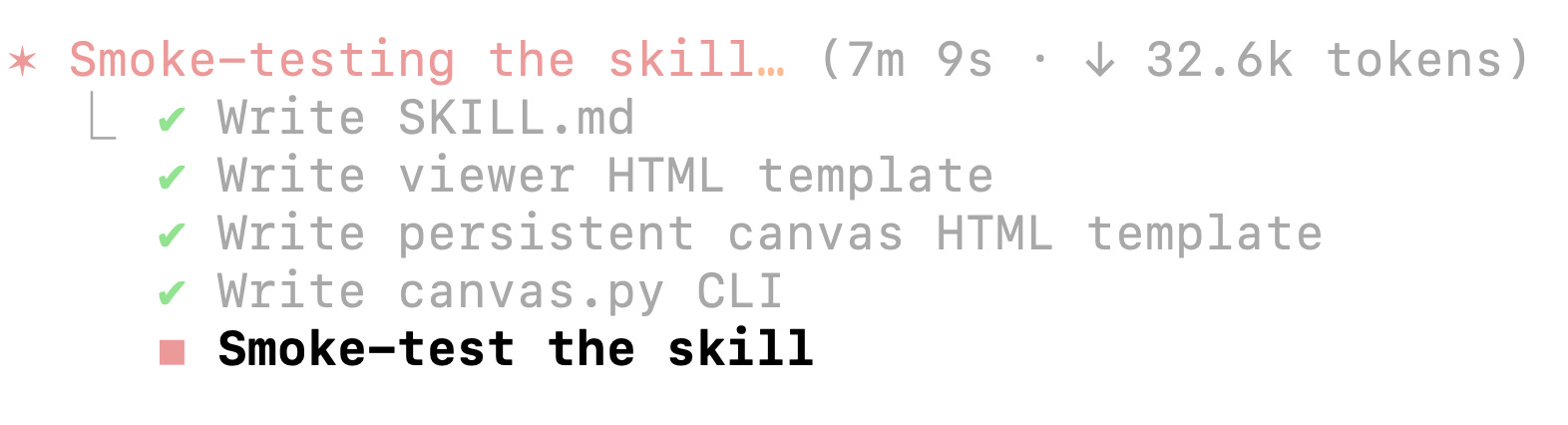
There is a “skill-creator” skill created by Anthropic that helps you create a skill. (tongue twister 😵💫)
If you check its description, it’s a comprehensive skill with a verification loop baked in as part of the skill.
As I mentioned in an earlier article, I don’t use Skills that other people created much. Not because I don’t trust them, but more because I have my own workflows and I’m very familiar with the specific tasks I need Skills for, the scenarios of using it, my preferences, etc.
Over time I started grouping them into three buckets:
Admin: one-time setup and housekeeping that makes Claude Code easier to live in
Design: visual exploration and UI work, from ideation to prototype
Writing: turning content into polished, shareable artifacts
Here are some examples with demo videos.
Comments
Nothing yet. Say the first thing.
Sign in to join the conversation.