I have been using AI coding tools for a while now. I have used tools like Cursor and OpenAI Codex for main project work, but my current setup is different. Pi paired with DeepSeek is my daily driver, I use Grok Build for some complex tasks, and Claude Code mainly for frontend design work.
But a few months ago, in May, I came across Pi – an open-source terminal coding agent. It has a small core and lets you add features through extensions and packages, instead of packing everything in by default. I liked the idea, so I decided to set it up and see where it fits.
I am still figuring out the right balance, but Pi has already become my daily driver. In this post, I'll share how I installed it, what my setup looks like, and my honest experience so far.
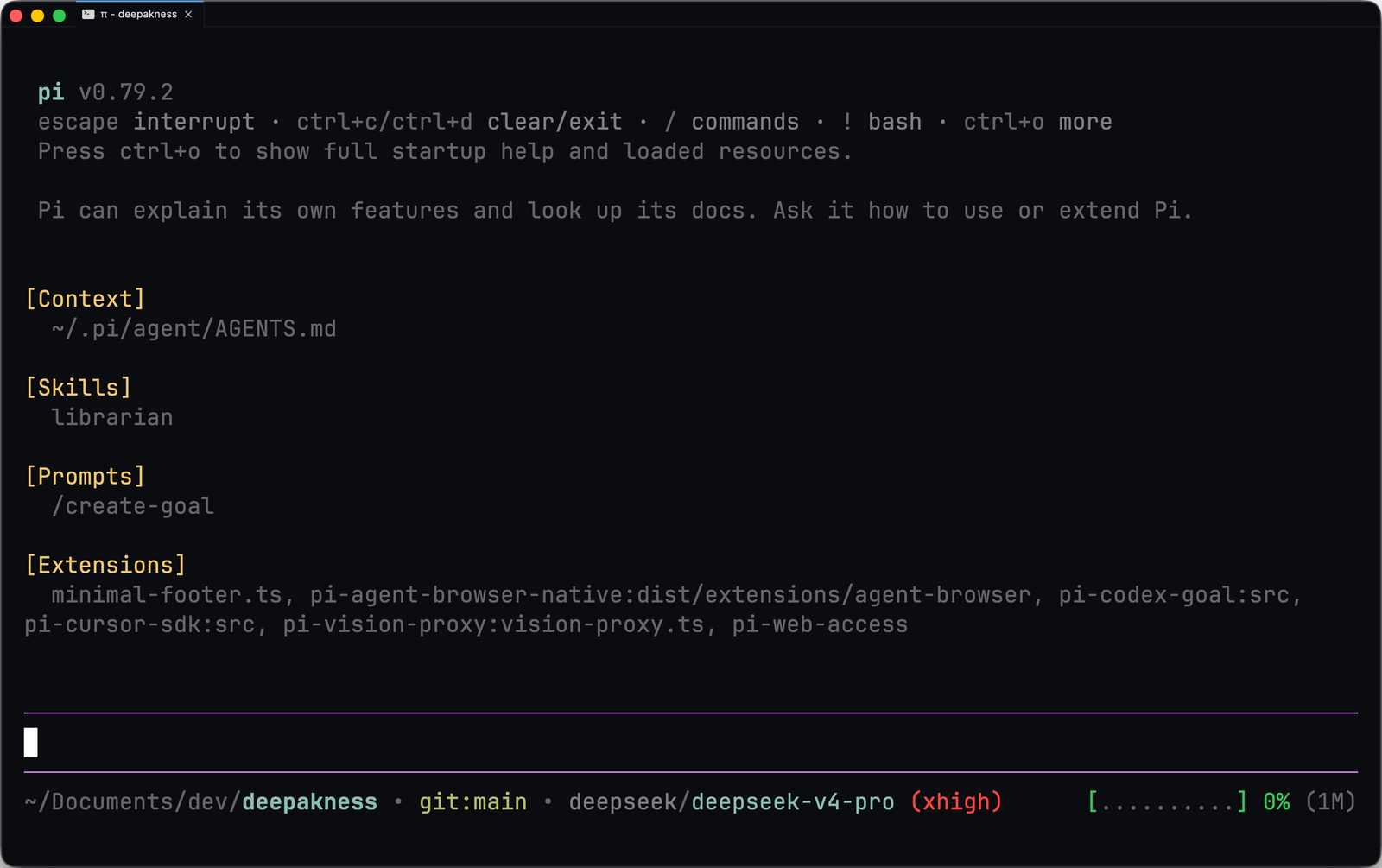
What is Pi?
Pi is an open-source terminal coding agent created by Mario Zechner. It works in your terminal and gives the AI model four tools by default – read, write, edit, and bash – to work with your codebase.
There is no built-in plan mode, no sub-agents, no MCP, and no permission popups. Instead, you can add these things through extensions, skills, and packages. This keeps the core small and lets you build exactly the setup you want.
Pi works with many AI providers – Anthropic, OpenAI, DeepSeek, Google Gemini, Groq, xAI, OpenRouter, Kimi, and basically almost every other provider as well. You can use an API key or log in with an existing subscription.
How I use Pi alongside other tools
Right now, I use different tools for different kinds of work:
- Pi with DeepSeek models as my daily driver for most of my work
- Grok Build for some complex tasks
- Claude Code mainly for frontend design and UI work
I have also used Cursor and OpenAI Codex for main project work. They are still part of my AI coding journey, even though they are not the tools I currently use most.
Pi feels right as my daily driver because it's fast, lightweight, and I can use cheaper models without burning through expensive subscriptions.
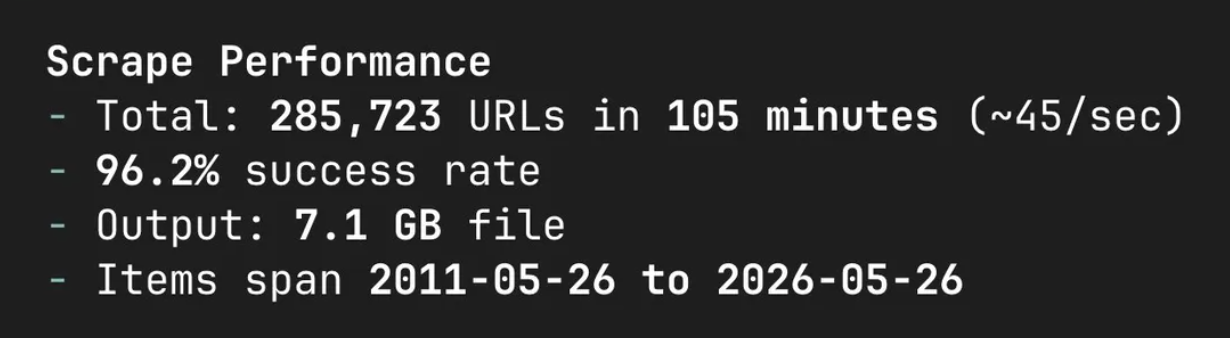
One example: I recently used Pi with the DeepSeek v4 Flash model to scrape 285K URLs from a website. It ran for about 1.5 hours and cost me just $1 through the official DeepSeek API. I used the pi-codex-goal extension to track the long-running task and it worked without issues. You can read more about this on X.
Installing Pi
Installation is one command:
curl -fsSL https://pi.dev/install.sh | shOnce installed, start it by typing pi in your terminal. But first, you need to set up a provider.
Setting up OpenCode Go as the provider
Pi has a built-in /login command that makes setting up any provider easy. I am subscribed to OpenCode Go, so I logged in with my subscription instead of an API key. Here is what I did:
- Opened Pi by typing
piin the terminal - Typed
/loginand chose OpenCode Go - Logged in with my existing subscription
That's it. After logging in, use /model to pick your model – I chose deepseek-v4-pro with max thinking.
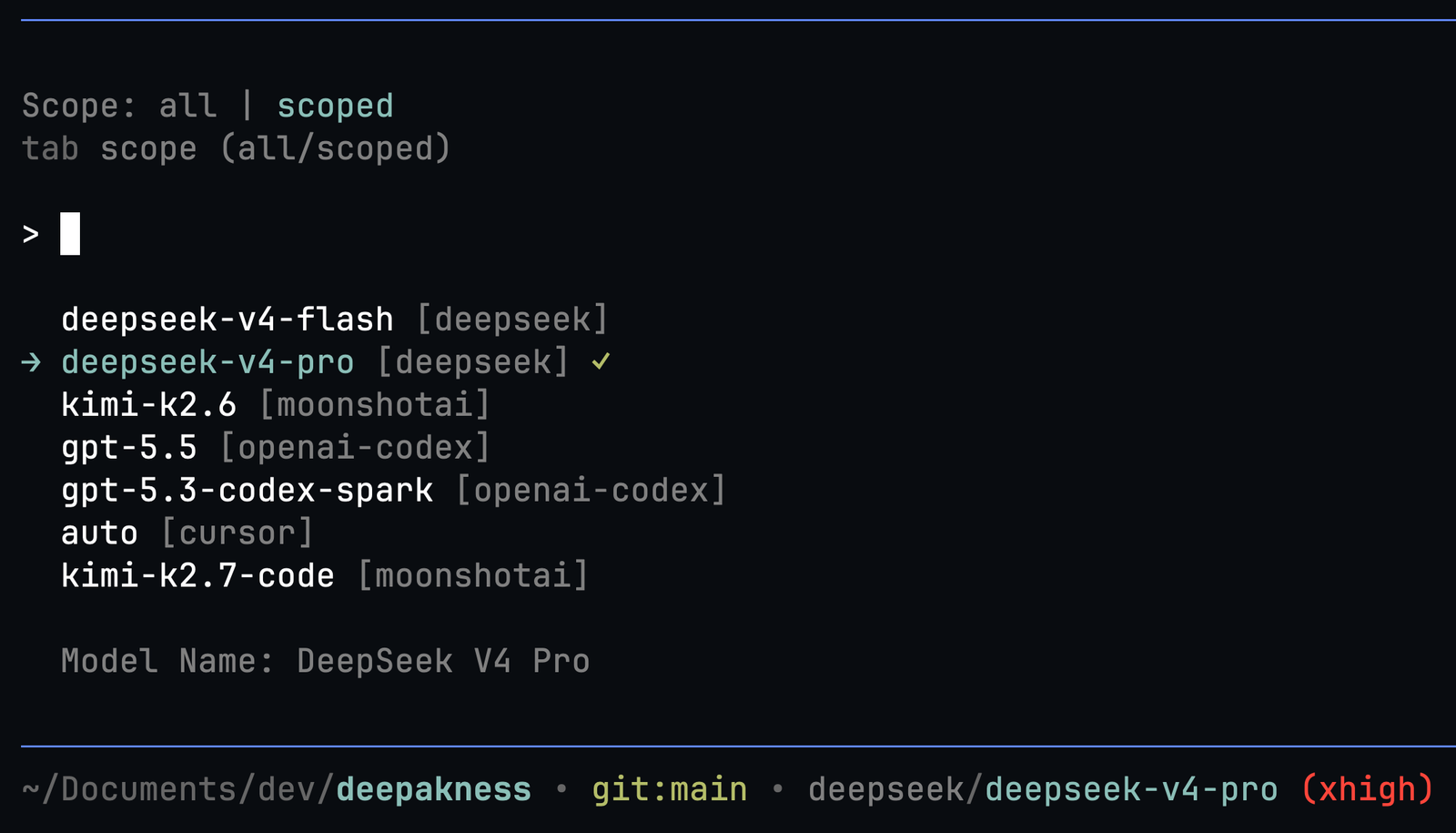
Earlier I used DeepSeek through the official DeepSeek API on a pay-as-you-go basis, and I still keep that key around as a backup. OpenCode Go now covers most of my usage.
I default to max thinking because I want the model to think deeply before making changes. For lighter tasks like the URL scraping, I switch to the faster and even cheaper deepseek-v4-flash model.
You can open the model picker with Ctrl+L, cycle through your scoped models with Ctrl+P, and change the thinking level with Shift+Tab.
I also use Grok 4.6 for more complex tasks – more on that in the model lineup below.
My model lineup
I have several models enabled and switch between them depending on the task:
| Model | What I use it for |
|---|---|
| DeepSeek v4 Pro | Default for most of my work – runs through my OpenCode Go subscription |
| DeepSeek v4 Flash | Lighter, repetitive tasks like scraping or bulk file operations – fast and cheap |
| Grok 4.6 | More complex tasks – runs through my SuperGrok plan |
| GPT-5.6 Luna | Vision model for pi-vision-handoff – runs through the Codex free plan or OpenCode Go |
Switching is instant – Ctrl+L opens the model selector, and Ctrl+P cycles through scoped models.
The interface and my custom footer
When you open Pi, the interface is clean. The editor is at the bottom, the conversation in the middle, and the footer shows your working directory, git branch, current model, thinking level, and context window usage.
One thing I customized early on was the footer. The default footer shows more information than I need. So I asked Pi itself to build me a custom minimal footer. I described what I wanted – current folder, git branch with a dirty marker, model name, thinking level, an optional goal slot, and a compact context bar – and it wrote the TypeScript extension for me.

The extension lives at ~/.pi/agent/extensions/minimal-footer.ts and Pi loads it automatically on every startup. I have also put the code in a gist — just drop it into the extensions folder and restart Pi. It was a small change but it made the experience feel personal. I also learned a bit about how Pi extensions work in the process.
I recently added another small extension called Whimsical working messages, based on Armin Ronacher's original whimsical extension. I customized it with more colors, decorative symbols, and rotating status phrases that change every two seconds while Pi is thinking. The extension lives at ~/.pi/agent/extensions/whimsical.ts and can be installed by copying my gist into the extensions folder.
Packages I installed
Pi packages are npm or git packages that bundle extensions, skills, prompts, and themes. You install them with pi install. Here are the ones I use:
1. pi-web-access
This package gives Pi the ability to search the web, fetch page content, extract YouTube video transcripts, and explore GitHub repos. You can find it at pi.dev/packages/pi-web-access.
pi install npm:pi-web-accessIt works out of the box with Exa search (no API key needed), and you can optionally add API keys for Perplexity, Exa, or Gemini for more control. I configured it to use Exa as the default search provider by creating a ~/.pi/web-search.json file:
{
  "provider": "exa",
  "allowBrowserCookies": false,
  "summaryModel": "opencode-go/deepseek-v4-flash",
  "workflow": "none",
  "curatorTimeoutSeconds": 20
}
With this package, Pi can search the web, read documentation, understand YouTube videos, and clone and explore GitHub repositories – all without leaving the terminal.
2. pi-vision-handoff
DeepSeek cannot look at images – it has no vision capabilities. I use the pi-vision-handoff package, which describes images with a vision model and hands the text description back to the non-vision model.
pi install npm:pi-vision-handoffI have set up GPT-5.6 Luna as my vision model through the Codex free plan, which has surprisingly generous free limits. I can also run it through my OpenCode Go subscription. Whenever I paste an image into Pi, Luna describes it, and then DeepSeek uses that description to finish the task. It works well for the occasional screenshot or design reference I throw at it.
The handoff approach is provider-agnostic, so I can pick any vision-capable model from the /vision-handoff picker and every text-only model I use can suddenly see images. Descriptions are cached per image and batched into a single vision call, so repeated screenshots don't get re-analyzed.
I have also tried pi-codex-goal for goal tracking, pi-agent-browser-native for browser tasks inside the terminal, and pi-cursor-sdk for using my Cursor subscription inside Pi, but I don't use them anymore. I wrote about the Cursor setup in my raw notes and the long-running /goal tasks as well.
Project instructions with AGENTS.md and APPEND_SYSTEM.md
Pi has two ways to give the model instructions: AGENTS.md for project-specific context, and APPEND_SYSTEM.md for global behavioral rules.
AGENTS.md (project context)
Pi loads AGENTS.md files at startup and injects them into the system prompt. There are three discovery locations – a global one at ~/.pi/agent/AGENTS.md, then parent directories walking up, and finally the current directory – and they're all concatenated together.
I keep my global AGENTS.md minimal. It only describes what stack I typically work with:
# Global Pi Instructions
- Projects commonly use Laravel (PHP/Inertia/React), Next.js
  (TypeScript/Tailwind), or Astro. Check the project-root AGENTS.md for
  stack-specific rules – if none exists, ask.
The "if none exists, ask" part is important. When I'm working in a plain HTML/CSS/JS folder or some other stack, the agent doesn't force a framework on me – it just asks.
Most of my projects also have their own AGENTS.md with framework-specific rules, but I rarely write them by hand. They're generated by the framework tooling (like Laravel Boost) with the exact package versions and conventions for that project.
APPEND_SYSTEM.md (global behavioral rules)
AGENTS.md is for project context, but some rules apply across every project regardless of stack. That's where APPEND_SYSTEM.md comes in. It lives at ~/.pi/agent/APPEND_SYSTEM.md and gets appended directly to the system prompt – which means these rules carry higher authority than AGENTS.md instructions.
Here's what I put in mine:
- If the default provider doesn't have vision capabilities, use
  pi-vision-handoff for images.
- Read relevant local files first when the answer is available in the
  codebase. If not, research online via pi-web-access. Before making a
  big change based on online research findings, confirm with me first.
- Explain risky file edits and destructive commands before executing.
- Write simply. Avoid AI-slop language – no flowery adjectives,
  unnecessary adverbs, or overly formal phrasing.
- Use en dashes (–) not em dashes (—).
A few notes on these rules:
- The vision handoff rule is now provider-agnostic. I might use DeepSeek, Grok, or another model as my default, so instead of hardcoding a provider name, it checks whether the current model has vision capabilities.
- The second rule is more explicit than my earlier version. Instead of just saying "don't search for things you already know", it tells the agent to read local files first, search online only when needed, and confirm before making big changes based on online research.
- The en dash rule is a simple mechanical preference that keeps my writing style consistent across all sessions.
Keyboard shortcuts and commands I use
Pi has many shortcuts. Here are the ones I use regularly:
| Key | What it does |
|---|---|
Ctrl+L |
Open the model selector |
Ctrl+P |
Cycle through scoped models |
Shift+Tab |
Change thinking level |
Ctrl+C (twice) |
Quit Pi |
Escape |
Cancel or abort the current action |
Enter |
Send as a steering message (interrupts current work) |
Alt+Enter |
Send as a follow-up message (delivered after work finishes) |
The difference between Enter and Alt+Enter took some time to get used to. If I want Pi to change direction mid-work, I press Enter. If I just want to add a note for after it finishes, I use Alt+Enter.
And these are the commands I use, often by typing / in the editor:
/model– Switch models without remembering the shortcut/settings– Change thinking level, theme, and other settings/resume– Pick up from a previous session/new– Start a fresh session/tree– See the full session history and jump to any point/compact– Summarize old messages to free up context/session– Show current session info like tokens and cost
The /tree command is especially useful. You can see your entire conversation history like a tree, jump to any branch, and continue from there. It's great when you want to try a different approach without losing what you had before. I got very curious about it after coming across this shared Pi session from Dillon Mulroy. I later wrote down everything I learned from that session in my raw notes.
A few things I learned while using Pi
Long sessions fill up the context window. Pi has automatic compaction that summarizes older messages when you're running out of space. You can also do it manually with /compact. And I love the pi --continue command, that directly opens the last chat in the repo/folder.
Another thing I like is the steering system. While Pi is working (running bash commands, editing files, etc.), you can type a new message and press Enter. This queues a steering message that gets delivered after the current tool finishes. I use this when I notice Pi going in the wrong direction mid-work and want to correct it quickly. Sometimes, instead of a steering message, I also do Option+Enter that sends the message after previous output is completely finished generating.
You can also use many providers inside Pi, including OpenAI, Cursor, OpenRouter, xAI, Claude, and more through their APIs.
Things I like about Pi
After using Pi for a few weeks, here's what stands out:
- Simple and fast: The terminal interface is snappy. No Electron, no UI lag.
- Customizable: I built the exact footer I wanted, picked the packages I need, and the rest stays minimal.
- Works with any provider: I use DeepSeek for most of my work through OpenCode Go, and switching between models and providers is one shortcut away. I also learn a lot when using it – you get closer to how things actually work, unlike more polished tools where everything is hidden.
- Session tree is brilliant: Being able to branch conversations and go back to any point is something I miss when using other tools.
- Open source (MIT): I like that no company decides what features I get or how much I pay.
- Compaction just works: I don't think about context limits. Pi handles it in the background, faster and better than others do.
Final thoughts
I currently use Pi with DeepSeek for most of my work, Grok Build for some complex tasks, and Claude Code mainly for frontend and UI work. I have used Cursor and Codex for main project work, and both remain polished tools that do their jobs well.
But Pi has earned a permanent place as my daily driver. It's fast, it's cheap (especially with DeepSeek through my OpenCode Go subscription), and the combination of Pi + a few well-chosen packages has been solid so far.
Here's what my current setup looks like:
- DeepSeek v4 Pro with
maxthinking (default, via OpenCode Go) - DeepSeek v4 Flash for lighter tasks
- Grok 4.6 for more complex tasks via SuperGrok
- pi-web-access for web search and content extraction via Exa
- pi-vision-handoff to handle images via GPT-5.6 Luna (Codex free plan or OpenCode Go)
- APPEND_SYSTEM.md with writing style and behavior rules
- A custom minimal footer extension
- Whimsical working messages extension with rotating status phrases
That's it. I tried more packages but kept only what I actually use.
If you are comfortable in the terminal and like the idea of a minimal, extensible agent, give Pi a try. Start with the basics and add packages as you feel the need.
I have been using Pi for a few months now and the setup is stable. I uninstalled a few extensions that didn't add enough value. The simpler the setup, the better.
I will keep updating this post as I discover new things about Pi.
Comments
Nothing yet. Say the first thing.
Sign in to join the conversation.