
Parts are in, the POST screen looks healthy, and the fans are pulling air in the right direction. If you followed my PC gaming build guide to get here, the physical assembly is complete. However, a pile of tested components is not a gaming PC yet.
Here is every piece of software to install before your build touches a live game library, listed in exact operational order.
⚖️
Disclosure: Core Lab may earn a commission from qualifying purchases made through affiliate links on this page at no extra cost to you. Read our full disclosure policy for details.
Post-Build Tactical Software Matrix
| Category | Recommended Tool / OS | License / Cost | Operational Purpose |
|---|---|---|---|
| Operating System | Windows 11 Pro / CachyOS Linux | Retail Key / Open Source | Base system kernel, DirectX / Vulkan API execution. |
| Drivers & Provisioning | Motherboard Vendors + Ninite + DDU | Free | BIOS/chipset updates, clean GPU installs, silent app provisioning. |
| Display & GPU Tuning | NVIDIA Control Panel / AMD Adrenalin / CRU | Free | G-Sync/FreeSync setup, global FPS caps, custom refresh profiles. |
| Game Launchers & Hubs | Steam / Playnite / Heroic / Hydra | Free / Open Source | Library management, shader precaching, multi-store aggregation. |
| Monitoring & Fan Control | HWInfo64 / Fan Control (Rem0o) / btop | Free / Open Source | Real-time thermal/voltage polling, zero-bloat custom fan curves. |
| Stability Testing | Cinebench / 3DMark / MemTest86 | Free / Freemium | CPU/GPU burn-in stress testing, thermal validation, RAM stability. |
| Communications & Audio | Discord / OpenRGB / Equalizer APO | Free / Open Source | Voice chat optimization, open-source RGB, parametric audio EQ. |
| System Protection | Windows Defender / Discounted Suite | Built-in / License | Endpoint security without resource-heavy background daemons. |
| Game Save & Config Backup | Ludusavi / GameSave Manager / Syncthing | Free / Open Source | Auto-detection of game save paths, real-time NAS/cloud sync. |
1. OS Installation & Windows / Linux Setup
Windows 11 remains the safest default if your library leans toward competitive multiplayer titles with kernel-level anti-cheat, as several of those engines do not run natively on Linux.
If anti-cheat restriction is not a dealbreaker, I run CachyOS Linux on my personal rig. Proton compatibility delivers 75% to 99%+ of native Windows performance depending on your GPU vendor, and the idle memory footprint is significantly lower than a stock Windows installation.
Whichever OS you pick outside of most Linux, you need a legitimate license. A retail Windows 11 key through Kinguin is a verified way to source genuine software licenses below (sometimes FAR below) standard retail prices. Kinguin operates as a curated marketplace of identity-verified sellers rather than a direct retailer, which keeps pricing competitive. You can read my full analysis of their verification model in my Kinguin legitimacy breakdown.

Is Kinguin Legit and Safe in 2026? A Trust Breakdown for Gamers
Is Kinguin legit? Yes. Here is the trust and verification model behind Kinguin’s marketplace, in plain numbers: 13 years in operation, over 12,000 identity verified sellers, and a 4.6/5 Trustpilot score.
 Core LabCore Lab Joe

If you prefer an Ubuntu-based Linux gaming distro with pre-baked NVIDIA drivers, check my Pop!_OS Installation & Gaming Guide:
Installing & Gaming on Pop!_OS (Steam, Lutris & Heroic, ProtonGE)
Switch to Linux the right way. A complete, step-by-step guide to installing Pop!_OS, setting up for gaming with NVIDIA drivers & optimization.
 Core LabCore Lab Joe

2. Driver Order: BIOS, Chipset & GPU Clean Install
Execute driver updates in this strict order before downloading a single game title:
- BIOS / UEFI Update: Flash to the latest stable version provided by your motherboard manufacturer.
- Chipset Drivers: Install directly from AMD or Intel to ensure proper CPU core parking and PCIe lane management.
- GPU Drivers: Download directly from Nvidia or AMD. Always select the Clean Install option to remove factory fallback drivers applied by Windows Update.
⚠️
Tactical Alert: Avoid (seriously) relying on Windows Update to automatically source GPU drivers. Windows Update often pulls older WHQL driver revisions that lack optimization profiles for newly released titles.
🛠️
Field Note - Display Driver Uninstaller (DDU): Keep a copy of DDU (Display Driver Uninstaller) on a USB drive. If Windows Update ever silently overwrites your GPU drivers with an older WHQL revision or you swap graphics cards down the road, running DDU in Safe Mode guarantees a 100% clean slate before installing fresh drivers.
At this stage if I'm installing Windows, I head to https://ninite.com and select the apps I use the most, to be auto-installed! It installs them with NO bloat, silently, and efficiently!
3. Monitor Refresh Rate & Windows Display Settings
The single most common mistake new PC builders make is plugging in a brand new 144Hz or 240Hz monitor, and leaving Windows set to 60Hz (Default!). Go to Settings➡️ System➡️Display➡️Advanced Display and verify your refresh rate matches your monitor's actual spec!
This is variable on different distros of Linux as well, so check your Linux distro's documentation.
Quick GPU Control Panel & Display Tuning:
- Enable G-Sync / FreeSync: Turn on variable refresh rate in your NVIDIA Control Panel / AMD Adrenalin settings to eliminate screen tearing.
- Global Frame Rate Cap: Set an FPS limit 3 FPS below your native refresh rate (for example, 141 FPS for a 144Hz monitor) to keep G-Sync/FreeSync active without introducing V-Sync input lag.
- Custom Resolution Utility (CRU): If Windows does not recognize your monitor's advertised refresh rate over DisplayPort or HDMI, use Custom Resolution Utility (CRU) to force the proper display profile.
4. Game Launchers & Management (Steam, Epic, Hydra)
Steam is the primary launcher required for almost every PC gamer. Beyond Steam, only install launchers for platforms where you hold an active game library, such as Epic Games Store, GOG Galaxy, or Battle.net.
📡
Field Note: Every installed launcher adds an active background process with its own auto-update daemon and overlay framework. On a 16GB or 32GB RAM kit, running four background launchers simultaneously consumes memory that should be reserved for your active game.
That said, a fantastic contender which works on Windows or Linux, is Hydra Launcher! Read here for details on setting up Hydra and what it can do for you.
Gaming on CachyOS: The Bleeding-Edge Linux Distro (2026)
Maximize your frame times. Discover why CachyOS is the ultimate Linux gaming distro, how to configure the Hydra launcher with Debrid, and fix stubborn HDR & audio bugs.
Core LabCore Lab Joe

Alternative Universal Launchers:
- Playnite (Windows): An open-source universal library manager that aggregates your Steam, Epic, GOG, EA, and Xbox libraries into one clean dashboard.
- Heroic Games Launcher (Linux): An open-source, lightweight native launcher for Epic Games and GOG libraries on Linux.
💡
Pro-Tip — Discounted Game Keys: Before purchasing game titles at full retail price on Steam or Epic, check Kinguin for discounted digital keys and activation codes.
If you also plan to host private game servers for friends (Palworld, CS2, Satisfactory, Minecraft) on your new machine or dedicated lab hardware, follow my Self-Hosted Game Servers Guide:
The Ultimate 2026 Guide to Self-Hosting Game Servers: Docker, LinuxGSM & Security Hardening
Master the 2026 gaming stack with Docker and LinuxGSM. Learn to host Palworld, CS2, and Satisfactory servers on high-performance Mini PCs with veteran security tactics.
Core LabCore Lab Joe
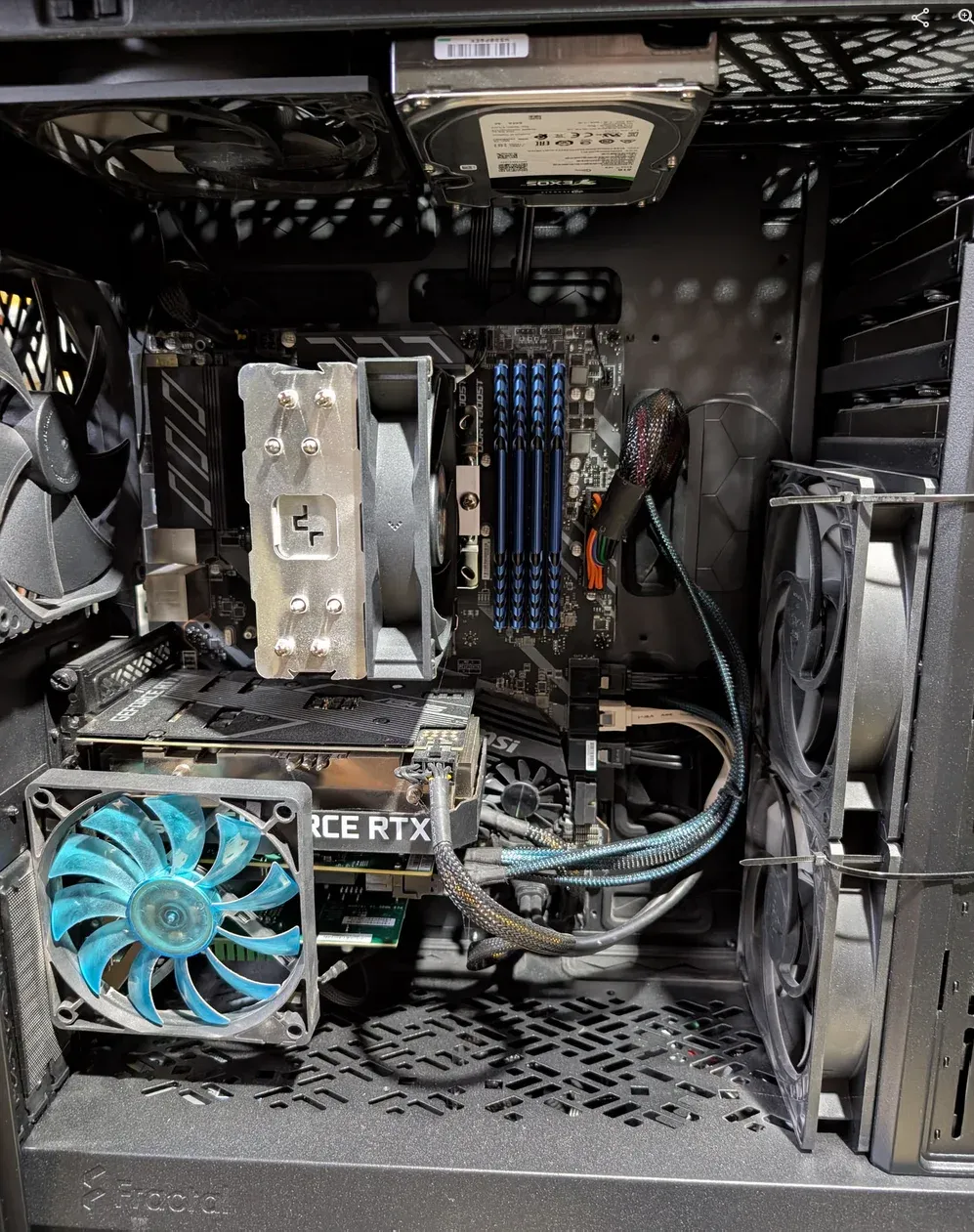
5. Hardware Monitoring & Fan Control (HWInfo64, Fan Control)
Before launching your first benchmark, install hardware monitoring software to track temperatures, clock frequencies, and fan speeds:
- Windows: HWInfo64 (for precise sensor data) or MSI Afterburner with RivaTuner Statistics Server (for live in-game overlays).
- Linux:
btopornvtopfor terminal-based performance monitoring.- For a "Windows like" task manager - Mission Center on Linux is great!
Having a real-time monitor running allows you to identify performance bottlenecks immediately. As detailed in my RAM optimization guide, background memory allocation issues are easily caught when using proper sensor tools.
6. Stability Testing & Benchmarking
Once you've got the system fully built, you want to do a bit of a 'burn in' test and ensure it's stable, long term! Nothing more frustrating than firing up your first game, and the system suddenly turns off after thermal throttling, due to something you missed.
Luckily there's some great free software out there to kick the tires on your new system, namely:
- HWInfo64: To monitor the individual Tdie/TjMax and GPU hotspot temps!
- Cinebench R23 /2024: Quick 10 minute CPU thermal throttle check. And;
- 3DMark / Superposition: GPU stress testing.
- MemTest86 / Karhu RAM Test: If you experience random game crashes or blue screens (BSOD) after enabling EXPO or XMP memory profiles, run a dedicated memory test to verify RAM stability.
There's a few others as well but these are by far and large, the golden standards and will absolutely punish a computer and stress it effectively.
Motherboard Vendor Bloat
📡
Don't install the motherboard vendor software unless you REALLY need/want it. These are pure bloatware!
Asus Armoury Crate, MSI Center, Gigabyte App Center: They all (each!) install like 10+ background services, telemetry / stats, background RGB controllers and other crud that degrade the system, introduce higher chances of 1% low frame rates and could cause micro-stuttering. Exactly what you want with your nice new expensive build right?
The better alternative for your case fan control:
- Install Fan Control (by Rem0o)
It's a 100% open-source lightweight replacement meant for managing case fans, without all the bloat!
For reference CPU thermal benchmarks under heavy load and real-world burn-in results, see my Ryzen 9800X3D Hybrid Workstation Build Guide:
The 2026 Hybrid Workstation: Building "Dirty Snow" (Ryzen 9800X3D + Linux)
I built "Dirty Snow," a Ryzen 9800X3D workstation running CachyOS. See how this hybrid beast crushes gaming and virtualization with surprising thermals.
Core LabCore Lab Joe

7. Discord & Game Overlays (RAM & GPU Performance)
Discord is the standard platform for multiplayer voice chat. However, Discord is an Electron app that can consume several gigabytes of resident RAM under heavy use. Especially with all the ads and other bloat they've added over the years...
If you are running a 16GB system memory layout, configure Discord to disable Hardware Acceleration if you experience GPU frame drops, and close the application entirely when playing demanding single-player games.
Lightweight Peripheral & Audio Utilities:
- OpenRGB: An open-source RGB lighting controller that manages motherboard, RAM, and GPU lighting without running heavy vendor software like Razer Synapse, Corsair iCUE, or Armoury Crate.
- Equalizer APO + Peace GUI: A free parametric equalizer for Windows headsets that delivers clean custom audio curves without installing bloated headset control suites.
For deeper fan curve optimization, static pressure tuning, and acoustic dampening, read my Silent Homelab & Fan Tuning Guide:
How to Build a Silent Homelab: A Guide to Fans, Racks, and Acoustic Treatment
A practical, three-part system for a quiet homelab: swapping enterprise fans for Noctua, choosing between open/enclosed/acoustic racks, and treating the room itself.
Core LabCore Lab Joe

8. Antivirus & Security: Is Windows Defender Enough?

Windows Defender is completely adequate for the majority of users today. It offers competitive real-time threat detection without the heavy background CPU overhead that plagued historical antivirus utilities.
If you require a dedicated antivirus suite for a shared household PC or remote workstation, you can source discounted security licenses via Kinguin using the same verified seller network mentioned earlier.
9. Game Save & Config Backups
Local save files, customized game configurations, and compiled shader caches reside on your primary NVMe drive. None of these files survive an unexpected drive failure or corrupt OS patch without an offloading strategy.
If you already operate a homelab or NAS node, point your local user configuration directories to a network share. Follow the deployment rules outlined in my Docker backup automation guide to keep your critical configurations replicated automatically.
Dedicated Game Save & Config Backup Tools:
- Ludusavi: The modern, open-source standard for game save backups on Windows and Linux (including Steam Deck). Powered by the PCGamingWiki database, it automatically detects save locations for thousands of games and backs them up to local drives, NAS shares, or cloud storage.
- GameSave Manager (GSM): The classic Windows utility for scanning AppData, Documents, and Registry keys to back up, restore, or transfer game saves across your library.
- Syncthing: An open-source, continuous file synchronization tool that silently mirrors local save directories (like
AppData/LocalorDocuments/My Games) to a home server or NAS in real-time.
❓ Frequently Asked Questions (FAQ)
Do I need third-party antivirus on a new gaming PC? Not usually. Windows Defender is genuinely competitive today and does not carry the performance overhead of older third-party suites. A dedicated license makes more sense for a shared household machine than a gaming-only rig.
Should I install every game launcher up front? No. Only install a launcher for a platform you already have an active library on. Each launcher adds a background process with its own auto-updater, which drains system RAM.
Where should I update drivers from? Straight from the vendor: your motherboard maker's site for BIOS and chipset drivers, and Nvidia or AMD directly for GPU drivers using their clean-install option.
Is it worth buying a Windows license instead of using Linux? It depends on your game library. If you play competitive multiplayer games with kernel-level anti-cheat, Windows 11 is required. Otherwise, Linux distributions like CachyOS offer better resource management on leaner RAM configurations.
What should I back up on a gaming PC? Save files, custom configs, and shader caches at minimum. Point these directories at a local NAS or secondary storage drive before a drive failure occurs.
Comments
Nothing yet. Say the first thing.
Sign in to join the conversation.