
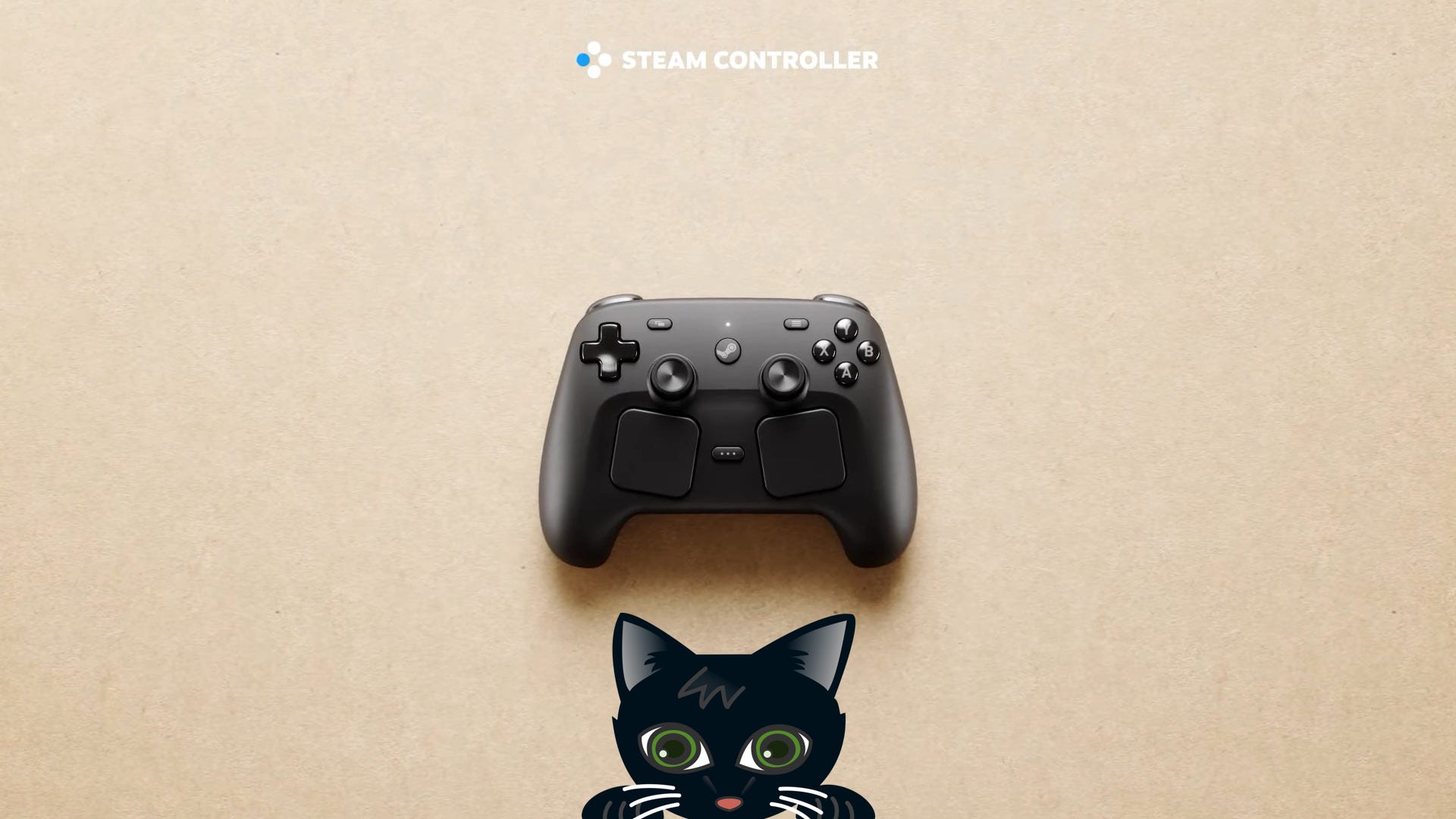
It’s finally time for me to fulfill my sites namesake, I’m reviewing a controller. Obviously, I’m talking about the Steam Controller. This is something I’ve been waiting for for a long time.
I loved the original steam controller, I literally own 4 of them including 2 still in their original packaging as backup if the others broke, but what ended up pushing me away from using it more was the lack of a second thumbstick. Steam Input though was such a powerful tool it was astonishing what you could accomplish with it and I couldn’t wait to see what came next. Then, the Steam Deck came and I also fell in love with that and the controls.
So when this Steam Controller was announced I was ecstatic. I couldn’t wait to see how it felt to use and how I could use Steam Input for some nuts things, as it is for. Well, I’ve been using it for just under a month and I’ve found some really awesome uses for the buttons and track pads and I’ve basically found my new fulltime controller for literally every game.
This review is gonna start with how it feels to play a variety of games, I’ve played a ton of different types of games with it so I could try it out. Then I’m gonna talk about Steam Input and how it makes the controller into the perfect controller. After that, I’ll go over any downsides that I’ve experienced in my month of playing with the controller. Finally I’m gonna give my general thoughts and my recommendation on if you should spend the hundred bucks, or more for those of you reading from outside of the States (which according to my analytics is a whole lot of you). Now, let’s push on and finally fulfill my ultimate purpose, reviewing a controller.
Important Note: While I originally intended on including a section where I would compare the controller to others I think that’s not really possible in a written format without sounding quite....abstract. As such all I will say comparison wise is that I found it more comfortable than the 8bitdo Ultimate 2, the original Steam Controller, and the PS5 controller and about on par with the Xbox Controller. There have been some who called out the screw holes as uncomfortable but I never had a problem with it. And as I really like the next to each other thumbsticks I found it quite nice to hold and use overall. As did my partner whom has their own that they’ve been using as well and, despite having an adjustment period, quite likes it.
I’ve had the controller for a month now and I’ve played a lot of different games with it. I play Mixtape, Monster Hunter World and Wilds, Baldur’s Gate 3, Peak, 007: First Light, Lego Batman Legacy of the Dark Knight, Helldivers 2, Final Fantasy 7 Rebirth, Final Fantasy 16, FlyKnight, Far Far West, Devil May Cry 1, Flock Around, Webfishing, and The Division 2. There’s a lot of variety in that list of games and if there’s one thing playing that much has taught me it’s that the Steam Controller can handle anything.
Now, of course many of these required some tinkering, I messed around with my Baldur’s Gate 3 set up a lot so I could do some really helpful actions and so that I was basically playing it like I was on Mouse and Keyboard instead of a Controller. Primarily just because it was easier to deal with. Others, meanwhile, just lead to me adding a couple changes like my standard screenshot and recording back button usages. All of them though I was able to use the controller for.

That’s the thing about the Steam Controller, it can handle anything you throw at it. Of course, many people have wondered whether using the right trackpad for a mouse while also still using the other buttons and even joysticks and such would feel good, which is a very reasonable worry. Well, I can say that at least for me, someone with small-ish hands, it felt fantastic. Baldur’s Gate 3 was the real test in this department as I used literally all of the buttons and touchpads and thumbsticks for something and it genuinely felt fantastic.
If you have a game that you are wondering if it would work well with the controller then the answer is yes, but it might require some tinkering to get it just right for you. Which, actually, leads me to my next point...
Okay so let’s say you’re new to the whole Steam Input thing, what is it? Steam Input is a powerful piece of integrated Steam software that allows you to not just change what button is bound to what for your controller, but also allows you to make it do whatever button(s), keyboard inputs, mouse inputs, or just system inputs (things like taking a Screenshot or activating a screen recording that does in fact record the whole audio on your PC not just the game) that you could want. It’s an incredibly powerful tool that let’s you make the game play how you want it to play.
For instance, as an example of something I used Steam Input for while on my Steam Deck. In Animal Well you get a cool bubble power which you can jump on top of. The thing is that you can, if you press buttons quick enough place down another bubble next to you and jump onto that one which can allow you to cross massive gaps in areas you really shouldn’t have been able to. Well, I had such trouble tapping two things at the exact same time despite them being right next to each other so I decided to make one of the back buttons be those two buttons. Because of that whenever I pressed that back button I was able to take the action of pressing those two buttons in one button press and do the fancy trick everyone was doing with the bubble. All because of Steam Input. It literally let me play the game more comfortably.
But wait, that’s with the Steam Deck, what about the Steam Controller? What have I used Steam Input for now not years ago? Well, that’s a good question. Recently I’ve been playing a lot of Monster Hunter Wilds (a truly wonderful game) and in that they introduce something called a Focus Mode. Essentially when you hold the left trigger you get a reticle in the center of the screen and any attack you do goes in the direction you are looking instead of the direction the character is facing. This was a way of making the game more casual friendly as people like me have been frustrated by how I’ve tried attacking big ol’ Monsters in Monster Hunter World but because I ended up facing the slightly wrong direction nothing connected. The Focus Mode does that and reveals Wounds which allow you to do extra damage. It’s a whole mechanic and makes the game feel so much better to play. But holding the left trigger for that, when you’re someone like me who is gonna probably always be using it, kinda sucks and hurts. So what’s a Cat to do?
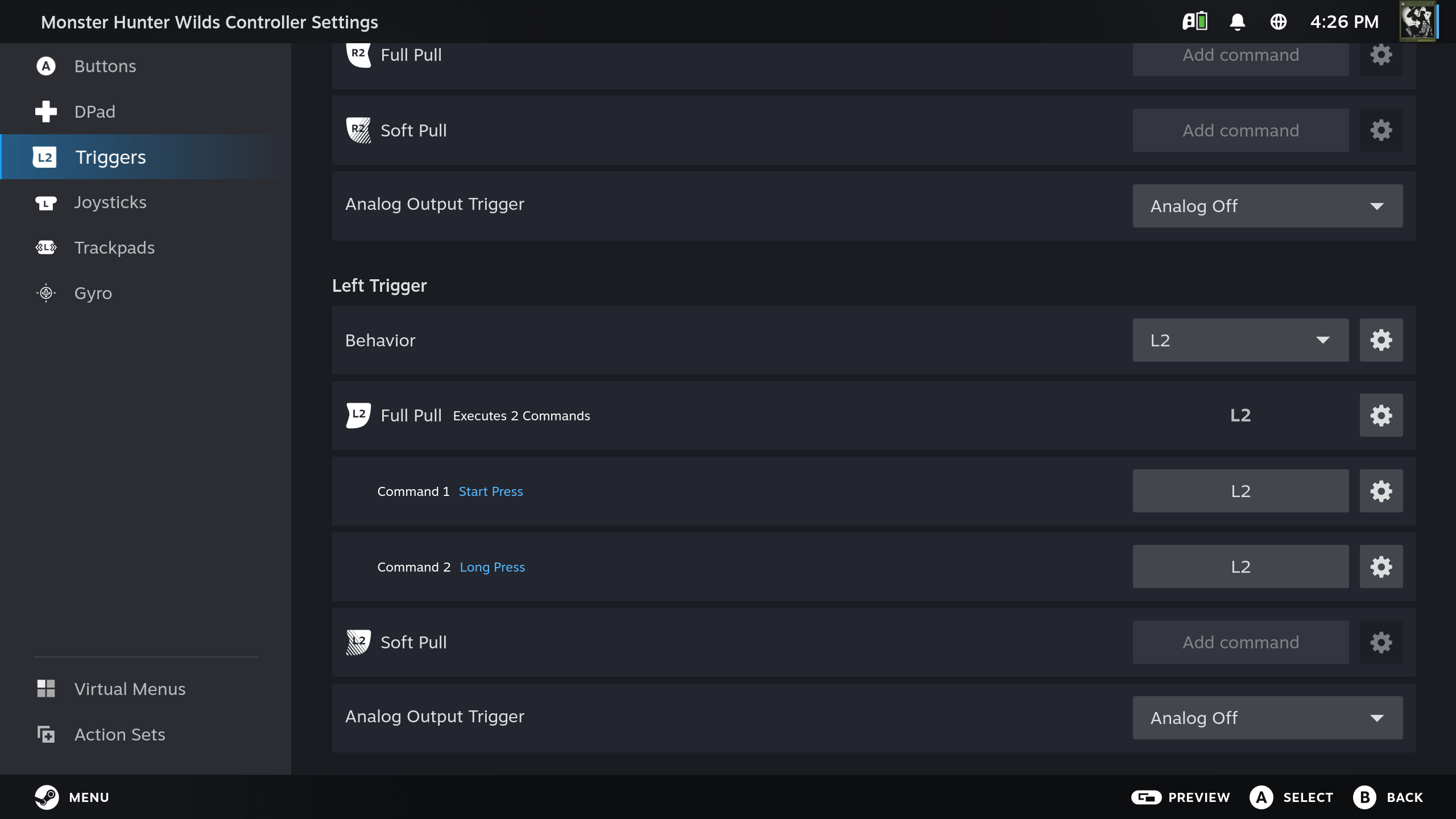
Well. I decided to use Steam Input to do two things. First, the left trigger also zooms in and out of maps and goes through some things in menus so I let that stay by making that a normal action but then having a separate action that, when held for a certain amount of time, toggles the focus mode. Because of that I can just hold the trigger for a couple seconds, toggle it, and have focus mode on as much as I want. Then all I have to do to un-toggle it is just press the trigger again. Not even hold it again, just press it once. It’s an amazing thing about Steam Input, it literally helps you play a game more comfortably.
But that’s not even talking about Gyro. Personally, I was skeptical about using Gyro for anything, but then I tried it. In Far Far West (another truly wonderful game) you play a cowboy running around doing Helldivers 2 like stuff around a map. It’s an FPS, has great gunplay, and is a ton of fun to play, particularly with friends. Well here I decided to try using Gyro for aiming. What people recommend is using it for fine movements after the main aiming does majority of the work. But how could you do this you ask? Simple. Use Steam input so that Gyro is only turned on during a full pull of the left trigger. This means that when you sorta half pull the left trigger you’ll do the characteristic aim down sights to get a good look. There you can aim for the enemy all you want. But what if you have a large group of enemies and you killed that first one yourself but the others are slightly next to it but not next to it enough that you want to use your thumbsticks? Well simply fully pull that trigger and boom you’ve got Gyro and can move the controller to get those enemies easily when it’s set to Gyro to Mouse function. With that function you can change a bunch of settings, but particularly the most important is the sensitivity. Do you want slight movements of the controller to move it a lot or a little? That’s all changeable.
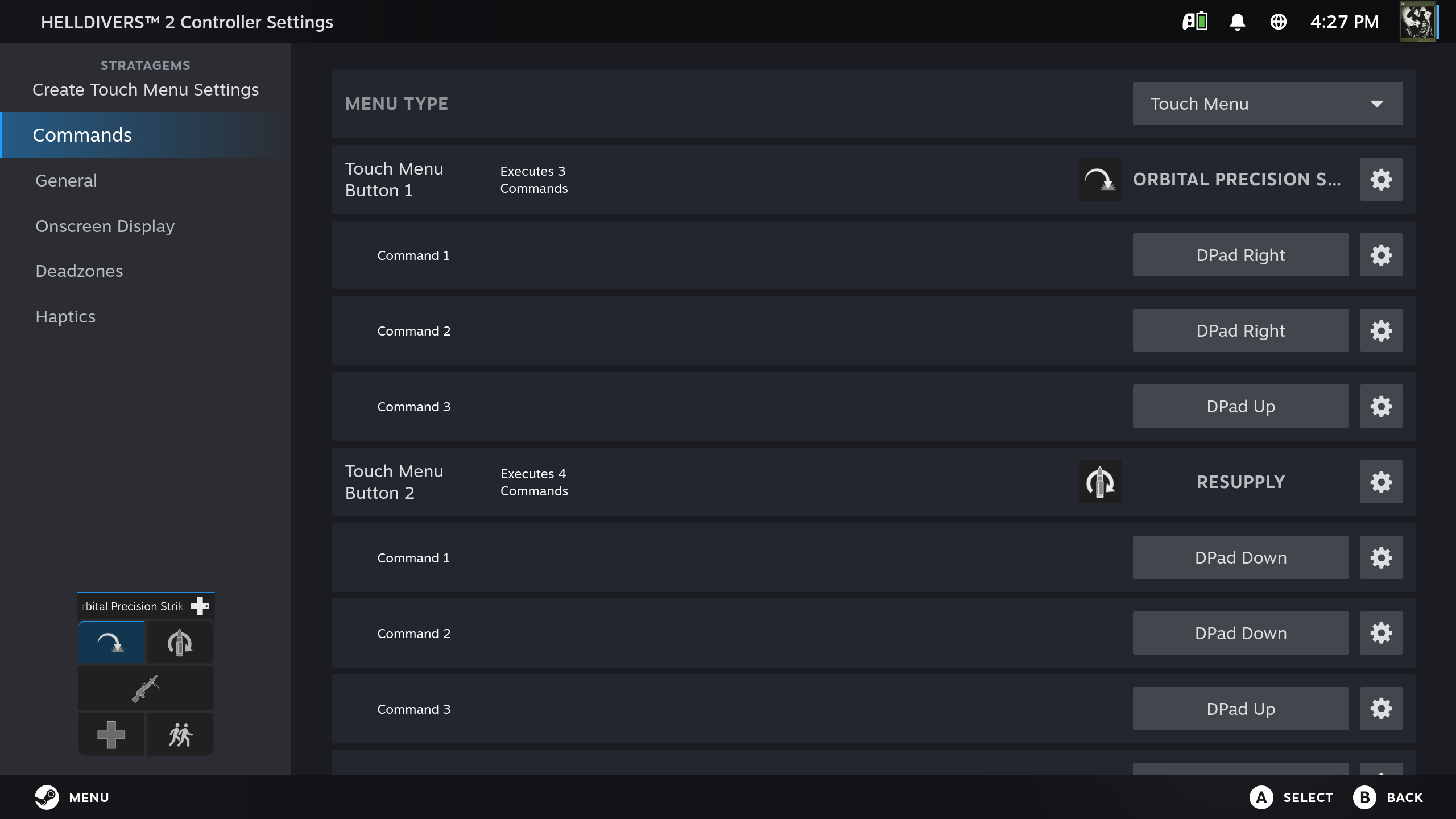
The thing about Steam Input is that it takes your controller from being something a developer decides how it should work best and makes it into something you get to decided how you want it to work best. It makes each game into a more personalized experience. It allows you to play how you want.
Plus, there’s also the tremendously powerful tool of Community Layouts that allow you to try to find someone who has already done all the work for that thing you want the controller to do and then use their layout for the controller (something that already has a ton of options for because of the button parity it has with the Steam Deck). You’re then able to change it to make it yours as well! The community is honestly one of the best parts of Steam Input because you can see what others have done, use what they have done, and still make changes. Steam Input is one of the defining features of the controller and I am so glad it exists.
The thing about Steam Input is that it often mixes inputs. So the majority of the controller will have normal controller assignments (the A button is the normal A button) but then we introduce the touchpad which, in some games, is best not being a controller assignment at all. Many people like to use them as a mouse while keeping the buttons as the normal controller buttons. Or there’s the Gyro which, for now, is best used as a mouse input. These lead to mixed inputs on the controller which for many games is fine, many many handle them like nothing at all. Some do just change the button prompts during the different input, but others....struggle.
For instance, I was playing 007: First Light and really enjoying it on the controller. During the training montage at the beginning I decided to use the gyro as a mouse for minor adjustments to my shot, something I went over doing in the prior section because of how great it was. Well, here in First Light the game fucking panicked. It didn’t know what to do. So when I used the Gyro it worked sure, but then it wouldn’t go back to controller for a bit. It was stuck as mouse and keyboard and I had to pause and unpause the game to get it back to working.
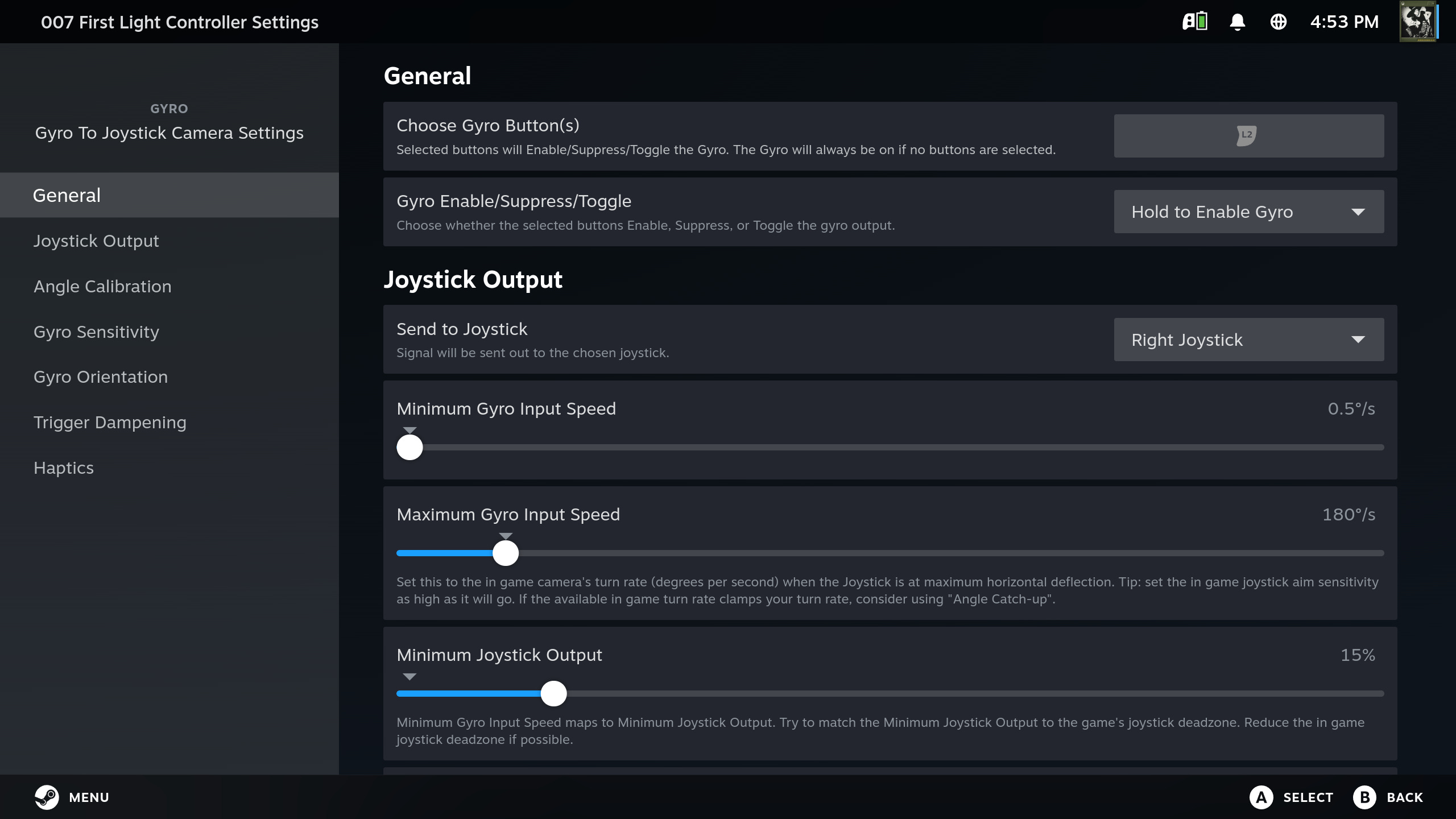
Now, you’d think that there are several modes to the Gyro so maybe using it as a mouse here just wasn’t recommended and wouldn’t work like it did for me in Far Far West. I then changed the Gyro to be a joystick and it just...didn’t work. I mean it would work sometimes, but often it didn’t and usually when it did it was after moving the controller around far more than it needed to be moved in the mouse mode. See, it turns out that the Gyro to Joystick mode is kinda broken at the moment. This is a purely software issue so it’s not the controllers fault, but it is still a frustration. Steam Input is basically the most powerful part of the controller, but when one part of it doesn’t work it jumps out at you and gets really annoying. Course you can figure out ways around it but that takes a lot of messing about and sometimes what’s best with software that’s kinda broken is to just wait for it to get fixed.
There have been no other downsides to the controller.
Like what I do then Buy me coffee?
Overall the Steam Controller is one thing to me, and that’s exactly what I wanted it to be, near perfect. Sure there is the one downside I talked about but that’s the thing about every piece of tech out there: nothings perfect. The Steam Controller has done what no other controller has managed to do for me, not even the original, and that’s provide me with a satisfying tinkering controller experience that allows me to play how I want to while remaining comfortable. One that doesn’t feel limited by others decisions, one that let’s me mess around enough that I can experiment and find something that feels best. It also is just more comfortable for me than any other controller I’ve used and I just adore every second I’m playing a game with it.
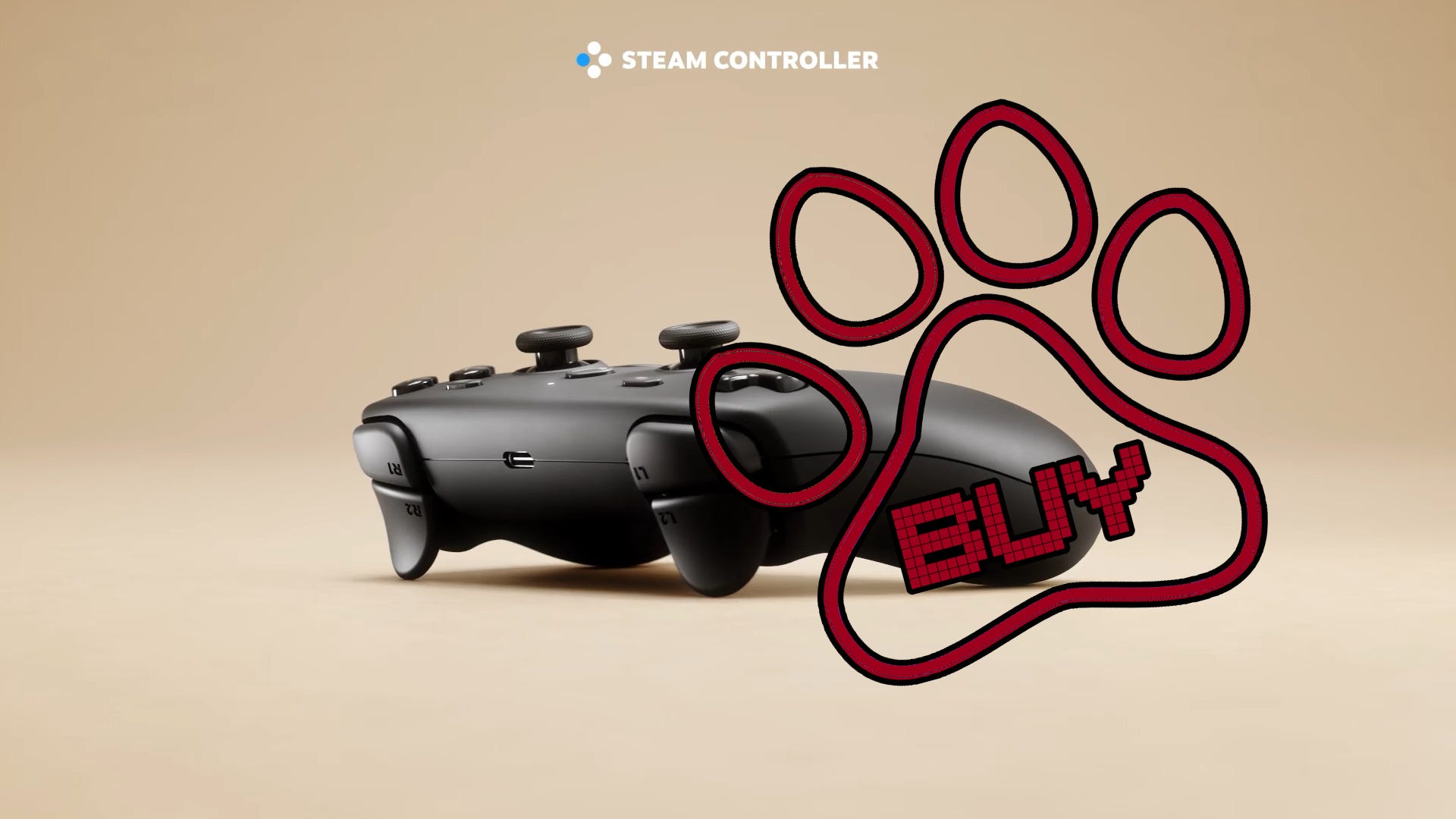
So then what do I recommend? Should you buy it? Or, rather, should you reserve it and hope that Steam sends you an email to get one sooner rather than later? Yes. Yes if you play with a controller and want one that let’s you handle literally anything you throw at it then you should buy it. And if you thought that because it only works with Steam it’s a no buy then rejoice! There is software that exists to allow it to work with whatever you want. It’s an amazing controller that deserves to be your main controller for all your PC gaming needs.
And with that, my blogs purpose has been fulfilled, I have reviewed a controller. I can finally leave my corner. What does that mean you might ask? Absolutely nothing, it’s just a nonsense joke. So then...let’s talk about you! Have you bought the controller? If you did how do you like it? Have you found any use for the grip sense “buttons”? And if you haven’t bought the controller, do you intend to? Have you just reserved one and are desperately waiting for Steam to send you that damn email? Let me know in the comments!
Meow,
Cat
Comments
Nothing yet. Say the first thing.
Sign in to join the conversation.