
AI scheduling is now standard. Claude, ChatGPT, Perplexity, Codex, n8n, Hermes, OpenClaw, cron, and launchd can all start recurring work. They own different parts of what happens next.
OpenAI rolled out ChatGPT Tasks in January 2025. Anthropic added Claude Cowork scheduled tasks in February 2026. By July, Perplexity Computer supported recurring cloud tasks too.
By August 2026, Claude Code documented cloud Routines, local Desktop tasks, and session-scoped /loop. ChatGPT offered Tasks and Scheduled project workflows. Perplexity kept both Scheduled Searches and Computer Scheduled Tasks.
I have enjoyed seeing what each one can do. Every example made me think of another recurring job I could hand over.
So I started using more of them.
One job lived in Claude scheduled tasks. Another ran through Codex.
Others depended on local scripts or agent systems. Their outputs landed in different folders and chats.
I could no longer answer three simple questions from one place:
What is supposed to be running?
What did one Run do?
What came back?
Moving one job raised another question: what else would I disturb?
I wanted the job definition, sources, instructions, history, and results to stay together, even when I changed the scheduler or the AI doing the work.
So I added an automations layer to the same shared AI second brain.
It keeps recurring Job definitions in periodic_jobs/. It keeps retrieved items and Receipts in OUTPUTS/. It gives every Run a history I can open later.
I could finally open one place and answer those three questions.
That became the map for this article.

Schedule One Automated Intake, then add several more.
Run the Automation with Claude or Codex, or another AI agent of your choice
Before I automate a job inside the AI second brain, I needed one place to see the recurring work I already had.
So I built a local dashboard called Pipeline.
Fleet answers the first question: what is supposed to be running?
It puts active routines and older paused definitions in one view. It shows each Job’s latest Run, Run count, recent status, and how many files it wrote.
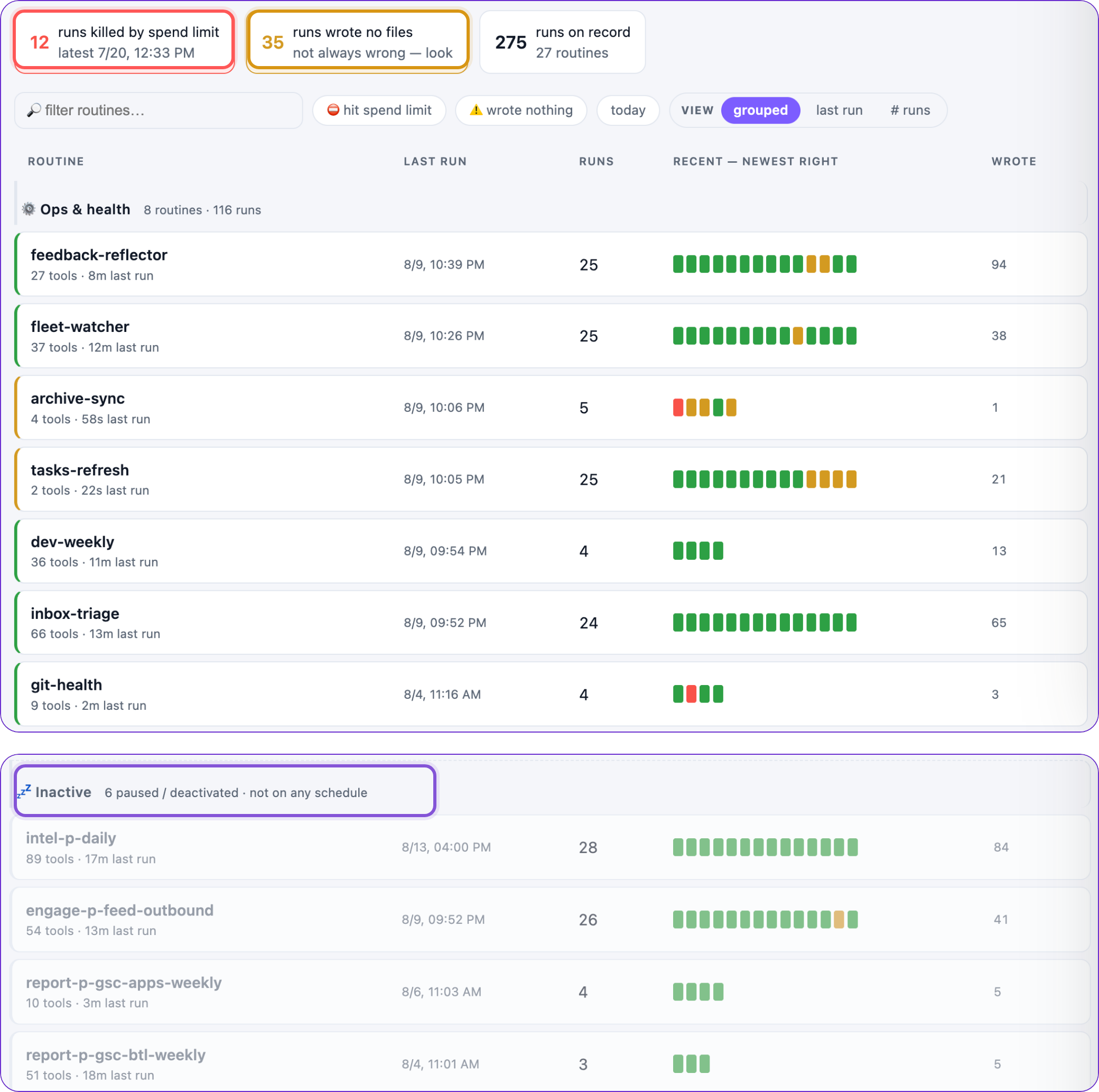
Green means a Run passed. Amber tells me to take a closer look. Red means a Run failed or stopped, including when an account hit its spend limit.
Second, what did one Run do?
I can open an automation, see its history, and start the same Job with Run now. Opening one Run shows its input, tool use, outputs, and result.
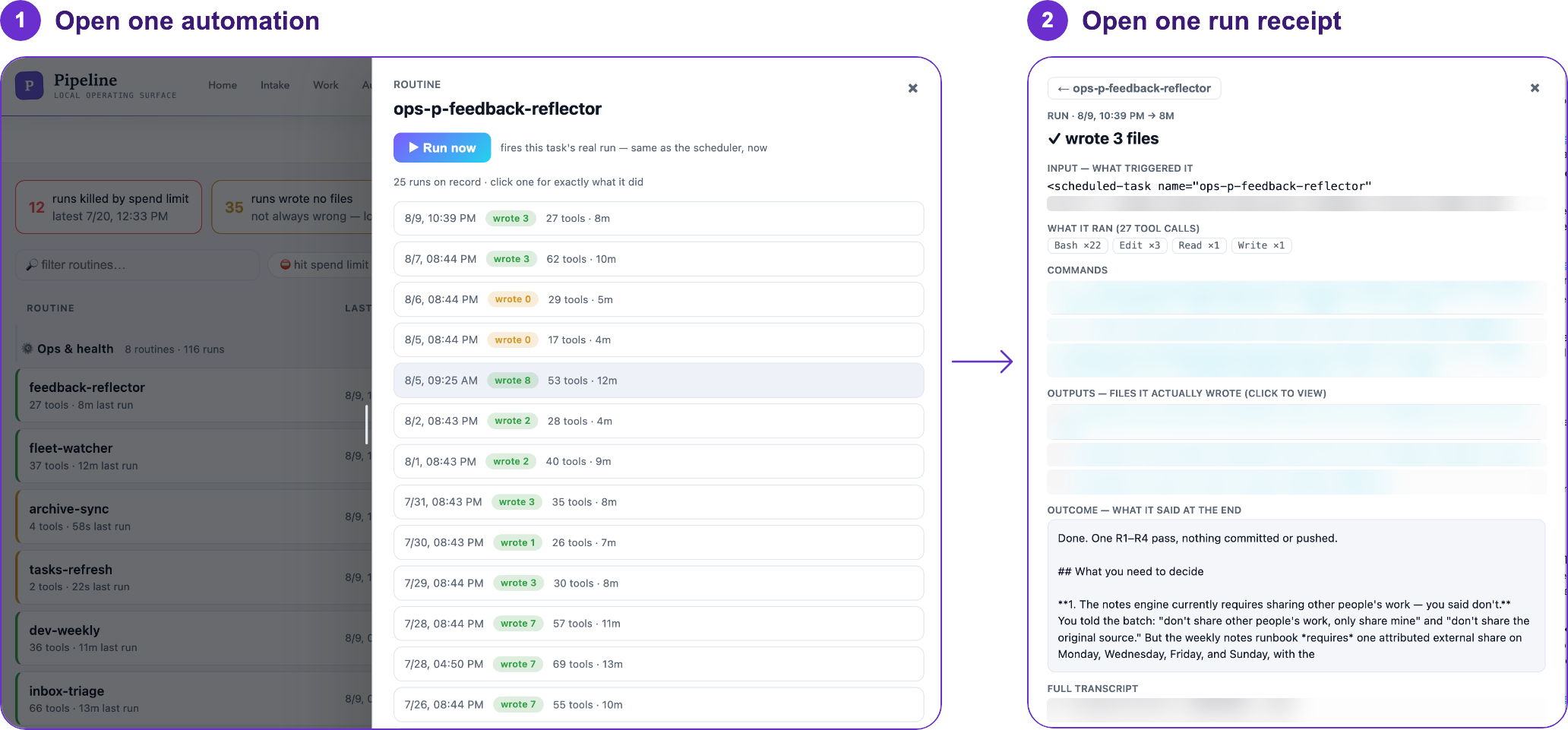
The color points me to the Run. The Receipt explains it.
Third, what came back?
My Content Intelligence intake gathers material from followed Substack feeds, official platform news, Hacker News, Reddit, GitHub, email, websites, and YouTube.
The view below moves from all Source platforms, to the cards from one Source, to the details for one item.
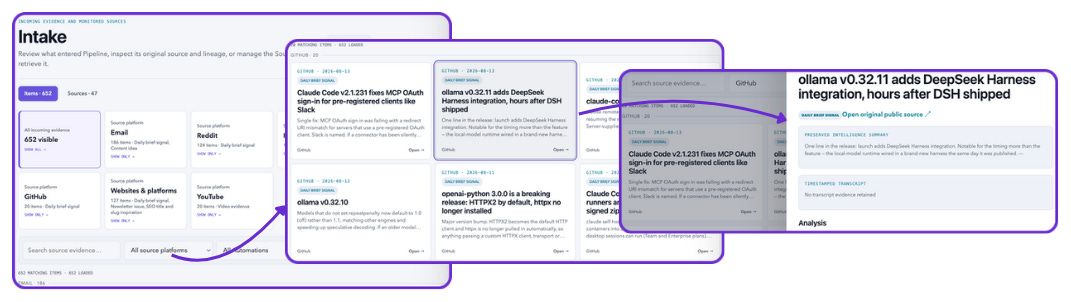
I can start with a source, browse what arrived, and open one card. The card keeps the original source, the automation that collected it, the run that created it, and its receipt.
The scheduler can change. The AI can change. The job and its history still have a home.
This intake is one starting point. Later articles will follow the work into Synchronize, Analyze, Produce, Maintain, and Act externally.
Before we get to the implementation, a little background on Practical AI Builder.
I’ve been reshaping the program around five focused build days, so we have time to work through one finished build together. The next sprint, Make Claude Automation Stick, runs September 14–18. This article is where we begin. Future sprints will be a Founding Member benefit.
But I don’t want to make that change without first giving you a chance to lock in sprint access at the annual rate.
Current paid members will keep access while their membership stays active. Upgrade to annual by September 14 at $160 per year, and you can too. After September 14, new sprint access moves to the $600 Founding Member tier.
Annual members also receive the full article archive, previous Practical AI Builder material, plus the full suite of guides, prompts, Skills, and workflows inside the member portal.
Now, let’s get back to work.
First, download the shared AI memory starter packet here:
Comments
Nothing yet. Say the first thing.
Sign in to join the conversation.