
I recently wrote a children’s book about one of my ancestors and published it with Kindle Direct Publishing (KDP), at Amazon. Several people have asked me about the process, so here is the process I followed.
When you start writing your book, you should keep a few things in mind. First, KDP has page minimums for different book types. I didn’t know this before I started. It would have saved me a lot of extra work. You can find the specifications here. If you’re completely new to self-publishing, Kindle University is well worth the time spent.
Family History with Bill Moore is a reader-supported publication. To receive new posts and support my work, consider becoming a free or paid subscriber.
Since I was writing a children’s book, I wanted an illustration that matched the text on every page. That required me to create a “fixed layout” book for the print version. KDP defaults to a reflowable format that moves text and artwork to different pages based on the printable space on a page. That’s appropriate for more text-heavy books without illustrations on each page. But it doesn’t work for children’s books. KDP has a produce called “Kindle Create” that allows you to build your book a page at a time. It makes publishing relatively easy.
I should add another warning here. This is something I learned the hard way, and to be honest, I still don’t have it completely fixed. Just because you get your book formatted properly for a paperback or hardback edition doesn’t mean it’s going to be set up correctly for e-books. E-books are reflowable by definition. This causes a lot of problems for picture books. I was able to work around this problem for tablets and phones. I was never able to get the book to look right on the Kindle reader. If I decide to do another children’s book, I will probably do it only in print format.
Thanks for reading Family History with Bill Moore! This post is public so feel free to share it.
But, back to how I created my book. I based the book on the life story of my 4th great-uncle. I wrote two or three sentences on each major event of his life. After I had a good idea of what I wanted to say, I ran the text through Claude.ai to be sure the book was written at an appropriate level for the 4- to 10-year-old children I thought would be interested in the story.
My next step was the most time-consuming one of the entire process. I wrote a script for ChatGPT 4.0 to create the illustrations. Admittedly, this was done by trial and error. The prompt I finally used was this:
You are a children's book illustrator creating artwork for a book designed to appeal to children aged 4 to 10. The book will tell the life story of Roby Moore, who grew up on a family farm, enlisted as a Union soldier when he was 16, and was injured in the Battle of Gettysburg. You will be provided the text to go with each illustration. Since the book follows Roby's life from being a young teenager through adulthood to old age, you will show him at the appropriate age in each illustration. You will dress him in clothing appropriate to his age and occupation. Illustrations should be produced in portrait format. Please provide three illustrations for each page.After creating the script, I entered the text for each page. I had to do a bit of negotiating with ChatGPT to get the illustrations I wanted. In some cases, it would do strange things like showing a shovel with the handle going through the blade. I would ask it to make the appropriate changes, select the image I liked best, and paste it onto the page in Kindle Create. I repeated this process for each illustration.
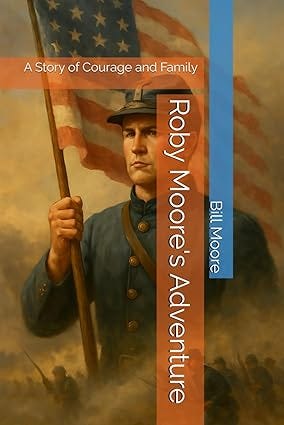
After the text and illustrations were complete, I gave ChatGPT one more task: creating the cover illustration. I wanted something that was inspirational and tied directly to the story. When I had an illustration I liked, I uploaded it to KDP’s Cover Creator. It allowed me to experiment with different title placement before choosing the one I wanted.
After I had the text, illustrations, and cover ready, I uploaded everything to KDP. The app will flag potential issues with the book before it’s sent for printing. At this point, you choose the paper type and whether to print in color or black and white. Based on that, the app will tell you the printing cost and allow you to set the retail price for the book.
The final stage is a manual approval process at KDP. It takes a few days. Assuming everything is good, your book will appear for sale at Amazon. You will also be able to order author copies for the cost of printing. They’re good for giving to friends and relatives.
The process at KDP is easy enough that anyone can publish a book. I haven’t used any other self-publishing companies, so I can’t tell you if they would be easier or harder to use. But I encourage anyone who’s ever thought about publishing a book to give it a try.
Comments
Nothing yet. Say the first thing.
Sign in to join the conversation.