
When paid (especially yearly) subscriptions are for publications such as this, that hide nothing behind a paywall, it may be worth supporting the author directly - pay less and yet give more.
With NO AUTOMATIC REPEATS
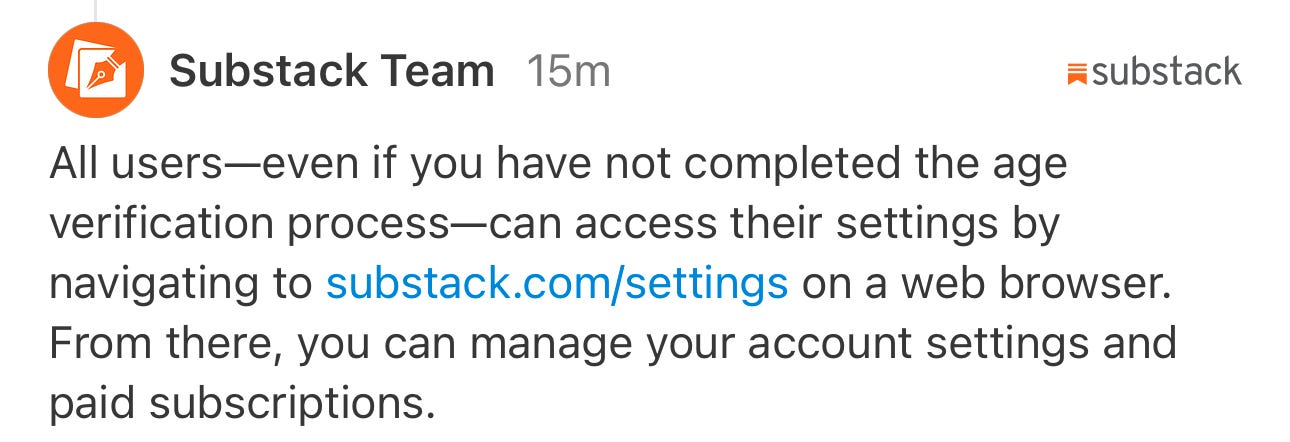
Go to your Substack Settings, find the publication under Subscriptions, click its name, scroll to Account actions, and select the “To cancel your paid subscription, click here” link, then confirm by clicking Cancel Subscription to stop future payments, though access continues until your current billing period ends.
Step-by-step Cancellation
Log In: Visit substack.com and log into your account.
Go to Settings: Click your profile picture in the top-right corner and select “Settings”.
Find Subscriptions: Scroll down to the “Subscriptions” section.
Select Publication: Click on the specific paid publication you wish to cancel.
Initiate Cancellation: On the publication’s page, scroll to “Account actions” and click the link that says “To cancel your paid subscription, click here”.
Confirm: Follow the prompts, potentially skipping surveys or offers, and select “Cancel Subscription” to finalize.
Important Notes
Access Continues: You’ll keep paid access until the end of the period you’ve already paid for (e.g., month, year).
Downgrade: After cancellation, you’ll become a free subscriber to that publication.
Refunds: Refunds are generally rare, as money goes directly to the writer; you might need to contact the writer directly
An author or publisher can cancel a subscriber’s paid subscription directly through their publication’s admin or dashboard settings on platforms like Substack. This action is typically initiated by the author and requires a few specific steps.
On Substack
To cancel a single subscriber’s paid subscription and potentially issue a refund as an author on Substack:
Navigate to your publication’s dashboard and select the Subscribers tab.
Locate the specific paid subscriber by searching for their name or email address.
Click on the three-dots menu (...) next to their name.
Select “Cancel subscription” from the options.
Choose whether to issue a full or pro-rated refund for their most recent transaction. This will also downgrade them to a free subscriber.
Important Notes for Substack:
Refunds: Always issue refunds through the Substack Subscribers dashboard. Refunding directly through Stripe may result in Substack’s 10% fee not being returned.
Notification: The subscriber will be notified via email about the cancellation and refund, and their paid benefits will continue until the end of the period they’ve already paid for.
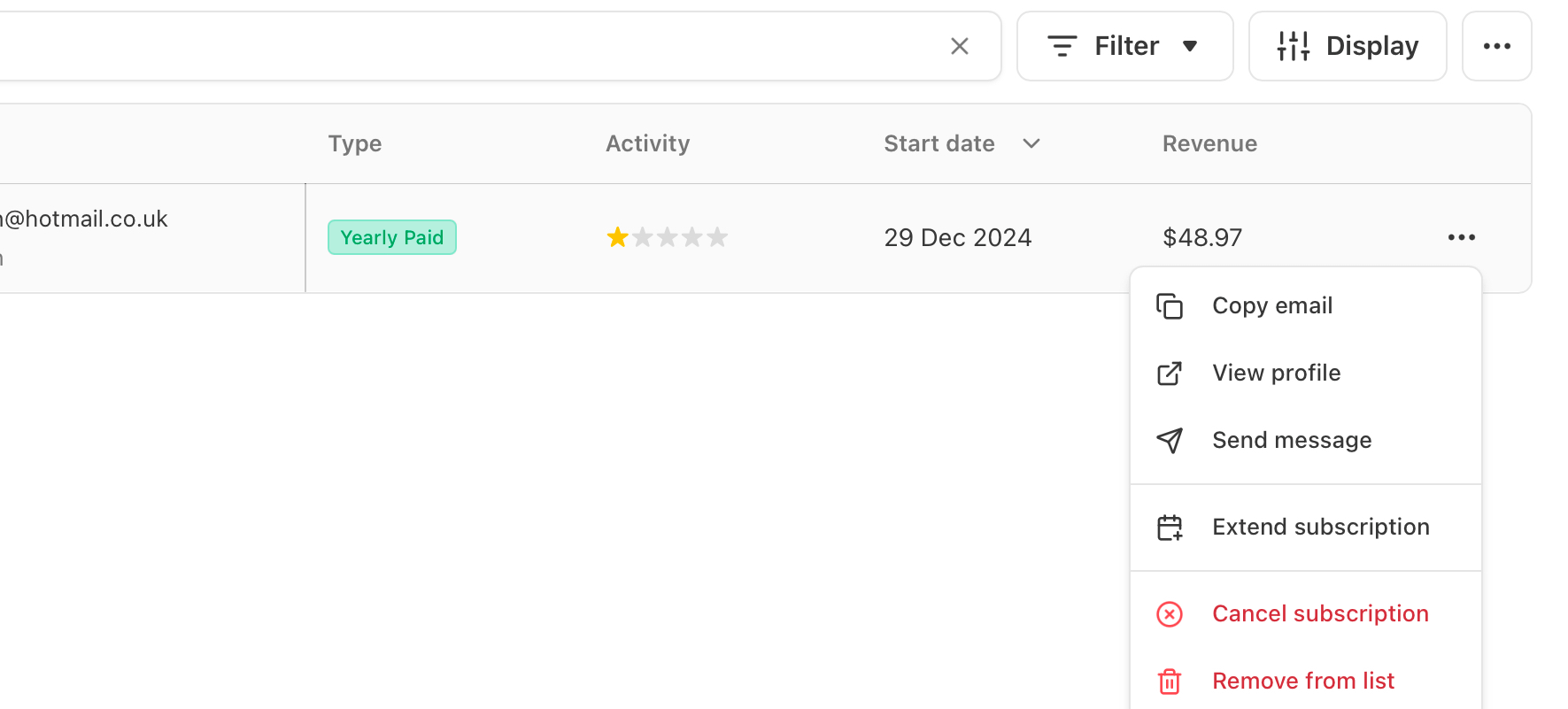
Three dots at end.
Cancel subscription
From the three options that follow choose Cancel Repeat Subscription (not shown)
No posts
Comments
Nothing yet. Say the first thing.
Sign in to join the conversation.