1. Introduction
Hardware that enables Virtual Reality (VR) and Augmented Reality (AR) applications are now broadly available to consumers, offering an immersive computing platform with both new opportunities and challenges. The ability to interact directly with immersive hardware is critical to ensuring that the web is well equipped to operate as a first-class citizen in this environment.
Immersive computing introduces strict requirements for high-precision, low-latency communication in order to deliver an acceptable experience. It also brings unique security concerns for a platform like the web. The WebXR Device API provides the interfaces necessary to enable developers to build compelling, comfortable, and safe immersive applications on the web across a wide variety of hardware form factors.
Other web interfaces, such as the RelativeOrientationSensor and AbsoluteOrientationSensor, can be repurposed to surface input from some devices to polyfill the WebXR Device API in limited situations. These interfaces cannot support multiple features of high-end immersive experiences, however, such as 6DoF tracking, presentation to headset peripherals, or tracked input devices.
1.1. Terminology
This document uses the acronym XR throughout to refer to the spectrum of hardware, applications, and techniques used for Virtual Reality, Augmented Reality, and other related technologies. Examples include, but are not limited to:
-
Head-mounted displays, whether they are opaque, transparent, or utilize video passthrough
-
Mobile devices with positional tracking
-
Fixed displays with spatial tracking capabilities
The important commonality between them being that they offer some degree of spatial tracking with which to simulate a view of virtual content.
Terms like "XR device", "XR application", etc. are generally understood to apply to any of the above. Portions of this document that only apply to a subset of these devices will indicate so as appropriate.
The terms 3DoF and 6DoF are used throughout this document to describe the tracking capabilities of XR devices.
-
A 3DoF device, short for "Three Degrees of Freedom", is one that can only track rotational movement. This is common in devices which rely exclusively on accelerometer and gyroscope readings to provide tracking. 3DoF devices do not respond to translational movements from the user, though they may employ algorithms to estimate translational changes based on modeling of the neck or arms.
-
A 6DoF device, short for "Six Degrees of Freedom", is one that can track both rotation and translation, enabling precise 1:1 tracking in space. This typically requires some level of understanding of the user’s environment. That environmental understanding may be achieved via inside-out tracking, where sensors on the tracked device itself (such as cameras or depth sensors) are used to determine the device’s position, or outside-in tracking, where external devices placed in the user’s environment (like a camera or light emitting device) provides a stable point of reference against which the XR device can determine its position.
1.2. Application flow
Most applications using the WebXR Device API will follow a similar usage pattern:
-
Query
navigator.xr.isSessionSupported()to determine if the desired type of XR content is supported by the hardware and UA. -
If so, advertise the XR content to the user.
-
Wait for the window to have transient activation. This is most commonly indicated by the user clicking a button on the page indicating they want to begin viewing XR content.
-
Request an
XRSessionwithin the user activation event withnavigator.xr.requestSession(). -
If the
XRSessionrequest succeeds, use it to run a frame loop to respond to XR input and produce images to display on the XR device in response. -
Continue running the frame loop until the session is shut down by the UA or the user indicates they want to exit the XR content.
2. Model
2.1. XR device
An XR device is a physical unit of hardware that can present immersive content to the user. Content is considered to be "immersive" if it produces visual, audio, haptic, or other sensory output that simulates or augments various aspects of the user’s environment. Most frequently this involves tracking the user’s motion in space and producing outputs that are synchronized to the user’s movement. On desktop clients, this is usually a headset peripheral. On mobile clients, it may represent the mobile device itself in conjunction with a viewer harness. It may also represent devices without stereo-presentation capabilities but with more advanced tracking.
An XR device has a list of supported modes (a list of strings) that contains the enumeration values of XRSessionMode that the XR device supports.
Each XR device has a set of granted features for each XRSessionMode in its list of supported modes, which is a set of feature descriptors which MUST be initially an empty set.
The user agent has a list of immersive XR devices (a list of XR device), which MUST be initially an empty list.
The user agent has an immersive XR device (null or XR device) which is initially null and represents the active XR device from the list of immersive XR devices. This object MAY live on a separate thread and be updated asynchronously.
The user agent MUST have a default inline XR device , which is an XR device that MUST contain "inline" in its list of supported modes. The default inline XR device MUST NOT report any pose information, and MUST NOT report XR input sources or events other than those created by pointer events.
Note: The default inline XR device exists purely as a convenience for developers, allowing them to use the same rendering and input logic for both inline and immersive content. The default inline XR device does not expose any information not already available to the developer through other mechanisms on the page (such as pointer events for input), it only surfaces those values in an XR-centric format.
The user agent MUST have a inline XR device , which is an XR device that MUST contain "inline" in its list of supported modes. The inline XR device MAY be capable of supporting the inline-stereo feature descriptor if it can expose its supported primary views as part of the HTML document. The inline XR device MAY be the immersive XR device if the tracking it provides makes sense to expose to inline content or the default inline XR device otherwise.
Note: On phones, the inline XR device may report pose information derived from the phone’s internal sensors, such as the gyroscope and accelerometer. On desktops and laptops without similar sensors, the inline XR device will not be able to report a pose, and as such should fall back to the default inline XR device. In case the user agent is already running on an XR device, the inline XR device will be the same device, and may support multiple views. User consent must be given before any tracking or input features beyond what the default inline XR device exposes are provided.
The current values of list of immersive XR devices, inline XR device, and immersive XR device MAY live on a separate thread and be updated asynchronously. These objects SHOULD NOT be directly accessed in steps that are not running in parallel.
3. Initialization
3.1. navigator.xr
 partial   interface   Navigator  {
  [ SecureContext ,  SameObject ]  readonly   attribute   XRSystem   xr ;
};
The xr attribute’s getter MUST return the XRSystem object that is associated with it.
3.2. XRSystem
[ SecureContext , Exposed = Window ] interfaceXRSystem: EventTarget { // Methods Promise < boolean > isSessionSupported ( XRSessionModemode); [ NewObject ] Promise < XRSession > requestSession ( XRSessionModemode, optional XRSessionInitoptions= {}); // Events attribute EventHandler ondevicechange ; };
The user agent MUST create an XRSystem object when a Navigator object is created and associate it with that object.
An XRSystem object is the entry point to the API, used to query for XR features available to the user agent and initiate communication with XR hardware via the creation of XRSessions.
The user agent MUST be able to enumerate immersive XR devices attached to the system, at which time each available device is placed in the list of immersive XR devices. Subsequent algorithms requesting enumeration MUST reuse the cached list of immersive XR devices. Enumerating the devices should not initialize device tracking. After the first enumeration the user agent MUST begin monitoring device connection and disconnection, adding connected devices to the list of immersive XR devices and removing disconnected devices.
Each time the list of immersive XR devices changes the user agent should select an immersive XR device by running the following steps:
-
Let oldDevice be the immersive XR device.
-
If the list of immersive XR devices is an empty list, set the immersive XR device to
null. -
If the list of immersive XR devices’s size is one, set the immersive XR device to the list of immersive XR devices[0].
-
Set the immersive XR device as follows:
- If there are any active
XRSessions and the list of immersive XR devices contains oldDevice: -
Set the immersive XR device to oldDevice.
- Otherwise:
-
Set the immersive XR device to a device of the user agent’s choosing.
- If there are any active
-
The user agent MAY update the inline XR device to the immersive XR device if appropriate, or the default inline XR device otherwise.
-
If this is the first time devices have been enumerated or oldDevice equals the immersive XR device, abort these steps.
-
Queue a task to set the XR compatible boolean of all
WebGLRenderingContextBaseinstances tofalse. -
Queue a task to fire an event named devicechange on the relevant Global object’s
navigator’sxr. -
Queue a task to fire appropriate
changeevents on anyXRPermissionStatusobjects who are affected by the change in the immersive XR device or inline XR device.
Note: These steps should always be run in parallel.
Note: The user agent is allowed to use any criteria it wishes to select an immersive XR device when the list of immersive XR devices contains multiple devices. For example, the user agent may always select the first item in the list, or provide settings UI that allows users to manage device priority. Ideally the algorithm used to select the default device is stable and will result in the same device being selected across multiple browsing sessions.
The user agent can ensure an immersive XR device is selected by running the following steps:
-
If immersive XR device is not
null, return immersive XR device and abort these steps. -
Return the immersive XR device.
Note: These steps should always be run in parallel.
The ondevicechange attribute is an Event handler IDL attribute for the devicechange event type.
The isSessionSupported(mode) method queries if a given mode may be supported by the user agent and device capabilities.
When this method is invoked, it MUST run the following steps:
-
Let promise be a new Promise in the relevant realm of this
XRSystem. -
If mode is
"inline", resolve promise withtrueand return it. -
If mode is an immersive session mode and the requesting document’s origin is not allowed to use the "xr-spatial-tracking" permissions policy, reject promise with a "
SecurityError"DOMExceptionand return it. -
Check whether the session mode is supported as follows:
- If the user agent and system are known to never support mode sessions
-
Resolve promise with
false. - If the user agent and system are known to usually support mode sessions
-
promise MAY be resolved with
trueprovided that all instances of this user agent indistinguishable by user agent string produce the same result here. - Otherwise
-
Run the following steps in parallel:
-
Let device be the result of obtaining the current device for mode, an empty list, and an empty list.
-
If device is null, resolve promise with
falseand abort these steps. -
If device’s list of supported modes does not contain mode, queue a task to resolve promise with
falseand abort these steps. -
request permission to use the powerful feature "xr-session-supported" with
XRSessionSupportedPermissionDescriptorwithmodeequal to mode. If it returns"denied"queue a task to resolve promise withfalseand abort these steps. See Fingerprinting considerations for more information. -
queue a task to resolve promise with
true.
-
-
Return promise.
Note: The purpose of isSessionSupported() is not to report with perfect accuracy the user agent’s ability to create an XRSession, but to inform the page whether or not advertising the ability to create sessions of the given mode is advised. A certain level of false-positives are expected, even when user agent checks for the presence of the necessary hardware/software prior to resolving the method. (For example, even if the appropriate hardware is present it may have given exclusive access to another application at the time a session is requested.)
It is expected that most pages with XR content will call isSessionSupported() early in the document lifecycle. As such, calling isSessionSupported() SHOULD avoid displaying any modal or otherwise intrusive UI. Calling isSessionSupported() MUST NOT trigger device-selection UI, MUST NOT interfere with any running XR applications on the system, and MUST NOT cause XR-related applications to launch such as system trays or storefronts.
The following code checks to see if immersive-vr sessions are supported.
 const  supported  =   await  navigator . xr . isSessionSupported (  'immersive-vr'  );
 if   ( supported )   {
   // 'immersive-vr' sessions may be supported.
   // Page should advertise support to the user.
 }   else   {
   // 'immersive-vr' sessions are not supported.
 }
The XRSystem object has a pending immersive session boolean, which MUST be initially false, an active immersive session , which MUST be initially null, and a list of inline sessions , which MUST be initially empty.
The requestSession(mode, options) method attempts to initialize an XRSession for the given mode if possible, entering immersive mode if necessary.
When this method is invoked, the user agent MUST run the following steps:
-
Let promise be a new Promise in the relevant realm of this
XRSystem. -
Let immersive be
trueif mode is an immersive session mode, andfalseotherwise. -
Let global object be the relevant Global object for the
XRSystemon which this method was invoked. -
Check whether the session request is allowed as follows:
- If immersive is
true: -
-
Check if an immersive session request is allowed for the global object, and if not reject promise with a "
SecurityError"DOMExceptionand return promise. -
If pending immersive session is
trueor active immersive session is notnull, reject promise with an "InvalidStateError"DOMExceptionand return promise. -
Set pending immersive session to
true.
-
- Otherwise:
-
Check if an inline session request is allowed for the global object, and if not reject promise with a "
SecurityError"DOMExceptionand return promise.
- If immersive is
-
Run the following steps in parallel:
-
Let requiredFeatures be options’
requiredFeatures. -
Let optionalFeatures be options’
optionalFeatures. -
Set device to the result of obtaining the current device for mode, requiredFeatures, and optionalFeatures.
-
Queue a task to perform the following steps:
-
If device is
nullor device’s list of supported modes does not contain mode, run the following steps:-
Reject promise with a "
NotSupportedError"DOMException. -
If immersive is
true, set pending immersive session tofalse. -
Abort these steps.
-
-
Let descriptor be an
XRPermissionDescriptorinitialized with mode, requiredFeatures, and optionalFeatures -
Let status be an
XRPermissionStatus, initiallynull -
Request the xr permission with descriptor and status.
-
If status’
stateis"denied"run the following steps:-
Reject promise with a "
NotSupportedError"DOMException. -
If immersive is
true, set pending immersive session tofalse. -
Abort these steps.
-
-
Let session be a new
XRSessionobject in the relevant realm of thisXRSystem. -
Initialize the session with session, mode, granted, and device.
-
Potentially set the active immersive session as follows:
- If immersive is
true: -
Set the active immersive session to session, and set pending immersive session to
false. - Otherwise:
-
Append session to the list of inline sessions.
- If immersive is
-
Resolve promise with session.
-
Queue a task to perform the following steps:
Note: These steps ensure that initial
inputsourceschangeevents occur after the initial session is resolved.-
Set session’s promise resolved flag to
true. -
Let sources be any existing input sources attached to session.
-
If sources is non-empty, perform the following steps:
-
Set session’s list of active XR input sources to sources.
-
Fire an
XRInputSourcesChangeEventnamedinputsourceschangeon session withaddedset to sources.
-
-
-
-
-
Return promise.
To obtain the current device for an XRSessionMode mode, requiredFeatures, and optionalFeatures the user agent MUST run the following steps:
-
Choose device as follows:
- If mode is an immersive session mode:
-
Set device to the result of ensuring an immersive XR device is selected.
- Else if requiredFeatures or optionalFeatures are not empty:
-
Set device to the inline XR device.
- Otherwise:
-
Set device to the default inline XR device.
-
Return device.
Note: These steps should always be run in parallel.
The following code attempts to retrieve an immersive-vr XRSession.
const xrSession = await navigator . xr . requestSession ( "immersive-vr" );
3.3. XRSessionMode
The XRSessionMode enum defines the modes that an XRSession can operate in.
 enum    XRSessionMode   {
   "inline" ,
   "immersive-vr" ,
   "immersive-ar"
};
-
A session mode of
inlineindicates that the session’s output will be shown as an element in the HTML document.inlinesession content MUST be displayed using the list of views exposed for the session. Unless the inline-stereo feature is enabled, this is a single view whose eye is"none". User agents MUST allowinlinesessions to be created. -
A session mode of
immersive-vrindicates that the session’s output will be given exclusive access to the immersive XR device display and that content is not intended to be integrated with the user’s environment. -
The behavior of the
immersive-arsession mode is defined in the WebXR AR Module and MUST NOT be added to the immersive XR device’s list of supported modes unless the UA implements that module.
In this document, the term inline session refers to an inline session and the term immersive session refers to either an immersive-vr or immersive-ar session.
Immersive sessions MUST provide some level of viewer tracking, and content MUST be shown at the proper scale relative to the user and/or the surrounding environment. Additionally, Immersive sessions MUST be given exclusive access to the immersive XR device, meaning that while the immersive session is "visible" the HTML document is not shown on the immersive XR device’s display, nor does content from any other source have exclusive access. Exclusive access does not prevent the user agent from overlaying its own UI, however this UI SHOULD be minimal.
Note: UA may choose to overlay content for accessibility or safety such as guardian boundaries, obstructions or the user’s hands when there are no alternative input sources.
Note: Future specifications or modules may expand the definition of immersive session to include additional session modes.
Note: Examples of ways exclusive access may be presented include stereo content displayed on a virtual reality headset.
Note: As an example of overlaid UI, the user agent or operating system in an immersive session may show notifications over the rendered content.
Note: While the HTML document is not shown on the immersive XR device’s display during an immersive session, it may still be shown on a separate display, e.g. when the user is entering the immersive session from a 2d browser on their computer tethered to their immersive XR device.
3.4. Feature Dependencies
Some features of an XRSession may not be universally available for a number of reasons, among which is the fact not all XR devices can support the full set of features. Another consideration is that some features expose sensitive information which may require a clear signal of user intent before functioning.
Since it is a poor user experience to initialize the underlying XR platform and create an XRSession only to immediately notify the user that the applications cannot function correctly, developers can indicate required features by passing an XRSessionInit dictionary to requestSession(). This will block the creation of the XRSession if any of the required features are unavailable due to device limitations or in the absence of a clear signal of user intent to expose sensitive information related to the feature.
Additionally, developers are encouraged to design experiences which progressively enhance their functionality when run on more capable devices. Optional features which the experience does not require but will take advantage of when available must also be indicated in an XRSessionInit dictionary to ensure that user intent can be determined before enabling the feature if necessary.
 dictionary    XRSessionInit   {
   sequence < DOMString >  requiredFeatures ;
   sequence < DOMString >  optionalFeatures ;
};
The requiredFeatures array contains any Required features for the experience. If any value in the list is not a recognized feature descriptor the XRSession will not be created. If any feature listed in the requiredFeatures array is not supported by the XR device or, if necessary, has not received a clear signal of user intent the XRSession will not be created.
The optionalFeatures array contains any Optional features for the experience. If any value in the list is not a recognized feature descriptor it will be ignored. Features listed in the optionalFeatures array will be enabled if supported by the XR device and, if necessary, given a clear signal of user intent, but will not block creation of the XRSession if absent.
Values given in the feature lists are considered a valid feature descriptor if the value is one of the following:
-
The string representation of any
XRReferenceSpaceTypeenum value -
The string " tracked-sources "
-
The string " inline-stereo "
-
The string " secondary-views "
Future iterations of this specification and additional modules may expand the list of accepted feature descriptors.
Note: If a feature needs additional initialization, XRSessionInit should be extended with a new field for that feature.
Depending on the XRSessionMode requested, certain feature descriptors are added to the requiredFeatures or optionalFeatures lists by default. The following table describes the default features associated with each session type and feature list:
| Feature | Sessions | List |
|---|---|---|
"viewer"
| All sessions | requiredFeatures
|
"local"
| Immersive sessions | requiredFeatures
|
The combined list of feature descriptors given by the requiredFeatures and optionalFeatures are collectively considered the requested features for an XRSession.
Some feature descriptors, when present in the requested features list, are subject to permissions policy and/or requirements that user intent to use the feature is well understood, via either explicit consent or implicit consent. The following table describes the feature requirements that must be satisfied prior to being enabled:
| Feature | Permissions Policy Required | Consent Required |
|---|---|---|
"local"
| "xr-spatial-tracking" | Inline sessions require consent |
"local-floor"
| "xr-spatial-tracking" | Always requires consent |
"bounded-floor"
| "xr-spatial-tracking" | Always requires consent |
"unbounded"
| "xr-spatial-tracking" | Always requires consent |
Note: "local" is always included in the requested features of immersive sessions as a default feature, and as such immersive sessions always need to obtain explicit consent or implicit consent.
The inline-stereo feature descriptor requests that an inline session expose stereo primary views for inline presentation. If enabled, the list of views MUST contain two primary views, one whose eye is "left" and one whose eye is "right".
The inline-stereo feature descriptor only applies to "inline" sessions. It MUST NOT be granted to immersive sessions.
Requested features can only be enabled for a session if the XR device is capable of supporting the feature, which means that the feature is known to be supported by the XR device in some configurations, even if the current configuration has not yet been verified as supporting the feature. The user agent MAY apply more rigorous constraints if desired in order to yield a more consistent user experience.
Note: For example, several VR devices support either configuring a safe boundary for the user to move around within or skipping boundary configuration and operating in a mode where the user is expected to stand in place. Such a device can be considered to be capable of supporting "bounded-floor" XRReferenceSpaces even if they are currently not configured with safety boundaries, because it’s expected that the user could configure the device appropriately if the experience required it. This is to allow user agents to avoid fully initializing the XR device or waiting for the user’s environment to be recognized prior to resolving the requested features if desired. If, however, the user agent knows the boundary state at the time the session is requested without additional initialization it may choose to reject the "bounded-floor" feature if the safety boundary is not already configured.
4. Session
4.1. XRSession
Any interaction with XR hardware is done via an XRSession object, which can only be retrieved by calling requestSession() on the XRSystem object. Once a session has been successfully acquired, it can be used to poll the viewer pose, query information about the user’s environment, and present imagery to the user.
The user agent, when possible, SHOULD NOT initialize device tracking or rendering capabilities until an XRSession has been acquired. This is to prevent unwanted side effects of engaging the XR systems when they’re not actively being used, such as increased battery usage or related utility applications from appearing when first navigating to a page that only wants to test for the presence of XR hardware in order to advertise XR features. Not all XR platforms offer ways to detect the hardware’s presence without initializing tracking, however, so this is only a strong recommendation.
enumXRVisibilityState{ "visible" , "visible-blurred" , "hidden" , }; [ SecureContext , Exposed = Window ] interfaceXRSession: EventTarget { // Attributes readonly attribute XRVisibilityState visibilityState ; readonly attribute float ? frameRate ; readonly attribute Float32Array ? supportedFrameRates ; [ SameObject ] readonly attribute XRRenderState renderState ; [ SameObject ] readonly attribute XRInputSourceArray inputSources ; [ SameObject ] readonly attribute XRInputSourceArray trackedSources ; readonly attribute FrozenArray < DOMString > enabledFeatures ; readonly attribute boolean isSystemKeyboardSupported ; // Methods undefined updateRenderState ( optional XRRenderStateInitstate= {}); Promise < undefined > updateTargetFrameRate ( floatrate); [ NewObject ] Promise < XRReferenceSpace > requestReferenceSpace ( XRReferenceSpaceTypetype); unsigned long requestAnimationFrame ( XRFrameRequestCallbackcallback); undefined cancelAnimationFrame ( unsigned longhandle); Promise < undefined > end (); // Events attribute EventHandler onend ; attribute EventHandler oninputsourceschange ; attribute EventHandler onselect ; attribute EventHandler onselectstart ; attribute EventHandler onselectend ; attribute EventHandler onsqueeze ; attribute EventHandler onsqueezestart ; attribute EventHandler onsqueezeend ; attribute EventHandler onvisibilitychange ; attribute EventHandler onframeratechange ; };
Each XRSession has a mode , which is one of the values of XRSessionMode.
Each XRSession has an animation frame , which is an XRFrame initialized with active set to false, animationFrame set to true, and session set to the XRSession.
Each XRSession has a set of granted features , which is a set of DOMStrings corresponding to the feature descriptors that have been granted to the XRSession.
The enabledFeatures attribute returns the features in the set of granted features as a new array of DOMStrings.
The isSystemKeyboardSupported attribute indicates that the XRSystem has the ability to display the system keyboard while the XRSession is active. If isSystemKeyboardSupported is true, Web APIs that would trigger the overlay keyboard (such as focus) will show the system keyboard. The XRSession MUST set the visibility state of the XRSession to "visible-blurred" while the keyboard is shown.
To initialize the session , given session, mode, granted, and device, the user agent MUST run the following steps:
-
Set session’s mode to mode.
-
Set session’s XR device to device.
-
Set session’s set of granted features to granted.
-
If no other features of the user agent have done so already, perform the necessary platform-specific steps to initialize the device’s tracking and rendering capabilities, including showing any necessary instructions to the user.
Note: Some devices require additional user instructions for activation. For example, going into immersive mode on a phone-based headset device requires inserting the phone into the headset, and doing so on a desktop browser connected to an external headset requires wearing the headset. It is the responsibility of the user agent — not the author — to ensure any such instructions are shown.
A number of different circumstances may shut down the session , which is permanent and irreversible. Once a session has been shut down the only way to access the XR device’s tracking or rendering capabilities again is to request a new session. Each XRSession has an ended boolean, initially set to false, that indicates if it has been shut down.
When an XRSession session is shut down the following steps are run:
-
Set session’s ended value to
true. -
If the active immersive session is equal to session, set the active immersive session to
null. -
Remove session from the list of inline sessions.
-
Reject any outstanding promises returned by session with an
InvalidStateError, except for any promises returned byend(). -
If no other features of the user agent are actively using them, perform the necessary platform-specific steps to shut down the device’s tracking and rendering capabilities. This MUST include:
-
Releasing exclusive access to the XR device if session is an immersive session.
-
Deallocating any graphics resources acquired by session for presentation to the XR device.
-
Putting the XR device in a state such that a different source may be able to initiate a session with the same device if session is an immersive session.
-
-
Queue a task that fires an
XRSessionEventnamedendon session.
The end() method provides a way to manually shut down a session. When invoked, it MUST run the following steps:
-
Let promise be a new Promise in the relevant realm of this
XRSession. -
If the ended value of this is
true, reject promise with a "InvalidStateError"DOMExceptionand return promise. -
Queue a task to perform the following steps:
-
Wait until any platform-specific steps related to shutting down the session have completed.
-
Resolve promise.
-
-
Return promise.
Each XRSession has an active render state which is a new XRRenderState, and a pending render state , which is an XRRenderState which is initially null.
The renderState attribute returns the XRSession’s active render state.
Each XRSession has a minimum inline field of view and a maximum inline field of view , defined in radians. The values MUST be determined by the user agent and MUST fall in the range of 0 to PI.
Each XRSession has a minimum near clip plane and a maximum far clip plane , defined in meters. The values MUST be determined by the user agent and MUST be non-negative. The minimum near clip plane SHOULD be less than 0.1. The maximum far clip plane SHOULD be greater than 1000.0 (and MAY be infinite).
When the user agent will update the pending layers state with XRSession session and XRRenderStateInit newState, it must run the following steps:
-
If newState’s
layers’s value is notnull, throw aNotSupportedError.
NOTE: The WebXR layers module will introduce new semantics for this algorithm.
When the user agent wants to apply the nominal frame rate rate on an XRSession session, it MUST run the following steps:
-
If rate is the same as session’s internal nominal framerate, abort these steps.
-
If session’s ended value is
true, abort these steps. -
Set session’s internal nominal framerate to rate.
-
Fire an
XRSessionEventevent namedframeratechangeon session.
The updateTargetFrameRate(rate) method passes the target frame rate rate to the XRSession.
When this method is invoked, the user agent MUST run the following steps:
-
Let session be this.
-
Let promise be a new Promise in the relevant realm of session.
-
If the session has no internal nominal framerate, reject promise with an "
InvalidStateError"DOMExceptionand return promise. -
If session’s ended value is
true, reject promise with an "InvalidStateError"DOMExceptionand return promise. -
If rate is not in
supportedFrameRates, reject promise with an "TypeError"DOMExceptionand return promise. -
Set session’s internal target framerate to rate.
-
Queue a task to perform the following steps:
-
The XR Compositor MAY use rate to calculate a new display frame rate and/or nominal frame rate.
-
Let newrate be the new nominal frame rate.
-
Queue a task to perform the following steps:
-
Await until the
XRSystem’s actions to update the nominal frame rate to newrate have taken effect. -
Apply the nominal frame rate with newrate and session.
-
Resolve promise.
-
-
-
Return promise.
If the XR Compositor changes the nominal frame rate for any reason (for example during a "visible-blurred" event), it SHOULD use the internal target framerate once the event that caused the frame rate change has ended.
The updateRenderState(newState) method queues an update to the active render state to be applied on the next frame. Unset fields of the XRRenderStateInit newState passed to this method will not be changed.
When this method is invoked, the user agent MUST run the following steps:
-
Let session be this.
-
If session’s ended value is
true, throw anInvalidStateErrorand abort these steps. -
If newState’s
baseLayerwas created with anXRSessionother than session, throw anInvalidStateErrorand abort these steps. -
If newState’s
inlineVerticalFieldOfViewis set and session is an immersive session, throw anInvalidStateErrorand abort these steps. -
If none of newState’s
depthNear,depthFar,inlineVerticalFieldOfView,baseLayer,layersare set, abort these steps. -
Run update the pending layers state with session and newState.
-
Let activeState be session’s active render state.
-
If session’s pending render state is
null, set it to a copy of activeState. -
If newState’s
passthroughFullyObscuredvalue is set, set session’s pending render state’spassthroughFullyObscuredto newState’spassthroughFullyObscured. -
If newState’s
depthNearvalue is set, set session’s pending render state’sdepthNearto newState’sdepthNear. -
If newState’s
depthFarvalue is set, set session’s pending render state’sdepthFarto newState’sdepthFar. -
If newState’s
inlineVerticalFieldOfViewis set, set session’s pending render state’sinlineVerticalFieldOfViewto newState’sinlineVerticalFieldOfView. -
If newState’s
baseLayeris set, set session’s pending render state’sbaseLayerto newState’sbaseLayer.
When requested, the XRSession session MUST apply the pending render state by running the following steps:
-
Let activeState be session’s active render state.
-
Let newState be session’s pending render state.
-
Set session’s pending render state to
null. -
Let oldBaseLayer be activeState’s
baseLayer. -
Let oldLayers be activeState’s
layers. -
Queue a task to perform the following steps:
-
Set activeState to newState.
-
If oldBaseLayer is not equal to activeState’s
baseLayer, oldLayers is not equal to activeState’slayers, or the dimensions of any of the layers have changed, update the viewports for session. -
If activeState’s
inlineVerticalFieldOfViewis less than session’s minimum inline field of view set activeState’sinlineVerticalFieldOfViewto session’s minimum inline field of view. -
If activeState’s
inlineVerticalFieldOfViewis greater than session’s maximum inline field of view set activeState’sinlineVerticalFieldOfViewto session’s maximum inline field of view. -
If activeState’s
depthNearis less than session’s minimum near clip plane set activeState’sdepthNearto session’s minimum near clip plane. -
If activeState’s
depthFaris greater than session’s maximum far clip plane set activeState’sdepthFarto session’s maximum far clip plane. -
Let baseLayer be activeState’s
baseLayer. -
Set activeState’s composition enabled and output canvas as follows:
- If session is an inline session and baseLayer is an instance of an
XRWebGLLayerwith composition enabled set tofalse: -
Set activeState’s composition enabled boolean to
false. -
Set activeState’s output canvas to baseLayer’s context’s
canvas. - Otherwise:
-
Set activeState’s composition enabled boolean to
true. -
Set activeState’s output canvas to
null.
- If session is an inline session and baseLayer is an instance of an
-
The requestReferenceSpace(type) method constructs a new XRReferenceSpace of a given type, if possible.
When this method is invoked, the user agent MUST run the following steps:
-
Let promise be a new Promise in the relevant realm of this
XRSession. -
Run the following steps in parallel:
-
If the result of running reference space is supported for type and session is
false, queue a task to reject promise with aNotSupportedErrorand abort these steps. -
Set up any platform resources required to track reference spaces of type type.
User agents need not wait for tracking to be established for such reference spaces to resolve
requestReferenceSpace(). It is okay forgetViewerPose()to returnnullwhen the session is initially attempting to establish tracking, and content can use this time to show a splash screen or something else. Note that if type is"bounded-floor", and the bounds have not yet been established, user agents MAY set the bounds to a small initial area and use aresetevent when bounds are established. -
Queue a task to run the following steps:
-
Create a reference space, referenceSpace, with type and session.
-
Resolve promise with referenceSpace.
-
-
Return promise.
Each XRSession has a list of active XR input sources (a list of XRInputSource) and a list of active XR tracked sources (a list of XRInputSource) which MUST both be initially an empty list.
Each XRSession has an XR device , which is an XR device set at initialization.
The inputSources attribute returns the XRSession’s list of active XR input sources.
The trackedSources attribute returns the XRSession’s list of active XR tracked sources. The list of active XR tracked sources MUST only be populated if tracked-sources is included in the set of granted features.
The user agent MUST monitor any XR input sources associated with the XR device, including detecting when XR input sources are added, removed, or changed.
Each XRSession has a promise resolved flag, initially false.
NOTE: The purpose of this flag is to ensure that the add input source, remove input source, and change input source algorithms do not run until the user code actually has had a chance to attach event listeners. Implementations may not need this flag if they simply choose to start listening for input source changes after the session resolves.
When new XR input sources become available for XRSession session, the user agent MUST run the following steps:
-
If session’s promise resolved flag is not set, abort these steps.
-
Let added primary sources be a new list.
-
Let added tracked sources be a new list.
-
For each new XR input source:
-
Let inputSource be a new
XRInputSourcein the relevant realm of thisXRSession, then perform the following step:- If inputSource is a primary input source:
-
Add inputSource to added primary sources.
- Otherwise, if tracked-sources is included in session’s set of granted features:
-
Add inputSource to added tracked sources.
-
-
Queue a task to perform the following steps:
-
Extend session’s list of active XR input sources with added primary sources.
-
If added primary sources is not empty, fire an
XRInputSourcesChangeEventnamedinputsourceschangeon session withaddedset to added primary sources. -
Extend session’s list of active XR tracked sources with added tracked sources.
-
If added tracked sources is not empty, fire an
XRInputSourcesChangeEventnamedtrackedsourceschangeon session withaddedset to added tracked sources.
-
When any previously added XR input sources are no longer available for XRSession session, the user agent MUST run the following steps:
-
If session’s promise resolved flag is not set, abort these steps.
-
Let removed primary sources be a new list.
-
Let removed tracked sources be a new list.
-
For each XR input source that is no longer available:
-
Let inputSource be the
XRInputSourcein session’s list of active XR input sources associated with the XR input source, then perform the following step:- If inputSource is a primary input source:
-
Add inputSource to removed primary sources.
- Otherwise, if tracked-sources is included in session’s set of granted features:
-
Add inputSource to removed tracked sources.
-
-
Queue a task to perform the following steps:
-
Remove each
XRInputSourcein removed primary sources from session’s list of active XR input sources. -
If removed primary sources is not empty, fire an
XRInputSourcesChangeEventnamedinputsourceschangeon session withremovedset to removed primary sources. -
Remove each
XRInputSourcein removed tracked sources from session’s list of active XR tracked sources. -
If removed tracked sources is not empty, fire an
XRInputSourcesChangeEventnamedtrackedsourceschangeon session withremovedset to removed tracked sources.
-
Note: The user agent MAY fire this event when an input source temporarily loses both position and orientation tracking. It is recommended that this only be done for physical handheld controller input sources. It is not recommended that this event be fired when this happens for tracked hand input sources, because this will happen often, nor is it recommended when this happens for tracker object input sources, since this makes it harder for the application to maintain a notion of identity.
When the handedness, targetRayMode, profiles, presence of a gripSpace or the status as a primary input source or tracked input source for any XR input sources change for XRSession session, the user agent MUST run the following steps:
-
If session’s promise resolved flag is not set, abort these steps.
-
Let added primary sources be a new list.
-
Let removed primary sources be a new list.
-
Let added tracked sources be a new list.
-
Let removed tracked sources be a new list.
-
For each changed XR input source:
-
Let oldInputSource be the
XRInputSourcein session’s list of active XR input sources previously associated with the XR input source, then perform the following step:- If oldInputSource is a primary input source or its state changed from a primary input source to tracked input source a:
-
Add oldInputSource to removed primary sources.
- Otherwise, if tracked-sources is included in session’s set of granted features:
-
Add oldInputSource to removed tracked sources.
-
Let newInputSource be a new
XRInputSourcein the relevant realm of session, then perform the following step:- If newInputSource is a primary input source or its state changed from a tracked input source to primary input source :
-
Add newInputSource to added primary sources.
- Otherwise, if tracked-sources is included in session’s set of granted features:
-
Add newInputSource to added tracked sources.
-
-
Queue a task to perform the following steps:
-
Remove each
XRInputSourcein removed primary sources from session’s list of active XR input sources. -
Extend session’s list of active XR input sources with added primary sources.
-
If added primary sources or removed primary sources are not empty, fire an
XRInputSourcesChangeEventnamedinputsourceschangeon session withaddedset to added primary sources andremovedset to removed primary sources. -
Remove each
XRInputSourcein removed tracked sources from session’s list of active XR tracked sources. -
Extend session’s list of active XR input sources with added tracked sources.
-
If added tracked sources or removed tracked sources are not empty, fire an
XRInputSourcesChangeEventnamedtrackedsourceschangeon session withaddedset to added tracked sources andremovedset to removed tracked sources.
-
Each XRSession has a visibility state value, which is an enum. For inline sessions the visibility state MUST mirror the Document’s visibilityState. For immersive sessions the visibility state MUST be set to whichever of the following values best matches the state of session.
-
A state of
visibleindicates that imagery rendered by theXRSessioncan be seen by the user andrequestAnimationFrame()callbacks are processed at the XR device’s native refresh rate. Input is processed by theXRSessionnormally. -
A state of
visible-blurredindicates that imagery rendered by theXRSessionmay be seen by the user, but is not the primary focus.requestAnimationFrame()callbacks MAY be throttled. Input is not processed by theXRSession. -
A state of
hiddenindicates that imagery rendered by theXRSessioncannot be seen by the user.requestAnimationFrame()callbacks will not be processed until the visibility state changes. Input is not processed by theXRSession.
The visibilityState attribute returns the XRSession’s visibility state. The onvisibilitychange attribute is an Event handler IDL attribute for the visibilitychange event type.
The visibility state MAY be changed by the user agent at any time other than during the processing of an XR animation frame, and the user agent SHOULD monitor the XR platform when possible to observe when session visibility has been affected external to the user agent and update the visibility state accordingly.
Note: The XRSession’s visibility state does not necessarily imply the visibility of the HTML document. Depending on the system configuration the page may continue to be visible while an immersive session is active. (For example, a headset connected to a PC may continue to display the page on the monitor while the headset is viewing content from an immersive session.) Developers should continue to rely on the Page Visibility to determine page visibility.
Note: The XRSession’s visibility state does not affect or restrict mouse behavior on tethered sessions where 2D content is still visible while an immersive session is active. Content should consider using the [pointerlock] API if it wishes to have stronger control over mouse behavior.
In an XRSystem, there are several definitions which can describe a frame rate:
-
The nominal frame rate : the rate at which the
XRSystemis asking the experience to render frames to maintain nominal performance. Experiences that miss frames may not end up actually getting calls torequestAnimationFrame()this many times per second, but that is what theXRSystemis aiming to achieve. -
The effective frame rate : a performance measurement of how many calls to
requestAnimationFrame()the experience is actually managing to process each second. This will fluctuate based on the experience hitting or missing theXRSystem’s frame timing. -
The target frame rate : the experience’s hint to the
XRSystemon what nominal frame rate it prefers to target. -
The display frame rate : the actual rate at which frames are drawn to the physical display, which MAY be derived from the experience’s nominal frame rate. This is a hardware implementation detail that is not exposed to the experience.
Each XRSession MAY have an internal target frameRate which is the target frame rate.
Each XRSession MAY have an internal nominal frameRate which is the nominal frame rate. If the effective frame rate is lower than the nominal frame rate, the XR Compositor MAY use reprojection or other techniques to improve the experience. It is optional and MUST NOT be present for inline sessions.
The frameRate attribute reflects the internal nominal framerate. If the XRSession has no internal nominal framerate, return null.
The onframeratechange attribute is an Event handler IDL attribute for the frameratechange event type. If XRSession’s nominal frame rate is changed for any reason, it MUST apply the nominal frame rate with the new nominal frame rate and the XRSession.
The supportedFrameRates attribute returns a list of supported target frame rate values. This attribute is optional and MUST NOT be present for inline sessions or for an XRSystem that doesn’t let the author control the frame rate. If the XRSession supports the supportedFrameRates attribute, it also MUST support frameRate.
Each XRSession has a viewer reference space , which is an XRReferenceSpace of type "viewer" with an identity transform origin offset.
Each XRSession has a list of views , which is a list of views corresponding to the views provided by the XR device. The list of views is immutable during the XRSession and MUST contain any views that may be surfaced during the session, including secondary views that may not initially be active.
The primary views in the list of views MUST be determined by the XRSession’s mode and set of granted features:
-
For an
"inline"session without inline-stereo included in its set of granted features, the list of views MUST contain a single primary view whose eye is"none". -
For an
"inline"session with inline-stereo included in its set of granted features, the list of views MUST contain two primary views, one whose eye is"left"and one whose eye is"right". -
For an immersive session, the list of views MUST contain the primary views supported by the XR device for the session.
The onend attribute is an Event handler IDL attribute for the end event type.
The oninputsourceschange attribute is an Event handler IDL attribute for the inputsourceschange event type.
The onselectstart attribute is an Event handler IDL attribute for the selectstart event type.
The onselectend attribute is an Event handler IDL attribute for the selectend event type.
The onselect attribute is an Event handler IDL attribute for the select event type.
The onsqueezestart attribute is an Event handler IDL attribute for the squeezestart event type.
The onsqueezeend attribute is an Event handler IDL attribute for the squeezeend event type.
The onsqueeze attribute is an Event handler IDL attribute for the squeeze event type.
4.2. XRRenderState
An XRRenderState represents a set of configurable values which affect how an XRSession’s output is composited. The active render state for a given XRSession can only change between frame boundaries, and updates can be queued up via updateRenderState().
dictionaryXRRenderStateInit{ doubledepthNear; doubledepthFar; booleanpassthroughFullyObscured; doubleinlineVerticalFieldOfView; XRWebGLLayer ?baseLayer; sequence < XRLayer >?layers; }; [ SecureContext , Exposed = Window ] interfaceXRRenderState{ readonly attribute double depthNear ; readonly attribute double depthFar ; readonly attribute boolean ? passthroughFullyObscured ; readonly attribute double ? inlineVerticalFieldOfView ; readonly attribute XRWebGLLayer ? baseLayer ; };
Each XRRenderState has a output canvas , which is an HTMLCanvasElement initially set to null. The output canvas is the DOM element that will display any content rendered for an inline session.
Each XRRenderState also has a composition enabled boolean, which is initially true. The XRRenderState is considered to have composition enabled if rendering commands are performed against a surface provided by the API and displayed by the XR Compositor. If rendering is performed for an inline session in such a way that it is directly displayed into an output canvas, the XRRenderState’s composition enabled flag MUST be false.
Note: At this point the XRRenderState will only have an output canvas if it has composition enabled set to false, but future versions of the specification are likely to introduce methods for setting output canvases that support more advanced uses like mirroring and layer compositing that will require composition.
When an XRRenderState object is created for an XRSession session, the user agent MUST initialize the render state by running the following steps:
-
Let state be a new
XRRenderStateobject in the relevant realm of session. -
Initialize state’s
depthNearto0.1. -
Initialize state’s
depthFarto1000.0. -
Initialize state’s
passthroughFullyObscuredtofalse. -
Initialize state’s
inlineVerticalFieldOfViewas follows:- If session is an inline session:
-
Initialize state’s
inlineVerticalFieldOfViewtoPI * 0.5. - Otherwise:
-
Initialize state’s
inlineVerticalFieldOfViewtonull.
-
Initialize state’s
baseLayertonull.
The depthNear attribute defines the distance, in meters, of the near clip plane from the viewer. The depthFar attribute defines the distance, in meters, of the far clip plane from the viewer.
depthNear and depthFar are used in the computation of the projectionMatrix of XRViews. When the projectionMatrix is used during rendering, only geometry with a distance to the viewer that falls between depthNear and depthFar will be drawn. They also determine how the values of an XRWebGLLayer depth buffer are interpreted. depthNear MAY be greater than depthFar.
Note: Typically when constructing a perspective projection matrix for rendering the developer specifies the viewing frustum and the near and far clip planes. When displaying to an immersive XR device the correct viewing frustum is determined by some combination of the optics, displays, and cameras being used. The near and far clip planes, however, may be modified by the application since the appropriate values depend on the type of content being rendered.
The passthroughFullyObscured attribute is a hint to the XRSystem from the author to indicate that they intend to completely cover the viewport with virtual content. The author SHOULD set this flag back to false once the viewport is no longer covered by opaque pixels.
NOTE: the XRSystem MAY use this as a hint to temporarily disable passthrough. On devices with see-through optics, the user will continue to see their environment and this flag will have no effect.
The inlineVerticalFieldOfView attribute defines the default vertical field of view in radians used when computing projection matrices for "inline" XRSessions. The projection matrix calculation also takes into account the aspect ratio of the output canvas. For inline sessions with inline-stereo enabled, the user agent MUST compute per-view projection matrices using the output canvas geometry. This value MUST be null for immersive sessions.
The baseLayer attribute defines an XRWebGLLayer which the XR compositor will obtain images from.
4.3. Animation Frames
The primary way an XRSession provides information about the tracking state of the XR device is via callbacks scheduled by calling requestAnimationFrame() on the XRSession instance.
callbackXRFrameRequestCallback= undefined ( DOMHighResTimeStamptime, XRFrameframe);
Each XRFrameRequestCallback object has a cancelled boolean initially set to false.
Each XRSession has a list of animation frame callbacks , which is initially empty, a list of currently running animation frame callbacks , which is also initially empty, and an animation frame callback identifier , which is a number which is initially zero.
The requestAnimationFrame(callback) method queues up callback for being run the next time the user agent wishes to run an animation frame for the device.
When this method is invoked, the user agent MUST run the following steps:
-
Let session be this.
-
If session’s ended value is
true, return0and abort these steps. -
Increment session’s animation frame callback identifier by one.
-
Append callback to session’s list of animation frame callbacks, associated with session’s animation frame callback identifier’s current value.
-
Return session’s animation frame callback identifier’s current value.
The cancelAnimationFrame(handle) method cancels an existing animation frame callback given its animation frame callback identifier handle.
When this method is invoked, the user agent MUST run the following steps:
-
Let session be this.
-
Find the entry in session’s list of animation frame callbacks or session’s list of currently running animation frame callbacks that is associated with the value handle.
-
If there is such an entry, set its cancelled boolean to
trueand remove it from session’s list of animation frame callbacks.
To check the layers state with renderState state, the user agent MUST run the following steps:
-
If state’s
baseLayerisnull, returnfalse. -
return
true.
NOTE: The WebXR layers module will introduce new semantics for this algorithm.
To determine if a frame should be rendered for XRSession session, the user agent MUST run the following steps:
-
If check the layers state with session’s
renderStateisfalse, returnfalse. -
If session is an inline session and session’s
renderState’s output canvas isnull, returnfalse. -
return
true.
When an XRSession session receives updated viewer state for timestamp frameTime from the XR device, it runs an XR animation frame , which MUST run the following steps regardless of if the list of animation frame callbacks is empty or not:
-
Queue a task to perform the following steps:
-
Let now be the current high resolution time.
-
Let frame be session’s animation frame.
-
Set frame’s time to frameTime.
-
Set frame’s
predictedDisplayTimeto frameTime. -
If session is an immersive session, set frame’s
predictedDisplayTimeto the average timestamp the XR Compositor is expected to display this XR animation frame. -
For each view in list of views, set view’s viewport modifiable flag to true.
-
If the active flag of any view in the list of views has changed since the last XR animation frame, update the viewports.
-
If the frame should be rendered for session:
-
Set session’s list of currently running animation frame callbacks to be session’s list of animation frame callbacks.
-
Set session’s list of animation frame callbacks to the empty list.
-
Set frame’s active boolean to
true. -
Apply frame updates for frame.
-
For each entry in session’s list of currently running animation frame callbacks, in order:
-
If the entry’s cancelled boolean is
true, continue to the next entry. -
Invoke entry with « now, frame » and "
report". -
Set session’s list of currently running animation frame callbacks to the empty list.
-
Set frame’s active boolean to
false.
-
-
If session’s pending render state is not
null, apply the pending render state.
-
The behavior of the Window interface’s requestAnimationFrame() method is not changed by the presence of any active XRSession, nor does calling requestAnimationFrame() on any XRSession interact with Window’s requestAnimationFrame() in any way. An active immersive session MAY affect the rendering opportunity of a browsing context if it causes the page to be obscured. If the 2D browser view is visible during an active immersive session (i.e., when the sesson is running on a tethered headset), the timing of callbacks run with Window’s requestAnimationFrame() and requestIdleCallback() MAY NOT coincide with that of the session’s requestAnimationFrame() and should not be relied upon by the user for rendering XR content.
Note: User agents may wish to display a warning to the developer console if XRSession’s requestAnimationFrame() is called during callbacks scheduled via Window’s requestAnimationFrame(), as these callbacks are not guaranteed to occur if the active immersive session affects the rendering opportunity of the browsing context, and may not have the correct timing even if they run.
If an immersive session prevents rendering opportunities then callbacks supplied to Window requestAnimationFrame() may not be processed while the session is active. This depends on the type of device being used and is most likely to happen depend on mobile or standalone devices where the immersive content completely obscures the HTML document. As such, developers must not rely on Window requestAnimationFrame() callbacks to schedule XRSession requestAnimationFrame() callbacks and visa-versa, even if they share the same rendering logic. Applications that do not follow this guidance may not execute properly on all platforms. A more effective pattern for applications that wish to transition between these two types of animation loops is demonstrated below:
 let  xrSession  =   null  ;
 function  onWindowAnimationFrame ( time )   {
  window . requestAnimationFrame ( onWindowAnimationFrame );
   // This may be called while an immersive session is running on some devices,
   // such as a desktop with a tethered headset. To prevent two loops from
   // rendering in parallel, skip drawing in this one until the session ends.
   if   (  ! xrSession )   {
    renderFrame ( time ,   null  );
   }
 }
 // The window animation loop can be started immediately upon the page loading.
window . requestAnimationFrame ( onWindowAnimationFrame );
 function  onXRAnimationFrame ( time ,  xrFrame )   {
  xrSession . requestAnimationFrame ( onXRAnimationFrame );
  renderFrame ( xrFrame . predictedDisplayTime ,  xrFrame );
 }
 function  renderFrame ( time ,  xrFrame )   {
   // Shared rendering logic.
 }
 // Assumed to be called by a user gesture event elsewhere in code.
 async   function  startXRSession ()   {
  xrSession  =   await  navigator . xr . requestSession (  'immersive-vr'  );
  xrSession . addEventListener (  'end'  ,  onXRSessionEnded );
   // Do necessary session setup here.
   // Begin the session's animation loop.
  xrSession . requestAnimationFrame ( onXRAnimationFrame );
 }
 function  onXRSessionEnded ()   {
  xrSession  =   null  ;
 }
Applications which use inline sessions for rendering to the HTML document do not need to take any special steps to coordinate the animation loops, since the user agent will automatically suspend the animation loops of any inline sessions while an immersive session is active.
4.4. The XR Compositor
The user agent MUST maintain an XR Compositor which handles presentation to the XR device and frame timing. The compositor MUST use an independent rendering context whose state is isolated from that of any graphics contexts created by the document. The compositor MUST prevent the page from corrupting the compositor state or reading back content from other pages or applications. The compositor MUST also run in separate thread or processes to decouple performance of the page from the ability to present new imagery to the user at the appropriate framerate. The compositor MAY composite additional device or user agent UI over rendered content, like device menus.
Note: Future extensions to this spec may utilize the compositor to composite multiple layers coming from the same page as well.
5. Frame Loop
5.1. XRFrame
An XRFrame represents a snapshot of the state of all of the tracked objects for an XRSession. Applications can acquire an XRFrame by calling requestAnimationFrame() on an XRSession with an XRFrameRequestCallback. When the callback is called it will be passed an XRFrame. Events which need to communicate tracking state, such as the select event, will also provide an XRFrame.
[ SecureContext , Exposed = Window ] interfaceXRFrame{ [ SameObject ] readonly attribute XRSession session ; readonly attribute DOMHighResTimeStamp predictedDisplayTime ; XRViewerPose ? getViewerPose ( XRReferenceSpacereferenceSpace); XRPose ? getPose ( XRSpacespace, XRSpacebaseSpace); };
Each XRFrame has an active boolean which is initially set to false, and an animationFrame boolean which is initially set to false.
The session attribute returns the XRSession that produced the XRFrame.
For an immersive session the predictedDisplayTime attribute MUST return the DOMHighResTimeStamp corresponding to the average point in time this XRFrame is expected to be displayed on the devices' display. For an inline session, predictedDisplayTime MUST return the same value as the timestamp passed to the XRFrameRequestCallback.
The predictedDisplayTime is intended to allow rendering an animated XR scene in the state that it should be in when the frame is displayed rather than when the requestAnimationFrame() callback was scheduled or when it was executed.
The predictedDisplayTime is not intended be used to infer how much time the application has for rendering, as the XR Compositor typically has to do extra processing after the frame is submitted. If the experience assumes that it can process up to predictedDisplayTime, the XR Compositor will not be able to make use of the submitted frames, and the application would not make target framerate.
Each XRFrame represents the state of all tracked objects for a given time , and either stores or is able to query concrete information about this state at the time.
The getViewerPose(referenceSpace) method provides the pose of the viewer relative to referenceSpace as an XRViewerPose, at the XRFrame’s time.
When this method is invoked, the user agent MUST run the following steps:
-
Let frame be this.
-
Let session be frame’s
sessionobject. -
If frame’s animationFrame boolean is
false, throw anInvalidStateErrorand abort these steps. -
Let pose be a new
XRViewerPoseobject in the relevant realm of session. -
Populate the pose of session’s viewer reference space in referenceSpace at the time represented by frame into pose, with
force emulationset totrue. -
If pose is
nullreturnnull. -
Let xrviews be an empty list.
-
Let offset be
0. -
For each active view view in the list of views on
session, perform the following steps:-
Let xrview be a new
XRViewobject in the relevant realm of session. -
Initialize xrview’s underlying view to view.
-
Initialize xrview’s
indexto offset. -
Initialize xrview’s frame to frame.
-
Initialize xrview’s session to session.
-
Initialize xrview’s reference space to referenceSpace.
-
Let viewtransform be an new
XRRigidTransformobject equal to the view offset of view in the relevant realm of session. -
Set xrview’s
transformproperty to the result of multiplying theXRViewerPose’stransformby the viewtransform transform in the relevant realm of session. -
Append xrview to xrviews.
-
Increase offset by
1.
-
-
Set pose’s
viewsto xrviews -
Return pose.
The getPose(space, baseSpace) method provides the pose of space relative to baseSpace as an XRPose, at the time represented by the XRFrame.
When this method is invoked, the user agent MUST run the following steps:
-
Let frame be this.
-
Let pose be a new
XRPoseobject in the relevant realm of frame. -
Populate the pose of space in baseSpace at the time represented by frame into pose.
-
Return pose.
A frame update is an algorithm that can be run given an XRFrame, which is intended to be run each XRFrame.
Every XRSession has a list of frame updates , which is a list of frame updates, initially the empty list.
To apply frame updates for an XRFrame frame, the user agent MUST run the following steps:
-
For each frame update in frame’s
session’s list of frame updates, perform the following steps:-
Run frame update with frame.
-
NOTE: This spec does not define any frame updates, but other specifications may add some.
6. Spaces
A core feature of the WebXR Device API is the ability to provide spatial tracking. Spaces are the interface that enable applications to reason about how tracked entities are spatially related to the user’s physical environment and each other.
6.1. XRSpace
An XRSpace represents a virtual coordinate system with an origin that corresponds to a physical location. Spatial data that is requested from the API or given to the API is always expressed in relation to a specific XRSpace at the time of a specific XRFrame. Numeric values such as pose positions are coordinates in that space relative to its origin. The interface is intentionally opaque.
[ SecureContext ,  Exposed = Window ]  interface    XRSpace   :  EventTarget  {
};
Each XRSpace has a session which is set to the XRSession that created the XRSpace.
Each XRSpace has a native origin which is a position and orientation in space. The XRSpace’s native origin may be updated by the XR device’s underlying tracking system, and different XRSpaces may define different semantics as to how their native origins are tracked and updated.
Each XRSpace has an effective origin , which is the basis of the XRSpace’s coordinate system .
The transform from the effective space to the native origin’s space is defined by an origin offset , which is an XRRigidTransform initially set to an identity transform. In other words, the effective origin can be obtained by multiplying origin offset and the native origin.
The effective origin of an XRSpace can only be observed in the coordinate system of another XRSpace as an XRPose, returned by an XRFrame’s getPose() method. The spatial relationship between XRSpaces MAY change between XRFrames.
To populate the pose of an XRSpace space in an XRSpace baseSpace at the time represented by an XRFrame frame into an XRPose pose, with an optional force emulation flag, the user agent MUST run the following steps:
-
If frame’s active boolean is
false, throw anInvalidStateErrorand abort these steps. -
Let session be frame’s
sessionobject. -
If space’s session does not equal session, throw an
InvalidStateErrorand abort these steps. -
If baseSpace’s session does not equal session, throw an
InvalidStateErrorand abort these steps. -
Check if poses may be reported and, if not, throw a
SecurityErrorand abort these steps. -
If session’s
visibilityStateis"visible-blurred"and space or baseSpace is associated with anXRInputSource, set pose tonulland abort these steps. -
Let limit be the result of whether poses must be limited between space and baseSpace.
-
Let transform be pose’s
transform. -
Query the XR device’s tracking system for space’s pose relative to baseSpace at the frame’s time, then perform the following steps:
- If limit is
falseand the tracking system provides a 6DoF pose whose position is actively tracked or statically known for space’s pose relative to baseSpace: -
Set transform’s
orientationto the orientation of space’s effective origin in baseSpace’s coordinate system. -
Set transform’s
positionto the position of space’s effective origin in baseSpace’s coordinate system. -
If supported, set pose’s
linearVelocityto the linear velocity of space’s effective origin compared to baseSpace’s coordinate system. -
If supported, set pose’s
angularVelocityto the angular velocity of space’s effective origin compared to baseSpace’s coordinate system. -
Set pose’s
emulatedPositiontofalse. - Else if limit is
falseand the tracking system provides a 3DoF pose or a 6DoF pose whose position is neither actively tracked nor statically known for space’s pose relative to baseSpace: -
Set transform’s
orientationto the orientation of space’s effective origin in baseSpace’s coordinate system. -
Set transform’s
positionto the tracking system’s best estimate of the position of space’s effective origin in baseSpace’s coordinate system. This MAY include a computed offset such as a neck or arm model. If a position estimate is not available, the last known position MUST be used. -
Set pose’s
linearVelocitytonull. -
Set pose’s
angularVelocitytonull. -
Set pose’s
emulatedPositiontotrue. - Else if space’s pose relative to baseSpace has been determined in the past and force emulation is
true: -
Set transform’s
positionto the last known position of space’s effective origin in baseSpace’s coordinate system. -
Set transform’s
orientationto the last known orientation of space’s effective origin in baseSpace’s coordinate system. -
Set pose’s
linearVelocitytonull. -
Set pose’s
angularVelocitytonull. -
Set pose’s
emulatedPositionboolean totrue. - Otherwise:
-
Set pose to
null.
- If limit is
Note: The XRPose’s emulatedPosition boolean does not indicate whether baseSpace’s position is emulated or not, only whether evaluating space’s position relative to baseSpace relies on emulation. For example, a controller with 3DoF tracking would report poses with an emulatedPosition of true when its targetRaySpace or gripSpace are queried against an XRReferenceSpace, but would report an emulatedPosition of false if the pose of the targetRaySpace was queried in gripSpace, because the relationship between those two spaces should be known exactly.
6.2. XRReferenceSpace
An XRReferenceSpace is one of several common XRSpaces that applications can use to establish a spatial relationship with the user’s physical environment.
XRReferenceSpaces are generally expected to remain static for the duration of the XRSession, with the most common exception being mid-session reconfiguration by the user. The native origin for every XRReferenceSpace describes a coordinate system where +X is considered "Right", +Y is considered "Up", and -Z is considered "Forward".
enumXRReferenceSpaceType{ "viewer" , "local" , "local-floor" , "bounded-floor" , "unbounded" }; [ SecureContext , Exposed = Window ] interfaceXRReferenceSpace: XRSpace { [ NewObject ] XRReferenceSpace getOffsetReferenceSpace ( XRRigidTransformoriginOffset); attribute EventHandler onreset ; };
Each XRReferenceSpace has a type , which is an XRReferenceSpaceType.
An XRReferenceSpace is most frequently obtained by calling requestReferenceSpace(), which creates an instance of an XRReferenceSpace (or an interface extending it) if the XRReferenceSpaceType enum value passed into the call is supported. The type indicates the tracking behavior that the reference space will exhibit:
-
Passing a type of
viewercreates anXRReferenceSpaceinstance. It represents a tracking space with a native origin which tracks the position and orientation of the viewer. EveryXRSessionMUST support"viewer"XRReferenceSpaces. -
Passing a type of
localcreates anXRReferenceSpaceinstance. It represents a tracking space with a native origin near the viewer at the time of creation. The exact position and orientation will be initialized based on the conventions of the underlying platform. When using this reference space the user is not expected to move beyond their initial position much, if at all, and tracking is optimized for that purpose. For devices with 6DoF tracking,localreference spaces should emphasize keeping the origin stable relative to the user’s environment. -
Passing a type of
local-floorcreates anXRReferenceSpaceinstance. It represents a tracking space with a native origin at the floor in a safe position for the user to stand. TheYaxis equals0at floor level, with theXandZposition and orientation initialized based on the conventions of the underlying platform. If the floor level isn’t known it MUST be estimated, with some estimated floor level . If the estimated floor level is determined with a non-default value, it MUST be rounded sufficiently to prevent fingerprinting. When using this reference space the user is not expected to move beyond their initial position much, if at all, and tracking is optimized for that purpose. For devices with 6DoF tracking,local-floorreference spaces should emphasize keeping the origin stable relative to the user’s environment.Note: If the floor level of a
"local-floor"reference space is adjusted to prevent fingerprinting, rounded to the nearest 1cm is suggested. -
Passing a type of
bounded-floorcreates anXRBoundedReferenceSpaceinstance. It represents a tracking space with its native origin at the floor, where the user is expected to move within a pre-established boundary, given as theboundsGeometry. Tracking in abounded-floorreference space is optimized for keeping the native origin andboundsGeometrystable relative to the user’s environment. -
Passing a type of
unboundedcreates anXRReferenceSpaceinstance. It represents a tracking space where the user is expected to move freely around their environment, potentially even long distances from their starting point. Tracking in anunboundedreference space is optimized for stability around the user’s current position, and as such the native origin may drift over time.
Note: It is assumed that the conventions of the underlying platform regarding Y axes of the reference spaces stay consistent across different types of XRReferenceSpaces. In other words, if an XR system supports multiple reference spaces, their Y axes will be parallel to each other and point in the same direction for the duration of the XRSession in which they were created. This does not apply to "viewer", which does not rely on the conventions of the underlying platform for its orientation. "unbounded" reference spaces should align their Y axes with other reference spaces when their origins are nearby, but may deviate if the user moves over large distances.
Devices that support "local" reference spaces MUST support "local-floor" reference spaces, through emulation if necessary, and vice versa.
The onreset attribute is an Event handler IDL attribute for the reset event type.
When an XRReferenceSpace is requested with XRReferenceSpaceType type for XRSession session, the user agent MUST create a reference space by running the following steps:
-
Initialize referenceSpace as follows:
- If type is
bounded-floor: -
Let referenceSpace be a new
XRBoundedReferenceSpacein the relevant realm of session. - Otherwise:
-
Let referenceSpace be a new
XRReferenceSpacein the relevant realm of session.
- If type is
-
Initialize referenceSpace’s type to type.
-
Initialize referenceSpace’s session to session.
-
Return referenceSpace.
To check if a reference space is supported for a given reference space type type and XRSession session, run the following steps:
-
If type is not contained in session’s set of granted features, return
false. -
If type is
viewer, returntrue. -
If type is
localorlocal-floor, and session is an immersive session, returntrue. -
If type is
localorlocal-floor, and the XR device supports reporting orientation data, returntrue. -
If type is
bounded-floorand session is an immersive session, return the result of whether bounded reference spaces are supported by the XR device. -
If type is
unbounded, session is an immersive session, and the XR device supports stable tracking near the user over an unlimited distance, returntrue. -
Return
false.
The getOffsetReferenceSpace(originOffset) method MUST perform the following steps when invoked:
-
Let base be the
XRReferenceSpacethe method was called on. -
Initialize offsetSpace as follows:
- If base is an instance of
XRBoundedReferenceSpace: -
Let offsetSpace be a new
XRBoundedReferenceSpacein the relevant realm of base, and set offsetSpace’sboundsGeometryto base’sboundsGeometry, with each point multiplied by theinverseof originOffset. - Otherwise:
-
Let offsetSpace be a new
XRReferenceSpacein the relevant realm of base.
- If base is an instance of
-
Set offsetSpace’s origin offset to the result of multiplying base’s origin offset by originOffset in the relevant realm of base.
-
Return offsetSpace.
Note: It’s expected that some applications will use getOffsetReferenceSpace() to implement scene navigation controls based on mouse, keyboard, touch, or gamepad input. This will result in getOffsetReferenceSpace() being called frequently, at least once per-frame during periods of active input. As a result UAs are strongly encouraged to make the creation of new XRReferenceSpaces with getOffsetReferenceSpace() a lightweight operation.
6.3. XRBoundedReferenceSpace
XRBoundedReferenceSpace extends XRReferenceSpace to include boundsGeometry, indicating the pre-configured boundaries of the user’s space.
[ SecureContext ,  Exposed = Window ]
 interface    XRBoundedReferenceSpace   :  XRReferenceSpace  {
   readonly   attribute   FrozenArray < DOMPointReadOnly >  boundsGeometry ;
};
The origin of an XRBoundedReferenceSpace MUST be positioned at the floor, such that the Y axis equals 0 at floor level. The X and Z position and orientation are initialized based on the conventions of the underlying platform, typically expected to be near the center of the room facing in a logical forward direction.
Note: Other XR platforms sometimes refer to the type of tracking offered by a bounded-floor reference space as "room scale" tracking. An XRBoundedReferenceSpace is not intended to describe multi-room spaces, areas with uneven floor levels, or very large open areas. Content that needs to handle those scenarios should use an unbounded reference space.
Each XRBoundedReferenceSpace has a native bounds geometry describing the border around the XRBoundedReferenceSpace, which the user can expect to safely move within. The polygonal boundary is given as an array of DOMPointReadOnlys, which represents a loop of points at the edges of the safe space. The points describe offsets from the native origin in meters. Points MUST be given in a clockwise order as viewed from above, looking towards the negative end of the Y axis. The y value of each point MUST be 0 and the w value of each point MUST be 1. The bounds can be considered to originate at the floor and extend infinitely high. The shape it describes MAY be convex or concave.
Each point in the native bounds geometry MUST be limited to a reasonable distance from the reference space’s native origin.
Note: It is suggested that points of the native bounds geometry be limited to 15 meters from the native origin in all directions.
Each point in the native bounds geometry MUST also be quantized sufficiently to prevent fingerprinting. For user’s safety, quantized points values MUST NOT fall outside the bounds reported by the platform.
Note: It is suggested that points of the native bounds geometry be quantized to the nearest 5cm.
The boundsGeometry attribute is an array of DOMPointReadOnlys such that each entry is equal to the entry in the XRBoundedReferenceSpace’s native bounds geometry premultiplied by the inverse of the origin offset. In other words, it provides the same border in XRBoundedReferenceSpace coordinates relative to the effective origin.
If the native bounds geometry is temporarily unavailable, which may occur for several reasons such as during XR device initialization, extended periods of tracking loss, or movement between pre-configured spaces, the boundsGeometry MUST report an empty array.
To check if bounded reference spaces are supported run the following steps:
Note: Bounded reference spaces may be returned if the boundaries or floor height have not been resolved at the time of the reference space request, but the XR device is known to support them.
Note: Content should not require the user to move beyond the boundsGeometry. It is possible for the user to move beyond the bounds if their physical surroundings allow for it, resulting in position values outside of the polygon they describe. This is not an error condition and should be handled gracefully by page content.
Note: Content generally should not provide a visualization of the boundsGeometry, as it’s the user agent’s responsibility to ensure that safety critical information is provided to the user.
7. Views
7.1. XRViewGeometry
Objects including the XRViewGeometry interface mixin represent either a display used by an XR device to present imagery to the user or a sensor used to collect visual information about the real world. These objects contain a view geometry.
A view geometry corresponds to the set of intrinsics and extrinsics used to translate between a point in the viewer reference space’s coordinate system, and in the containing object’s screen space.
A view geometry has a containing object which is the physical piece of hardware that the view geometry contains data for.
A view geometry’s containing object has an associated screen space , which is described as the 2D plane that this containing object either reads data from or renders data to.
A view geometry has an associated view offset , which is an XRRigidTransform describing the position and orientation of the containing object in the viewer reference space’s coordinate system.
NOTE: There are no constraints on what the view offset might be, and views are allowed to have differing orientations. This can crop up in head-mounted devices with eye displays centered at an angle, and it can also surface itself in more extreme cases like CAVE rendering. Techniques like z-sorting and culling may need to be done per-eye because of this.
A view geometry has an associated projection matrix which is a matrix describing the projection to be used when rendering to the containing object provided by the underlying XR device. The projection matrix MAY include transformations such as shearing that prevent the projection from being accurately described by a simple frustum.
Note: The inverse of this matrix is suitable for "reading" pixels out of the screen space and translating them back to the coordinate system with the containing object as the origin.
[ SecureContext ,  Exposed = Window ]  interface   mixin    XRViewGeometry   {
   readonly   attribute   Float32Array   projectionMatrix ;
  [ SameObject ]  readonly   attribute   XRRigidTransform   transform ;
};
Each XRViewGeometry has an associated internal projection matrix which stores the projection matrix of its containing object. It is initially null.
Note: The transform can be used to position camera objects in many rendering libraries. If a more traditional view matrix is needed by the application one can be retrieved by calling transform.inverse.matrix.
The projectionMatrix attribute is the projection matrix of the underlying view geometry. It is strongly recommended that applications use this matrix without modification or decomposition. Failure to use the provided projection matrices when rendering may cause the presented frame to be distorted or badly aligned, resulting in varying degrees of user discomfort. This attribute MUST be computed by obtaining the projection matrix for the XRViewGeometry.
The transform attribute is the XRRigidTransform of the object. It represents the position and orientation of the object in the XRReferenceSpace used to obtain the object.
To obtain the projection matrix for a given XRViewGeometry view geometry:
-
If view geometry’s internal projection matrix is not
null, perform the following steps:-
If the operation
IsDetachedBufferon internal projection matrix isfalse, return view geometry’s internal projection matrix.
-
-
Set view geometry’s internal projection matrix to a new matrix in the relevant realm of view geometry which is equal to view geometry’s projection matrix.
-
Return view geometry’s internal projection matrix.
7.2. XRView
An XRView describes a single view into an XR scene for a given frame.
A view corresponds to a display or portion of a display used by an XR device to present imagery to the user. They are used to retrieve all the information necessary to render content that is well aligned to the view’s physical output properties, including the field of view, eye offset, and other optical properties. Views may cover overlapping regions of the user’s vision. No guarantee is made about the number of views any XR device uses or their order, nor is the number of views required to be constant for the duration of an XRSession.
A view has an associated eye which is an XREye describing which eye this view is expected to be shown to. If the view does not have an intrinsically associated eye (the display is monoscopic, for example) this value MUST be set to "none".
A view has an active flag that may change through the lifecycle of an XRSession. Primary views MUST always have the active flag set to true.
Note: Many HMDs will request that content render two views, one for the left eye and one for the right, while most magic window devices will only request one view, but applications should never assume a specific view configuration. For example: A magic window device may request two views if it is capable of stereo output, but may revert to requesting a single view for performance reasons if the stereo output mode is turned off. Similarly, HMDs may request more than two views to facilitate a wide field of view or displays of different pixel density.
A view has an internal viewport modifiable flag that indicates if the viewport scale can be changed by a requestViewportScale() call at this point in the session. It is set to true at the start of an animation frame, and set to false when getViewport() is called.
A view has an internal requested viewport scale value that represents the requested viewport scale for this view. It is initially set to 1.0, and can be modified by the requestViewportScale() method if the system supports dynamic viewport scaling.
A view has an internal current viewport scale value that represents the current viewport scale for this view as used internally by the system. It is initially set to 1.0. It is updated to match the requested viewport scale when the viewport change is successfully applied by a getViewport() call.
A view has an reference space , which is the XRReferenceSpace space used to obtain this view in getViewerPose()
Note: Dynamic viewport scaling allows applications to render to a subset of the full-sized viewport using a scale factor that can be changed every animation frame. This is intended to be efficiently modifiable on a per-frame basis without reallocation. For correct rendering, it’s essential that the XR system and application agree on the active viewport. An application can call requestViewportScale() for an XRView multiple times within a single animation frame, but the requested scale does not take effect until the application calls getViewport() for that view. The first getViewport call in an animation frame applies the change (taking effect immediately for the current animation frame), locks in the view’s current scaled viewport for the remainder of this animation frame, and sets the scale as the new default for future animation frames. Optionally, the system can provide a suggested value through the recommendedViewportScale attribute based on internal performance heuristics and target framerates.
enumXREye{"none","left","right"}; [ SecureContext , Exposed = Window ] interfaceXRView{ readonly attribute XREye eye ; readonly attribute unsigned long index ; readonly attribute double ? recommendedViewportScale ; undefined requestViewportScale ( double ?scale); }; XRView includes XRViewGeometry ;
The transform is given in it’s reference space.
The eye attribute describes the eye of the underlying view. This attribute’s primary purpose is to ensure that pre-rendered stereo content can present the correct portion of the content to the correct eye.
The index attribute describes the offet of this XRView when it is return in the views array by getViewerPose().
The optional recommendedViewportScale attribute contains a UA-recommended viewport scale value that the application can use for a requestViewportScale() call to configure dynamic viewport scaling. It is null if the system does not implement a heuristic or method for determining a recommended scale. If not null, the value MUST be a numeric value greater than 0.0 and less than or equal to 1.0, and MUST be quantized to avoid providing detailed performance or GPU utilization data.
Note: It is suggested to quantize the recommended viewport scale by rounding it to the nearest value from a short list of possible scale values, and using hysteresis to avoid instant changes when close to a boundary value. (This also helps avoid rapidly oscillating scale values which can be visually distracting or uncomfortable.)
Each XRView has an associated session which is the XRSession that produced it.
Each XRView has an associated frame which is the XRFrame that produced it.
Each XRView has an associated underlying view which is the underlying view that it represents.
The requestViewportScale(scale) method requests that the user agent should set the requested viewport scale for this viewport to the requested value.
When this method is invoked on an XRView xrview, the user agent MUST run the following steps:
-
If scale is null or undefined, abort these steps.
-
If scale is less than or equal to 0.0, abort these steps.
-
If scale is greater than 1.0, set scale to 1.0.
-
Let view be xrview’s underlying view.
-
Set the view’s requested viewport scale value to scale.
Note: The method ignores null or undefined scale values so that applications can safely use view.requestViewportScale(view.recommendedViewportScale) even on systems that don’t provide a recommended scale.
When the active flag of any view in the list of views changes, one can update the viewports for an XRSession session by performing the following steps:
-
Let layer be the
renderState’sbaseLayer. -
If layer is
nullabort these steps. -
Set layer’s list of viewport objects to the empty list.
-
For each active view view in list of views:
-
Let viewport be the
XRViewportresult of obtaining a scaled viewport from the list of full-sized viewports associated with view for session. -
Append viewport to layer’s list of viewport objects.
-
To obtain a scaled viewport for a given XRView view for an XRSession session:
-
Let glFullSizedViewport be the WebGL viewport from the list of full-sized viewports associated with view.
-
Let scale be the view’s current viewport scale.
-
The user agent MAY choose to clamp scale to apply a minimum viewport scale factor.
-
Let glViewport be a new WebGL viewport.
-
Set glViewport’s
widthto an integer value less than or equal to glFullSizedViewport’swidthmultiplied by scale. -
If glViewport’s
widthis less than 1, set it to 1. -
Set glViewport’s
heightto an integer value less than or equal to glFullSizedViewport’sheightmultiplied by scale. -
If glViewport’s
heightis less than 1, set it to 1. -
Set glViewport’s
xcomponent to an integer value between glFullSizedViewport’sxcomponent (inclusive) and glFullSizedViewport’sxcomponent plus glFullSizedViewport’swidthminus glViewport’swidth(inclusive). -
Set glViewport’s
ycomponent to a integer value between glFullSizedViewport’sycomponent (inclusive) and glFullSizedViewport’sycomponent plus glFullSizedViewport’sheightminus glViewport’sheight(inclusive). -
Let viewport be a new
XRViewportin the relevant realm of session. -
Initialize viewport’s
xto glViewport’sxcomponent. -
Initialize viewport’s
yto glViewport’sycomponent. -
Initialize viewport’s
widthto glViewport’swidth. -
Initialize viewport’s
heightto glViewport’sheight. -
Return viewport.
Note: The specific integer value calculation is intentionally left to the UA’s discretion. The straightforward method of rounding down the width/height and using the x and y offsets as-is is valid, but the UA MAY also choose a slightly adjusted value within the specified constraints, for example to align the viewport to a power-of-two pixel grid for efficiency. The scaled viewport MUST be completely contained within the full-sized viewport, but MAY be placed at any location within the full-sized viewport at the UA’s discretion. The size and position calculation MUST be deterministic and return a consistent result for identical input values within a session.
7.3. Primary and Secondary Views
A view is a primary view when rendering to it is necessary for an XR experience. Primary views MUST be active for the entire duration of the XRSession.
A view is a secondary view when it is possible for content to choose to not render to it and still produce a working immersive experience. When content chooses to not render to these views, the user agent MAY be able to reconstruct them via reprojection. Secondary views MUST NOT be active unless the "secondary-views" feature is enabled.
Examples of primary views include the main mono view for a handheld AR session, the main two stereo views for headworn AR/VR sessions or inline sessions with inline-stereo enabled, or all of the wall views for a CAVE session.
Examples of secondary views include the first-person observer view used for video capture, or "quad views" where there are two views per eye with differing resolution and fields of view.
While content should be written to assume that there may be any number of views, we expect a significant amount of content to make incorrect assumptions about the views array and thus break when presented with more than two views.
Because user agents may have the ability to use mechanisms like reprojection to render to these secondary views in lieu of the content, it is desirable to be able to distinguish between content that plans on handling these secondary views itself and content that is either oblivious to the existence of such secondary views or does not wish to deal with them.
To provide for this, user agents that expose secondary views MUST support the "secondary-views" feature descriptor as a hint. Content enabling this feature is expected to:
-
Handle the existence of multiple views that have the same eye.
-
Handle the size of the
viewsarray changing from frame to frame. This can happen when video capture is enabled, for example
When "secondary-views" is enabled, the user agent MAY surface any secondary views the device supports to the XRSession, when necessary. The user agent MUST NOT use reprojection to reconstruct secondary views in such a case, and instead rely on whatever the content decides to render.
Note: We recommend content use optionalFeatures to enable "secondary-views" to ensure maximum compatibility.
If secondary views have lower underlying frame rates, the XRSession MAY choose to do one or more of the following:
-
Lower the overall frame rate of the application while the secondary views are active.
-
Surface secondary views in the
viewsarray only for some of the frames. Implementations doing this SHOULD NOT have frames where the primary views are not present. -
Silently discard rendered content for secondary views during some of the frames.
7.4. XRViewport
An XRViewport object describes a viewport, or rectangular region, of a graphics surface.
[ SecureContext ,  Exposed = Window ]  interface    XRViewport   {
   readonly   attribute   long   x ;
   readonly   attribute   long   y ;
   readonly   attribute   long   width ;
   readonly   attribute   long   height ;
};
The x and y attributes define an offset from the surface origin and the width and height attributes define the rectangular dimensions of the viewport.
The exact interpretation of the viewport values depends on the conventions of the graphics API the viewport is associated with:
-
When used with an
XRWebGLLayerthexandyattributes specify the lower left corner of the viewport rectangle, in pixels, with the viewport rectangle extendingwidthpixels to the right ofxandheightpixels abovey. The values can be passed to the WebGL viewport function directly.
The following code loops through all of the XRViews of an XRViewerPose, queries an XRViewport from an XRWebGLLayer for each, and uses them to set the appropriate WebGL viewports for rendering.
xrSession . requestAnimationFrame (( time ,  xrFrame )   =>   {
   const  viewer  =  xrFrame . getViewerPose ( xrReferenceSpace );
  gl . bindFramebuffer ( xrWebGLLayer . framebuffer );
   for   ( xrView  of  viewer . views )   {
     let  xrViewport  =  xrWebGLLayer . getViewport ( xrView );
    gl . viewport ( xrViewport . x ,  xrViewport . y ,  xrViewport . width ,  xrViewport . height );
     // WebGL draw calls will now be rendered into the appropriate viewport.
   }
 });
8. Geometric Primitives
8.1. Matrices
WebXR provides various transforms in the form of matrices . WebXR uses the WebGL conventions when communicating matrices, in which 4x4 matrices are given as 16 element Float32Arrays with column major storage, and are applied to column vectors by premultiplying the matrix from the left. They may be passed directly to WebGL’s uniformMatrix4fv function, used to create an equivalent DOMMatrix, or used with a variety of third party math libraries.
Matrices returned from the WebXR Device API will be a 16 element Float32Array laid out like so:
[a0, a1, a2, a3, a4, a5, a6, a7, a8, a9, a10, a11, a12, a13, a14, a15]
Applying this matrix as a transform to a column vector specified as a DOMPointReadOnly like so:
{x:X, y:Y, z:Z, w:1}
Produces the following result:
a0 a4 a8  a12  *  X  =  a0 * X + a4 * Y +  a8 * Z + a12
a1 a5 a9  a13     Y     a1 * X + a5 * Y +  a9 * Z + a13
a2 a6 a10 a14     Z     a2 * X + a6 * Y + a10 * Z + a14
a3 a7 a11 a15     1     a3 * X + a7 * Y + a11 * Z + a15
8.2. Normalization
There are several algorithms which call for a vector or quaternion to be normalized, which means to scale the components to have a collective magnitude of 1.0.
To normalize a list of components the UA MUST perform the following steps:
-
Let length be the square root of the sum of the squares of each component.
-
If length is
0, throw anInvalidStateErrorand abort these steps. -
Divide each component by length and set the component.
8.3. XRRigidTransform
An XRRigidTransform is a transform described by a position and orientation. When interpreting an XRRigidTransform the orientation is always applied prior to the position.
An XRRigidTransform contains an internal matrix which is a matrix.
[ SecureContext , Exposed = Window ] interfaceXRRigidTransform{ constructor ( optional DOMPointInitposition= {}, optional DOMPointInitorientation= {}); [ SameObject ] readonly attribute DOMPointReadOnly position ; [ SameObject ] readonly attribute DOMPointReadOnly orientation ; readonly attribute Float32Array matrix ; [ SameObject ] readonly attribute XRRigidTransform inverse ; };
The XRRigidTransform(position, orientation) constructor MUST perform the following steps when invoked:
-
Let transform be a new
XRRigidTransformin the current realm. -
Let transform’s
positionbe a newDOMPointReadOnlyin the current realm. -
If position’s
wvalue is not1.0, throw aTypeErrorand abort these steps. -
If one or more of position’s or orientation’s values is
NaNor another non-finite number such asinfinity, throw aTypeErrorand abort these steps. -
Set transform’s
position’sxvalue to position’s x dictionary member,yvalue to position’s y dictionary member,zvalue to position’s z dictionary member andwvalue to position’s w dictionary member. -
Let transform’s
orientationbe a newDOMPointReadOnlyin the current realm. -
Set transform’s
orientation’sxvalue to orientation’s x dictionary member,yvalue to orientation’s y dictionary member,zvalue to orientation’s z dictionary member andwvalue to orientation’s w dictionary member. -
Let transform’s internal matrix be
null. -
Normalize
x,y,z, andwcomponents of transform’sorientation. -
Return transform.
The position attribute is a 3-dimensional point, given in meters, describing the translation component of the transform. The position’s w attribute MUST be 1.0.
The orientation attribute is a quaternion describing the rotational component of the transform. The orientation MUST be normalized to have a length of 1.0.
The matrix attribute returns the transform described by the position and orientation attributes as a matrix. This attribute MUST be computed by obtaining the matrix for the XRRigidTransform.
Note: This matrix when premultiplied onto a column vector will rotate the vector by the 3D rotation described by orientation, and then translate it by position. Mathematically in column-vector notation, this is M = T * R, where T is a translation matrix corresponding to position and R is a rotation matrix corresponding to orientation.
To obtain the matrix for a given XRRigidTransform transform:
-
If transform’s internal matrix is not
null, perform the following steps:-
If the operation
IsDetachedBufferon internal matrix isfalse, return transform’s internal matrix.
-
-
Let translation be a new matrix which is a column-vector translation matrix corresponding to
position. Mathematically, ifpositionis(x, y, z), this matrix is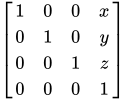
-
Let rotation be a new matrix which is a column-vector rotation matrix corresponding to
orientation. Mathematically, iforientationis the unit quaternion (qx, qy, qz, qw), this matrix is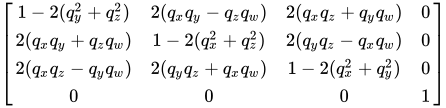
-
Set transform’s internal matrix to a new
Float32Arrayin the relevant realm of transform set to the result of multiplying translation and rotation with translation on the left (translation * rotation) in the relevant realm of transform. Mathematically, this matrix is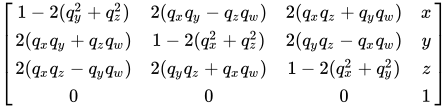
-
Return transform’s internal matrix.
The inverse attribute of a XRRigidTransform transform returns an XRRigidTransform in the relevant realm of transform which, if applied to an object that had previously been transformed by transform, would undo the transform and return the object to its initial pose. This attribute SHOULD be lazily evaluated. The XRRigidTransform returned by inverse MUST return transform as its inverse.
An XRRigidTransform with a position of { x: 0, y: 0, z: 0 w: 1 } and an orientation of { x: 0, y: 0, z: 0, w: 1 } is known as an identity transform .
To multiply two XRRigidTransforms , B and A in a Realm realm, the UA MUST perform the following steps:
-
Let result be a new
XRRigidTransformobject in realm. -
Set result’s
"https://www.w3.org/TR