Abstract
The Pointer Events specification defines a unified hardware-agnostic framework for handling input from various devices, including mice, touchscreens, and pens/styluses. By providing a single set of events (e.g., pointerdown, pointermove, pointerup), it allows developers to support diverse input methods without writing device-specific logic for each.
This specification also defines Mouse and Wheel Events, as well as a mapping to fire Mouse Events for other pointer device types.
Status of This Document
This section describes the status of this document at the time of its publication. A list of current W3C publications and the latest revision of this technical report can be found in the W3C standards and drafts index.
This specification is an update to [PointerEvents3] specification. It also includes the Mouse and Wheel Events, previously in the [UIEVENTS] specification.
This revision includes new features:
persistentDeviceIdto provide a stable identifier for input devices across multiple interactions.- new CSS
touch-actionvalues:pan-left,pan-right,pan-up,pan-down
This document was published by the Pointer Events Working Group as a Working Draft using the Recommendation track.
Publication as a Working Draft does not imply endorsement by W3C and its Members.
This is a draft document and may be updated, replaced, or obsoleted by other documents at any time. It is inappropriate to cite this document as other than a work in progress.
This document was produced by a group operating under the W3C Patent Policy. W3C maintains a public list of any patent disclosures made in connection with the deliverables of the group; that page also includes instructions for disclosing a patent. An individual who has actual knowledge of a patent that the individual believes contains Essential Claim(s) must disclose the information in accordance with section 6 of the W3C Patent Policy.
This document is governed by the 18 August 2025 W3C Process Document.
Table of Contents
- Abstract
- Status of This Document
- 1. Introduction
- 2. Conformance
- 3. Pointer Events and interfaces
- 3.1
PointerEventinterface - 3.2 PointerEvent Algorithms
- 3.2.1 initialize a
PointerEvent - 3.2.2 create a
PointerEvent - 3.2.3 create
PointerEventfromMouseEvent - 3.2.4 maybe send pointerout event
- 3.2.5 maybe send pointerleave event
- 3.2.6 maybe send pointerover event
- 3.2.7 maybe send pointerenter event
- 3.2.8 maybe send pointermove event
- 3.2.9 maybe send pointerdown event
- 3.2.10 maybe send pointerrawupdate event
- 3.2.11 maybe send pointerup event
- 3.2.1 initialize a
- 3.3 Pointer Event types
- 3.1
- 4. Extensions to the
Elementinterface - 5. Extensions to the
GlobalEventHandlersmixin - 6. Extensions to the
Navigatorinterface - 7. Declaring direct manipulation behavior
- 8. Pointer capture
- 9. Coalesced and predicted events
- 10. Compatibility mapping with mouse events
- 11. Mouse Events and Interfaces
- 11.1
MouseEventinterface - 11.2 MouseEvent Algorithms
- 11.2.1 Native OS Requirements
- 11.2.2 Constructing Mouse Events
- 11.2.3 Global State for MouseEvent
- 11.2.4 Internal State for MouseEvent
- 11.2.5 hit test
- 11.2.6 initialize a
MouseEvent - 11.2.7 set mouse event modifiers
- 11.2.8 create a cancelable MouseEvent
- 11.2.9 create a non-cancelable MouseEvent
- 11.2.10 calculate MouseEvent button attribute
- 11.2.11 set MouseEvent attributes from native
- 11.2.12 handle native mouse down
- 11.2.13 handle native mouse up
- 11.2.14 handle native mouse click
- 11.2.15 send click event
- 11.2.16 handle native mouse double click
- 11.2.17 handle native mouse move
- 11.2.18 maybe show context menu
- 11.3 Mouse Event Order
- 11.4 Mouse Event Types
- 11.1
- 12. Wheel Events and interfaces
- 13. Examples
- 14. Security and privacy considerations
- 15. Glossary
- 16. Legacy Event Initializers
- A. Acknowledgments
- B. Revision history
- C. IDL Index
- D. References
This section is non-normative.
Today, most [HTML] content is used with and/or designed for mouse input. Those that handle input in a custom manner typically code to Mouse Events. Newer computing devices today, however, incorporate other forms of input, including touchscreens and pen input. Event types have been proposed for handling each of these forms of input individually. However, that approach often incurs unnecessary duplication of logic and event handling overhead when adding support for a new input type. This often creates a compatibility problem when content is written with only one device type in mind. Additionally, for compatibility with existing mouse-based content, most user agents fire Mouse Events for all input types. This makes it ambiguous whether a Mouse Event represents an actual mouse device or is being produced from another input type for compatibility, which makes it hard to code to both device types simultaneously.
To reduce the cost of coding to multiple input types and also to help with the above described ambiguity with Mouse Events, this specification defines a more abstract form of input, called a pointer. A pointer can be any point of contact on the screen made by a mouse cursor, pen, touch (including multi-touch), or other pointing input device. This model makes it easier to write sites and applications that work well no matter what hardware the user has. For scenarios when device-specific handling is desired, this specification also defines properties for inspecting the device type which produced the event. The primary goal is to provide a single set of events and interfaces that allow for easier authoring for cross-device pointer input while still allowing for device-specific handling only when necessary for an augmented experience.
An additional key goal is to enable multi-threaded user agents to handle direct manipulation actions for panning and zooming (for instance, with a finger or stylus on a touchscreen), without blocking on script execution.
Note
While this specification defines a unified event model for a variety of pointer inputs, this model does not cover other forms of input such as keyboards or keyboard-like interfaces (for instance, a screen reader or similar assistive technology running on a touchscreen-only device, which allows users sequential navigation through focusable controls and elements). While user agents might choose to also generate pointer events in response to these interfaces, this scenario is not covered in this specification.
In the first instance, authors are encouraged to provide equivalent functionality for all forms of input by responding to high-level events such as focus, blur and click. However, when using low-level events (such as Pointer Events), authors are encouraged to ensure that all types of input are supported. In the case of keyboards and keyboard-like interfaces, this might require the addition of explicit keyboard event handling. See Keyboard Accessible [WCAG22] for further details.
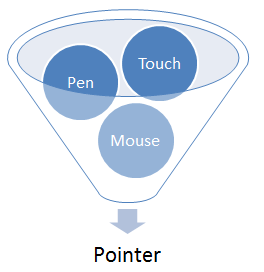
The events for handling generic pointer input look a lot like those for mouse: pointerdown, pointermove, pointerup, pointerover, pointerout, and so on. This facilitates easy content migration from Mouse Events to Pointer Events.
Pointer Events provide all the usual properties present in Mouse Events (including client coordinates, target element, button states) in addition to new properties for other forms of input, such as pressure, contact geometry, tilt. Authors can easily code to Pointer Events to share logic between different input types where it makes sense, and customize for a particular type of input only where necessary to get the best experience.
While Pointer Events are sourced from a variety of input devices, they are not defined as being generated from some other set of device-specific events. While possible and encouraged for compatibility, this spec does not require other device-specific events be supported (such as mouse events or touch events). A user agent could support pointer events without supporting any other device events. For compatibility with content written to mouse-specific events, this specification does provide an optional section describing how to generate compatibility mouse events based on pointer input from devices other than a mouse.
Note
This specification does not provide any advice on the expected behavior of user agents that support both Touch Events (as defined in [TOUCH-EVENTS]) and Pointer Events. For more information on the relationship between these two specifications, see the Touch Events Community Group.
As well as sections marked as non-normative, all authoring guidelines, diagrams, examples, and notes in this specification are non-normative. Everything else in this specification is normative.
The key words MAY, MUST, MUST NOT, OPTIONAL, and SHOULD in this document are to be interpreted as described in BCP 14 [RFC2119] [RFC8174] when, and only when, they appear in all capitals, as shown here.
dictionary PointerEventInit : MouseEventInit {
    long         pointerId  = 0;
    double       width  = 1;
    double       height  = 1;
    float        pressure  = 0;
    float        tangentialPressure  = 0;
    long         tiltX ;
    long         tiltY ;
    long         twist  = 0;
    double       altitudeAngle ;
    double       azimuthAngle ;
    DOMString    pointerType  = "";
    boolean      isPrimary  = false;
    long         persistentDeviceId  = 0;
    sequence<PointerEvent>  coalescedEvents  = [];
    sequence<PointerEvent>  predictedEvents  = [];
};
[Exposed=Window]
interface PointerEvent : MouseEvent {
     constructor (DOMString type, optional PointerEventInit eventInitDict = {});
    readonly        attribute long        pointerId;
    readonly        attribute double      width;
    readonly        attribute double      height;
    readonly        attribute float       pressure;
    readonly        attribute float       tangentialPressure;
    readonly        attribute long        tiltX;
    readonly        attribute long        tiltY;
    readonly        attribute long        twist;
    readonly        attribute double      altitudeAngle;
    readonly        attribute double      azimuthAngle;
    readonly        attribute DOMString   pointerType;
    readonly        attribute boolean     isPrimary;
    readonly        attribute long        persistentDeviceId;
    [SecureContext] sequence<PointerEvent> getCoalescedEvents();
    sequence<PointerEvent> getPredictedEvents();
};-
pointerId -
A unique identifier for the pointer causing the event. user agents MAY reserve a generic
pointerIdvalue of0or1for the primary mouse pointer. ThepointerIdvalue of-1MUST be reserved and used to indicate events that were generated by something other than a pointing device. For any other pointers, user agents are free to implement different strategies and approaches in how they assign apointerIdvalue. However, all active pointers in the top-level browsing context (as defined by [HTML]) must be unique, and the identifier MUST NOT be influenced by any other top-level browsing context (i.e. one top-level browsing context cannot assume that thepointerIdof a pointer will be the same when the pointer moves outside of the browsing context and into another top-level browsing context).The user agent MAY recycle previously retired values for
pointerIdfrom previous active pointers, or it MAY always reuse the samepointerIdfor a particular pointing device (for instance, to uniquely identify particular pen/stylus inputs from a specific user in a multi-user collaborative application). However, in the latter case, to minimize the chance of fingerprinting and tracking across different pages or domains, thepointerIdMUST only be associated explicitly with that particular pointing device for the lifetime of the page / session, and a new randomizedpointerIdMUST be chosen the next time that particular pointing device is used again in a new session.Note
The
pointerIdselection algorithm is implementation specific. Authors cannot assume values convey any particular meaning other than an identifier for the pointer that is unique from all other active pointers. As an example, user agents may simply assign a number, starting from0, to any active pointers, in the order that they become active — but these values are not guaranteed to be monotonically increasing. As the reuse of the samepointerIdfor a particular pointing device is left up to individual implementations, authors are strongly discouraged from relying on it, and to refer topersistentDeviceIdinstead. -
width -
The width (magnitude on the X axis), in CSS pixels (see [CSS21]), of the contact geometry of the pointer. This value MAY be updated on each event for a given pointer. For inputs that typically lack contact geometry (such as a traditional mouse), and in cases where the actual geometry of the input is not detected by the hardware, the user agent MUST return a default value of
1. -
height -
The height (magnitude on the Y axis), in CSS pixels (see [CSS21]), of the contact geometry of the pointer. This value MAY be updated on each event for a given pointer. For inputs that typically lack contact geometry (such as a traditional mouse), and in cases where the actual geometry of the input is not detected by the hardware, the user agent MUST return a default value of
1. -
pressure -
The normalized pressure of the pointer input in the range of
[0,1], where0and1represent the minimum and maximum pressure the hardware is capable of detecting, respectively. For hardware and platforms that do not support pressure, the value MUST be0.5when in the active buttons state and0otherwise. -
tangentialPressure -
The normalized tangential pressure (also known as barrel pressure), typically set by an additional control (e.g. a finger wheel on an airbrush stylus), of the pointer input in the range of
[-1,1], where0is the neutral position of the control. Note that some hardware may only support positive values in the range of[0,1]. For hardware and platforms that do not support tangential pressure, the value MUST be0.Note
Despite the property's name, in practice the hardware controls/sensors that generate the values for this property may not necessarily be pressure sensitive. As an example, in most cases the finger wheel on most airbrush/painting stylus implementations can be freely set, rather than requiring the user to apply a constant pressure on the wheel to prevent it from returning to the zero position.
-
tiltX -
The plane angle (in degrees, in the range of
[-90,90]) between the Y-Z plane and the plane containing both the transducer (e.g. pen/stylus) axis and the Y axis. A positivetiltXis to the right, in the direction of increasing X values.tiltXcan be used along withtiltYto represent the tilt away from the normal of a transducer with the digitizer. For hardware and platforms that do not report tilt or angle, the value MUST be0.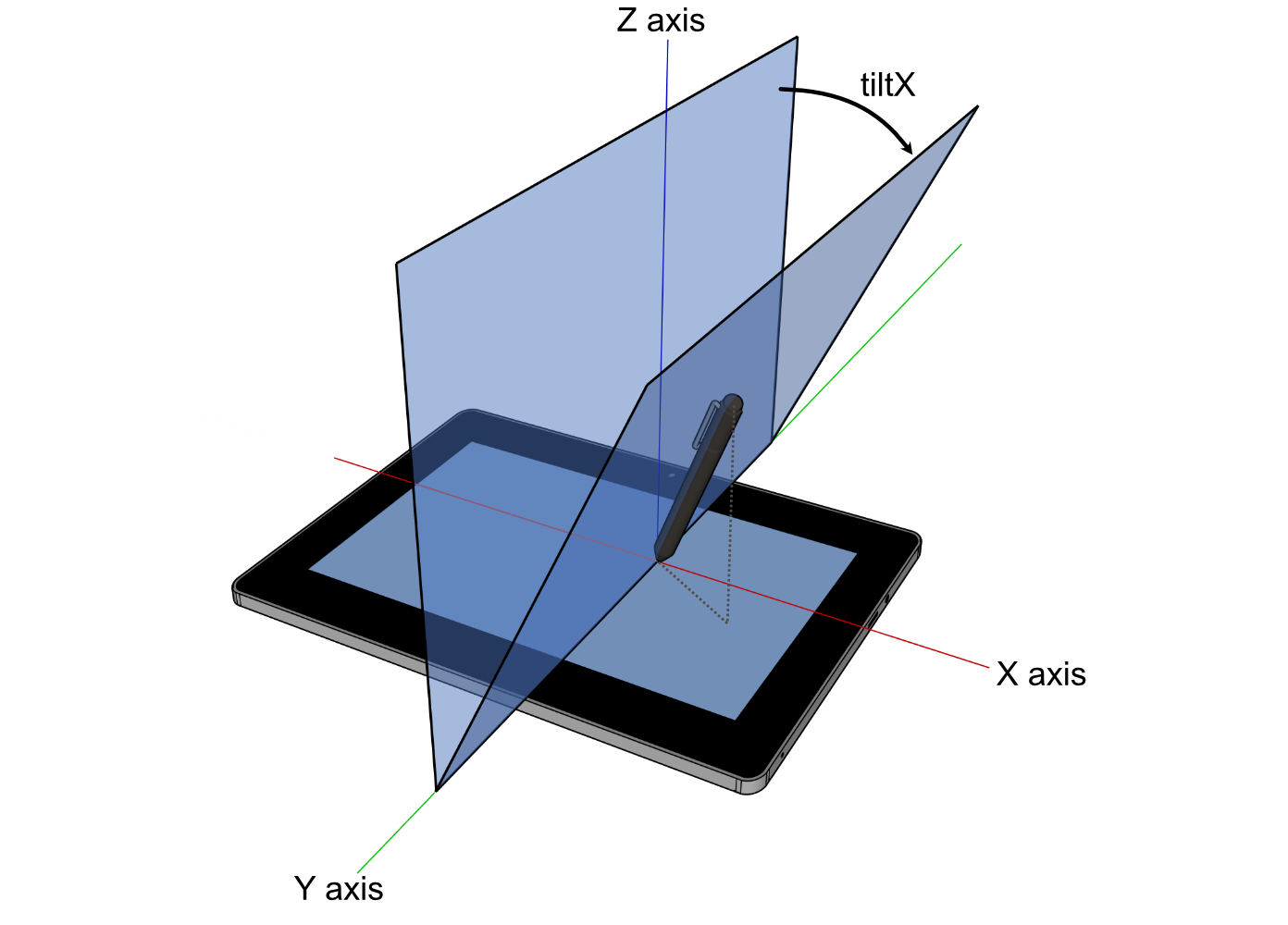
Figure 2 Positive tiltX. -
tiltY -
The plane angle (in degrees, in the range of
[-90,90]) between the X-Z plane and the plane containing both the transducer (e.g. pen/stylus) axis and the X axis. A positivetiltYis towards the user, in the direction of increasing Y values.tiltYcan be used along withtiltXto represent the tilt away from the normal of a transducer with the digitizer. For hardware and platforms that do not report tilt or angle, the value MUST be0.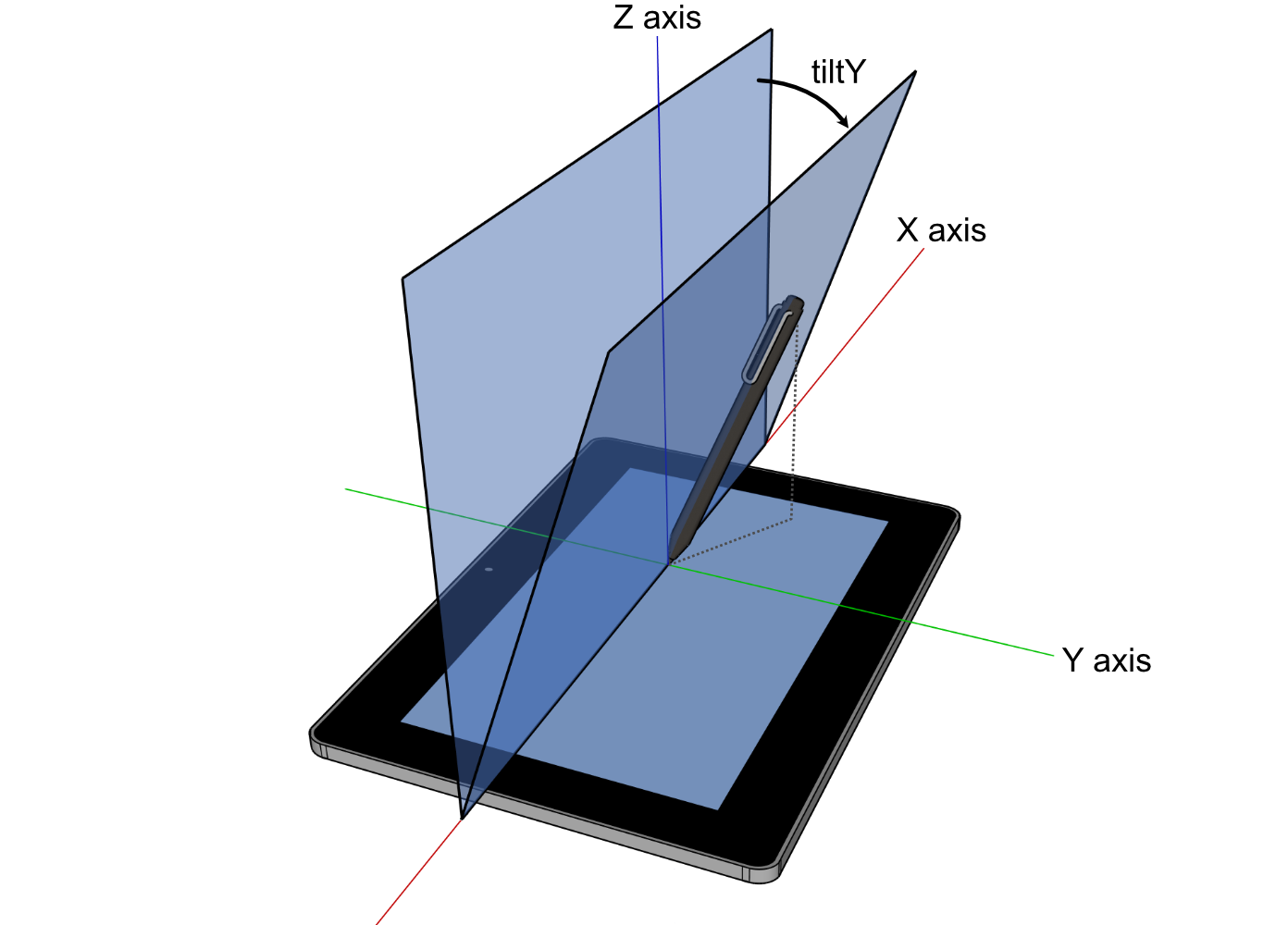
Figure 3 Positive tiltY. -
twist -
The clockwise rotation (in degrees, in the range of
[0,359]) of a transducer (e.g. pen/stylus) around its own major axis. For hardware and platforms that do not report twist, the value MUST be0. -
altitudeAngle -
The altitude (in radians) of the transducer (e.g. pen/stylus), in the range
[0,π/2]— where0is parallel to the surface (X-Y plane), andπ/2is perpendicular to the surface. For hardware and platforms that do not report tilt or angle, the value MUST beπ/2.Note
The default value defined here for
altitudeAngleisπ/2, which positions the transducer as being perpendicular to the surface. This differs from the Touch Events - Level 2 specification's definition for thealtitudeAngleproperty, which has a default value of0.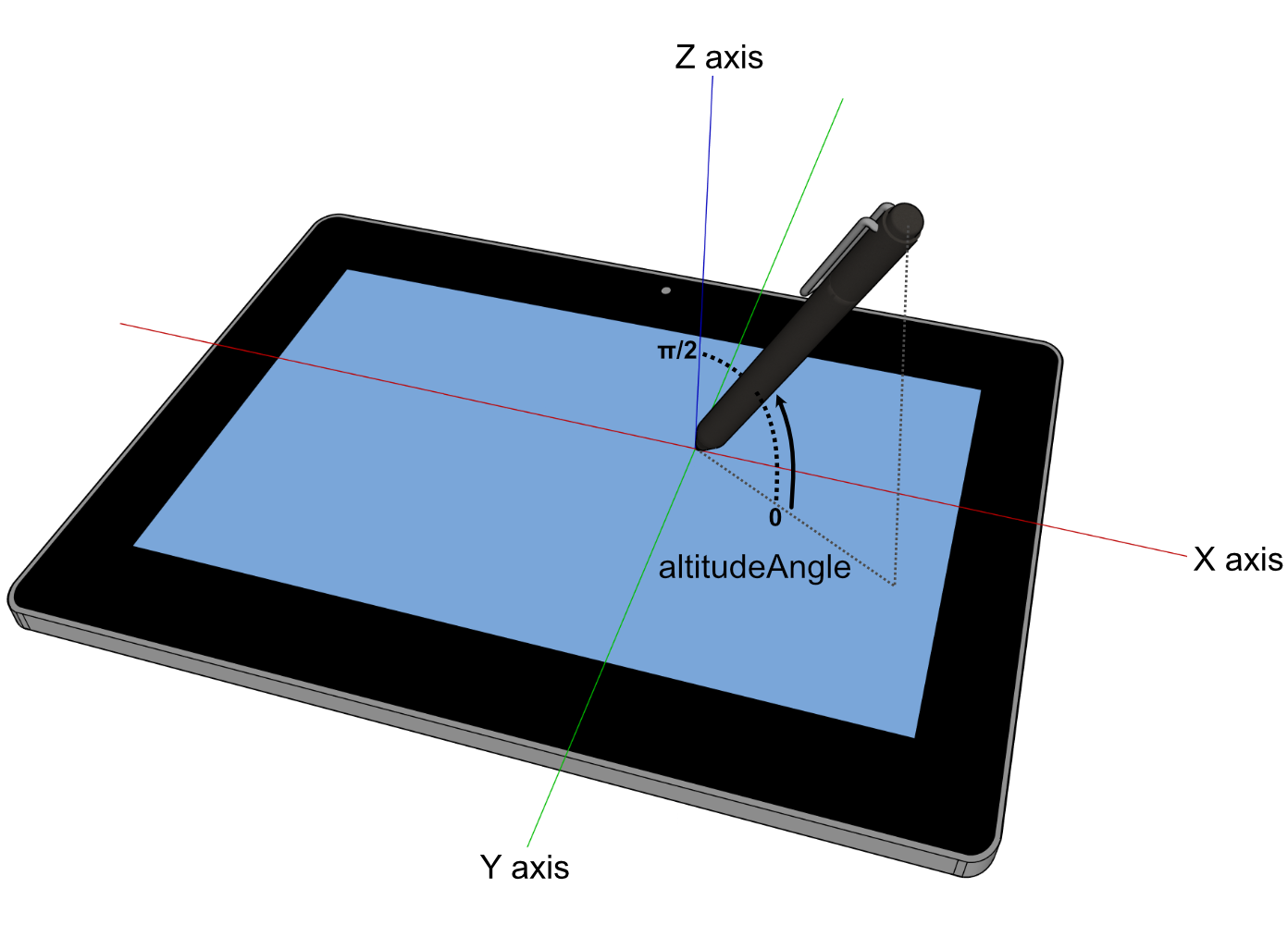
Figure 4 Example altitudeAngleofπ/4(45 degrees from the X-Y plane). -
azimuthAngle -
The azimuth angle (in radians) of the transducer (e.g. pen/stylus), in the range
[0, 2π]— where0represents a transducer whose cap is pointing in the direction of increasing X values (point to "3 o'clock" if looking straight down) on the X-Y plane, and the values progressively increase when going clockwise (π/2at "6 o'clock",πat "9 o'clock",3π/2at "12 o'clock"). When the transducer is perfectly perpendicular to the surface (altitudeAngleofπ/2), the value MUST be0. For hardware and platforms that do not report tilt or angle, the value MUST be0.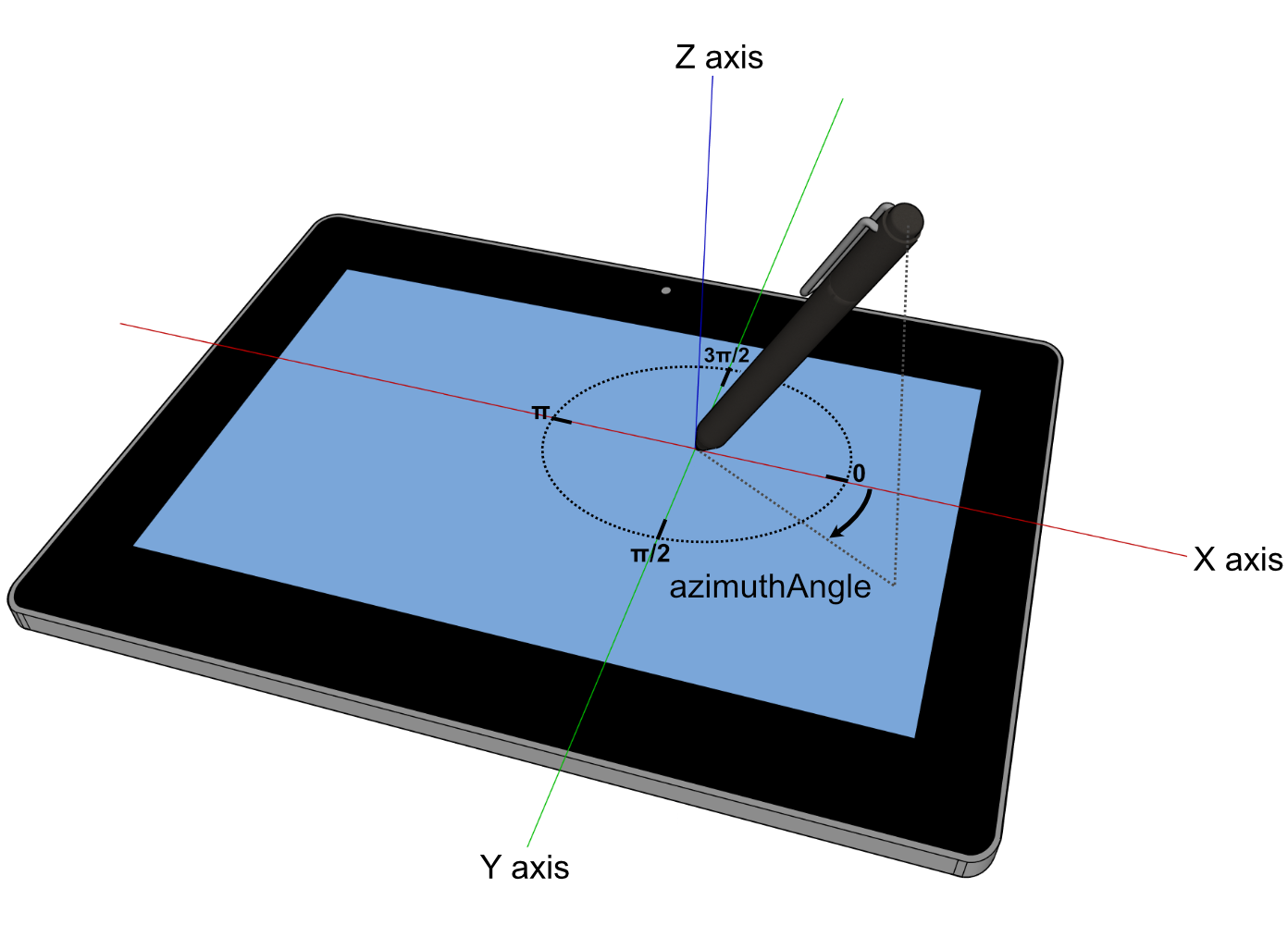
Figure 5 Example azimuthAngleofπ/6("4 o'clock"). -
pointerType -
Indicates the device type that caused the event (such as mouse, pen, touch). If the user agent is to fire a pointer event for a mouse, pen/stylus, or touch input device, then the value of
pointerTypeMUST be according to the following table:Pointer Device Type pointerTypeValueMouse mousePen / stylus penTouch contact touchIf the device type cannot be detected by the user agent, then the value MUST be an empty string. If the user agent supports pointer device types other than those listed above, the value of
pointerTypeSHOULD be vendor prefixed to avoid conflicting names for different types of devices. Future specifications MAY provide additional normative values for other device types.Note
See Example 2 for a basic demonstration of how the
pointerTypecan be used. Also note that developers should include some form of default handling to cover user agents that may have implemented their own custompointerTypevalues and for situations wherepointerTypeis simply an empty string. -
isPrimary -
Indicates if the pointer represents the primary pointer of this pointer type.
-
persistentDeviceId -
A unique identifier for the pointing device. If the hardware supports multiple pointers, pointer events generated from pointing devices MUST only get a
persistentDeviceIdif those pointers are uniquely identifiable over the session. If the pointer is uniquely identifiable, the assignedpersistentDeviceIdto that pointing device will remain constant for the remainder of the session. ThepersistentDeviceIdvalue of0MUST be reserved and used to indicate events whose generating device could not be identified. Like pointerId, to minimize the chance of fingerprinting and tracking across different pages or domains, thepersistentDeviceIdMUST only be associated explicitly with that particular pointing device for the lifetime of the page / session, and a new randomizedpersistentDeviceIdMUST be chosen the next time that particular pointing device is used again in a new session.Note
Due to digitizer and pointing device hardware constraints, a
persistentDeviceIdis not guaranteed to be available for all pointer events from a pointing device. For example, the device may not report its hardware id to the digitizer in time forpointerdownto have apersistentDeviceId. In such a case, thepersistentDeviceIdmay initially be0and change to a valid value. -
getCoalescedEvents() -
A method that returns the list of coalesced events.
-
getPredictedEvents() -
A method that returns the list of predicted events.
The PointerEventInit dictionary is used by the PointerEvent interface's constructor to provide a mechanism by which to construct untrusted (synthetic) pointer events. It inherits from the MouseEventInit dictionary. See the examples for sample code demonstrating how to fire an untrusted pointer event.
The event constructing steps for PointerEvent
clones PointerEventInit's coalescedEvents to coalesced events list and
clones PointerEventInit's predictedEvents to predicted events list.
Note
The PointerEvent interface inherits from MouseEvent.
Also note the proposed extension in CSSOM View Module, which changes the various coordinate properties from long
to double to allow for fractional coordinates. For user agents that already implement this proposed extension for
PointerEvent, but not for regular MouseEvent, there are additional requirements when it comes to
the click, auxclick, and contextmenu events.
Some pointer devices, such as mouse or pen, support multiple buttons. In the Mouse Event model, each button press produces a mousedown and mouseup event. To better abstract this hardware difference and simplify cross-device input authoring, Pointer Events do not fire overlapping pointerdown and pointerup events for chorded button presses (depressing an additional button while another button on the pointer device is already depressed).
Instead, chorded button presses can be detected by inspecting changes to the button and buttons properties. The button and buttons properties are inherited from the MouseEvent interface, but with a change in semantics and values, as outlined in the following sections.
The modifications to the button and buttons properties apply only to pointer events. However for click, auxclick and contextmenu the value of button and buttons MUST follow the Mouse Event model, as is the case for compatibility mouse events .
To identify button state transitions in any pointer event (and not just pointerdown and pointerup), the button property indicates the device button whose state change fired the event.
| Device Button Changes | button |
|---|---|
| Neither buttons nor touch/pen contact changed since last event | -1 |
| Left Mouse, Touch contact, Pen contact | 0 |
| Middle Mouse | 1 |
| Right Mouse, Pen barrel button | 2 |
| X1 (back) Mouse | 3 |
| X2 (forward) Mouse | 4 |
| Pen eraser button | 5 |
Note
During a mouse drag, the value of the button property in a pointermove event will be different from that in a mousemove event. For example, while moving the mouse with the right button pressed, the pointermove events will have the button value -1, but the mousemove events will have the button value 2.
The buttons property gives the current state of the device buttons as a bitmask (same as in MouseEvent, but with an expanded set of possible values).
| Current state of device buttons | buttons |
|---|---|
| Mouse moved with no buttons pressed, Pen moved while hovering with no buttons pressed | 0 |
| Left Mouse, Touch contact, Pen contact | 1 |
| Middle Mouse | 4 |
| Right Mouse, Pen barrel button | 2 |
| X1 (back) Mouse | 8 |
| X2 (forward) Mouse | 16 |
| Pen eraser button | 32 |
In a multi-pointer (e.g. multi-touch) scenario, the isPrimary property is used to identify a master pointer amongst the set of active pointers for each pointer type.
- At any given time, there can only ever be at most one primary pointer for each pointer type.
- The first pointer to become active for a particular pointer type (e.g. the first finger to touch the screen in a multi-touch interaction) becomes the primary pointer for that pointer type.
- Only a primary pointer will produce compatibility mouse events. In the case where there are multiple primary pointers, these pointers will all produce compatibility mouse events.
Note
Authors who desire single-pointer interaction can achieve this by ignoring non-primary pointers (however, see the note below on multiple primary pointers).
Note
When two or more pointer device types are being used concurrently, multiple pointers (one for each pointerType) are considered primary. For example, a touch contact and a mouse cursor moved simultaneously will produce pointers that are both considered primary.
Note
Some devices, operating systems and user agents may ignore the concurrent use of more than one type of pointer input to avoid accidental interactions. For instance, devices that support both touch and pen interactions may ignore touch inputs while the pen is actively being used, to allow users to rest their hand on the touchscreen while using the pen (a feature commonly referred to as "palm rejection"). Currently, it is not possible for authors to suppress this behavior.
Note
In some cases, it is possible for the user agent to fire pointer events in which no pointer is marked as a primary pointer. For instance, when there are multiple active pointers of a particular type, like a multi-touch interaction, and the primary pointer is removed (e.g. it leaves the screen), there may end up being no primary pointers. Also on platforms where the primary pointer is determined using all active pointers of the same type on the device (including those targeted at an application other than the user agent), if the first (primary) pointer is outside of the user agent and other (non-primary) pointers targeted inside the user agent, then the user agent MAY fire pointer events for the other pointers with a value of false for isPrimary.
Note
Current operating systems and user agents don't usually have a concept of multiple mouse inputs. When more than one mouse device is present (for instance, on a laptop with both a trackpad and an external mouse), all mouse devices are generally treated as a single device — movements on any of the devices are translated to movement of a single mouse pointer, and there is no distinction between button presses on different mouse devices. For this reason, there will usually only be a single mouse pointer, and that pointer will be primary.
To fire a pointer event named e means to fire an event named e using PointerEvent whose attributes are set as defined in PointerEvent Interface and Attributes and Default Actions.
If the event is not a gotpointercapture, lostpointercapture, click, auxclick or contextmenu event, run the process pending pointer capture steps for this PointerEvent.
Determine the target at which the event is fired as follows:
- If the pointer capture target override has been set for the pointer, set the target to pointer capture target override object.
- Otherwise, set the target to the object returned by hit test.
Let targetDocument be target's node document [DOM].
If the event is pointerdown, pointermove, or pointerup, set active document for the event's pointerId to targetDocument.
If the event is pointerdown, the associated device is a direct manipulation device, and the target is an Element,
then set pointer capture for this pointerId to the target element as described in implicit pointer capture.
Before firing this event, the user agent SHOULD treat the target as if the pointing device has moved over it from the previousTarget for the purpose of ensuring event ordering. If the needsOverEvent flag is set, a pointerover event is needed even if the target element is the same.
Fire the event to the determined target.
Save the determined target as the previousTarget for the given pointer,
and reset the needsOverEvent flag to false.
If the previousTarget at any point will no longer be connected [DOM],
update the previousTarget to the nearest still connected [DOM] parent
following the event path corresponding to dispatching events to the previousTarget,
and set the needsOverEvent flag to true.
Note
Using the pointer capture target override as the target instead of the normal hit-test result may fire some boundary events. This is the same as the pointer leaving its previous target and entering this new capturing target. When the capture is released, the same scenario may happen, as the pointer is leaving the capturing target and entering the hit-test target.
The bubbles and cancelable properties and the default actions for the event types defined in this specification appear in the following table. Details of each of these event types are provided in Pointer Event types.
| Event Type | Bubbles | Cancelable | Default Action |
|---|---|---|---|
pointerover |
Yes | Yes | None |
pointerenter |
No | No | None |
pointerdown |
Yes | Yes | Varies: when the pointer is primary, all default actions of the mousedown event
Canceling this event also prevents subsequent firing of compatibility mouse events. |
pointermove |
Yes | Yes | Varies: when the pointer is primary, all default actions of mousemove |
pointerrawupdate |
Yes | No | None |
pointerup |
Yes | Yes | Varies: when the pointer is primary, all default actions of mouseup |
pointercancel |
Yes | No | None |
pointerout |
Yes | Yes | None |
pointerleave |
No | No | None |
gotpointercapture |
Yes | No | None |
lostpointercapture |
Yes | No | None |
Viewport manipulations (panning and zooming) — generally, as a result of a direct manipulation interaction — are intentionally NOT a default action of pointer events, meaning that these behaviors (e.g. panning a page as a result of moving a finger on a touchscreen) cannot be suppressed by canceling a pointer event. Authors must instead use touch-action to explicitly declare the direct manipulation behavior for a region of the document. Removing this dependency on the cancelation of events facilitates performance optimizations by the user agent.
For pointerenter and pointerleave events, the composed [DOM] attribute SHOULD be false; for all other pointer events in the table above, the attribute SHOULD be true.
For all pointer events in the table above, the detail attribute SHOULD be 0.
Note
Many user agents expose non-standard attributes fromElement and toElement in MouseEvents to support legacy content. We encourage those user agents to set the values of those (inherited) attributes in PointerEvents to null to transition authors to the use of standardized alternates (target and relatedTarget).
Similar to MouseEvent relatedTarget, the relatedTarget should be initialized to the element whose bounds the pointer just left (in the case of a pointerover or pointerenter event) or the element whose bounds the pointer is entering (in the case of a pointerout or pointerleave). For other pointer events, this value will default to null. Note that when an element receives the pointer capture all the following events for that pointer are considered to be inside the boundary of the capturing element.
For gotpointercapture and lostpointercapture events, all the attributes except the ones defined in the table above should be the same as the Pointer Event that caused the user agent to run the process pending pointer capture steps and fire the gotpointercapture and lostpointercapture events.
The user agent MUST run the following steps when implicitly releasing pointer capture as well as when firing Pointer Events that are not gotpointercapture or lostpointercapture.
- If the pointer capture target override for this pointer is set and is not equal to the pending pointer capture target override, then fire a pointer event named
lostpointercaptureat the pointer capture target override node. - If the pending pointer capture target override for this pointer is set and is not equal to the pointer capture target override, then fire a pointer event named
gotpointercaptureat the pending pointer capture target override. - Set the pointer capture target override to the pending pointer capture target override, if set. Otherwise, clear the pointer capture target override.
Note
As defined in the section for click, auxclick, and contextmenu events, even after the lostpointercapture event has been dispatched,
the corresponding click, auxclick or contextmenu event, if any, would still be dispatched to the capturing target.
The user agent MUST suppress a pointer event stream when it detects that the web page is unlikely to continue to receive pointer events with a specific pointerId. Any of the following scenarios satisfy this condition (there MAY be additional scenarios):
- The user agent has opened a modal dialog or menu.
- A pointer input device is physically disconnected, or a hoverable pointer input device (e.g. a hoverable pen/stylus) has left the hover range detectable by the digitizer.
- The pointer is subsequently used by the user agent to manipulate the page viewport (e.g. panning or zooming). See the section on
touch-actionCSS property for details.Note
User agents can trigger panning or zooming through multiple pointer types (such as touch and pen), and therefore the start of a pan or zoom action may result in the suppression of various pointers, including pointers with different pointer types.
- As part of the drag operation initiation algorithm as defined in the drag and drop processing model [HTML], for the pointer that caused the drag operation.
Note
Other scenarios in which the user agent MAY suppress a pointer event stream include:
- A device's screen orientation is changed while a pointer is active.
- The user attempts to interact using more simultaneous pointer inputs than the device supports.
- The user agent interprets the input as accidental (for example, the hardware supports palm rejection).
Methods for detecting any of these scenarios are out of scope for this specification.
The user agent MUST run the following steps to suppress a pointer event stream:
- Fire a
pointercancelevent. - Fire a
pointeroutevent. - Fire a
pointerleaveevent. - Implicitly release the pointer capture if the pointer is currently captured.
A pointing device that moved relative to the screen surface or underwent some change in any of its properties fires various events as defined in Pointer Event types. For a stationary pointing device (that neither moved relative to the screen surface nor underwent any change in any properties), the user agent MUST fire certain boundary events after a layout change that affected the hit test target for the pointer, see pointerover, pointerenter, pointerout and pointerleave for details. The user agent MAY delay the firing of these boundary events because of performance reasons (e.g. to avoid too many hit-tests or layout changes caused by boundary event listeners).
Note
A stationary pointing device (that neither moved relative to the screen surface nor underwent any change in any properties) never fires a pointermove event.
Pointer Events include two complementary sets of attributes to express the orientation of a transducer relative to the X-Y plane: tiltX / tiltY (introduced in the original Pointer Events specification), and azimuthAngle / altitudeAngle (adopted from the Touch Events - Level 2 specification).
Depending on the specific hardware and platform, user agents will likely only receive one set of values for the transducer orientation relative to the screen plane — either tiltX / tiltY or altitudeAngle / azimuthAngle. User agents MUST use the following algorithm for converting these values.
When the user agent calculates tiltX / tiltY from azimuthAngle / altitudeAngle it SHOULD round the final integer values using Math.round [ECMASCRIPT] rules.
: Converting between tiltX/tiltY and altitudeAngle/azimuthAngle
/* Converting between tiltX/tiltY and altitudeAngle/azimuthAngle */
function spherical2tilt(altitudeAngle, azimuthAngle) {
  const radToDeg = 180/Math.PI;
  let tiltXrad = 0;
  let tiltYrad = 0;
  if (altitudeAngle == 0) {
    // the pen is in the X-Y plane
    if (azimuthAngle == 0 || azimuthAngle == 2*Math.PI) {
      // pen is on positive X axis
      tiltXrad = Math.PI/2;
    }
    if (azimuthAngle == Math.PI/2) {
      // pen is on positive Y axis
      tiltYrad = Math.PI/2;
    }
    if (azimuthAngle == Math.PI) {
      // pen is on negative X axis
      tiltXrad = -Math.PI/2;
    }
    if (azimuthAngle == 3*Math.PI/2) {
      // pen is on negative Y axis
      tiltYrad = -Math.PI/2;
    }
    if (azimuthAngle>0 && azimuthAngle<Math.PI/2) {
      tiltXrad = Math.PI/2;
      tiltYrad = Math.PI/2;
    }
    if (azimuthAngle>Math.PI/2 && azimuthAngle<Math.PI) {
      tiltXrad = -Math.PI/2;
      tiltYrad = Math.PI/2;
    }
    if (azimuthAngle>Math.PI && azimuthAngle<3*Math.PI/2) {
      tiltXrad = -Math.PI/2;
      tiltYrad = -Math.PI/2;
    }
    if (azimuthAngle>3*Math.PI/2 && azimuthAngle<2*Math.PI) {
      tiltXrad = Math.PI/2;
      tiltYrad = -Math.PI/2;
    }
  }
  if (altitudeAngle != 0) {
    const tanAlt = Math.tan(altitudeAngle);
    tiltXrad = Math.atan(Math.cos(azimuthAngle) / tanAlt);
    tiltYrad = Math.atan(Math.sin(azimuthAngle) / tanAlt);
  }
  return {"tiltX":tiltXrad*radToDeg, "tiltY":tiltYrad*radToDeg};
}
function tilt2spherical(tiltX, tiltY) {
  const tiltXrad = tiltX * Math.PI/180;
  const tiltYrad = tiltY * Math.PI/180;
  // calculate azimuth angle
  let azimuthAngle = 0;
  if (tiltX == 0) {
    if (tiltY > 0) {
      azimuthAngle = Math.PI/2;
    }
    else if (tiltY < 0) {
      azimuthAngle = 3*Math.PI/2;
    }
  } else if (tiltY == 0) {
    if (tiltX < 0) {
      azimuthAngle = Math.PI;
    }
  } else if (Math.abs(tiltX) == 90 || Math.abs(tiltY) == 90) {
    // not enough information to calculate azimuth
    azimuthAngle = 0;
  } else {
    // Non-boundary case: neither tiltX nor tiltY is equal to 0 or +-90
    const tanX = Math.tan(tiltXrad);
    const tanY = Math.tan(tiltYrad);
    azimuthAngle = Math.atan2(tanY, tanX);
    if (azimuthAngle < 0) {
      azimuthAngle += 2*Math.PI;
    }
  }
  // calculate altitude angle
  let altitudeAngle = 0;
  if (Math.abs(tiltX) == 90 || Math.abs(tiltY) == 90) {
      altitudeAngle = 0
  } else if (tiltX == 0) {
    altitudeAngle = Math.PI/2 - Math.abs(tiltYrad);
  } else if (tiltY == 0) {
    altitudeAngle = Math.PI/2 - Math.abs(tiltXrad);
  } else {
    // Non-boundary case: neither tiltX nor tiltY is equal to 0 or +-90
    altitudeAngle =  Math.atan(1.0/Math.sqrt(Math.pow(Math.tan(tiltXrad),2) + Math.pow(Math.tan(tiltYrad),2)));
  }
  return {"altitudeAngle":altitudeAngle, "azimuthAngle":azimuthAngle};
}
To initialize a PointerEvent with event, eventType and eventTarget, bubbles, and cancelable, run the following steps:
- Initialize a MouseEvent with event, eventType and eventTarget, bubbles and cancelable
- Initialize all other attributes to default
PointerEventvalues.
To create a PointerEvent with eventType and eventTarget, bubbles, and cancelable, run the following steps:
- Let event be the result of
creating an event using
PointerEvent - Initialize a PointerEvent with event, eventType and eventTarget, bubbles and cancelable
- Return event
- Let eventType be a
DOMStringcontaining the event type - Let mouseevent be the corresponding
MouseEvent - Let event be the result of
creating an event using
PointerEvent - Let target be the mouseevent.
target - Initialize a PointerEvent with event, eventType and target
- Copy
MouseEventattributes from mouseevent into event - Return event
- Let mouseout be the corresponding mouseout
MouseEvent - Let pointerout be the result of creating PointerEvent from MouseEvent with "pointerout" and mouseout
- Set pointerevent attributes
Editor's note
TODO.
- Let target be the mouseout.
target - dispatch pointerout at target
- Let mouseout be the corresponding mouseout
MouseEvent - Let pointerout be the result of creating PointerEvent from MouseEvent with "pointerout" and mouseout
- Set pointerevent attributes
Editor's note
TODO.
- Let target be the mouseout.
target - dispatch pointerout at target
- Let mouseout be the corresponding mouseout
MouseEvent - Let pointerout be the result of creating PointerEvent from MouseEvent with "pointerout" and mouseout
- Set pointerevent attributes
Editor's note
TODO.
- Let target be the mouseout.
target - dispatch pointerout at target
- Let mouseout be the corresponding mouseout
MouseEvent - Let pointerout be the result of creating PointerEvent from MouseEvent with "pointerout" and mouseout
- Set pointerevent attributes
Editor's note
TODO.
- Let target be the mouseout.
target - dispatch pointerout at target
- Let mouseout be the corresponding mouseout
MouseEventEditor's note
Can this send pointermove and pointerrawupdate? Or do we need 2 methods?
Editor's note
What is needed to properly define how pointermove events are coalesced?
- Let pointerout be the result of creating PointerEvent from MouseEvent with "pointerout" and mouseout
- Set pointerevent attributes
Editor's note
TODO.
- Let target be the mouseout.
target - dispatch pointerout at target
- Let mouseout be the corresponding mouseout
MouseEventNote
Unlike
mousedownevents,pointerdownevents are not nested when multiple buttons are pressed. TheMouseEventis passed so that the fields can be copied into the PointerEvent. - Let pointerout be the result of creating PointerEvent from MouseEvent with "pointerout" and mouseout
- Set pointerevent attributes
Editor's note
TODO.
- Let target be the mouseout.
target - dispatch pointerout at target
- Let mouseout be the corresponding mouseout
MouseEvent - Let target be the mouseout.
target - dispatch pointerout at target
- Let mouseout be the corresponding mouseout
MouseEventNote
Unlike
mouseupevents,pointerupevents are not nested when multiple buttons are pressed. TheMouseEventis passed so that the fields can be copied into the PointerEvent. - Let pointerout be the result of creating PointerEvent from MouseEvent with "pointerout" and mouseout
- Set pointerevent attributes
Editor's note
TODO.
- Let target be the mouseout.
target - dispatch pointerout at target
Below are the event types defined in this specification.
In the case of the primary pointer, these events (with the exception of gotpointercapture and lostpointercapture) may also fire compatibility mouse events.
| Type | pointerover |
|---|---|
| Interface | PointerEvent |
| Bubbles | Yes |
| Cancelable | Yes |
| Composed | Yes |
| Context (trusted events) |
|
The user agent MUST fire a pointer event named pointerover when any of the following occurs:
- The step to determine the target of a pointer detects that the pointer has moved into an element.
- A layout change causes the hit test boundaries of an element to move underneath an uncaptured pointer of a stationary pointing device.
- Before the user agent fires a
pointerdownevent for a device that does not support hover (seepointerdown).
| Type | pointerenter |
|---|---|
| Interface | PointerEvent |
| Bubbles | No |
| Cancelable | No |
| Composed | No |
| Context (trusted events) |
|
The user agent MUST fire a pointer event named pointerenter when any of the following occurs:
- The step to determine the target of a pointer detects that the pointer has moved into an element or one of its descendants.
- A layout change causes the hit test boundaries of an element or one of its descendants to move underneath an uncaptured pointer of a stationary pointing device.
- Before the user agent fires a
pointerdownevent for a device that does not support hover (seepointerdown).
Note
This event type is similar to pointerover but with two differences: pointerenter does not bubble, and its dispatch considers the hit test boundaries of even descendant elements.
Note
There are similarities between this event type, the mouseenter event , and the CSS :hover pseudo-class described in [CSS21]. See also the pointerleave event.
| Type | pointerdown |
|---|---|
| Interface | PointerEvent |
| Bubbles | Yes |
| Cancelable | Yes |
| Composed | Yes |
| Context (trusted events) |
The user agent MUST fire a pointer event named pointerdown when a pointer enters the active buttons state. For mouse, this is when the device transitions from no buttons depressed to at least one button depressed. For touch, this is when physical contact is made with the digitizer. For pen, this is when the pen either makes physical contact with the digitizer without any button depressed, or transitions from no buttons depressed to at least one button depressed while hovering.
Note
For mouse (or other multi-button pointer devices), this means pointerdown and pointerup are not fired for all of the same circumstances as mousedown and mouseup. See chorded buttons for more information.
For input devices that do not support hover, the user agent MUST also fire a pointer event named pointerover followed by a pointer event named pointerenter prior to dispatching the pointerdown event.
Note
Authors can prevent the firing of certain compatibility mouse events by canceling the pointerdown event (if the isPrimary property is true). This sets the PREVENT MOUSE EVENT flag on the pointer. Note, however, that this does not prevent the mouseover, mouseenter, mouseout, or mouseleave events from firing.
| Type | pointermove |
|---|---|
| Interface | PointerEvent |
| Bubbles | Yes |
| Cancelable | Yes |
| Composed | Yes |
| Context (trusted events) |
The user agent MUST fire a pointer event named pointermove when a pointer changes any properties that don't fire
pointerdown or pointerup events. This includes any changes to coordinates, pressure, tangential pressure,
tilt, twist, contact geometry (width and height) or chorded buttons.
User agents MAY delay dispatch of the pointermove event (for instance, for performance reasons).
The coalesced events information will be exposed via thegetCoalescedEvents method for the single dispatched pointermove event.
The final coordinates of such events should be used for finding the target of the event.
| Type | pointerrawupdate |
|---|---|
| Interface | PointerEvent |
| Bubbles | Yes |
| Cancelable | No |
| Composed | Yes |
| Context (trusted events) |
The user agent MUST fire a pointer event
named pointerrawupdate, and only do so within a secure context, when a pointer changes any properties that don't fire
pointerdown or pointerup events. See pointermove event for a list of such properties.
In contrast with pointermove, user agents SHOULD dispatch pointerrawupdate events as soon as possible
and as frequently as the JavaScript can handle the events.
The target of pointerrawupdate events might be different from the pointermove events
due to the fact that pointermove events might get delayed or coalesced, and the final position of the event
which is used for finding the target could be different from its coalesced events.
Note that if there is already another pointerrawupdate with the same pointerId that hasn't been dispatched
in the event loop, the
user agent MAY coalesce the new pointerrawupdate with that event instead of creating a new task.
This may cause pointerrawupdate to have coalesced events, and
they will all be delivered as coalesced events of one pointerrawupdate event as soon as
the event is processed in the event loop.
SeegetCoalescedEvents for more information.
In terms of ordering of pointerrawupdate and pointermove,
if the user agent received an update from the platform that causes both pointerrawupdate and pointermove events,
then the user agent MUST dispatch the pointerrawupdate event before the corresponding pointermove.
Other than the target, the concatenation of coalesced events lists of all dispatched pointerrawupdate events
since the last pointermove event is the same as the coalesced events of the next pointermove event in terms of the other event attributes.
The attributes of pointerrawupdate are mostly the same as pointermove, with the exception of
cancelable which MUST be false for pointerrawupdate.
User agents SHOULD not fire compatibility mouse events for pointerrawupdate.
Note
Adding listeners for the pointerrawupdate event might negatively impact the performance of the web page, depending on the implementation of the user agent.
For most use cases the other pointerevent types should suffice.
A pointerrawupdate listener should only be added if JavaScript needs high frequency events and can handle them just as fast.
In these cases, there is probably no need to listen to other types of pointer events.
| Type | pointerup |
|---|---|
| Interface | PointerEvent |
| Bubbles | Yes |
| Cancelable | Yes |
| Composed | Yes |
| Context (trusted events) |
The user agent MUST fire a pointer event named pointerup when a pointer leaves the active buttons state. For mouse, this is when the device transitions from at least one button depressed to no buttons depressed. For touch, this is when physical contact is removed from the digitizer. For pen, this is when the pen is removed from the physical contact with the digitizer while no button is depressed, or transitions from at least one button depressed to no buttons depressed while hovering.
For input devices that do not support hover, the user agent MUST also fire a pointer event named pointerout followed by a pointer event named pointerleave after dispatching the pointerup event.
All pointerup events have a pressure value of 0.
The user agent MUST also implicitly release the pointer capture if the pointer is currently captured.
Note
For mouse (or other multi-button pointer devices), this means pointerdown and pointerup are not fired for all of the same circumstances as mousedown and mouseup. See chorded buttons for more information.
| Type | pointercancel |
|---|---|
| Interface | PointerEvent |
| Bubbles | Yes |
| Cancelable | No |
| Composed | Yes |
| Context (trusted events) |
The user agent MUST fire a pointer event named pointercancel when it detects a scenario to suppress a pointer event stream.
The values of the following properties of the pointercancel event MUST match the values of the last dispatched pointer event with the same pointerId: width, height, pressure, tangentialPressure, tiltX, tiltY, twist, altitudeAngle, azimuthAngle, pointerType, isPrimary, and the coordinates inherited from Mouse Events. The coalescedEvents and predictedEvents lists in the pointercancel event MUST be empty, and the event's cancelable attribute MUST be false.
| Type | pointerout |
|---|---|
| Interface | PointerEvent |
| Bubbles | Yes |
| Cancelable | Yes |
| Composed | Yes |
| Context (trusted events) |
|
The user agent MUST fire a pointer event named pointerout when any of the following occurs:
- The step to determine the target of a pointer detects that the pointer has moved out of an element.
- A layout change causes the hit test boundaries of an element to move away from underneath an uncaptured pointer of a stationary pointing device.
- After the user agent fires a
pointerupevent for a device that does not support hover (seepointerup). - The user agent has detected a scenario to suppress a pointer event stream.
| Type | pointerleave |
|---|---|
| Interface | PointerEvent |
| Bubbles | No |
| Cancelable | No |
| Composed | No |
| Context (trusted events) |
|
The user agent MUST fire a pointer event named pointerleave when any of the following occurs:
- The step to determine the target of a pointer detects that the pointer has moved out of an element and all of its descendants.
- A layout change causes the hit test boundaries of an element and all of its descendants to move away from underneath an uncaptured pointer of a stationary pointing device.
- After the user agent fires the
pointerupevent for a device that does not support hover (seepointerup). - The user agent has detected a scenario to suppress a pointer event stream.
Note
This event type is similar to pointerout but with two differences: pointerleave does not bubble, and its dispatch considers the hit test boundaries of even descendant elements.
Note
There are similarities between this event type, the mouseleave event, and the CSS :hover pseudo-class described in [CSS21]. See also the pointerenter event.
| Type | gotpointercapture |
|---|---|
| Interface | PointerEvent |
| Bubbles | Yes |
| Cancelable | No |
| Composed | Yes |
| Context (trusted events) |
The user agent MUST fire a pointer event named gotpointercapture when an element receives pointer capture. This event is fired at the element that is receiving pointer capture. Subsequent events for that pointer will be fired at this element. See the setting pointer capture and process pending pointer capture sections.
| Type | lostpointercapture |
|---|---|
| Interface | PointerEvent |
| Bubbles | Yes |
| Cancelable | No |
| Composed | Yes |
| Context (trusted events) |
The user agent MUST fire a pointer event named lostpointercapture after pointer capture is released for a pointer. This event MUST be fired prior to any subsequent events for the pointer after capture was released. This event is fired at the element from which pointer capture was removed. All subsequent events for the pointer except click, auxclick, and contextmenu events follow normal hit testing mechanisms (out of scope for this specification) for determining the event target. See the releasing pointer capture, implicit release of pointer capture, and process pending pointer capture sections.
This section is an addition to the MouseEvent definitions of the click, auxclick and contextmenu events. These events are typically tied to user interface activation, and are fired even from non-pointer input devices, such as keyboards.
These events MUST be of type PointerEvent, and are subject to the additional requirements mentioned in the rest of this section.
For these events, all PointerEvent specific attributes (defined in this spec) other than pointerId and pointerType MUST have their default values. In addition:
- If the events are generated by a pointing device, their
pointerIdandpointerTypeMUST be the same as the PointerEvents that caused these events. - If the events are generated by a non-pointing device (such as voice recognition software or a keyboard interaction),
pointerIdMUST be-1andpointerTypeMUST be an empty string.
As noted in PointerEvent, CSSOM View Module proposes to redefine the various coordinate properties (screenX, screenY, pageX, pageY, clientX,
clientY, x, y, offsetX, offsetY) as double, to allow for fractional coordinates.
However, this change — when applied only to PointerEvent, but not to regular MouseEvent — has proven to lead to web compatibility issues with legacy code
in the case of click, auxclick, and contextmenu. For this reason, user agents that have implemented the proposed
change in CSSOM View Module only for PointerEvent MUST convert the various coordinate properties for the click, auxclick, and contextmenu
to long values (as defined in the original Mouse Events) using Math.floor [ECMASCRIPT].
A click, auxclick or contextmenu event MUST follow the standard dispatch process, except that the event target is overridden using the algorithm below:
-
Let event be the
click,auxclickorcontextmenuevent being dispatched, and userEvent be the user interaction event that caused the firing of event.Note
Event userEvent could be a non-
PointerEvent; for example, it is aKeyboardEventwhen aclickevent dispatch is caused by hitting the spacebar on a checkbox element.When userEvent is a
PointerEvent, userEvent is apointerupfor aclickorauxclickevent, and either apointerdownor apointerupevent (depending on native platform convention) for acontextmenuevent. - If userEvent is not a
PointerEvent, dispatch event without overriding event target and skip the remaining steps below. -
Define target as follows:
If event is a
contextmenuevent, or userEvent was dispatched while the corresponding pointer was captured, then let target be the target of userEvent.Otherwise (event is a
clickorauxclickevent for which userEvent is apointerupevent that was dispatched uncaptured) let target be the nearest common inclusive ancestor of the correspondingpointerdownandpointeruptargets in the DOM at the moment event is being dispatched. -
Dispatch event to target.
Note
If userEvent was captured, event is dispatched to the capturing target of userEvent even though the
lostpointercaptureevent with the samepointerIdhas been dispatched already.
The following section describes extensions to the existing Element interface to facilitate the setting and releasing of pointer capture.
partial interface Element {
  undefined setPointerCapture (long pointerId);
  undefined releasePointerCapture (long pointerId);
  boolean hasPointerCapture (long pointerId);
};-
setPointerCapture() -
Set pointer capture for the pointer identified by the argument
pointerIdto the element on which this method is invoked. For subsequent events of the pointer, the capturing target will substitute the normal hit testing result as if the pointer is always over the capturing target, and they MUST always be targeted at this element until capture is released. The pointer MUST be in its active buttons state for this method to be effective, otherwise it fails silently. When the provided method's argument does not match any of the active pointers, throw a "NotFoundError"DOMException. -
releasePointerCapture() -
Release pointer capture for the pointer identified by the argument
pointerIdfrom the element on which this method is invoked. Subsequent events for the pointer follow normal hit testing mechanisms (out of scope for this specification) for determining the event target. When the provided method's argument does not match any of the active pointers, throw a "NotFoundError"DOMException. -
hasPointerCapture -
Indicates whether the element on which this method is invoked has pointer capture for the pointer identified by the argument
pointerId. In particular, returnstrueif the pending pointer capture target override forpointerIdis set to the element on which this method is invoked, andfalseotherwise.Note
This method will return true immediately after a call to
setPointerCapture(), even though that element will not yet have received agotpointercaptureevent. As a result it can be useful for detecting implicit pointer capture from inside of apointerdownevent listener.
The Navigator interface is defined in [HTML]. This specification extends the Navigator interface to provide device detection support.
partial interface Navigator {
    readonly  attribute long maxTouchPoints;
};-
maxTouchPoints The getter steps are:
- Let emulated maxTouchPoints be the result of WebDriver BiDi emulated max touch points [WEBDRIVER-BIDI].
- If emulated maxTouchPoints is not null, return emulated maxTouchPoints.
Return the maximum number of simultaneous touch contacts supported by the device. In the case of devices with multiple digitizers (e.g. multiple touchscreens), the value MUST be the maximum of the set of maximum supported contacts by each individual digitizer.
For example, suppose a device has 3 touchscreens, which support 2, 5, and 10 simultaneous touch contacts, respectively. The value of
maxTouchPointsshould be10.
Note
While a maxTouchPoints value of greater than 0 indicates the user's device is capable of supporting touch input, it does not necessarily mean the user will use touch input. Authors should be careful to also consider other input modalities that could be present on the system, such as mouse, pen, or screen readers.
Note
maxTouchPoints is often used to ensure that the interaction model of the content can be recognized by the current hardware. UI affordances can be provided to users with less capable hardware. On platforms where the precise number of touch points is not known, the minimum number guaranteed to be recognized is provided. Therefore, it is possible for the number of recognized touch points to exceed the value of maxTouchPoints.
As noted in Attributes and Default Actions, viewport manipulations (panning and zooming) cannot be suppressed by canceling a pointer event. Instead, authors must declaratively define which of these behaviors they want to allow, and which they want to suppress, using the touch-action CSS property.
Note
While the issue of pointers used to manipulate the viewport is generally limited to touch input (where a user's finger can both interact with content and pan/zoom the page), certain user agents may also allow the same types of (direct or indirect) manipulation for other pointer types. For instance, on mobile/tablet devices, users may also be able to scroll using a stylus. While, for historical reasons, the touch-action CSS property defined in this specification appears to refer only to touch inputs, it does in fact apply to all forms of pointer inputs that allow direct manipulation for panning and zooming.
| Name: | touch-action |
|---|---|
| Value: | auto | none | [ [ pan-x | pan-left | pan-right ] || [ pan-y | pan-up | pan-down ] ] | manipulation |
| Initial: | auto |
| Applies to: | all elements except: non-replaced inline elements, table rows, row groups, table columns, and column groups |
| Inherited: | no |
| Percentages: | N/A |
| Media: | visual |
| Computed value: | same as specified value |
| Canonical order: | per grammar |
| Animation type: | not animatable |
The touch-action CSS property determines whether direct manipulation interactions (which are not limited to touch, despite the property's name) MAY trigger the user agent's panning and zooming behavior. See the section on touch-action values.
Right before starting to pan or zoom, the user agent MUST suppress a pointer event stream if all of the following conditions are true:
- The user agent has determined (via methods out of scope for this specification) that a direct manipulation interaction is to be consumed for panning or zooming,
- a
pointerdownevent has been sent for the pointer, and - a
pointeruporpointercancelevent (following the above mentionedpointerdown) has not yet been sent for the pointer.
Note
Some user agents implement complex gestures for behaviors that involve a series of separate discrete gestures, but which are all treated as part of a single continuous gesture. For example, consider a "fling to scroll" gesture on a touchscreen: a user starts panning the document with a rapid finger movement, lifts the finger from the touchscreen, and the document continues panning with simulated inertia. While the document is still moving, the user may place their finger on the touchscreen and execute another "fling" to provide further momentum for the panning, or counteract the current panning to slow it down, stop panning altogether, or reverse the direction of the panning. As this specification does not normatively define how gestures and behaviors are implemented, it is left up to the user agent to decide whether or not the second touch (before it is interpreted as a second "fling" or counteraction of the current panning) fires pointer events or not.
Note
touch-action does not apply/cascade through to embedded browsing contexts. For instance, even applying touch-action to an <iframe> won't have any effect on the behavior of direct manipulation interactions for panning and zooming within the <iframe> itself.
When a user interacts with an element using a direct manipulation pointer (such as touch or stylus on a touchscreen), the effect of that input is determined by the value of the touch-action property, and the default direct manipulation behaviors of the element and its ancestors, as follows:
- A direct manipulation interaction for panning and zooming conforms to an element's
touch-actionif the behavior is allowed in the coordinate space of the element. Note that if CSS transforms have been applied, the element's coordinate space may differ from the screen coordinate in a way that affects the conformity here; for example, the X axis of an element rotated by 90 degrees with respect to the screen will be parallel to the Y-axis of the screen coordinate. - A direct manipulation interaction for panning is supported if it conforms to the
touch-actionproperty of each element between the hit tested element and its nearest inclusive ancestor that is a scroll container (as defined in [CSS-OVERFLOW-3]). - A direct manipulation interaction for zooming is supported if it conforms to the
touch-actionproperty of each element between the hit tested element and thedocumentelement of the top-level browsing context (as defined in [HTML]). - Once panning or zooming has been started, and the user agent has already determined whether or not the gesture should be handled as a user agent direct manipulation behavior, any changes to the relevant
touch-actionvalue will be ignored for the duration of the action. For instance, programmatically changing thetouch-actionvalue for an element fromautotononeas part of apointerdownhandler script will not result in the user agent aborting or suppressing any of the pan or zoom behavior for that input for as long as that pointer is active. - Similarly, in the case of the various
touch-actionvalues ofpan-*, once the user agent has determined whether to handle a gesture directly or not at the start of the gesture, a subsequent change in the direction of the same gesture SHOULD be ignored by the user agent for as long as that pointer is active. For instance, if an element has been set totouch-action: pan-y(meaning that only vertical panning is handled by the user agent), and a touch gesture starts off horizontally, no vertical panning should occur if the user changes the direction of their gesture to be vertical while their finger is still touching the screen.
Note
Some user agents support panning and zooming interactions involving multiple concurrent pointers (e.g. multi-touch). Methods for processing or associating the touch-action values of multiple concurrent pointers is out of scope for this specification.
The touch-action property covers direct manipulation behaviors related to viewport panning and zooming. Any additional user agent behaviors, such as text selection/highlighting, or activating links and form controls, MUST NOT be affected by this CSS property.
Note
The terms "panning" and "scrolling" are considered synonymous (or, more aptly, "panning" is "scrolling" using a direct manipulation input). Defining an interaction or gesture for triggering panning/scrolling, or for triggering behavior for the auto or none values, are out of scope for this specification.
- auto
- The user agent MAY consider any permitted direct manipulation behaviors related to panning and zooming of the viewport that begin on the element.
- none
- Direct manipulation interactions that begin on the element MUST NOT trigger behaviors related to viewport panning and zooming.
- pan-x
pan-left
pan-right
pan-y
pan-up
pan-down - The user agent MAY consider direct manipulation interactions that begin on the element only for the purposes of panning that starts in any of the directions specified by all of the listed values. Once panning has started, the direction may be reversed by the user even if panning that starts in the reversed direction is disallowed. In contrast, when panning is restricted to a single axis (for instance, with
pan-xorpan-y), the axis cannot be changed during panning. - manipulation
- The user agent MAY consider direct manipulation interactions that begin on the element only for the purposes of panning and continuous zooming (such as pinch-zoom), but MUST NOT trigger other related behaviors that rely on multiple activations that must happen within a set period of time (such as double-tap to zoom, or double-tap and hold for single-finger zoom).
Note
Note
The touch-action property only applies to elements that support both the CSS width and height properties (see [CSS21]). This restriction is designed to facilitate user agent optimizations for low-latency direct manipulation panning and zooming. For elements not supported by default, such as <span> which is a non-replaced inline element, authors can set the display CSS property to a value, such as block, that supports width and height. Future specifications could extend this API to all elements.
Note
The direction-specific pan values are useful for customizing some overscroll behaviors.
For example, to implement a simple pull-to-refresh effect the document's touch-action can be set to pan-x pan-down whenever the scroll position is 0 and pan-x pan-y otherwise.
This allows pointer event handlers to define the behavior for upward panning/scrolling that start from the top of the document.
The direction-specific pan values can also be used for composing a component that implements custom panning with pointer event handling within an element that scrolls natively (or vice-versa).
For example, an image carousel may use pan-y to ensure it receives pointer events for any horizontal pan operations without interfering with vertical panning of the document.
When the carousel reaches its right-most extent, it may change its touch-action to pan-y pan-right so that a subsequent scroll operation beyond its extent can scroll the document within the viewport if possible.
It's not possible to change the behavior of a panning/scrolling operation while it is taking place.
Note
Disabling some default direct manipulation behaviors for panning and zooming may allow user agents to respond to other behaviors more quickly. For example, with auto user agents typically add 300ms of delay before click to allow for double-tap gestures to be handled. In these cases, explicitly setting touch-action: none or touch-action: manipulation will remove this delay. Note that the methods for determining a tap or double-tap gesture are out of scope for this specification.
: Disallowing all direct manipulation behaviors
<div style="touch-action: none;">
    This element receives pointer events for all direct manipulation interactions that otherwise lead to panning or zooming.
</div>: Allowing horizontal panning only
<div style="touch-action: pan-x;">
    This element receives pointer events when not panning in the horizontal direction.
</div>: Child regions that disallow direct manipulation behaviors for panning and zooming
<div style="overflow: auto;">
    <div style="touch-action: none;">
        This element receives pointer events for all direct manipulation interactions that otherwise lead to panning or zooming.
    </div>
    <div>
        Direct manipulation interactions on this element MAY be consumed for manipulating the parent.
    </div>
</div>: Intermediate parent that disallows direct manipulation behaviors for panning and zooming
<div style="overflow: auto;">
    <div style="touch-action: pan-y;">
        <div style="touch-action: pan-x;">
            This element receives pointer events for all direct manipulation interactions because
            it allows only horizontal panning yet an intermediate ancestor
            (between it and the scrollable element) only allows vertical panning.
            Therefore, no direct manipulation behaviors for panning/zooming are
            handled by the user agent.
        </div>
    </div>
</div>: Intermediate parent that restricts allowed direct manipulation behaviors for panning and zooming
<div style="overflow: auto;">
    <div style="touch-action: pan-y pan-left;">
        <div style="touch-action: pan-x;">
            This element receives pointer events when not panning to the left.
        </div>
    </div>
</div>
This section is non-normative.
Pointer capture allows the events for a particular pointer (including any compatibility mouse events) to be retargeted to a particular element other than the normal hit test result of the pointer's location. This is useful in scenarios like a custom slider control (e.g. similar to the [HTML] <input type="range"> control). Pointer capture can be set on the slider thumb element, allowing the user to slide the control back and forth even if the pointer slides off of the thumb.

pointerdown on the thumb, pointer capture can be used to allow the user to slide the thumb even if the pointer drifts off of it.Pointer capture is set on an element of type Element by calling the element.setPointerCapture(pointerId) method.
When this method is invoked, the user agent MUST run the following steps:
- If the
pointerIdprovided as the method's argument does not match any of the active pointers, then throw a "NotFoundError"DOMException. - Let the pointer be the active pointer specified by the given
pointerId. - If the element is not connected [DOM], throw an "
InvalidStateError"DOMException. - If this method is invoked while the element's node document [DOM] has a locked element ([PointerLock]
pointerLockElement), throw an "InvalidStateError"DOMException. - If the pointer is not in the active buttons state or the element's node document is not the active document of the pointer, then terminate these steps.
- For the specified
pointerId, set the pending pointer capture target override to theElementon which this method was invoked.
Note
If a call to set or release a pointer capture is made while a previous set or release call is in a pending state (see process pending pointer capture), the second call overrides the first call if the second call is successful, otherwise the first call remains effective. This is true for a failed attempt to release an implicit pointer capture at a pointerdown listener.
Pointer capture is released on an element explicitly by calling the element.releasePointerCapture(pointerId) method. When this method is called, the user agent MUST run the following steps:
- If the
pointerIdprovided as the method's argument does not match any of the active pointers and these steps are not being invoked as a result of the implicit release of pointer capture, then throw a "NotFoundError"DOMException. - If
hasPointerCaptureis false for theElementwith the specifiedpointerId, then terminate these steps. - For the specified
pointerId, clear the pending pointer capture target override, if set.
Note
See the note in the section Setting pointer capture.
Inputs that implement direct manipulation interactions for panning and zooming (such as touch or stylus on a touchscreen) SHOULD behave exactly as if setPointerCapture was called on the target element just before the invocation of any pointerdown listeners. The hasPointerCapture API may be used (for instance, in a pointerdown listener) to determine whether this has occurred. If releasePointerCapture is not called for the pointer before the next pointer event is fired, then a gotpointercapture event will be dispatched to the target (as normal) indicating that capture is active.
Note
This is a breaking change from [PointerEvents], but does not impact the vast majority of existing content. In addition to matching typical platform UX conventions, this design for implicit capture enables user agents to make a performance optimization which prevents the need to invoke hit-testing on touch movement events without explicit developer opt-in (consistent with the performance properties of existing dominant native and web APIs for touch input).
Note
In addition, user agents may implement implicit pointer capture behavior for all input devices on specific UI widgets such as input range controls (allowing some finger movement to stray outside of the form control itself during the interaction).
Immediately after firing the pointerup or pointercancel events,
the user agent MUST clear the pending pointer capture target override
for the pointerId of the pointerup or pointercancel event that was just dispatched,
and then run process pending pointer capture steps to fire lostpointercapture if necessary.
After running process pending pointer capture steps,
if the pointer supports hover, user agent MUST also send corresponding boundary events necessary
to reflect the current position of the pointer with no capture.
When the pointer capture target override is no longer connected [DOM], the pointer capture target override SHOULD be set to the document.
When the pending pointer capture target override is no longer connected [DOM], the pending pointer capture target override node SHOULD be cleared.
Note
The previous two paragraphs result in a lostpointercapture event
corresponding to the captured pointer being fired at the document
during the next Process pending pointer capture after the capture node is removed.
When a pointer lock [PointerLock] is successfully applied on an element, the user agent MUST run the steps as if the releasePointerCapture method has been called if any element is set to be captured or pending to be captured.
Note
This specification does not define how user agents should coalesce or predict pointer movement data. It only specifies the API for accessing this information.
For performance reasons, user agents may choose not to send a pointermove
event every time a measurable property
(such as coordinates, pressure, tangential pressure, tilt, twist, or contact geometry)
of a pointer is updated. Instead, they may coalesce (combine/merge) multiple changes into
a single pointermove or pointerrawupdate event. While
this approach helps in reducing the amount of event handling the user agent MUST perform,
it will naturally reduce the granularity and fidelity when tracking a pointer position,
particularly for fast and large movements. Using the
getCoalescedEvents method
it is possible for applications to access the raw, un-coalesced position changes. These
allow for a more precise handling of pointer movement data. In the case of drawing
applications, for instance, the un-coalesced events can be used to draw smoother curves that
more closely match the actual movement of a pointer.
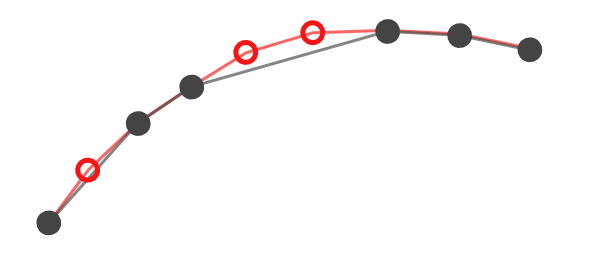
pointermove events (the grey dots), the curve is noticeably
angular and jagged; the same line drawn using the more granular points provided by
getCoalescedEvents() (the red circles) results in a smoother approximation
of the pointer movement.A PointerEvent has an associated coalesced events list (a list of
zero or more PointerEvents). For trusted pointermove and
pointerrawupdate events, the list is a sequence of all PointerEvents
that were coalesced into this event. The "parent" trusted pointermove and
pointerrawupdate event represents an accumulation of these coalesced events,
but may have additional processing (for example to align with the display refresh rate).
As a result, the coalesced events lists for these events always contain at least one event.
For all other trusted event types, it is an empty list. Untrusted events have their
coalesced events list initialized to the value passed to the constructor.
Note
Since a trusted parent event is a summary or aggregation of the coalesced events, developers should only need to process either the parent events or all of the coalesced events, but not both.
Note
When a trusted event containing a coalesced events list is re-dispatched from JavaScript, the event dispatch algorithm sets the isTrusted bit of the event to false but the same bits in the coalesced events list remain unchanged from their original true values.
The events in the coalesced events list of a trusted event will have:
- Monotonically increasing
timeStampvalues [DOM] — all coalesced events have atimeStampthat is smaller than or equal to thetimeStampof the dispatched pointer event that thegetPredictedEventsmethod was called on. The coalesced events list MUST be chronologically sorted bytimeStamp, so the first event will have the smallesttimeStamp. - The same
pointerId,pointerType, andisPrimaryas the dispatched "parent" pointer event. - Empty coalesced events list and predicted events list of their own.
: Basic canvas drawing application using the coalesced events list
<style>
    /* Disable intrinsic user agent direct manipulation behaviors (such as panning or zooming)
    so that all events on the canvas element are given to the application instead. */
    canvas { touch-action: none; }
</style>
<canvas id="drawSurface" width="500px" height="500px" style="border:1px solid black;"></canvas>
<script>
    const canvas = document.getElementById("drawSurface"),
    context = canvas.getContext("2d");
    canvas.addEventListener("pointermove", (e)=> {
        if (e.getCoalescedEvents) {
            for (let coalesced_event of e.getCoalescedEvents()) {
                paint(coalesced_event); // Paint all raw/non-coalesced points
            }
        } else {
            paint(e); // Paint the final coalesced point
        }
    });
    function paint(event) {
        if (event.buttons>0) {
            context.fillRect(event.clientX, event.clientY, 5, 5);
        }
    }
</script>
Note
The PointerEvent's attributes will be initialized in a way that best represents the events in the coalesced events list. The specific method by which user agents should do this is not covered by this specification.
The order of all these dispatched events MUST match the actual order of the original events.
For example if a pointerdown event causes the dispatch for the
coalesced pointermove events the user agent MUST first dispatch one pointermove
event with all those coalesced events of a pointerId followed by the pointerdown event.
Note
Here is an example of the actual events happening with increasing timeStamp values and the
events dispatched by the user agent:
| Actual events | Dispatched events |
|---|---|
pointer (pointerId=2) coordinate change | pointerrawupdate (pointerId=2) w/ one coalesced event |
pointer (pointerId=1) coordinate change | pointerrawupdate (pointerId=1) w/ one coalesced event |
pointer (pointerId=2) coordinate change | pointerrawupdate (pointerId=2) w/ one coalesced event |
pointer (pointerId=2) coordinate change | pointerrawupdate (pointerId=2) w/ one coalesced event |
pointer (pointerId=1) coordinate change | pointerrawupdate (pointerId=1) w/ one coalesced event |
pointer (pointerId=2) coordinate change | pointerrawupdate (pointerId=2) w/ one coalesced event |
pointer (pointerId=1) button press |
pointermove (pointerId=1) w/ two coalesced eventspointermove (pointerId=2) w/ four coalesced eventspointerdown (pointerId=1) w/ zero coalesced events |
pointer (pointerId=2) coordinate change | pointerrawupdate (pointerId=2) w/ one coalesced event |
pointer (pointerId=2) coordinate change | pointerrawupdate (pointerId=2) w/ one coalesced event |
pointer (pointerId=1) button release |
pointermove (pointerId=2) w/ two coalesced eventspointerup (pointerId=1) w/ zero coalesced events |
Some user agents have built-in algorithms which, after a series of confirmed pointer movements,
can make a prediction (based on the preceding events for the current gesture, and the speed/trajectory of the movement) what
the position of future pointer movements may be. Applications can use this information with
the getPredictedEvents method to speculatively "draw ahead" to a predicted position
to reduce perceived latency, and then discarding these predicted points once the actual points
are received.
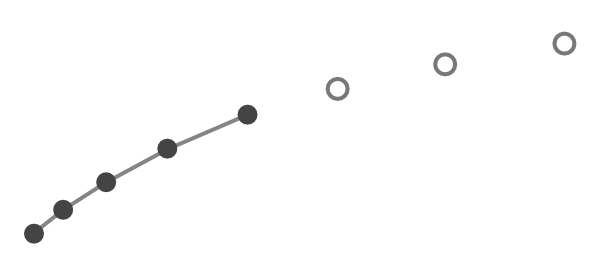
pointermove events, showing the user agent's predicted future points (the grey circles).A PointerEvent has an associated predicted events list (a list of zero or more
PointerEvents). For trusted pointermove events, it is a sequence of
PointerEvents that the user agent predicts will follow the event in the future.
For all other trusted event types, it is an empty list.
Untrusted events have their predicted events list initialized to the value passed to the
constructor.
Note
While pointerrawupdate events may have a non-empty coalesced events list,
their predicted events list will, for performance reasons, usually be an empty list.
Note
When a trusted event containing a predicted events list is re-dispatched from JavaScript, the event dispatch algorithm sets the isTrusted bit of the event to false but the same bits in the predicted events list remain unchanged from their original true values.
The number of events in the list and how far they are from the current timestamp are determined by the user agent and the prediction algorithm it uses.
The events in the predicted events list of a trusted event will have:
- Monotonically increasing
timeStampvalues [DOM] — all predicted events have atimeStampthat is greater than or equal to thetimeStampof the dispatched pointer event that thegetPredictedEventsmethod was called on. The predicted events list MUST be chronologically sorted bytimeStamp, so the first event will have the smallesttimeStamp. - The same
pointerId,pointerType, andisPrimaryas the dispatched "parent" pointer event. - Empty coalesced events list and predicted events list of their own.
Note
Note that authors should only consider predicted events as valid predictions until the next pointer event is dispatched. It is possible, depending on how far into the future the user agent predicts events, that regular pointer events are dispatched earlier than the timestamp of one or more of the predicted events.
: Conceptual approach to drawing using coalesced events and predicted events
let predicted_points = [];
window.addEventListener("pointermove", function(event) {
    // Clear the previously drawn predicted points.
    for (let e of predicted_points.reverse()) {
        clearPoint(e.pageX, e.pageY);
    }
    // Draw the actual movements that happened since the last received event.
    for (let e of event.getCoalescedEvents()) {
        drawPoint(e.pageX, e.pageY);
    }
    // Draw the current predicted points to reduce the perception of latency.
    predicted_points = event.getPredictedEvents();
    for (let e of predicted_points) {
        drawPoint(e.pageX, e.pageY);
    }
});
When a trusted PointerEvent is created, user agents SHOULD run the following steps for each event in the
coalesced events list and predicted events list:
- Set the event's
pointerId,pointerType,isPrimaryandisTrustedto match the respective properties of the "parent" pointer event. - Set the event's
cancelableandbubblesto false (as these events will never be dispatched in isolation). - Set the event's coalesced events list and predicted events list to an empty list.
- Initialize all other attributes to default
PointerEventvalues.
When a trusted PointerEvent's target is changed, user agents SHOULD, for each event in the
coalesced events list and predicted events list:
The vast majority of web content existing today codes only to Mouse Events. The following describes an algorithm for how the user agent MAY map generic pointer input to mouse events for compatibility with this content.
The compatibility mapping with mouse events is an OPTIONAL feature of this specification. User agents are encouraged to support the feature for best compatibility with existing legacy content.
Note
At a high level, compatibility mouse events are intended to be "interleaved" with their respective pointer events. However, this specific order is not mandatory, and user agents that implement compatibility mouse events MAY decide to delay or group the dispatch of mouse events, as long as their relative order is consistent.
Particularly in the case of touchscreen inputs, user agents MAY apply additional heuristics for gesture recognition (unless explicitly suppressed by authors through touch-actionpointerdown event and a pointerup event, the gesture recognition may have to wait until the pointerup event to detect or ignore a gesture. As a result the compatibility mouse events for the whole sequence may be dispatched together after the last pointerup event, if the user agent determined that an interaction was not intended as a particular gesture. These specifics of user agent gesture recognition are not defined in this specification, and they may differ between implementations.
Regardless of their support for compatibility mouse events, the user agents MUST always support the click, auxclick and contextmenu events because these events are of type PointerEvent and are therefore not compatibility mouse events. Calling preventDefault during a pointer event MUST NOT have an effect on whether click, auxclick, or contextmenu are fired or not.
Note
The relative order of some of these high-level events (such as contextmenu, focus, blur) with pointer events is undefined and varies between user agents. For example, in some user agents contextmenu will often follow a pointerup, while in others it'll often precede a pointerup or pointercancel, and in some situations it may be fired without any corresponding pointer event (for instance, as a result of a keyboard interaction).
In addition, user agents may apply their own heuristics to determine whether or not a click, auxclick, or contextmenu event should be fired. Some user agents may choose not to fire these events if there are other (non-primary) pointers of the same type, or other primary pointers of a different type. User agents may determine that a particular action was not a "clean" tap, click, or long-press (for instance, if an interaction with a finger on a touch screen includes too much movement while the finger is in contact with the screen) and decide not to fire a click, auxclick, or contextmenu event. These aspects of user agent behavior are not defined in this specification, and they may differ between implementations.
Unless otherwise noted, the target of any mapped mouse event SHOULD be the same target as the respective pointer event unless the target is no longer participating in its ownerDocument's tree. In this case, the mouse event should be fired at the original target's nearest ancestor node (at the time it was removed from the tree) that still participates in its ownerDocument's tree, meaning that a new event path (based on the new target node) is built for the mouse event.
Authors can prevent the production of certain compatibility mouse events by canceling the pointerdown event.
Mouse events can only be prevented when the pointer is down. Hovering pointers (e.g. a mouse with no buttons pressed) cannot have their mouse events prevented.
The mouseover, mouseout, mouseenter, and mouseleave events are never prevented (even if the pointer is down).
Compatibility mouse events can't be prevented when a pointer event EventListener is set to be passive [DOM].
While only primary pointers can produce compatibility mouse events, multiple primary pointers can be active simultaneously, each producing its own compatibility mouse events. For compatibility with scripts relying on MouseEvents, the mouse transition events (mouseover, mouseout, mouseenter and mouseleave) SHOULD simulate the movement of a single legacy mouse input. This means that the entry/exit state for every event target is valid. User agents SHOULD guarantee this by maintaining the effective position of the legacy mouse pointer in the document as follows.
Right before firing a pointerdown, pointerup or pointermove event, or a pointerleave event at the window, the user agent SHOULD run the following steps:
- Let T be the target of the
pointerdown,pointeruporpointermoveevent being dispatched. For thepointerleaveevent, unset T. - If T and current effective legacy mouse pointer position are both unset or they are equal, terminate these steps.
- Dispatch
mouseover,mouseout,mouseenterandmouseleaveevents as per Mouse Events for a mouse moving from the current effective legacy mouse pointer position to T. Consider an unset value of either current effective legacy mouse pointer position or T as an out-of-window mouse position. - Set effective legacy mouse pointer position to T.
Note
The effective position of the legacy mouse pointer models the fact that we cannot always have a direct mapping
from pointer transition events (pointerover, pointerout, pointerenter
and pointerleave) to corresponding legacy mouse transition events (mouseover,
mouseout, mouseenter and mouseleave). The following animation illustrates a case
where a user agent needs to dispatch more legacy mouse transition events than pointer transition events to be able to
reconcile two primary pointers using a single legacy mouse input.
In this animation, note the time period between the mouse click and the touch tap. Button 1 receives no
pointerout event (because the "real" mouse pointer didn't leave the button rectangle within
this period), but Button 1 receives a mouseout event when the effective position of the
legacy mouse pointer moves to Button 2 on touch tap. Similarly, in the time period between the touch
tap and the moment before the mouse leaves Button 1, Button 1 receives no pointerover event
for the same reason, but Button 1 receives a mouseover event when the effective position
of the legacy mouse pointer moves back inside Button 1.
Whenever the user agent is to dispatch a pointer event for a device that supports hover, it SHOULD run the following steps:
- If the
isPrimaryproperty for the pointer event to be dispatched isfalsethen dispatch the pointer event and terminate these steps. - If the pointer event to be dispatched is a
pointerdown,pointeruporpointermoveevent, or apointerleaveevent at thewindow, dispatch compatibility mouse transition events as described in Tracking the effective position of the legacy mouse pointer. - Dispatch the pointer event.
- If the pointer event dispatched was
pointerdownand event's canceled flag is set, then set thePREVENT MOUSE EVENTflag for thispointerType. - If the
PREVENT MOUSE EVENTflag is not set for thispointerTypeand the pointer event dispatched was:pointerdown, then fire amousedownevent.pointermove, then fire amousemoveevent.pointerup, then fire amouseupevent.pointercancel, then fire amouseupevent at thewindow.
- If the pointer event dispatched was
pointeruporpointercancel, clear thePREVENT MOUSE EVENTflag for thispointerType.
Some devices, such as most touchscreens, do not support hovering a coordinate (or set of coordinates) while not in the active state. Much existing content coded to mouse events assumes that a mouse is producing the events and thus certain qualities are generally true:
- The input can hover independently of activation (e.g. moving a mouse cursor without any buttons pressed).
- The input will likely produce the
mousemoveevent on an element before clicking it.
Note
Hover is sometimes used to toggle the visibility of UI elements in content designed for mouse (e.g. "hover menus"). This content is often incompatible with devices that do not support hover. This specification does not define a mapping or behavior for compatibility with this scenario. It will be considered in a future version of the specification.
This requires that user agents provide a different mapping for these types of input devices. Whenever the user agent is to dispatch a pointer event for a device that does not support hover, it SHOULD run the following steps:
- If the
isPrimaryproperty for the pointer event to be dispatched isfalsethen dispatch the pointer event and terminate these steps. - If the pointer event to be dispatched is
pointeroverand thepointerdownevent has not yet been dispatched for this pointer, then fire amousemoveevent (for compatibility with legacy mouse-specific code). - If the pointer event to be dispatched is a
pointerdown,pointeruporpointermoveevent, or apointerleaveevent at thewindow, dispatch compatibility mouse transition events as described in Tracking the effective position of the legacy mouse pointer. - Dispatch the pointer event.
- If the pointer event dispatched was
pointerdownand event's canceled flag is set, then set thePREVENT MOUSE EVENTflag for thispointerType. - If the
PREVENT MOUSE EVENTflag is not set for thispointerTypeand the pointer event dispatched was:pointerdown, then fire amousedownevent.pointermove, then fire amousemoveevent.pointerup, then fire amouseupevent.pointercancel, then fire amouseupevent at thewindow.
- If the pointer event dispatched was
pointeruporpointercancel, clear thePREVENT MOUSE EVENTflag for thispointerType.
If the user agent supports both Touch Events (as defined in [TOUCH-EVENTS]) and Pointer Events, the user agent MUST NOT generate both the compatibility mouse events as described in this section, and the fallback mouse events outlined in [TOUCH-EVENTS].
Note
The activation of an element (click) with a primary pointer that does not support hover (e.g. single finger on a touchscreen) would typically produce the following event sequence:
mousemovepointeroverpointerentermouseovermouseenterpointerdownmousedown- Zero or more
pointermoveandmousemoveevents, depending on movement of the pointer pointerupmouseuppointeroutpointerleavemouseoutmouseleaveclick
If, however, the pointerdown event canceled flag is set during this interaction then the sequence of events would be:
mousemovepointeroverpointerentermouseovermouseenterpointerdown- Zero or more
pointermoveevents, depending on movement of the pointer pointeruppointeroutpointerleavemouseoutmouseleaveclick
The mouse event module originates from the [HTML401] onclick, ondblclick, onmousedown, onmouseup, onmouseover, onmousemove, and onmouseout attributes. This event module is specifically designed for use with pointing input devices, such as a mouse or a trackball.
Introduced in DOM Level 2, modified in this specification.
The MouseEvent interface provides specific contextual information associated with Mouse events.
In the case of nested elements, mouse events are always targeted at the most deeply nested element.
Note
Ancestors of the targeted element can use event bubbling to obtain notifications of mouse events which occur within their descendent elements.
To create an instance of the MouseEvent interface, use the MouseEvent constructor, passing an optional MouseEventInit dictionary.
Note
When initializing MouseEvent objects using initMouseEvent, implementations can use the client coordinates clientX and clientY for calculation of other coordinates (such as target coordinates exposed by DOM Level 0 implementations or other proprietary attributes, e.g., pageX).
dictionary  MouseEventInit  : EventModifierInit {
	long  screenX  = 0;
	long  screenY  = 0;
	long  clientX  = 0;
	long  clientY  = 0;
	short  button  = 0;
	unsigned short  buttons  = 0;
	EventTarget?  relatedTarget  = null;
};
[Exposed=Window]
interface  MouseEvent  : UIEvent {
	 constructor (DOMString type, optional MouseEventInit eventInitDict = {});
	readonly attribute long screenX;
	readonly attribute long screenY;
	readonly attribute long clientX;
	readonly attribute long clientY;
	readonly attribute long layerX;
	readonly attribute long layerY;
	readonly attribute boolean ctrlKey;
	readonly attribute boolean shiftKey;
	readonly attribute boolean altKey;
	readonly attribute boolean metaKey;
	readonly attribute short button;
	readonly attribute unsigned short buttons;
	readonly attribute EventTarget? relatedTarget;
	boolean getModifierState(DOMString keyArg);
};-
screenX -
The horizontal coordinate at which the event occurred relative to the origin of the screen coordinate system.
The un-initialized value of this attribute MUST be
0. -
screenY -
The vertical coordinate at which the event occurred relative to the origin of the screen coordinate system.
The un-initialized value of this attribute MUST be
0. -
clientX -
The horizontal coordinate at which the event occurred relative to the viewport associated with the event.
The un-initialized value of this attribute MUST be
0. -
clientY -
The vertical coordinate at which the event occurred relative to the viewport associated with the event.
The un-initialized value of this attribute MUST be
0. -
layerX -
The horizontal offset from the nearest ancestor element which is a stacking context, is positioned, or paints in the positioned phase when painting a stacking context.
The un-initialized value of this attribute MUST be
0. -
layerY -
The vertical offset from the nearest ancestor element which is a stacking context, is positioned, or paints in the positioned phase when painting a stacking context.
The un-initialized value of this attribute MUST be
0. -
ctrlKey -
Refer to the
KeyboardEvent'sctrlKeyattribute.The un-initialized value of this attribute MUST be
false. -
shiftKey -
Refer to the
KeyboardEvent'sshiftKeyattribute.The un-initialized value of this attribute MUST be
false. -
altKey -
Refer to the
KeyboardEvent'saltKeyattribute.The un-initialized value of this attribute MUST be
false. -
metaKey -
Refer to the
KeyboardEvent'smetaKeyattribute.The un-initialized value of this attribute MUST be
false. -
button -
During mouse events caused by the depression or release of a mouse button,
buttonMUST be used to indicate which pointer device button changed state.The value of the
buttonattribute MUST be as follows:0MUST indicate the primary button of the device (in general, the left button or the only button on single-button devices, used to activate a user interface control or select text) or the un-initialized value.1MUST indicate the auxiliary button (in general, the middle button, often combined with a mouse wheel).2MUST indicate the secondary button (in general, the right button, often used to display a context menu).3MUST indicate the X1 (back) button.4MUST indicate the X2 (forward) button.
Some pointing devices provide or simulate more button states, and values higher than
2or lower than0MAY be used to represent such buttons.Note
The value of
buttonis not updated for events not caused by the depression/release of a mouse button. In these scenarios, take care not to interpret the value0as the left button, but rather as the default value.Note
Some default actions related to events such as
mousedownandmouseupdepend on the specific mouse button in use.The un-initialized value of this attribute MUST be
0. -
buttons -
During any mouse events,
buttonsMUST be used to indicate which combination of mouse buttons are currently being pressed, expressed as a bitmask.Note
The
buttonsattribute is a bit-field. If a mask value of 1 is true when applied to the value of the bit field, then the primary mouse button is down. If a mask value of 2 is true when applied to the value of the bit field, then the right mouse button is down. If a mask value of 4 is true when applied to the value of the bit field, then the auxiliary/middle button is down.Note
Though similarly named, the values for the
buttonsattribute and thebuttonattribute are very different. The value ofbuttonis assumed to be valid duringmousedown/mouseupevent handlers, whereas thebuttonsattribute reflects the state of the mouse's buttons for any trustedMouseEventobject (while it is being dispatched), because it can represent the "no button currently active" state (0).The value of the
buttonsattribute MUST be as follows:0MUST indicate no button is currently active.1MUST indicate the primary button of the device (in general, the left button or the only button on single-button devices, used to activate a user interface control or select text).2MUST indicate the secondary button (in general, the right button, often used to display a context menu), if present.4MUST indicate the auxiliary button (in general, the middle button, often combined with a mouse wheel).
Some pointing devices provide or simulate more buttons. To represent such buttons, the value MUST be doubled for each successive button (in the binary series
8,16,32, ... ).Note
Because the sum of any set of button values is a unique number, a content author can use a bitwise operation to determine how many buttons are currently being pressed and which buttons they are, for an arbitrary number of mouse buttons on a device. For example, the value
3indicates that the left and right button are currently both pressed, while the value5indicates that the left and middle button are currently both pressed.Note
Some default actions related to events such as
mousedownandmouseupdepend on the specific mouse button in use.The un-initialized value of this attribute MUST be
0. -
Used to identify a secondary
EventTargetrelated to a UI event, depending on the type of event.The un-initialized value of this attribute MUST be
null.The
relatedTargetshould be initialized to the element whose bounds the mouse pointer just left (in the case of amouseoverormouseenterevent) or the element whose bounds the mouse pointer is entering (in the case of amouseoutormouseleaveor focusout event). For other events, this value need not be assigned (and will default to null). -
getModifierState(keyArg) -
Queries the state of a modifier using a key value.
Returns
trueif it is a modifier key and the modifier is activated,falseotherwise.DOMStringkeyArg- Refer to the
KeyboardEvent'sgetModifierState()method for a description of this parameter.
Implementations MUST maintain the current click count when generating mouse events. This MUST be a non-negative integer indicating the number of consecutive clicks of a pointing device button within a specific time. The delay after which the count resets is specific to the environment configuration.
The algorithms in this section assume that the native platform OS will provide the following:
- An event when the mouse is moved (handled by handle native mouse move)
- An event when a mouse button is pressed (handled by handle native mouse down)
- An event when a mouse button is released (handled by handle native mouse up)
- A way to identify when a mouse button press should be interpreted as a "click" (handled by handle native mouse click)
- For example, as a flag or as a separate event
- If a separate "click" event is fired, then the native OS will fire it immediately after the corresponding "mouse up" event, with no intervening mouse-related events
- A way to identify when a mouse click is a "double click" (handled by handle native mouse double click)
For these events, the OS will be able to provide the following info:
- The x,y mouse coordinates relative to the native OS desktop
- The x,y mouse coordinates relative to the UA's window viewport
- Which keyboard modifiers are currently being held
Warning
This section needs to be revised.
Generally, when a constructor of an Event interface, or of an interface inherited from the Event interface, is invoked, the steps described in [DOM] should be followed. However the MouseEvent interfaces provide additional dictionary members for initializing the internal state of the Event object's key modifiers: specifically, the internal state queried for using the getModifierState() methods. This section supplements the [DOM] steps for intializing a new MouseEvent object with these optional modifier states.
For the purposes of constructing a MouseEvent, or object derived from these objects using the algorithm below, all MouseEvent, and derived objects have internal key modifier state which can be set and retrieved using the key modifier names described in the Modifier Keys table in [UIEvents-Key].
The following steps supplement the algorithm defined for constructing events in [DOM]:
-
If the
Eventbeing constructed is aMouseEventobject or an object that derives from it, and aEventModifierInitargument was provided to the constructor, then run the following sub-steps:-
For each
EventModifierInitargument, if the dictionary member begins with the string"modifier", then let the key modifier name be the dictionary member's name excluding the prefix"modifier", and set theEventobject's internal key modifier state that matches the key modifier name to the corresponding value.
-
For each
Warning
This section needs to be revised.
The UA must maintain the following values that are shared for the entire User Agent.
A mouse button bitmask that tracks the current state of the mouse buttons.
The UA must maintain the following values that are shared for the Window.
A last mouse element value (initially undefined) that keeps track of the last Element that we sent a MouseEvent to.
A last mouse DOM path value (initially empty) that contains a snapshot of the ancestors Elements of the last mouse element when the most recent mouse event was sent.
Warning
This section needs to be revised.
A MouseEvent has the following internal flags that are used to track the state of various modifier keys:
shift flag ,
control flag ,
alt flag ,
altgraph flag ,
and meta flag .
These flags are set if the corresponding modifier key was pressed at the time
of the mouse event.
Warning
This section needs to be revised.
- Let pos be the x,y coordinates relative to the viewport
- Return [CSSOM-View]'s
elementFromPoint()with pos (the frontmost DOM element at pos)
Warning
This section needs to be revised.
To initialize a MouseEvent with event, eventType and eventTarget, bubbles, and cancelable, run the following steps:
- Initialize a UIEvent with event, eventType, eventTarget, bubbles and cancelable.
-
Set event.
screenXto the x-coordinate of the position where the event occurred relative to the origin of the desktop -
Set event.
screenYto the y-coordinate of the position where the event occurred relative to the origin of the desktop -
Set event.
clientXto the x-coordinate of the position where the event occurred relative to the origin of the viewport -
Set event.
clientYto the y-coordinate of the position where the event occurred relative to the origin of the viewport - Set mouse event modifiers with event
-
Set event.
buttonto 0 -
Set event.
buttonsto mouse button bitmask -
Initialize PointerLock attributes for MouseEvent with event
Issue 1
We should provide a hook for PointerLock instead of hardcoding it here.
Warning
This section needs to be revised.
- Let event be the
MouseEventto update - Set event's shift flag if key modifier state includes "Shift", unset it otherwise
- Set event's control flag if key modifier state includes "Control", unset it otherwise
- Set event's alt flag if key modifier state includes "Alt", unset it otherwise
- Set event's altgraph flag if key modifier state includes "AltGraph", unset it otherwise
- Set event's meta flag if key modifier state includes "Meta", unset it otherwise
- Set event.
shiftKeyto true if the event's shift flag is set, false otherwise - Set event.
ctrlKeyto true if the event's control flag is set, false otherwise - Set event.
altKeyto true if the event's alt flag or altgraph flag is set, false otherwise - Set event.
metaKeyto true if the event's meta flag is set, false otherwise
Warning
This section needs to be revised.
- Let eventType be a DOMString containing a valid
MouseEventtype - Let eventTarget be the
EventTargetof the event - Let bubbles be true
- Let cancelable be true
- Let event be the result of creating an event using
MouseEvent - Initialize a MouseEvent with event, eventType, eventTarget, bubbles and cancelable.
- Return event
Warning
This section needs to be revised.
- Let eventType be a DOMString containing a valid
MouseEventtype - Let eventTarget be the
EventTargetof the event - Let bubbles be "false"
- Let cancelable be "false"
- Let event be the result of creating an event using
MouseEvent - Initialize a MouseEvent with event, eventType, eventTarget, bubbles and cancelable.
- Return event
Warning
This section needs to be revised.
This will return a button ID suitable for storing in the MouseEvent's button attribute.
- Let mbutton be an ID that identifies a mouse button
- If mbutton is the primary mouse button, then return 0
- If mbutton is the auxiliary (middle) mouse button, then return 1
- If mbutton is the secondary mouse button, then return 2
- If mbutton is the X1 (back) button, then return 3
- If mbutton is the X2 (forward) button, then return 4
Warning
This section needs to be revised.
- Let event be the
MouseEventto initialize - Let native be the native mouse event
Editor's note
TODO.
- If event.
typeis one of [ mousedown, mouseup ], then- Let mbutton be an ID from native that identifies which mouse button was pressed
- Set event.
buttonto calculate MouseEvent button attribute with mbutton
Warning
This section needs to be revised.
- Let native be the native mousedown
- Let mbutton be an ID from native that identifies which mouse button was pressed
- Update the mouse button bitmask as follows:
- If mbutton is the primary mouse button, then set the 0x01 bit
- If mbutton is the secondary mouse button, then set the 0x02 bit
- If mbutton is the auxiliary (middle) mouse button, then set the 0x04 bit
Note
Other buttons can be added starting with 0x08 .
- Let target be hit test with viewport-relative coordinates from native
- Let event be the result of creating a cancelable MouseEvent with "mousedown", target
- Set MouseEvent attributes from native with native
- Maybe send pointerdown event with event
- Let result be dispatch event at target
- If result is true and target is a focusable area that is click focusable, then
- Run the focusing steps at target
- if mbutton is the secondary mouse button, then
- Maybe show context menu with native, target
Warning
This section needs to be revised.
- Let native be the native mouseup
Note
Other mouse events can occur between the mousedown and mouseup.
- Let mbutton be an ID from native that identifies which mouse button was pressed
- Update the mouse button bitmask as follows:
- If mbutton is the primary mouse button, then clear the 0x01 bit
- If mbutton is the secondary mouse button, then clear the 0x02 bit
- If mbutton is the auxiliary (middle) mouse button, then clear the 0x04 bit
- Let target be hit test with viewport-relative coordinates from native
- Let event be the result of creating a cancelable MouseEvent with "mouseup", target
- Set MouseEvent attributes from native with native
- Maybe send pointerup event with event
- dispatch event at target
Warning
This section needs to be revised.
- Let native be the native mouse click
Note
The platform should call this immediately after handle native mouse up for mouseups that generate clicks.
- Let target be hit test with viewport-relative coordinates from native
- Send click event with native and target.
Warning
This section needs to be revised.
- Let native be the native mousedown
- Let target be the
EventTargetof the event - Let mbutton be 1 (primary mouse button by default)
- If native is valid, then
- Let mbutton be an ID from native that identifies which mouse button was pressed
- Set eventType to "click" if mbutton is the primary mouse button, otherwise "auxclick"
- Let event be the result of creating a PointerEvent with eventType and target
- If native is valid, then
- Set MouseEvent attributes from native with event, native
- If event.
screenXis not an integer value, then round it. - If event.
screenYis not an integer value, then round it.
- dispatch event at target
Note
See pointerevents/100 for info about browsers using PointerEvents and rounded coordinates.
Editor's note
Any "default action" is handled during dispatch by triggering the activation behavior algorithm for the target. So there is no need for handle that here. However, need to verify that the existing spec handles disabled/css-pointer-events/inert/...
Note
To handle
HTMLelement.click(), call this algorithm with native = null and target =HTMLelement.Note
To handle keyboard-initiated clicks, call this algorithm with native = null and target = currently focused element.
Warning
This section needs to be revised.
- Let native be the native mouse double click
Note
This should be called immediately after handle native mouse click for mouse clicks that generate double clicks.
- Let mbutton be an ID from native that identifies which mouse button was pressed
- If mbutton is not the primary mouse button, then return
- Let target be hit test with viewport-relative coordinates from native
- Let event be the result of creating a PointerEvent with "dblclick" and target
- Set MouseEvent attributes from native with event, native
- If event.
screenXis not an integer value, then round it. - If event.
screenYis not an integer value, then round it. - dispatch event at target
Warning
This section needs to be revised.
- Let native be the native mouse move
Issue 2
This algorithm makes assumptions about the dispatch of PointerEvents because they are not currently specified explicitly. Once pointerevents/285 is resolved this may need to be updated.
- Let target be hit test with viewport-relative coordinates from native
- Let targetDomPath be inclusive ancestors of target
- Generate events for leaving the current element:
- If last mouse element is defined and not equal to target, then
- Let mouseout be the result of creating a cancelable MouseEvent with "mouseout" and last mouse element
Editor's note
TODO: Set mouseout attributes from native. +CSSOM attributes.
- Let mouseout be the result of creating a cancelable MouseEvent with "mouseout" and last mouse element
- Maybe send pointerout event with mouseout
- Dispatch mouseout at target
Note
Verify behavior when canceled (appears to have no effect).
- Let leaveElements be a copy of last mouse DOM path with all elements common to targetDomPath removed.
- For each element in leaveElements, do
Editor's note
Handle case where element has been deleted. Also case where it has been moved: Should the DOM mutation have triggered a mouseleave event? Should we sent it now? Should it be dropped? Need to verify what current browsers do.
- Let mouseleave be the result of creating a non-cancelable MouseEvent with "mouseleave" and element
- Set mouseleave.
Event.composed= falseNote
Check compat: Value of event.composed. Spec says false. Chrome/Linux = true. Firefox/Linux = false.
- Maybe send pointerleave event with mouseleave
- Let result be dispatch mouseleave at element
- If last mouse element is defined and not equal to target, then
- Generate events for entering the new element:
- If target is not last mouse element, then
- Let mouseover be the result of creating a cancelable MouseEvent with "mouseover" and target
Editor's note
TODO: Set mouseout attributes from native. +CSSOM attributes.
- Maybe send pointerover event with mouseover
- Dispatch mouseout at target
Note
Need to verify behavior when canceled (appears to have no effect).
- Let enterElements be a copy of targetDomPath with all elements common to last mouse DOM path removed.
- For each element in enterElements, do
Note
Handle case where element has been deleted or moved.
- Let mouseenter be the result of creating a non-cancelable MouseEvent with "mouseenter" and element
- Set mouseenter.
Event.composed= falseNote
Check compat: Value of event.composed. Spec says false. Chrome/Linux = true. Firefox/Linux = false.
- Maybe send pointerenter event with mouseenter
Note
Check compat for shadow DOM elements. Chrome/Linux fires this event at the element and the shadow root.
- Let result be dispatch mouseenter at element
- Set last mouse element to target
- Set last mouse DOM path to targetDomPath
- Let mouseover be the result of creating a cancelable MouseEvent with "mouseover" and target
- If target is not last mouse element, then
- Let mousemove be the result of creating a cancelable MouseEvent with "mousemove" and element
- Set PointerLock attributes for mousemove
- Maybe send pointermove event with mousemove
- Dispatch mousemove at element
Certain mouse events defined in this specification MUST occur in a set order relative to one another. The following shows the event sequence that MUST occur when a pointing device's cursor is moved over an element:
| # | Event Type | Element | Notes |
|---|---|---|---|
| 1 | mousemove |
||
| Pointing device is moved into element A... | |||
| 2 | mouseover |
A | |
| 3 | mouseenter |
A | |
| 4 | mousemove |
A | Multiple mousemove events |
| Pointing device is moved out of element A... | |||
| 5 | mouseout |
A | |
| 6 | mouseleave |
A |
When a pointing device is moved into an element A, and then into a nested element B and then back out again, the following sequence of events MUST occur:
| Event Type | Element | Notes | |
|---|---|---|---|
| 1 | mousemove |
||
| Pointing device is moved into element A... | |||
| 2 | mouseover |
A | |
| 3 | mouseenter |
A | |
| 4 | mousemove |
A | Multiple mousemove events |
| Pointing device is moved into nested element B... | |||
| 5 | mouseout |
A | |
| 6 | mouseover |
B | |
| 7 | mouseenter |
B | |
| 8 | mousemove |
B | Multiple mousemove events |
| Pointing device is moved from element B into A... | |||
| 9 | mouseout |
B | |
| 10 | mouseleave |
B | |
| 11 | mouseover |
A | |
| 12 | mousemove |
A | Multiple mousemove events |
| Pointing device is moved out of element A... | |||
| 13 | mouseout |
A | |
| 14 | mouseleave |
A |
Sometimes elements can be visually overlapped using CSS. In the following example, three elements labeled A, B, and C all have the same dimensions and absolute position on a web page. Element C is a child of B, and B is a child of A in the DOM:
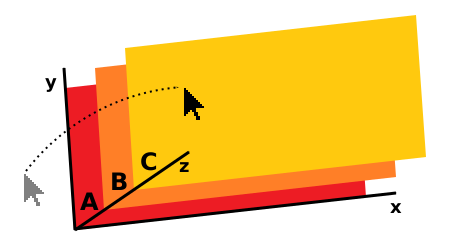 "Graphi