Pipeline is designed to easily use Docker images as the execution environment for a single Stage or the entire Pipeline.
Meaning that a user can define the tools required for their Pipeline, without having to manually configure agents.
Any tool that can be packaged in a Docker container can be used with ease, by making only minor edits to a Jenkinsfile.
|
The examples on this page require the Docker Pipeline plugin.
Without that plugin, Jenkins cannot use the |
Jenkinsfile (Declarative Pipeline)
pipeline {
    agent {
        docker { image 'node:24.19.0-alpine3.24' }
    }
    stages {
        stage('Test') {
            steps {
                sh 'node --eval "console.log(process.platform,process.env.CI)"'
            }
        }
    }
}
When the Pipeline executes, Jenkins will automatically start the specified container and execute the defined steps within:
[Pipeline] stage
[Pipeline] { (Test)
[Pipeline] sh
[guided-tour] Running shell script
+ node --eval 'console.log(process.platform,process.env.CI)'
linux true
[Pipeline] }
[Pipeline] // stage
[Pipeline] }
Additional arguments
Additional arguments, such as the registryUrl, are described in the agent parameters syntax documentation.
Workspace synchronization
If it is important to keep the workspace synchronized with other stages, use reuseNode true.
Otherwise, a dockerized stage can be run on the same agent or any other agent, but in a temporary workspace.
By default, for a containerized stage, Jenkins:
-
Picks an agent.
-
Creates a new empty workspace.
-
Clones pipeline code into it.
-
Mounts this new workspace into the container.
If you have multiple Jenkins agents, your containerized stage can be started on any of them.
When reuseNode is set to true, no new workspace will be created, and the current workspace from the current agent will be mounted into the container.
After this, the container will be started on the same node, so all of the data will be synchronized.
Jenkinsfile (Declarative Pipeline)
pipeline {
    agent any
    stages {
        stage('Build') {
            agent {
                docker {
                    image 'gradle:8.14.0-jdk21-alpine'
                    // Run the container on the node specified at the
                    // top-level of the Pipeline, in the same workspace,
                    // rather than on a new node entirely:
                    reuseNode true
                }
            }
            steps {
                sh 'gradle -g gradle-user-home --version'
            }
        }
    }
}
Caching data for containers
Many build tools will download external dependencies and cache them locally for future re-use. Since containers are initially created with "clean" file systems, this can result in slower Pipelines, as they may not take advantage of on-disk caches between subsequent Pipeline runs.
Pipeline supports adding custom arguments that are passed to Docker, allowing users to specify custom Docker Volumes to mount, which can be used for caching data on the agent between Pipeline runs.
The following example will cache ~/.m2 between Pipeline runs utilizing the maven container, avoiding the need to re-download dependencies for subsequent Pipeline runs.
Jenkinsfile (Declarative Pipeline)
pipeline {
    agent {
        docker {
            image 'maven:3.9.9-eclipse-temurin-21'
            args '-v $HOME/.m2:/root/.m2'
        }
    }
    stages {
        stage('Build') {
            steps {
                sh 'mvn -B'
            }
        }
    }
}
Using multiple containers
It has become increasingly common for code bases to rely on multiple different technologies.
For example, a repository might have both a Java-based back-end API implementation and a JavaScript-based front-end implementation.
Combining Docker and Pipeline allows a Jenkinsfile to use multiple types of technologies, by combining the agent {} directive with different stages.
Jenkinsfile (Declarative Pipeline)
pipeline {
    agent none
    stages {
        stage('Back-end') {
            agent {
                docker { image 'maven:3.9.16-eclipse-temurin-21-alpine' }
            }
            steps {
                sh 'mvn --version'
            }
        }
        stage('Front-end') {
            agent {
                docker { image 'node:24.19.0-alpine3.24' }
            }
            steps {
                sh 'node --version'
            }
        }
    }
}
Using a Dockerfile
For projects requiring a more customized execution environment, Pipeline also supports building and running a container from a Dockerfile in the source repository.
In contrast to the previous approach of using an "off-the-shelf" container, using the agent { dockerfile true } syntax builds a new image from a Dockerfile, rather than pulling one from Docker Hub.
Reusing an example from above, with a more custom Dockerfile:
Dockerfile
FROM node:24.19.0-alpine3.24
RUN apk add -U subversion
By committing this to the root of the source repository, the Jenkinsfile can be changed to build a container based on this Dockerfile, and then run the defined steps using that container:
Jenkinsfile (Declarative Pipeline)
pipeline {
    agent { dockerfile true }
    stages {
        stage('Test') {
            steps {
                sh 'node --version'
                sh 'svn --version'
            }
        }
    }
}
The agent { dockerfile true } syntax supports a number of other options, which are described in more detail in the Pipeline Syntax section.
Using a Dockerfile with Jenkins Pipeline
Specifying a Docker Label
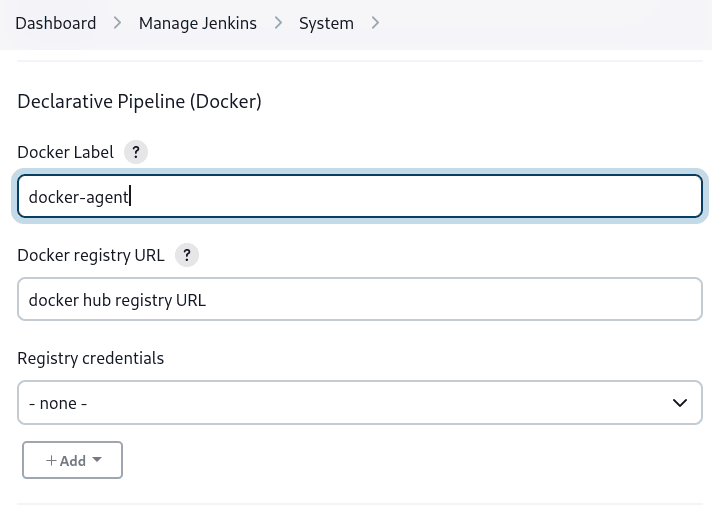
By default, Pipeline assumes that any configured agent is capable of running Docker-based Pipelines. For Jenkins environments that have macOS, Windows, or other agents that are unable to run the Docker daemon, this default setting may be problematic. Pipeline provides a global option on the Manage Jenkins page and on the Folder level, for specifying which agents (by Label) to use for running Docker-based Pipelines. To enable this option for Docker labels, the Docker Pipeline plugin must be installed.
Path setup for mac OS users
The /usr/local/bin directory is not included in the macOS PATH for Docker images by default.
If executables from /usr/local/bin need to be called from within Jenkins, the PATH needs to be extended to include /usr/local/bin.
Add a path node in the file "/usr/local/Cellar/jenkins-lts/XXX/homebrew.mxcl.jenkins-lts.plist" like this:
Contents of homebrew.mxcl.jenkins-lts.plist
<key>EnvironmentVariables</key>
<dict>
<key>PATH</key>
<string><!-- insert revised path here --></string>
</dict>
The revised PATH string should be a colon separated list of directories in the same format as the PATH environment variable and should include:
-
/usr/local/bin -
/usr/bin -
/bin -
/usr/sbin -
/sbin -
/Applications/Docker.app/Contents/Resources/bin/ -
/Users/XXX/Library/Group\ Containers/group.com.docker/Applications/Docker.app/Contents/Resources/bin(whereXXXis replaced by your user name)
Now, restart jenkins using brew services restart jenkins-lts.