- Updated
- February 4, 2026
Learn how to connect your website to leading translation services and send content for translation using WPML.
Why Use a Translation Service?
Translation services are a reliable way to translate your website. Unlike individual contractors and part-time freelancers, translation services employ professional translators with hands-on experience. This guarantees a number of benefits:
Excellent Translations
Get translations that match your content’s voice and sound natural to native speakers
Industry Specialization
Work with translation services that specialize in your website’s niche and industry
Save Time & Effort
Attend to other important tasks while professionals translate your website
At WPML, we work with over 70+ leading professional translation services from around the world. Whether you run a small company page or a big corporate website, our partners specialize in dozens of industries, ensuring accurate translations for your specific niche.
Using translation services in WPML is easy and secure. You can send content for translation directly from your WordPress admin, and external translators never have access to your website.
Here’s how the process works.
1. Connect Your Website to a Translation Service
WPML offers two ways to connect your website to a translation service: during the setup wizard, or in the Translation Dashboard → Manage Translators & Services tab.
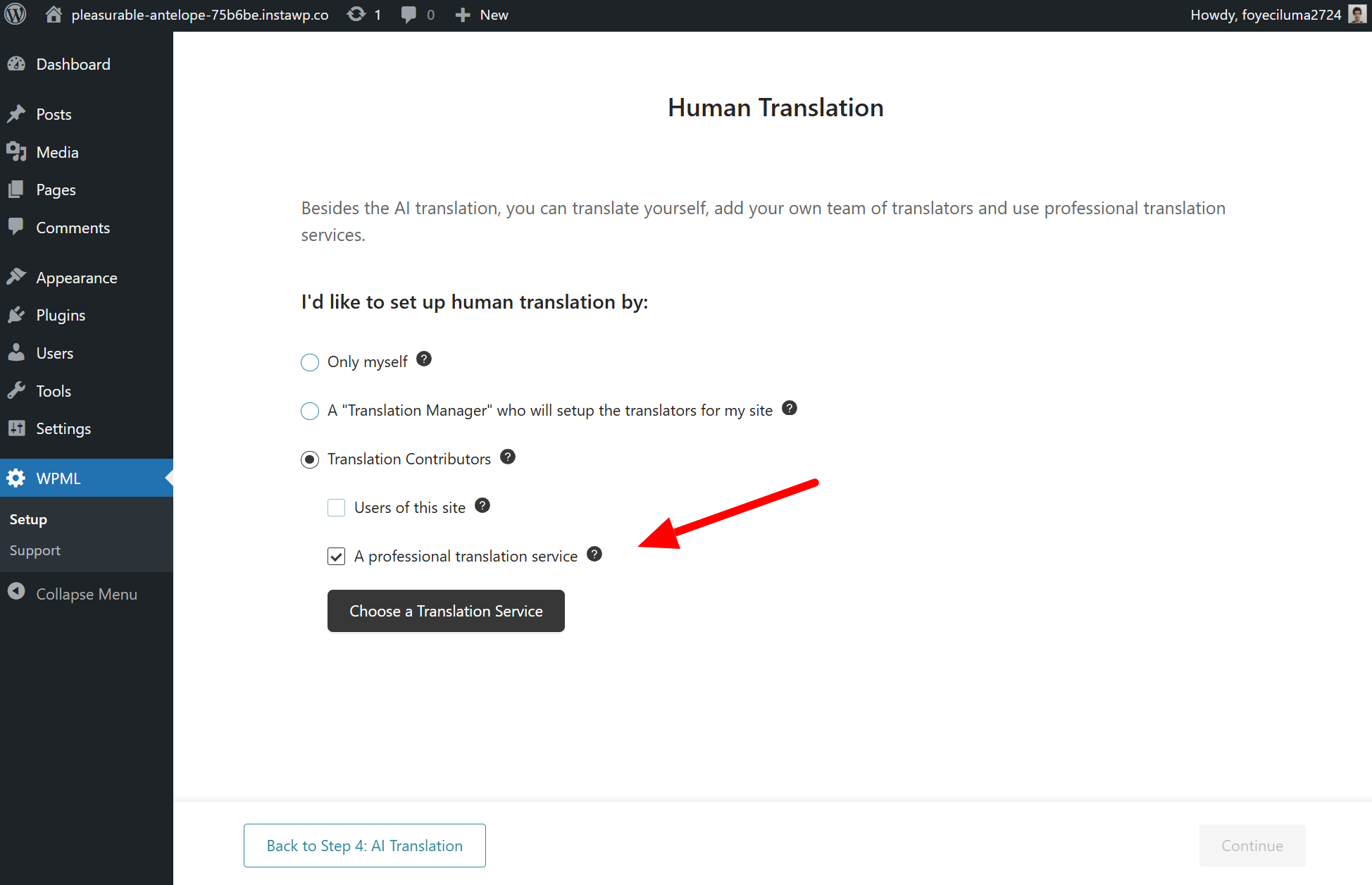
Connecting to a translation service in the setup wizard
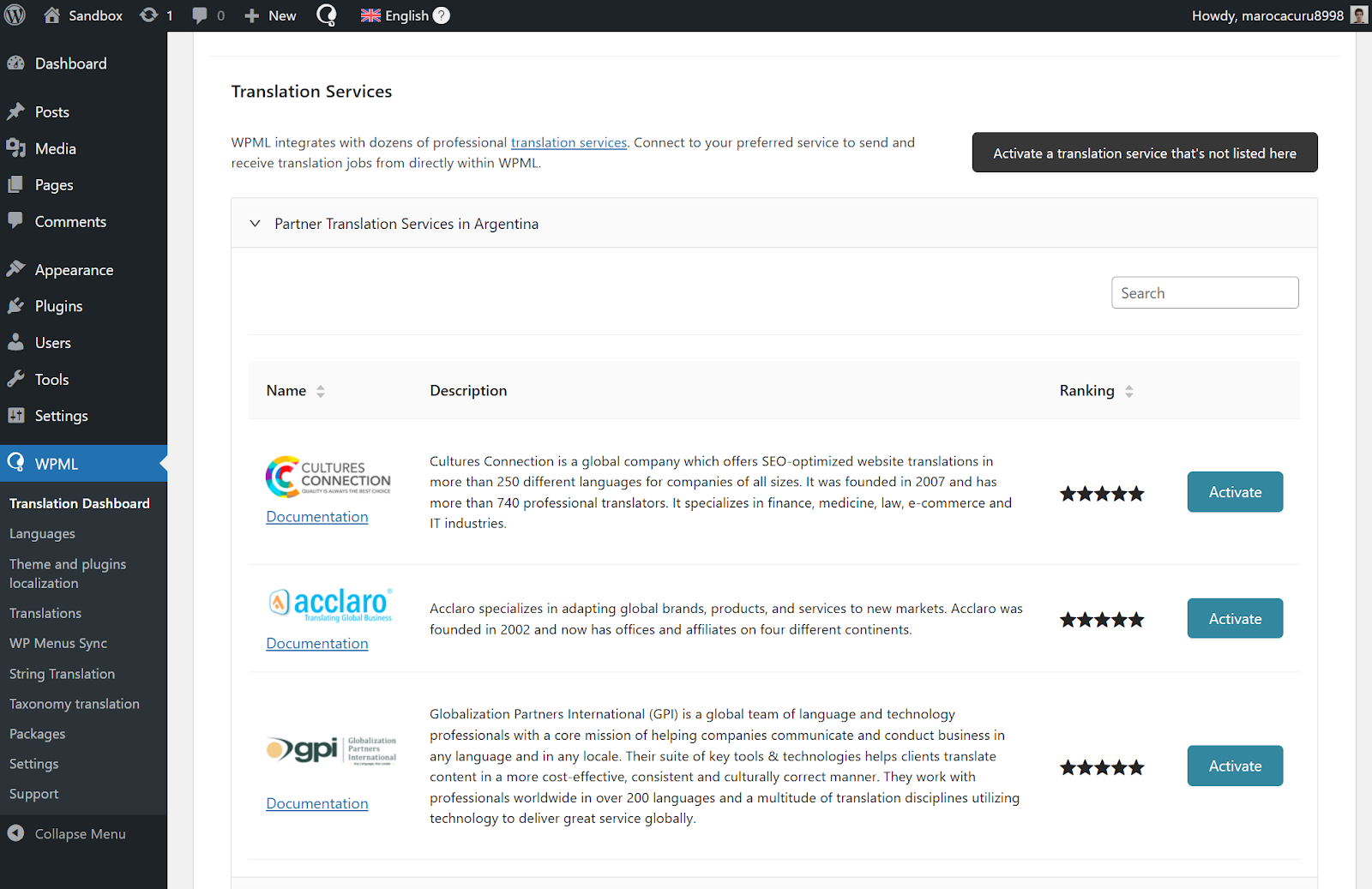
Connecting to a translation service in the Translators tab
Once you select your preferred translation service, you need to authenticate it with an API token. For instructions on obtaining a token, check the documentation for your specific translation service in our translation service directory.
Want to use a translation service not available in our default list? Follow the steps in the FAQ section to connect your website with an external service.
2. Hide Languages in Progress (Optional)
WPML lets you temporarily hide all content in a specific language from your website. This ensures users don’t see translations in progress or partially translated areas of your website.
To hide languages on your website, go to WPML → Languages and scroll to the Hide languages section. Select the languages you want to hide and save your preferences.
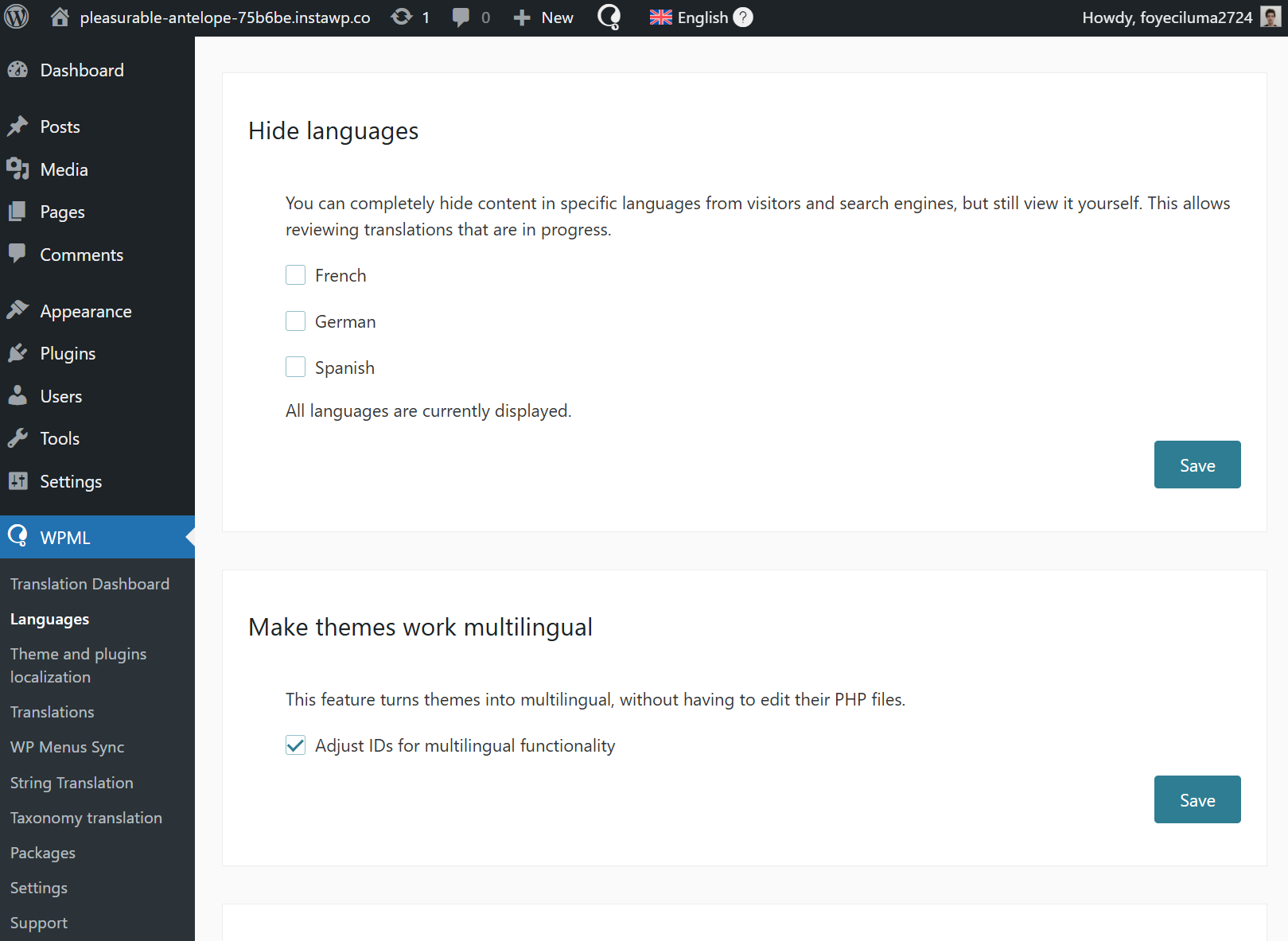
Hiding content in specific languages
3. Send Content for Translation
To send content to a translation service:
- Go to WPML → Translation Dashboard.
- Select the content you want to translate.
- Under Translate your content, choose Assign translation service and send for translation.
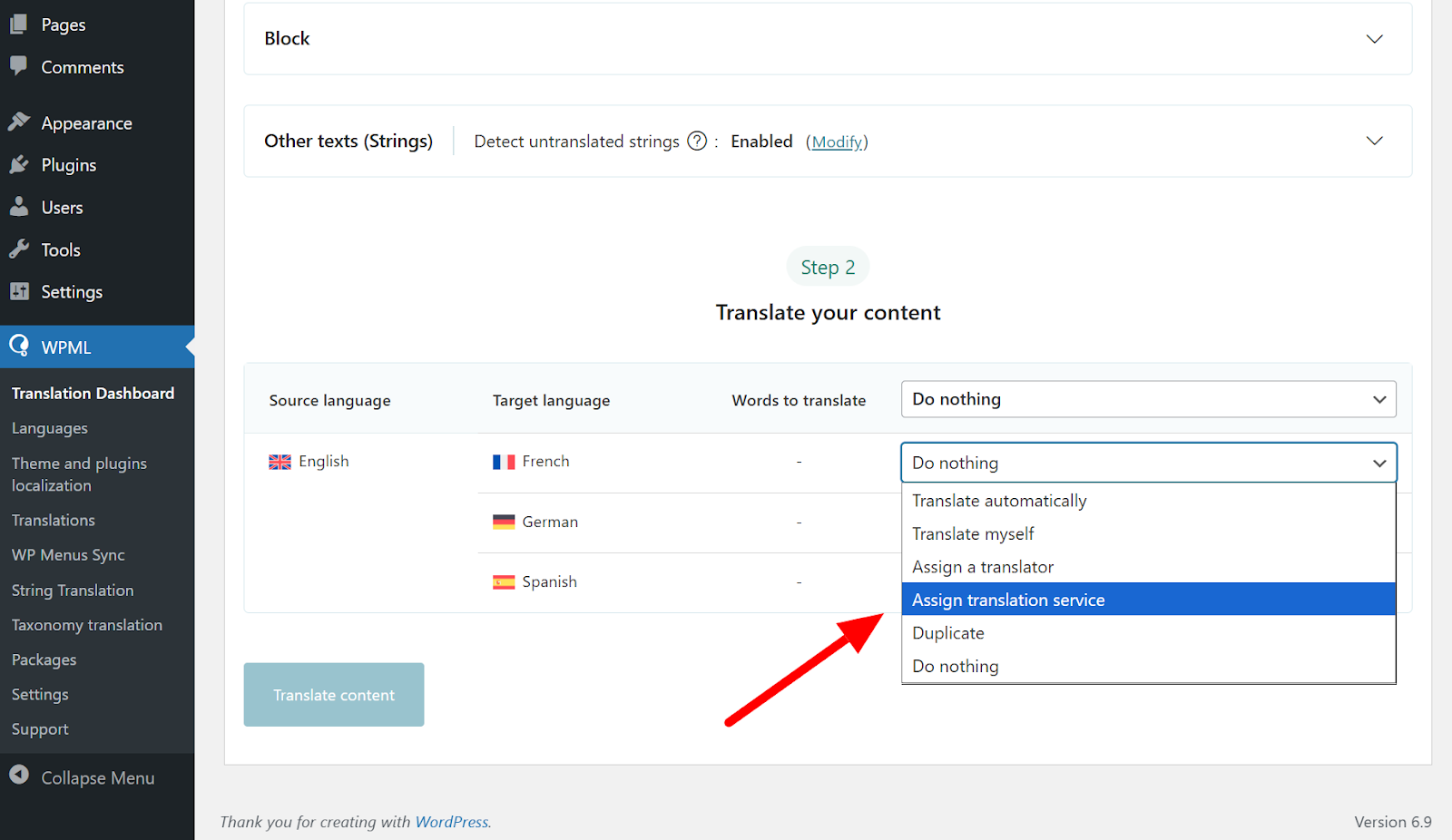
Choosing assign a translation service in Translation Dashboard
Remember that WPML doesn’t handle payments so you need to pay your translation service directly.
4. Receive Completed Translations
If the translation service of your choice supports it, WPML can automatically receive and publish completed translations to your website. To enable this, go to WPML → Settings, scroll down to Translation pickup mode, and select the first option to use XML-RPC delivery:
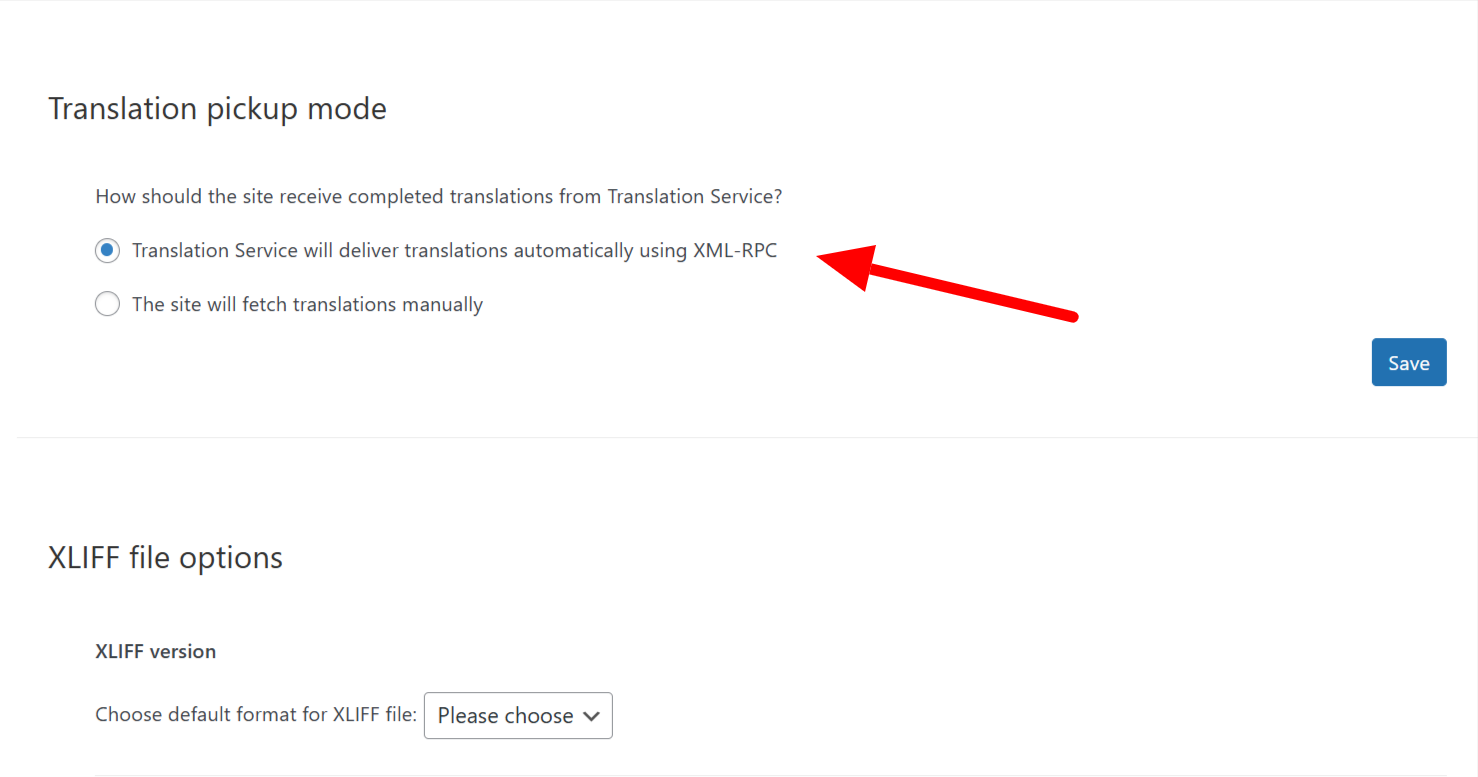
Selecting the option “Translation Service will deliver translations automatically”
From now on, WPML will automatically publish completed translations on your website, indicating their status with a checkmark in Translation Dashboard.
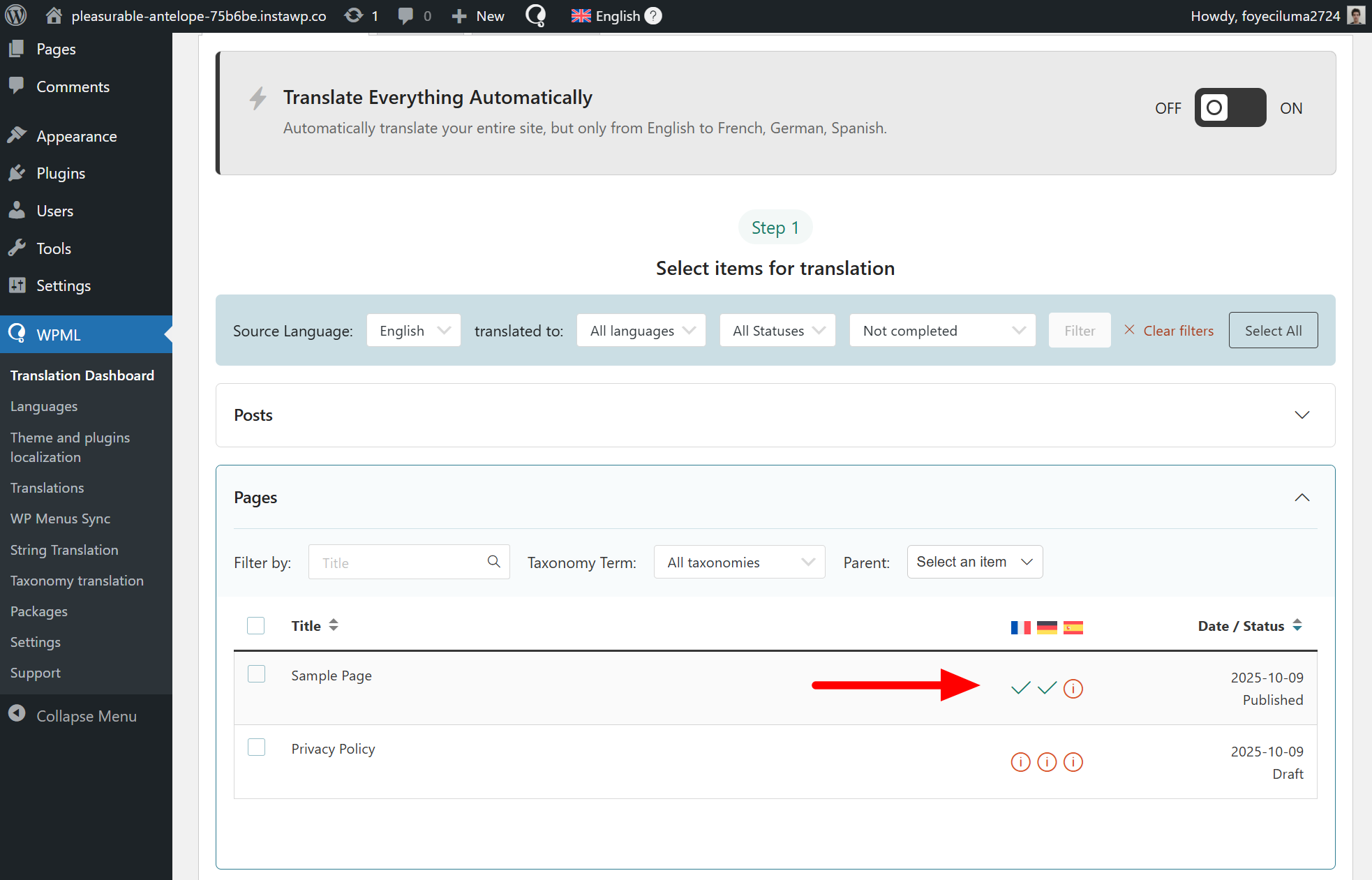
Completed translations in Translation Dashboard
If WPML isn’t downloading translated jobs automatically, your translation service doesn’t support this option. In this case, you need to download translations manually. To do this, go to Translation Dashboard and click the Check status and get translations button.
Frequently Asked Questions
If you send content for translation, and some texts still appear untranslated, these texts are likely strings.
To translate strings, go to WPML → Translation Dashboard and scroll down to the Other texts (Strings) section. Select your texts and follow the same steps as explained above to send them to your translation service.
Only your translation service can cancel translations in progress – please contact them directly to cancel translations.
To use a translation service not available in WPML, start by asking the service to join Translation Hub — our integration program. Once integrated with WPML, follow the steps below to connect your website with the translation service:
1. Ask your translation service to send you their Activation Key and API Token.
2. Go to WPML → Translation Dashboard and switch to the Manage Translators & Services tab.
3. Click the Activate a service not listed here button and enter your Activation Key in the pop-up. Your service will now appear on the screen.
4. Click the Authenticate button and enter your API Token.
You can now send content to this translation service via Translation Dashboard.
Get Started with WPML
To get started with translation services, you need WPML’s Multilingual CMS or Multilingual Agency account.
Visit our pricing page to learn more.