Mount Amiga filesystem images on macOS/Linux/Windows using native AmigaOS filesystem handlers via FUSE.
AmiFUSE runs actual Amiga filesystem drivers (like PFS3) through m68k CPU emulation, allowing you to read Amiga hard disk images without relying on reverse-engineered implementations.
Requirements
- macOS: macFUSE 5.3.3 or newer
- Linux: FUSE for Linux
- Windows: WinFSP
- Python 3.9+
- 7z: Required for
make unpack(install viabrew install p7zipon macOS) - A filesystem handler: e.g. pfs3aio (or use
make download)
Installation
Quick install (recommended)
The bootstrap scripts handle everything: Python, FUSE provider, virtual
environment, pip dependencies, and amifuse doctor --fix.
# Clone the repository with submodules
git clone --recursive https://github.com/reinauer/AmiFUSE.git
cd AmiFUSE
Windows (PowerShell):
.\tools\install-windows.ps1macOS / Linux:
./tools/install.sh
From source (for development)
Use this if you are contributing to the project or need a custom setup.
git clone --recursive https://github.com/reinauer/AmiFUSE.git
cd AmiFUSE
# Or if already cloned, initialize submodules
git submodule update --init
python3 -m venv .venv
source .venv/bin/activate   # On Windows: .venv\Scripts\activate
pip install -e './amitools[vamos]'   # Install amitools from submodule (includes machine68k)
pip install -e .                     # Install AmiFUSE
pip install -e '.[windows]'         # Windows only: adds pystray + Pillow for tray/shell integration
macOS-specific
Install macFUSE 5.3.3 or newer from https://osxfuse.github.io/ or via Homebrew/MacPorts. Earlier releases can crash because they initialize DiskArbitration and CoreFoundation state before daemonizing:
# Homebrew
brew install --cask macfuse
# MacPorts
port install macfuse +fs_link
You may need to reboot and allow the kernel extension in System Preferences > Security & Privacy.
Linux-specific
# Debian/Ubuntu
sudo apt install fuse libfuse-dev
# Fedora
sudo dnf install fuse fuse-devel
Running from source (without installing)
To run AmiFUSE directly from a local checkout (useful for development/debugging):
python3 -m amifuse mount disk.hdf
Quick Start
To download a test PFS3 disk image and the pfs3aio handler:
make download   # Downloads pfs.7z and pfs3aio to Downloads/
make unpack     # Extracts pfs.hdf and copies pfs3aio to current directory
Then mount with:
# macOS: auto-mounts to /Volumes/<partition_name>, uses embedded driver from RDB
amifuse mount pfs.hdf
# Linux: requires explicit mountpoint
mkdir -p ./mnt
amifuse mount pfs.hdf --mountpoint ./mnt
# Stay attached to the terminal if you want Ctrl+C to unmount
amifuse mount pfs.hdf --interactive
To compare this checkout against ../amifuse-0.2 using the bundled pfs.hdf
and pfs3aio, run:
make bench-pfs
This benchmark bypasses macFUSE and measures the handler startup time, a full
recursive directory walk equivalent to find, and a small set of file reads.
You can override the defaults with PFS_BENCH_BASELINE, PFS_BENCH_IMAGE,
PFS_BENCH_DRIVER, and PFS_BENCH_REPEAT.
Usage
amifuse uses subcommands for different operations:
amifuse inspect <image>                    # Inspect RDB partitions
amifuse mount <image>                      # Mount a filesystem
amifuse unmount <mountpoint>               # Unmount a filesystem
amifuse doctor                             # Check dependencies and configuration
amifuse register                           # Add Windows Explorer context menu entries
amifuse unregister                         # Remove Windows Explorer context menu entries
Inspecting Disk Images
View partition information and embedded filesystem drivers:
# Show partition summary
amifuse inspect /path/to/disk.hdf
# Show full partition details
amifuse inspect --full /path/to/disk.hdf
| Argument | Description |
|---|---|
image |
Path to the RDB image file |
--block-size |
Block size in bytes (default: auto-detect or 512) |
--full |
Show full partition details |
Mounting Filesystems
amifuse mount /path/to/disk.hdf
| Argument | Required | Description |
|---|---|---|
image |
Yes | Path to the Amiga hard disk image file |
--driver |
No | Path to filesystem handler binary (default: extract from RDB if available) |
--mountpoint |
macOS/Windows: No, Linux: Yes | Mount location (macOS: /Volumes/<partition>, Windows: first free drive letter) |
--partition |
No | Partition name (e.g., DH0) or index (default: first partition) |
--block-size |
No | Override block size (default: auto-detect or 512) |
--volname |
No | Override the volume name shown in Finder |
--daemon |
No | Detach after mounting (default on macOS/Linux) |
--interactive / --foreground |
No | Stay attached to the terminal; Ctrl+C unmounts |
--debug |
No | Enable debug logging of FUSE operations |
--profile |
No | Enable cProfile profiling and write stats to profile.txt on exit |
--write |
No | Enable read-write mode (experimental, use with caution) |
--icons |
No | Convert Amiga .info icons to native icons (experimental, macOS only) |
Mount lifecycle:
- macOS and Linux default to daemon mode. The mount keeps running after the
command returns, and you normally tear it down with
amifuse unmount <mountpoint>. --interactive/--foregroundkeeps AmiFUSE attached to the terminal. Use this for debugging or when you wantCtrl+Cto unmount from the same shell.- Windows defaults to daemon mode. Double-click
.hdf/.adffiles to mount and open Explorer (requiresamifuse register). Unmount from the system tray icon or withamifuse unmount <drive>:. The WinFSP "Eject" action does not perform a clean unmount — use the tray or CLI instead. --profileimplies interactive mode.
Diagnosing Issues
amifuse doctor checks that all dependencies (Python, FUSE provider, handlers)
are correctly installed and configured.
amifuse doctor            # Human-readable report
amifuse doctor --json     # Machine-readable JSON output
amifuse doctor --fix      # Auto-fix what it can (PATH, shell registration)
Examples
# macOS: Mount using embedded filesystem driver from RDB (simplest)
amifuse mount disk.hdf
# macOS: Mount with explicit driver
amifuse mount pfs.hdf --driver pfs3aio
# Mount a specific partition by name
amifuse mount multi-partition.hdf --partition DH0
# Mount a specific partition by index
amifuse mount multi-partition.hdf --partition 2
# Linux: Explicit mountpoint required
mkdir -p ./mnt
amifuse mount disk.hdf --mountpoint ./mnt
# Mount an ADF floppy image (requires explicit driver)
amifuse mount workbench.adf --driver L/FastFileSystem
# Enable native icons (macOS only, converts Amiga .info files)
amifuse mount disk.hdf --icons
# Keep the mount attached for debugging
amifuse mount disk.hdf --interactive
# Browse the filesystem
ls /Volumes/PDH0   # macOS
ls ./mnt           # Linux
# Unmount a daemon mount when done
amifuse unmount /Volumes/PDH0   # macOS
amifuse unmount ./mnt           # Linux
Additional Tools
rdb-inspect
Inspect RDB (Rigid Disk Block) images to view partition information and embedded filesystem drivers.
# Show partition summary
rdb-inspect /path/to/disk.hdf
# Show full partition details
rdb-inspect --full /path/to/disk.hdf
# Output as JSON
rdb-inspect --json /path/to/disk.hdf
# Extract embedded filesystem driver #0 to a file
rdb-inspect --extract-fs 0 --out pfs3.bin /path/to/disk.hdf
| Argument | Description |
|---|---|
image |
Path to the RDB image file |
--block-size |
Block size in bytes (default: auto-detect or 512) |
--full |
Show full partition details |
--json |
Output parsed RDB as JSON |
--extract-fs N |
Extract filesystem entry N (0-based) to a file |
--out |
Output path for extracted filesystem (default: auto-derived) |
driver-info
Inspect Amiga filesystem handler binaries to verify they can be relocated and display segment information.
# Inspect a filesystem handler
driver-info pfs3aio
# Use a custom base address
driver-info --base 0x200000 pfs3aio
| Argument | Description |
|---|---|
binary |
Path to the filesystem handler binary |
--base |
Base address for relocation (default: 0x100000) |
--padding |
Padding between segments when relocating |
Supported Image Formats
- HDF/RDB - Hard disk images with Rigid Disk Block. Filesystem drivers can be embedded in the RDB or specified via
--driver. - Emu68-style MBR images - Disk images with MBR partition table containing an RDB partition, as used by Emu68 on Raspberry Pi.
- ADF - Amiga Disk File floppy images (DD and HD). Requires
--driversince ADFs don't contain embedded drivers.
Supported Filesystems
Currently tested with:
- FFS/OFS (Fast/Old File System) via
L:FastFileSystemfrom Workbench (tested with 3.2) - CDFileSystem via
L:CDFileSystemfrom Workbench (tested with 3.2) - PFS3 (Professional File System 3) via pfs3aio handler
- SFS (Smart File System 1.279) via SmartFileSystem handler
- BFFS (Berkeley Fast File System) via Chris Hooper's BFFSFilesystem handler
- ODFileSystem (Optical Disc Filesystem) via Stefan Reinauer's ODFileSystem handler
Other Amiga filesystem handlers may work but have not been tested. Reports are welcome.
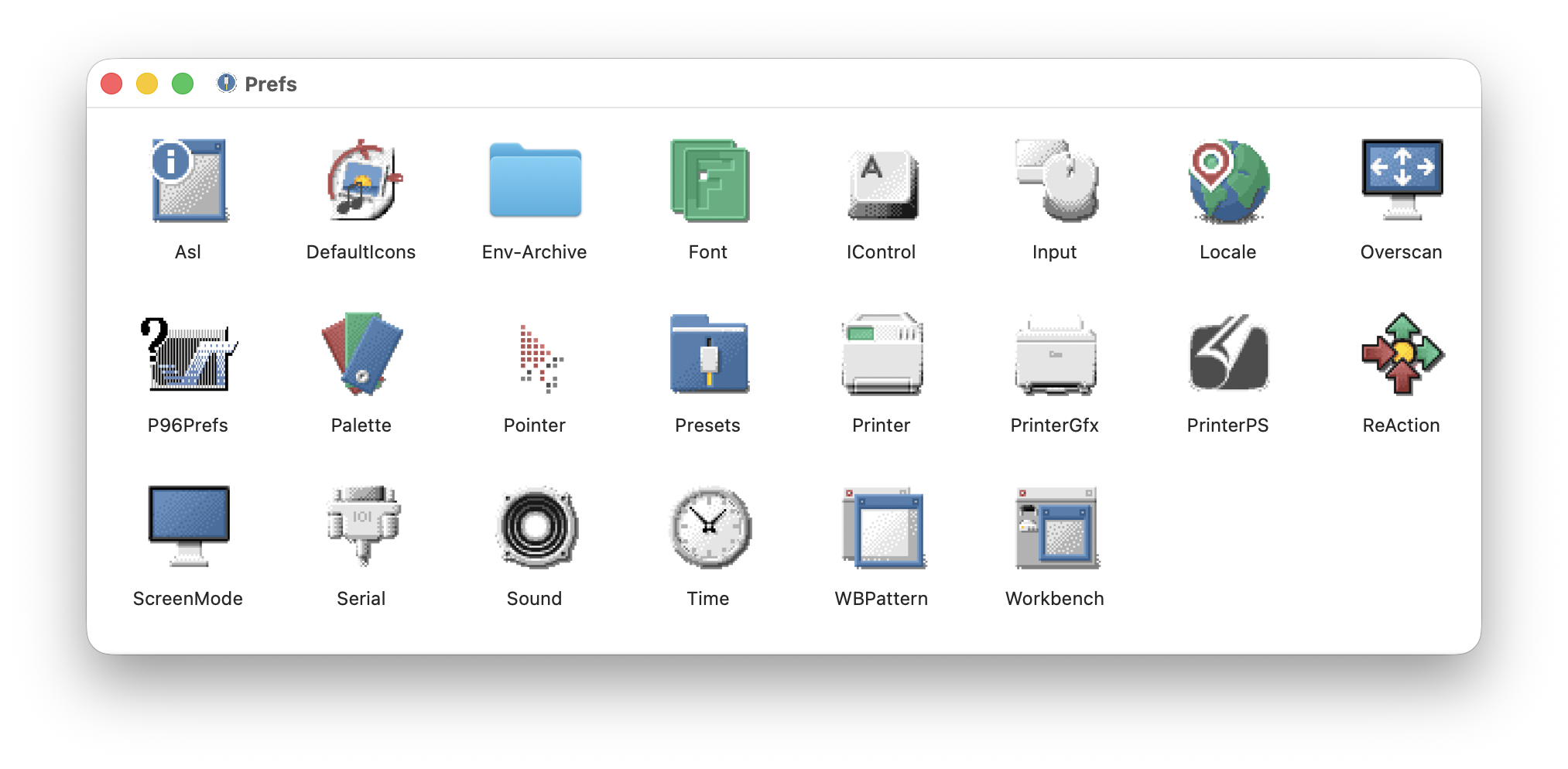
Icon Support
The --icons flag enables conversion of Amiga .info icon files to native Finder icons:
- Folder and file icons from
.infofiles are displayed in Finder - Supports Traditional, NewIcons, and GlowIcons formats
- The
.infofiles are hidden in directory listings - Volume icons are displayed on the Desktop
*** This feature is experimental and macOS-only. ***
Windows Shell Integration
On Windows, AmiFUSE can integrate with Explorer for double-click mounting, right-click context menus, and a system tray mount manager.
Context menu registration
amifuse register      # Add "Mount with AmiFUSE" to .hdf/.adf context menus
amifuse unregister    # Remove the context menu entries
Registration writes to HKCU (current user only) — no administrator privileges
are required.
After registering:
- Double-click an
.hdfor.adffile to mount it and open Explorer at the mounted drive - Right-click for "Mount with AmiFUSE" (read-only) or "Mount Read-Write with AmiFUSE"
Tray mount manager
When a filesystem is mounted in daemon mode on Windows, the amifuse-tray
helper appears in the system tray. From the tray icon you can see active mounts
and unmount them cleanly. Each mount shows its drive letter, image name, and
provides Inspect/Unmount actions.
The tray requires optional dependencies: install them with
pip install amifuse[windows] (provides pystray and Pillow).
Removing shell integration
amifuse unregister
Or use the installer's uninstall mode:
.\tools\install-windows.ps1 -Uninstall
Notes
- The filesystem is mounted read-only by default; use
--writefor experimental read-write support - macOS and Linux default to daemon mode; use
--interactiveif you want Ctrl+C to unmount from the same terminal - Use
amifuse unmount <mountpoint>to tear down daemon mounts - Windows defaults to daemon mode; unmount via the system tray icon or
amifuse unmount <mountpoint> - macOS Finder/Spotlight indexing is automatically disabled to improve performance
- First directory traversal may be slow as the handler processes each path; subsequent accesses are cached