Pinta (Catalan; noun):
Comb: A toothed instrument for arranging hair.
Appearance/Look: Often used in the expression tenir bona pinta, meaning to look good or to have a good appearance.
The name was chosen because the outline diagrams can somewhat resemble a comb and, fittingly, are designed to tenir bona pinta – to look reasonably good (for my tastes).
Outline editor, written by me and Gemini.
Why? Reasons. Mostly I keep writing text editors and outline tools to avoid doing some writing I have to do. I think this is the 6th.
You can find an intro video (YouTube) here. Make sure to switch to HD, otherwise it is hard to read.
What is Pinta?
Pinta is a dynamic, web-based outlining tool that allows you to create and organize ideas visually. It combines the hierarchical structure of an outliner with the flexibility of a mind-mapper, enabling you to draw connections between concepts, add notes, and manage tasks directly on an interactive canvas. It supports keyboard-driven operations for speed and efficiency, and allows exporting your diagrams to static HTML.
It is based on a diagram I saw on the (otherwise pretty bad and not recommended at all) book The Evelyn Wood Seven-Day Speed Reading and Learning Program. If you enjoy mind-mapping but frown curved lines or "the mess" one can become, you may like this instead.
How it looks
This is the main "example" which also serves as feature list. This is the state of the example as of version 0.6.2. (quite outdated).
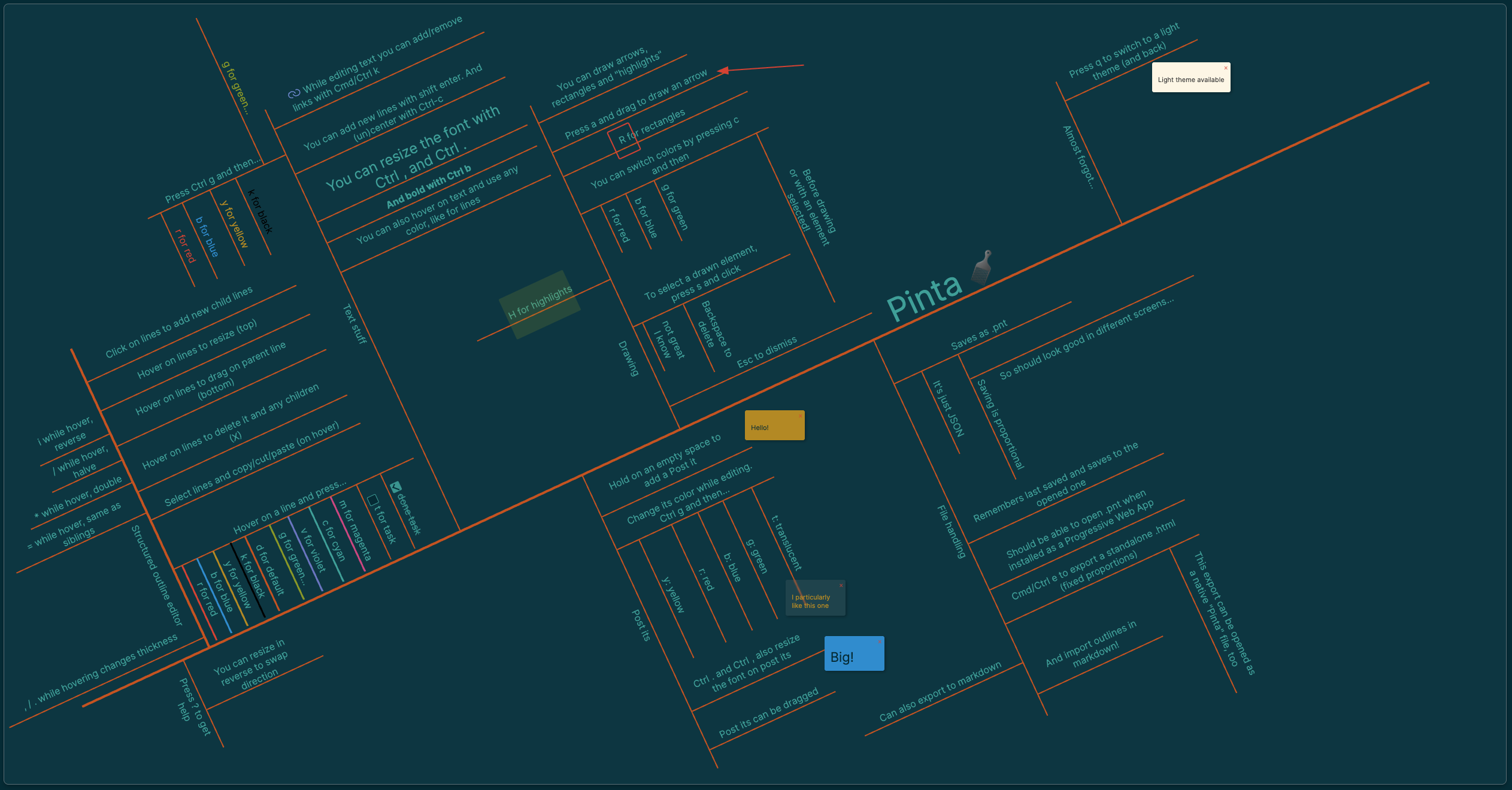
You can see how the HTML export looks (for dark mode) here.
It also has a light mode.
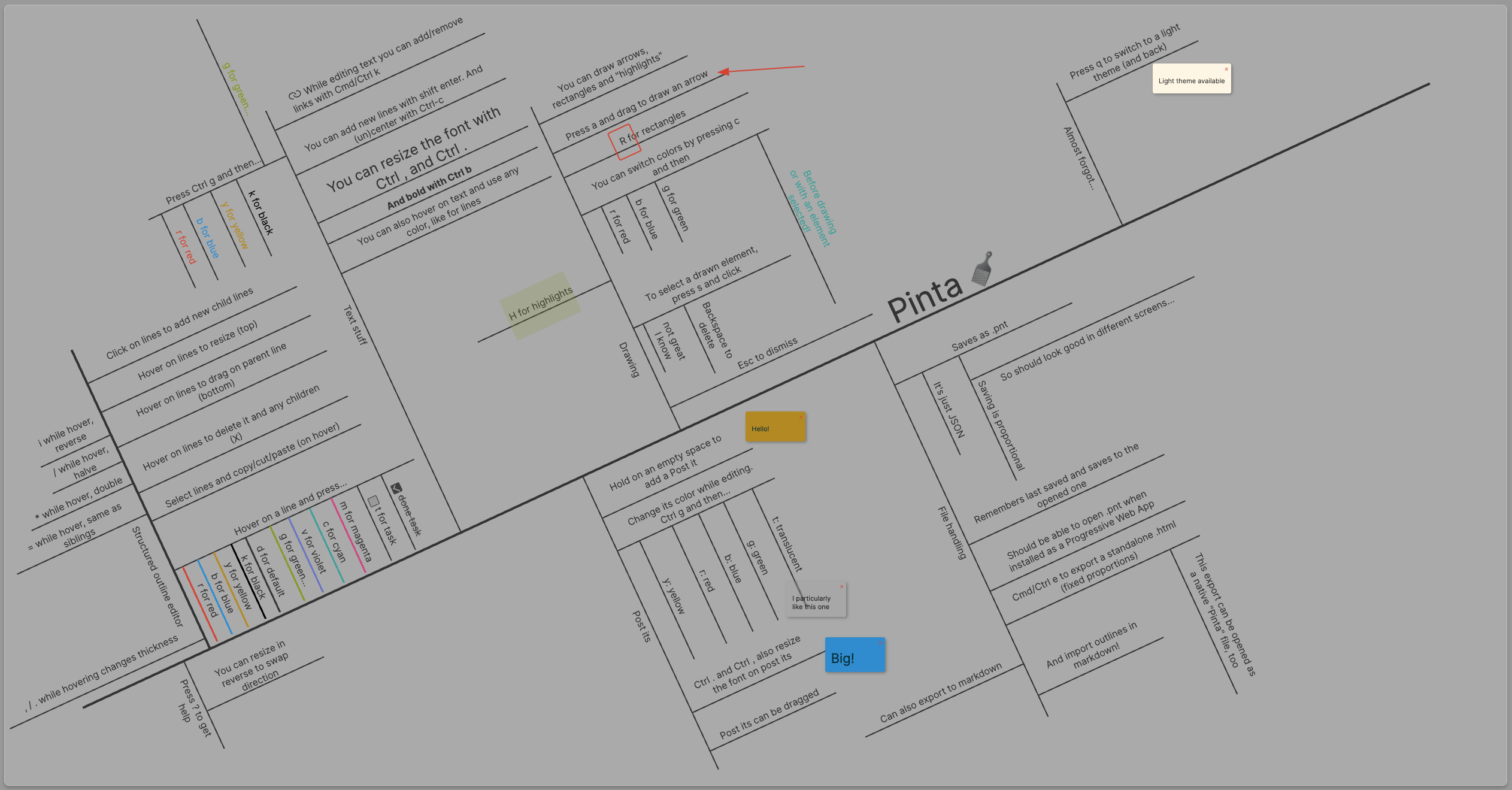
You can see how the HTML export looks (for light mode) here.
The HTML file can also be loaded and contains a valid diagram (embedded as a comment). The HTML export has a CSS-only toggle between light and dark modes, you can export your preferred one but the reader can choose.
You can press ? to get help (on how to use this, I'm a doctor
but I'm not your doctor or that kind of doctor).
Key Features
- Hierarchical Outlines: Create parent-child relationships between ideas (lines).
- Text Labels: Add and style text labels for each line, including bold, font size, and color.
- Checkboxes/Tasks: Mark lines as tasks with interactive checkboxes.
- Links: Embed hyperlinks within line labels.
- Post-It Notes: Add draggable and editable post-it notes for additional information.
- Partial Freeform Drawing: Sketch directly on the canvas to add arrows, rectangles or highlights.
- Themes: Switch between light and dark themes.
- Save & Load: Save diagrams to your filesystem and load them back. Last opened diagram reopens when starting Pinta.
- Static HTML Export: Export your diagram to a fully self-contained HTML file (which has the real diagram embedded and can be opened in Pinta).
- Keyboard Shortcuts: Extensive keyboard support for most operations.
How to Use Pinta
General
- Toggle Theme: Press
q(dark/light). - Save Diagram: Press
Ctrl/Cmd + S - Load Diagram: Press
Ctrl/Cmd + O - Export to HTML: Press
Ctrl/Cmd + E. - New Diagram (Clear Canvas):
Ctrl/Cmd + Pto open the command palette and select (or type)New. - Toggle Help: Press
?.
Lines (Schema)
- Create Main Line: This is fixed and comes built in.
- Create Child Line: Click on an existing line's visual bar. The new child line will sprout perpendicularly.
- The orientation (90-degree turn) and initial direction (positive/negative length) of new child lines attempt to follow the characteristics of their preceding sibling.
- Select Line: Hover over a line's visual bar or text.
- Resize Line: Drag the handle at the end of a child line.
- Dragging the handle through the line's origin (making its length negative) will flip its direction.
- Move Line Root: Drag the handle at the start of a child line (where it connects to the parent).
- Change Line Visual Color: While hovering over a line's visual bar, press a color key (e.g.,
rfor red,bfor blue,dfor default). See help modal or example diagram for all colors. - Change Line Thickness: While hovering over a line's visual bar, press
Ctrl/Cmd + .(increase) orCtrl/Cmd + ,(decrease). - Toggle Checkbox: Press
Twhen hovering to convert the label into a checkbox label. Click the checkbox to toggle its checked state. The checkbox border and fill color will match the text color. Checked tasks have their text struck through. - Delete Line: Click the 'X' button that appears near a child line's text when hovered, or select a line element and press
DeleteorBackspace.
Line Labels (Text Editing)
- Edit Text: Click on a line's text label.
- Stop Editing: Press
Enter(without Shift) orEscape, or click outside the text area. - Add Newline: Press
Shift + Enterwhile editing. - Text Styling (while editing text):
- Change Text Color: Press
Ctrl/Cmd + G, then a color key. - Bold: Press
Ctrl/Cmd + Shift + B. - Increase Font Size: Press
Ctrl/Cmd + .(period). - Decrease Font Size: Press
Ctrl/Cmd + ,(comma). - Toggle Centered Text: Press
Ctrl/Cmd + C. - Add/Edit Link: Press
Ctrl/Cmd + K.
- Change Text Color: Press
- Move Text Label: Drag the text label itself. It is bound to the line, it can not go too far from it.
Post-It Notes
- Create Post-It: Click and hold on an empty area of the canvas.
- Edit Post-It Content: Click on the content area of the post-it.
- Move Post-It: Drag its upper area.
- Change Post-It Color: While editing its text, press
Ctrl/Cmd + G, then a color key (applies to background, less options than with lines). - Delete Post-It: Click the 'X' button on the post-it.
Drawing Mode
- Change Drawing Color: Press
cwhile the diagram has been clicked / no line is hovered, then press a color key (e.g.,rfor red,bfor blue). The new color will affect the next drawing items. - Arrows: Press
aand drag. - Rectangles: Press
rand drag. - Highlight blockse:Press
hand drag. - Select drawn items: Press
sand click on arrows/rectangles/highlights. They will get a shadow once selected, selecting arrows is tricky (you need to click the stem, not the head).Backspaceto delete, drag to move. Color can be changed on selected elements as above.
Tip
If you end up with a broken arrow or something you can't edit easily in the editor, the saved file is plain JSON (extension .pnt is just for convenience). You can edit its content with a text editor and fix any such inconsistencies, the structure should be pretty clear to read.
TODO (Next Steps)
- Better UX of shape selection (e.g. explicit selection state).
- This is harder than it looks…
- Add the ellipse tool.
- Hover on line is a bit annoying because it does not trigger properly when hovering on the delete button or handles. This is eventually annoying.
Changelog
0.9.7
- Still no update to the tutorial doc
?on hover on line or text shows its properties (the ones useful to a human)- Images can no longer be URLs. If you want to add an icon, paste it in the main canvas. It will be base64 encoded, and your clipboard will change to the data identifier you can paste in a line text.
- You can rename the data identifiers for pasted images by pressing
ion the main canvas. - Copy and cut now can copy and cut across sessions/windows.
- Opening now prompts for reopen or new. This should allow multi-window.
0.9.6
- Still have not updated the tutorial.
shift+scrollwheelto zoom in. Only text can be edited while in this stateshift+dragto pan while zoomed in only.- Export to HTML resets scale. It's better if you export only at scale 1
- Font size and thickness hover-toggles now show a hover-info modal of the size, making it easier to adjust lines to be the same.
- Minor tweaks to the shadow CSS for light mode. CSS still needs a bit more tweaking of the colors I think.
0.9.5
son hovered text to add a small drop shadow on it. I also broke and changed several other things. I'm glad I'm the only user.
0.9.4
- Wrap in
dollarssingle equal signs to highlight. I don't plan on adding Mathtex (used dollar initially) but Obsidian uses double =. Equal is fine. I liked colon, but I don't remember what app used colon (I thought it was Bear but it uses equal… now?)
0.9.3
- Make sure all Inter fonts are added and inlined on export.
0.9.2
- Inlined image icons can replace default link icons. Place them first.
0.9.1
- Change order of rendering images and others.
0.9.0
- Bumping minor because I made a large refactor and things might stop working.
0.8.4
- The base64 encoded files are now saved to all possible storage formats.
- Unused data blobs are purged on load.
0.8.3
- Chrome extension (to install unpacked) that can base64 encode the icons, so they can be inlined on export. A bit annoying having to do it every time, so I will likely store them on the save data before 1.0
0.8.2
- HTML export won't inline images now, but expect the user to have saved the icon to a folder
pinta-resources/by right clicking on it.
0.8.1
- Import Inter instead of relying on sysem, and inline it in the exported HTML
0.8.0
- Markdown-ish
- Wrap in underscores for italics.
- Wrap in asterisks for bold.
- Wrap in backticks for code.
- As many icons as you want: wrap an iconoir icon name with colons to show it inline.
- Even web icons (works so-so): wrap an image URL in exclamation marks and it will be inlined, icon-sized.
- Select +
=to adjust size of several sibling (or not, but that's a bit weird) lines. Only useful for leaves. =also works on text now, on hover. It will equalise most properties (centeredness, %, distance) across text siblings.
0.7.1
- Add version to export
0.7.0
- Hover + shift on links to preview, shift + click to open resizable/draggable iframe of the destination
0.6.11
- Add day parser for [YYYYMMDD] prefixes.
- Fix hover-resize-thingy that I did in .10 and had an annoying edge case.
0.6.10
- Resize font of all lines at once.
0.6.9
- Choose export location for
HTMLexport.
0.6.8
- Added month parsing.
- I don't know why I skipped two patch versions. Maybe I added something and forgot to update this.
0.6.6
- Adjustable line length via
*and/while hovering on labels. - Auto-year detection,
[YYYY]at the beginning gets converted in superscripted text.
0.6.5
- Overridable auto-icons (use a defined icon to override the default clickable icon)
0.6.4
- Icon subsetting on export.
0.6.3
- Add icons from iconoir by adding :icon-name: at the beginning of your label.
0.6.2
- CSS-only toggle on HTML export to switch light/dark modes.
- Minor tweaks, added icons.
0.6.1
- Bug fix with pasting.
- Changed icons.
0.6.0
- Copy and paste of pieces of the schema.
- Changed color interaction for text (no longer modal).
- Added some keyboard tools to resize and reposition without needing hover and move so often.
0.5.0 (internal representation changes)
- Tweaking of the markdown export/import, simplifying it
- Internal representation change. It could affect saved diagrams (there is no autoconversion):
- Tasks may disappear (the whole checkbox and its state have changed)
- Line colors (and default line colors, the internal representation has been changed)
0.4.0
- Fix positioning of drawn elements.
- Alternate saving format, markdown-like.
- Which means it can load header-only outlines just fine, like the example in
SW.md.- It won't look particularly pretty on first load, but it tries to fit everything so you can drag and resize stuff
0.3.6 (skipped release)
- Three translucent levels (
Ctrl-g + tin post it). - Hover + delete on lines. Enter now confirms deletion modal.
- Cmd and Ctrl work now for all text commands (broke this at some point and only Ctrl worked).
- Fix issue with save notification.
0.3.5
- Post it positioning is now relative to the mainline, making it scale to different screens.
0.3.4
- Added tasks to lines as "color" (hover and press
t). - If a child line is a task, any future siblings will also be tasks.
- Try to remember last sibling orientation (WIP, currently failing the clip checks).