coc.nvim is mostly written in TypeScript and runs on Node.js.
Requirements
-
neovim>=0.8.0orvim>=9.0.0483(run:versionorvim --versionto find your Vim version) -
node>=22.15.0
Install Node.js.
Note: coc.nvim finds node by calling executable('node') from within vim. Check out
:h g:coc_node_path to customize the node path.
Note: NixOS users must follow these steps:
- Install Node.js via
nix-envor put it in/etc/nixos/configuration.nix sudo nixos-rebuild switch
Add coc.nvim to vim's runtimepath
Using vim-plug
Use coc's release branch (recommended):
Plug 'neoclide/coc.nvim', {'branch': 'release'}
Build from source:
Plug 'neoclide/coc.nvim', { 'branch': 'master', 'do': 'npm ci' }
Run the :PlugInstall command in your (neo)vim.
Using lazy.nvim
Use the default release branch (recommended):
{ 'neoclide/coc.nvim', branch = 'release', }Using packer.nvim
Use the default release branch (recommended):
use {'neoclide/coc.nvim', branch = 'release'}Build from source:
use {'neoclide/coc.nvim', branch = 'master', run = 'npm ci'}Run the :PackerInstall command in your (neo)vim.
Using dein.vim
Use release branch (recommended):
call dein#add('neoclide/coc.nvim', { 'merged': 0, 'rev': 'release' })
Build from source:
call dein#add('neoclide/coc.nvim', { 'merged': 0, 'rev': 'master', 'build': 'npm ci' })
Note: Without 'merged': 0, coc.nvim will not start.
Note: Depending on your network and CPU, the first build might take a while.
If you have trouble compiling from source when using dein, try these shell commands:
cd ~/.cache/dein/repos/github.com/neoclide/coc.nvim
git clean -xfd
npm ci
Using NeoBundle
Use release branch:
NeoBundle 'neoclide/coc.nvim', {'branch': 'master', 'build': 'npm ci'}
Using Paq
Use the release branch.
{"neoclide/coc.nvim", branch="release"};Using pathogen.vim
cd ~/.vim/bundle
git clone -b release https://github.com/neoclide/coc.nvim
Using vim8's native package manager
Get the source code from the release branch:
vim8:
mkdir -p ~/.vim/pack/coc/start
cd ~/.vim/pack/coc/start
git clone --branch release https://github.com/neoclide/coc.nvim.git --depth=1
vim -c "helptags coc.nvim/doc/ | q"
neovim:
mkdir -p ~/.local/share/nvim/site/pack/coc/start
cd ~/.local/share/nvim/site/pack/coc/start
git clone --branch release https://github.com/neoclide/coc.nvim.git --depth=1
nvim -c "helptags coc.nvim/doc/ | q"
Check service state
To check whether the coc.nvim service is running, use the :checkhealth command in neovim (not supported by vim). The output looks like:
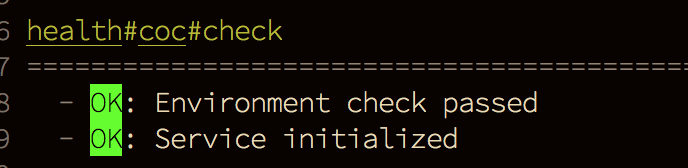
Set the g:coc_node_path variable to specify the node executable used to start the coc.nvim service.
Another useful command is :CocInfo — use it after the service has started to get useful information about it.
Install extensions for programming languages you use daily
For example, for generic web development, consider :CocInstall coc-tsserver coc-json coc-html coc-css.
For Python 3: :CocInstall coc-pyright
For PHP: :CocInstall coc-phpls
and so on.
For more information, check out Using coc extensions.
Add some configuration
Run :CocConfig, which opens the main config file ~/.config/nvim/coc-settings.json (empty for a new installation). Add an empty JSON object ({}) and then add configurations for language servers not already covered by existing extensions (e.g. if you already installed coc-pyright, you don't need to configure the pyls server).
For more information, check out Using the configuration file.
Install watchman for file watching
For features like workspace_didChangeWatchedFiles to work, you will need to install watchman by following the instructions at https://facebook.github.io/watchman/docs/install.
Watchman also works well when you have multiple (neo)vim instances started in the same directory. You can configure watchman to ignore some directories using a .watchmanconfig configuration file in your project root:
{
  "ignore_dirs": [
    "dist",
    "node_modules"
  ]
}
Warning: Don't create a .watchmanconfig file in your home directory.
Note: An undocumented global configuration: put .watchman.json in your $HOME root. See https://github.com/facebook/watchman/blob/ebeb2427595e8c758a05fe9e6f9a63797216c4ab/watchman/WatchmanConfig.cpp#L97
Note: watchman can use a lot of memory. Run watchman watch-del-all in your shell to free up some memory.
Automation script
To set up coc.nvim and extensions faster on different machines, you can use a shell script, for example:
#!/usr/bin/env bash
set -o nounset    # error when referencing undefined variable
set -o errexit    # exit when command fails
# Install the latest Node.js
if [ ! -x "$(command -v node)" ]; then
    curl --fail -LSs https://install-node.now.sh/latest | sh
    export PATH="/usr/local/bin/:$PATH"
    # Or use package manager, e.g.
    # sudo apt-get install nodejs
fi
# Use package feature to install coc.nvim
# for vim8
mkdir -p ~/.vim/pack/coc/start
cd ~/.vim/pack/coc/start
curl --fail -L https://github.com/neoclide/coc.nvim/archive/release.tar.gz | tar xzfv -
# for neovim
# mkdir -p ~/.local/share/nvim/site/pack/coc/start
# cd ~/.local/share/nvim/site/pack/coc/start
# curl --fail -L https://github.com/neoclide/coc.nvim/archive/release.tar.gz | tar xzfv -
# Install extensions
mkdir -p ~/.config/coc/extensions
cd ~/.config/coc/extensions
if [ ! -f package.json ]
then
  echo '{"dependencies":{}}'> package.json
fi
# Change extension names to the extensions you need
npm install coc-snippets --global-style --ignore-scripts --no-bin-links --no-package-lock --only=prod