Execute scripts from pyproject.toml, installing tools on-the-fly
Full documentation
Introduction
Pyprojectx makes it easy to create all-inclusive Python projects; no need to install any tools upfront, not even Pyprojectx itself!
Tools that are specified within your pyproject.toml file will be installed on demand when invoked from Pyprojectx:
> ./pw ruff check src
Installed 1 package in 149ms
 + ruff==0.12.7
All checks passed!
Feature highlights
- Reproducible builds by treating tools and utilities as (locked) dev-dependencies
- No global installs, everything is stored inside your project directory (like npm's node_modules)
- Bootstrap your entire build process with a small wrapper script (like Gradle's gradlew wrapper)
- Configure shortcuts for routine tasks
- Simple configuration in pyproject.toml
Projects can be build/tested/used immediately without explicit installation nor initialization:
git clone https://github.com/pyprojectx/px-demo.git
cd px-demo
./pw build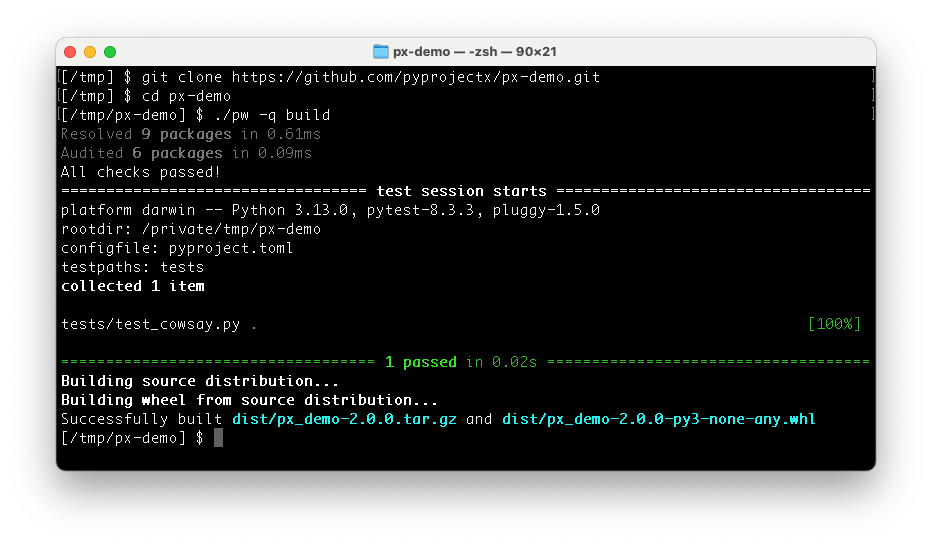
Installation
One of the key features is that there is no need to install anything explicitly (except a Python 3.9+ interpreter).
cd into your project directory and download the
wrapper scripts:
Linux/Mac
curl -LO https://github.com/pyprojectx/pyprojectx/releases/latest/download/wrappers.zip && unzip wrappers.zip && rm -f wrappers.zip
Windows
Invoke-WebRequest https://github.com/pyprojectx/pyprojectx/releases/latest/download/wrappers.zip -OutFile wrappers.zip; Expand-Archive -Path wrappers.zip -DestinationPath .; Remove-Item -Path wrappers.zip
Getting started
Initialize a new or existing project by adding tools (on Windows, replace ./pw with pw):
./pw --add uv,ruff,pre-commit,px-utils
./pw --install-context main
# invoke a tool via the wrapper script
./pw uv --version
./pw ruff check src
# or activate the tool context
source .pyprojectx/main/activate
uv --version
ruff check src
For reproducible builds and developer experience, it is recommended to lock the versions of the tools and add the generated pw.lock file to your repository:
./pw --lock
Create command shortcuts
The tool.pyprojectx.aliases section in pyproject.toml can contain commandline aliases:
[tool.pyprojectx.aliases]
# convenience shortcuts
run = "uv run"
test = "uv run pytest"
lint = ["ruff check"]
check = ["@lint", "@test"]
Usage
Instead of calling the CLI of a tool directly, prefix it with ./pw (pw on Windows).
Examples:
./pw uv add --dev pytest
cd src
../pw lint
Aliases can be invoked as is or with extra arguments:
./pw uv run my-script --foo bar
# same as above, but using the run alias
./pw run my-script --foo bar
Why yet another tool?
- As Python noob I had hard times setting up a project and building existing projects
- There is always someone in the team having issues with his setup, either with a specific tool, with Homebrew, pipx, ...
- Using (uv, PDM or Poetry) dev-dependencies to install tools, impacts your production dependencies and can even lead to dependency conflicts
- Different projects often require different versions of the same tool
Example projects
- This project (using uv)
- px-demo (using uv, PDM or Poetry)
Development
- Build/test:
git clone https://github.com/pyprojectx/pyprojectx.git
cd pyprojectx
./pw build- Use your local pyprojectx copy in another project: set the path to pyprojectx in the PYPROJECTX_PACKAGE environment variable and create a symlink to the wrapper script.
# Linux, Mac
export PYPROJECTX_PACKAGE=path/to/pyprojectx
ln -s $PYPROJECTX_PACKAGE/src/pyprojectx/wrapper/pw.py pw
# windows
set PYPROJECTX_PACKAGE=path/to/pyprojectx
mklink pw %PYPROJECTX_PACKAGE%\src\pyprojectx\wrapper\pw.py
# or copy the wrapper script if you can't create a symlink on windows
copy %PYPROJECTX_PACKAGE%\src\pyprojectx\wrapper\pw.py pw