Coding anytime, anywhere
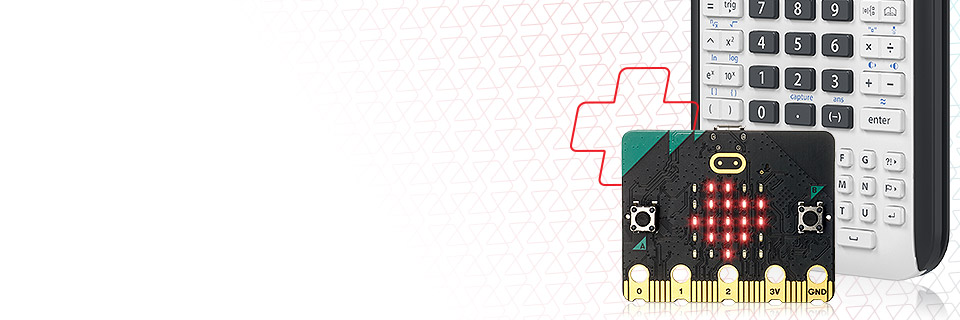
Connecting the BBC micro:bit with a TI-Nspire™ CX II, TI-Nspire™ CX II CAS or TI-84 Plus CE Python graphing calculator creates a powerful new way for students to learn coding on the go and unlock a unique combination of technologies to explore core math and science concepts in groups, at home or in STEM camps — virtually anywhere.
What is micro:bit?
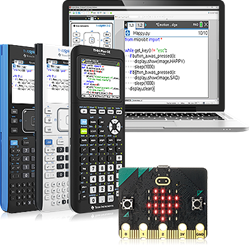
The micro:bit is a multifunctional microcontroller board and classroom learning tool that demonstrates how software integrates with hardware. It features an LED light display, sensors and many I/O features that promote interaction with the user and the world around them.
Combining micro:bit with TI technology
The micro:bit can be connected to a TI-Nspire™ CX II family or TI-84 Plus CE Python graphing calculator, allowing for real-time interface with the calculator's keypad and screen in conjunction with the micro:bit. Students can then program the micro:bit directly from their calculators. Additionally, most Python programs are copy-and-paste compatible with micro:bit standard syntax, though some may require minor edits.
The TI Python module is authored to communicate with both the micro:bit V2 device as well as the micro:bit V1. The micro:bit V2 is the most recent iteration, and it includes a built-in speaker, microphone and capacitive touch sensor.
Here’s some functionality that can be enabled on the BBC micro:bit:

|
Displaying image patterns and animations on the 5x5 LED matrix |

|
Interacting with buttons and capacitive touch sensor |

|
Playing music with a speaker |  |
Communicating with analog and digital input/output |

|
Establishing communication between two calculators via micro:bit radio functions |

|
Interacting with external sensors (with optional expansion board) |

|
Reading values from the built-in compass, accelerometer, temperature sensor and light level sensor |

|
Connecting to NeoPixel LED strips |
Getting connected in three easy steps
We've outlined how to connect your TI-Nspire™ CX II family or TI-84 Plus CE Python graphing calculator with your micro:bit in the steps below:

Install the micro:bit module on your calculator
Adding this module will enable the Python programming selections needed for communicating with the micro:bit. Once installed, the micro:bit module selections will appear in the Python application of your graphing calculator.

Flash the "runtime" hex file to your micro:bit
To do this, drag and drop the hex file onto the micro:bit file directory when plugged into a computer. When successful, a Texas logo will appear on the micro:bit LED display.
Connecting the calculator to the micro:bit
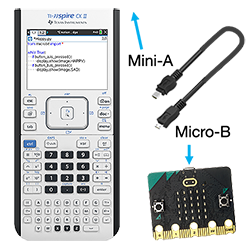
Use a USB OTG mini to micro male cable (sold separately).
Additionally, you can establish communications with TI-Nspire™ CX computer software using the USB Type-A to Micro-B cable.
For full details on this process and other functionality, please see the full user FAQ.
Additional Resources
10 Minutes of Code
Introduce students to the basics of Python coding with the micro:bit to help build conceptual understanding of core coding concepts using the Micro:bit modules.
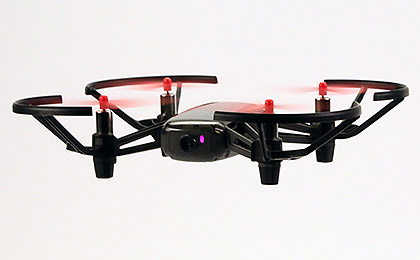
Fly Tello with micro:bit
Make coding take flight! With micro:bit and TI-84 Plus CE Python or TI-Nspire™ CX II graphing calculators, students can learn to make any one of the family of Tello drones fly.

Microbit.org
Hosted by the Micro:bit Educational Foundation, this website includes numerous projects, lessons and activities to help students learn the fundamentals of computer science and core STEM concepts.