Workspace integrations let you register shared external APIs at the workspace level from an OpenAPI specification. You import a spec (URL or JSON), select up to 30 operations, and connect the API once in your workspace. Any app in that workspace can then call those approved operations via base44.integrations.custom.call(), instead of setting up its own connection. This works for both internal APIs and partner APIs that your team depends on.
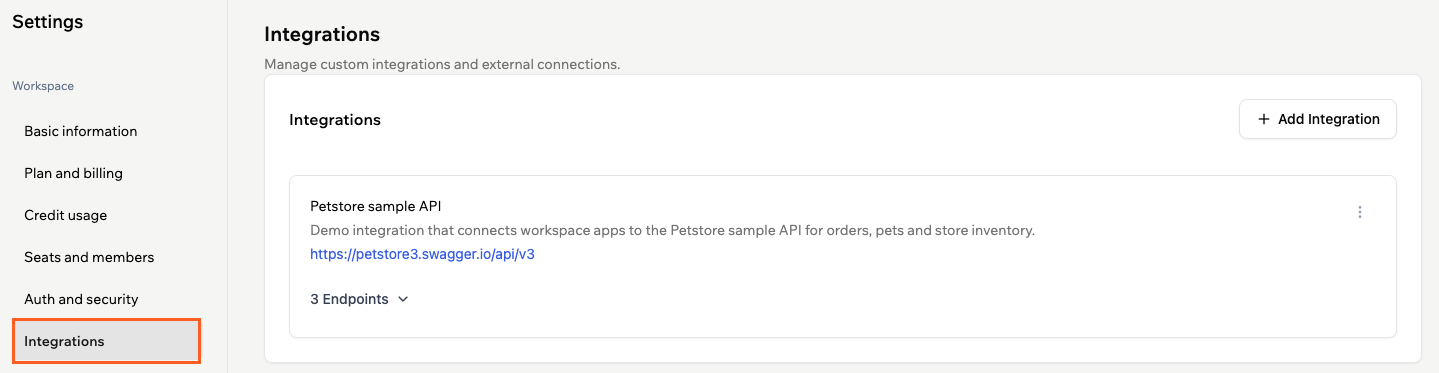
Integrations in a workspace in Base44
These integrations are designed to be secure and reliable. Sensitive auth headers are stored as encrypted workspace secrets and are never sent back to the browser. At runtime, calls are proxied server side with protections against server side request forgery (SSRF), and workspace headers take precedence so apps cannot override them. Editing an integration uses the stored specification rather than the live URL, and saving is blocked if headers fail to load so you do not lose them by mistake.
Understanding workspace integrations
A workspace integration is a shared connection from your workspace to an external or internal API, such as a CRM, support system or custom backend. You define it once in your workspace from an OpenAPI or Swagger specification, choose which operations are allowed, and any compatible app in that workspace can call those operations. This keeps configuration in one place and makes it easier to manage the external systems your team relies on. Workspace integrations are useful when you want to:
- Use the same external or internal API across multiple apps in the same workspace.
- Keep sensitive details such as API keys and tokens in one secure place, managed as workspace secrets.
- Limit which endpoints are available so apps only call approved, spec-defined operations.
- Keep a clear separation from one-click OAuth connectors, as workspace integrations are workspace-managed and spec-driven.
- Make it clear which external systems your workspace relies on.
Creating an integration
Create a custom workspace integration when you want to expose a new external API to your apps and that API has an OpenAPI or Swagger specification. Base44 reads the specification, lets you choose the endpoints you want to expose, and creates a reusable integration for your workspace.
Step 1 | Add a new integration
- Click your workspace name at the bottom left of your account.
- Click Settings.
- Click Integrations.
- Click New Integration.
- Choose how you want to provide your API specification:
- From URL: Enter the public URL of your OpenAPI or Swagger file in the OpenAPI Specification URL field, for example
https://api.example.com/openapi.json. - Paste JSON: Paste the full JSON definition of your OpenAPI or Swagger specification into the editor.
- From URL: Enter the public URL of your OpenAPI or Swagger file in the OpenAPI Specification URL field, for example
- Click Continue.
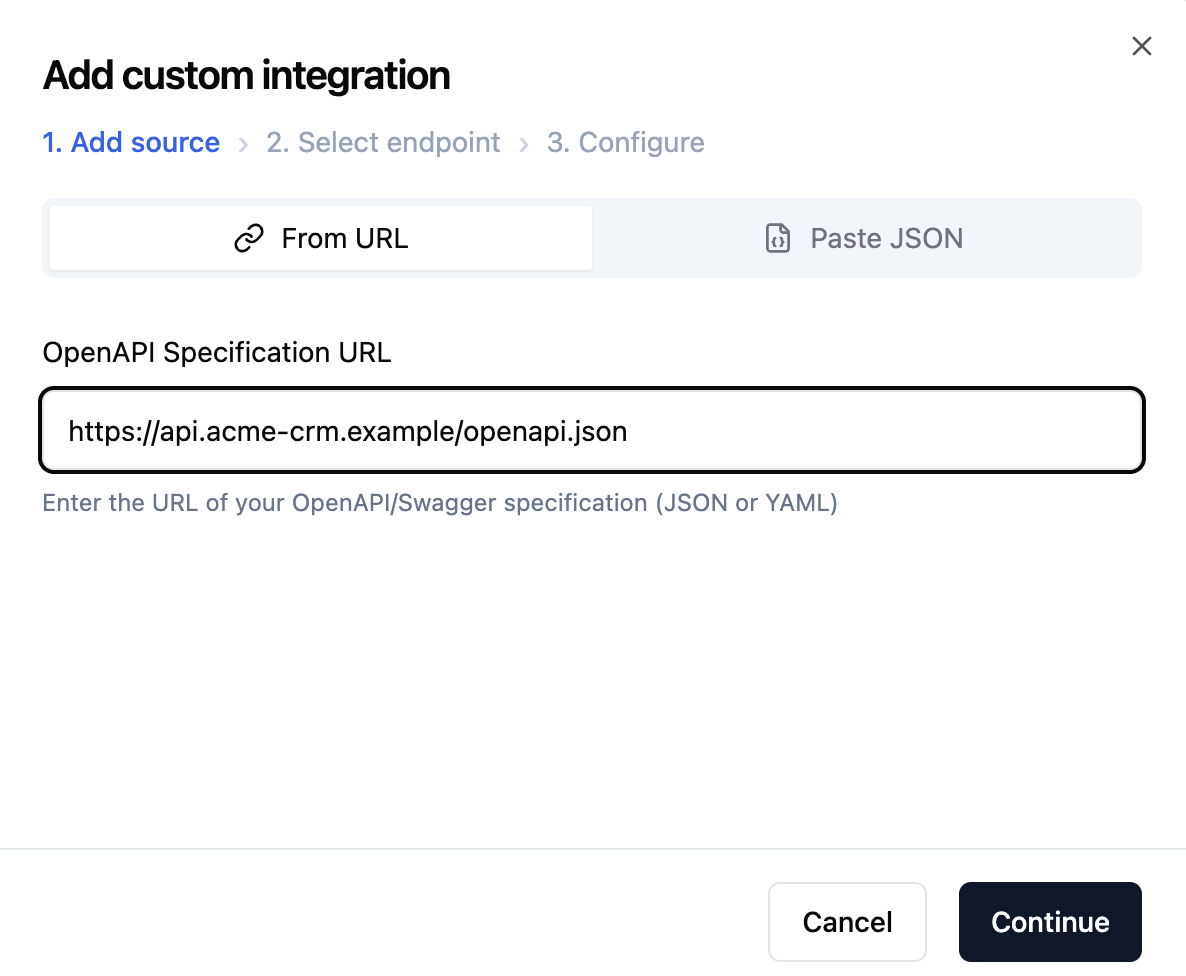
Adding a custom integration in a workspace
Step 2 | Select endpoints to expose
Select up to 30 endpoints for your integration. To select endpoints:
- Review the list of endpoints that Base44 discovers from your specification. You can use the search box to find specific paths or operations by method or path name.
- Select the checkboxes for the endpoints you want to expose to your workspace.
- Click Continue.
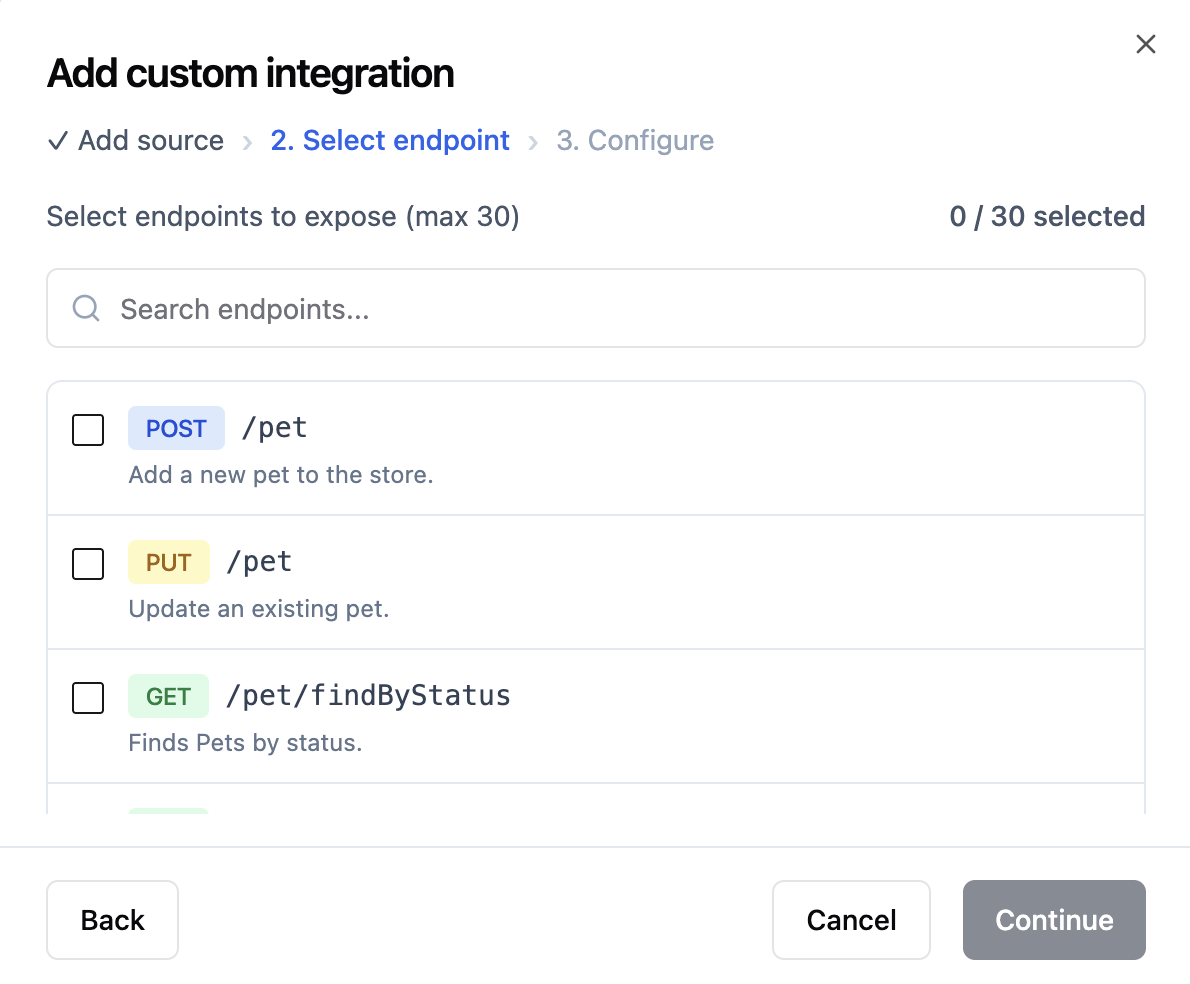
Selecting the endpoints to expose for your workspace integration
Step 3 | Configure your integration
Configure your integration details, set the base URL, and add any custom headers that your API needs. Sensitive header values stay protected. Common auth headers such as authorization, x-api-key, api-key, x-auth-token, x-access-token, x-secret-key, bearer, secret, password and credential are always treated as secrets. Their values are stored as encrypted workspace secrets, never sent back to the browser, and show as “sensitive – delete to change” when you edit the integration.
To configure your integration:
- Set the details for your integration:
- Slug: Enter a URL-friendly identifier for the integration, for example
my-api. - Name: Enter the display name that appears in your workspace integrations list.
- Description: Describe what the integration does so teammates know when to use it.
- Base URL: Confirm or update the base URL for your API.
- Slug: Enter a URL-friendly identifier for the integration, for example
- If your API requires headers that must be sent with every request, add them in the Custom Headers section:
- Click Add Header.
- Enter the header name, such as
AuthorizationorX-API-Key. - Enter the header value, such as your API key or token.
- Use the visibility icon to hide or reveal the header value as needed.
- Review the list of selected endpoints at the bottom of the dialog.
- Click Create Integration.
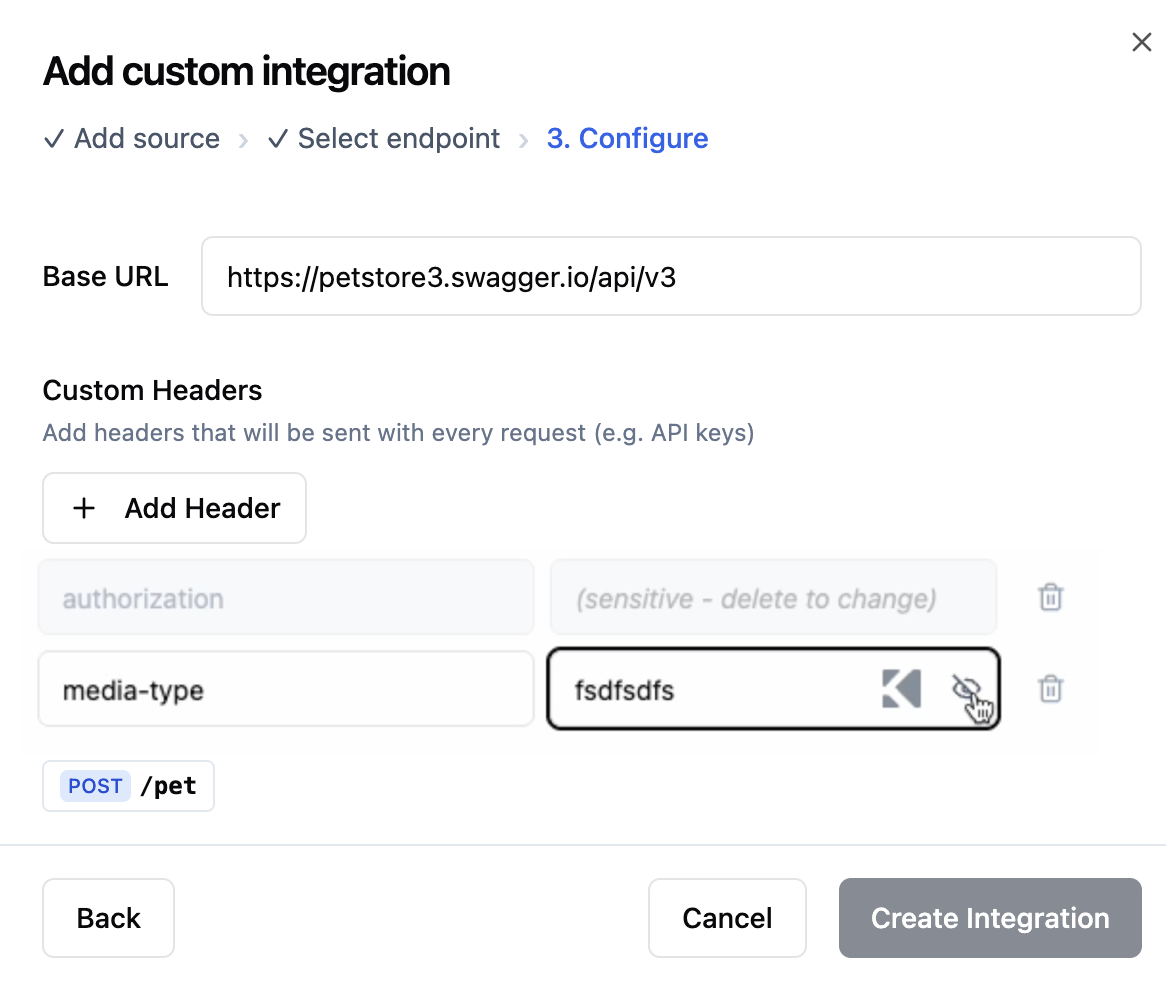
Configuring your workspace integration
Managing workspace integrations
After you create a workspace integration, it appears in the Integrations tab of your workspace. From there, you can view its details, edit settings, or remove it if you no longer need it.
Viewing integration details
- Click your workspace name at the bottom left of your account.
- Click Settings.
- Click Integrations.
- View the integration you want to inspect and expand the endpoints.
Editing an integration
- Click your workspace name at the bottom left of your account.
- Click Settings.
- Click Integrations.
- Click the More Actions icon on the integration card.
- Click Edit.
- Update the fields you need and save your changes.
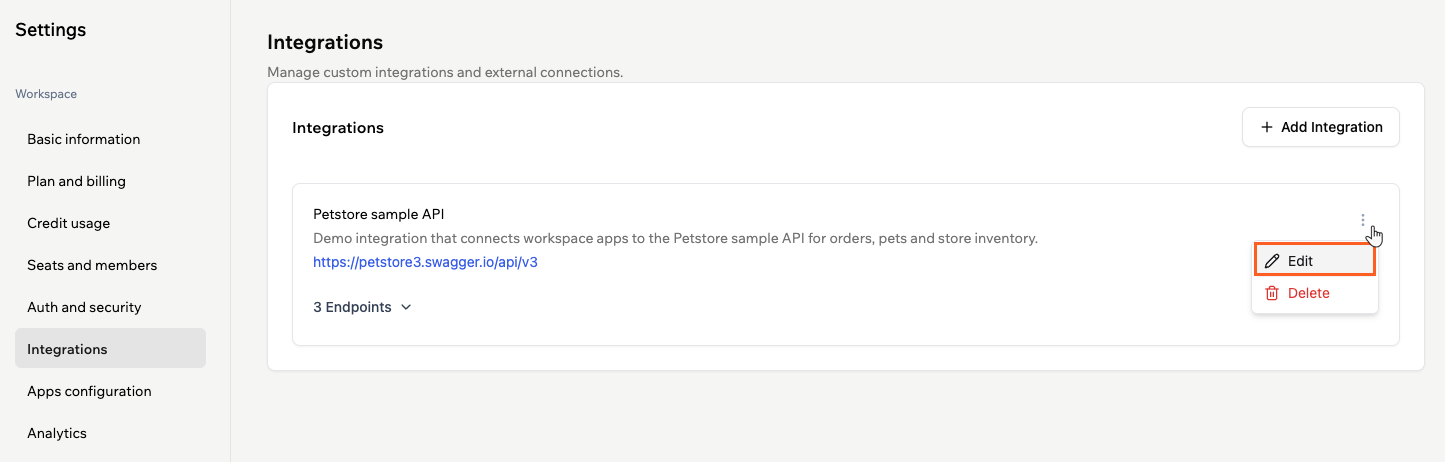
Editing a workspace integration
Deleting an integration
- Click your workspace name at the bottom left of your account.
- Click Settings.
- Click Integrations.
- Click the More Actions icon on the integration card.
- Click Delete.
- Click Delete again to confirm that you want to remove it from the workspace.
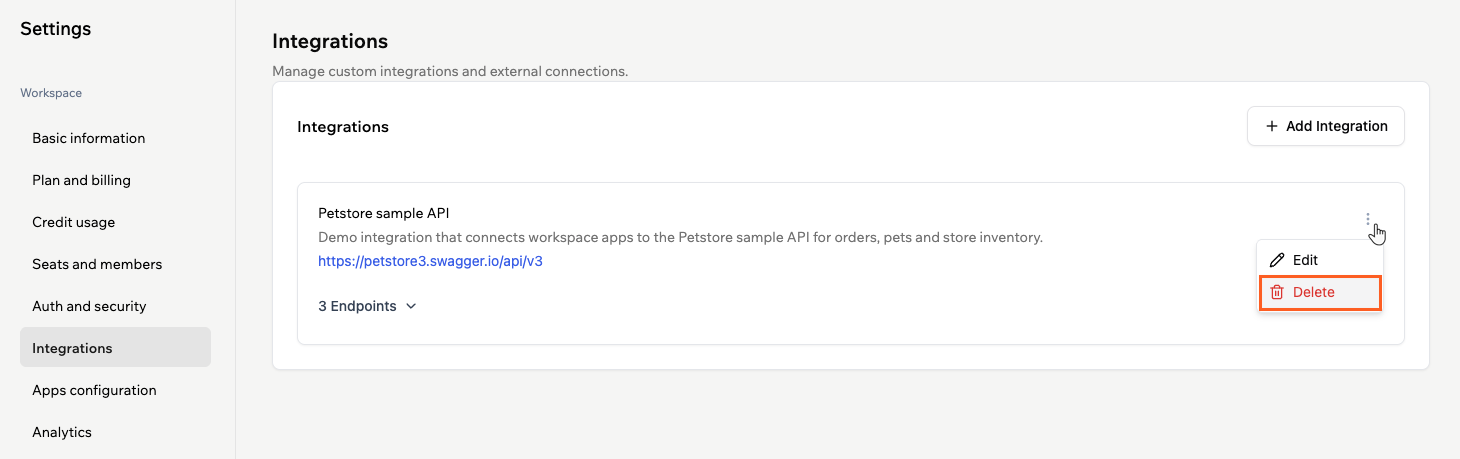
Deleting a workspace integration
FAQs
Click a question below to learn more about workspace integrations.