Base44 Payments powered by Wix is Base44’s built-in payment provider that lets you go from idea to selling in minutes. You can start selling immediately, with no separate payment provider to set up. You only need to complete your account setup and verification to receive your payouts.
Before you begin
Setting up Base44 Payments is quick, and you can start selling straight away. All you have to do is:
- Connect Base44 Payments using the AI chat in your app editor.
- Publish your app and go live.
- Start accepting payments from customers immediately.
- Complete setup and verification to start receiving payouts.
Important information
- You can use Base44 Payments for one-time payments or recurring subscriptions.
- You need a Builder plan or higher.
- Your app must be published and accessible during verification.
- You must have a business and bank account based in one of the supported countries listed below.
- Base44 Payments powered by Wix is available to eligible customers in these countries and currencies:
- United States: USD
- United Kingdom: GBP
- Germany: EUR
- Netherlands: EUR
- Spain: EUR
- Switzerland: CHF
- Belgium: EUR
- Portugal: EUR
- Finland: EUR
- Lithuania: EUR
- Austria: EUR
- Italy: EUR
Prohibited products and services
To keep payments safe and compliant, some products and services cannot be sold via Base44 Payments powered by Wix. Examples include:
- Illegal products or services
- Certain financial services, investment schemes or high-risk lending
- Some adult content or services
- Weapons, some types of ammunition and related accessories
- Certain gambling or betting services
- Products that encourage hate or violence
The exact list can change over time and may depend on Wix’s banking and payment partners. Review the prohibited products and services policy before you start selling.
Connecting Base44 Payments
Once Base44 Payments is connected to your app, securely accept payments from customers using:
- Major credit and debit cards
- Apple Pay
- Google Pay
- PayPal (United States only)
- Buy now, pay later services: Affirm, Klarna, and Afterpay/Clearpay
- Local payment methods: iDEAL, Bancontact, and Twint
Payments are processed through Base44 Payments and are subject to applicable service fees and the Wix Payments Terms of Service. You can start accepting payments as soon as your app is live. Once your account is fully verified, payouts are deposited into the bank account you selected during setup. To connect Base44 Payments:
- Go to your app editor.
- Prompt the AI chat to connect to a payment method. For example:
Enable online payments. - Click Connect to accept Base44 Payments terms of use and service fees.
- Click Dashboard.
- Click Overview.
- Click Manage next to Payments to open the Payments dashboard.
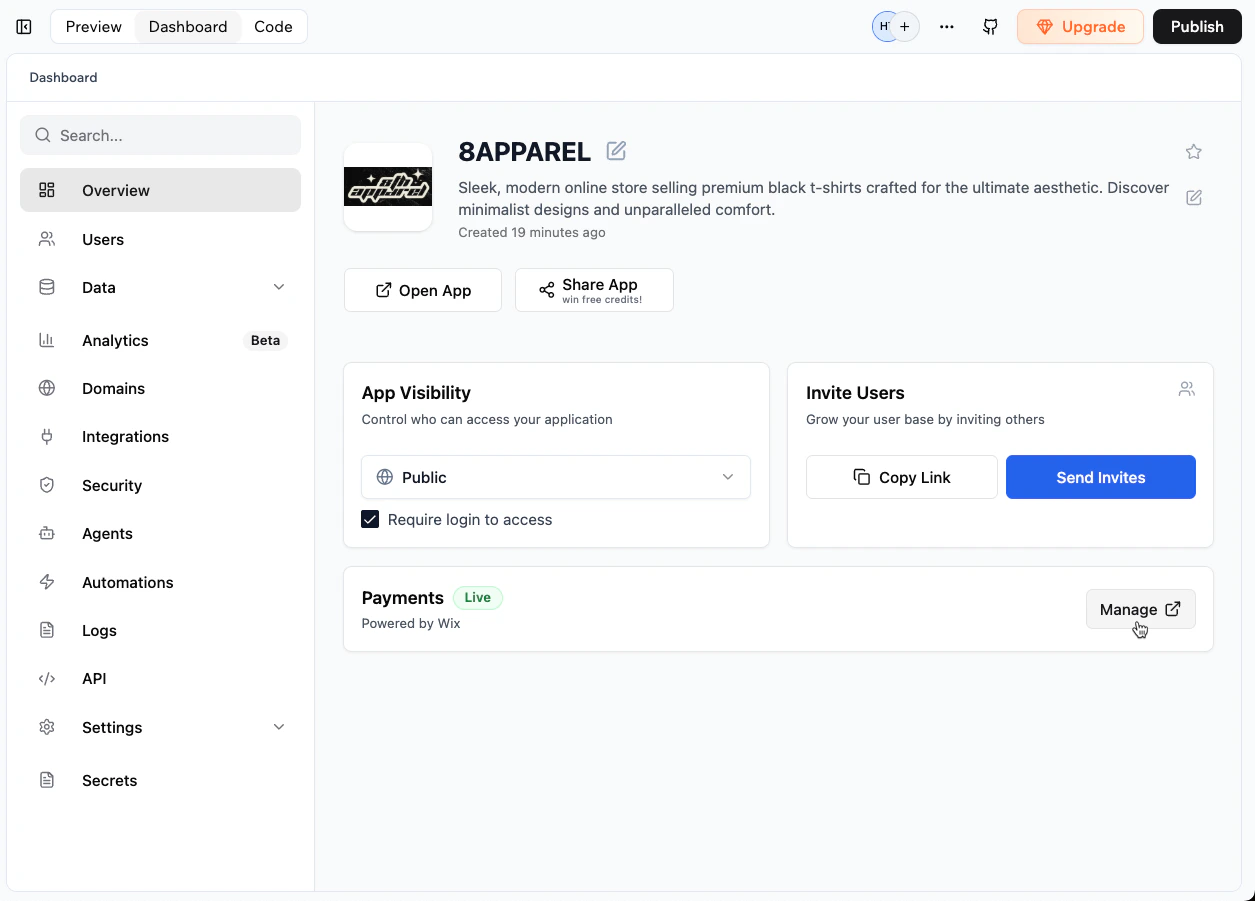
Opening the Payments dashboard from your app dashboard
Alternative payment methods
In addition to cards and digital wallets, Base44 Payments powered by Wix supports buy now, pay later services and local payment methods. The methods available to your customers depend on the country where your business is based.
| Business country | Available methods |
|---|---|
| United States | Affirm, Klarna, Afterpay |
| United Kingdom | Klarna, Clearpay |
| Austria | Klarna |
| Belgium | Bancontact, Klarna |
| Finland | Klarna |
| Germany | Klarna |
| Italy | Klarna |
| Netherlands | iDEAL |
| Portugal | Klarna |
| Spain | Klarna |
| Switzerland | Klarna, Twint |
Eligible payment methods are enabled automatically when you connect Base44 Payments. You can turn individual methods on or off at any time from your Payments dashboard. See Managing payment methods.
Buy now, pay later qualification and terms
Affirm, Klarna, and Afterpay/Clearpay each set their own qualification criteria, prohibited products, and terms of use, in addition to the prohibited products and services policy. By accepting payments with one of these services, you agree to that provider’s terms. Review the qualification requirements, supported currencies, and service fees for each service before you start selling:
- Affirm qualification and terms of use
- Klarna qualification and terms of use
- Afterpay/Clearpay qualification and terms of use
Completing the setup
Complete your Base44 Payments account setup and verification before receiving payouts. Details include:
- Your business type and legal name.
- Your business address in one of the supported countries.
- The main contact person’s details.
- The bank account where you want to receive payouts.
Enter and review these details in your Payments dashboard. Some details may require supporting documents to confirm your identity and business information. Follow the guidelines for uploading documentation if you are asked to provide documents. Until setup is complete and verified, your account may be limited and payouts may be delayed, so upload any requested documents as soon as possible.
Getting your app ready for sales
Before accepting payments with Base44 Payments powered by Wix, make sure your app includes clear business information and policies. This builds customer trust and helps ensure your Base44 Payments account passes verification without delays.
Business contact details
Add your business name and easy-to-find contact details so customers can reach you if needed. Best practices include:
- Display your business name clearly, using your legal name or “Doing Business As” name exactly as provided during Base44 Payments setup.
- Add your physical business address, including the country. Post office boxes and mail-forwarding addresses are not considered valid.
- Provide customer service contact details such as an email address and phone number.
Required business policies
Your app should include relevant policies to inform and protect customers, such as:
- Terms and conditions.
- Privacy policy.
- Refund, return, or cancellation policy.
- Shipping, fulfillment, or delivery policy.
Make sure these policies are clearly visible before checkout. For cancellations and returns, include a checkbox or acknowledgement for customers to agree.
Product and pricing details
Provide clear and transparent details about what you sell, including:
- Detailed product or service descriptions.
- Clear pricing and purchase currency.
- Transparent terms for subscriptions or recurring payments, including billing intervals and cancellation options.
Best practices for using Base44 Payments
Following best practices helps you build trust with customers, reduce disputes and chargebacks, and keep your Base44 Payments account in good standing.
Managing payments and payouts
Manage payments, payouts, refunds, and reports from your Payments dashboard, with full visibility into your cash flow. You can also track your app’s revenue, transactions, and subscriptions from your app dashboard. See Tracking payments in your app.
Viewing your payment history
From the Payments dashboard:
- View each transaction, including its amount, date, payment method, and status.
- Filter by date range, status, or payment method.
- Search for a specific payment using the customer name, order ID, or transaction ID.
This helps track individual payments, answer customer questions, and match orders with payments. To view your payments:
- Click Dashboard in your app editor.
- Click Overview.
- Click Manage next to Payments.
- Click All Payments.
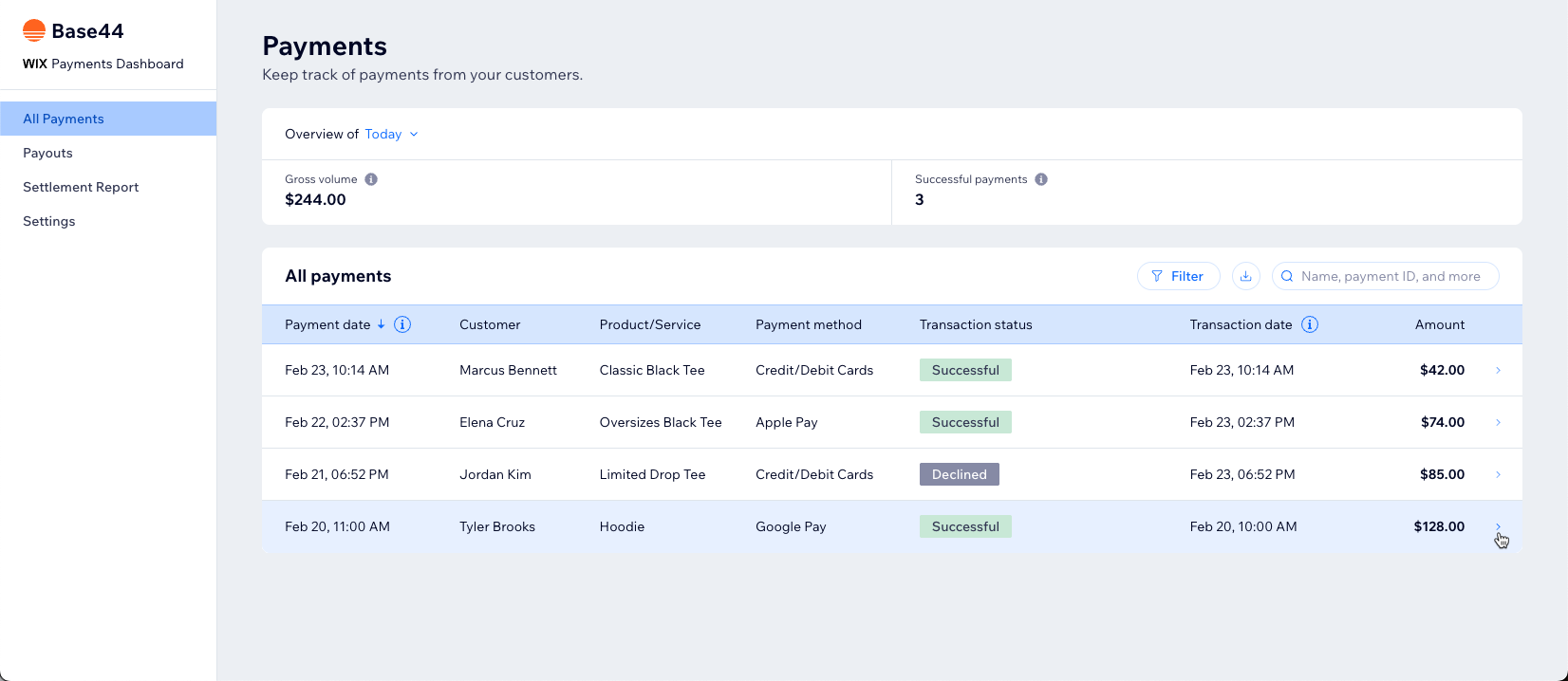
Payments dashboard showing payment history and transaction details
Understanding your payouts
Base44 Payments powered by Wix groups your successful customer payments into payouts that are deposited into your bank account.
- Payment processing: There is a standard delay between when a customer pays and when the funds are deposited into your bank account. This gives time for processing, refunds and disputes. Processing typically takes 2 to 5 business days.
- Payout schedule: You can usually choose how often you get paid. This can be daily, weekly or monthly, as preferred.
- Payout destination: Payouts go to the bank account you add during setup. You can change this account later, if needed.
- Failed payouts: If a payout fails, your Payments dashboard shows a message explaining what went wrong, for example incorrect bank details.
To view your payouts:
- Click Dashboard in your app editor.
- Click Overview.
- Click Manage next to Payments.
- Click Payouts.
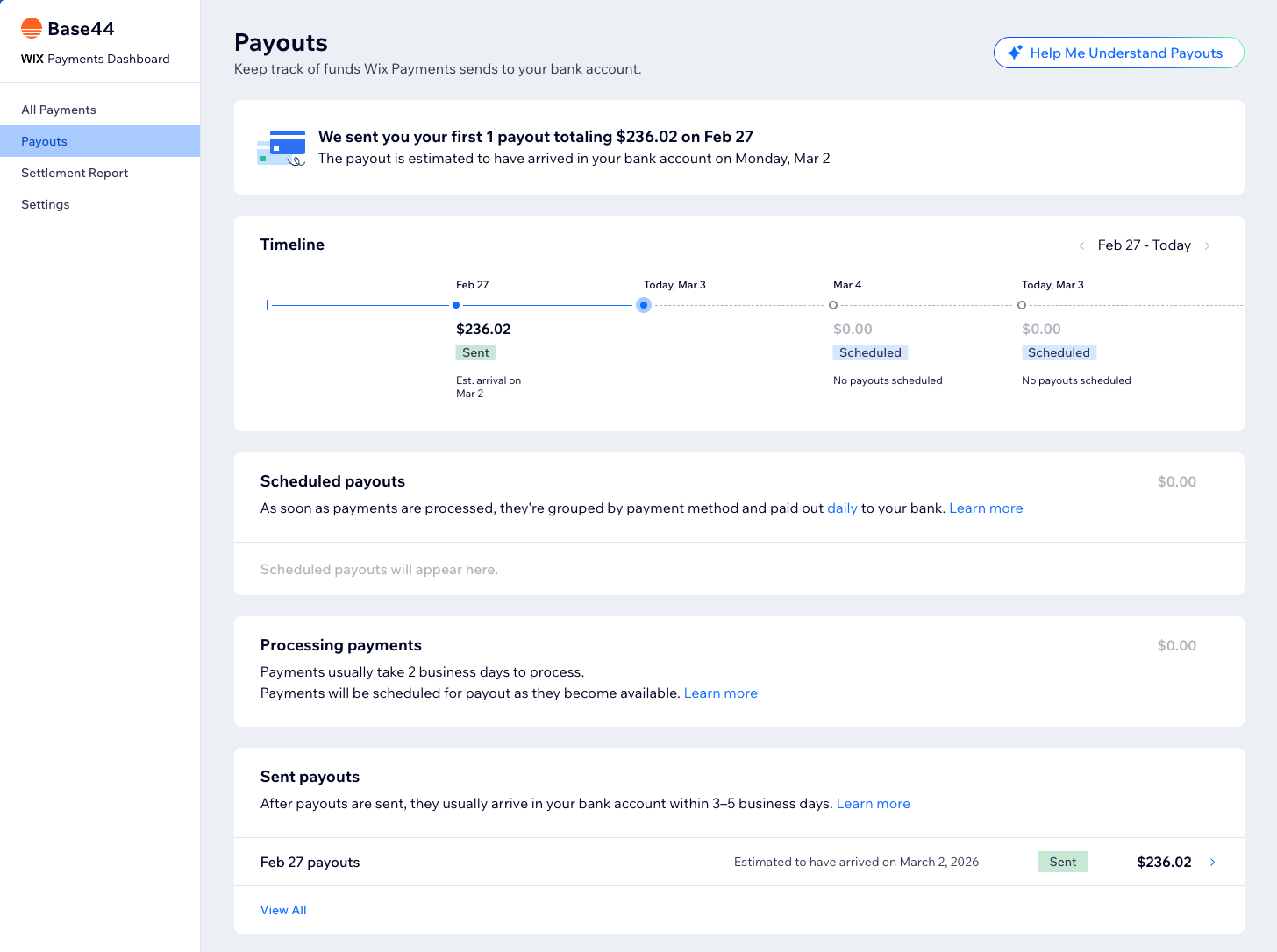
Tracking payout status in the Payments dashboard
Issuing refunds
You can refund your customers directly from your Payments dashboard. When you issue a refund:
- The refunded amount is taken from your Base44 Payments balance.
- If your balance does not cover the full refund, the remaining amount may be taken from upcoming payments or from your next payout.
- Refunds may take several business days to reach your customer, depending on their bank or payment method.
- Refunds reduce your available balance and may affect the size and timing of your next payouts.
To issue a refund:
- Click Dashboard in your app editor.
- Click Overview.
- Click Manage next to Payments.
- Click All Payments.
- Click the payment you want to refund.
- Click Refund.
- Enter the amount and a note (if needed), then click Refund.
Handling a negative balance
Your Base44 Payments balance can become negative if you issue refunds or incur chargebacks that amount to more than your available funds. If your balance is negative:
- New successful payments go toward covering the negative amount.
- Payouts are paused until your balance returns to a positive amount.
- You do not have enough funds to cover any additional refunds or chargebacks that may occur.
- You can return to a positive balance by adding funds to your account using a credit or debit card.
To add funds:
- Click Dashboard in your app editor.
- Click Overview.
- Click Manage next to Payments.
- Click Payouts.
- Click Add Funds.
- Enter your payment details.
- Click Add Funds.
Managing payment methods
From the Payments dashboard, you can choose which payment methods you offer your customers. All payment methods available for your business country, including alternative payment methods, are enabled when you connect Base44 Payments powered by Wix. If you want to disable a payment method, you can do it from the Settings tab in your Payments dashboard. To manage payment methods:
- Click Dashboard in your app editor.
- Click Overview.
- Click Manage next to Payments.
- Click Settings.
- Click Manage.
- Enable or disable the toggle next to the payment method you want to update.
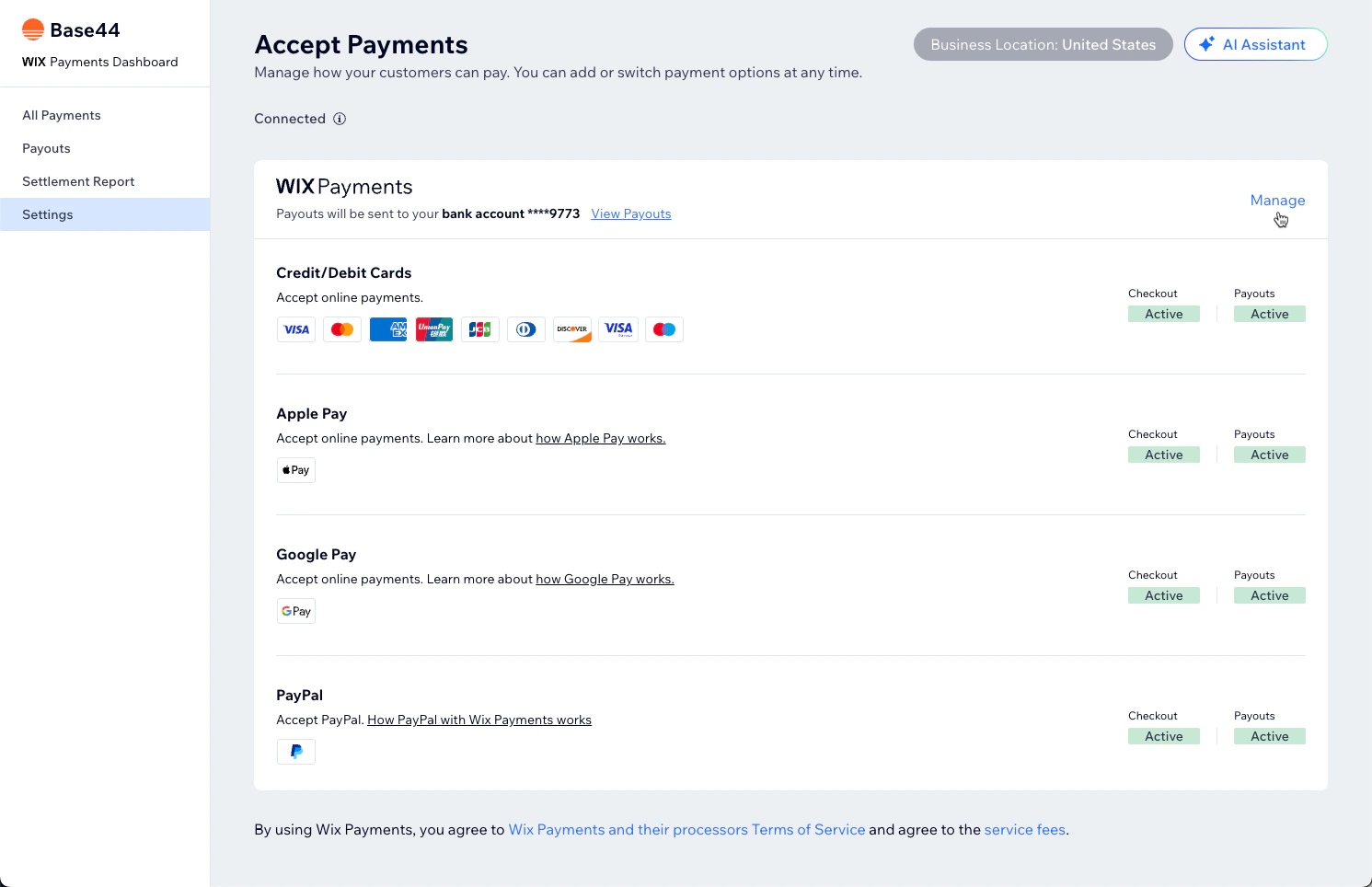
Managing payment methods in the Payments dashboard
Accessing your settlement reports
Settlement reports give you a detailed, exportable list of all transactions processed through Base44 Payments powered by Wix.
- See each transaction, its status and the related payout.
- View the Base44 Payments service fee for each transaction.
- Download a CSV file of the full report for accounting or tax purposes.
- Filter by date range or transaction type before you download.
You can usually access your settlement report even if your Base44 Payments account is disconnected, which lets you keep historical records for your business. To access your settlement report:
- Click Dashboard in your app editor.
- Click Overview.
- Click Manage next to Payments.
- Click Settlement Report.
- (Optional) Filter the report, or click Download Detailed Table.
Troubleshooting
If Base44 Payments powered by Wix cannot verify your app, payments and payouts may be delayed. Review the topics below for common verification issues and solutions.
FAQs
Click a question below to learn more about using Base44 Payments powered by Wix with Base44.