SEO and GEO can feel overwhelming, but Base44 takes care of the technical foundation for you. The SEO & GEO page in your app dashboard lets you manage your app’s visibility in search engines and AI-powered search platforms like ChatGPT and Gemini. Improving your score is easy, because Base44 guides you through every step. Run a scan to see how your app is doing, then let the AI fix most of the issues for you with a single click. For the few that need your input, Base44 shows you exactly what to do to raise your score.
The page has an Overview tab and a Meta tags tab, plus an Advanced Settings tab. Run a scan to get a score and a prioritized checklist of improvements, set custom meta tags for each page, and control settings like indexing and structured data injection.
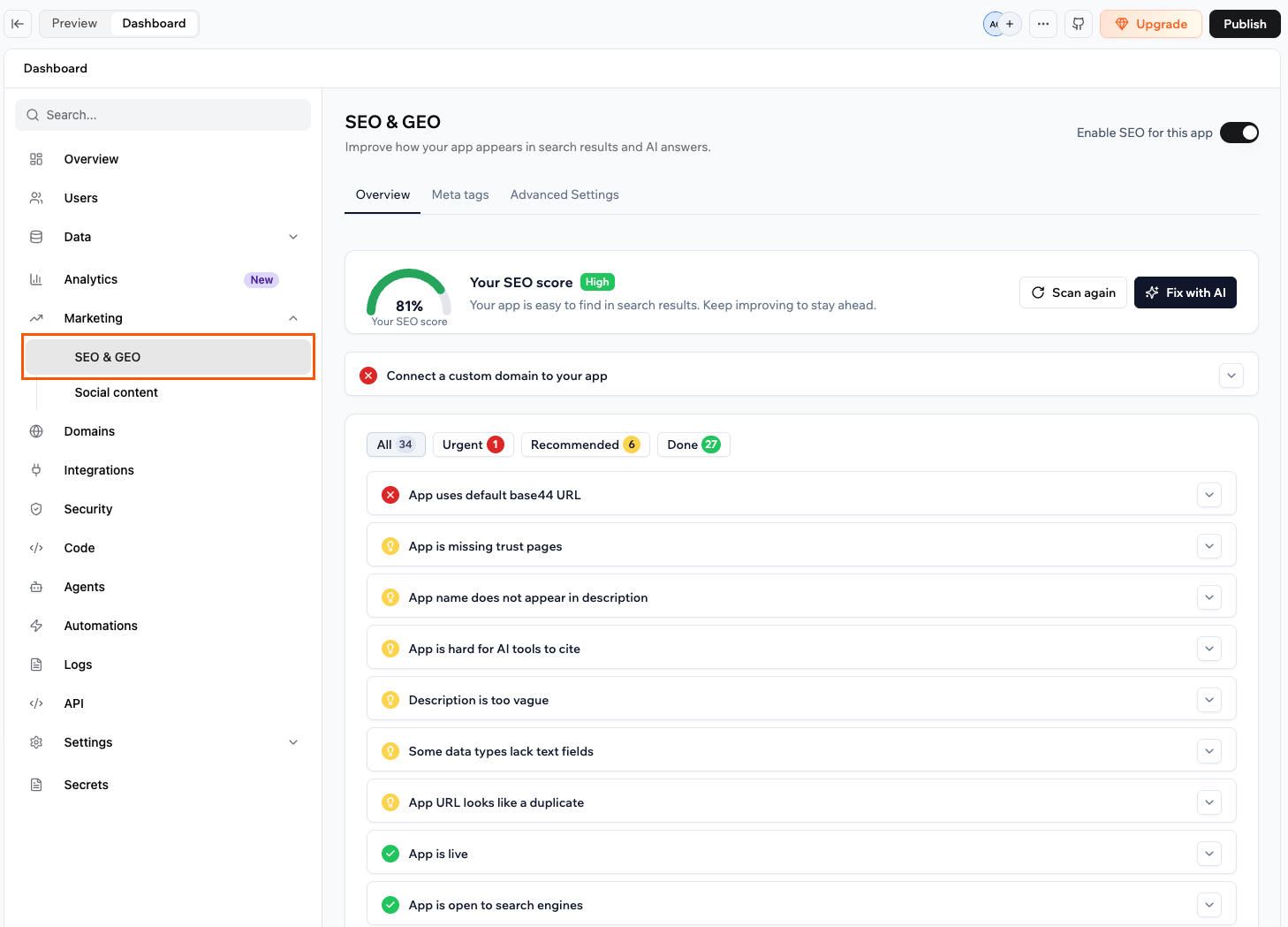
Optimizing your app's SEO and GEO
Overview
The Overview tab is your main SEO control panel. It contains your setup checklist. Run a scan to see how your app scores, fix the issues it finds, and manage the SEO files and features Base44 generates for you.
Running a scan
The SEO & GEO scan checks your app against a full list of SEO and GEO criteria and gives you a prioritized checklist of issues to fix. Your score reflects how well your app is set up for search engines and AI-powered search platforms.
To run a scan:
- Go to your app’s dashboard.
- Click Marketing in the left menu.
- Click SEO & GEO.
- Click Run Scan.
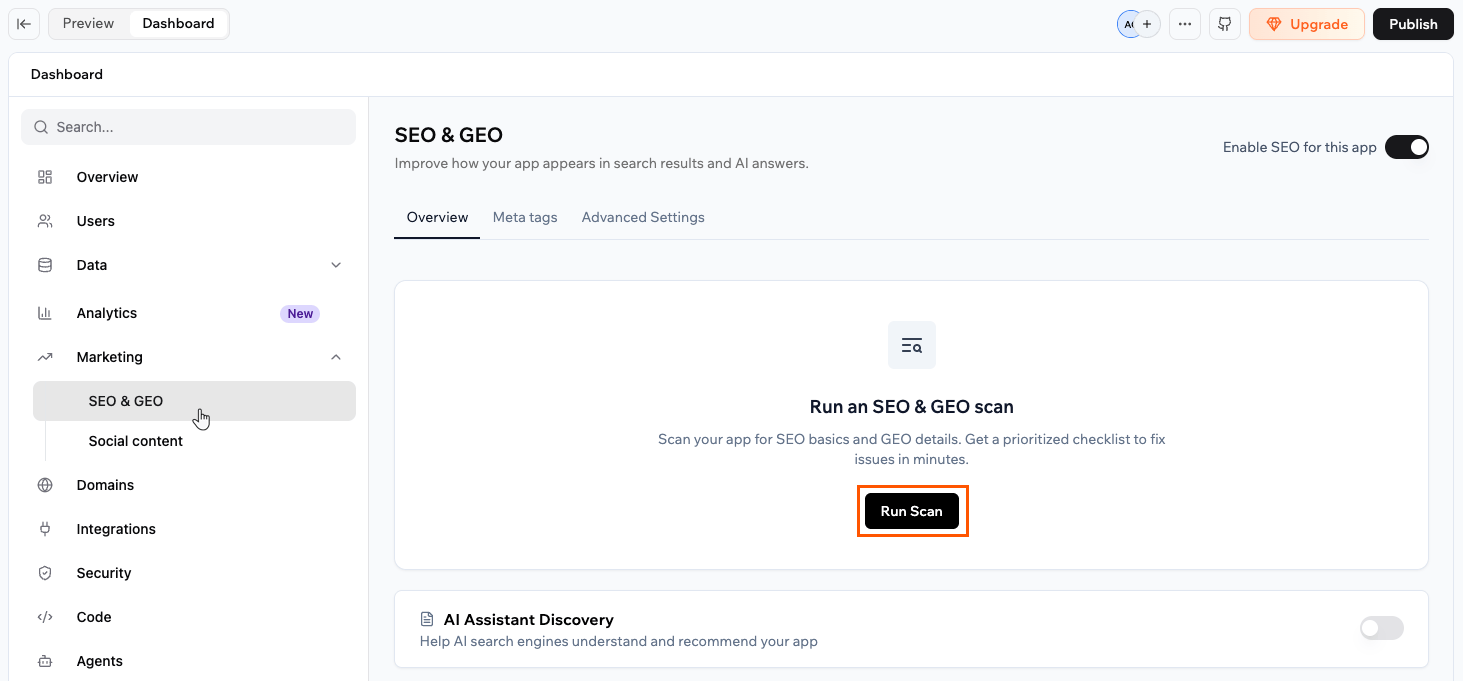
Running an SEO and GEO scan on your app
After the scan, you see an SEO Score as a percentage with a label (such as “Moderate” or “Good”) and an SEO Checklist with all the items found. Use the filters at the top of the checklist to focus on what matters most:
- All: Every item in the checklist.
- Urgent: Issues that are directly hurting your visibility and should be fixed first.
- Recommended: Improvements that can boost your score but are not blocking your current performance.
- Done: Checks your app has already passed.
Click any item in the checklist to expand it and see a description and the available action.
Fixing issues
After running a scan, you can fix issues one at a time or send everything to the AI chat at once.
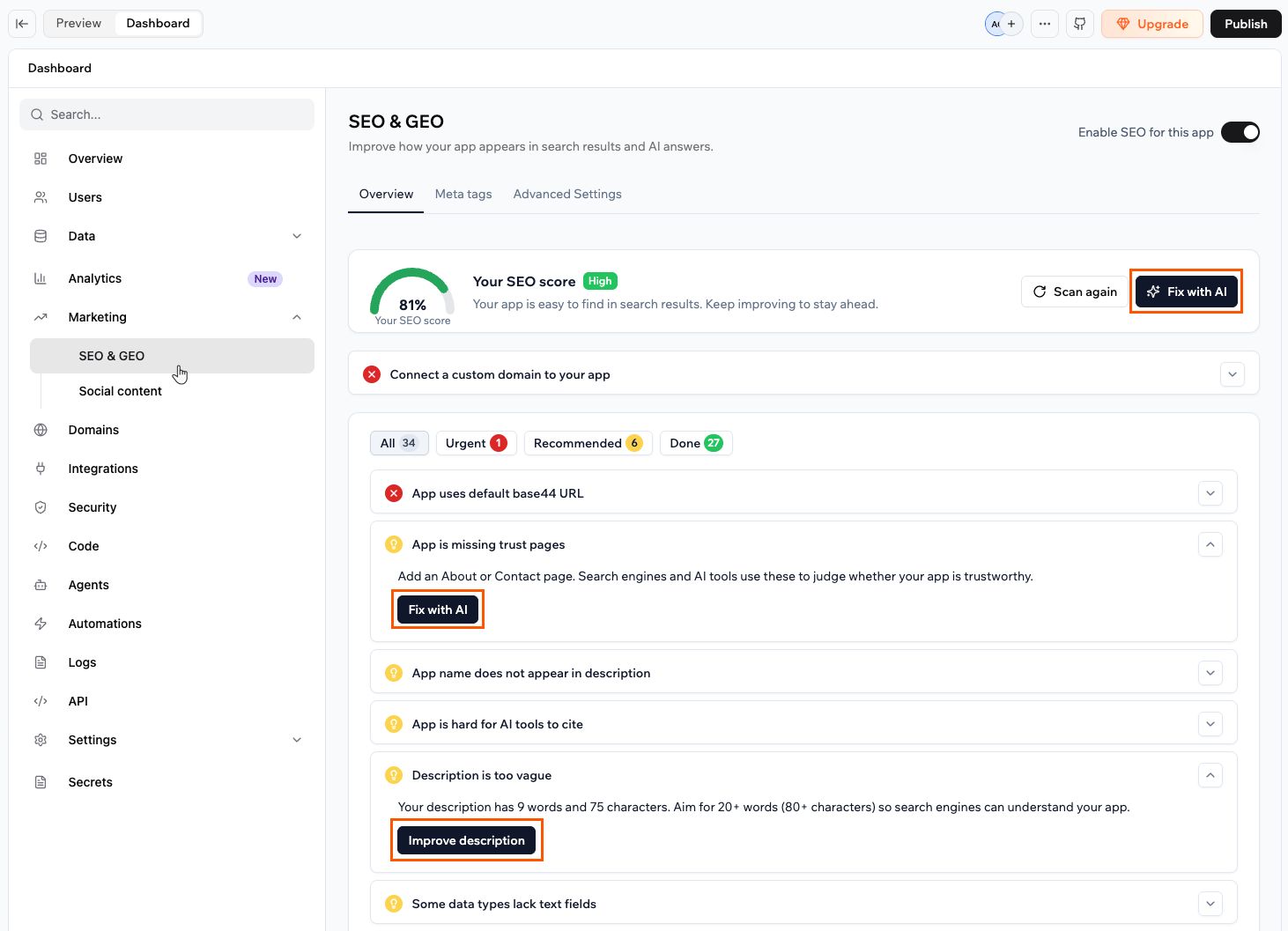
Fixing issues in the SEO and GEO checklist
AI assistant discovery
When someone uses an AI assistant such as ChatGPT, Gemini, or Perplexity to find or compare tools, those platforms scan the web and use structured signals to decide what to surface. Base44 generates an llms.txt file for your app, a lightweight file that gives AI crawlers a clear, structured summary of what your app does. This helps your app be understood and recommended by AI-powered search tools.
Click the AI Assistant Discovery toggle to turn this feature on or off.
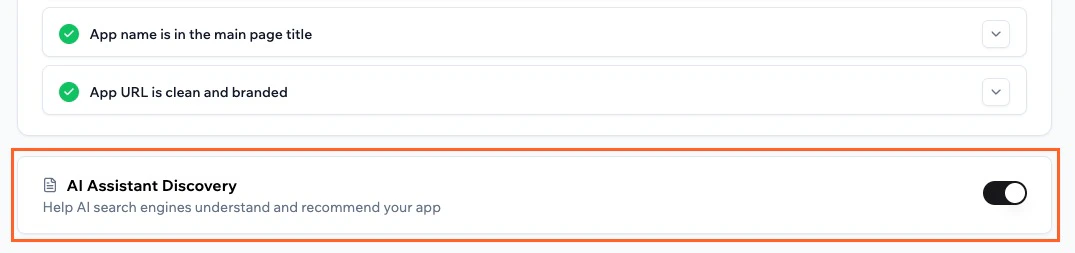
Enabling AI assistant discovery for your app
SEO file settings
The Overview tab also includes toggles that control how Base44 generates key SEO files for your app.
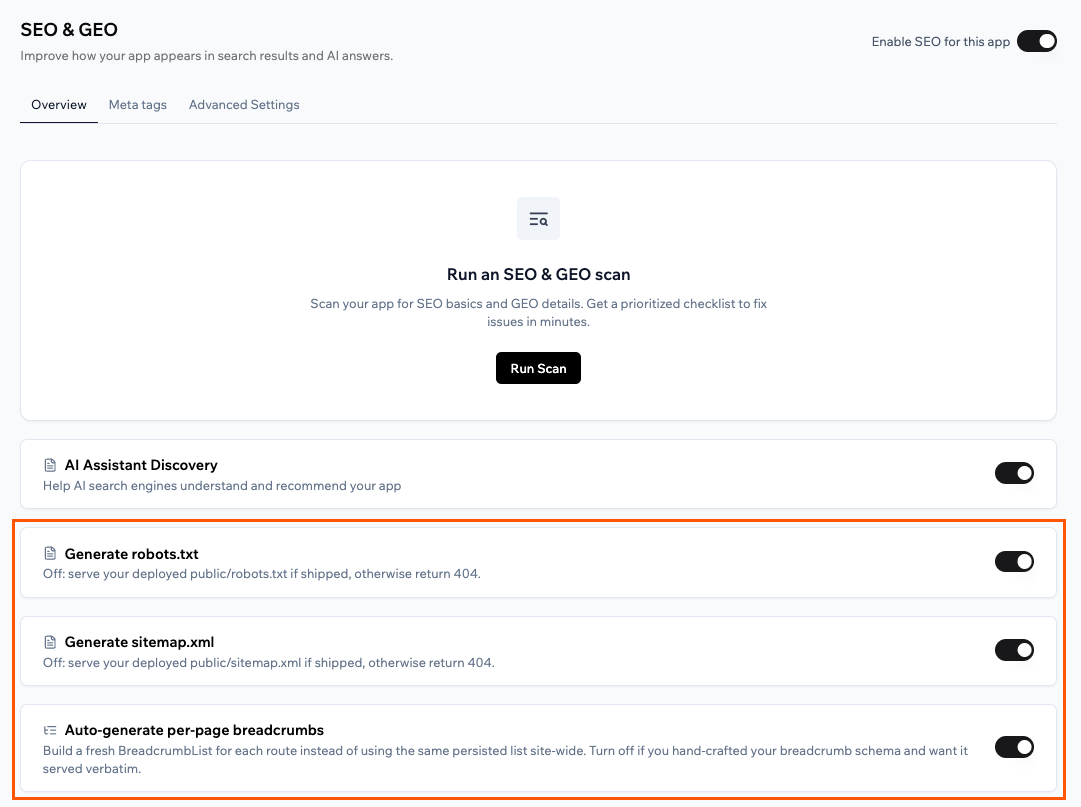
SEO file settings
- Generate robots.txt: A
robots.txtfile tells search engines and AI crawlers which parts of your app they are allowed to visit. Click the Generate robots.txt toggle to enable or disable it:- Enabled: Base44 generates a
robots.txtfile for your app automatically. - Disabled: Base44 serves your deployed
public/robots.txtif it exists, or returns a 404.
- Enabled: Base44 generates a
- Generate sitemap.xml: A
sitemap.xmlis a list of all the pages in your app. Search engines use it to find and index your pages faster. Click the Generate sitemap.xml toggle to enable or disable it:- Enabled: Base44 generates a
sitemap.xmlfor your app automatically. - Disabled: Base44 serves your deployed
public/sitemap.xmlif it exists, or returns a 404.
- Enabled: Base44 generates a
- Auto-generate per-page breadcrumbs: Breadcrumbs are the trail of links shown on a page, such as Home > Products > Item. Search engines can display these in search results to help people understand where a page sits in your app. Click the Auto-generate per-page breadcrumbs toggle to enable or disable it:
- Enabled: Base44 builds a fresh breadcrumb trail for each page automatically.
- Disabled: Base44 serves your hand-crafted breadcrumb structure as-is. Use this if you have built your own breadcrumb schema and want it served verbatim.
Meta tags are hidden snippets of text in your page code. Search engines read them to understand what each page is about. They control the title and description shown in Google search results, and what appears when someone shares a link to your app on social media. Setting clear, accurate meta tags for each page can improve your click-through rate in search results. The Meta tags tab lets you set a custom title and description for each public page in your app.
To edit a page’s meta tags:
- Go to your app’s dashboard.
- Click Marketing in the left menu.
- Click SEO & GEO.
- Click the Meta tags tab.
- Click the Edit icon next to the page you want to update.
- Update the Title and Description fields.
- Title: aim for 10–60 characters.
- Description: aim for up to 160 characters.
- Click the Save icon to confirm.
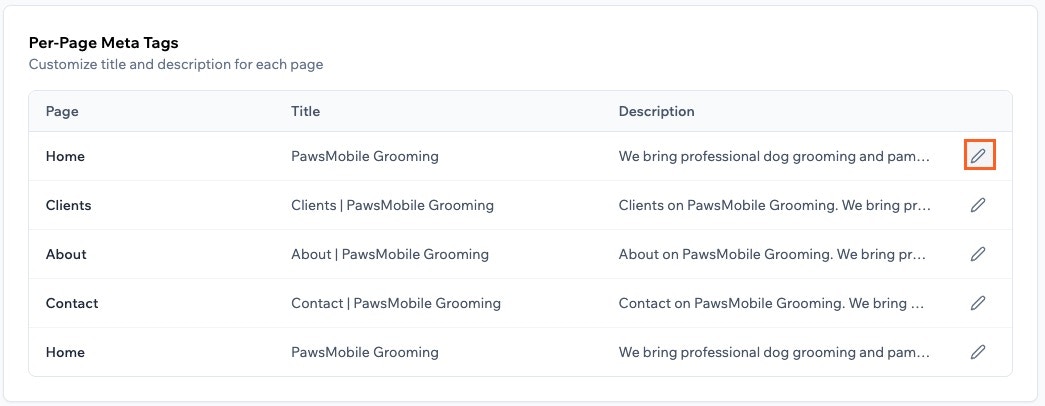
Editing your app pages meta tags
Advanced settings
The Advanced Settings tab gives you control over how Base44 injects meta tags and structured data into your app. You can also choose which pages search engines and AI tools can index.
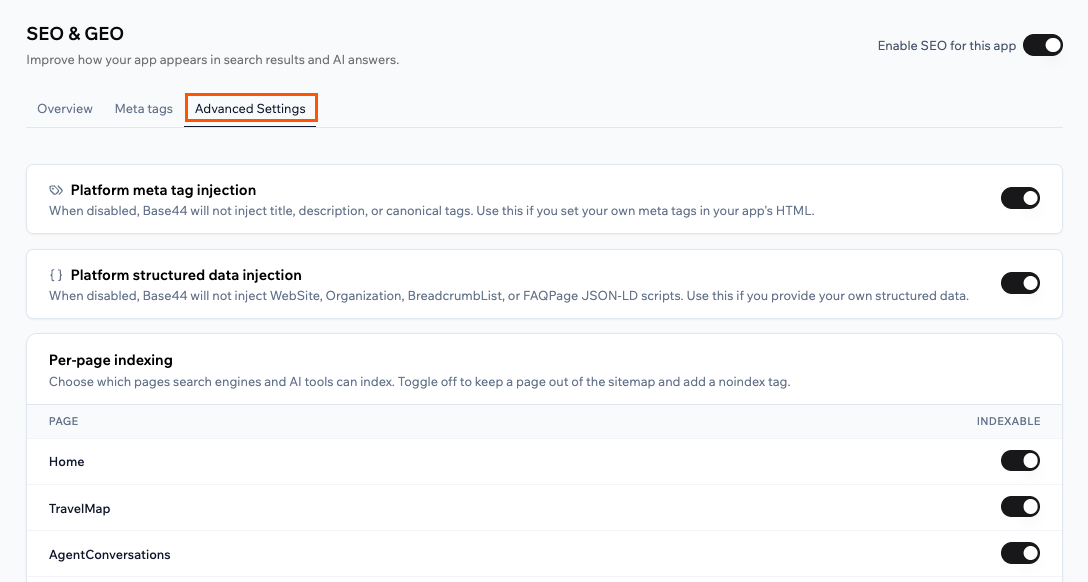
Advanced settings for SEO and GEO
Platform meta tag injection
Click the Platform meta tag injection toggle to enable or disable it:
- Enabled: Base44 automatically adds title, description, and canonical tags to your app. A canonical tag tells search engines which version of a page is the official one, which prevents duplicate content issues.
- Disabled: Base44 does not add these tags. Use this if you have set your own meta tags directly in your app’s HTML.
Platform structured data injection
Structured data is hidden code in your page that gives search engines extra context about your app, such as your brand details, page structure, and FAQs. Search engines use this to show richer results, like FAQ dropdowns or brand information, directly in search results. Click the Platform structured data injection toggle to enable or disable it:
- Enabled: Base44 automatically adds structured data for your app’s website, brand info, breadcrumbs, and FAQ pages.
- Disabled: Base44 does not add this data. Use this if you provide your own structured data.
Per-page indexing
Indexing is how search engines read your pages and add them to their database so they can appear in search results. If a page is not indexed, it will not show up in search results or AI recommendations.
The Per-page indexing section lets you choose which pages are indexed. All pages are indexable by default.
To stop a page from being indexed, click its toggle to turn it off. Base44 removes the page from your sitemap and llms.txt file, and adds a noindex tag to it.
FAQs
Click a question below to learn more.