Install the latest release of the AWS Serverless Application Model Command Line Interface (AWS SAM CLI) on supported operating systems by following instructions in Step 1: Install the AWS CLI.
For information on managing a currently installed version of the AWS SAM CLI, including how to upgrade, uninstall, or manage nightly builds, see Managing AWS SAM CLI versions.
Is this your first time installing the AWS SAM CLI?
Complete all prerequisites in the previous section before moving forward. This includes:
-
Signing up for an AWS account.
-
Setting up secure access to AWS.
-
Creating an access key ID and secret access key.
-
Installing the AWS CLI.
-
Configuring AWS credentials.
Topics
Installing the AWS SAM CLI
Note
Starting September 2023, AWS will no longer maintain the AWS managed Homebrew installer for the
AWS SAM CLI (aws/tap/aws-sam-cli). If you use Homebrew to install and manage the AWS SAM CLI,
see the following options:
-
To continue using Homebrew, you can use the community managed installer. For more information, see Managing the AWS SAM CLI with Homebrew.
-
We recommend using one of the first party installation methods that are documented on this page. Before using one of these methods, see Switch from Homebrew.
-
For additional details, refer to Release version: 1.121.0 .
To install the AWS SAM CLI, follow the instructions for your operating system.
Installation steps
Use the package installer to install the AWS SAM CLI. Additionally, the package installer has two installation methods that you can choose from: GUI and Command line. You can install for all users or just your current user. To install for all users, superuser authorization is required.
Note
AWS SAM CLI doesn't support MacOS versions older than MacOS 13.x. Upgrade to a supported version of MacOS or install AWS SAM CLI with Homebrew.
Windows Installer (MSI) files are the package installer files for the Windows operating system.
Follow these steps to install the AWS SAM CLI using the MSI file.
-
Download the AWS SAM CLI 64-bit .
-
(Optional) You can verify the integrity of the installer before installation. For instructions, see Optional: Verify the integrity of the AWS SAM CLI installer.
-
Verify the installation.
After completing the installation, verify it by opening a new command prompt or PowerShell prompt. You should be able to invoke
samfrom the command line.sam --versionAfter successful installation of the AWS SAM CLI, you should see output like the following:
SAM CLI,
<latest version> -
Enable long paths (Windows 10 and newer only).
Important
The AWS SAM CLI might interact with filepaths that exceed the Windows max path limitation. This may cause errors when running
sam initdue to Windows 10 MAX_PATH limitations. To resolve this issue, the new long paths behavior must be configured.To enable long paths, see Enable Long Paths in Windows 10, Version 1607, and Later in the Microsoft Windows App Development Documentation.
-
Install Git.
To download sample applications using the
sam initcommand, you must also install Git. For instructions, see Installing Git .
Troubleshooting installation errors
Linux
Docker error: "Cannot connect to the Docker daemon. Is the docker daemon running on this host?"
In some cases, to provide permissions for the ec2-user to access the
Docker daemon, you might have to reboot your instance. If you receive this error, try
rebooting your instance.
Shell error: "command not found"
If you receive this error, your shell can't locate the AWS SAM CLI executable in the path. Verify the location of the directory where you installed the AWS SAM CLI executable, and then verify that the directory is on your path.
AWS SAM CLI error: "/lib64/libc.so.6: version `GLIBC_2.14' not found (required by /usr/local/aws-sam-cli/dist/libz.so.1)"
If you receive this error, you're using an unsupported version of Linux, and the built-in glibc version is out of date. Try either of the following:
-
Upgrade your Linux host to the 64-bit version of a recent distribution of CentOS, Fedora, Ubuntu, or Amazon Linux 2.
-
Follow the instructions for Install the AWS SAM CLI.
macOS
The installation failed
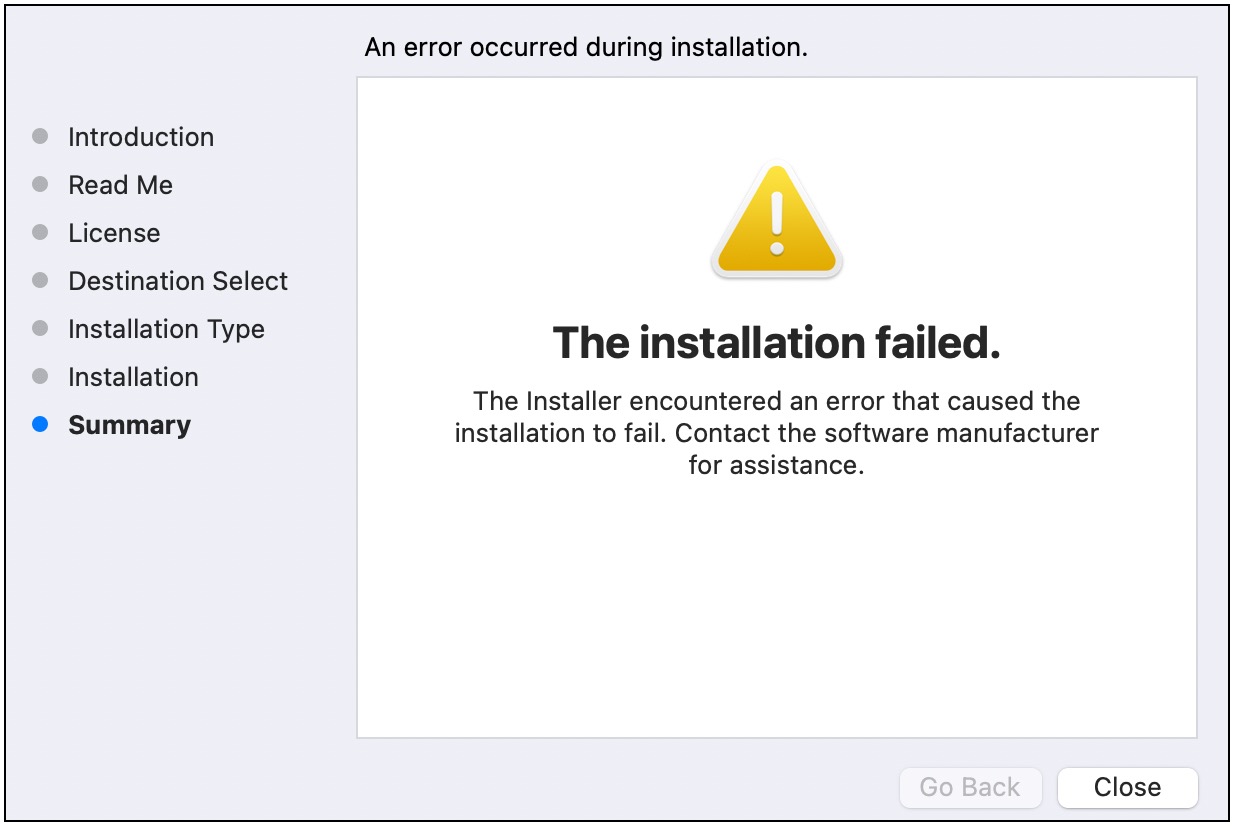
If you are installing the AWS SAM CLI for your user and selected an installation directory that you don’t have write permissions for, this error could occur. Try either of the following:
-
Select a different installation directory that you have write permissions for.
-
Delete the installer. Then, download and run it again.
Next steps
To learn more about the AWS SAM CLI and to begin building your own serverless applications, see the following:
-
Tutorial: Deploy a Hello World application with AWS SAM – Step-by-step instructions to download, build, and deploy a basic serverless application.
-
The Complete AWS SAM Workshop – A workshop designed to teach you many of the major features that AWS SAM provides.
-
AWS SAM example applications and patterns – Sample applications and patterns from community authors that you can further experiment with.