Update 1.96.1: The update addresses these issues and enables the GitHub Copilot Free plan.
Update 1.96.2: The update addresses these issues.
Update 1.96.3: The update addresses these issues.
Update 1.96.4: The update addresses these issues.
Downloads: Windows: x64 Arm64 | Mac: Universal Intel silicon | Linux: deb rpm tarball Arm snap
Welcome to the November 2024 release of Visual Studio Code. There are many updates in this version that we hope you'll like, some of the key highlights include:
- GitHub Copilot Free - Use Copilot for free with the GitHub Copilot Free plan
- Overtype mode - Switch between overwrite or insert mode in the editor
- Add imports on paste - Automatically add missing TS/JS imports when pasting code
- Test coverage - Quickly filter which code is covered by a specific test
- Move views - Easily move views between the Primary and Secondary Side Bar
- Terminal ligatures - Use ligatures in the terminal
- Extension allow list - Configure which extensions can be installed in your organization
- Debug with Copilot - Use
copilot-debugterminal command to start a debugging session - Chat context - Add symbols and folders as context Chat and Edits
- Move from chat to Copilot Edits - Switch to Copilot Edits to apply code suggestions from Chat
If you'd like to read these release notes online, go to Updates on code.visualstudio.com. Insiders: Want to try new features as soon as possible? You can download the nightly Insiders build and try the latest updates as soon as they are available.
GitHub Copilot
GitHub Copilot Free plan
We're excited to announce an all new free tier for GitHub Copilot. Sign up for the GitHub Copilot Free plan, and all you need is a GitHub account. You are entitled to a number of completions and chat interactions per month, which reset each month.
You can sign up directly from within VS Code. Follow the steps in the Copilot Setup guide.
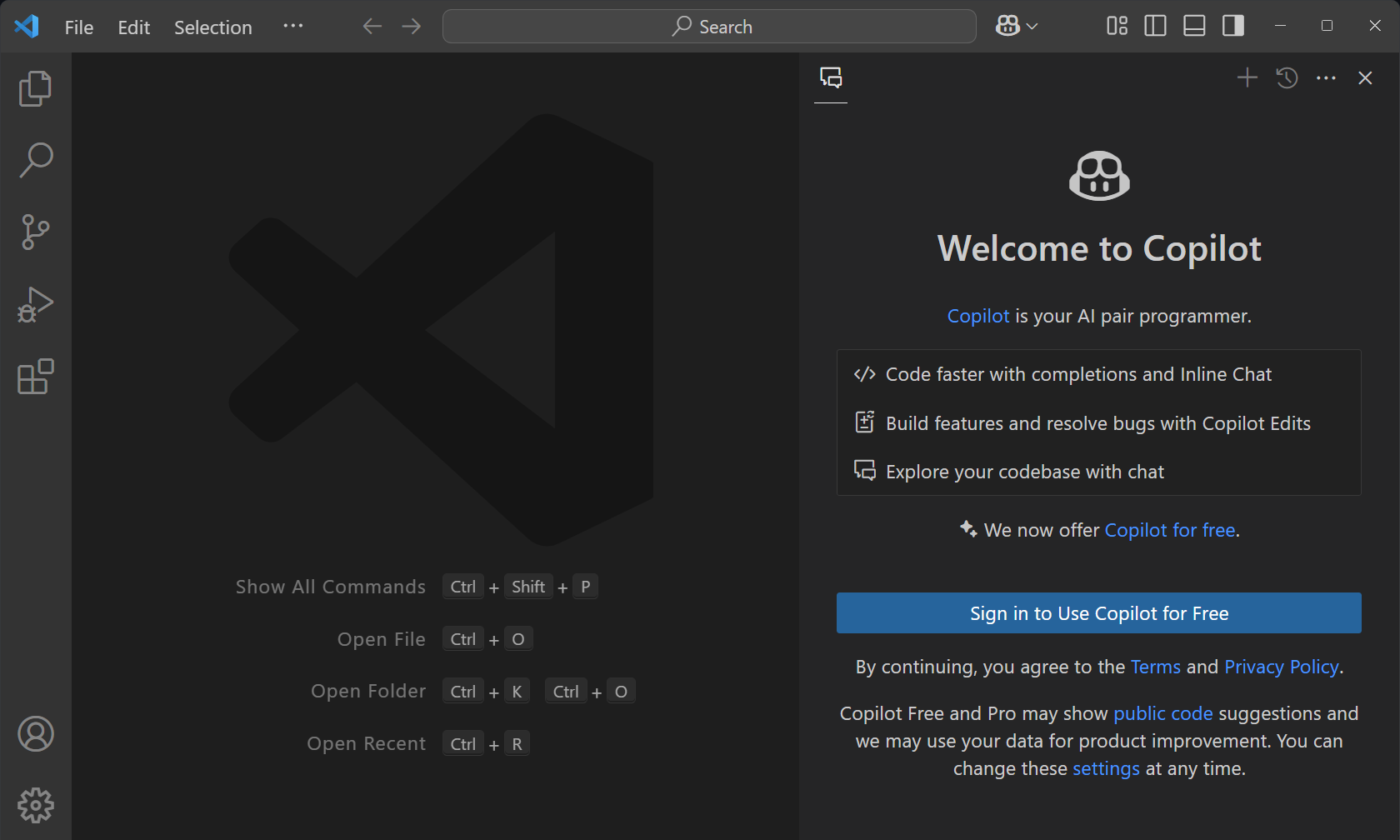
Learn more about the Copilot Free plan details and conditions.
Copilot Edits
Last milestone, we introduced Copilot Edits (currently in preview), which allows you to quickly edit multiple files at once using natural language. Since then, we've continued to iterate on the experience. You can try out Copilot Edits by opening the Copilot menu in the Command Center, and then selecting Open Copilot Edits, or by triggering .
Progress and editor controls
Copilot Edits can make multiple changes across different files. You can now more clearly see its progress as edits stream in. And with the editor overlay controls, you can easily cycle through all changes and accept or discard them.
Move chat session to Copilot Edits
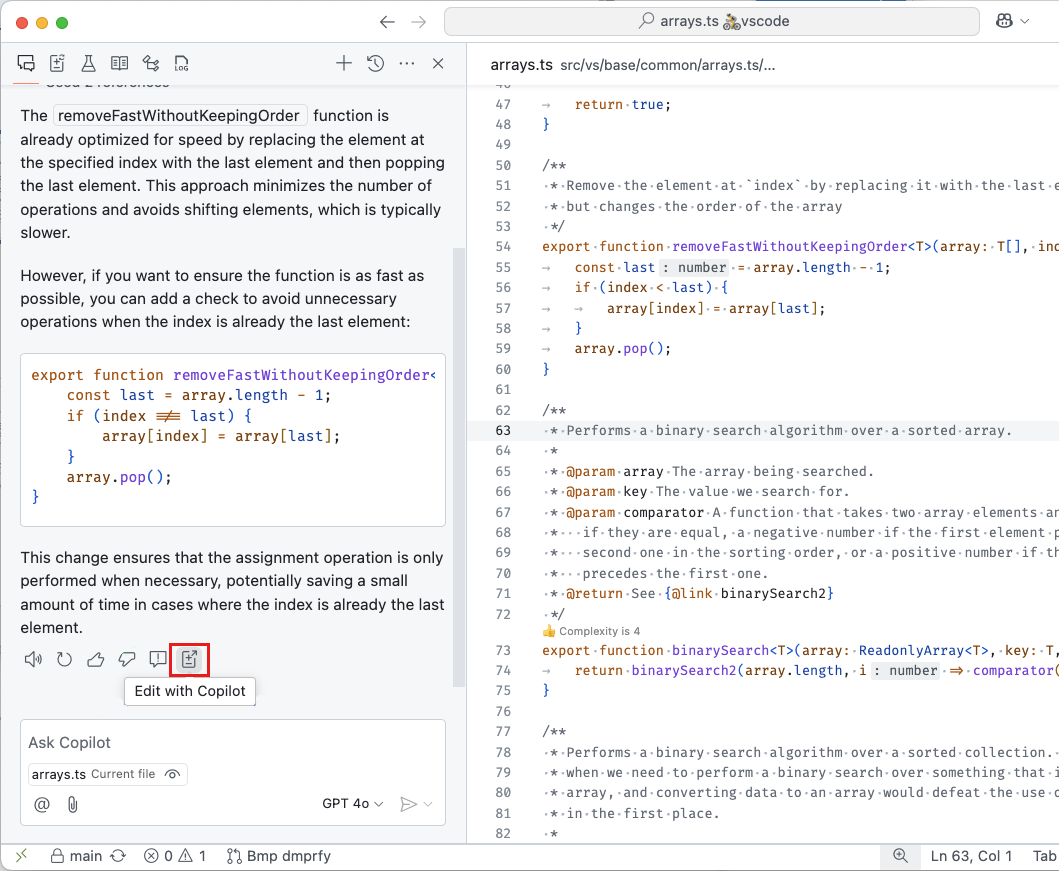
You might use the Chat view to explore some ideas for making changes to your code. Instead of applying individual code blocks, you can now move the chat session to Copilot Edits to apply all code suggestions from the session.
Working set suggested files
In Copilot Edits, the working set determines the files that Copilot Edits can suggest changes for. To help you add relevant files to the working set, for a Git repo, Copilot Edits can now suggest additional files based on the files you've already added. For example, Copilot Edits will suggest files that are often changed together with the files you've already added.
Copilot shows suggested files alongside the Add Files button in the working set. You can also select Add Files and then select Related Files to choose from a list of suggested files.
Restore Edit sessions after restart
Edit sessions are now fully restored after restarting VS Code. This includes the working set, acceptance state, as well as the file state of all past edit steps.
Add to working set from Explorer, Search, and editor
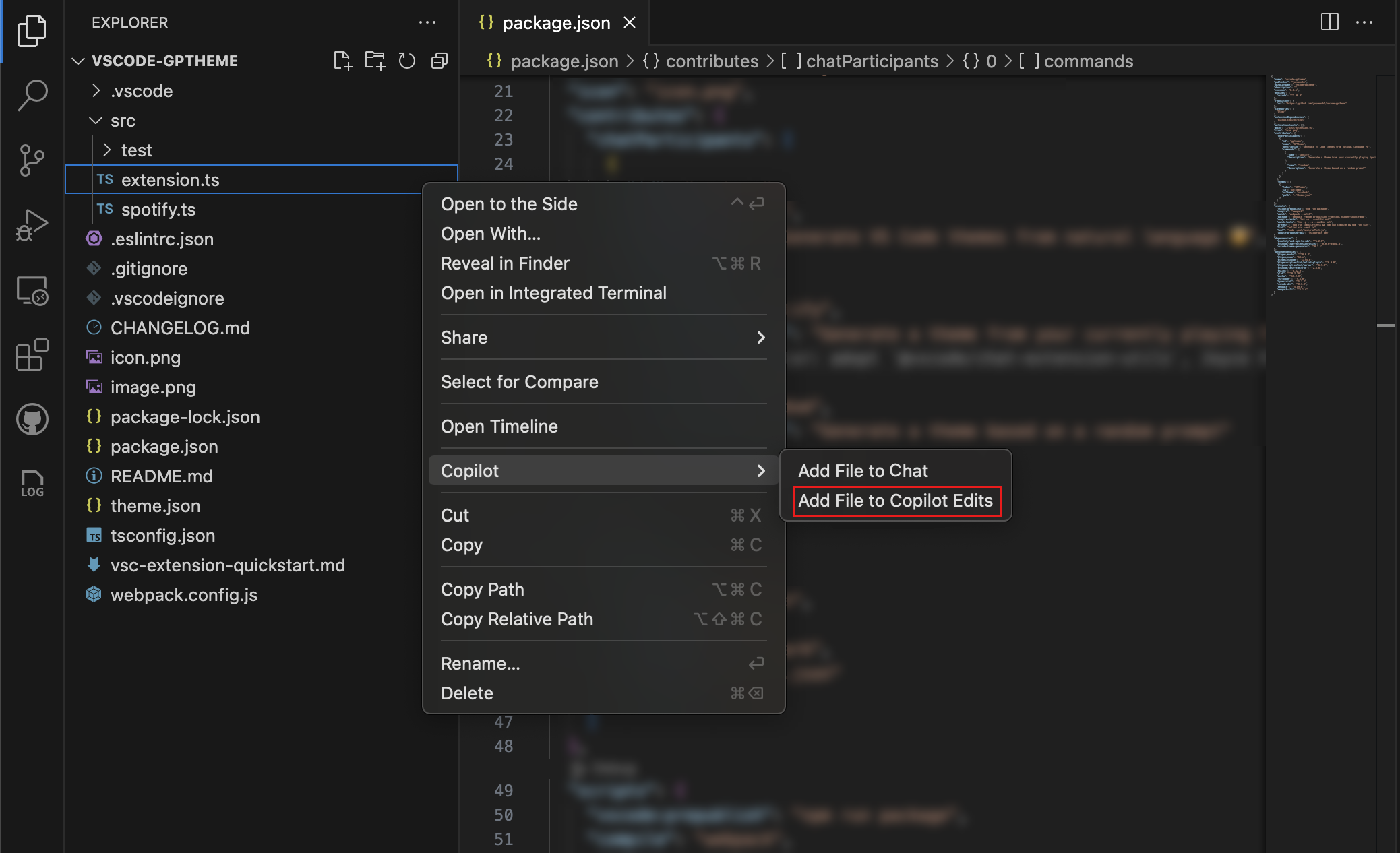
You can add files to your Copilot Edits working set with the new Add File to Copilot Edits context menu action for search results in the Search view and for files in the Explorer view. Additionally, you can also attach a text selection to Copilot Edits from the editor context menu.
Debugging with Copilot
Configuring debugging can be tricky, especially when you're working with a new project or language. This milestone, we're introducing a new copilot-debug terminal command to help you debug your programs using VS Code. You can use it by prefixing the command that you would normally run with copilot-debug. For example, if you normally run your program using the command python foo.py, you can now run copilot-debug python foo.py to start a debugging session.
After your program exits, you are given options to rerun your program or to view, save, or regenerate the VS Code launch configuration that was used to debug your program.
 Theme: Codesong (preview on vscode.dev)
Tasks Support
Copilot's debugging features, including copilot-debug and the /startDebugging intent, now generate preLaunchTasks as needed for code that needs a compilation step before debugging. This is often the case for compiled languages, such as Rust and C++.
Add Context
We’ve added new ways to include symbols and folders as context in Copilot Chat and Copilot Edits, making it easier to reference relevant information during your workflow.
Symbols
Symbols can now easily be added to Copilot Chat and Copilot Edits by dragging and dropping them from the Outline View or Breadcrumbs into the Chat view.
We’ve also introduced symbol completion in the chat input. By typing # followed by the symbol name, you’ll see suggestions for symbols from files you've recently worked on.
To reference symbols across your entire project, you can use #sym to open a global symbols picker.
Folders
Folders can now be added as context by dragging them from the Explorer, Breadcrumbs, or other views into Copilot Chat.
When a folder is dragged into Copilot Edits, all files within the folder are included in the working set.
Copilot usage graph
VS Code extensions can use the VS Code API to build on the capabilities of Copilot. You can now see a graph of an extension's Copilot usage in the Runtime Status view. This graph shows the number of chat requests that were made by the extension over the last 30 days.

Custom instructions for commit message generation
Copilot can help you generate commit messages based on the changes you've made. This milestone, we added support for custom instructions when generating a commit message. For example, if your commit messages need to follow a specific format, you can describe this in the custom instructions.
You can use the github.copilot.chat.commitMessageGeneration.instructions setting to either specify the custom instructions or specify a file from your workspace that contains the custom instructions. These instructions are appended to the prompt that is used to generate the commit message. Get more information on how to use custom instructions.
Inline Chat
This milestone, we have further improved the user experience of Inline Chat: we made the progress reporting more subtle, while streaming in changes squiggles are disabled, and detected commands are rendered more nicely.
Also, we have continued to improve our pseudo-code detection and now show a hint that you can continue with Inline Chat when a line is mostly natural language. This functionality lets you type pseudo code in the editor, which is then used as a prompt for Inline Chat. You can also trigger this flow by pressing .

Additionally, there is a new, experimental, setting to make an Inline Chat hint appear on empty lines. This setting can be enabled via inlineChat.lineEmptyHint . By default, this setting is disabled.
Terminal Chat
Terminal Inline Chat has a fresh coat of paint that brings the look and feel much closer to editor Inline Chat:

Here are some other improvements of note that were made:
- The layout and positioning of the widget is improved and generally behaves better
- There's a model picker
- The buttons on the bottom are now more consistent
Performance improvements for @workspace
When you use @workspace to ask Copilot about your currently opened workspace, we first need to narrow the workspace down into a set of relevant code snippets that we can hand off to Copilot as context. If your workspaces is backed by a GitHub repo, we can find these relevant snippets quickly by using Github code search. However, as the code search index tracks the main branch of your repository, we couldn't rely on it for local changes or when on a branch.
This milestone, we've worked bring the speed benefits of Github search to branches and pull requests. This means that we now search both the remote index based on your repo's main branch, along with searching any locally changed files. We then merge these results together, giving Copilot a fast and up to date set of snippets to work with. You can read more about Github code search and how to enable it.
Accessibility
Code Action accessibility signals
Some code actions can take a long time to complete, for example a quick fix that calls an external service to generate image alt text. It might not be obvious when they were triggered or when they're fully applied. Therefore, we added accessibility signals to indicate that a code action was triggered or applied.
You can enable these signals with the accessibility.signals.codeActionTriggered and accessibility.signals.codeActionApplied settings.
Automatic focus management in the REPL
We introduced a new setting to improve accessibility when working in the REPL. With
accessibility.replEditor.autoFocusReplExecution
, you can now specify whether focus remains unchanged (none), moves to the input box (input), or shifts to the most recently executed cell (lastExecution) whenever code is executed. By default, the focus moves to the input box.
Workbench
Improved extension search results
When you search for extensions using free-form text in the Extensions view, installed extensions now appear at the top of the search results. This makes it easier to find and manage your installed extensions when searching through the Marketplace.

Download extensions from the Extensions view
You can now download extensions directly from VS Code by using the download action in the context menu of an extension in the Extensions view. This can be useful if you want to download an extension without installing it.

Extension disk space
You can now see the memory usage of an extension on disk in the Extensions editor. This can help you understand how much disk space an extension is using.

Find in Explorer improvements
In the September release, we introduced the ability to find files in the Explorer across the entire project, a capability that was previously unavailable. However, this update temporarily removed highlight mode and limited certain actions.
In this release, we’re bringing back highlight mode. This feature allows you to easily locate files and folders across your workspace, with matching results highlighted for better visibility. Additionally, we’ve introduced a new visual indicator on collapsed folders, showing if matches are hidden within them.
The filter toggle remains available, enabling you to focus only on files and folders that match your query by hiding non-matching items. We also reenabled all context menu actions we had to disable in a previous release.
We’ve also improved the user experience when using the find control. When scrolled to the top of the file explorer, additional space is created at the top, ensuring the control doesn’t obstruct your search results.

Move views between Primary and Secondary Side Bar
You could already move a view container to another location by using drag and drop or by using the Move View command. You can now directly use the Move To context menu action on a view container to move it between the Primary Side Bar, Secondary Side Bar, or Panel area.
Hide navigation controls in the title area
Some people prefer to keep the title area as clean as possible. We added a new setting workbench.navigationControl.enabled that enables you to hide the back/forward buttons in the title area.
You can also access this setting by right-clicking in the title area, and selecting Navigation Controls.

Editor
Configure paste and drop behavior
When you drag and drop or copy and paste a file into a text editor, VS Code provides multiple ways to insert it into that file. By default, VS Code tries to insert the file's workspace relative path. Now you can use the drop/paste control to switch how the resource is inserted. Extensions can also provide customized edits, such as in Markdown, which provides edits that insert Markdown links.
With the new editor.pasteAs.preferences and editor.dropIntoEditor.preferences settings, you can now specify a preference for which edit type will be used by default. For example, if you'd like copy/paste to always insert the absolute path of pasted files, just set:
"editor.pasteAs.preferences": [
    "text.updateImports"
]
Now, VS Code automatically tries to paste with imports when possible, falling back to pasting plain text if no paste with imports edit is available. Right now, this only works for JavaScript and TypeScript, but we hope additional languages will adopt support over time.
Finally, you can now also specify a preferred paste style when setting up a editor.action.pasteAs keybinding. The keybinding below will always try pasting and updating imports:
{
  "git.blame.editorDecoration.template": "${subject}, ${authorName} (${authorDateAgo})"
}
If you would like to adjust the color of the editor decoration, use the git.blame.editorDecorationForeground theme color.
Give this experimental feature a try and let us know what you think.
Source Control Graph title actions
Based on user feedback, we have brought back the Pull, and Push actions to the Source Control Graph view title bar. These actions are enabled if the current history item reference is shown in the Source Control Graph.
If you do not want to use these actions, or any other actions from the Source Control Graph view title bar, you can right-click on the title bar and hide them.

Notebooks
Selection highlight across cells
Selection highlighting is now supported within notebooks, allowing for textual selection based highlights across multiple cells. This is controlled with the preexisting setting editor.selectionHighlight .
Multi Cursor: Select All Occurrences of Find Match
Notebooks now support the keyboard shortcut for Select All Occurrences of Find Match. This can be found with the command id notebook.selectAllFindMatches and can be used by default with the keystroke ⇧⌘L (Windows, Linux Ctrl+Shift+L).
Run Cells in Section for Markdown
Notebooks now have the Run Cells in Section action exposed to the cell toolbar of Markdown cells. If the Markdown cell has a header, all cells contained within the section and children sections are executed. If there is no header, this executes all cells in the surrounding section, if possible.
Cell execution time verbosity
The execution time information within the cell status bar now has an option for increased verbosity. This can be turned on with the setting notebook.cellExecutionTimeVerbosity and is able to display the execution timestamp in addition to the duration.

Terminal
Ligature support
Ligatures are now supported in the terminal, regardless of whether GPU acceleration is being used. This feature can be turned on with the setting terminal.integrated.fontLigatures :

In order to use this feature, make sure you also use a font that supports ligatures terminal.integrated.fontFamily .
New variables for customizing terminal tabs
What text appears in terminal tabs is determines by the terminal.integrated.tabs.title and terminal.integrated.tabs.description settings which allow the use of a collection of variables. We now support the following new variables:
-
${shellType}- The detected type of shell that is being used in the terminal. This is similar the default value, but it will not change togitfor example when running a git command. -
${shellCommand}- The command that is being run in the terminal. This requires shell integration.
-
${shellPromptInput}- The command that is being run in the terminal or the current detected prompt input. This requires shell integration.
Run recent command now shows the history source file
The run recent command shell integration feature now includes full size headers for the source of the command, including the history file where relevant and a convenient button to open it.

The default keybinding for this command is Ctrl+Alt+R.
New supported link format
Links with the format /path/to/file.ext, <line> should now be detected as links in the terminal.
Testing
Attributable coverage
This milestone, we finalized an API that enables extensions to provide coverage on a per-test basis, so you can see exactly what code any given test executed. When attributable coverage is available, a filter button is available in the Test Coverage view, in editor actions, in the Test Coverage toolbar when toggled on (via the Test: Test Coverage Toolbar command), or simply by using the Test: Filter Coverage by Test command.
Theme: Codesong (preview on vscode.dev)
Reworked inline failure messages
We reworked test failure messages to be both more eye-catching and less obtrusive. This is particularly useful for busy scenarios, such as in diffs from SCM or Copilot Edits. Selecting the failure message still opens a peek control to show the complete details of the failure.

Improvements to the continuous run UI
Previously, the global state of continuous test runs, togglable via the "eye" icon in the Test Explorer view, would toggle on or off continuous running with the default set of run profiles.
We reworked the continuous run UI to include a drop-down menu to turn continuous run on or off individually per-profile. Selecting the indicator toggles the last used set of run profiles on or off.
Languages
TypeScript 5.7
Our JavaScript and TypeScript support now uses TypeScript 5.7. This major update includes a number of language and tooling improvements, along with important bug fixes and performance optimizations.
You can read all about the TypeScript 5.7 release on the TypeScript blog. We've also included a few tooling highlights in the following sections.
Paste with imports for JavaScript and TypeScript
Tired of having to add imports after moving code between files? Try the Paste with imports feature for TypeScript 5.7+. Now whenever you copy and paste code between JavaScript or TypeScript, VS Code can add imports for the pasted code.
Notice how not only imports are added, even a new export was added for a local variable that was used in the pasted code!
While we think this feature is a huge time saver, we also are sensitive to disrupting your existing workflow. That's why, by default, we've kept it so copy and paste always inserts just the pasted text. If a paste with imports edit is available, you then see the paste control, which lets you select the paste with imports edit.

If you prefer always pasting with imports, you can use the new editor.pasteAs.preferences setting:
{
  "key": "ctrl+shift+v",
  "command": "editor.action.pasteAs",
  "args": {
    "preferences": ["text.updateImports"]
  }
}
If you prefer, you can even do the reverse and make paste with imports the default and add a keybinding to paste as plain text:
{
  "key": "ctrl+shift+v",
  "command": "editor.action.pasteAs",
  "args": {
    "preferences": ["text.plain"]
  }
}
Finally, if you want to fully disable paste with imports, you can use
typescript.updateImportsOnPaste.enabled
and
javascript.updateImportsOnPaste.enabled
.
Remote Development
The Remote Development extensions, allow you to use a Dev Container, remote machine via SSH or Remote Tunnels, or the Windows Subsystem for Linux (WSL) as a full-featured development environment.
Highlights include:
remote-sshCopilot chat participant- Enhanced session logging
You can learn more about these features in the Remote Development release notes.
Enterprise support
Configure allowed extensions
You can now control which extensions can be installed in VS Code using the extensions.allowed setting. This setting allows you to specify allowed or blocked extensions by publisher, specific extensions and versions. If an extension or version is blocked, it will be disabled if already installed. You can specify the following types of extension selectors:
- Allow or block all extensions from a publisher
- Allow or block specific extensions
- Allow specific extension versions
- Allow specific extension versions and platforms
- Allow only stable versions of an extension
- Allow only stable extension versions from a publisher
The following JSON snippet shows examples of the different setting values:
"editor.pasteAs.preferences": [
    "chat.attach.text"
]

Terminal completions for more shells
We added experimental support for terminal completions in pwsh in prior iterations. This release, we have started working on expanding this to other shells. Specifically targeting bash and zsh for now, but since this new approach is powered by an extension host API, we plan on having general support for most shells.
You can try out the current work in progress by setting
terminal.integrated.suggest.enabled
and
terminal.integrated.suggest.enableExtensionCompletions
. Currently only cd, code, and code-insiders arguments are supported.

Proposed APIs
Proposed Value Selection API on Quick Pick
For InputBox you have been able to set the "value selection", which enables you to programmatically select part or all of the input. This milestone, we added a proposed API for value selection in a QuickPick.
Here's an example of what that might look like:
adoption of MSAL, so that we could pass the native handle down to the OS so it could render an auth dialog overtop VS Code.If you have a use case or feedback for the nativeWindowHandle proposal, let us know what you think in this GitHub issue!
Engineering
Optimized extension updates with vscode-unpkg service
To reduce the load on the Marketplace infrastructure, VS Code now uses the newly added endpoint from the
vscode-unpkgservice to check for extension updates. The service implements server-side caching with a 10-minute TTL, which significantly reduces the number direct requests to the Marketplace. The optimization is controlled via the extensions.gallery.useUnpkgResourceApi setting (enabled by default).If you notice issues with extension updates, you can disable this functionality with extensions.gallery.useUnpkgResourceApi , and revert back to direct Marketplace version checks.
Ground work for GPU acceleration in the editor
We are excited to announce that we have started work on enabling GPU acceleration in the editor, similar to the terminal. The goals of this effort are to improve the overall coding experience primarily by reducing input latency and improving scrolling performance.
This is still early and not ready to test out, but we wanted to share some details about the progress that has been made:
- The GPU renderer is using WebGPU behind the scenes.
- We're focusing currently on feature parity and correctness over performance.
- There's a fallback mechanism when GPU acceleration is enabled that allows lines to "fallback" to DOM rendering when it's not fully supported. This means that we can self-host early on and currently incompatible lines will show using the DOM approach instead. Some examples of lines that currently fallback: lines over 200 characters, lines with certain Monaco decorations (e.g. fading unused variables), lines that wrap, and so on.
- Monaco's inline decorations which allow styling the actual elements containing the characters posed a big challenge for this feature as they are styled using CSS. The approach we're using to support most inline decorations without breaking or changing API is to detect the CSS attached to these decorations and then support a subset of common CSS properties, falling back if not all styles are supported.
Here's a screenshot of the feature in action. Note the yellow line in the gutter tells us what lines are using fallback rendering. This particular case uses fallback rendering due to the dontShow parameter having an inline decoration as it's unused:

The issue tracking this work is #221145 which has frequent updates and more details on progress as it's made.
EOL warning for macOS 10.15
VS Code desktop will be updating to Electron 33 in the next couple of milestones. With the Electron 33 update, VS Code desktop will no longer run on macOS Catalina. In this milestone, we have added deprecation notices for the users on this affected platform to prepare them for migration. If you are a user of the aforementioned OS version, please take a look at our FAQ for additional information.
Notable fixes
- 233915 Share an extension with others by using the Copy Link action in the context menu of an extension in the Extensions view.
- 231542 Frequently unable to save file or file data gets erased with error EBUSY
- 233304
onDidChangeCheckboxStatebroken in 1.95 - 232263 Optimize tree view such that cross process calls are batched
- 156723 Drag and drop support fixed when running with wayland
Thank you
Last but certainly not least, a big Thank You to the contributors of VS Code.
Issue tracking
Contributions to our issue tracking:
Pull requests
Contributions to vscode:
- @a-stewart (Anthony Stewart): Add support for a border between sidebar and panel titles and views PR #157318
- @aravind-n (Aravind Nidadavolu): Fix fish shell integration execution order PR #226589
- @BABA983 (BABA): Correct ShellIntegrationDecorationsEnabled in markdownDescription PR #233387
- @BenLocal (benshi): Cli serve_web sets the path prefix to / - /, commit value parsing error PR #233986
- @BlackHole1 (Kevin Cui): fix: cannot open vscode when use vscode-win32-x64 in Windows PR #233285
- @BugGambit (Fredrik Anfinsen): Add support for links 'foo, ' PR #231775
- @cachandlerdev: Copy extension link PR #234210
- @CrafterKolyan (Nikolai Korolev): Add interface for adding value selection in QuickPick for extension API PR #233275
- @davidmartos96 (David Martos): Fix PATH prepending when using Fish PR #232291
- @dibarbet (David Barbet): Do not mark interpolation tokens as strings in C# PR #232772
- @duncpro (Duncan): fix: clickability of create new file/folder button PR #232130
- @elias-pap (Elias Papavasileiou): feat: add icon for Vite PR #234620
- @gjsjohnmurray (John Murray)
- Add
workbench.view.showQuietlysettings object to stop extensions revealing hidden Output view (fix #105270) PR #205225 - Fix
Go to Current History Itembreakage (fix #235063) PR #235067 - Enable
Go to Current History Itemcorrectly after reference picker change (fix #235132) PR #235134
- Add
- @iisaduan (Isabel Duan): fix typescript organizeImports settings PR #232676
- @jeanp413 (Jean Pierre): Fixes old extensionHost process is not killed immediately after reloading vscode web tab in the browser PR #234944
- @Kannav02 (Kannav Sethi): Change "Organize Imports" command label to "Optimize Imports" PR #232869
- @LionelJouin (Lionel Jouin): Fix: go grammar update (#_232142) PR #232335
- @LitoMore (LitoMore): Remove Microsoft-related logos PR #215758
- @Logicer16 (Logicer): Fix grammar in activeOnStart description PR #197536
- @RedCMD (RedCMD): Add
.wingetfile extension to YAML PR #232218 - @ribru17 (Riley Bruins): Render JSDoc examples as typescript code PR #234143
- @sandersn (Nathan Shively-Sanders): Revert register copilotRelated with copilot PR #233729
- @nickdiego (Nick Yamane): Fix for drag and drop support when using wayland Chromium CL
Contributions to vscode-emmet-helper:
- @onlurking (Diogo Felix): Add missing HTML tags to emmet PR #90
Contributions to vscode-eslint:
- @MariaSolOs (Maria José Solano): Update contributing instructions PR #1947
Contributions to vscode-extension-samples:
- @olguzzar (Olivia Guzzardo): Update Chat tutorial to use request.model PR #1125
- @phil294 (Philip Waritschlager): webview-codicons: Move codicons dependency from devDependencies into dependencies PR #1005
- @witsaint (gaodingqiang): fix:
lsp-embedded-language-servicecleaninterval args type PR #1126
Contributions to vscode-extension-telemetry:
- @kmagiera (Krzysztof Magiera): Propagate session ID metadata PR #215
Contributions to vscode-hexeditor:
- @Antecer (Antecer): We need a WYSIWYG copy method PR #540
- @Hexa3333 (Alp Yılmaz): Fix: DisplayContextSelection read violation (#_547) PR #548
- @jogo-: Update CHANGELOG.md PR #549
- @tomilho (Tomás Silva): fix: ctrl+f not working with caps lock active PR #555
Contributions to vscode-json-languageservice:
- @jeremyfiel (Jeremy Fiel): fix: typo in
thendescription PR #251 - @Legend-Master (Tony): Fix slow large oneof validation PR #247
- @sumimakito (Makito): feat(completion): support detail from schema PR #243
Contributions to vscode-jupyter:
- @gjsjohnmurray (John Murray): Add
connor4312.esbuild-problem-matchersrecommendation PR #16195 - @pwang347 (Paul): Add public API event for kernel post-initialization PR #16214
Contributions to vscode-mypy:
- @hamirmahal (Hamir Mahal): fix: address dev-dependency issues reported by
npm auditPR #327 - @taesungh (Taesung Hwang): Use global settings for
ignorePatternsdefault PR #325
Contributions to vscode-python-debugger:
Contributions to vscode-python-tools-extension-template:
Contributions to vscode-test-web:
- @Cecil0o0 (hj): VS Code main has moved back to npm, we could catch it PR #148
Contributions to inno-updater:
- @BlackHole1 (Kevin Cui): fix: dialog is show when silent is true PR #29
Contributions to language-server-protocol:
- @EwanDubashinski (Ivan Dubashinskii): Added link to the PL/SQL language server PR #2057
- @gquerret (Gilles Querret): Add OpenEdge ABL in language servers list PR #2056
- @orbitalquark: Added link to client implementation for Textadept. PR #2058