Update 1.79.1: The update addresses this security issue.
Update 1.79.2: The update addresses these issues.
Downloads: Windows: x64 Arm64 | Mac: Universal Intel silicon | Linux: deb rpm tarball Arm snap
Welcome to the May 2023 release of Visual Studio Code. There are many updates in this version that we hope you'll like, some of the key highlights include:
- Read-only mode - Mark specific files and folders in your workspace as read-only.
- 'Paste as' options - Choose how you'd like item links pasted into the editor.
- Automatic copy of external files - Drag or paste to Markdown adds new files to your workspace.
- Default Git repo branch name - Use "main" as the default or override via a user setting.
- Notebooks rich content search - Search based on Notebook output or filter on cell type.
- Linked editing for JSX tags - Simultaneously change opening and closing JSX tags.
- Preview: GitHub Copilot Chat improvements - Easily manage your chat session history. Inline chat "live preview."
- VS Code at Microsoft Build 2023 - Catch up on the sessions in the YouTube playlist.
If you'd like to read these release notes online, go to Updates on code.visualstudio.com.
Insiders: Want to try new features as soon as possible? You can download the nightly Insiders build and try the latest updates as soon as they are available.
Accessibility
Verbosity settings
Additional accessibility.verbosity settings have been added to inform screen reader users how to interact with features when they are focused.
For GitHub Copilot, there are hints describing how to access the accessible help menus for the Copilot chat view and in editor code chat via:
accessibility.verbosity.panelChataccessibility.verbosity.inlineChat
These help menus provide information about what to expect, how to navigate from the input box to other elements, and more.
Other new verbosity settings provide information for specific VS Code UI:
accessibility.verbosity.keybindingsEditor- when in the Keyboard Shortcuts editor.accessibility.verbosity.notebook- when in a notebook.
The accessibility.verbosity settings are enabled by default (set to 'true') but you can silence them individually.
Settings editor
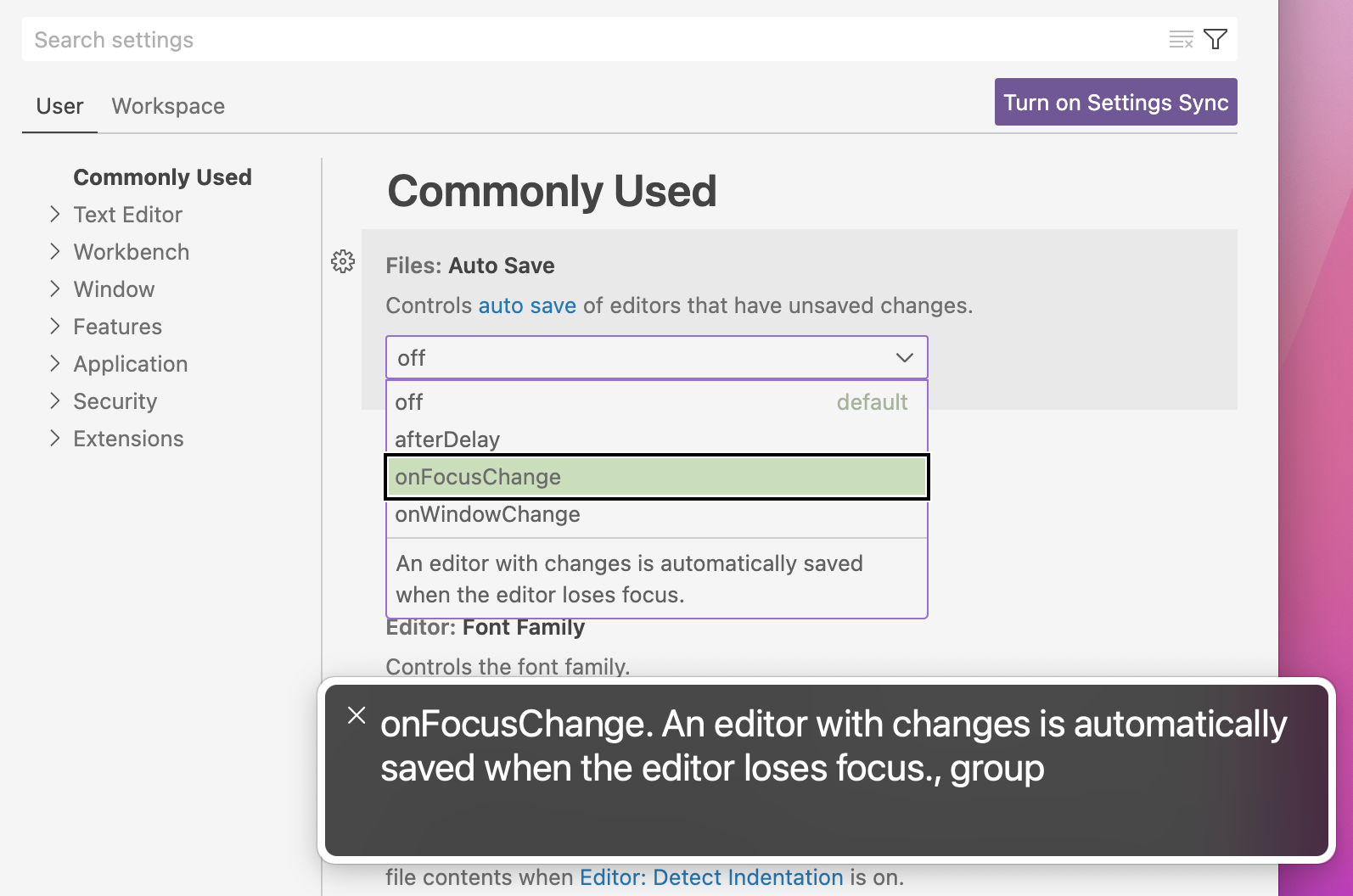
VoiceOver on macOS now reads the descriptions of enum setting options in the Settings editor. Try it out with enum settings such as files.autoSave and editor.accessibilitySupport.
Workbench
Readonly mode
In some development scenarios, it can be helpful to explicitly mark some of a workspace's folders or files as read-only. For example, if the folder or file contents is being managed by a different process (such as the node_modules folder that is managed by Node.js package manager), marking them are read-only can avoid inadvertent changes.
For this use case, there are new settings to mark file paths as read-only in the Explorer and in text and notebook editors:
files.readonlyInclude- Paths or glob patterns to make a file read-only if matching.files.readonlyExclude- Paths or glob patterns to skip files from being read-only when they matchfiles.readonlyInclude.files.readonlyFromPermissions- Whether a file that has no write-permissions on disk should be read-only.
According to the rules of the settings, if a path is considered to be read-only, you cannot modify it from the Explorer (for example, delete it) and the text or notebook editor is read-only.
For more ad-hoc toggling of the read-only mode, there are new commands to change the mode for the current session only, overruling your setting configurations:
- Set Active Editor Readonly in Session - Mark active editor read-only.
- Set Active Editor Writeable in Session - Mark active editor writeable.
- Toggle Active Editor Readonly in Session - Toggle between read-only and writeable.
- Reset Active Editor Readonly in Session - Reset the session state.
Windows UNC host allowlist improvements
As part of an important security fix, VS Code introduced an allowlist for UNC hosts. This milestone we addressed many of the usability problems reported by Windows users when they have UNC paths in their day to day work with VS Code.
Dialog improvements
The confirmation dialog to allow a UNC host on startup now updates the security.allowedUNCHosts setting and adds the host when you select the checkbox.
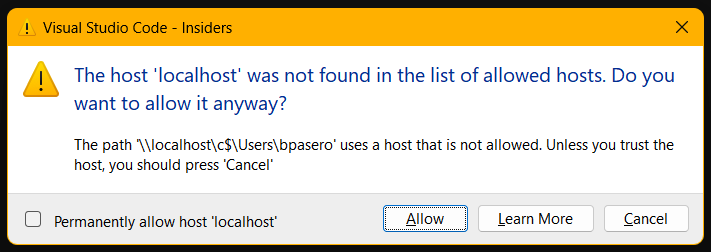
In addition, clicking the Learn More button no longer closes the dialog.
New security.restrictUNCAccess setting
A new setting security.restrictUNCAccess lets you disable the UNC allowlist for hosts and restore the behavior to how it was before this security fix. We strongly advise against changing this setting, as it makes your system vulnerable again to the Information Disclosure Vulnerability.
New tab sizing option fixed
The workbench.editor.tabSizing setting has a new option fixed that makes each tab equal width. When space becomes limited, tabs will shrink equally up to a minimum. The new setting workbench.editor.tabSizingFixedMaxWidth sets the initial size of the tab.
In this mode, when you rapidly close tabs using the mouse, the widths of tabs remain stable to allow for closing each tab by clicking onto the same point. The width is then adjusted when you leave the mouse from the editor tab area.
Network quality indication
When you are connected to a remote machine, the best experience for VS Code remote editing capabilities requires a good network connection with low latency. In this milestone, we updated the remote indicator in the Status bar to give you some feedback when either latency is very high or the network connection appears to be offline.
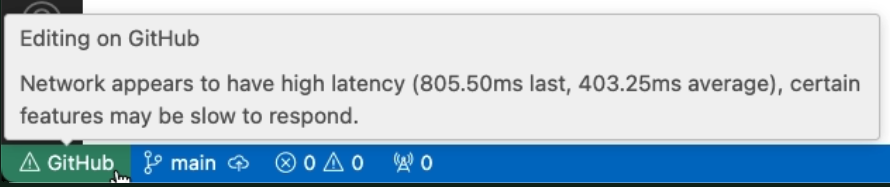
High latency (web, desktop)
We periodically measure the latency to the remote you are connected to. When a certain threshold is hit, the remote indicator updates to reflect that.
Offline detection (web only)
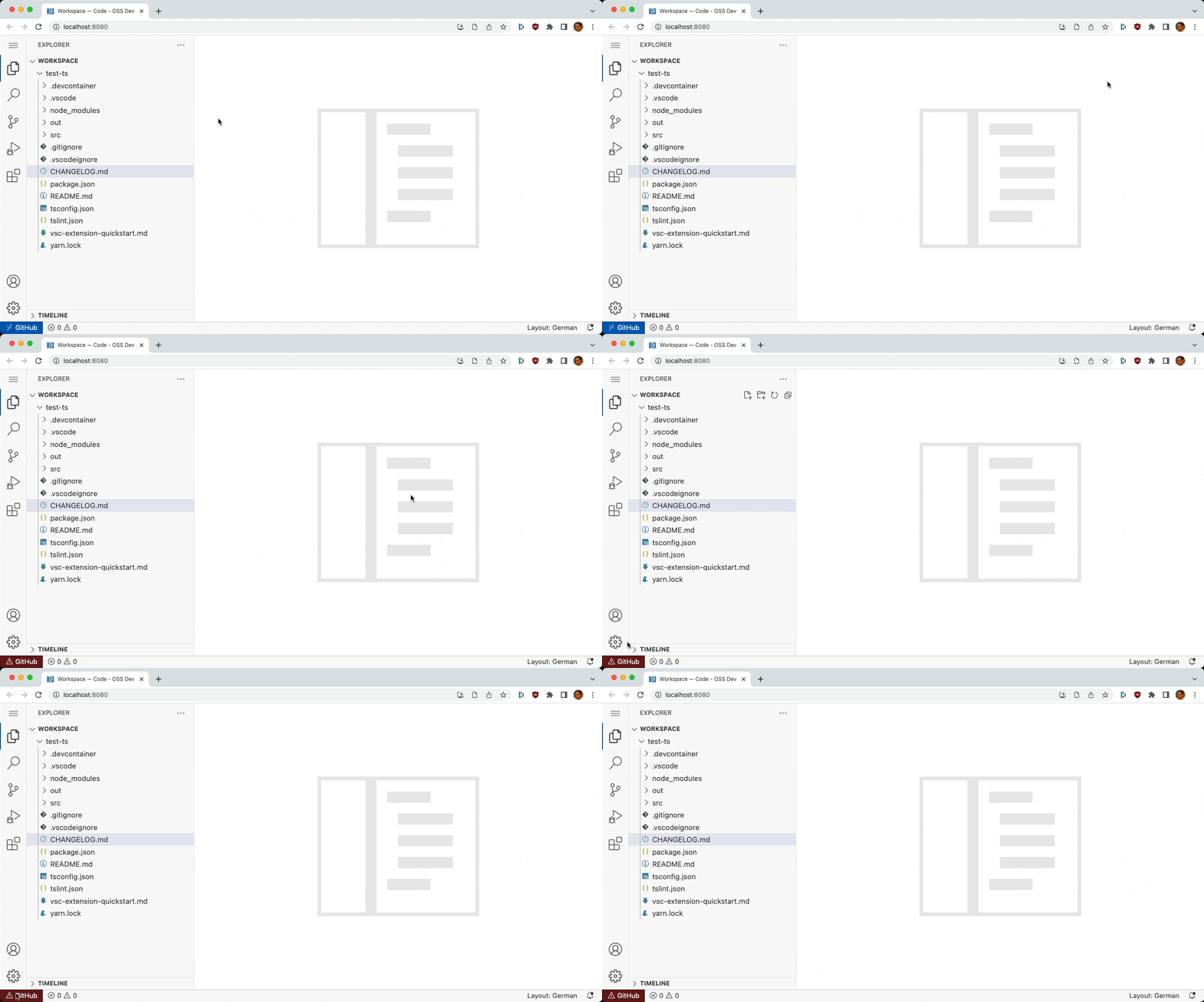
If you are using a web browser to connect to a remote and you suddenly lose internet connection, the remote indicator updates to reflect that.
Continue Working On
The Continue Working On feature allows you to store and retrieve working changes between VS Code development environments for the same repository, for example, when you upgrade from a local Git repository to a GitHub codespace, or when you switch between different machines for the same repository.
You can now transfer working changes between development environments for a GitHub repository even if it is configured with an HTTP remote in one environment and an SSH remote in another. Additionally, we have started to transfer additional workbench state, such as your Source Control view state preference, for a more seamless transition.
Editor
Paste as
When pasting a file into a text editor, there are multiple ways you might want to insert it. You may want an absolute path point to the file. You may want a path relative to the current workspace. Or you may even want something specific to the current editor's language, such as inserting a Markdown link to the file when pasting into Markdown. VS Code's new 'paste as' functionality gives you control over how the pasted content is inserted.
After pasting, VS Code now shows a small 'paste as' control if there are other ways the pasted content could have been inserted:
You can open the 'paste as' control by clicking on it or using the ⌘. (Windows, Linux Ctrl+.) keyboard shortcut. The paste selector goes away as soon as you start typing or move the cursor outside of the inserted text. You can also fully disable the drop selector control using "editor.pasteAs.showPasteSelector": "never".
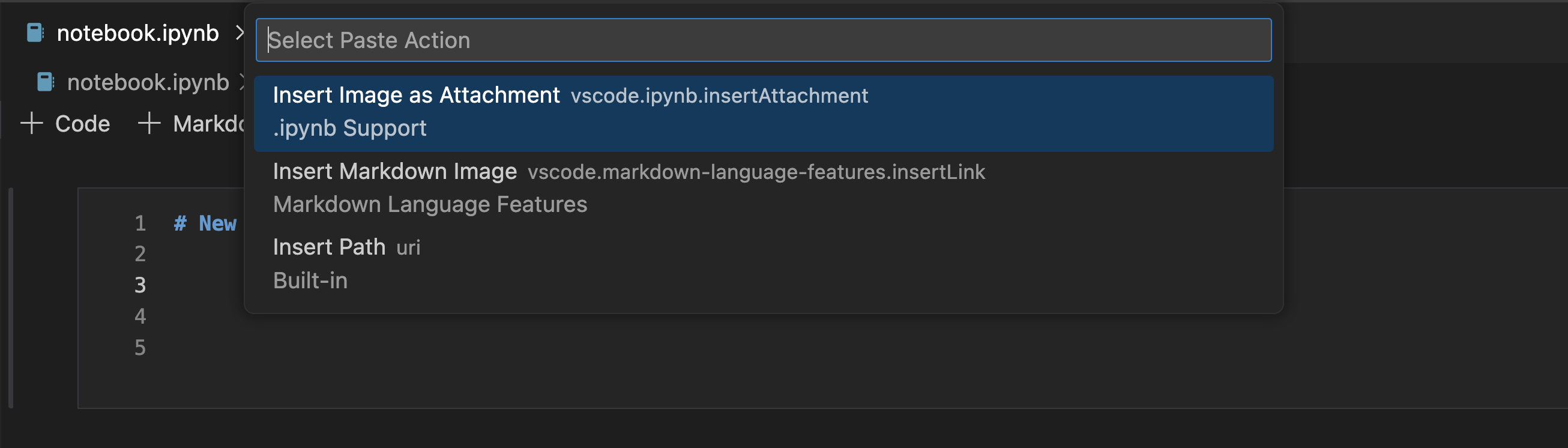
When you paste content into a Markdown cell in a notebook, for example, the 'paste as' control lets you switch between:
- Inserting the image as an attachment
- Inserting a Markdown image reference
- Inserting a relative path (for files in the workspace)
- Inserting an absolute path
If you prefer selecting how content in the clipboard should be pasted before actually pasting, you can instead use the new Paste As... command. This lets you select how the content should be pasted:
Quick suggestions and snippets
Quick suggestions mean that VS Code shows suggestions as you type, without having to press ⌃Space (Windows, Linux Ctrl+Space). This feature is widely popular, around 90% of all suggestion sessions are started by typing. A large number of suggestions are accepted via Tab (versus Enter and typing accept characters).
When a snippet is being inserted, the Tab key is used to navigate between snippet placeholders. Now, when quick suggestion becomes active while a snippet is being inserted, the Tab key can accept a completion or navigate to the next snippet placeholder. To resolve this conflict, there is the editor.suggest.snippetsPreventQuickSuggestions setting to disable quick suggestions when a snippet is inserted. It defaulted to true and as long as this setting existed, we received feedback that it was confusing. So we have decided to change its default value to false, so that typing inside a snippet placeholder will trigger quick suggestions.
You can then use the following keystrokes:
- Press
Tabto accept a completion. - Press
Escapeto hide quick suggestions. - And
Tabwithout suggestions navigates to the next snippet placeholder.
Terminal
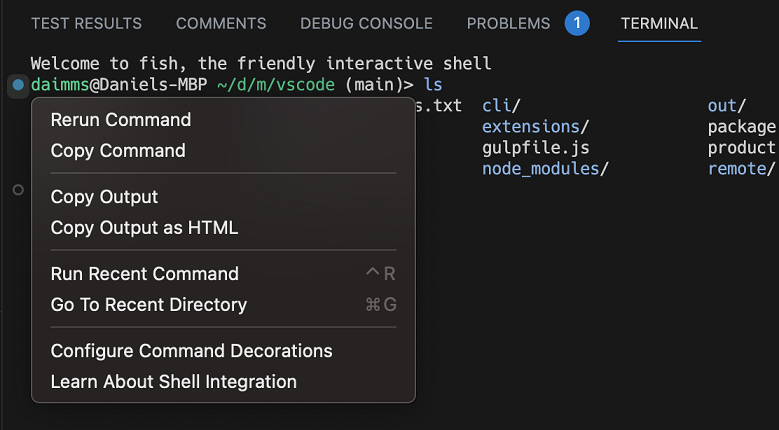
Automatic shell integration for fish shell
Shell integration and its enhanced user experience will now automatically activate for fish shell. You may need to update fish for this to work.
Overline support
The overline escape sequences (SGR 53, SGR 55) specified in ECMA-48 are now supported in the terminal. The most common use of this sequence is to add a line above an app's "status bar" on the bottom row of the terminal.

Source Control
Default branch name
Starting with this milestone, all new Git repositories created using VS Code set main as their default branch. If you prefer a different name for the default branch, you can change it with the git.defaultBranchName setting. When the setting is set to empty, VS Code defers to the default branch name configured in Git. Publishing a folder to GitHub also honors the default branch name configured on GitHub.
Branch picker integration with vscode.dev and GitHub
You can now checkout a branch in vscode.dev or open it on GitHub.com from the branch picker on VS Code desktop.
In the short video below, each branch listed in the branch picker dropdown has buttons on the right to either Open on GitHub or Checkout on vscode.dev.
Similarity threshold
Git status uses a similarity index (number of additions/deletions compared to the file's size) to determine whether an add/delete pair is considered a rename. You can now configure the similarity threshold with the git.similarityThreshold setting, which takes a value between 0 and 100. The default value is 50.
Notebooks
Rich content search
You can now search for rich content in open notebooks from the Search control. If your notebook is open, the Search control shows results based on how it appears in the notebook editor (rather than searching the content of the raw source file). This also allows for replacing text in the notebook inputs.
Using the new notebook search toggle, you can also filter which types of cell content you would like to search in.
Improved cell output interaction
The new context key notebookOutputInputFocused was added to determine if a text box within a cell output has focus, so that raw hotkeys a/b/j/k can safely be used while the output has focus. Focusing on an input box prevents those hotkeys from triggering.
Format on Run
Notebooks now can format cells upon cell execution. This will trigger using Run Cell, Run All, Run Above/Below, and combined kernel+run commands. This feature can be turned on via setting "notebook.formatOnCellExecution": true.
Code Actions on save
Notebooks now support Code Actions being run upon save. Code Actions can be specified under the notebook.codeActionsOnSave setting. Extension authors can define providers using the standard typings for cell level Code Actions, or use the new notebook. prefix to define Code Actions that manage the entire notebook. You can review the clean-nb-imports-ext sample extension to learn how extensions can use this new setting.
Languages
TypeScript 5.1
VS Code now ships with TypeScript 5.1.3. This major update brings new TypeScript language features, better performance, and many important improvements and bug fixes. You can read about TypeScript 5.1 on the TypeScript blog.
Linked editing for JSX tags
With linked editing, when you change an opening JSX tag VS Code will automatically update the corresponding closing tag. This can be a great time saver:
The feature is off by default but can be enabled by setting:
"markdown.copyFiles.destination": {
  "/docs/**/*": "images/${documentBaseName}/"
}
Now when a new file is pasted in /docs/api/readme.md, the image file is created at /docs/api/images/readme/image.png.
You can even use simple regular expressions to transform variables in a similar way to snippets. For example, this transform uses only the first letter of the document file name when creating the media file
"markdown.editor.drop.copyIntoWorkspace": "never"
"markdown.editor.filePaste.copyIntoWorkspace": "never"
IntelliSense for HTML paths in Markdown files
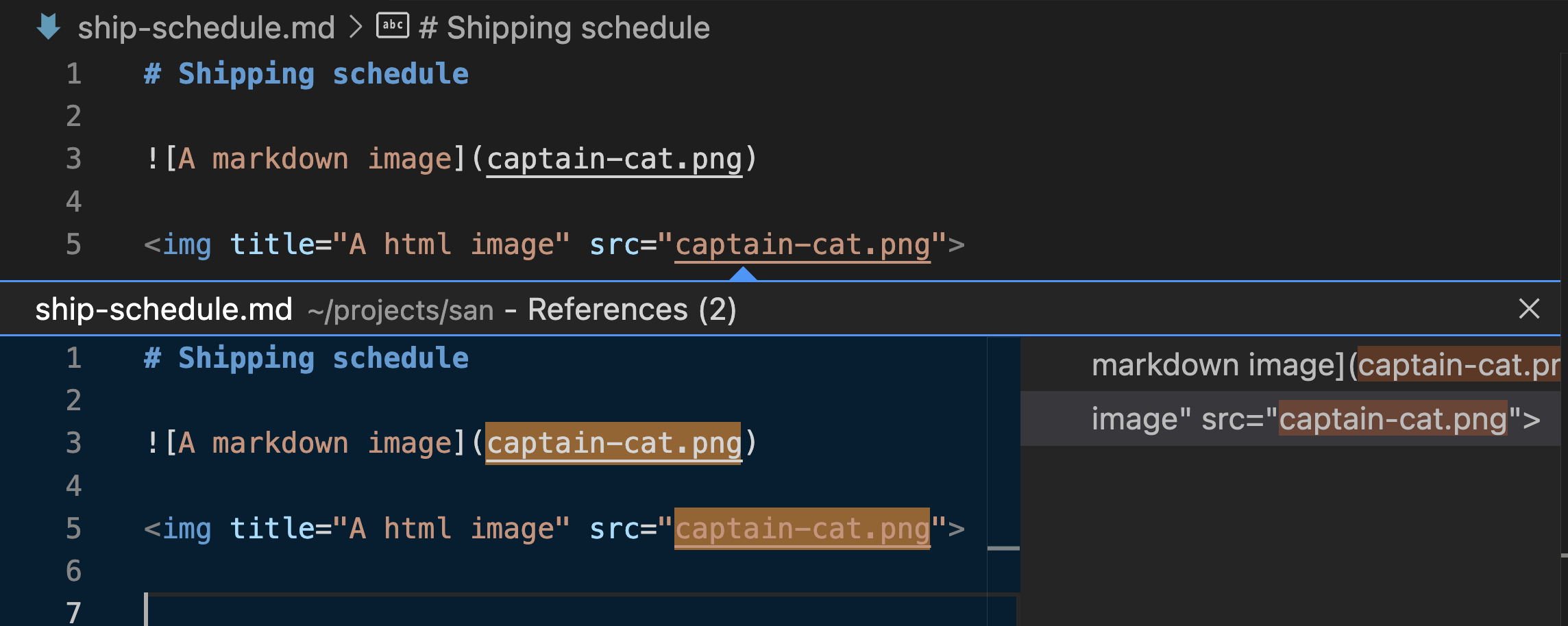
Many Markdown dialects allow raw HTML tags to be used in Markdown documents. In this update, we've extended most of VS Code's Markdown IntelliSense features to file paths used in these HTML tags. This includes support for:
- Path completions.
- Finding all references to a linked to file.
- Automatically updating file paths when a file is renamed or moved.
- Safely renaming files using F2.
- Validating that the linked to file exists in the workspace.
Insert audio into Markdown
When you drag and drop or copy and paste an audio file into a Markdown document, VS Code now inserts an <audio> element.
Syntax highlighting for JSON with Lines (JSONL) files
JSON with Lines describe a sequence of JSON objects separated by newline characters. If the file extension jsonl is used, VS Code provides syntax highlighting.
Remote Development
The Remote Development extensions, allow you to use a Dev Container, remote machine via SSH or Remote Tunnels, or the Windows Subsystem for Linux (WSL) as a full-featured development environment.
Highlights include:
- Open new Remote connections (via a Remote Tunnel, to a Dev Container) in either the current or a new VS Code window.
- Easier workflow to make a forwarded port public.
- Preliminary support for connecting to WSL from VS Code for the Web (vscode.dev).
You can learn about new extension features and bug fixes in the Remote Development release notes.
Contributions to extensions
GitHub Copilot
Use Copilot Chat in Stable VS Code
Previously, you had to use VS Code Insiders to use Copilot Chat. As of VS Code 1.79, you can use Copilot Chat in stable VS Code as well. You will still have to install the GitHub Copilot Chat extension.
Editor chat
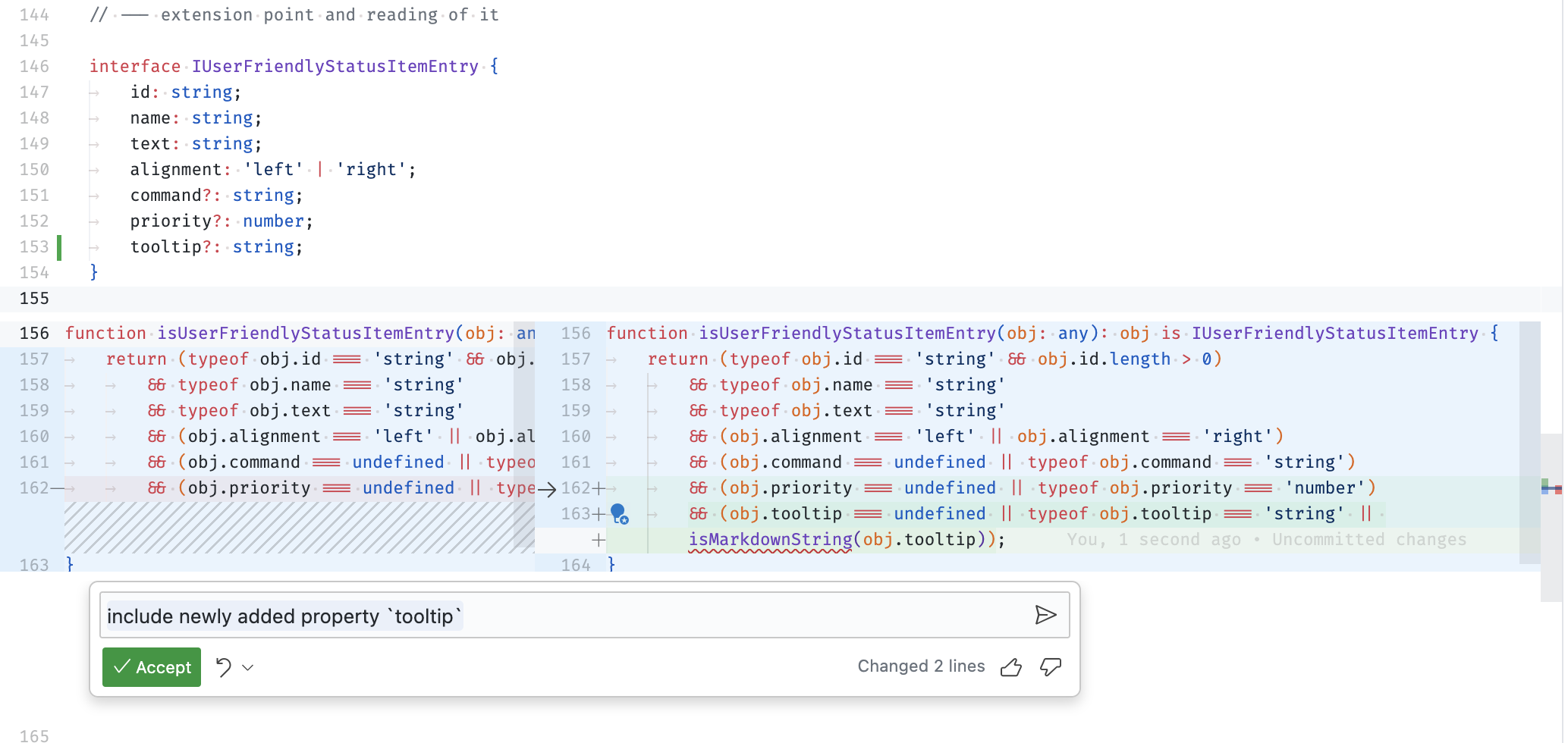
We have improved editor chat, most notably we have changed its default mode to be "livePreview". In this mode, changes are applied directly to the document and shown with an embedded diff view. Let's look at the example below:
- A new property was added to the
IUserFriendlyStatusItemEntrytype and - Copilot updated the
isUserFriendlyStatusItemEntrycheck accordingly. - The reply is shown in the editor using an embedded diff view. Its right hand side is editable and checked by VS Code's language extensions.
- This lets you spot an error in the reply (below the
isMarkdownStringfunction doesn't exist) and you can fix it before accepting the suggestion.
Notebook improvements
We have improved the chat experience in notebook editors this month. When using Copilot in a notebook document, Copilot can use the notebook context to provide more relevant suggestions. For example, the code suggestions use variables or modules defined in previous cells without recreating or re-importing them.
When running notebook cells, Copilot now also provides suggestions for cell execution failures. You can display these by selecting the Fix using Copilot action on the cell status bar.
The Copilot suggestions are also accepted automatically on cell execution, so you don't have to accept them manually.
GitHub Pull Request and Issues integration
When the GitHub Pull Requests and Issues extension is installed and enabled and you are viewing a review thread, it is now possible to directly apply a review comment using Copilot. You can do this via the Apply Suggestion with AI button in the comment menu.
Experimental Quick Question experience
Theme: Panda Theme (preview on vscode.dev)
This iteration, we experimented with using chat to ask quick programming questions without leaving context. If you have access to the chat experience, you can enable this feature with the following setting:
"terminal.integrated.experimentalImageSupport": true
Once enabled, to test it, you can download and cat a .six example file from the libsixel repository:

Or use the imgcat python package or imgcat script with a png, gif or jpg file:
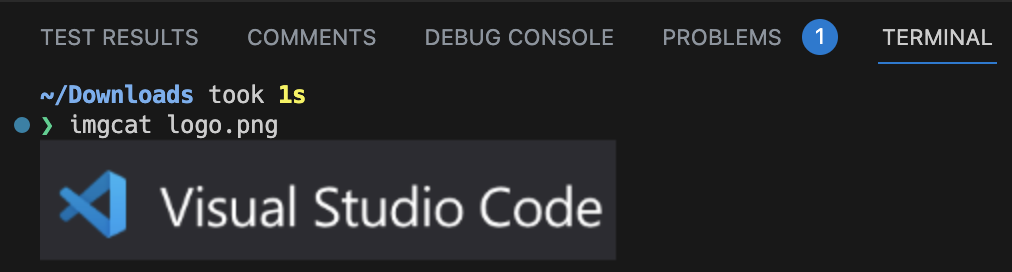
The current limitations of this feature are:
- Serialization does not work, so reloading a terminal will not retain any images (tracked in jerch/xterm-addon-image#47).
- Copying the selection as HTML does not include the selected image (tracked in jerch/xterm-addon-image#50).
- Animated gifs don't work (tracked in jerch/xterm-addon-image#51).
- Images that are shorter than a cell will not work properly, this is a design flaw with the sequences and also occurs in XTerm.
TypeScript 5.2 support
This update includes support for the upcoming TypeScript 5.2 release. Check out the TypeScript 5.2 iteration plan for more details about what the TypeScript team is currently working on. Some exciting upcoming tooling highlights include:
- A new Inline constant refactoring.
- A new Move to file refactoring that lets you move a symbol into an existing file.
To start using the TypeScript 5.2 nightly builds, install the TypeScript Nightly extension.
Move to file refactoring for JavaScript and TypeScript
The Move to file refactoring in TypeScript 5.2 nightly lets you move a class, function, or constant into an existing file. This will also automatically update all references to the symbol and also update imports as needed:
When you select Move to file, VS Code shows you a list of all files in the current TypeScript or JavaScript project. You can start typings to quickly find the file you want.
Alternatively, you can use Select existing file... to select a file using the normal file picker or Enter new file path... to specify a new file that should be created.
This feature is still being actively developed, so give it a try and share your feedback!
WebAssemblies in VS Code for the Web
To add more programming language support to vscode.dev, the VS Code team has been investigating how to run general WebAssembly in VS Code for the Web. If you are interested in this approach and want to learn more, check out the recent VS Code and WebAssemblies blog post.
Improved vscode.fs performance for local files
When you are using vscode.fs API to work with files (you should!), operations to files that are local to the extension host will now resolve much faster.
Previously the extension host would delegate these operations to the VS Code client for execution, but now they execute directly inside the extension host, saving round trips.
Stricter Status bar API
The API to create a Status bar item createStatusBarItem lets extensions pass an identifier. This identifier is used to control hiding and showing the Status bar item. The identifier should be unique for the extension but until now this wasn't enforced. With this release, we make this a little more strict and Status bar items that are created by the same extension with the same identifier will now be merged into one.
Tasks
The task presentation option to close the terminal on task completion has been finalized.
Proposed APIs
Every milestone comes with new proposed APIs and extension authors can try them out. As always, we want your feedback. Here are the steps to try out a proposed API:
- Find a proposal that you want to try and add its name to
package.json#enabledApiProposals. - Use the latest @vscode/dts and run
npx @vscode/dts dev. It will download the correspondingd.tsfiles into your workspace. - You can now program against the proposal.
You cannot publish an extension that uses a proposed API. There may be breaking changes in the next release and we never want to break existing extensions.
EnvironmentVariableCollection.description
This proposal allows specifying a description for EnvironmentVariableCollection, displayed to the user in the terminal tab hover, explaining what exactly the change is doing.
true is used for the value offorceNewSession).There is still more work involved to make this ready for adoption in the GitHub Authentication extension so if you're interested, you can follow along and provide feedback in the issue that tracks this proposal.
Window Activity API
A new API is available to notify extensions if the window becomes active or inactive. This can be used to dispose of or create persistent resources or processes that can be idled to save resources.
This is implemented by the addition of a new
activeboolean to the existingWindowStatetype.">PR #3933