Update 1.70.1: The update addresses these issues.
Update 1.70.2: The update addresses these issues.
Update 1.70.3: This update is only available for Windows 7 users and is the last release supporting Windows 7.
Downloads: Windows: x64 Arm64 | Mac: Universal Intel silicon | Linux: deb rpm tarball Arm snap
Welcome to the July 2022 release of Visual Studio Code. There are many updates in this version that we hope you'll like, some of the key highlights include:
- Title bar customization - Hide/show menu bar, Command Center, or layout control.
- Fold selection - Create your own folded regions in the editor.
- Search multi-select - Select and then act on multiple search results.
- Tree view search and filtering - Find and filter in tree views such as the Find Explorer.
- Terminal improvements - Shell integration on by default, extended PowerShell keybindings.
- Command line option --merge - Use the 3-way merge editor as your default merge tool.
- Notebooks: Go to Most Recently Failed Cell - Jump directly to notebook errors.
- Python Get started experience - Quickly install and configure Python within VS Code.
- Sticky scroll preview - New scrolling UI shows current source code scope.
- Dev container CLI topic - Learn about the updated development container CLI.
If you'd like to read these release notes online, go to Updates on code.visualstudio.com.
Watch the release party: Listen in as the VS Code team discusses some of the new features. You can find the recording of the event on our YouTube channel.
Insiders: Want to try new features as soon as possible? You can download the nightly Insiders build and try the latest updates as soon as they are available.
Workbench
Easier title bar customization
For those using the custom title bar (the default on Windows, macOS, and the web), you may have noticed that we are introducing more interactive content to the title bar. While there are already settings to hide each of these elements individually, you can now right-click the title bar to access a context menu that toggles the menu bar (not shown on macOS desktop), Command Center, and layout controls.
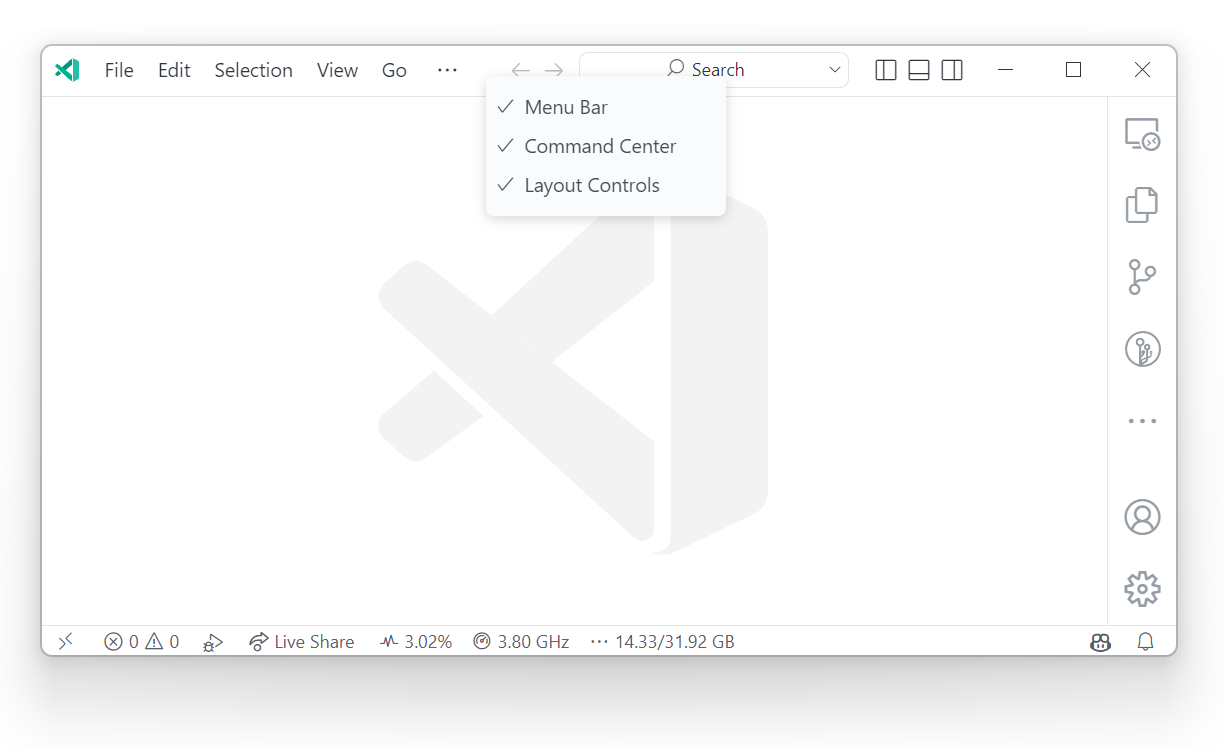
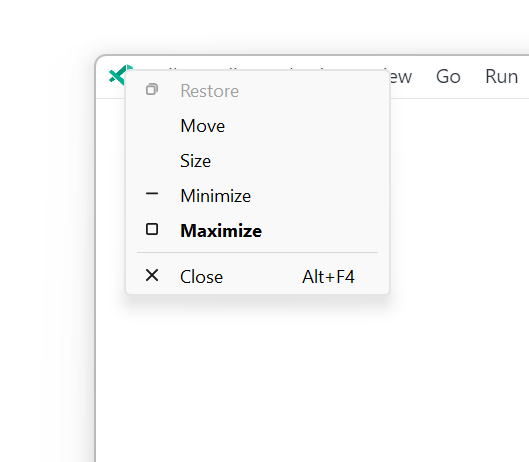
For Windows users expecting the system context menu, the menu can still be triggered by right-clicking the VS Code icon in the top left corner of the window or by pressing Alt+Space. Mouse position is used to determine the behavior when triggering with Alt+Space, so the custom menu will appear if it sits on top of the title bar.
For Linux users, due to issue #156397, the empty space in the title bar will not open a context menu. You must right-click on one of the items in the title bar that you would like to hide.
With the addition of the Command Center, we tried shrinking the menu bar to a hamburger menu to make space. After hearing user feedback, we switched back to the old menu bar folding behavior until most of the menu is collapsed, and only then switch to the hamburger menu.
Accessible macOS title bar zoom
Also as part of improving the Command Center experience, when interactive components are present in the title bar on macOS, the title bar will now zoom with the rest of the UI for increased accessibility.
Fold selection
The command Create Manual Folding Ranges from Selection (⌘K ⌘, (Windows, Linux Ctrl+K Ctrl+,)) creates a folding range from the currently selected lines and collapses it. The range is called a manual folding range and goes on top of the ranges computed by folding providers.
Manual folding ranges can be removed again with the command Remove Manual Folding Ranges (⌘K ⌘. (Windows, Linux Ctrl+K Ctrl+.)).
Manual folding ranges are especially useful for cases when there isn't programming language support for folding.
Preserve folded ranges
VS Code now keeps folded ranges, even if the folding range is no longer part of the ranges computed by a folding provider. A typical example is when the user comments out the file, starts a string literal, or creates a syntax error that makes it impossible to create all the ranges. Such folded ranges become 'recovered' ranges. They are removed once the folding provider comes back with ranges at the same location or by using the command Remove Manual Folding Ranges.
Hide folding controls
The folding controls in the gutter can now be hidden with the setting "editor.showFoldingControls": "never". Folding ranges can still be expanded and collapsed using the folding commands and shortcuts.
3-way merge editor improvements
We continued polishing the new 3-way merge editor and enabled it by default in this release. The merge editor can be opened by clicking on a conflicting file in the Source Control view.
Highlights include new commands to accept all changes from one side, improved context menus, enhanced diff colors, and a greater emphasis on conflicting versus non-conflicting changes.
We also started exploring alternative diffing algorithms to improve precision of merge conflicts. If you encounter suboptimal change highlighting or alignment in either the diff or the merge editor, we would like to record these cases in our GitHub issue tracker!
Command line option merge
You can now use command line options to bring up the merge editor in VS Code:
[merge]
  tool = code
[mergetool "code"]
  cmd = code --wait --merge $REMOTE $LOCAL $BASE $MERGED
Search file decorations
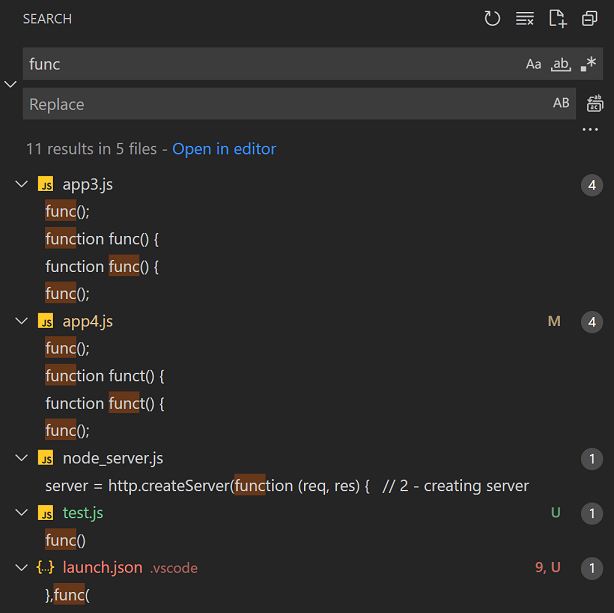
Search results in the Search view now feature file decorations and colors on the right to express the file's problems and source control information. This is similar to the file decorations already shown in the File Explorer.
Search multiple selection
The Search view now also supports multi-select. Any actions (for example, dismiss or replace) that you perform on one result in the selection will also be performed on the other selected items.
Tree find control
Tree views, such as the File Explorer, now support the Find control. You can press ⌥⌘F (Windows, Linux Ctrl+Alt+F) inside trees to pop up the Find control. You can use the Find control to highlight matched elements or toggle the Filter button to hide all elements that do not match the search term.
Note: If you are used to opening the Find control in the editor when invoking ⌥⌘F (Windows, Linux Ctrl+Alt+F) while the File Explorer has focus, you can configure your keybindings accordingly:
"terminal.integrated.shellIntegration.enabled": "false"
This will disable only VS Code's shell integration injection. Even when disabled, if your setup has shell integration enabled for some other terminal that VS Code understands, it will still pick those up. If you don't like the command and/or scroll bar decorations, you can disable just their display, while still taking advantage of the extra functionality that shell integration brings.
Simplified shell integration manual install
Previously manual install took several steps and was platform and shell specific. The new manual install uses the code CLI to fetch the shell integration script and works cross-platform and when connected to a remote window, meaning you can sync it in your dotfiles and it should just work.
$TERM_PROGRAM" == "vscode" ]] && . "$(code --locate-shell-integration-path bash)"
You can read more about how to install shell integration for other shells at Terminal shell integration.
More shell integration configuration options
The new setting terminal.integrated.shellIntegration.decorationsEnabled lets you display command decorations in either the gutter, the overviewRuler, or neither. For easy access, you can modify this setting via Configure Command Decorations in a context menu when you click on a decoration (select Toggle visibility to display the options dropdown).
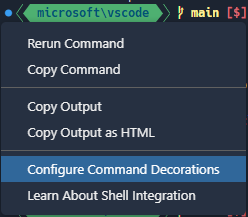
You can also configure the default, success, or error icons from the dropdown.
Default color and icon tab settings
The default icon and terminal tab color can be set per folder using terminal.integrated.tabs.defaultIcon and terminal.integrated.tabs.defaultColor.
Extended PowerShell keybindings
There are additional PowerShell keybindings, such as Ctrl+Space, thanks to shell integration. These weren't possible before due to the lack of VT encoding. Provided that shell integration is working in pwsh, the following keybindings should now work:
- Ctrl+Space - Defaults to
MenuCompleteon Windows only. - Alt+Space - Defaults to
SetMark. - Shift+Enter - Defaults to
AddLine. - Shift+End - Defaults to
SelectLine. - Shift+Home - Defaults to
SelectBackwardsLine.
This applies to all platforms, even Linux/macOS where those keybindings aren't normally possible. The defaults can always be reset in your pwsh profile with Set-PSReadLineKeyHandler. If there are additional keybindings that you expect, please let us know.
Run recent command as a replacement for reverse search
When shell integration is enabled, we're aiming run recent command to be a cross-shell drop in replacement for the shell's reverse search (Ctrl+R). There is a new contiguous search mode that is the default when triggering the command. This behaves like Ctrl+R in most shells, with the option of switching back to fuzzy search:
The new inTerminalRunCommandPicker context key is available that allows setting up a keybinding like Ctrl+R to go to the next match. For example, the following keybindings are now a fairly complete replacement for your shell's reverse search, with Ctrl+Alt+R as a fallback to the old behavior:
\u0012"/*^R*/ }, "when": "terminalFocus" },
{ "key": "ctrl+r",     "command": "workbench.action.quickOpenNavigateNextInViewPicker", "when": "inQuickOpen && inTerminalRunCommandPicker" },
{ "key": "ctrl+c",     "command": "workbench.action.closeQuickOpen", "when": "inQuickOpen && inTerminalRunCommandPicker" },
Multi-line commands now display a new line symbol where appropriate and will also use bracketed paste mode, meaning they are treated as if they were pasted for supporting shells. This typically means they will all be added to the same prompt instead of executing them separately.

Other shell integration improvements
Here are the smaller improvements to shell integration:
-
Command navigation has improved visual feedback, showing the "focus border" briefly and then keeping a persistent rectangle in the gutter to help highlight the position in the buffer.

-
The new
workbench.action.terminal.copyLastCommandcommand is available to allow a keybinding to copy the last command's output (shortcut for Ctrl/Cmd+Shift+Up, Ctrl/Cmd+C, Escape, Ctrl/Cmd+End). -
Bash shell integration:
- More
$PROMPT_COMMANDformats are supported. - Shell integration should work even better when the
bash-preexechelper is being used already.
- More
Rendering improvements
Several improvements were made to terminal rendering when GPU acceleration is enabled:
-
Semi-circle Powerline symbols are now custom rendered. Like the arrow symbols in the previous release, these should blend seamlessly with adjacent cells and extend to the height of the cell even when line height is used.

-
Round cornered box drawing characters (
╭,╮,╰,╯) now use a smoother curve.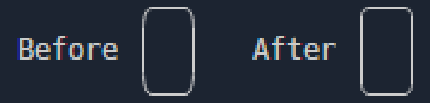
-
Improved clipping of glyphs when the background color changes, this was commonly seen when
npmoutputs a warning.
-
Similar to the clipping problem above, there was an issue where the anti-aliasing in some glyphs would overlap other characters and degrade the visuals. This problem is most easily illustrated using a background example like above. A pixel in the
kofWorkcould also escape the bounds of the cell in the other direction. This pixel will no longer appear in the glyph at all since it's removed for being nearly the same color as the background.
Source Control
Action button improvements
We continued to polish the Source Control action button based on user feedback:
- The Sync Changes action button is only shown when there is a high degree of certainty that the local branch is either ahead or behind the remote tracking branch.
- The Commit action button is only enabled based on the list of changed resources while factoring in the smart commit settings:
git.enableSmartCommitgit.suggestSmartCommitgit.smartCommitChanges
- The Commit action button icon is updated based on the branch protection settings:
git.branchProtectiongit.branchProtectionPrompt
Improved rebase conflict resolution
This milestone we addressed some smaller issues in the rebase flow when resolving merge conflicts. Users should now be able to continue the rebase operation using the Commit button in the Source Control view after resolving all merge conflicts.
Commit input field spell checking
This milestone we confirmed that all the necessary extension APIs are available to support spell checking in the commit input field. We reached out to the authors of two popular spell checking extensions and submitted pull requests illustrating how to update their extensions to provide spell checking for commit description text.
Debugging
JavaScript debugging
When you create a launch config to debug a JavaScript/TypeScript program, you can set "console": "integratedTerminal" to run that program in a terminal (rather than the process being spawned directly). A few months ago, we noticed that "args" in the launch.json configuration were partly escaped for the shell, but not entirely. This meant that attempting to pass an argument to your program could accidentally trigger special behavior in your shell. We cleaned this up, then realized that setting arguments that include characters with special meanings for the shell is a useful thing to do, and that some users were relying on this behavior.
We debated the correct fix and decided that this behavior should be opt-in, and that changes to the Debug Adapter Protocol (DAP) were required. We made this change to DAP, implemented it in VS Code and in js-debug, and other debug adapters should be soon to follow.
Here's how to use the new behavior in a node launch configuration:
{
  "key": "ctrl+h",
  "command": "workbench.action.tasks.runTask",
  "args": {
    "task": "VS Code - Build",
    "type": "npm"
  }
}
Improved automatic tasks flow
The Trusted Workspace feature allows VS Code to simplify the flow for running automatic tasks. By default, automatic tasks will run if a folder is trusted and you'll be prompt once per folder otherwise. This behavior can be configured with the task.allowAutomaticTasks setting (default auto) to always (on) or never (off) prompt before running an automatic task.
Languages
Keep newlines when formatting JSON
You can now keep the initial line position when formatting a line in a JSON documents. For example, an array containing values on one line will still keep these values on the same line after formatting. Extra line breaks (newlines) in JSON files are also preserved. To enable this feature, set the option JSON > Format: Keep Lines in the Setting editor.
Notebooks
Go to Most Recently Failed Cell
If your most recently run cell failed, there is now a button that will jump to that cell. You can also run Notebook: Go to Most Recently Failed Cell to perform the same action.
This is useful when you run a group of cells and want to know which cell failed and halted the group execution.
Notebook Markdown Preview attachment rendering
It is now possible to render embedded base64 images within a Jupyter notebook.
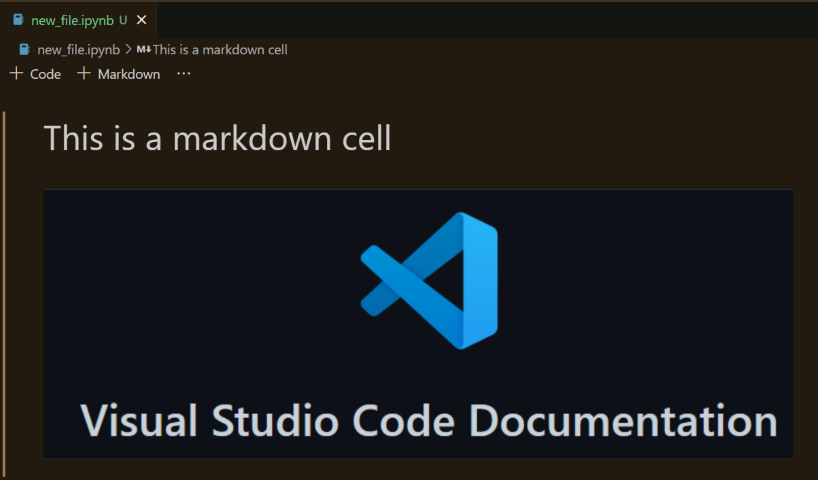
Images pasted into a Jupyter notebook and referenced via  will now be rendered as intended within VS Code notebooks.
The following Markdown source code:
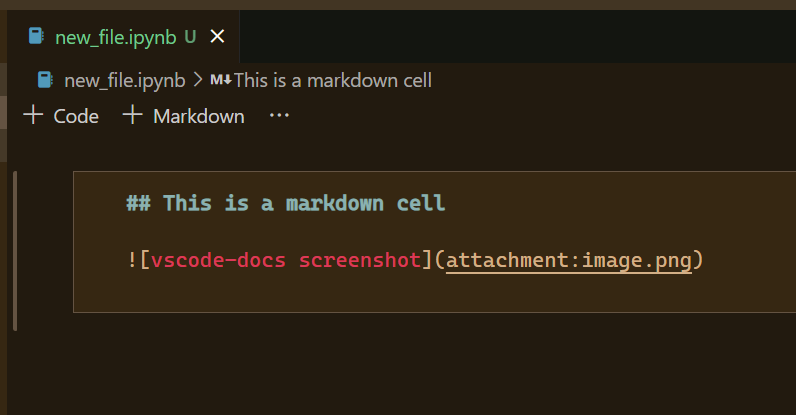
Will be rendered as:
The Copy vscode.dev Link command in the Share submenu now supports notebook links.
VS Code for the Web
Set Display Language
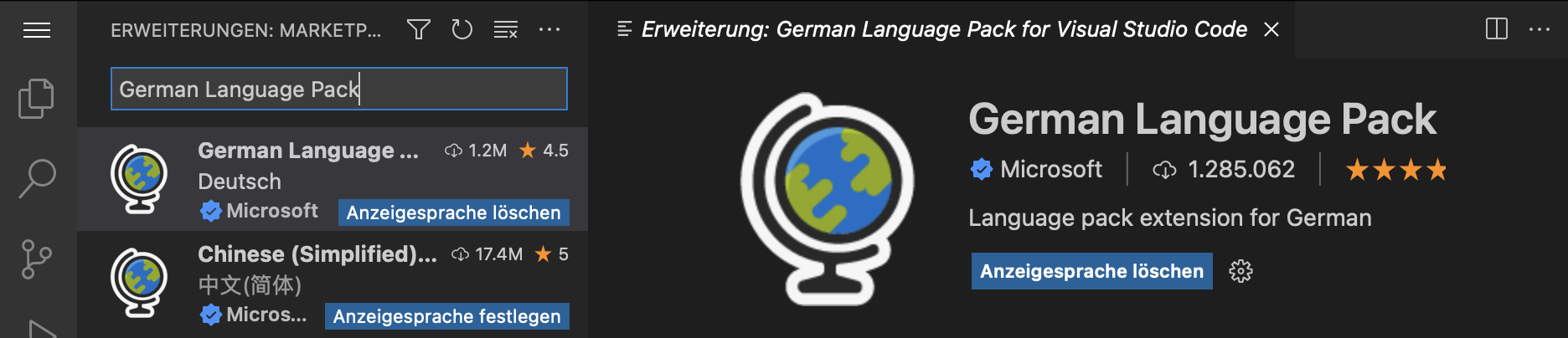
You can now set the display language of the browser using the Set Display Language button available on the language pack extension in the Extensions view.

Once set, you can clear the display language by using the Clear Display Language button on the currently set language pack extension.
Contributions to extensions
Python
Get started experience
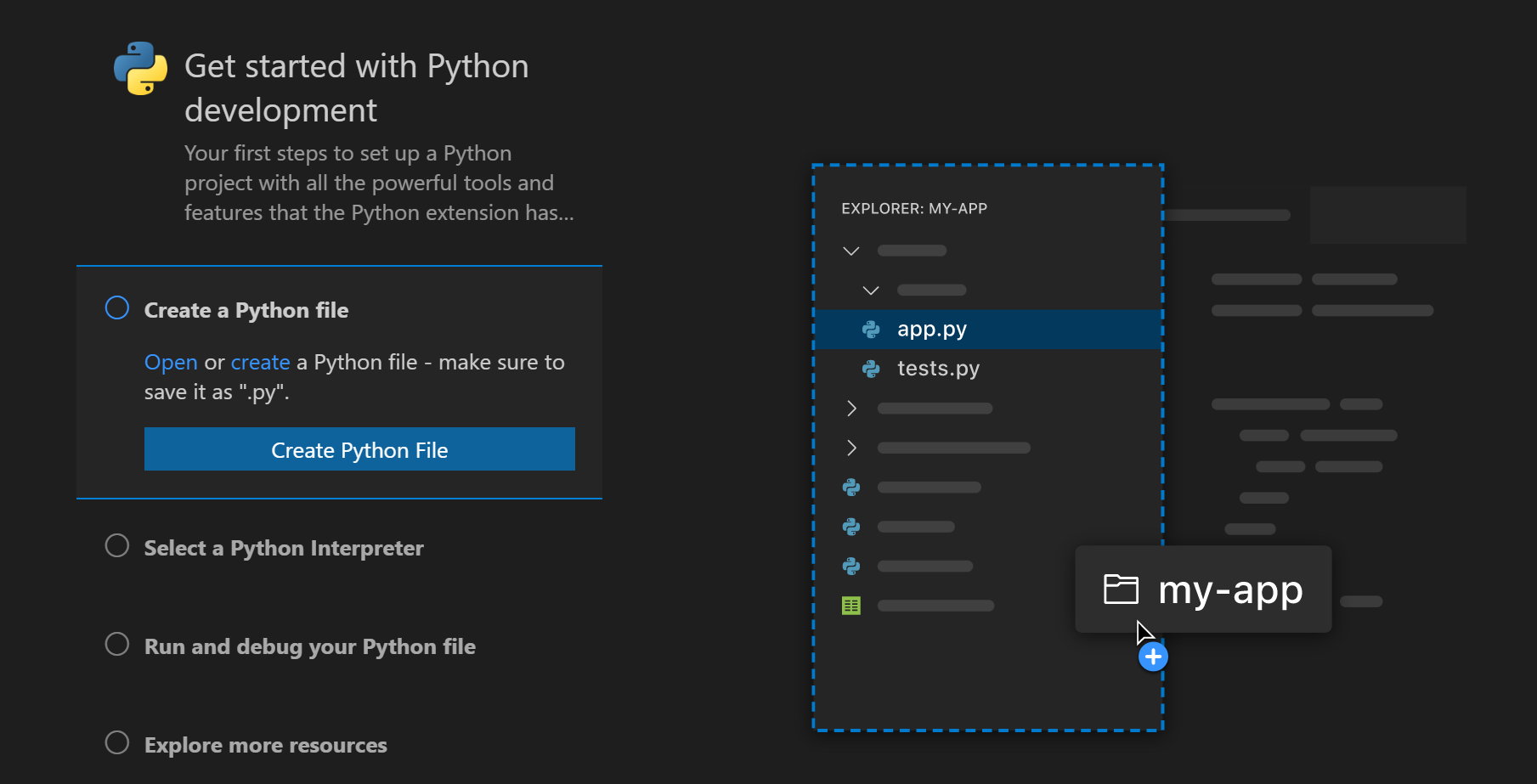
The Python extension walkthrough now smoothly transitions users to installing Python if they need to, and selecting it. Microsoft Store or an appropriate walkthrough tile is opened when Python is not installed and users can auto-run the displayed instructions. Any prompts related to interpreters are only shown when a user action requires an interpreter, and not on start-up. Also, UI prompts have been improved to be more precise about errors and suggested changes.
Interpreter information in the Status bar
A new setting python.interpreter.infoVisibility was added, which controls when information about the selected interpreter is displayed in the Status bar. By default, interpreter information will only be shown when Python-related files are opened (onPythonRelated). It can be set to always to revert to the old behavior where the selected interpreter is displayed regardless of what file is opened. A warning status is added to indicate situations when the selected interpreter is invalid:

Automatic debug configurations
The Python extension now supports automatic debug configuration that analyzes the current project and provides you with a debug configuration that does not require additional modification.
The extension recognizes Django, Flask, and FastApi projects, as well as simple Python files.
You can learn more about automatic debug configuration and some of the recent improvements.
Experimental extension: WWBD
There is a new experimental Python extension named WWBD that acts as a sandbox for Python environment workflow ideas. As of now, there is a Create Environment command for virtual environments to see if a single command can help users set up a new virtual environment (see the WWBD extension page for the full details and other extension features). You can read the Ideas category in the project repository for other ideas that are being considered, including conda support.
Jupyter
Copy plot images to clipboard
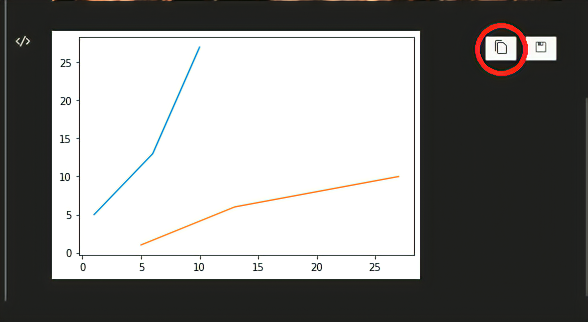
It is now possible in the Jupyter extension to copy plots in cell outputs to the clipboard. Make sure you have the correct presentation selected as only PNG output is currently supported:
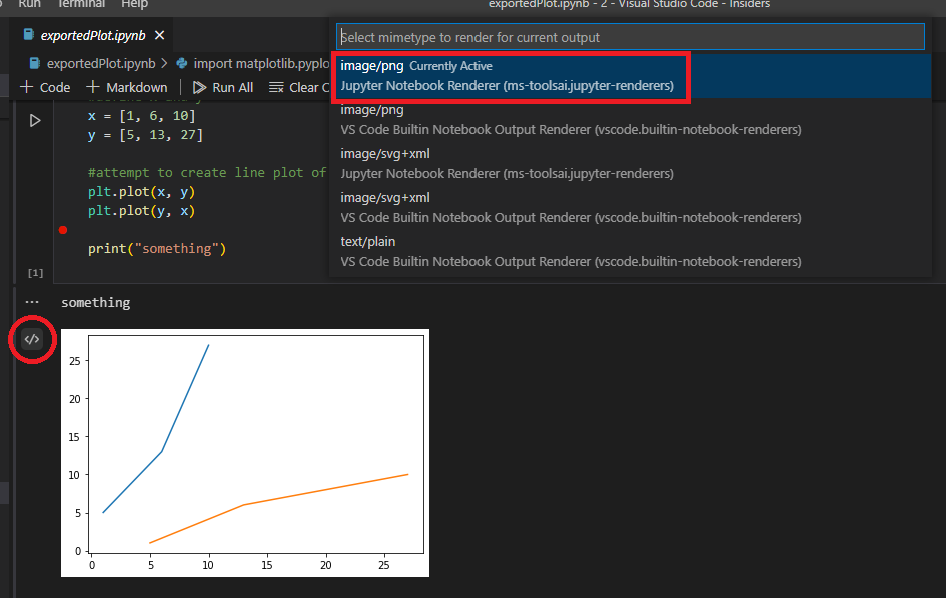
Once you have set the correct presentation type, select the copy to clipboard button in the upper right:
Web extension
The following features were ported to the web version of the Jupyter extension:
- Plot viewer
- Dataframe viewer
If you'd like to experiment with the functionality, launch Jupyter from your local machine with:
[
  {
    "key": "ctrl+k",
    "when": "codeActionMenuVisible",
    "command": "focusPreviousCodeAction"
  },
  {
    "key": "ctrl+j",
    "when": "codeActionMenuVisible",
    "command": "focusNextCodeAction"
  }
]
Edit Sessions across VS Code for the Web and desktop
Work continues on Edit Sessions, which let you bring your uncommitted changes along when you continue working on a repository across VS Code for the Web or desktop. Some highlights include:
- You can now delete all stored Edit Sessions from the cloud when turning off Edit Sessions functionality.
- Signing in with Microsoft authentication is now supported.
- If you are having trouble locating your Edit Sessions, you can view all your Edit Sessions with the Edit Sessions: Show Edit Sessions command.
To try out Edit Sessions, set workbench.experimental.editSessions.enabled in your settings and use the Edit Sessions: Store Current Edit Session command, signing in with GitHub or Microsoft authentication when prompted. Then use the Edit Sessions: Resume Latest Edit Session command in a repository on another machine or VS Code instance to restore the working contents of all modified files to your workspace. You can sign out of Edit Sessions at any time using the Edit Sessions: Sign Out command.
As we continue to iterate on the Edit Sessions experience, try it out and share your feedback with us via a comment in issue #141293.
'not in' operator for 'when' clauses
There is an operator that already exists for when clauses, in, which allows for dynamic lookup of a context key's value within another context key with an array or object-type value. We've added a new operator not in, which negates this. See the when clause contexts documentation for details.
htmlLanguageParticipants contribution point
A new contribution point htmlLanguageParticipants allows HTML-like languages to declare that they want to inherit all HTML language server features such as code completions, hovers, and outline. This is useful for programming language extensions that don't want to implement a full language server.
An example is the built-in handlebars extension that now adds itself to the htmlLanguageParticipants in its package.json:
"enabledApiProposals": [
  "contribWebviewContext"
]
To add a new context menu item to your webview, add a new entry in menus under the new webview/context section. Each contribution takes a command (which is also where the title comes from) and a when clause. The when clause should include webview == 'YOUR_WEBVIEW_VIEW_TYPE' to make sure the context menus only apply to your extension's webviews:
<div class="main" data-vscode-context='{"webviewSection": "main", "mouseCount": 4}'>
  <h1>Cat Coding</h1>

  <textarea data-vscode-context='{"webviewSection": "editor", "preventDefaultContextMenuItems": true}'></textarea>
</div>
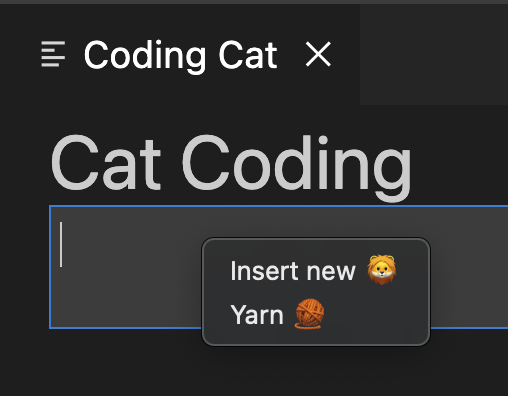
If the users right-clicks on the textarea, the following contexts will be set:
webviewSection == 'editor'— This overrideswebviewSectionfrom the parent element.mouseCount == 4— This is inherited from the parent element.preventDefaultContextMenuItems == true— This is a special context that hides the copy and paste entries that VS Code normally adds to webview context menus.
If the user right-clicks inside of the <textarea>, they will see:
View size
The view size proposal lets extensions provide weights to the views they contribute:
"contributes": {
  "notebookRenderer": [
    {
      "id": "vscode-samples.my-custom-html-extension",
      "displayName": "My custom html renderer extension",
      "entrypoint": {
        "extends": "vscode.builtin-renderer",
        "path": "./out/main.js"
      }
    }
  ]
}
Your renderer can then register a rendering hook on the vscode-builtin-renderer:
">PR #3102