Update 1.68.1: The update addresses these issues.
Downloads: Windows: x64 Arm64 | Mac: Universal Intel silicon | Linux: deb rpm tarball Arm snap
Welcome to the May 2022 release of Visual Studio Code. There are many updates in this version that we hope you'll like, some of the key highlights include:
- Configure Display Language - See installed and available Language Packs in their language.
- Problems panel table view - View errors and warnings as a table to quickly filter on their source.
- Deprecated extensions - Learn whether an extension is deprecated or should be replaced.
- Extension sponsorship - Support the developers who build your favorite extensions.
- Hide Explorer files using .gitignore - Reuse your existing
.gitignoreto hide files in the Explorer. - Terminal color and contrast enhancements - Find match background color, min contrast ratio.
- Git branch protection - Branch protection available right inside VS Code.
- TypeScript Go to Source Definition - Jump directly to a symbol's JavaScript implementation.
- VS Code for the Web localization - vscode.dev now matches your chosen browser language.
- Development Container specification - Learn more about the evolving dev container spec.
- Preview: Markdown link validation - Detects broken links to headers, images, and files.
If you'd like to read these release notes online, go to Updates on code.visualstudio.com.
Insiders: Want to try new features as soon as possible? You can download the nightly Insiders build and try the latest updates as soon as they are available.
Workbench
Configure Display Language improvements
The Configure Display Language command has been refreshed to include:
- The name of the language in that language.
- An Available languages section that shows what languages aren't installed on your machine and selecting one will automatically install it and apply that language.

Theme: Panda Theme
This should help with the discovery of available Language Packs. Please let us know what you think!
Problems panel table view
This milestone we added a new capability for users to toggle the view mode of the Problems panel between a tree and a table. Compared to the tree view, the table surfaces the source (language service or extension) of each problem, which allows users to filter the problems by their source.

Theme: GitHub Dark Dimmed Theme
You can toggle the view UI with the View as Table/View as Tree button in the upper right of the Problems panel or change the default view mode with the Problems: Default View Mode setting (problems.defaultViewMode)

Deprecated extensions
In this milestone, we have added support for deprecated extensions in VS Code. An extension can be simply deprecated or deprecated in favor of another extension or when its functionality is built into VS Code. VS Code will render extensions as deprecated in the Extensions view, as shown below.
A deprecated extension that is no longer being maintained.

An extension deprecated in favor of another extension. In this case, VS Code does not allow users to install this extension.

A deprecated extension with its functionality built-in to VS Code that can be enabled by configuring settings.

VS Code will not automatically migrate or uninstall a deprecated extension. There will be a Migrate button to guide you to switch over to the recommended extension.

Theme: GitHub Dark Dimmed Theme
Note: The list of deprecated extensions is maintained by the VS Code. If you have an extension that you believe should be deprecated, reach out to us by commenting in this discussion.
VS Code now allow users to sponsor their favorite extensions. When an extension can be sponsored, VS Code will render a Sponsor button in the Extensions view Details page like below:

Theme: GitHub Dark Dimmed Theme
The Sponsor button will direct you to the extension's sponsorship URL, where you can provide your support. Refer to Extension sponsorship to learn how to opt into this feature for your extension.
Hide files in Explorer based on .gitignore
The File Explorer now supports parsing and hiding files that are excluded by your .gitignore file. This can be enabled via the Explorer: Exclude Git Ignore (explorer.excludeGitIgnore) setting. This setting works alongside files.exclude to hide unwanted files from the Explorer.
Note: At this time, negated globs such as !package.json are not parseable.
Lock hover position
Some custom hovers are difficult or impossible to mouse over due to the presence of other UI elements (for example, a scroll bar). Holding Alt while a hover is active will now "lock" it, giving it a wider border and preventing mouse movement outside of the hover from hiding it. This is primarily an accessibility feature to make hovers play nicely with screen magnifiers but it is also useful for copying text from hovers. Note that this feature only applies outside of the editor because editor hovers can always be moused over unless specified otherwise via the editor.hover.sticky setting.
Settings editor improvements
The Settings editor now shows a default value override indicator for language-specific settings. You can view language-specific settings by adding a language filter in the Settings editor search bar, either by typing it out explicitly (@lang:javascript), or by clicking the filter button on the right of the search bar, and selecting the Language option.
When the default value override indicator shows up, it indicates that the default value of the language-specific setting has been overridden by an extension. The indicator also indicates which extension overrode the default value.
Theme: Light Pink
This iteration also fixes a behavior where some links in the Settings editor were not redirecting properly when there was already a search query in the Settings editor search bar. The links also now have proper styling so that it is clearer when one is hovering over them.
<video src="/assets/updates/1_68/settings-editor-working-links.mp4" autoplay loop controls muted title="After searching for the word "font" in the Settings editor, and selecting the terminal category in the table of contents, the setting terminal.integrated.fontFamily shows up, and its description contains a link to the editor.fontFamily setting. Clicking on the link now brings you correctly to the setting.">
Theme: Light Pink
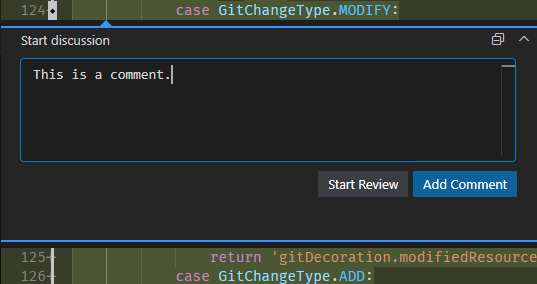
The comments widget uses the primary button color for the first (rightmost) action:
Terminal
Find match background color
Last release find in the terminal was implemented to show a border around all matches, but this was a temporary solution until support for changing the background of cells dynamically was possible. A colored background is now the default for themes when highlighting matches and the overall experience should look similar to the editor.
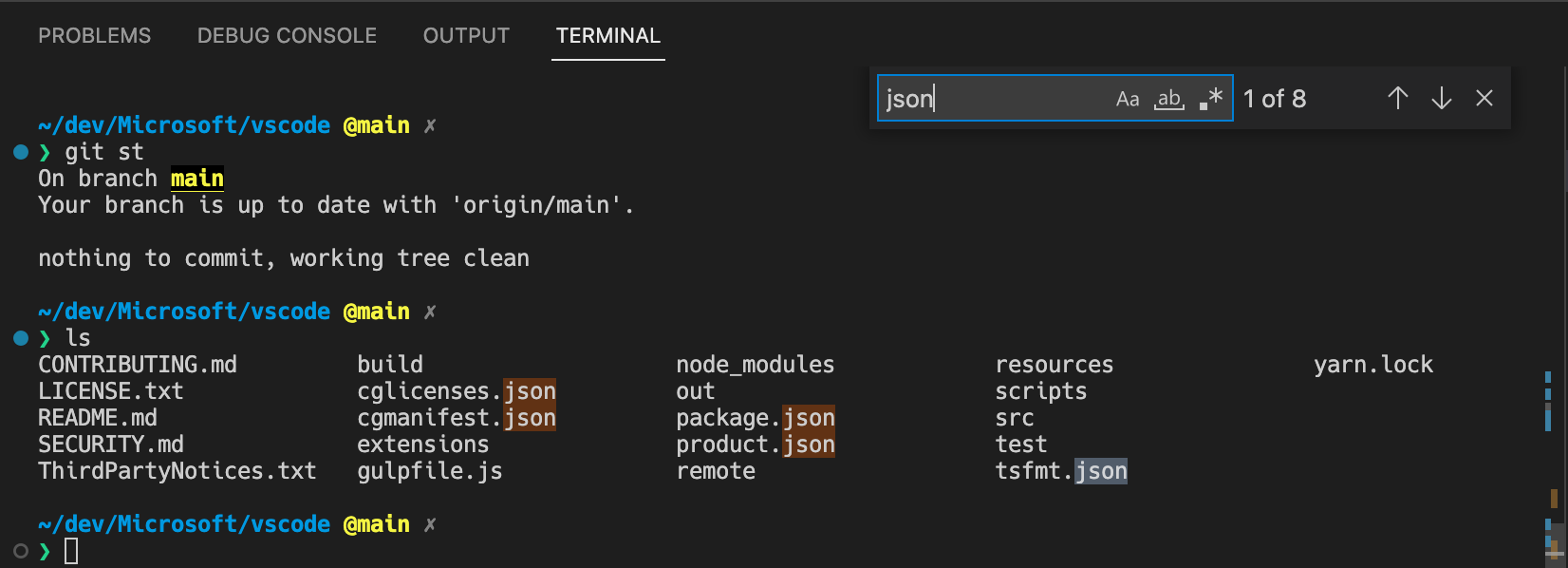
If you're a theme author that adopted terminal.findMatchBorder or terminal.findMatchHighlightBorder, we recommend migrating to terminal.findMatchBackground and terminal.findMatchHighlightBackground if that would fit the theme better or help contrast.
Improvements to contrast and the minimum contrast ratio
The find match background work added a lot more flexibility in how the terminal works with background and foreground colors. Because of this, improvements were made around contrast in the terminal, aligning the terminal visuals closer to the editor. In addition, there is now the minimum contrast ratio feature that changes the foreground of text dynamically to help with visibility.
-
Luminance will now go in the other direction if contrast isn't met. For example, if contrast isn't met for dark grey text on a lighter grey background with pure black (#_000000), the color will also try to move towards white and the value that best meets the desired contrast ratio will be used.

-
Selection is now drawn below the text when GPU acceleration is disabled and supports opaque colors. Previously, this had to be partially transparent and it would wash out the foreground color. Thanks to this change, the selection color now uses the same color as in the editor.

-
Nerd font symbols should now apply minimum contrast ratio to blend in with nearby text while Powerline symbols and box drawing characters will not apply minimum contrast ratio as they are often adjacent to inverted cells without any foreground characters.

-
Themes can now specify a fixed selection foreground color to be used by default in the high contrast themes.

-
Several bugs were fixed to make the resulting foreground color more correct.
As a reminder, minimum contrast ratio can be disabled if you would prefer original colors by setting "terminal.integrated.minimumContrastRatio": 1.
Tasks
Glob pattern for default tasks
Default build and test tasks can now be scoped to only be "default" when the active file matches a filename glob pattern:
// local code
import * as bbb from './bbb';
import * as ccc from './ccc';
import * as aaa from './aaa';

// built-ins
import * as path from 'path';
import * as child_process from 'child_process';
import * as fs from 'fs';

// some code...
In older versions of VS Code, running Organize Imports here would result in the following:
// local code
import * as aaa from './aaa';
import * as bbb from './bbb';
import * as ccc from './ccc';

// built-ins
import * as child_process from 'child_process';
import * as fs from 'fs';
import * as path from 'path';

// some code...
Notice how the imports have now been sorted while still remaining within their groups. Much better!
Strict null checks enabled in implicit projects
Strict null checks are enabled in implicit projects by default for both JavaScript and TypeScript. This should result in more accurate IntelliSense and improved type checking that can catch common programming mistakes.

This new behavior only applies to any file that is not part of a jsconfig or tsconfig project. You can disable it by setting: "js/ts.implicitProjectConfig.strictNullChecks": false. For files that are part of a jsconfig or tsconfig, you still need to enable strict null checks in the configuration file.
Go to Definition for Markdown reference links
You can now use Go to Definition on reference links in Markdown files. This will jump from the reference to the link definition in the current file.
Expanded JSON Schema support
The built-in JSON language service has improved the support for JSON Schema Draft 2019-09 and JSON Schema Draft 2020-12. There's no longer a warning shown when such a schema is used.
There are still some features that are not fully supported. A warning is shown when they are used by a schema. The unsupported properties are:
- Subschemas with $id
- $recursiveRef/Anchor (Draft 2019-09)
- $dynamicRef/Anchor (Draft 2020-12)
VS Code for the Web
Core localization support
We've introduced the initial localization support of VS Code for the Web. VS Code is used all over the world and for many users, English is not their first language (or a language they're familiar with at all!). For years, VS Code users have been installing Language Packs from the Marketplace in order to use VS Code in a language other than English. For VS Code for the Web, we decided to take a different approach, one that is more aligned with how the web works today.
For users who set their browser to one of our core supported languages, vscode.dev will automatically apply translations in that language. The languages we support are documented in the vscode-loc repository.
For example, to configure the display language in Microsoft Edge, you would use Settings > Languages:

Once that is set, when you go to vscode.dev (or insiders.vscode.dev), it will be displayed in German:
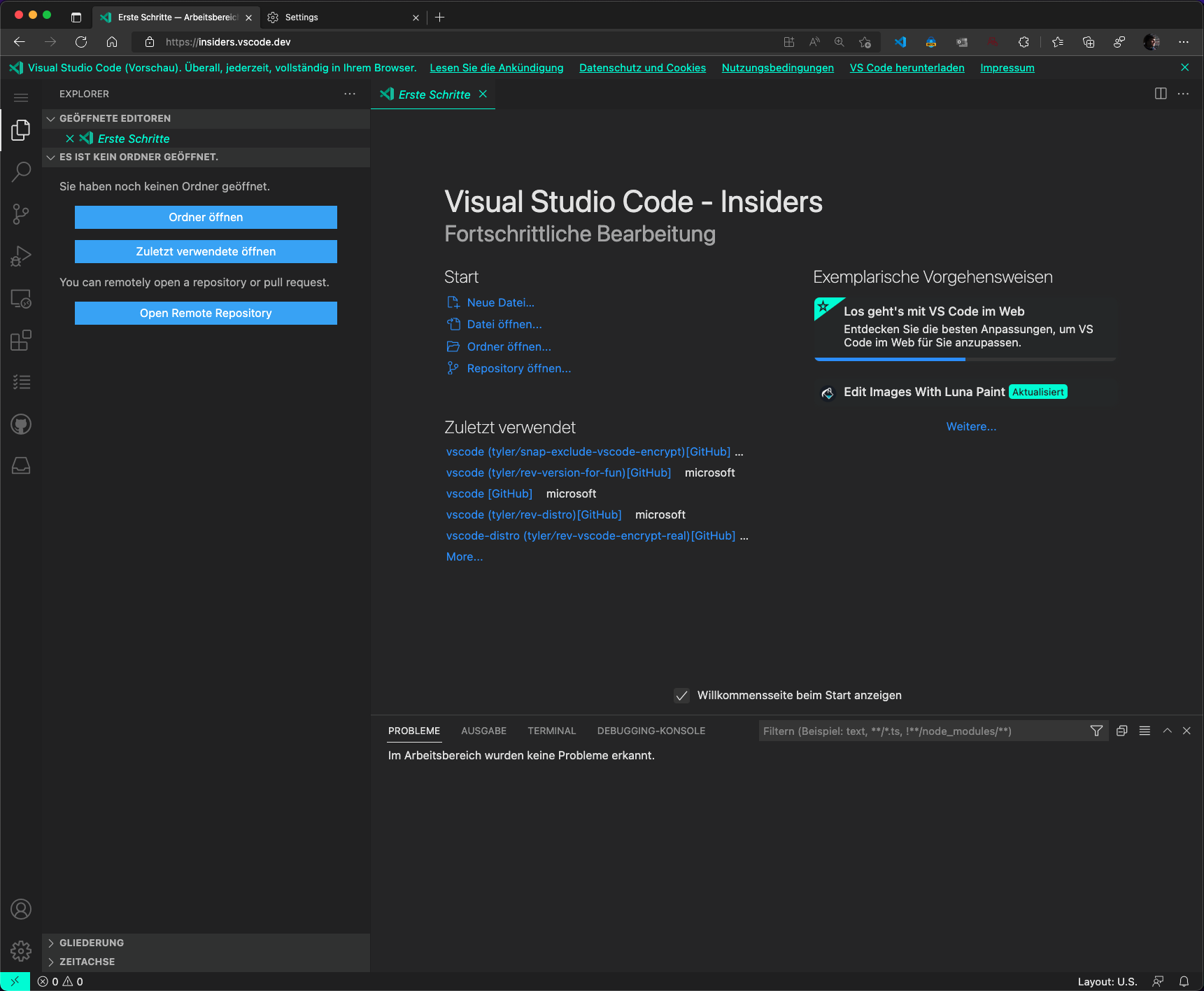
Theme: Panda Theme
In the next few months, we will enable localization for extensions (both ones that ship with VS Code and ones that don't) so that extension authors can also support non-English speaking users. Stay tuned!
Remote Repositories
When using the Remote Repositories > Continue Working On... command to clone a GitHub or Azure Repos repository locally and open it in desktop VS Code, you can now configure remoteHub.gitProtocol to always clone using http or ssh URLs.
Development Container specification
Our development container teams across Microsoft and GitHub continue active development on the new Dev Container Specification, and this iteration had several exciting highlights.
Reference implementation
We released an open source command-line interface (CLI) as the reference implementation for the specification. The CLI builds and starts a dev container from a devcontainer.json, and it can either be used directly or integrated into product experiences.
The CLI is available in a new devcontainers/cli repository. You can learn how to get started in its README, and read more in this blog post.
The CLI is under active development and will continue evolving to better support more scenarios, such as greater support for individual users. We'd love to hear your feedback along the way, so we've opened an issue specifically for feedback on the CLI and welcome additional issues and PRs in the repo.
Dev Container in CI
A GitHub Action and an Azure DevOps Task are available for running a repository's dev container in continuous integration (CI) builds. This allows you to reuse the same setup that you are using for local development to also build and test your code in CI. See the devcontainers/ci README for more details.
Example usage of the GitHub Action:
- task: DevcontainersCI@0
  inputs:
    imageName: 'yourregistry.azurecr.io/example-dev-container'
    runCmd: 'make ci-build'
    sourceBranchFilterForPush: refs/heads/main
Specification
Active development continues on the specification, and we've published an initial version in the devcontainers/spec repository.
As with the CLI, stay tuned for further updates and progress, and we'd love to hear your feedback.
Further reading
You can read all about development containers and the specification at https://containers.dev.
Contributions to extensions
Python
No interpreter discovery at startup
The Python extension now auto-triggers discovery only when:
- Using Python: Select Interpreter command to choose a different interpreter.
- A particular scope (workspace or global) is opened for the first time.
- No Python is installed.
Since discovery isn't triggered automatically at startup, this leads to instantaneous load, and faster startup of other features like the language server. However, if the Jupyter extension is installed/enabled, discovery is still triggered by Jupyter at startup.
Enable localization
The Python extension now supports translations in all the languages that VS Code supports. We have updated the way we get the translations of our commands, notifications, titles, etc. using vscode-nls. These translations are maintained by a localization team to ensure that they are up to date and correct.
Jupyter
Web extension
We've made progress on supporting more of the core functionality in the web version of the Jupyter extension.
This month the following features were ported to the web extension:
- https support
- kernel completions
- ipywidgets
- notebook debugging
- variable viewing
- exporting
- interactive window
If you'd like to experiment with the functionality, launch Jupyter from your local machine with:
{
  message: 'this is an info message';
  severity: InputBoxValidationSeverity.Info;
}
which would look like this:

Notebook Editor API
The new notebook editor API introduces a new NotebookEditor type that is similar to TextEditor but for notebooks instead of normal text editors.
"sponsor": {
    "url": "https://github.com/sponsors/nvaccess"
}
If an extension opts-in to this, VS Code will render a Sponsor button in the Extensions view Details page as shown in the Sponsoring extensions section above.
Note: Make sure to use the latest vsce command line tool (>=2.9.1) to publish your extension with sponsorship enabled.
Proposed APIs
Every milestone comes with new proposed APIs and extension authors can try them out. As always, we want your feedback. Here are the steps to try out a proposed API:
- Find a proposal that you want to try and add its name to
package.json#enabledApiProposals. - Use the latest vscode-dts and run
vscode-dts dev. It will download the correspondingd.tsfiles into your workspace. - You can now program against the proposal.
You cannot publish an extension that uses a proposed API. There may be breaking changes in the next release and we never want to break existing extensions.
Read files from DataTransfer
The new dataTransferFiles API proposal lets extensions read files from a vscode.DataTransfer object. The DataTransfer type is used by the tree drag and drop API, as well as the drop into editor and copy paste API proposals.
/**
 * Provider that maintains a count of the number of times it has copied text.
 */
class CopyCountPasteEditProvider implements vscode.DocumentPasteEditProvider {
  private readonly countMimeTypes = 'application/vnd.code.copydemo-copy-count';

  private count = 0;

  prepareDocumentPaste(
    _document: vscode.TextDocument,
    _range: vscode.Range,
    dataTransfer: vscode.DataTransfer,
    _token: vscode.CancellationToken
  ): void | Thenable<void> {
    dataTransfer.set(this.countMimeTypes, new vscode.DataTransferItem(this.count++));
  }

  async provideDocumentPasteEdits(
    _document: vscode.TextDocument,
    range: vscode.Range,
    dataTransfer: vscode.DataTransfer,
    token: vscode.CancellationToken
  ) {
    const countDataTransferItem = dataTransfer.get(this.countMimeTypes);
    if (!countDataTransferItem) {
      return undefined;
    }

    const textDataTransferItem = dataTransfer.get('text/plain') ?? dataTransfer.get('text');
    if (!textDataTransferItem) {
      return undefined;
    }

    const count = await countDataTransferItem.asString();
    const text = await textDataTransferItem.asString();

    // Build a snippet to insert
    const snippet = new vscode.SnippetString();
    snippet.appendText(`(copy #${count}) ${text}`);

    return new vscode.SnippetTextEdit(range, snippet);
  }
}

vscode.languages.registerDocumentPasteEditProvider(
  { language: 'markdown' },
  new CopyCountPasteEditProvider()
);
New Notebook Workspace edit proposal
The new notebookWorkspaceEdit API proposal allows extensions to edit the contents of a notebook. It replaces the previous notebookEditorEdit proposal.
With the proposal, you can create workspace edits that insert, replace, or modify cells in a notebook:
">PR #1486