Update 1.64.1: The update addresses these security issues.
Update 1.64.2: The update addresses these issues.
Downloads: Windows: x64 Arm64 | Mac: Universal Intel silicon | Linux: deb rpm tarball Arm snap
Welcome to the January 2022 release of Visual Studio Code. There are many updates in this version that we hope you will like, some of the key highlights include:
- New Side Panel - Display more views at once with the new Side Panel.
- Settings editor search - Search now prioritizes whole word matches.
- Audio cues - Hear when the cursor moves to folded regions, errors, and breakpoints.
- Unicode highlighting - Avoid highlighting characters in supported languages.
- Automatic terminal replies - Create automatic responses to common terminal prompts.
- Notebook UI improvements - Search text in Markdown and output cells.
- Debug binary data view - View and edit binary data while debugging.
- Markdown path suggestions - Quickly insert relative file paths and header links.
- JS/TS surround with snippets - Insert selected code inside snippets.
- VS Code for the Web - Support for signed GitHub commits in vscode.dev and github.dev.
If you'd like to read these release notes online, go to Updates on code.visualstudio.com.
Watch a highlight of the new features in this version at the VS Code team's release party. You can find the recording of the event on our YouTube channel.
Insiders: Want to try new features as soon as possible? You can download the nightly Insiders build and try the latest updates as soon as they are available.
Workbench
New Side Panel
This milestone, we introduce the Side Panel, a new surface in the workbench opposite the Side Bar, where you can house views from the Side Bar or the bottom Panel. Unlike moving the bottom Panel to the left or the right of the editor, the new Side Panel works in addition to the bottom Panel so you can see more sets of views at once.
To use the Side Panel, you need to move some views over to it. Based on one of our most upvoted feature requests, you might want to move Outline view from the Side Bar to the Side Panel. You can do this by dragging and dropping the view into the Side Panel. If the Side Panel is not open, just like the bottom Panel, dragging a view to the edge of the editor area, will pop it open.
In the short video below, the Outline view is dragged to the right and dropped to create the Side Panel. The user can then switch views in the Side Bar (here opening the global Search view), while keeping the Outline view visible.
Alternatively, you can use the Move View command from the Command Palette, which will display a dropdown of available views. When you select a view, you can then choose the location by either creating a new Panel/Side Bar/Side Panel entry or placing the view in an existing location such as Explorer or Source Control.
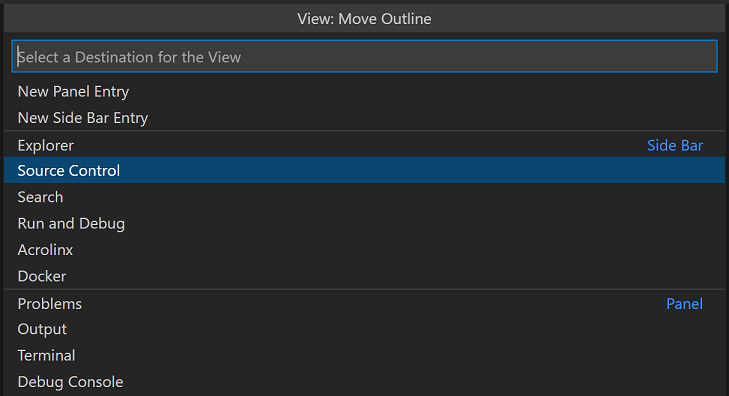
Views can be drag and dropped between the Panel, Side Bar, and Side Panel by grabbing the view icon. You can reset a view's location back to its default by right-clicking on the view icon and selecting Reset Location.
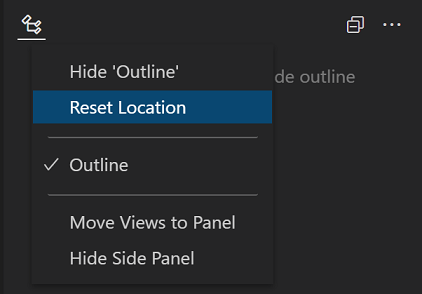
If you'd like to reset all views back to the default layout, you can run Views: Reset View Locations from the Command Palette.
Replacing Panel location
As mentioned above, the new Side Panel provides similar functionality as moving the Panel to the left or right, yet improves on this by not moving the entire contents of the original panel. Along with view drag and drop between panels, the new Side Panel is replacing the option to move the bottom Panel.
In light of that, we have deprecated the workbench.panel.defaultLocation setting as well as the Move Panel commands in favor of similar commands:
- Move Views From Panel To Side Panel (
workbench.action.movePanelToSidePanel) - Move Views From Side Panel To Panel (
workbench.action.moveSidePanelToPanel)
The old Move Panel commands have been remapped to the new command that provides the similar behavior. Even with this mapping, we recommend updating your keybindings to the new commands.
Below, the entire bottom Panel is moved to the Side Panel and then back to the original Panel location.
Panel alignment
Addressing another popular feature request, we have added a new layout option called Panel Alignment. This option allows you to configure how far the bottom Panel spans across your window. There are four options:
- Center - This is the classic behavior. The panel spans the width of the editor area only.
- Left - The panel will span from the left edge of the window to the right edge of the editor area.
- Right - The panel will span from the right edge of the window to the left edge of the editor area.
- Justify - The panel will span the full width of the window.
Note that with all options, the Activity Bar is considered the edge of the window.
You can configure these options in the menu under View > Appearance > Align Panel or using the new Set Panel Alignment to... commands.
Customize Layout control
With all these new layout options, we have been exploring ways to better expose layout configuration for discoverability and ease of use. That's why you might notice a new experimental Configure Layout button in your title bar. This only appears if your window.titleBarStyle setting is custom (default on Windows and macOS) and workbench.experimental.layoutControl.enabled is set to true. The button visibility is controlled by an experiment, but if you want to enable it manually, you can do so by applying these setting values in the Settings editor (⌘, (Windows, Linux Ctrl+,)).
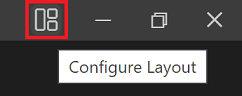
The contents of the menu are still being worked on, but currently you should see the ability to toggle the Side Bar, Panel, and Side Panel. Additionally, you will see an entry for a new command Customize Layout. This new command triggers a new interactive Quick Pick experience allowing you to control all aspects of layout configuration in one place.
Try it out, and let us know if you have any feedback in issue #137633.
Settings editor
The Settings editor search now looks for string value matches in string and enum settings when searching.
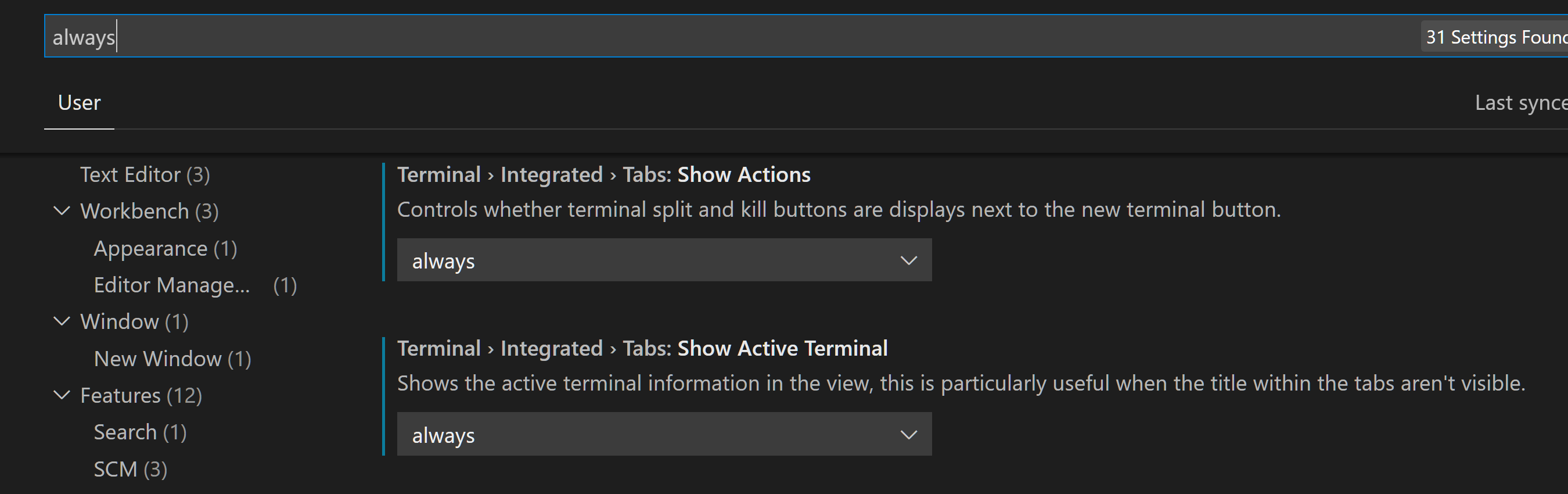
The new search algorithm also prioritizes whole word matches, which means that if one has both the Java and JavaScript extensions, the Java settings will show up first when searching "java".
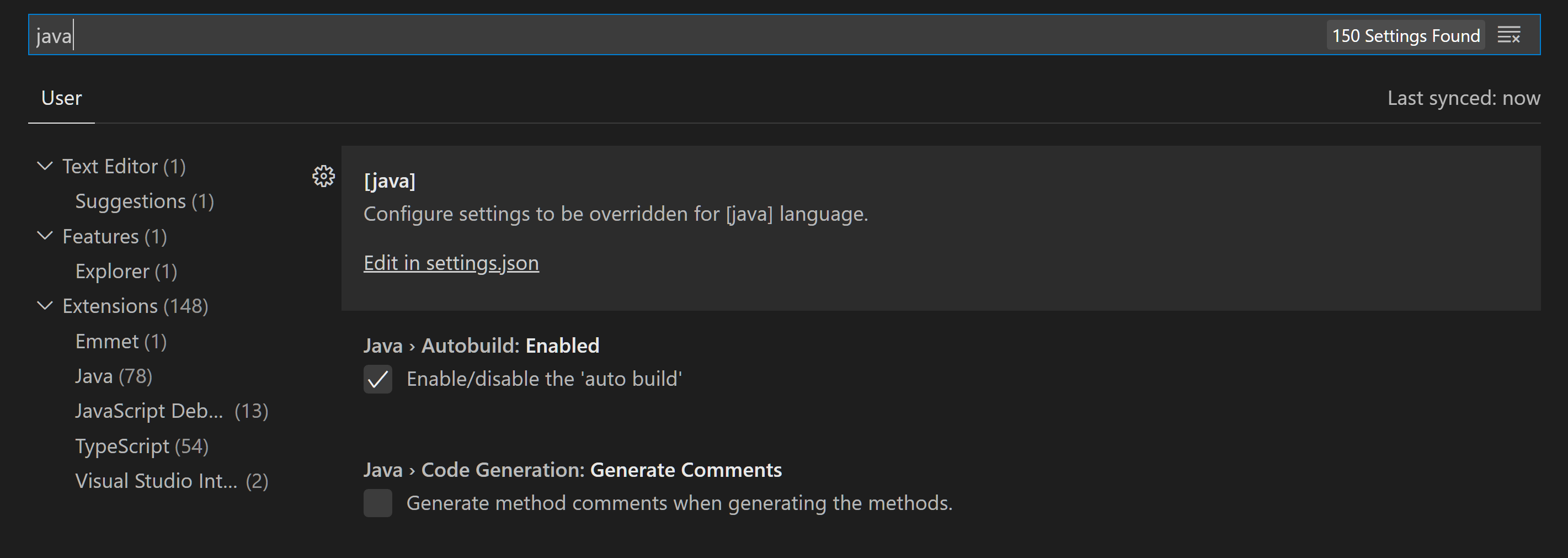
Lastly, dropdowns (such as for files.autoSave) and list widgets (such as for files.associations) in the Settings editor now work with touchscreen devices.
Settings Sync
Settings Sync now supports synchronizing User Tasks.
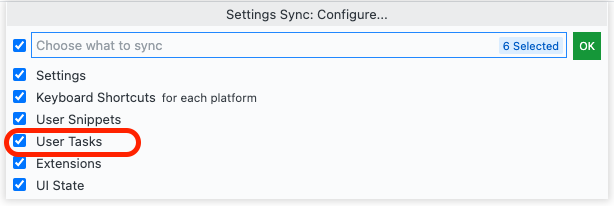
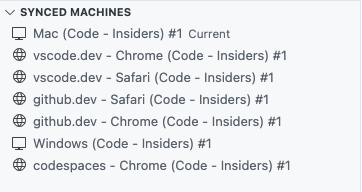
The default Settings Sync machine names now include the browser and product names in VS Code for the Web.
Explorer: Confirm and disable Undo
The File Explorer has long supported an Undo stack to revert file and folder edits (rename, cut/copy/paste, move, import, etc.). Some users find this functionality unexpected, so there is now a setting to disable Undo in the Explorer (explorer.enableUndo).
Additionally, a new setting (explorer.confirmUndo) was added to configure how frequently the Explorer will prompt for confirmation when performing an Undo. By default, the Explorer will prompt more frequently than before to ensure destructive undoing doesn't accidentally happen, but this can be changed to the old behavior with the value "light", or set to "verbose" to prompt before all Undo actions.
Editor
Audio cues
Audio cues indicate if the current line has certain markers, such as errors, breakpoints, or folded text regions.
They are played when the primary cursor changes its line or the first time a marker is added to the current line. Audio cues are enabled automatically when a screen reader is attached, but can also be turned on manually by setting audioCues.enabled to on.
More audio cues are to come and we will iterate on the sound design.
Unicode highlighting improvements
To improve the Unicode highlighting feature introduced in the November release, there are new settings to better deal with false positives.
The new setting editor.unicodeHighlight.allowedLocales can be used to allow characters that are common in one or many configured locales. By default, this includes the current VS Code display language and the current OS language. At the moment, only locales translated in vscode-loc Language Packs are supported.
The setting, editor.unicodeHighlight.includeStrings, controls whether characters in strings should be highlighted. The value is true by default but can be set to false to ignore strings.
Editor folding limit
A new setting editor.foldingMaximumRegions allow users to change the maximum number of folding ranges that are shown in an editor. By default, the limit is 5000. Note that larger numbers can result in a reduced performance.
Editor adapts to language feature timings
Extensions power almost all language features, including built-in features like folding regions, CodeLens, inlay hints, and semantic tokens. These features aren't triggered by user gestures but by typing, usually after a timeout. For instance, CodeLens updates as you type, and so does semantic tokens. The chosen timeout values had been fixed and more or less arbitrary. With this release, the editor adapts to the observed timings so that slower machines or network connections aren't overwhelmed with requests and faster machines are utilized better.
Terminal
The terminal now features an opt-in feature to automatically reply when a specific sequence of characters is received. A good example of where this is useful is the Windows batch script message Terminate batch job (Y/N)? after hitting Ctrl+C when running a batch script. To get the terminal to automatically reply with Y and enter (\r) on Ctrl+C in Windows add the following setting:
\r"
}
Theme: Sapphire
You can set up custom replies for other things, but be careful when doing this, as you are sending text to the process automatically. For example, you could use it to automatically update Oh My Zsh when prompted:
\r"
}
If you use Clink and enable their similar feature, you can disable it in Clink or in VS Code by setting the reply to null to avoid the two features conflicting with each other:
{
  "contributes": {
    "languages": [
      {
        "id": "latex",
        // ...
        "icon": {
          "light": "./icons/latex-light.png",
          "dark": "./icons/latex-dark.png"
        }
      }
  ]
The icon is shown if the current file icon theme only has a generic file icon for the language.
Also file icon themes like Minimal or None that do not show file icons, will not use the language icon. If a file icon theme has an icon for an extension or file name, these will be preferred.
File icon themes can customize the new behavior by defining showLanguageModeIcons: true|false in the theme file.
showLanguageModeIcons: trueshows the default language icons even if the theme does not specify a file icon.showLanguageModeIcons: falseprevents that default language icons are used.
QuickPickItem separators
Extension authors now have the ability to add separators to a Quick Pick. This is useful for grouping items or adding a bit of space between items:
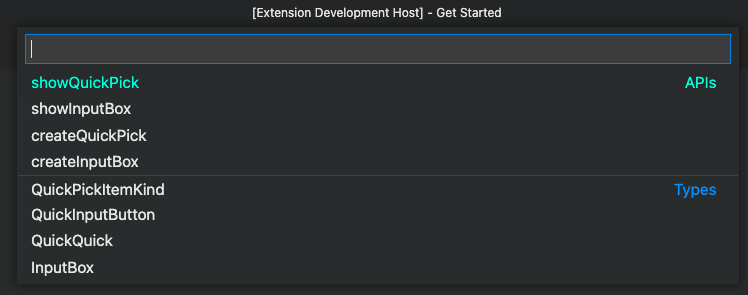
To add a separator to your existing Quick Pick, add a new QuickPickItem to your existing list of items but specify the kind property on the QuickPickItem and set it to QuickPickItemKind.Separator.
In the example above, you would add the following object to your list of items:
// Watch a folder non-recursively
vscode.workspace.createFileSystemWatcher(new vscode.RelativePattern(vscode.Uri.file(<path to folder outside workspace>), '*.js'));

// Watch the active text editor file
vscode.workspace.createFileSystemWatcher(new vscode.RelativePattern(vscode.window.activeTextEditor.document.uri, '*'));
Note: As part of this change, we made a behavioral change for existing file watchers. A file watcher that is instructed with just a glob pattern (for example, vscode.workspace.createFileSystemWatcher('**')) will no longer receive events for files that changed outside of the workspace. It will only receive file events from paths that are inside the workspace. If the user does not have an open workspace, no event will be delivered via this method anymore. This was done to ensure that extensions do not receive unexpected events from outside the workspace.
vscode.TerminalLocation
You can specify where an extension terminal will be created with the new TerminalLocation API.
This enables creating a split terminal by providing a parentTerminal, choosing between the editor area and the panel, and more.
Cancellation token for onWill events
The VS Code API exposes events to participate in file operations, like onWillRenameFiles. This participation can be long-running and therefore users can cancel it. With this release, user-side cancellation can be observed by extensions via a cancellation token on the corresponding event, for example FileWillRenameEvent#token. This allows extensions to cancel expensive downlevel operations as well.
Git extension APIs
- A new
Repository.addmethod has been added, to enable the ability to stage files. - The
Repository.tagandRepository.deleteTagmethods were added to enable the ability to create and delete tags.
onTaskType activation event
Extension that provide tasks can limit their unneeded activations by using the new onTaskType:foo activation event. This is an improvement over activating on onCommand:workbench.action.tasks.runTask as workbench.action.tasks.runTask is usually too eager for task providing extensions.
Debugger extension authoring
In this release, VS Code has started to support viewing and editing binary data by supporting the following memory-related features of the Debug Adapter Protocol:
- VS Code honor's the
memoryReferenceattribute on DAP variables and announces this by passing the client capabilitysupportsMemoryReferencesto the debug adapter. - If VS Code receives the capability
supportsReadMemoryRequestfrom a debug adapter, it will enable the UI for viewing binary data and will issuereadMemoryrequests to retrieve the data. - If VS Code receives the capability
supportsWriteMemoryRequestfrom a debug adapter, it will enable the UI for editing binary data and will issuewriteMemoryrequests to store the data. - VS Code handles the
memoryevent and announces this by passing the client capabilitysupportsMemoryEventto the debug adapter.
Language Server Protocol
A new next version of the Language Server Protocol, together with the corresponding npm modules, has been published. The version contains a proposed implementation for notebook documents. The specification part can be read here.
Proposed extension APIs
Every milestone comes with new proposed APIs and extension authors can try them out. As always, we want your feedback. Here are the steps to try out a proposed API:
- Find a proposal that you want to try and add its name to
package.json#enabledApiProposals. - Use the latest vscode-dts and run
vscode-dts dev. It will download the correspondingd.tsfiles into your workspace. - You can now program against the proposal.
You cannot publish an extension that uses a proposed API. There may be breaking changes in the next release and we never want to break existing extensions.
Disable terminal persistence
When creating a terminal, you can opt out of terminal persistence on restart and reload by setting disablePersistence in TerminalOptions or ExtensionTerminalOptions.
npx vscode-bisect
Similar to git bisect, vscode-bisect will launch a range of released Insiders builds from the past, asking whether the build reproduces the issue or not. The end result is a range of commits that introduced the issue. The instance will use a dedicated fresh folder for user data to not impact your main development environment.
Run Code Web & Server from sources
The scripts to run VS Code for the Web and VS Code Server from sources has moved to the scripts folder:
./scripts/code-web.sh|batstarts Code for the Web (aka "serverless)" from sources and opens a browser on it. Use--helpfor more options../scripts/code-server.sh|batstarts VS Code Server from sources. Add--launchto additionally open the web UI in a browser. Use--helpfor more options../scripts/test-web-integration.sh|batfor the remote web tests../scripts/test-remote-integration.sh|batfor the remote tests.
Extensions
In this milestone, we improved Marketplace interactions by minimizing the number of queries VS Code makes to the service.
Notable fixes
- 91286 Throttling settings sync activity on the client
- 117648 The result when "gtc" is expanded with emmet with the extension sass is strange.
- 134466 Non-existent debugger configuration
- 135677 Hovering over setting UI links shows # at the start
- 138072 Store recently opened workspaces in global storage
- 138805 Opening large binary files reads full contents
- 138850 Opened editor can end up empty after a file change on disk
- 139880 Debug: being asked to save a file on F5
- 140003 Task cannot be referenced from a launch configuration that is in a different workspace folder
- 140129 Double clicking on settings.json file results in new tabs each time
- 140560 Problem with the VS Code Stop Debugging API
- 140967 Comment.body rendered as Markdown, even for plain strings
Thank you
Last but certainly not least, a big Thank You to the contributors of VS Code.
Web extensions
Extension authors for enabling extensions that run code as web extensions (the list below is between December 7 2021 and January 31 2022):
- Tabulate (a5hk)
- Powder (Alexey Osipov)
- VCDrom (Aliaksei Chapyzhenka)
- Reveal Button (Andreas Weber)
- Digital Solutions (Andrew Tacon)
- lorem ipsum (aroary)
- Convert Selection (ArturoDent)
- Custom Language Properties (ArturoDent)
- Find and Transform (ArturoDent)
- Launch Configs (ArturoDent)
- Instant Documentation (atanasster)
- Couper Configuration (Avenga Germany GmbH)
- Argdown (Christian Voigt)
- ES7+ React/Redux/React-Native snippets (dsznajder)
- fantasy.markdown-all-in-one-for-web (fantasy)
- fink (fink)
- GitLens (Insiders) (GitKraken)
- Select by Indent (haberdashPI)
- Selection Utilities (haberdashPI)
- Python-Factory Web Search (HyunseungLee)
- Custom Element Scanner (alpha) (JanKretschmer)
- tomato extensions (jingjingwu)
- vscode-position (jtr)
- KCL for vscode.dev (kcl_extension_publisher)
- KL Language support (Kevlanche)
- Systemd Helper (Liu Yue)
- bett3r icons (Lucas)
- xpro-snippets (Maratib Ali Khan)
- Projen (MarkMcCulloh)
- Rainbow CSV (mechatroner)
- Blogview (mkizka)
- CodeSandpack (Mojojoji)
- Abracadabra, refactor this! (Nicolas Carlo)
- Office Script Extension (office-script)
- Better Fountain (Piers Deseilligny)
- Dothttp Http Client (Prasanth)
- 小説 (Public Theta)
- bojodog (RanolP)
- JSON Validate (rioj7)
- Remove Comments (rioj7)
- Everforest (sainnhe)
- Gruvbox Material (sainnhe)
- JetSet for VSCode (Sudhay)
- MathJax for Markdown (TANIGUCHI Masaya)
- WebEnv-Client (Theboys619)
- Graphviz Interactive Preview (tintinweb)
- LLL (tintinweb)
- Vyper (tintinweb)
- Sourcegraph - preview (TJ Kandala)
- Keyboard Macro Beta (tshino)
- WakaTime (WakaTime)
- MSCode (WebXT ES)
- DigitalJS (Yichao Yu)
- Better Snippets (zardoy)
- Fix All JSON (zardoy)
- Zardoy Experiments (zardoy)
Issue tracking
Contributions to our issue tracking:
- John Murray (@gjsjohnmurray)
- Andrii Dieiev (@IllusionMH)
- ArturoDent (@ArturoDent)
- Simon Chan (@yume-chan)
- heartacker (@heartacker)
- Lemmingh (@Lemmingh)
Pull requests
Contributions to vscode:
- @btidor (Benjamin Tidor): Fix
undefineds in text search results PR #141522 - @ckline-tryptic (Christopher M Kline): Expose 'tag' and 'deleteTag' in git extension API PR #123815
- @DanielRosenwasser (Daniel Rosenwasser): "Surround with" in TS/JS snippets PR #138565
- @dnicolson (Dave Nicolson): Add singular form of bisect message PR #137626
- @eltociear (Ikko Ashimine): editors - fix typo PR #140320
- @Enzime (Michael Hoang): ripgrep: don't use deprecated flag for PCRE2 PR #139721
- @gjsjohnmurray (John Murray)
- fix #118617 use term 'remote' when referring to lack of upstream branch PR #120467
- Correct the description of
screencastMode.keyboardShortcutsFormatsetting (#_138644) PR #138645 - Surface the maximum and minimum values for
editor.hover.delay(#_140215) PR #140216 - Support
--#regionand--#endregionin SQL (#_141257) PR #141264
- @iamkun: refactor: remove duplicate if statement PR #140085
- @imphil (Philipp Wagner): Update ripgrep binaries to include ppc64le and s390x PR #140028
- @jeanp413 (Jean Pierre)
- Install extension with version using workbench.extensions.installExtension PR #136314
- Fixes Ctrl + Shift + {Left, Right, Home, End} is broken after a terminal is opened & closed on Firefox PR #139615
- Fixes changing keyboard layout in vscode web is broken PR #140295
- Fix connection token parsing PR #140532
- @jlelong (Jerome Lelong)
- Basic LaTeX built-in extension PR #138395
- Update latex language grammar and configuration PR #140801
- @jzyrobert (Robert Jin): Update html-language-features to use doQuoteComplete PR #137080
- @KapitanOczywisty: Fix PHP update-grammar.js PR #140619
- @KendallDoesCoding (Kendall Pinto): creating pr's section PR #141130
- @KhaledSamir (Khaled): Corrected the regex to detect espaced percent symbol. PR #139437
- @lostintangent (Jonathan Carter): [Markdown] Adding support for GitHub themed images PR #137820
- @Mai-Lapyst: Adding default fileicon support to language contributions PR #118846
- @MaxGrekhov (Max Grekhov): open editors: sort by fullPath PR #133790
- @nrayburn-tech (Nicholas Rayburn): Add Source Control View Sort to Storage PR #123232
- @OPY-bbt (zhangyan): fix(suggest): only show readmore icon in focused label PR #139792
- @orta (Orta Therox): Allow extensions to be able to make requests to the typescript extension's tsserver via commands PR #138279
- @PieterBranderhorst: Notify user when max folds exceeded, make max folds configurable. PR #140480
- @samestep (Sam Estep): Add option to not pass --no-ignore-parent to rg PR #140022
- @SeriousBug (Kaan Genç): hasCustomMarkdownPreview disables markdown preview buttons in context menus PR #139241
- @ShafinKhadem (Nafiur Rahman Khadem): Add an undo/redo stop at end of snippet PR #140096
- @slidoooor (Hans)
- fix generates different html content for the same markdown when get the cached token PR #138935
- Fix the overlap the line by a few pixels (#_139311) PR #139575
- testing: add autosave before each test run PR #141254
- @smcenlly (Simon McEnlly): testing: add new API
sortTextproperty to TestItem PR #132099 - @SMSadegh19 (Mohammad Sadegh Salimi): Adding support for RTL languages for readme markdown preview. PR #139644
- @SNDST00M (M.U.N.I.N): Add
FontStyle.Strikethroughsupport PR #139413 - @somebee (Sindre Aarsaether): Fix decorations and mouse hit-testing when editor is scaled via transform PR #139282
- @stevenjoezhang (Mimi): Fix terminal.integrated.cwd with predefined variables PR #137023
- @Timmmm (Tim): Fix parseAddress regex PR #140977
- @TwitchBronBron (Bronley Plumb): Fix perf issue for InstallAnotherVersionAction PR #136992
- @WaqasAliAbbasi (Waqas Ali): Prevent link highlight in markdown code blocks and spans PR #140816
- @wengj9 (James Weng): Add extension information to snippet picker PR #138880
- @Yash621 (Yash Goel): code-insiders --status results in error PR #140152
- @zardoy (Vitaly): Make typings on
showInformationMessage,showWarningMessage,showErrorMessagestrict with items as strings PR #137672
Contributions to vscode-css-languageservice:
- @fyangstudio (yangfan): Feat: support new resolving import at-rules PR #255
- @romainmenke (Romain Menke): css color : add support for hue rad|grad|turn PR #257
- @Semigradsky (Dmitry Semigradsky): Support case-sensitivity attribute selector PR #259
Contributions to vscode-eslint:
- @edupsousa (Eduardo Pereira de Sousa): Allow user to ignore server errors. PR #1375
Contributions to vscode-extension-samples:
- @laurentlb (Laurent Le Brun): Fix the 'Cancel' button in comment-sample PR #492
Contributions to vscode-html-languageservice:
- @zuochenxue (ZuoChenxue): docs: correct typos PR #118
Contributions to vscode-js-debug:
Contributions to vscode-pull-request-github:
- @blindpirate (Bo Zhang)
- @joshuaobrien (Joshua O'Brien): Add command to open all diffs PR #3238
Contributions to vscode-textmate:
- @SNDST00M (M.U.N.I.N): Implement
FontStyle.StrikethroughPR #159
Contributions to vscode-vsce:
- @hangxingliu (Liu Yue): fix: docker base image needs be at latest
node:14-alpinePR #651 - @joerohde (Joe Rohde): feat: sanity check to validate entrypoints PR #669
- @ritwickdey (Ritwick Dey): fix: entrypoint validation without js tag PR #676
Contributions to debug-adapter-protocol:
- @Calindro: Added Emulicious Debugger PR #230
- @cdaringe (Christopher Dieringer): docs(implementors): add OCaml PR #228
- @ko1 (Koichi Sasada): Add
VSCode rdbg Ruby DebuggerPR #232
Contributions to monaco-editor:
- @blutorange (Andre Wachsmuth): Implements #2383 Add syntax modes for FreeMarker template language PR #2847
- @forensicmike (forensicmike1): Add "cd monaco-editor" to the step by step commandline instructions for cloning and running the samples PR #2894
- @juan-carlos-diaz: Fix #2851 Highlight correctly the attributes and identifiers (with dashes) for Shell language PR #2871
- @philipturner (Philip Turner)
- @rcjsuen (Remy Suen): Support hyphenated HTML tags in Markdown syntax PR #2864
- @resistdesign (Ryan Graff): doc: (samples) Simplify Browser ESM Parcel build PR #2832
- @ValeraS (Valeriy)
Contributions to node-jsonc-parser:
- @Marcono1234
- @P0lip (Jakub Rożek): findNodeAtLocation does not handle incomplete property pair PR #44