Update 1.57.1: The update addresses these issues.
The Workspace Trust feature addresses CVE-2021-34529.
Downloads: Windows: x64 Arm64 | Mac: Universal Intel silicon | Linux: deb rpm tarball Arm snap
Welcome to the May 2021 release of Visual Studio Code. There are a number of updates in this version that we hope you will like, some of the key highlights include:
- Workspace Trust - Extra security against code execution when browsing unfamiliar source code.
- New Getting Started experience - Helps you quickly set up and learn about VS Code.
- Remote Repositories - Browse and edit code without locally cloning repositories.
- Terminal tabs - Tabs let you easily create, manage, and group multiple open terminals.
- Edge browser debugging - Integrates the Microsoft Edge Developer Tools directly into VS Code.
- JSDoc @link support - Add @link tags in your comments for fast symbol navigation.
- Go to Definition for non-code files - Quickly jump to images and stylesheets.
- Notebook API finalized - Notebook API for native notebook support in VS Code.
- VS Code at Build 2021 blog post - Catch up with on-demand sessions featuring VS Code.
If you'd like to read these release notes online, go to Updates on code.visualstudio.com.
Watch a highlight of the new features in this version in the VS Code team's release party. You can find the recording of the event on our YouTube channel.
Insiders: Want to try new features as soon as possible? You can download the nightly Insiders build and try the latest updates as soon as they are available.
Workbench
Workspace Trust
Visual Studio Code takes security seriously and wants to help you safely browse and edit code no matter the source or authors. The Workspace Trust feature lets you decide whether your project folders should allow or restrict automatic code execution.
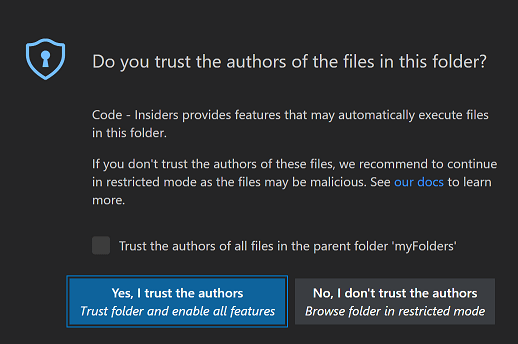
Note: When in doubt, leave a folder in Restricted Mode. You can always enable trust later.
Safe code browsing
It's great that there is so much source code available on public repositories and file shares. No matter the coding task or problem, there is probably already a good solution available somewhere. However, using open-source code and tools does have risks and you can leave yourself open to malicious code execution and exploits.
Workspace Trust provides an extra layer of security when working with unfamiliar code by preventing automatic code execution when a workspace is open in Restricted Mode.
Note: If you want to disable the Workspace Trust feature, you can set
security.workspace.trust.enabledtofalse. Only disable Workspace Trust if you are confident that you know the source and integrity of the files you are working with.
Restricted Mode
When prompted by the Workspace Trust dialog, if you choose No, I don't trust the authors, VS Code will go into Restricted Mode to prevent code execution. The workbench will display a banner at the top with links to Manage your folder via the Workspace Trust editor and Learn More taking you to the Workspace Trust user guide.

You will also see a Restricted Mode badge in the Status bar.
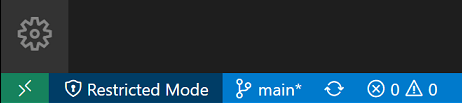
Restricted Mode tries to prevent automatic code execution by disabling or limiting the operation of several VS Code features: tasks, debugging, workspace settings, and extensions.
To see the full list of features disabled in Restricted Mode, you can open the Workspace Trust editor via the Manage link in the banner or by clicking the Restricted Mode badge in the Status bar.
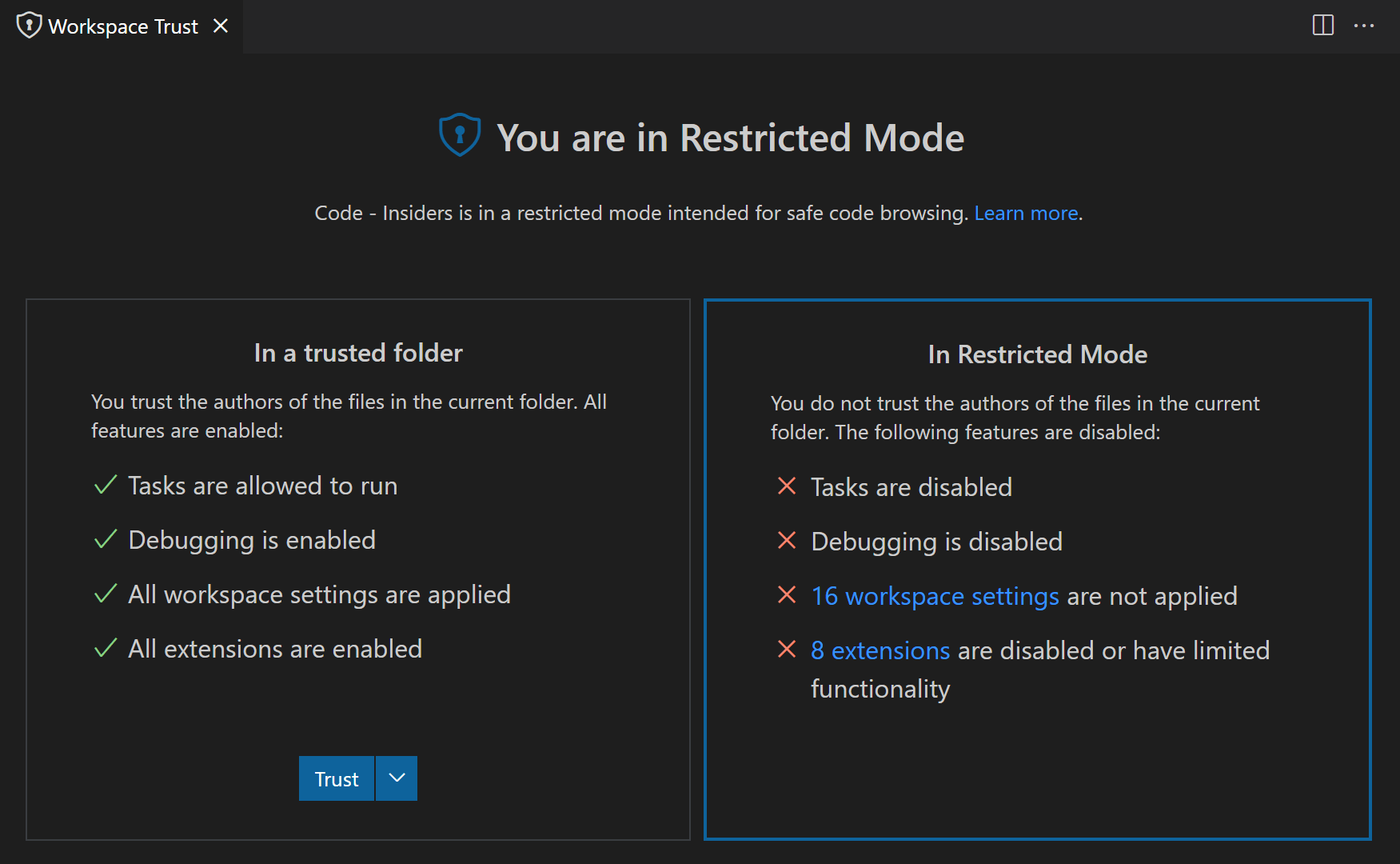
Trusting a workspace
If you trust the authors and maintainers of a project, you can trust the project's folder on your local machine. For example, it is usually safe to trust repositories from well-known GitHub organizations such as github.com/microsoft or github.com/docker. The initial Workspace Trust prompt when you open a new folder allows you to trust that folder and its subfolders.
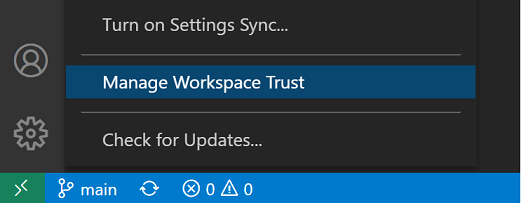
You can also bring up the Workspace Editor and quickly toggle a folder's trusted state. There are several ways to bring up the Workspace Editor dialog.
When in Restricted Mode:
- Restricted Mode banner Manage link
- Restricted Mode Status bar item
You can also at any time use:
- Workspaces: Manage Workspace Trust command from the Command Palette (⇧⌘P (Windows, Linux Ctrl+Shift+P))
- Manage Workspace Trust from the Manage gear in the Activity bar
Selecting folders
When you trust a folder, it is added to the Trusted Folders & Workspaces list displayed in the Workspace Trust editor.
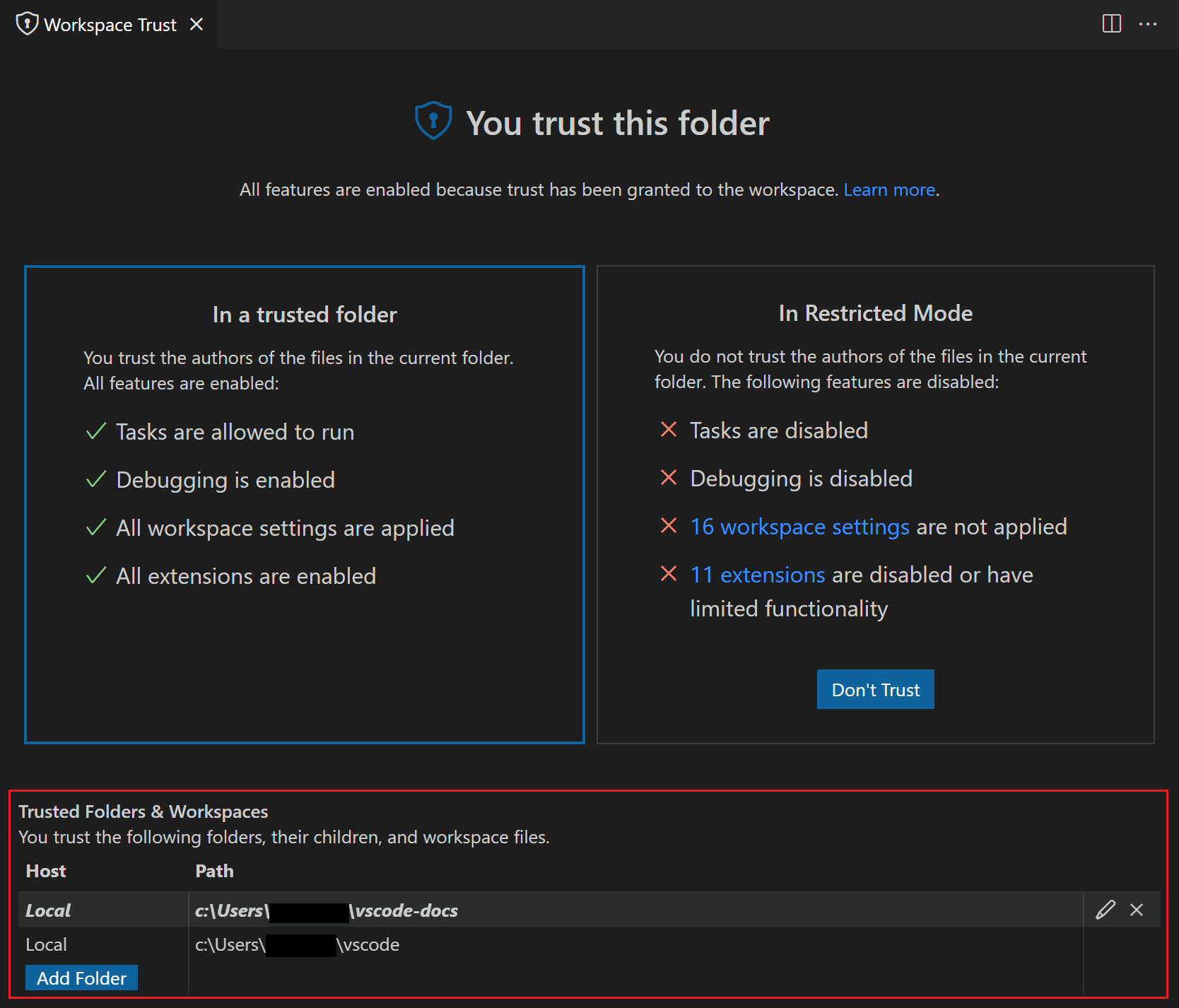
You can manually add, edit, and remove folders from this list and the active folder enabling trust is highlighted in bold.
You also have the option to trust the parent folder. This will apply trust to the parent folder and all subfolders. This can be helpful if you have many folders with trusted content collocated under one folder.
Enabling extensions
What happens if you want to use Restricted Mode but your favorite extension doesn't support Workspace Trust? This can happen if an extension, while useful and functional, isn't being actively maintained and hasn't declared their Workspace Trust support. To handle this scenario, you can override the extension's trust state with the extensions.supportUntrustedWorkspaces setting.
Note: Be careful overriding an extension's Workspace Trust support. It may be that the extension author has a good reason for disabling their extension in Restricted Mode.
Below you can see the user settings.json entry for the Prettier extension.
{
  "key": "cmd+w",
  "command": "workbench.action.closeWindow",
  "when": "!editorIsOpen && !multipleEditorGroups"
}
Windows/Linux
document.body.addEventListener('contextmenu', e => {
  e.preventDefault(); // cancel the built-in context menu
});
Editor
Suggestion preview
With the new setting editor.suggest.preview enabled, a preview of the selected suggestion or snippet is shown at the cursor position.
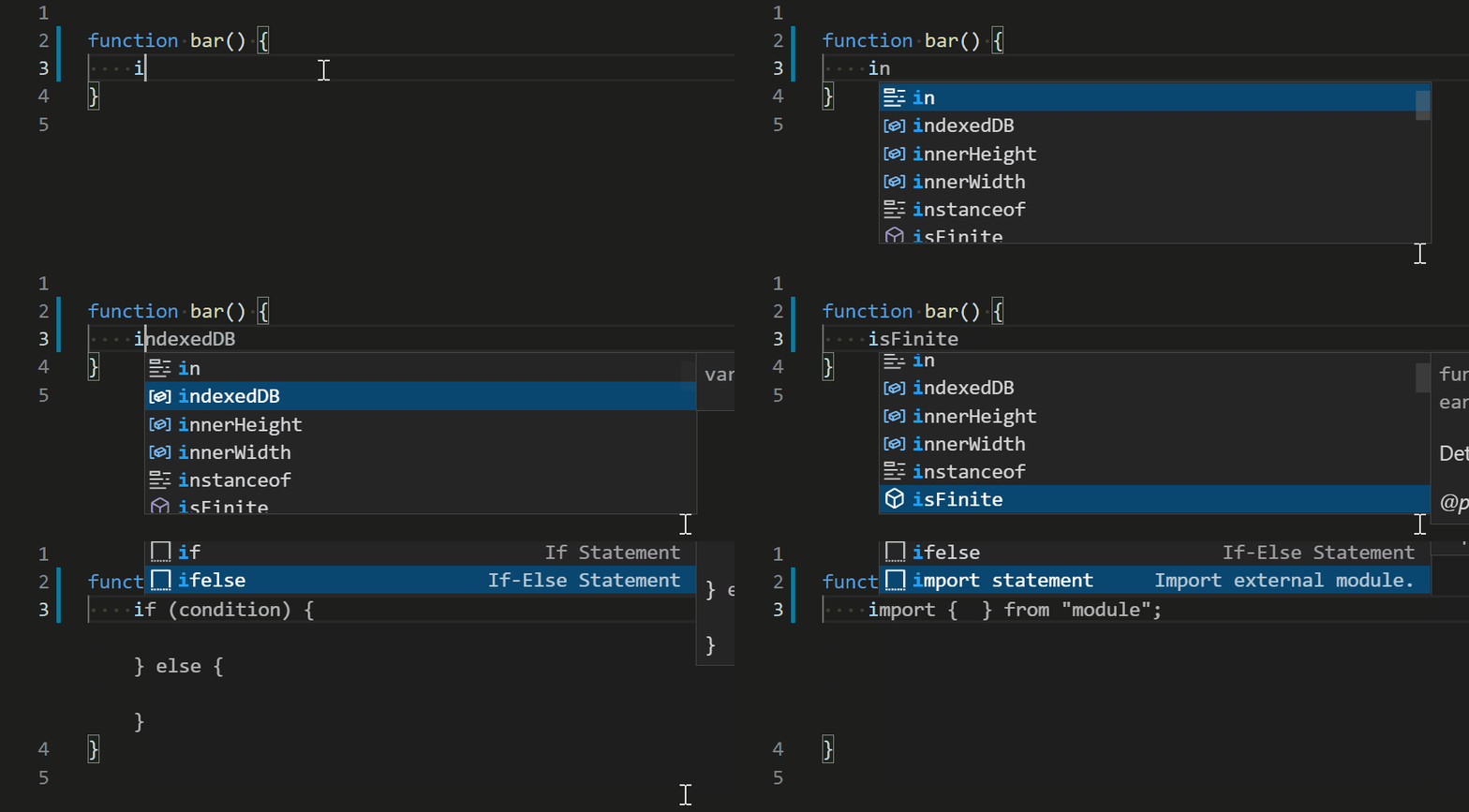
Theme: Dark+ (default dark)
Hide deprecated suggestions
There is a new setting editor.suggest.showDeprecated, which defaults to on, but when turned off, suggestions will not show items that are marked as deprecated.
Integrated Terminal
Terminal tabs
Terminal tabs were introduced as a preview feature in 1.56 and are now enabled by default. The new tabs view will only show by default when there are at least two terminals. For single terminals, the tab is "inlined" into the panel title. This also introduces the concept of terminal statuses such as whether a task is running, succeeded, or failed:
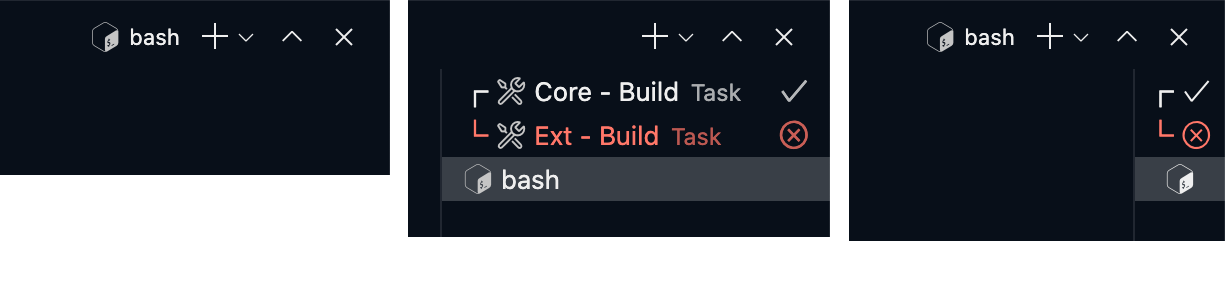
Below are some of the highlights in this release:
If you're not a fan of the new UX, you can go back to the dropdown by setting "terminal.integrated.tabs.enabled": false, the plan is to continue to support this as an option going forward.
Terminal profile improvements
The terminal profile system has many improvements in this release, here are some highlights:
defaultProfilewill be respected if the terminal is restored upon launching VS Code and will be used for tasks and debugging.- Intellisense now works in
settings.jsonforiconanddefaultProfile. overrideNamenow works for the default profile.defaultProfilecan now be set in workspace settings. This is also now controlled by the new Workspace Trust feature.- If
defaultProfileandshellorshellArgssettings are used, you will now be asked to migrate the deprecated settings to the profiles system. colorcan now be set on a profile.
Title sequence support
The setting terminal.integrated.experimentalUseTitleEvent setting has been promoted to stable as terminal.integrated.titleMode. By default, this setting will be executable, which names terminals based on the detected foreground process:

When this is set to sequence, the title will be based on what the shell sets it to. This needs shell support to work, an example of this in action is oh-my-zsh's default prompt, which shows additional information about the session:

Improved launching with clean environment
The setting terminal.integrated.inheritEnv has been available since the v1.36 but the implementation had some flaws where it could fail due to permissions issues on Linux and may not work as expected on macOS.
Due to improvements to how VS Code sets up its underlying environment, it's now possible to access the initial environment it was launched with, which is how most terminals work. When inheritEnv is set to true, VS Code will now use the initial environment and, when false, use the sourced "shell environment". This setting can help the terminal act more like a regular terminal. However, you may run into problems if your profile/rc configuration is not set up correctly.
Native line wrapping support on Windows
Line wrapping in the terminal drives task problem matchers and link detection. Historically, the Windows terminal has used a heuristic to flag lines as wrapped since the emulation technology that simulates a Unix pty didn't support wrapping. This changed on recent versions of Windows, and when updating to Windows 10 21376+ (currently Insiders only), this heuristic will be disabled and wrapped lines should work correctly as in Windows Terminal.
Tasks
Task status on terminal tab
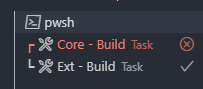
The status of a task is now shown in its terminal tab. For background tasks, the status is only shown when there is an associated problem matcher.
Automatically close task terminals
The task presentation property has a new close property. Setting close to true will cause the terminal to close when the task exits.
"editor.codeActionsOnSave": {
    "source.sortImports": true
}
Infer function return type Quick Fix
The Infer function return type refactoring for TypeScript adds explicit return type annotations to functions:
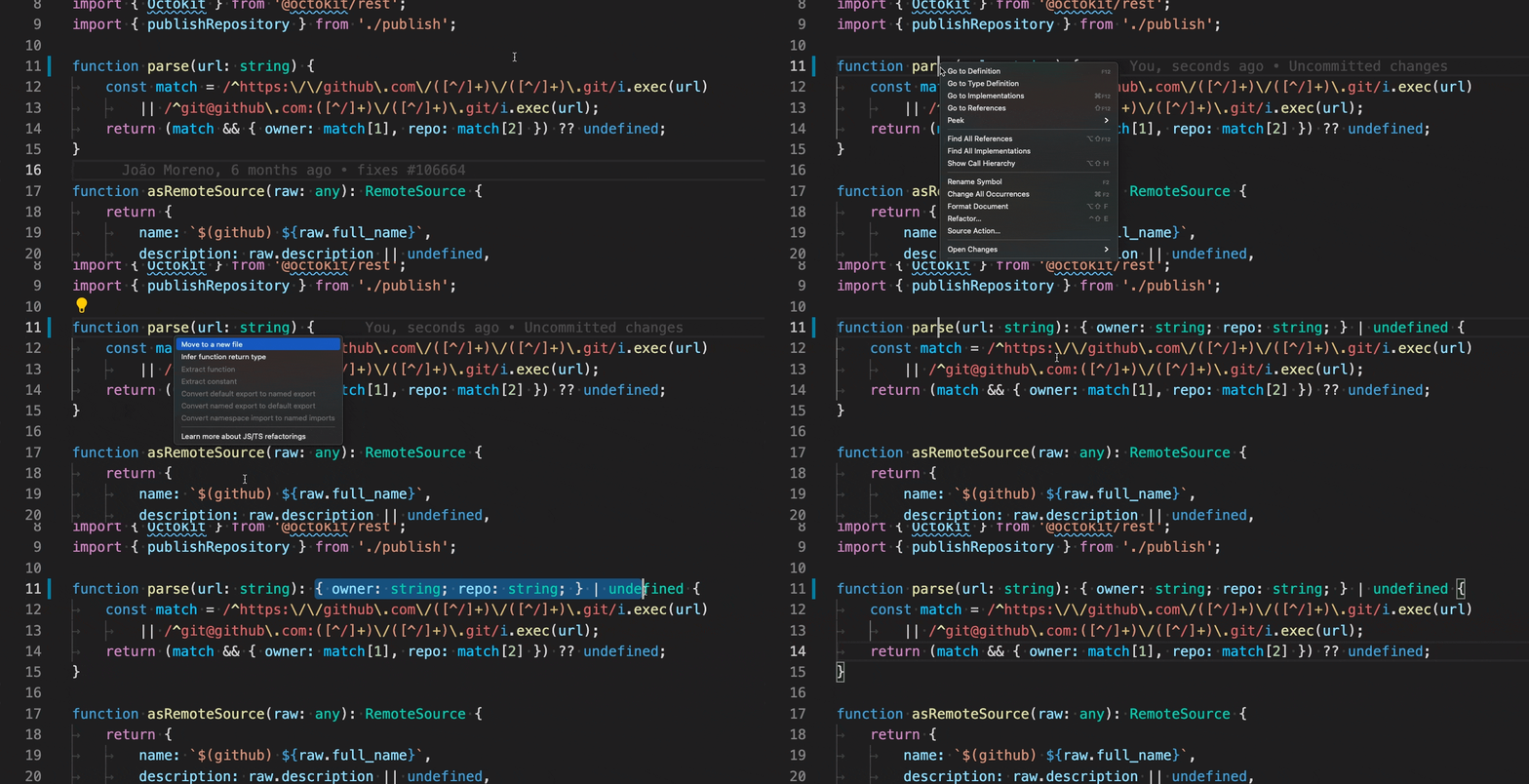
This is useful if you want to add more explicit typings. This refactoring can also save time when you want to extract the return type to a named type/interface, or if you need to modify a function's return type.
Prompt to disable TS Server logging
VS Code now prompts you if you have TypeScript server logging enabled for a prolonged period of time:
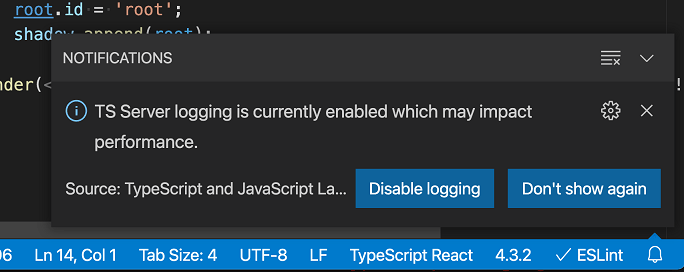
Logging can significantly impact performance so it's best to keep it disabled unless you are actively trying to diagnose an issue.
Contributions to extensions
Remote Development
Work continues on the Remote Development extensions, which allow you to use a container, remote machine, or the Windows Subsystem for Linux (WSL) as a full-featured development environment.
Feature highlights in 1.57 include:
- Control desired protocol for forwarded ports.
- Optional watch for forwarded port collision.
- Dev Containers supports Workspace Trust security feature.
- Better environment variable detection in dev containers.
You can learn about new extension features and bug fixes in the Remote Development release notes.
Notebook API
We have finalized most of the notebooks API. The API is structured into three separate parts:
- The
NotebookSerializerAPI that, in combination with thenotebookscontribution point, enables VS Code to open, modify, and save notebook documents. - Notebook renderers that present cell output. They are added via the
notebookRenderercontribution point of your extensionspackage.jsonfile. - The
NotebookControllerAPI to generate output for code cells.
Sample of a simple notebook serializer and an echo controller. The serializer uses JSON.parse and stringify with special handling for empty files. The controller returns the upper-case variant of the cell text - once as plain text and once as html.
"contributes": {
  "notebooks": [{
      "type": "echobook",
      "displayName": "Echobook",
      "selector": [{
        "filenamePattern": "*.echobook"
      }]
  }]
}
Status bar item 'id' and 'name' properties
We finalized the API for StatusBarItem identifier and name properties. The identifier can be passed from the new overload of the createStatusBarItem method while the name property can change dynamically on the StatusBarItem itself.
These new properties are used for the context menu on the Status bar to give individual entries a name and for allowing a user to show and hide entries. If you do not provide these properties, the menu will aggregate all status entries from one extension under a single entry.
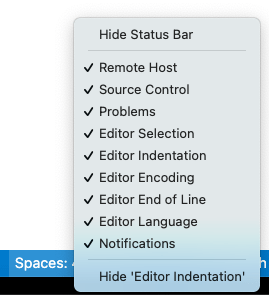
If your extension contributes to the Status bar, consider updating to the new API.
Print a message in new terminals
When creating a terminal using window.createTerminal, it's now possible to set a message via TerminalOptions.message that is printed at the top of the terminal. This message supports ANSI escape sequences to enable text styles:
"typeAcquisition": {
  "include": [
    "@types/vscode-webview"
  ]
}
Or add a triple-slash reference in your code:
"engines": {
  "vscode": "^1.57.0",
}
If the extension targets VS Code 1.57+, then typed arrays should be recreated on the receiver side and the transfer of large typed arrays to and from webviews should be much more efficient.
parentSession on Debug Sessions
Some time ago, VS Code added support for hierarchical debug sessions, but no information about the hierarchy was exposed in the extension APIs. To address this, there is a new property on the DebugSession interface that references the parent session, if any. A session's parent will never change.
"engines": {
  "vscode": "^1.56.0-20210428",
}
Tree hovers support command URIs
When a TreeItem has a trusted Markdown tooltip, that tooltip can contain commands of the format [this is a link](command:workbench.action.quickOpenView). This follows the same format as all other places where command links are supported in Markdown.
Proposed extension APIs
Every milestone comes with new proposed APIs and extension authors can try them out. As always, we want your feedback. This is what you have to do to try out a proposed API:
- You must use Insiders because proposed APIs change frequently.
- You must have this line in the
package.jsonfile of your extension:"enableProposedApi": true. - Copy the latest version of the vscode.proposed.d.ts file into your project's source location.
You cannot publish an extension that uses a proposed API. There may be breaking changes in the next release and we never want to break existing extensions.
Testing
We intended to finalize the first parts of the testing APIs this iteration, but it was deferred due to the number of other in-flight features. While there were no breaking changes to the testing APIs this iteration, we continued to make progress on its editor experience. For example, the Peek view gained a split view that allows you to browse the results of current and past test runs.
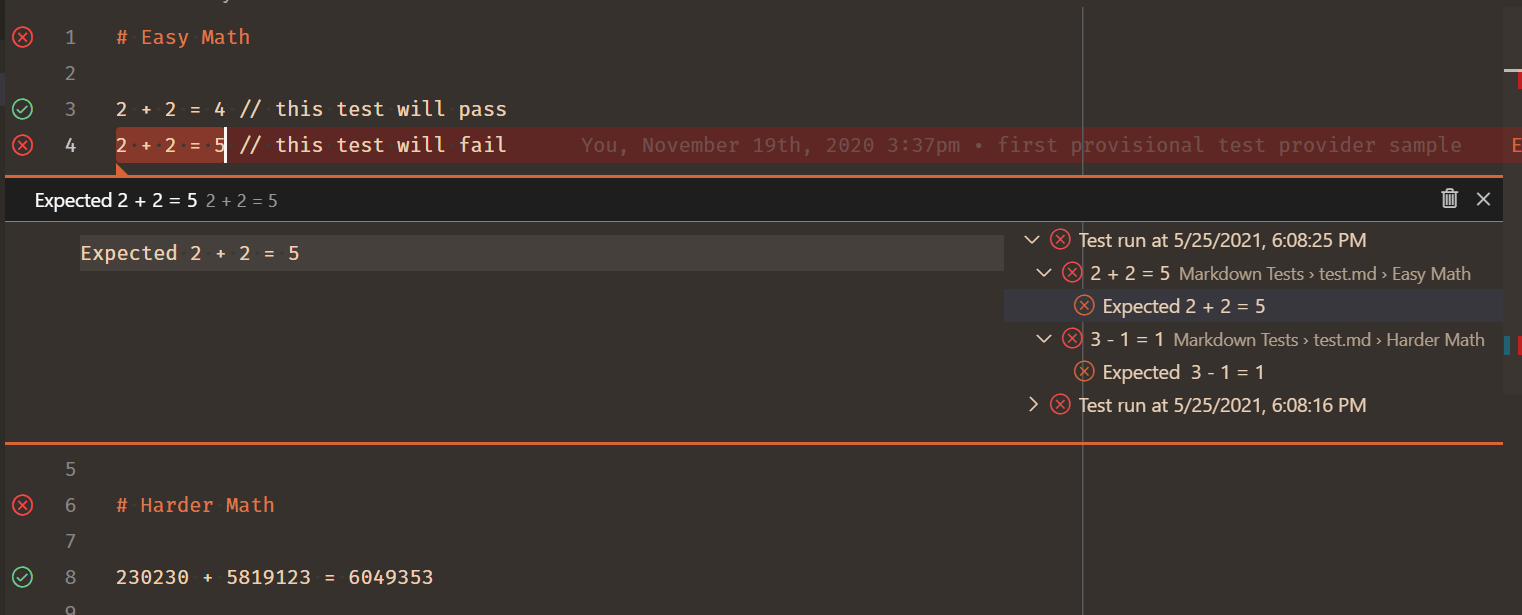 Theme: Codesong
Testing gained a new set of keybindings as chords starting with Ctrl+;, the Peek view now has better support for Markdown messages, and many bugs were fixed.
If you use the Test Explorer UI extension for tests, you can toggle on the setting testExplorer.useNativeTesting to switch to the new, native UI. In the next iteration, we plan to increase socialization of this setting and begin adoption with partner extension teams.
Terminal profile contributions
This API will enable extensions to contribute to the terminal profile system. An extension needs to do a few things to get this to work. First contribute the profile in the package.json:
"activationEvents": [
  "onTerminalProfile:my-ext.terminal-profile"
]
Lastly, register the provider in the activation event:
readonly iconPath?: Uri | { light: Uri; dark: Uri } | ThemeIcon;
Change title of Pseudoterminal
The new event Pseudoterminal.onDidChangeName enabled control of Pseudoterminal-based terminals:
const uri = await vscode.env.asExternalUri('file:///Users/john/work/code');
The resulting uri can be opened by the operating system and VS Code will open that workspace.
Engineering
Progress for Electron sandbox support
This milestone we continued to make the VS Code window ready for enabling Electron's sandbox and context isolation features.
Specifically:
- We removed Node.js dependencies from more code that is used in the renderer.
- We continued investigating dropping
webviewusage entirely and switching toiframefor our custom views and editors.
Documentation
VS Code at Build 2021
If you missed the Microsoft Build 2021 developer event, you can still watch the sessions on-demand. Check out the Visual Studio Code at Build 2021 blog post, where we've put together a list of sessions we think will be of interest to VS Code users.

Browser debugging
A new topic Browser debugging in VS Code describes the built-in debugging support for the Edge and Chrome browsers. You can configure VS Code to either launch a new browser debugging session (via the Debug: Open Link command) or attach to a running browser.
PyTorch
There is a new topic on how to use the PyTorch machine learning framework within VS Code. In the PyTorch support in VS Code article, you'll learn how Jupyter Notebooks can be extended with PyTorch and TensorFlow data types.

Notable fixes
- 71966: Often getting full window hangs
- 85332: Windows: freeze on file delete
- 95077: Terminal "word" link provider does not support wrapping
- 108804: Do not wait for shell environment resolution before opening window
- 120004: Weird letter spacing in Integrated Terminal for VS Code
- 125035: Debug Console filter text should be preserved across reloads
- iOS/iPadOS: Several fixes were made for the iOS/iPadOS platform
Thank you
Last but certainly not least, a big Thank You to the following people who contributed this month to VS Code:
Contributions to our issue tracking:
- John Murray (@gjsjohnmurray)
- Andrii Dieiev (@IllusionMH)
- Nicholas Rayburn (@nrayburn-tech)
- Alessandro Fragnani (@alefragnani)
- ArturoDent (@ArturoDent)
Contributions to vscode:
- @Ashray123 (Ashray Jha): Modified Markdown preview nested list styling PR #124445
- @barbaravaldez (Barbara Valdez): Initial implementation of drag and drop api PR #122239
- @CommaNet (Melvin ): Update README.md PR #124654
- @danielgary (Daniel Gary): Replaced wmic call with windows-process-tree PR #123895
- @DonJayamanne (Don Jayamanne): Preserve execution summary when converting dto PR #124549
- @eltociear (Ikko Ashimine): fix typo in files.ts PR #124693
- @gjsjohnmurray (John Murray)
- Allow FileSystemProvider to stat a file as readonly (#_73122) PR #111237
- fix #123831 handle command URL in ErrorResponse Message from debug adapter PR #123833
- @habibkarim (Habib Karim): Implement Pseudoterminal.onDidChangeName PR #115276
- @hantatsang (Sang): Fix welcome view links missing hover color PR #121835
- @huszkacs (Csaba Huszka): Fixes android screen-keyboard backspace issue. PR #124288
- @inidaname (Hassan Sani): added bottom spacing for table in Markdown preview PR #124385
- @jeanp413 (Jean Pierre)
- Fixes pascalCase snippet formatter fails to process numbers PR #122796
- Add support for file drop on a terminal tab PR #123429
- Fixes incorrect decoding of percent encoded markdown links PR #123584
- Fixes process explorer does not show twistie PR #123910
- Fixes process explorer list styles are not working PR #123919
- Fixes terminal find widget should not cover tabs PR #124317
- Fixes listener leak while updating terminal pane actions PR #124741
- Preserve repl filter value through reloads PR #125221
- @kabel (Kevin Abel): Implement GitHub Enterprise authn provider PR #115940
- @leilapearson (Leila Pearson): New Sort Order Lexicographic Options setting for Explorer PR #97272
- @mzainuddin51 (Mohammad Zainuddin): fix incorrect links for issue #123772 PR #124203
- @nrayburn-tech (Nicholas Rayburn)
- add color customizations for inline debug values PR #123065
- Fix issue reporter not closing on submit and debounce submissions PR #123340
- Add showDeprecated option to suggest, filters out deprecated options PR #123351
- add notification if tsserver logs are left on for more than 7 days PR #124149
- option to hide terminal tabs if there is only a single group PR #124480
- @plankp (Paul Teng): Add pattern matching 'in' PR #121941
- @rtzoeller (Ryan Zoeller): Register .mak extension for the Make language PR #122614
- @shskwmt (Shunsuke Iwamoto): Fixes #116335: Send a file path text to the dropped terminal area PR #116621
- @suzmue (Suzy Mueller): Fix setting the debug call stack display for exceptions PR #123726
- @tejasvi (Tejasvi S. Tomar): Improve docs for TextEditor.setDecorations PR #122785
- @ValeraS (Valeriy): fix: use addListener instead of addEventListener to to observe media query lists PR #121557
- @vibhavsarraf (Vibhav): Normalize path in terminal word links PR #123246
- @wendellhu95 (Wendell): test: add test for event Relay PR #119070
Contributions to vscode-css-languageservice:
- @jeanp413 (Jean Pierre): Fixes link resolution for filename with a suffix containing a dot PR #241
Contributions to vscode-eslint:
- @edupsousa (Eduardo Pereira de Sousa): Add severity "off" to eslint.rules.customizations PR #1243
- @karlhorky (Karl Horky): Document "node" for system version of Node.js PR #1247
Contributions to vscode-js-debug:
- @danielgary (Daniel Gary): 990 - Support using launch configuration name as terminal title PR #991
- @lhchavez: feat: Allow callers of debugServerMain.ts to specify the host PR #1006
Contributions to vscode-languageserver-node:
- @yanmofeixi: Add more info to client not ready error PR #764
Contributions to vscode-pull-request-github:
- @IllusionMH (Andrii Dieiev): Removed TSLint recommendation and mentions left PR #2758
Contributions to vscode-vsce:
- @jedwards1211 (Andy Edwards): use ignore npm package instead of custom code for .vscodeignore PR #418
- @oliversalzburg (Oliver Salzburg): fix: Missing error response handling PR #564
Contributions to language-server-protocol:
- @DanTup (Danny Tuppeny): Clarify how textDocument/selectionRange can handle some missing results PR #1272
- @HO-COOH: Update specification-3-16.md PR #1259
- @narnaud (Nicolas Arnaud-Cormos)
- @NTaylorMullen (N. Taylor Mullen)
Contributions to monaco-languages:
- @akonatala (apoorva konatala): Update cameligo language support PR #137
- @anark: Add aliases and mimetypes to liquid language PR #136
- @mattvague (Matt Vague): Fix incorrect filenames for liquid PR #135
Contributions to monaco-typescript:
- @paranoidjk (paranoidjk): fix: support go to definition for extraLib file PR #79