Update 1.54.1: The update addresses an issue with an extension dependency.
Update 1.54.2: The update addresses these issues.
Update 1.54.3: The update addresses this issue.
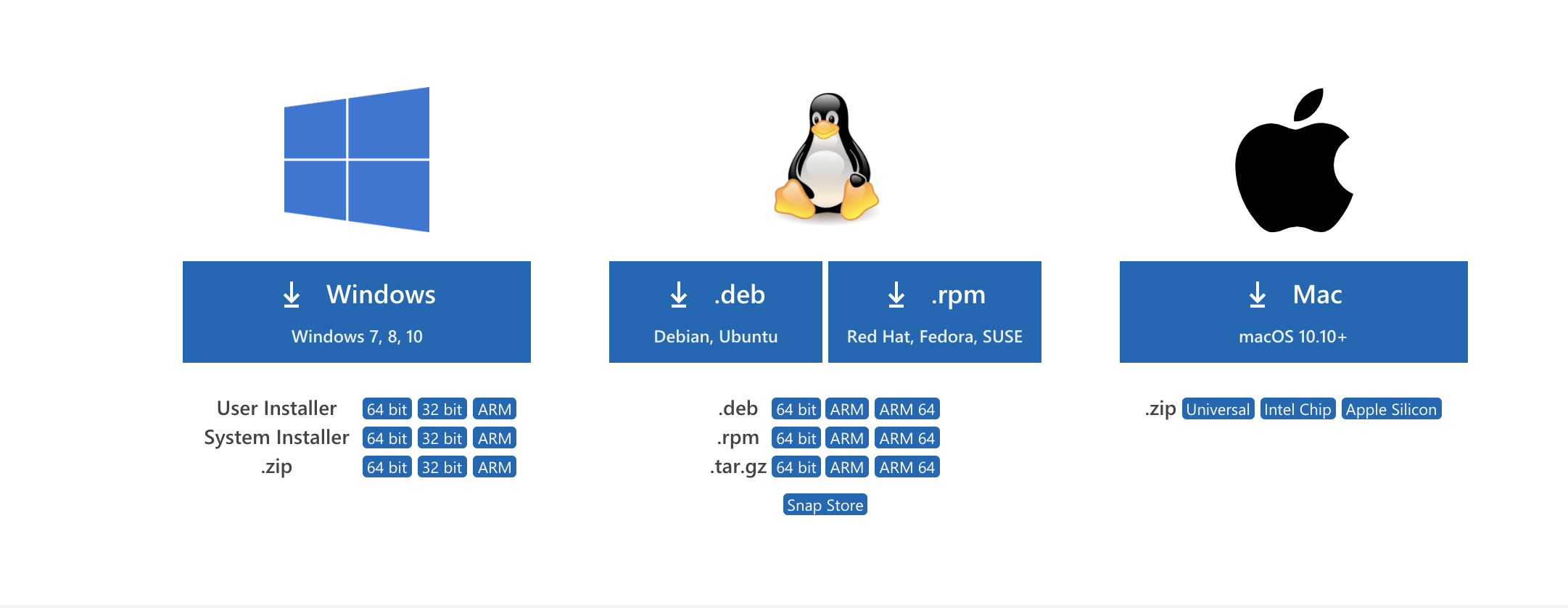
Downloads: Windows: x64 Arm64 | Mac: Universal Intel silicon | Linux: deb rpm tarball Arm snap
Welcome to the February 2021 release of Visual Studio Code. There are a number of updates in this version that we hope you will like, some of the key highlights include:
- Apple Silicon builds - VS Code is now available in stable for Apple Silicon.
- Accessibility improvements - Better word navigation on Windows and roles for views and buttons.
- Persistent terminal processes - Local terminal processes are restored on window reload.
- Product Icon Themes - Personalize your VS Code icon imagery with Product Icon Themes.
- Timeline view improvements - Compare changes across Git history timeline entries.
- Auto reload Notebooks - Notebooks automatically reload when their file changes on disk.
- Remote ports table view - Remote ports now shown in a table widget.
- Brackets extensions - Use Brackets keyboard shortcuts in VS Code.
- Troubleshooting extensions blog post - Learn to troubleshoot extensions using extension bisect.
If you'd like to read these release notes online, go to Updates on code.visualstudio.com.
Join us live at the VS Code team's livestream on Thursday, March 11 at 8am Pacific (4pm London) to see a demo of what's new in this release, and ask us questions live.
Insiders: Want to try new features as soon as possible? You can download the nightly Insiders build and try the latest updates as soon as they are available.
Apple Silicon
We are happy to announce our first release of stable Apple Silicon builds this iteration. Users on Macs with M1 chips can now use VS Code without emulation with Rosetta, and will notice better performance and longer battery life when running VS Code. Thanks to the community for self-hosting with the Insiders build and reporting issues early in the iteration.
The default download of VS Code for macOS is now a Universal build that runs natively on all Macs. On the Downloads page, you can find more links to architecture-specific builds for Intel or Apple Silicon, which are smaller downloads compared to the Universal package.

Accessibility
Toolbars and tabs occupy one tab stop
All toolbars in the workbench now follow the standard navigation behavior, so the toolbar occupies only a single position in the tab order, and is navigable with the arrow keys. Once the focus is on the toolbar, arrow keys should be used to move focus to a specific item in the toolbar. As a result of this change, the workbench has far fewer tab stops, making it easier to navigate across all the parts.
For consistency, the same change was applied to the tabs area. Thus the whole tab area is only one tab stop, and keyboard navigation between tabs should be done with the left and right arrow keys.
Word navigation on Windows
We have improved how word navigation is done on Windows to align with what Screen Readers on Windows expect from an Electron-based application. Now, when using word navigation, each word will be properly read out by the Screen Reader.
Due to this change, we are deprecating the following commands. They will still work, but we might remove them in the future.
cursorWordAccessibilityLeftcursorWordAccessibilityLeftSelectcursorWordAccessibilityRightcursorWordAccessibilityRightSelect
Non-Windows platforms already worked as expected, so we made no changes there.
Improved roles for views and buttons
Based on user feedback, we have improved the roles of multiple views and buttons across the workbench. Activity Bar, Side Bar, and Panel now have role:none, which will make the screen reader less chatty. Manage and Accounts buttons inside the Activity Bar now properly announce they have a popup.
Integrated Terminal
Retain terminal processes on window reload
Local terminal processes are now restored on window reload, such as when an extension install requires a reload. The terminal will be reconnected and the UI state of the terminals will be restored, including the active tab and split terminal relative dimensions.

This feature can be disabled by setting terminal.integrated.enablePersistentSessions to false.
Windows performance improvements
Thanks to the new terminal process layout, frequent pty data events from terminal processes should now process more quickly. This is expected to affect Windows more than other platforms due to the smaller events provided by conpty on Windows.
Automatically relaunch terminal requiring environment changes
Recently a new feature was rolled out that enabled extensions to influence the terminal's environment. This is used by various language extensions and the built-in git extension to enable VS Code as a git auth provided to negate the need to sign in. Previously the UX for this was to present a subtle ⚠️ icon in the top-right corner to indicate that a terminal's environment was stale. The indicator was subtle, since environment changes may or not be important.
We've tweaked this to automatically relaunch terminals that have stale environments when they have not yet been interacted with. This may result in some flickering, but extension terminal integration is much more seamless now. For example, the first terminal in a WSL window should no longer show a Git auth error, provided the relaunch happened before typing in the terminal.
Workbench
Emmet
The Wrap with Abbreviation and Wrap Individual Lines with Abbreviation commands have been merged into a single Wrap with Abbreviation command to reduce any confusion over which wrap command to use. Additionally, the Wrap with Abbreviation command now shows the preview whitespace properly.
The emmet.extensionsPath setting can now also take in an array of paths, rather than just a string. Therefore, when combined with Settings Sync, one can point to different snippet files depending on the machine they are on, without having to update the setting per machine.
Product Icon Themes
The first Product Icon Themes have become available in the Extension Marketplace. Thanks to the theme authors for the great work!
To select or find a theme, use the Preference: Product Icon Theme command from the command prompt or the Settings gear.

IntelliSense for context keys
VS Code uses when-clauses to enable and disable keybindings. Extensions also use when-clauses to control menu- and view-contributions. Authoring these when-clauses is now much simpler because the editor offers completions for them.
 Theme: GitHub Light Theme, Font: FiraCode
Open Editors New Untitled File action
There is now a New Untitled File action in the Open Editors view title area.

The window.menuBarVisibility setting for the application menu visibility has been updated to better reflect the options. Two primary changes have been made.
First, the default option for the setting has been renamed to classic.
Second, the Show Menu Bar entry in the application menu bar now toggles between the classic and compact options. To hide it completely, you can update the setting, or use the context menu of the Activity Bar when in compact mode.
 Theme: GitHub Light Theme
Webview caching improvements
We've improved caching for a local file inside a webview. If a webview reloads a file from disk, then we now use ETags to avoid reading the file again if it has not changed. This can eliminate data transfer, and improves response time, especially for remote workspaces.
This caching currently only applies when an existing webview reloads a resource. It does not apply to newly created webviews, even if that webview belongs to an extension that previously created a similar webview.
Changes to workspace search actions
We have modified the existing workbench.view.search to no longer place the selected text into the search input, but instead open the input. To create a new search using the selected text and respecting the search.mode setting, workbench.action.findInFiles should be used.
Modifier only keybindings
It is now possible to define keybindings for duplicate modifiers, for example, shift shift, alt alt, ctrl ctrl or cmd cmd / meta meta / win win. These keybindings can be entered manually in keybindings.json, for example:
const x: number = add(1, 2);
Using Add missing function declaration on add results in:
function getViz(el) {
  return el?.viz;
}
The generated JSDoc template is:
) and at all places that take a ThemeIcon (for example,new ThemeIcon("distro-ubuntu")).Product icon themes can redefine the icon (if they know about the icon ID).
For more information, see issue 114942 for details and to provide feedback.
Inline value provider API
Today the Show Inline Values feature of VS Code's debugger is based on a generic implementation in VS Code core, and doesn't provide customizability through settings or extensibility via extensions. As a consequence, it is not a perfect fit for all languages and sometimes shows incorrect values because it doesn't understand the underlying source language. For this reason, we are working on an extension API that allows to replace the built-in implementation completely or to replace parts of the implementation with custom code.
In this milestone, we've made a first implementation of the proposed API available.
Here is the inline values provider API in a nutshell:
- an
InlineValuesProvidermust be registered for a language. - for a given document the
InlineValuesProvidermust locate all language elements for which inline values should be shown. - for every element an
InlineValuedescriptor object must be returned which instructs VS Code what information to show. Currently three types ofInlineValueobjects are supported:InlineValueText: the complete text to be shown,InlineValueVariableLookup: the name of a variable that VS Code will try to look up in the VARIABLES view to find its value. The name and the value are then shown in the form "name = value",InlineValueEvaluatableExpression: an expression that VS Code will send to the debugger for evaluation. The expression and the result are then shown in the form "expression = result".
The following snippet (from Mock Debug) shows a minimal inline values provider for "markdown" files that uses a regular expression to locate "variables" and then instructs VS Code to find their values via the Variables view:
">PR #532