Update 1.25.1: The update addresses these issues.
Downloads: Windows: x64 | Mac: Intel | Linux 64-bit: deb rpm tarball | 32-bit: deb rpm tarball
Welcome to the June 2018 release of Visual Studio Code. We're very excited to move several features announced as Preview last month to Stable. Some of the key highlights include:
- Grid editor layout - Custom horizontal and vertical editor layout.
- Outline view - Symbol tree outline and navigation for your documents.
- Portable Mode - Run or copy your VS Code setup from a USB thumb drop or file share.
- Hover display options - Control the appearance of hover information.
- Sub-word navigation - Quickly navigate in camelCase words.
- Floating debug toolbar - Keep the debug toolbar always visible without hiding editor tabs.
- Extensions view improvements - Easily see Enabled, Disabled, and Recommended extensions.
- Preview: Settings editor - Now with a "Table of Contents" to organize settings.
- Language Server Protocol Inspector - Extension authors can visualize LSP protocol traffic.
- New Python Flask tutorial - Use VS Code to create and debug Python Flask web applications.
If you'd like to read these release notes online, go to Updates on code.visualstudio.com.
You can also check out this 1.25 release highlights video from Cloud Developer Advocate Brian Clark.
The release notes are arranged in the following sections related to VS Code focus areas. Here are some further updates:
- Workbench - Drop files and folders into empty Explorer, uniform history navigation.
- Editor - Smart suggestion selection, snippet placeholder transforms.
- Languages - Update JS/TS imports on folder rename, CSS pseudo selectors and elements.
- Preview Features - User setup on Windows, custom tool and menu bar for Windows and Linux.
- Extension Authoring - Contribute grid editor layouts, preselect Completion Items.
- New Commands - New grid editor layout commands and keyboard shortcuts.
Insiders: Want to see new features as soon as possible? You can download the nightly Insiders build and try the latest updates as soon as they are available. And for the latest Visual Studio Code news, updates, and content, follow us on Twitter @code!
Workbench
Grid editor layout
You can now arrange editors both vertically and horizontally and have more than 3 editors side by side:
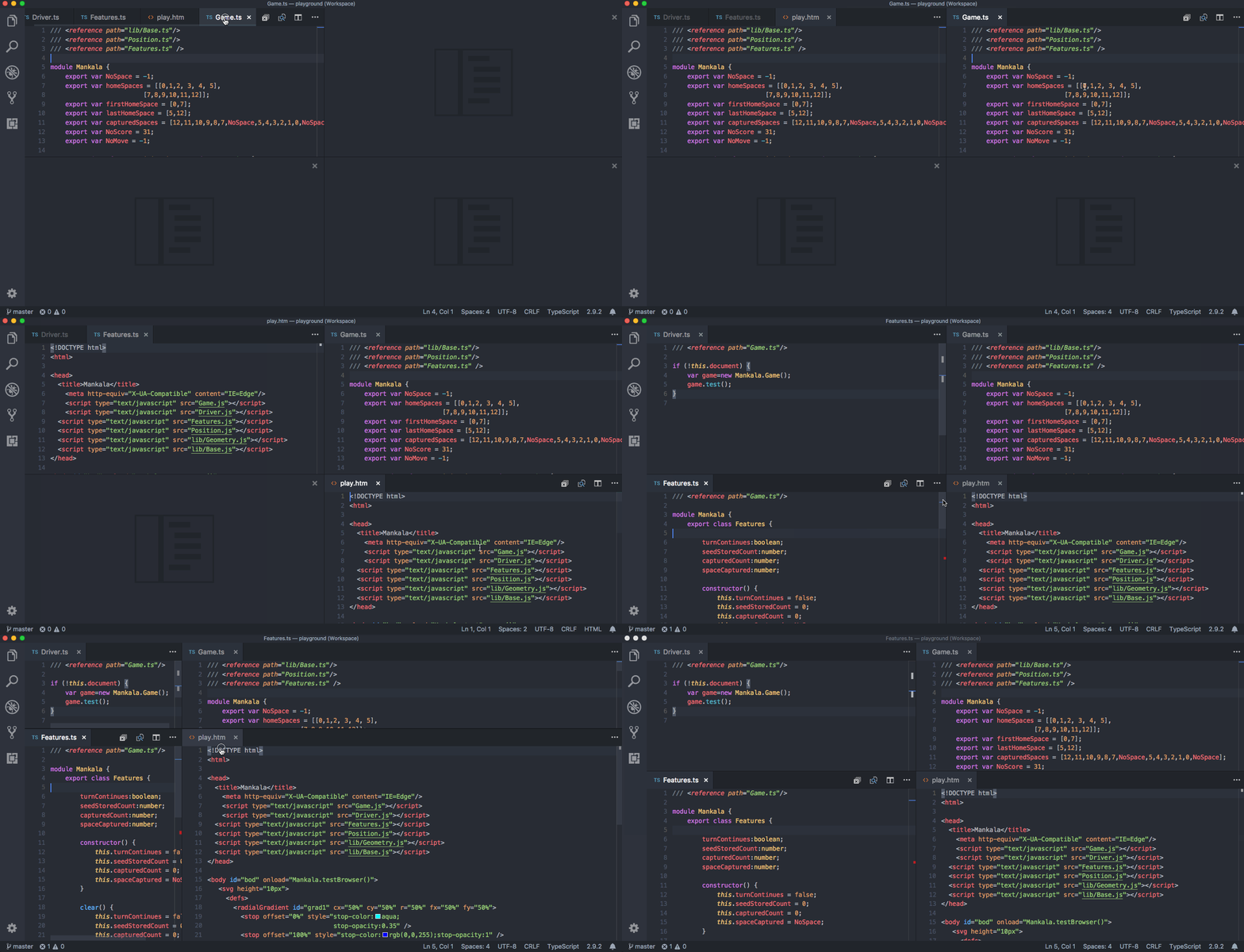
To support flexible layouts, you can create empty editor groups. By default, closing the last editor of an editor group will also close the group itself, but you can change this behavior with the new setting workbench.editor.closeEmptyGroups: false.
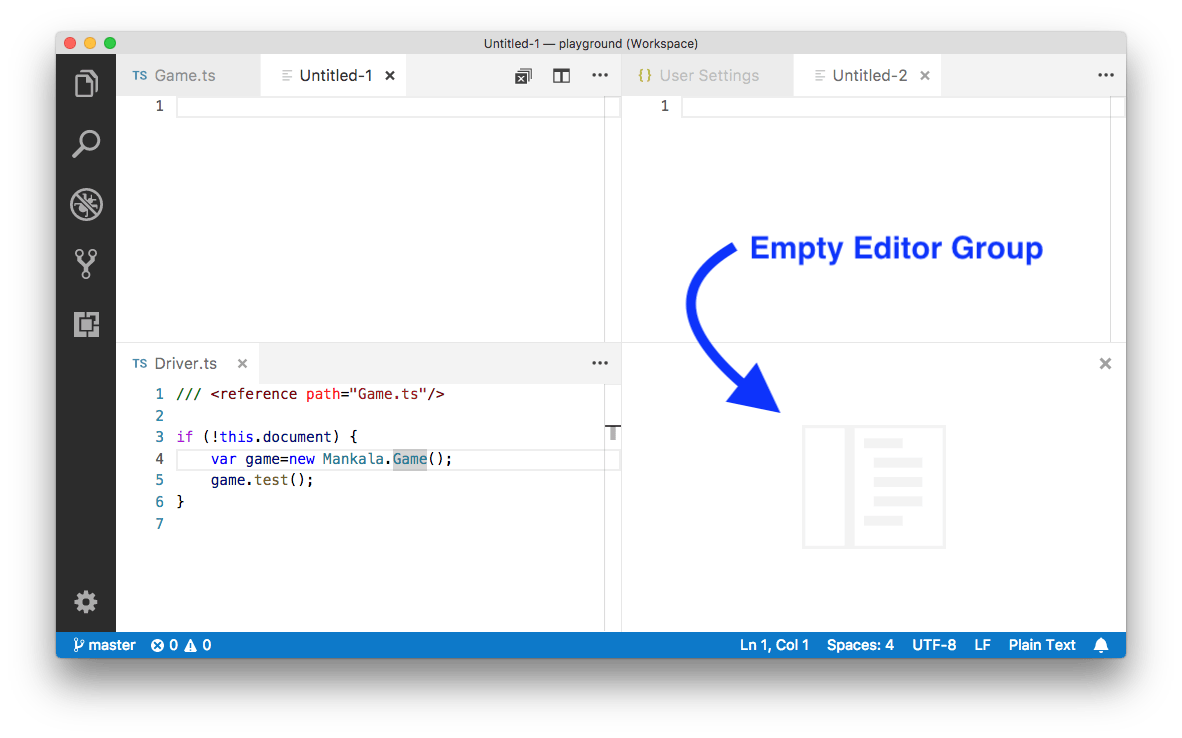
There are a predefined set of editor layouts in the new View > Editor Layout menu:
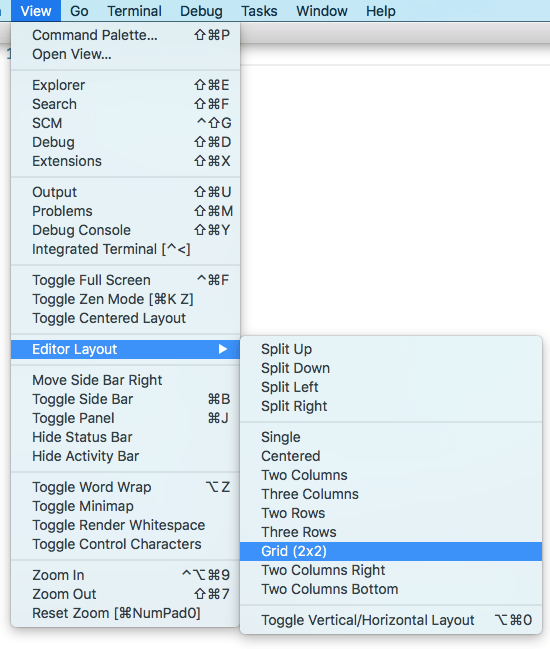
Editors that open to the side (for example by clicking the editor toolbar Split Editor action) will by default open to the right hand side of the active editor. If you prefer to open editors below the active one, configure the new setting workbench.editor.openSideBySideDirection: down.
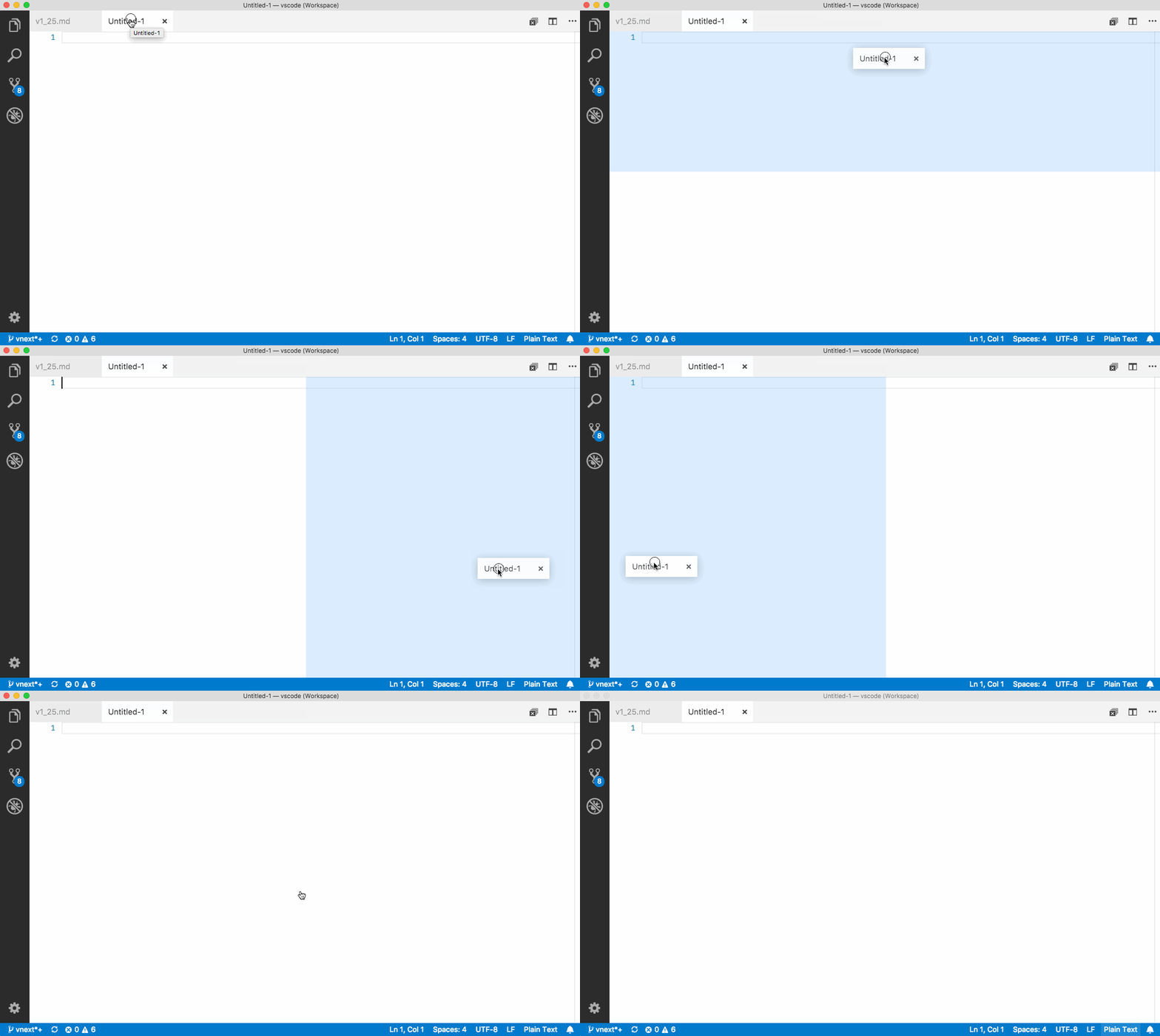
There are many new commands for adjusting the editor layout with the keyboard alone, but if you prefer to use the mouse, drag and drop is a fast way to split the editor in any direction:
Since editor groups are now unlimited and can be arranged in many ways, the OPEN EDITORS view no longer labels editor groups as Left, Center, or Right. Instead, editor groups are now labeled with numbers according to their creation time. The last editor group created will always be at the end of the OPEN EDITORS list. We found this to be a good model that minimizes changing the list when moving editor groups around in the layout:
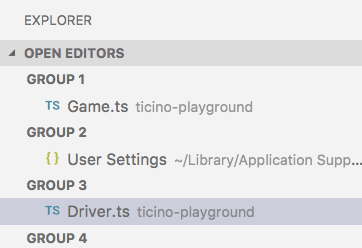
Refer to the Extension Authoring section for the impact on extensions and themes and see New Commands for the list of new grid editor layout commands.
Pro Tip: If you press and hold the
Altkey while hovering over the toolbar action to split an editor, it will offer to split to the other orientation. This is a fast way to split either to the right or to the bottom.
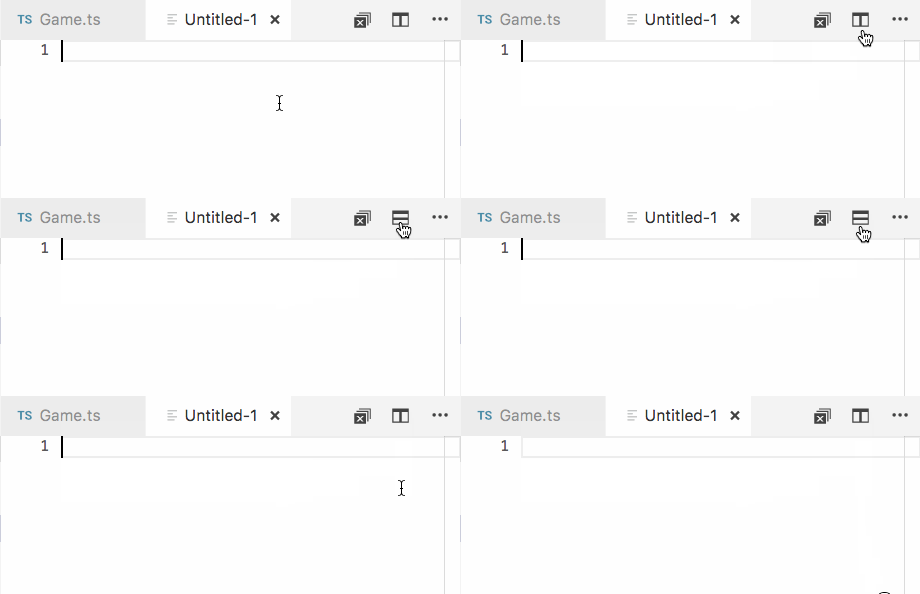
Due to the grid layout work we have changed how the centered editor layout behaves:
- It is now possible to open any editor layout inside the centered editor layout. Thus it gives more flexibility to the user.
- Centered editor layout no longer automatically enables and disables based on the layout. As this was sometimes confusing and lead to unexpected behavior.
Outline view
The Outline view is out of preview and now enabled by default. It is a separate section in the bottom of the File Explorer. When expanded, it will show the symbol tree of the currently active editor.
The Outline view has different Sort By modes, optional cursor tracking, and supports the usual open gestures. It also includes an input box which finds or filters symbols as you type. Errors and warnings are also shown in the Outline view, letting you see at a glance a problem's location.
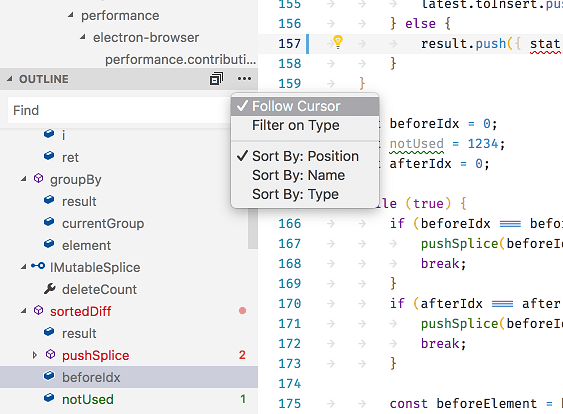
There are several Outline view settings which allow you to enable/disable icons and control the errors and warnings display (all enabled by default):
outline.icons- Toggle rendering outline elements with icons.outline.problems.enabled- Show errors and warnings on outline elements.outline.problems.badges- Toggle using badges for errors and warnings.outline.problems.colors- Toggle using colors for errors and warnings.
There is also a new API for extensions authors.
Portable Mode
VS Code now supports Portable Mode, where all data created and maintained by VS Code is located near the installation. This lets you easily move a VS Code setup across environments, for example through a USB drive or file share. Portable Mode is supported on the ZIP download for Windows and Linux, as well as the regular Application download for macOS. Click here to learn more.
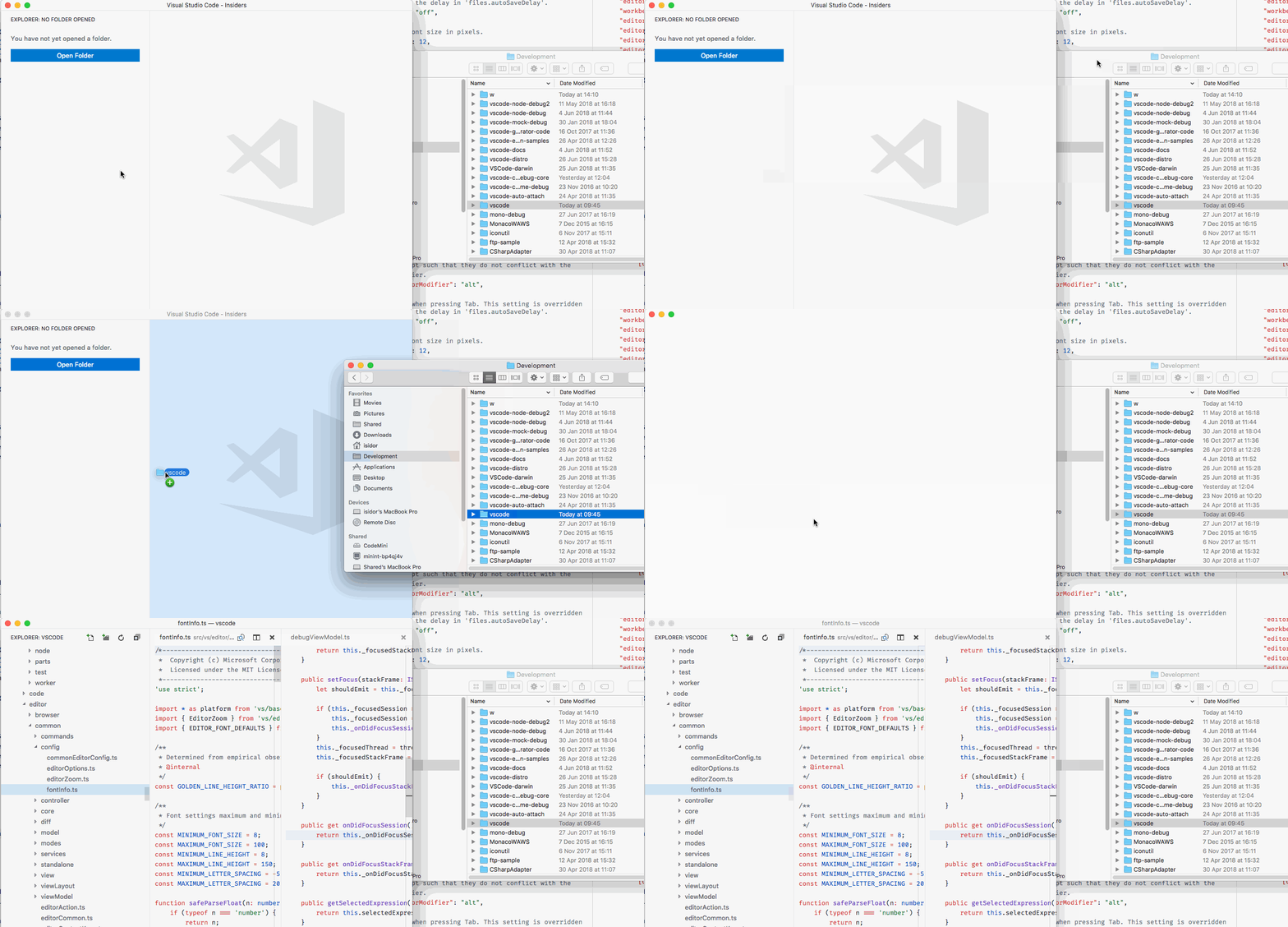
Drop files and folders into empty files explorer
It is now possible to drop files, folders, and VS Code workspace files into an empty Explorer to open them.
History navigation
Navigating input history is now more natural and consistent across VS Code. You can use the UpArrow (history.showPrevious) and DownArrow (history.showNext) keys to navigate the input boxes in the Search and Problems views and the Find widgets in the Editor, Terminal, and Web views.
For simplicity and consistency, we changed the default keybindings for navigating among input boxes from UpArrow and DownArrow to Ctrl+UpArrow (or Cmd+UpArrow on macOS) and Ctrl+DownArrow (or Cmd+DownArrow on macOS) keys respectively. You can always go back to previous behavior by updating ⌘↑ (Windows, Linux Ctrl+Up), ⌘↓ (Windows, Linux Ctrl+Down) and ⌘↑ (Windows, Linux Ctrl+Up) keybindings.
Note: We also removed all existing 18 History Navigation Commands and unified them into two commands history.showPrevious and history.showNext.
Editor
Hover display options
Some users prefer to have no hover suggestions covering text in the editor and the editor hover can now be customized with three additional settings. Use editor.hover.enabled to toggle the editor hover, use editor.hover.delay to customize the time until the hover is shown, and use editor.hover.sticky to change if the hover should remain visible when moving the mouse over it.
Sub-word support
We have new commands for sub-word navigation and sub-word deletion. These commands will stop at camel case positions and at underscores (_).
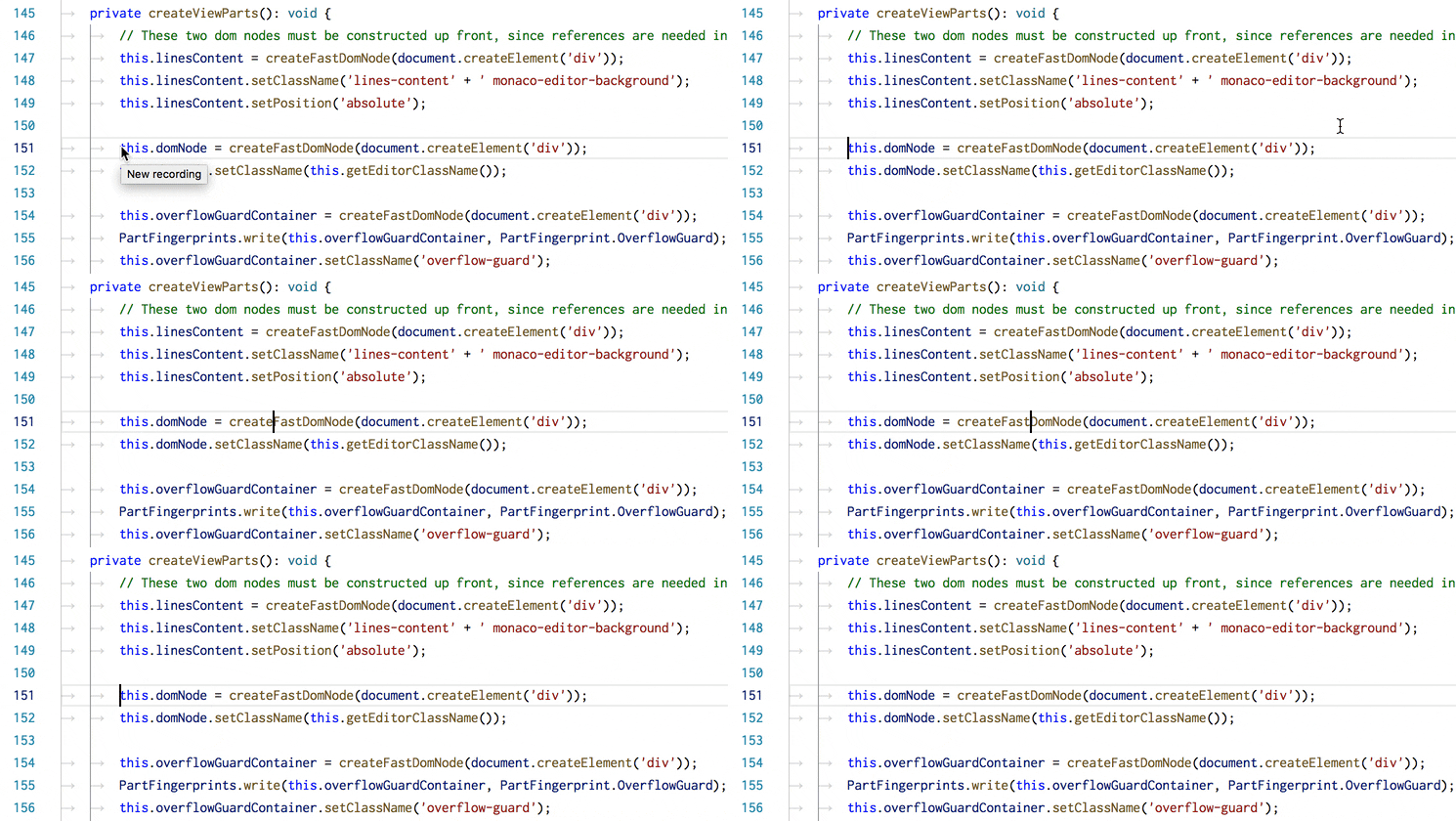
Here is an example for how you can bind them:
"HelloWorld": {
  "prefix": "say_hello",
  "body": "${1} ${2} -> ${1/Hello/Hallo/} ${2/World/Welt/}"
}

Refer to the snippet grammar for more details and how to unleash the full potential of transformations.
Integrated Terminal
Performance Improvements
The Integrated Terminal's parser was re-written from the ground up for enhanced ANSI compliance and boosting the rate at which incoming data is processed by approximately 30%. This came in as an upstream community contribution to xterm.js.
Bold text bright color setting
The terminal currently converts all bold text to use the bright color variant. This is a little inconsistent across terminal emulators and is mostly around for legacy reasons. You can now turn this automatic conversion off to allow the use of non-bright colors for bold text.
{
  "terminal.integrated.experimentalTextureCachingStrategy": "dynamic"
}
This came in as an upstream community contribution to xterm.js.
Grid Editor Layout: ViewColumn
There are only a few API adjustments to support the new grid editor layout feature. Most notably, there is a new ViewColumn.Beside action that can be used to open an editor to the side of the active one. With the grid editor layout, there is no longer a limit in the number of opened editors, so using that option will always create a new editor to the side of the active one unless there is already some space to the side. Depending on the user setting workbench.editor.openSideBySideDirection, this can either be to the right or below the editor.
The ViewColumn value for text editors and webviews still goes by the order of appearance in the editor area from left to right as shown below:
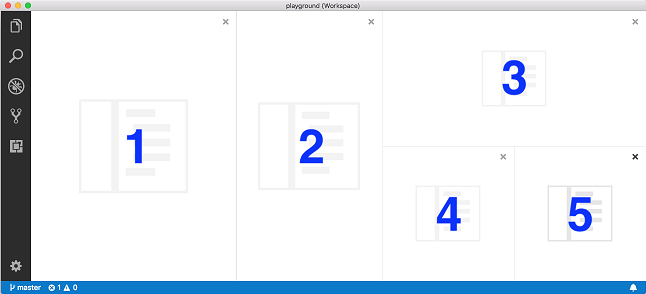
Even though the ViewColumn enumeration was extended all the way to ViewColumn.Nine, a TextEditor will always have a number assigned as view column as long as it is contained in the grid.
When an editor group is moved or an editor group is closed, the onDidChangeTextEditorViewColumn event is fired as before.
Grid Editor Layout: New Commands
Even though the change to the API is minimal to support the new grid editor layout, extensions can still make use of the grid editor layout by leveraging new commands that were added (see the New Commands section for a complete overview).
The new vscode.setEditorLayout deserves a bit of explanation as it allows you to change the overall editor layout with a single command and arguments. The layout is described as object with an initial (optional) orientation (0 = horizontal, 1 = vertical) and an array of editor groups within. Each editor group can have a size and another array of editor groups that will be laid out orthogonal to the orientation. If editor group sizes are provided, their sum must be 1 to be applied per row or column.
Example for a 2x2 grid:
         +--/**
         |   * Some Comment
<range>--|   */
         |  export function fooFunction() {
         |                  +----------+
         +--}                   |
                                |
                          <selection range>
Readonly file system provider
A file system provider can now be registered as readonly. VS Code will respect this flag by disabling all the mutating commands on the resources coming from that file system provider. Editors will also be opened in readonly mode for those readonly resources.
Custom views
Tree view visibility
You can now check if the tree view is visible or not using the following newly added property and event to TreeView:
/**
 * Event that is fired when the [selection](#_TreeView.selection) has changed
 */
readonly onDidChangeSelection: Event<TreeViewSelectionChangeEvent<T>>;

/**
 * The event that is fired when there is a change in [tree view's selection](#_TreeView.selection)
 */
export interface TreeViewSelectionChangeEvent<T> {

  /**
   * Selected elements.
  */
  readonly selection: T[];

}
Reveal and Focus
You can now reveal and focus an element in the tree view by setting the focus option to true while calling the reveal API.
vscode.commands.executeCommand('editor.action.rename', [
  vscode.Uri.file('/my/file.abc'),
  new vscode.Position(14, 7)
]);
DiagnosticTag
Diagnostic tags allow extensions to attach additional metadata about a diagnostic. VS Code uses this metadata to tweak how these diagnostics are rendered.
// Inside a webview's JavaScript
const vscode = acquireVsCodeApi();

// Look up old state (will be undefined if no state is set)
const oldState = vscode.getState();

// Update the persisted state.
// You can save off any json serializable object.
if (oldState) {
  vscode.setState({ count: oldState.count + 1 });
} else {
  vscode.setState({ count: 1 });
}
In addition, extensions can register a WebviewPanelSerializer that allows webviews of a given type to be persisted across restarts of VS Code. To enable this, the extension must call vscode.window.registerWebviewPanelSerializer in its activation method.
"activationEvents": [
    ...,
    "onWebviewPanel:catCoding"
]
The new webview persistence APIs are documented on the webview extension authoring page. The example webview extension also demonstrates how to use these new APIs.
Language Packs: Minimal translations
VS Code will now prompt users for an available Language Pack in the language of the Language Pack. Below is an example recommending a Simplified Chinese Language Pack in Simplified Chinese and English.
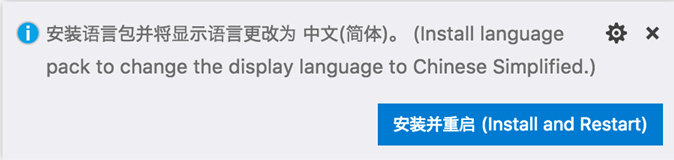
This display requires that Language Pack authors translate the following minimal translation strings in their Language Pack:
export namespace window {
  export function createQuickPick<T extends QuickPickItem>(): QuickPick<T>;
  export function createInputBox(): InputBox;
}
There are samples of QuickInput API usage in a sample extension.
The multi-step input sample:
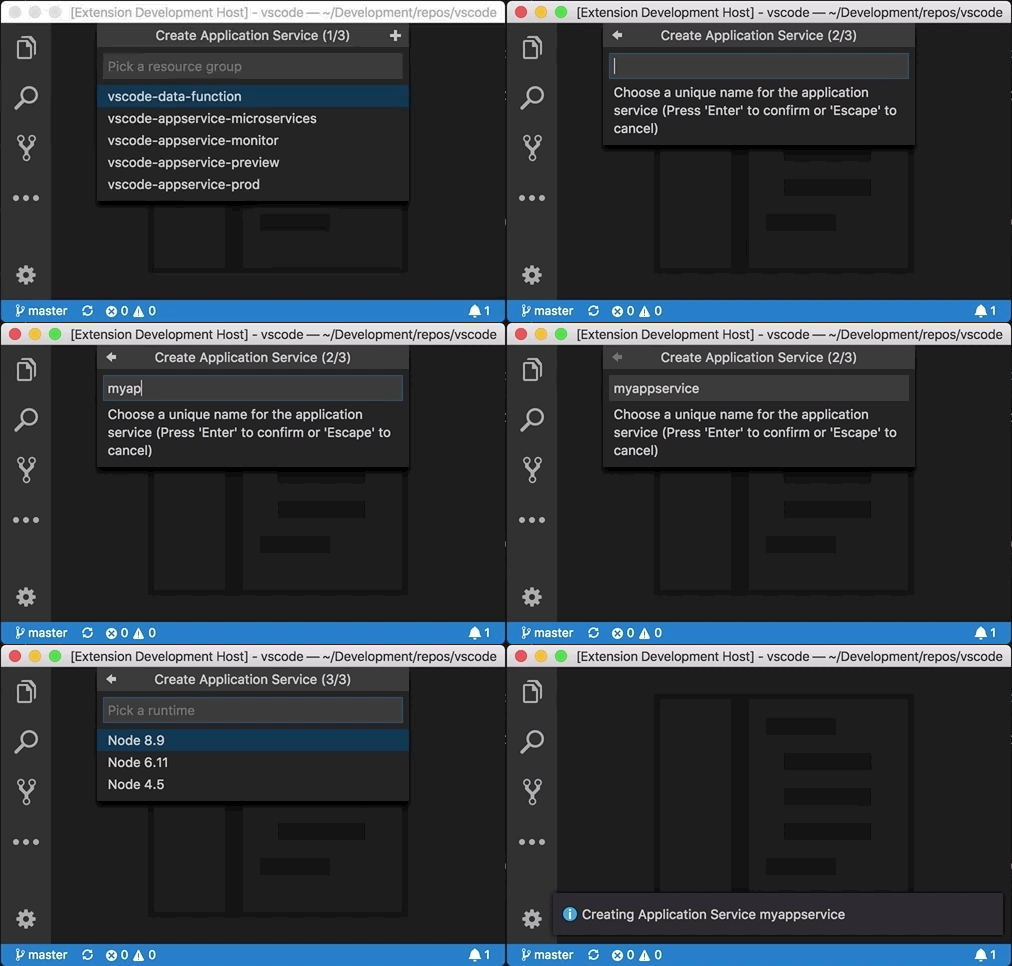
If the existing showQuickPick and showInputBox APIs are not flexible enough, use the new QuickPick and InputBox APIs, otherwise keep to the existing ones as these will get the job done quicker.
Use issue #53327 for feedback and discussion.
Terminal renderers
The concept of a terminal "renderer" is being proposed. A terminal renderer is basically a terminal instance within the terminal panel but it has no backing process, instead the extension acts as the process. This is useful for implementing a terminal multiplexer within VS Code where the extension has access to the in/out pipes of some process, which are hooked then up to the terminal renderer. The Live Share extension is planning on using this new API to improve the stability and maintainability of its shared terminal support.
const shell = vscode.window.createTerminalRenderer('My Extension REPL');
shell.write('Type and press enter to echo the text\r\n\r\n');
shell.terminal.show();

let line = '';
shell.onDidAcceptInput(data => {
  if (data === '\r') {
    shell.write(`\r\necho: "${line}"\r\n\n`);
    line = '';
  } else {
    line += data;
    shell.write(data);
  }
});
Tracking the active terminal
We are proposing new extension APIs for the Integrated Terminal that make it possible to track the active terminal, similar to window.activeTextEditor and window.onDidChangeActiveTextEditor:
export interface Terminal {
  onDidWriteData: Event<string>;
}
DefinitionLink
Definition links allow definition providers to return additional metadata with definitions:
{
  "key": "Ctrl+0",
  "command": "layoutEditorGroups",
  "args": {
    "orientation": 1,
    "groups": [{ "size": 0.2 }, { "size": 0.6 }, { "size": 0.2, "groups": [{}, {}] }]
  }
}
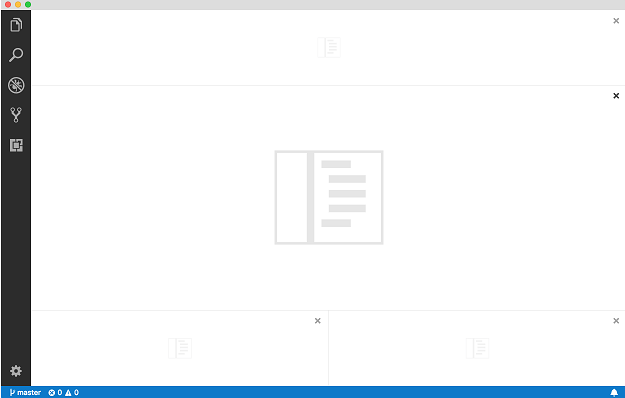
This will produce the following layout:
Removed Commands
| Command id | Replacement |
|---|---|
workbench.action.showEditorsInFirstGroup |
Use showEditorsInActiveGroup instead |
workbench.action.showEditorsInSecondGroup |
Use showEditorsInActiveGroup instead |
workbench.action.showEditorsInThirdGroup |
Use showEditorsInActiveGroup instead |
workbench.action.moveEditorToSecondGroup |
Use a workbench.action.moveEditor* command instead |
workbench.action.moveEditorToThirdGroup |
Use a workbench.action.moveEditor* command instead |
workbench.action.openLastEditorInGroup |
Use lastEditorInGroup instead |
workbench.action.openFolderAsWorkspaceInNewWindow |
Use duplicateWorkspaceInNewWindow instead |
editor.debug.action.toggleColumnBreakpoint |
Use toggleInlineBreakpoint instead |
History Navigation Commands
| Command id | Replacement |
|---|---|
search.history.showPrevious |
Use history.showPrevious instead |
search.history.showNext |
Use history.showNext instead |
search.replaceHistory.showPrevious |
Use history.showPrevious instead |
search.replaceHistory.showNext |
Use history.showNext instead |
search.history.showPreviousIncludePattern |
Use history.showPrevious instead |
search.history.showNextIncludePattern |
Use history.showNext instead |
search.history.showPreviousExcludePattern |
Use history.showPrevious instead |
search.history.showNextExcludePattern |
Use history.showNext instead |
find.history.showPrevious |
Use history.showPrevious instead |
find.history.showNext |
Use history.showNext instead |
workbench.action.terminal.findWidget.history.showPrevious |
Use history.showPrevious instead |
workbench.action.terminal.findWidget.history.showNext |
Use history.showNext instead |
editor.action.extensioneditor.showPreviousFindTerm |
Use history.showPrevious instead |
editor.action.extensioneditor.showNextFindTerm |
Use history.showNext instead |
editor.action.webvieweditor.showPreviousFindTerm |
Use history.showPrevious instead |
editor.action.webvieweditor.showNextFindTerm |
Use history.showNext instead |
repl.action.historyPrevious |
Use history.showPrevious instead |
repl.action.historyNext |
Use history.showNext instead |
New Documentation
New Python Flask tutorial
There is a new Using Flask in Visual Studio Code tutorial showing how you can quickly create, edit, and debug a Python Flask web application in VS Code.
Updated website deployment tutorial
We've updated the Deploy static website to Azure tutorial for creating and deploying a static website using Azure Storage. Website deployment is simplified with the new features provided by Azure Storage extension.
Notable Changes
- 35361: Limited native window tabs functionality in macOS high sierra
- 40158: Fix breakpoint verification UI for the multi session case
- 42726: Open File: unable to open a file with spaces in name if absolute path is provided
- 49591: Have a "Close All" button as editor action in the toolbar
- 51200: Process monitor on Linux shows wrong process load
- 51440: Allow closing notifications with middle mouse button
Thank You
Last but certainly not least, a big Thank You! to the following folks that helped to make VS Code even better:
Contributions to vscode:
- bitshiftza (@bitshiftza): Fix for issue #39458 PR #52506
- @brentwang23: Implement word part move and delete for issue #46203 PR #48023
- Howard Chen (@chenhowa): Await git.pullFrom and git.pushTo to ensure any failures display an … PR #49167
- Cherry Wang (@chryw): Markdown and common toolbar icons consistency pass PR #50484
- @CoenraadS: Add setting for highlightActiveIndentGuide #49148 PR #49298
- Daniel Frankcom (@danielfrankcom): Added background ANSI colour codes PR #49764
- Darius Keeley (@Dari-K): Fix #51533 PR #52075
- David (@ddruker): [GIT EXTENSION] Add Custom Foreground Color for Files Added to Index PR #46066
- EbXpJ6bp (@EbXpJ6bp): Improve Dependencies and Contributions UI in the Extension editor PR #52126
- Schuyler Cebulskie (@Gawdl3y): Add V8 version to about dialog and prettify it PR #51511
- Deleted user (@ghost): [Fix] Add a missing return type for _hue2rgb PR #51285
- Jing Zhou (@gnijuohz): Show warning when git commit input box only contains whitespaces PR #45254
- Christoph Seitz (@go2sh): Add transformations for placeholders PR #51621
- Jan Pilzer (@Hirse): Add gitignore language PR #51026
- Ian Sanders (@iansan5653): Limit highlighting on drag over open editors by checking if dragged item can be dropped PR #52623
- James (@jwhitmarsh): Allow emmet actions inside script tags with text/ng-template as type PR #51849
- Catalin Pirvu (@katakonst): Restore focus on message field when git include multiple projects. PR #46068
- Krzysztof Cieślak (@Krzysztof-Cieslak): Add support for
1.txtformat in incrementFileName PR #50869 - Leonardo Braga (@LeonardoBraga)
- Jon Malmaud (@malmaud): Fix typo in extensions doc. PR #51509
- Momoto, Seiji (@momoto): Fix typo in main.contribution.ts PR #52104
- Nahom Abi (@NahomAgidew): Fix to #43625: spin sync icon on push PR #52146
- Ori Ashual (@oriash93): Added option whether to show terminal reuse alert PR #44461
- Eugen Cazacu (@oygen87): delete a comment PR #50971
- Dániel Tar (@qcz)
- Ronald Rey (@reyronald): Add "Recommend" action to extension viewlet PR #50419
- @rianadon: [WIP] Colored titlebar for Windows PR #39972
- ryenus (@ryenus): Allow customization of the viewlets in the default Extensions view PR #47766
- Shizeng Zhou (@shizengzhou): Remove the border. Fix #48765 PR #48825
- Benjamin Smith (@SirHoneyBiscuit): Add option to hide/show release notes on update #44020 PR #44271
- Alfonso Perez (@alfonsoperez): Keep deleting lines when triggering deleteAllLeft on column 1 PR #28392
- Spencer (@spalger): Fix DeleteAllLeft when executed from column 1 PR #40876
- Benjamin Crawford (@subylan): max_old_space_size flag out of range for 32-bit builds. PR #52792
- Tomáš Hübelbauer (@TomasHubelbauer)
- @vemoo: fix for "Cannot Create keybinding to restart a specific Task" PR #36474
- Winner Crespo (@wistcc): Adding warning when tokenization is skipped PR #51265
- @zhuowei: Fix #35361: fix native tabs on macOS 10.13 PR #52775
Contributions to vscode-vsce:
- Jimi (Dimitris) Charalampidis (@JimiC): Add ability to publish using 'npm version' PR #263
- Kevin Cunnane (@kevcunnane): Support Yarn use in package command PR #260
- Ritwick Dey (@ritwickdey): useYarn parameter while publishing extension PR #268
Contributions to language-server-protocol:
- Colin Rofls (@cmyr): Fixup typos in specification.md PR #499
- Samarth Wahal (@LordZamy): Fix typo in spec PR #508
Contributions to vscode-node-debug:
- jramsay (@jramsay): Enable Loaded Scripts for VS Live Share PR #180
Contributions to vscode-chrome-debug-core:
- @digeff: Fix possible race condition for new and changed scripts PR #336
- Johannes Ewald (@jhnns): Fix unsafe array access in internalSourceBreakpoint PR #335
Contributions to vscode-chrome-debug:
- Chance An (@changsi-an)
- Michael Crane (@mrcrane)
- Set chrome PID in all launch cases PR #687
Contributions to localization:
There are over 800 members in the Transifex VS Code project team with about 100 active contributors every month. We appreciate your contributions, either by providing new translations, voting on translations, or suggesting process improvements.
Here is a snapshot of contributors for this release. For details about the project including the contributor name list, visit the project site at https://aka.ms/vscodeloc.
- French: Antoine Griffard, Quentin BRETON.
- Italian: Andrea Dottor, Emilie Rollandin, Aldo Donetti, Luigi Bruno, Piero Azi, Marco Dal Pino, Alessandro Alpi, Emanuele Ricci, Lorthirk, Riccardo Cappello.
- German: Ettore Atalan.
- Spanish: Alejandro Medina, Alberto Poblacion, José M. Aguilar.
- Japanese: Shunya Tajima, Satoshi Kajiura, Seiji Momoto, yoshioms, Hiroyuki Mori, Yuki Ueda, Yano Naoki, Yuichi Nukiyama.
- Chinese (Simplified): Joel Yang, pluwen, Yurui Zhang, Simon Chan, YF, Vicey Wang.
- Chinese (Traditional): Duran Hsieh, Winnie Lin, Alan Liu, Alan Tsai, Will 保哥, Han Lin.
- Korean: Kyunghee Ko.
- Russian: Ivan Kuzmenko.
- Bulgarian: Любомир Василев.
- Hungarian: Tar Dániel, Dóczi Dominik.
- Portuguese (Brazil): Danilo Dantas, Otacilio Saraiva Maia Neto, Roger Figueiredo, Lucas Miranda, Rafael Oliveira, Yehoshua Oliveira, Bruno Sonnino, Roberto Fonseca.
- Turkish: Adem Coşkuner, Burak Karahan, Koray Sarıtaş.
- Dutch: RubenJacobse, Gerald Versluis, Maurits Kammer.
- Finnish: Feetu Nyrhinen, Jussi Palo, Petri Niinimäki.
- Greek: Nickolaos Platides, Theodore Tsirpanis, George M, Christos Koutsiaris.
- Indonesian: Wildan Mubarok, Laurensius Dede Suhardiman, Joseph Aditya P G, G-RiNe Project, Adiyat Mubarak.
- Latvian: kozete.
- Polish: Patryk Brejdak, Iwona Kubowicz, Sebastian Baran, Lukasz Woznicki, Mateusz Przybyłowicz.
- Swedish: Eugen Cazacu.
- Ukrainan: Fedir Gordiienko, SergZ, Bogdan Surai.
- Vietnamese: Vuong, Hung Nguyen, Thanh Phu, Brian Nguyen.
- Croatian: Nikša Mihaica, Bruno Vego.
- English (United Kingdom) : Matthew John Cheetham.